New Sequence Diagram
The Sequence Diagram illustrates the chronological flow of a case, detailing the interactions between participants and the information exchanged at each step.
提示
Before creating a sequence diagram, make sure you have created a use case. After completing the diagram, proceed to Generate State Machine transitions.
CREATE A SEQUENCE DIAGRAM IN A USE CASE
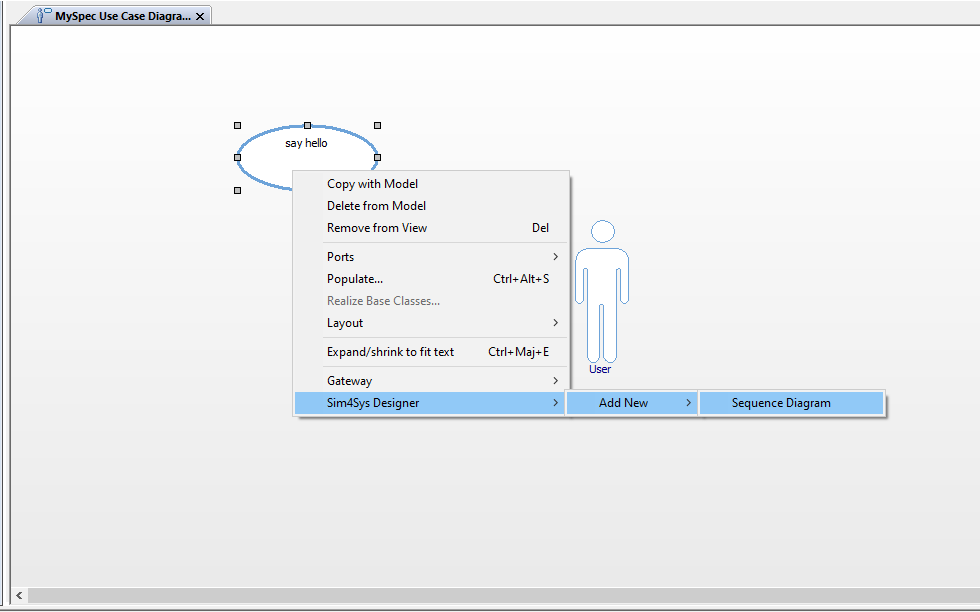
- Right Click on the use case in the diagram
- Click Sim4Sys Designer > Add New > Sequence Diagram
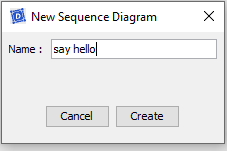
- Type the name of the Sequence Diagram:
- Click on Create
CREATE A SEQUENCE DIAGRAM FROM EXTERNAL TRANSITION
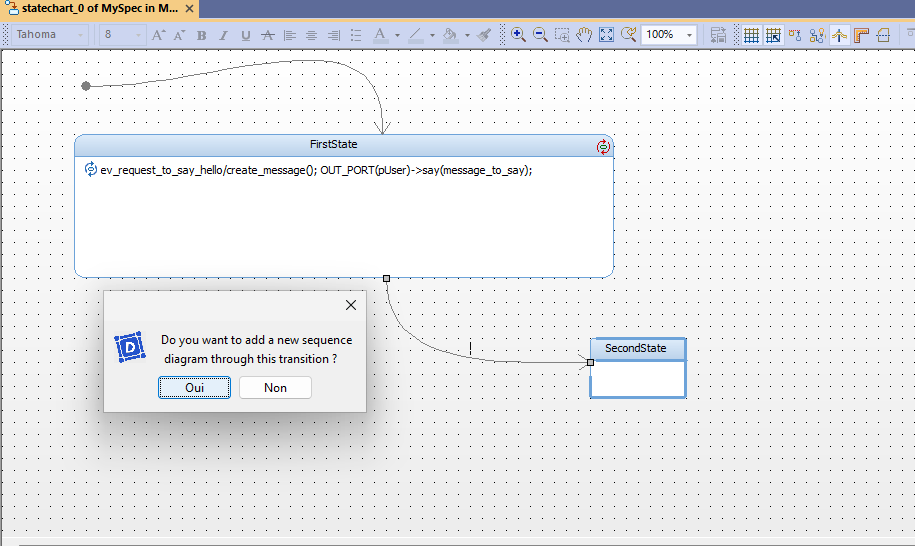
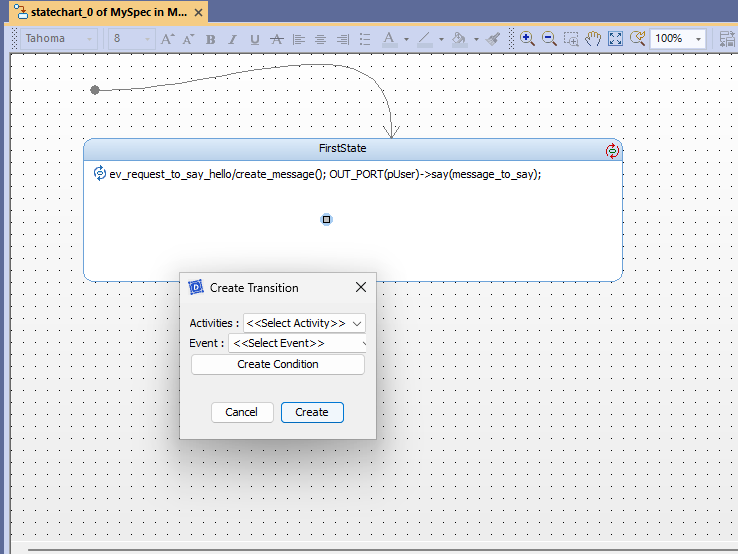
- Add a new sequence diagram from external transition
Add a transition between two states and then follow the displayed pop-ups to create a new sequence diagram
CREATE A SEQUENCE DIAGRAM FROM INTERNAL TRANSITION
- Add a new sequence diagram from internal transition
Add an internal transition within a state and then follow the displayed pop-ups to create a new sequence diagram
CREATE A SEQUENCE DIAGRAM ON ENTRY
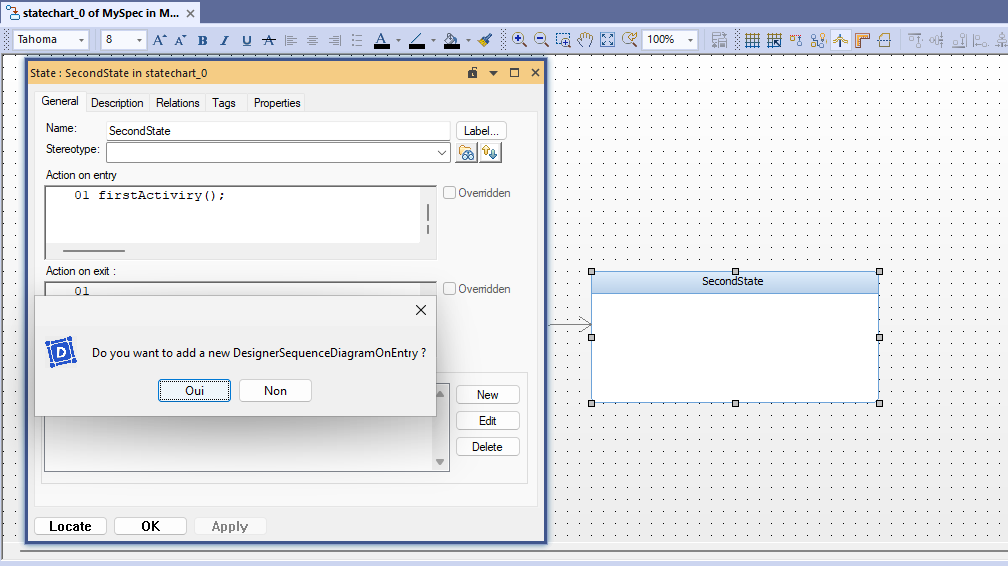
- Add a Designer sequence diagram on Entry :
Open the state's feature window and write, for example, a new activity "firstActivity" in the Action on entry field, then click Apply.
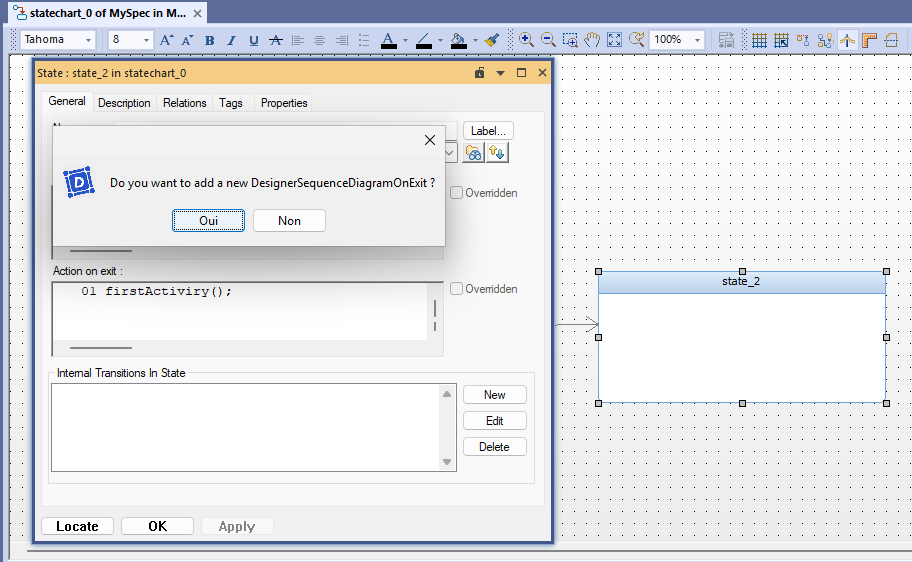
CREATE A SEQUENCE DIAGRAM ON EXIT
- Add a Designer sequence diagram on Exit :
Open the state's feature window and write, for example, a new activity "firstActivity" in the Action on exit field, then click Apply.