Mapping by XML
When you finished to create all the Functions, we can set the simulation with the Virtual Bench.
As we saw in Simulate Service, to make possible the communication between your model and our Virtual Bench, you have to export Requests, Feedbacks, Environment Inputs and Outputs flows information.
Before mapping, ensure you have generated the code and have an executable ready. After importing the XML, you can configure Controllers in Virtual Bench.
The communication data is exported as an XML file.
Connect to Virtual Bench
In Virtual Bench, you can establish the connection through the button with Sim4Sys Designer logo in the main tool bar.

When the indicator turns green, the connection has been successfully established.

Export the XML File
Now go to Designer, in Overview, Service Tab, select your project and click on Export File XML.
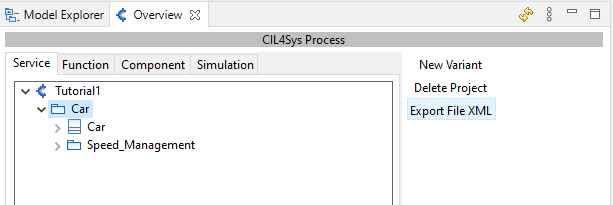
If a project is already open in Virtual Bench, you will be prompted to import the exported data into your project. You will also need to select the corresponding executable (see the related Models Configuration page.).
At any moment if you have modified the types and flows of your model, click on Export File XML to update the information in Virtual Bench.
While importing the XML file, you will have a list of unused flow in You can delete old flow after selection because they are not used in the project. You can remove it from Virtual Bench by selecting the flow.
Another method: transfer the information through a file
You can also import types and flows directly with the XML file.
To do so, in Designer go to the Overview, in Service tab, select your project and click on Export File XML:
An xml file is produced.
Import this file on Virtual Bench. To do so, go on the Virtual Bench: https://sim4sys.com/
To create a new executable, refer to this page.
To find the xml file go on Designer to the Project Explorer tab in your project, right click on export > Show in > System Explorer. In export, you will find the xml file.