How to use and/or create a Timer
PRESENTATION
Prerequisites
- Have done the tutorial Start to use Sim4Sys with a simple model (blackbox),
- Have a look at Countdown page.
Skills that you will acquire
In this tutorial, you will learn two ways to model a timer:
- via the VB's HMI Element "Countdown"
- entirely inside Sim4Sys-Designer
At the end, we want a common behavior:
- Start a timer for several seconds,
- Be able to pause & resume this timer and see its state modification,
- Be informed of the end of this timer,
- Stop this timer at any time and see its state modification.
Duration
1h30
USE COUNTDOWN HMI ELEMENT
In Sim4Sys-Designer
Create a new model TimerModel, with a Project TimerProject and a service TimerSystem.
In the State Machine:
- rename "FirstState" as "Initialized" (this is the starting state, where the countdown can be set up),
- add the state "Countdown_VB" (a specific state that may transmit the behavior of the countdown to VB).
You will need four requested flows:
- requests_start_countdown(value: Integer),
- requests_stop_countdown(),
- requests_pause_countdown(),
- requests_resume_countdown().
And four flows To ENV:
- starts_countdown(value: Integer),
- stops_countdown(),
- pauses_countdown(),
- resumes_countdown().
And one flow From ENV:
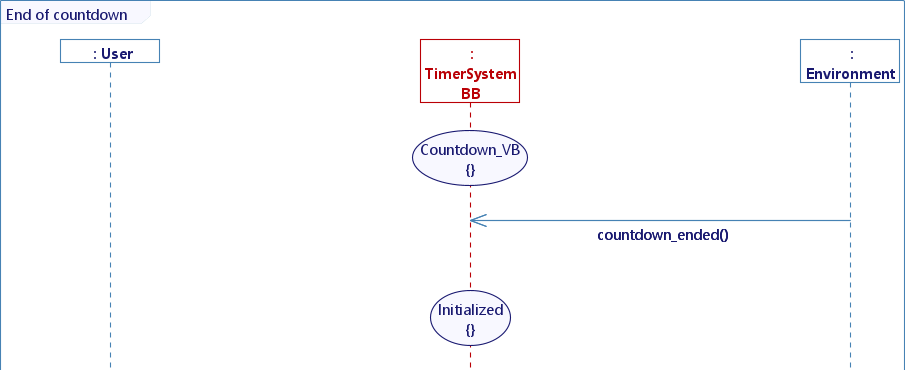
- countdown_ended().
In Standard Use, create four UseCases and five UserStories:
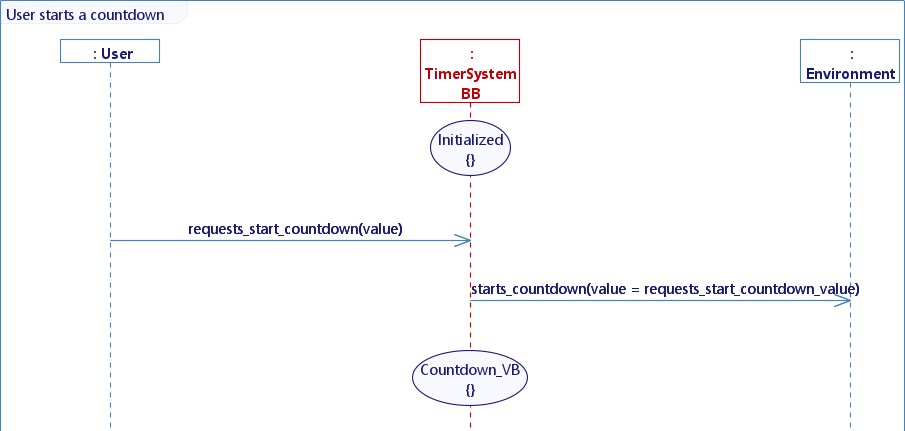
- Start a countdown
- User starts a countdown
- End of countdown
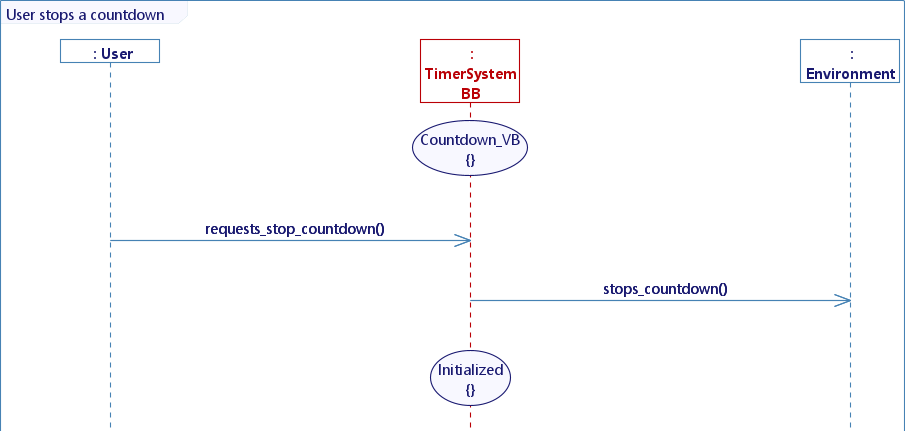
- Stop a countdown
- User stops a countdown
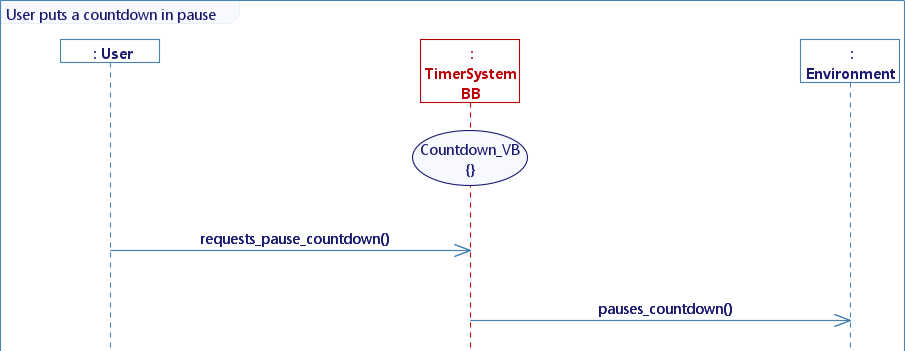
- Put countdown in pause
- User puts a countdown in pause
- Resume a countdown
- Users resumes a countdown
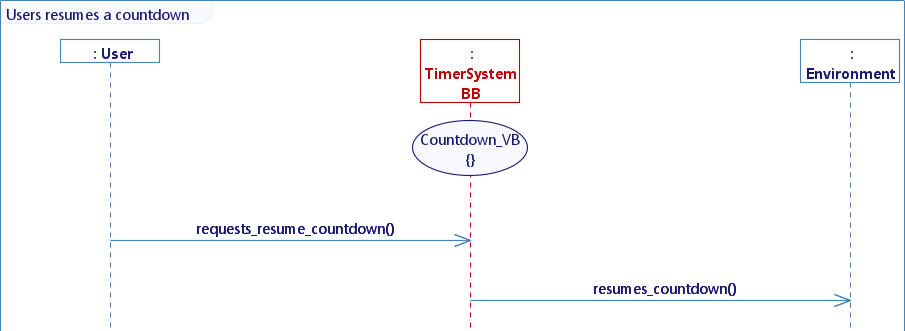
In VB
Drag & drop a Countdown, put “Visibility” to hidden.
Create five controllers (see controllers overview, controllers management, and other controller dedicated pages) :
-
Start countdown
- Configure the controller :
- Type of element : model
- Model : select the model used
- Event : Receive flow
- Flow : starts_countdown
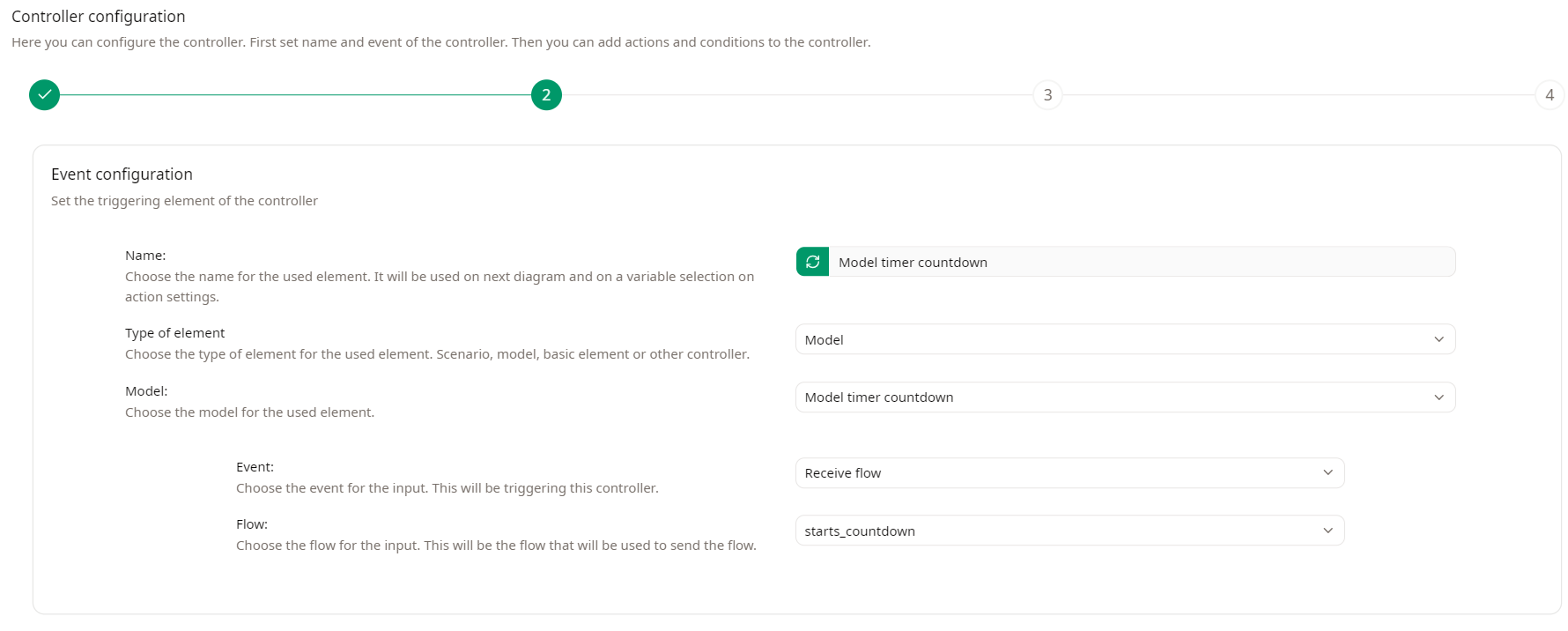
- Set the sequence diagram :
- Add a countdown lifeline
- Add 2 actions :
- Triggers : Start the countdown, select value as remaining time
- Update parameters : Visibility to visible
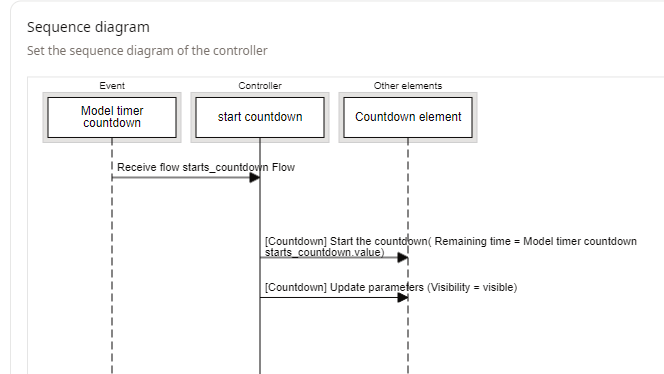
- Configure the controller :
-
Stop countdown
-
Configure the controller :
- Type of element : model
- Model : select the model used
- Event : Receive flow
- Flow : stop_countdown
-
Set the sequence diagram :
- Add a countdown lifeline
- Add 2 actions :
- Triggers : Stop the countdown
- Update parameters : check Font color to red
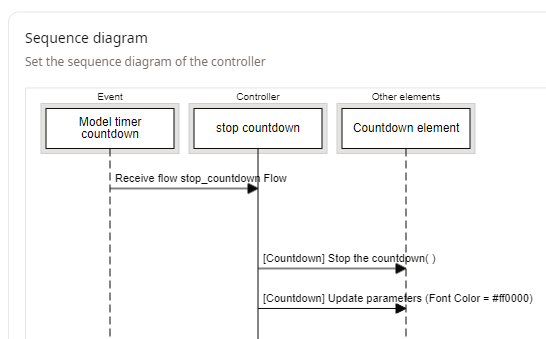
-
-
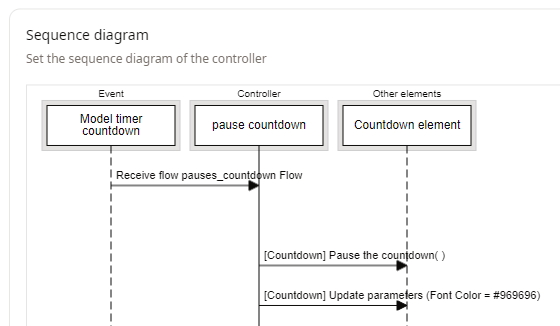
Pause countdown
-
Configure the controller :
- Type of element : model
- Model : select the model used
- Event : Receive flow
- Flow : pauses_countdown
-
Set the sequence diagram :
- Add a countdown lifeline
- Add 2 actions :
- Triggers : Pause the countdown
- Update parameters : check Font color to grey
-
-
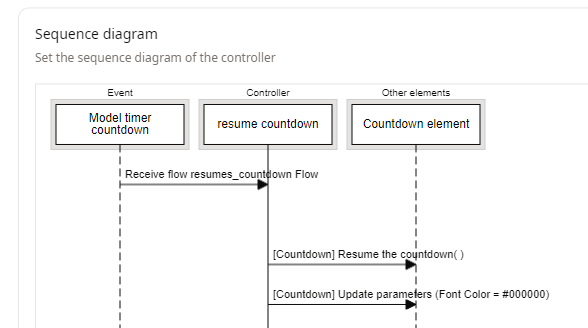
Resume countdown
-
Configure the controller :
- Type of element : model
- Model : select the model used
- Event : Receive flow
- Flow : resumes_countdown
-
Set the sequence diagram :
- Add a countdown lifeline
- Add 2 actions :
- Triggers : “Resume the countdown”
- Check Font color to black
-
-
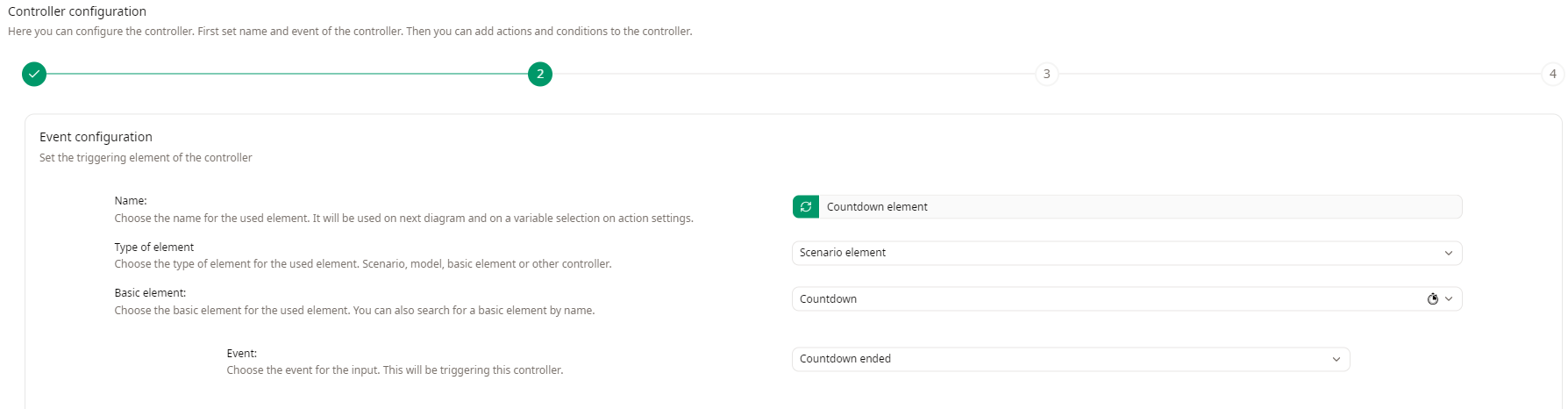
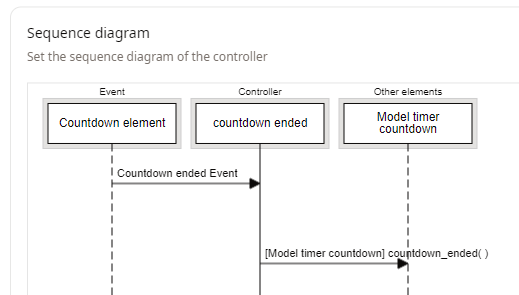
Countdown ended
- Configure the controller :
- Type of element : Scenario element
- Basic element : Countdown
- Event : Countdown ended
- Set the sequence diagram :
- Add a model lifeline (choose the model you use)
- Add 1 action towards the model lifeline :
- Flow : countdown_ended
- Flow : countdown_ended
- Configure the controller :
Select the countdown element and apply the controllers you created :
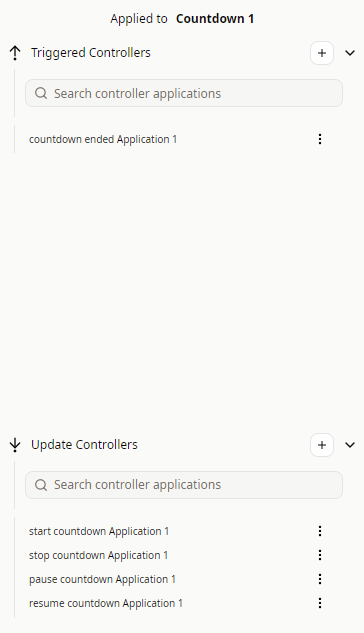
In the timeline, add five “Timeline Actions” as triggers :
- Start countdown
- Pause countdown
- Resume countdown
- Start countdown 2
- Stop countdown
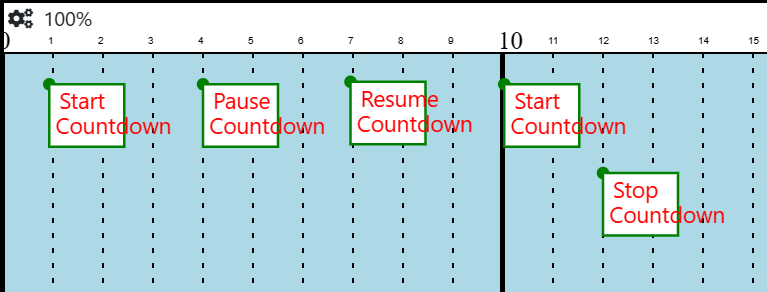
Then select each timeline action and in the behaviours tab create a triggered controller.
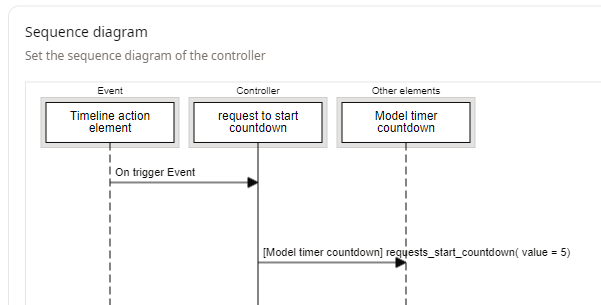
- Start countdown -> create the controller request to start countdown :
- Add model lifeline
- Add action towards the model lifeline with flow request_start_countdown, set value to 5
Apply the controller to your model instance :
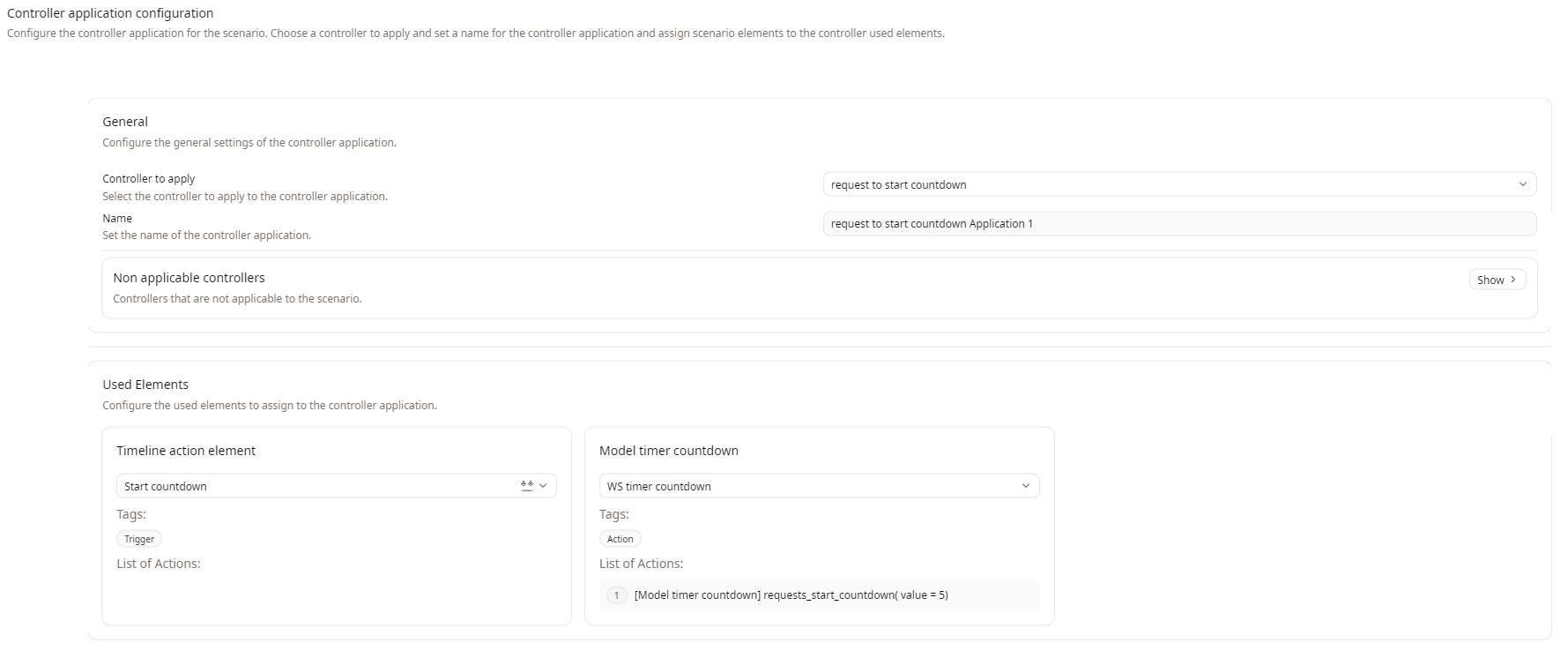
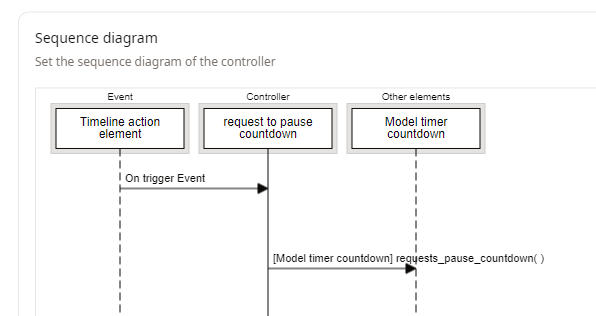
- Pause countdown -> create the controller request to pause countdown
- Add model lifeline
- Add action towards the model lifeline with flow requests_pause_countdown
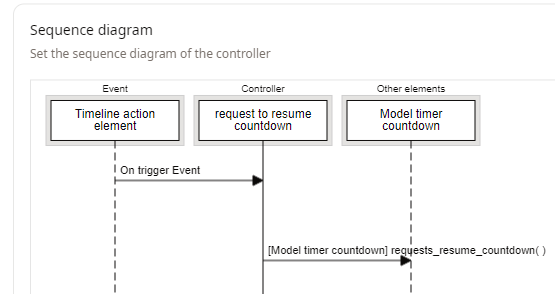
- Resume countdown -> create the controller request to resume countdown
- Add model lifeline
- Add action towards the model lifeline with flow requests_resume_countdown
-
Start countdown 2
- Select reuse controller and reuse the controller request to start countdown
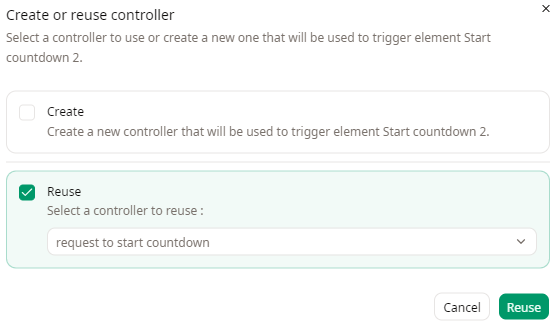
- Select reuse controller and reuse the controller request to start countdown
-
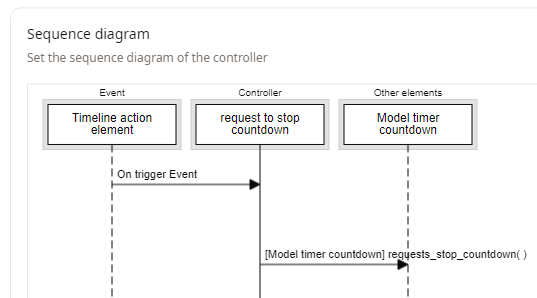
Stop countdown -> create the controller request to stop countdown
- Add model lifeline
- Add action towards the model lifeline with flow requests_stop_countdown
Run the simulation.
CREATE YOUR OWN TIMER INSIDE A MODEL
In Sim4Sys-Designer
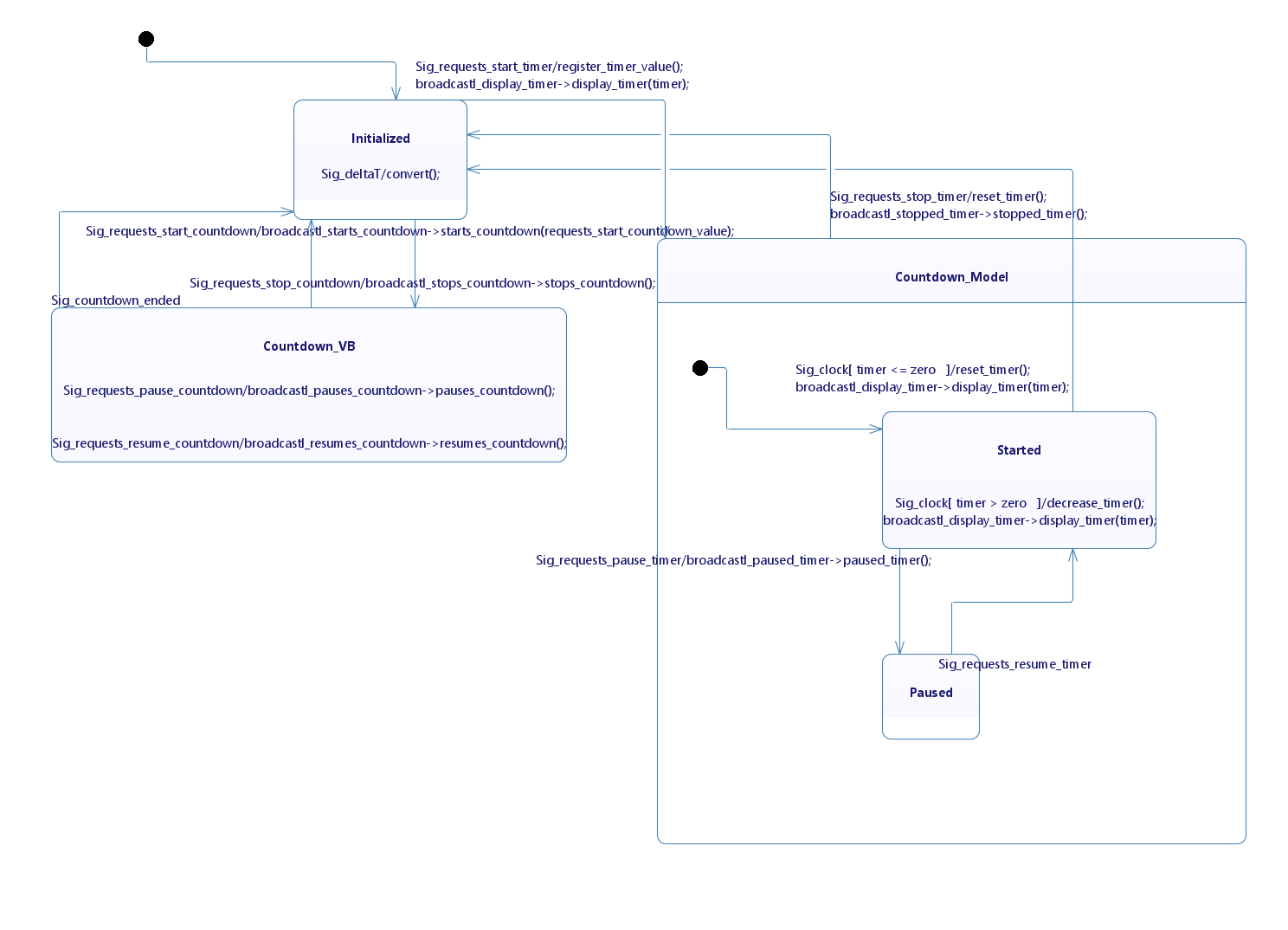
Update the State Machine:
- add another State “Countdown_Model” (this state represents the logic and data model of the countdown),
- add two sub-states “Started” (the countdown is actively running) & “Paused”(the countdown is temporarily halted).
Add one flow From Engineer, to get Virtual Bench’s timestep:
- deltaT (value: Integer)
The value getting from VB is in ms!
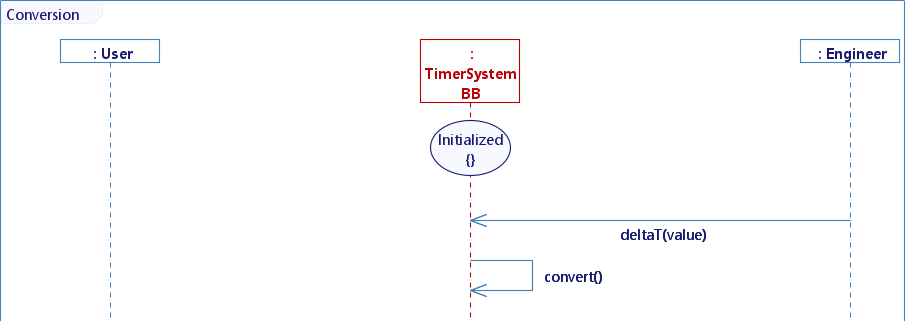
To convert this received value in seconds: add a Simulation Phase, a UseCase “Convert delta from ms to s” and a UserStory “Conversion” In the Sequence Diagram, add the Engineer Life Line, draw the Message “deltaT” from Engineer to TimerSystem (in State Initialized), then add an activity “convert()” an create a new Decimal variable named “deltaT_in_s”, copy/paste the followed code:
deltaT_in_s = deltaT_value/1000.0;
Don’t forget the “.0” after “/1000”, overwise deltaT_in_s will be an Integer
You should have this Sequence Diagram at the end:
You will need four requested flows:
- requests_start_timer(value: Decimal)
- requests_stop_timer()
- requests_pause_timer()
- requests_resume_timer()
Four feedbacks:
- display_timer (value: Decimal)
- paused_timer()
- stopped_timer()
And one flow From ENV:
- clock()
In Standard Use, create four UseCases & six UserStories:
- Start a timer
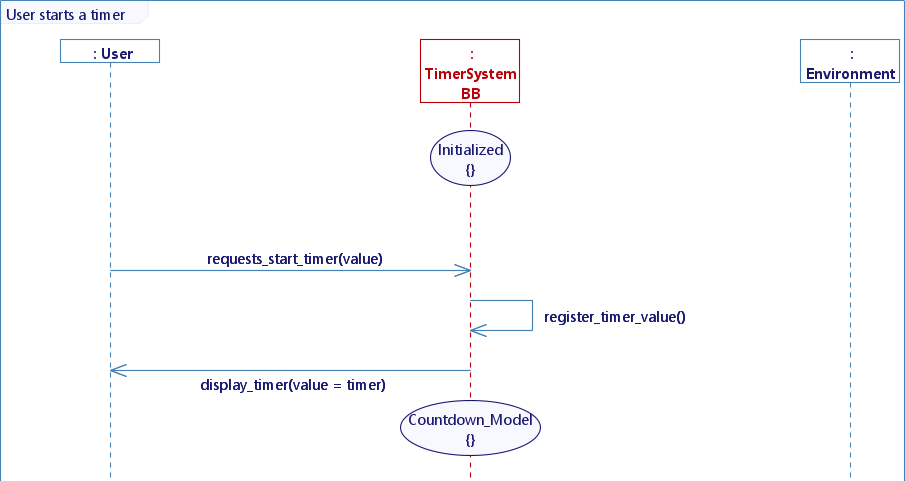
- User starts a timer
- New Decimal variable named “timer”
- Activity: register_timer_value()
- Body: timer = requests_start_timer_value;
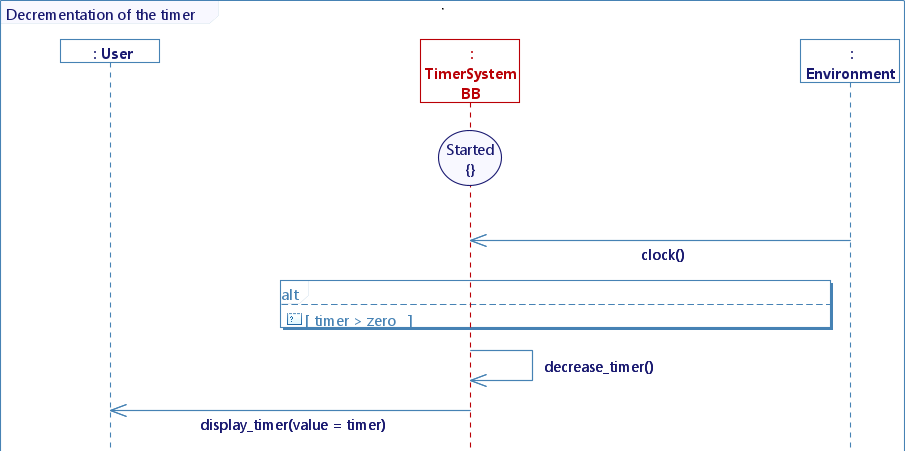
- Decrementation of the timer
- GC: timer > 0
- Activity: decrease_timer()
- Body: timer -= deltaT_in_s;
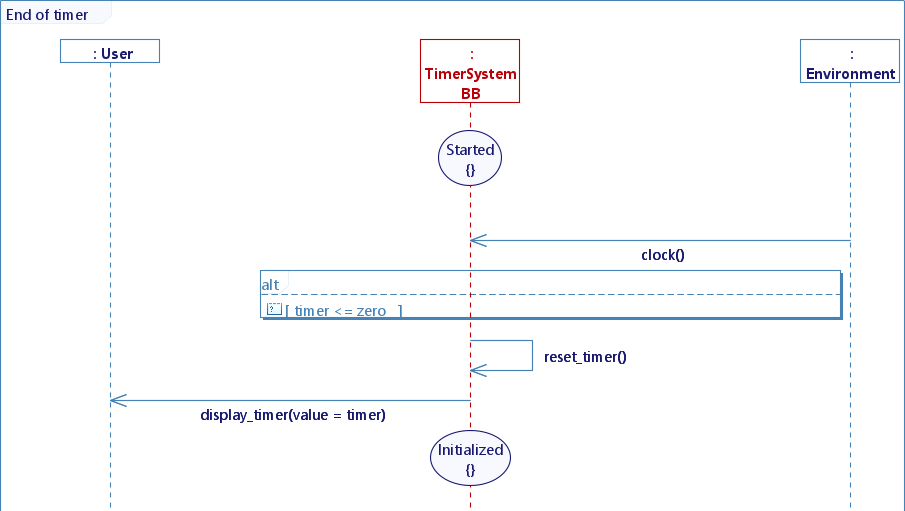
- End of timer
- GC: timer <= 0
- Activity: reset_timer()
- Body: timer = 0.0;
- User starts a timer
- Stop a timer
- User stops a timer
- Activity: reset_timer()
- Body: timer = 0.0;
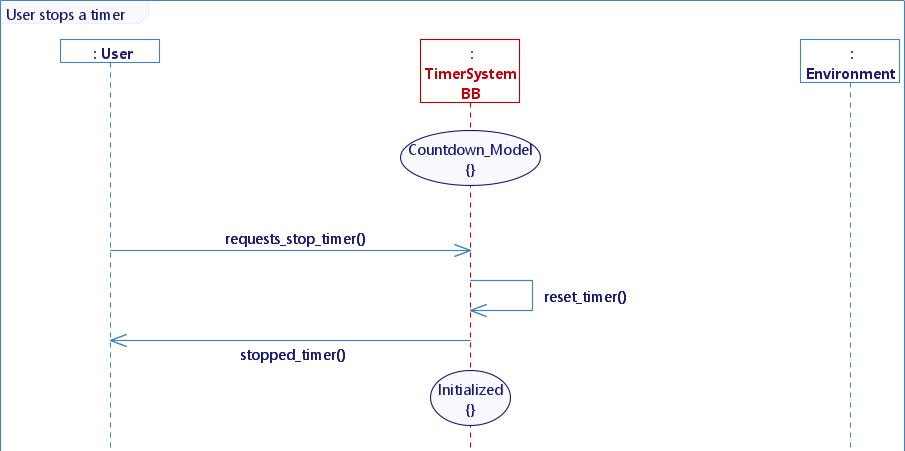
- Activity: reset_timer()
- User stops a timer
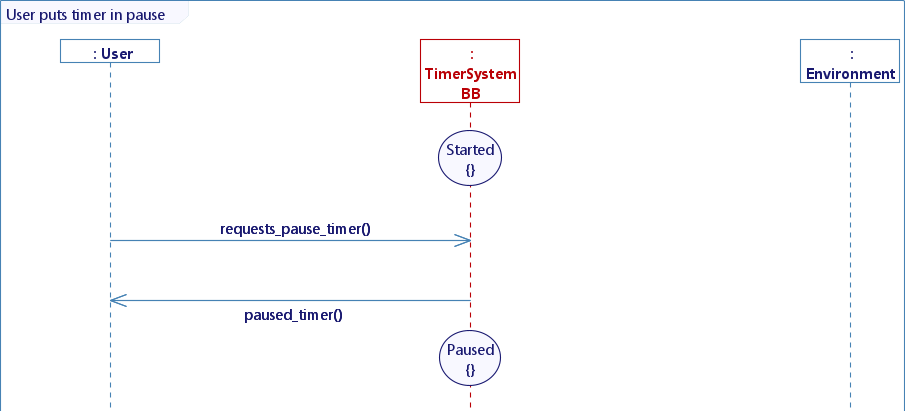
- Put timer in pause
- User puts a timer in pause
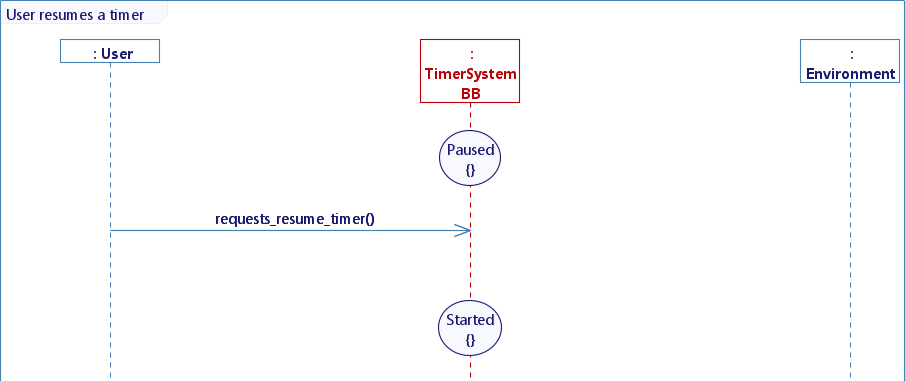
- Resume a timer
- Users resumes a timer
At the end, you should have this State Machine:
In VB
Drag & drop an Hour Display, put “Mode” to “Only seconds” & “Visibility” to hidden.
Create three controllers:
-
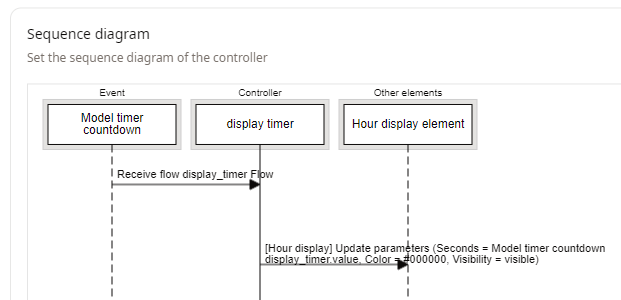
display timer
-
Configure the controller :
- Type of element : Model
- Model : choose the model you use
- Event : Receive flow with flow display_timer
-
Add Hour display element lifeline
-
Add action towards the Hour display lifeline
- Check “Seconds” (not “Second”) & select the variable “value”
- Set “Color” to #000000
- Check “Visibility” and select visible
-
-
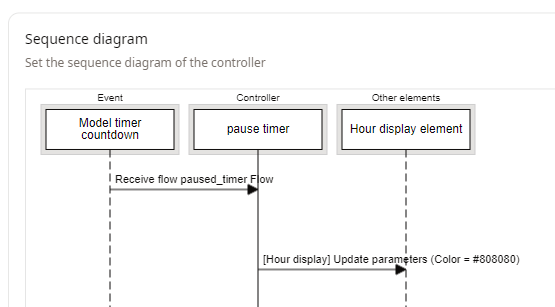
pause timer
-
Configure the controller :
- Type of element : Model
- Model : choose the model you use
- Event : Receive flow with flow paused_timer
-
Add Hour display element lifeline
-
Add action towards the Hour display lifeline
- Set “Color” to #949494
- Set “Color” to #949494
-
-
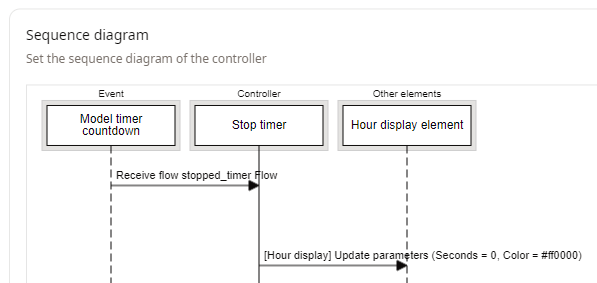
stop timer
-
Configure the controller :
- Type of element : Model
- Model : choose the model you use
- Event : Receive flow with flow stopped_timer
-
Add Hour display element lifeline
-
Add action towards the Hour display lifeline
- Check “Seconds” (not “Second”) & set it to 0
- Set “Color” to #ff0000
- Set “Color” to #ff0000
- Check “Seconds” (not “Second”) & set it to 0
-
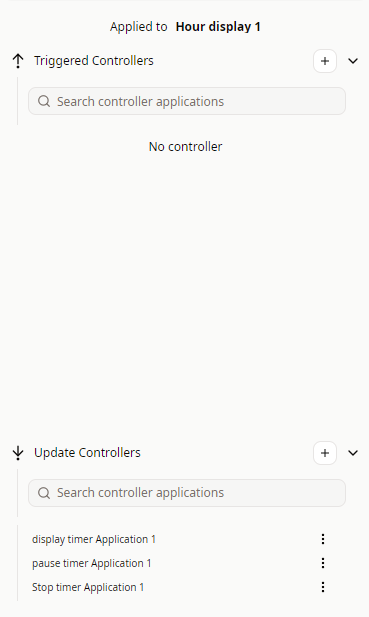
Select the Hour display element and apply the controller you created :
In the timeline, add 5 “Timeline Actions” as triggers :
- Start timer
- Pause timer
- Resume timer
- Start timer 2
- Stop timer

For each timeline actions, create the corresponding trigger controller :
-
Request to start timer :
- Action send flow requests_start_timer to the model
- Set the “value” to 5 (seconds)
-
Request to pause timer :
- Action send flow requests_pause_timer to the model
-
Request to resume timer :
- Action send flow requests_resume_timer to the model
-
For the timeline action Start timer 2, reuse the controller Request to start timer
-
Request to stop timer :
- Action send flow requests_stop_timer to the model
You can finally run the simulation.