Controller Management
CONTROLLER LIST
In the project Resources tab, the controller list shows all controllers in the project. You can add a New controller, Edit an existing Controller, or Delete one.
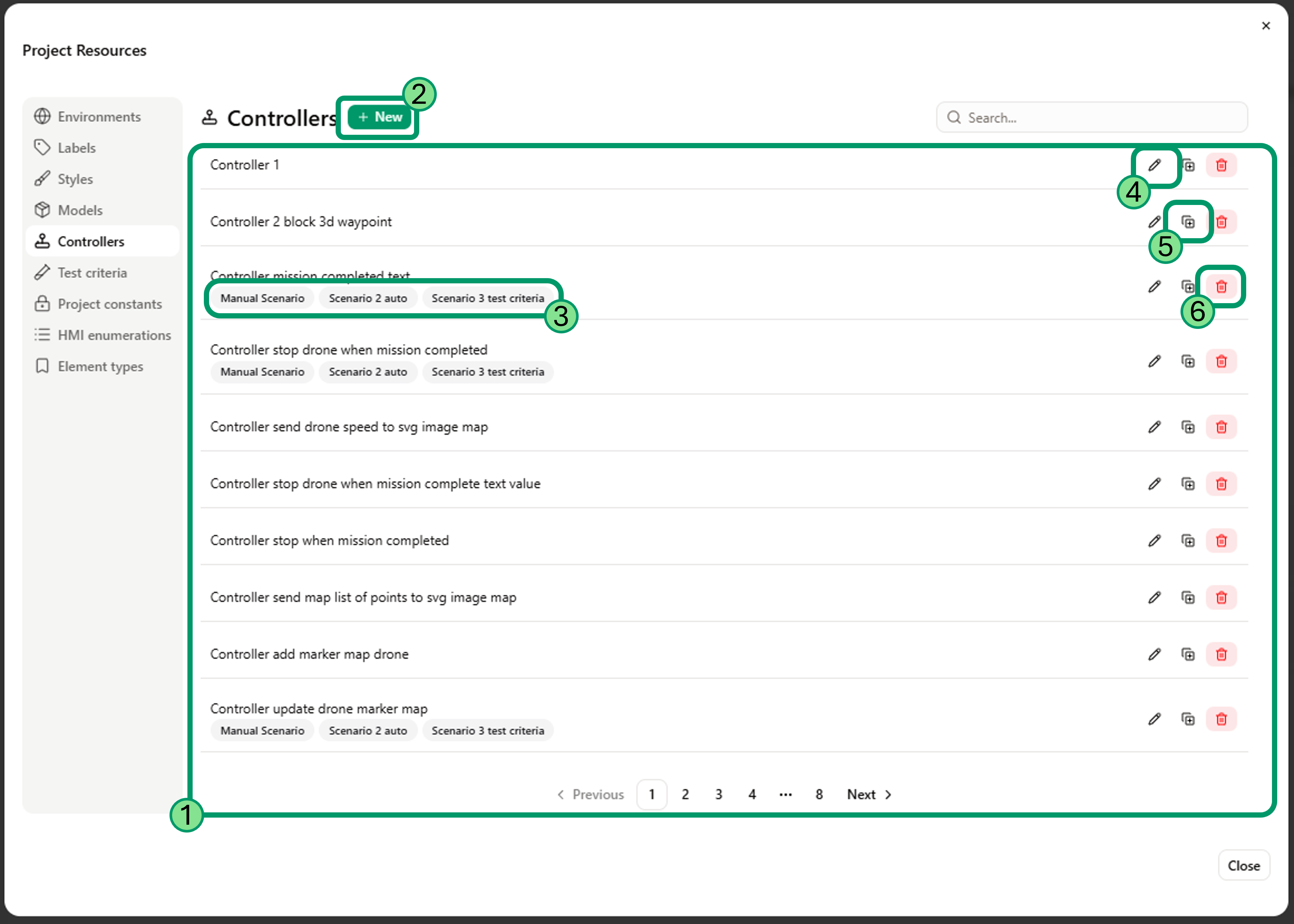
- Controller list - All controllers present in this project.
- New - Add a new controller to your project.
- Scenarios List - List the scenario where the controllers is applied.
- Edit a controller.
- Duplicate a controller.
- Delete a controller from the project.
CREATE CONTROLLERS
There are two ways to create controllers :
- In Project Resources
- Inside a scenario
From Project Resources
You can create new controllers in the Project Resources menu > Controllers tab.
From there click on the New button to create a controller.
From a scenario
Inside a scenario there are multiple ways to create a controller :
- When you right click inside an opened Environment
- When you right click on an element
- From the Behaviors right panel
Right click inside an Environment
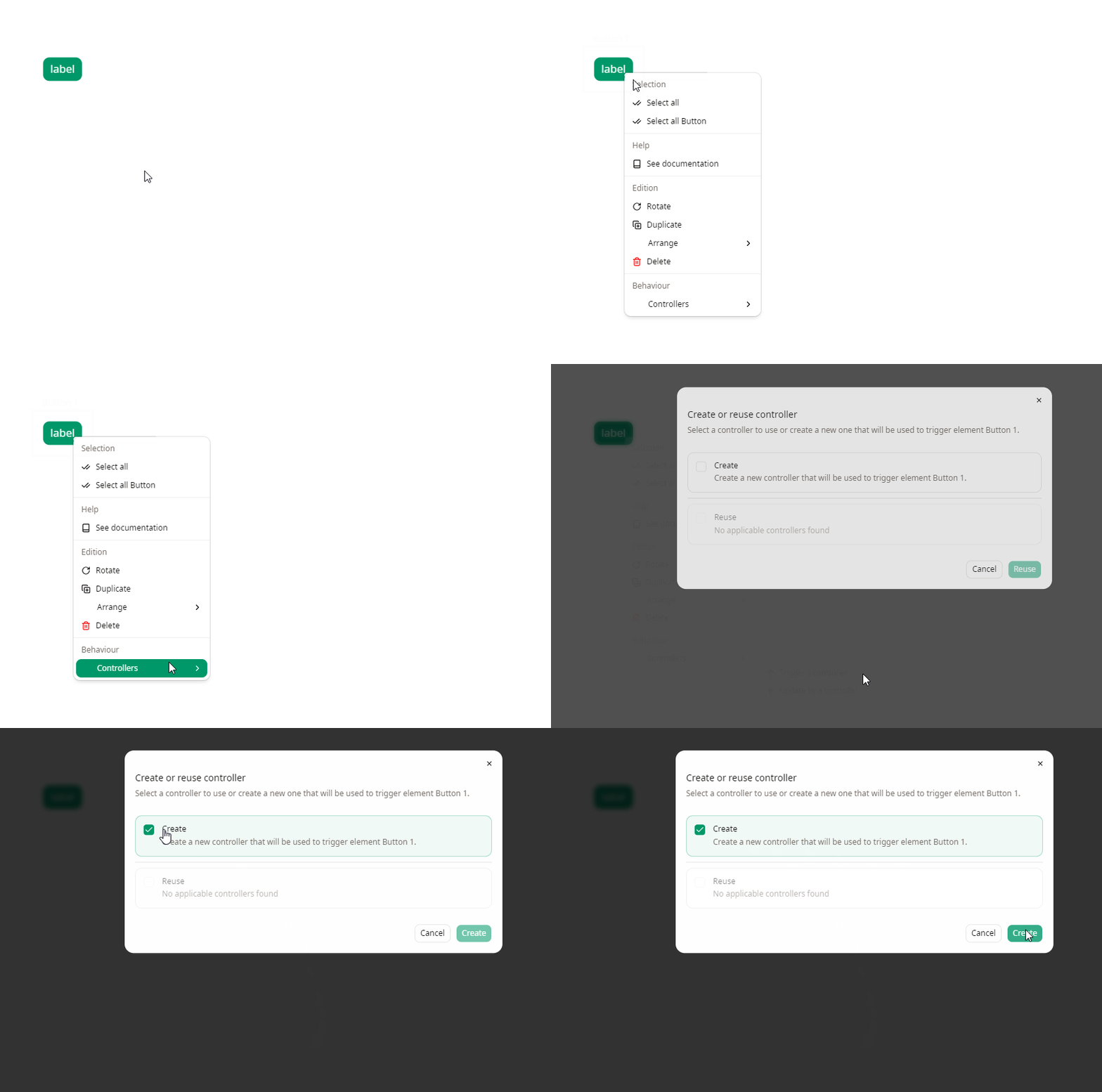
If you right click on an empty spot of an opened environment, a contextual menu will open and you will be able to create a Controller by selecting Controllers > Create.

Right click on an element
It is also possible to create a controller from an element. The advantage of this approach is that the element is automatically used inside the new controller.
To create a controller from an object, right click on an element, the contextual menu will appear, click on Controllers.
You will have 2 available options :
-
Trigger a controller : use the selected element as the event of the created controller, the Event configuration is automatically filled with the element informations.
-
Update by a controller : create a controller that updates the selected element. The controller sequence diagram will automatically add a lifeline of the selected element and an action towards it. You can then modify the action to suit your needs.
Then when you have selected a controller type, select create.
From Behaviours panel
In the Behaviours tab in the right side panel you will find Triggered Controllers and Update Controllers which lists controllers that are applied to this element.
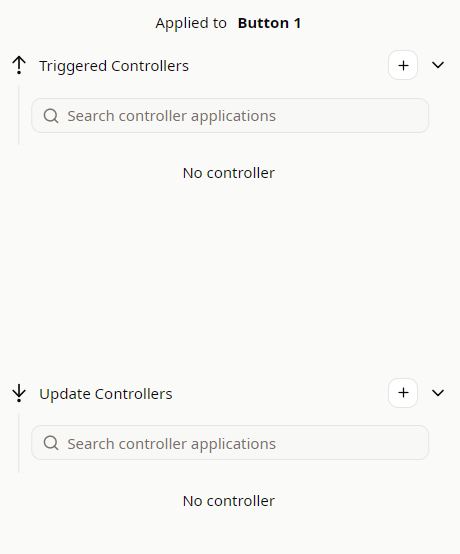
Click on the in each category to create the corresponding type of controller.
Controller configuration
The creation of a controller is a four-step process :
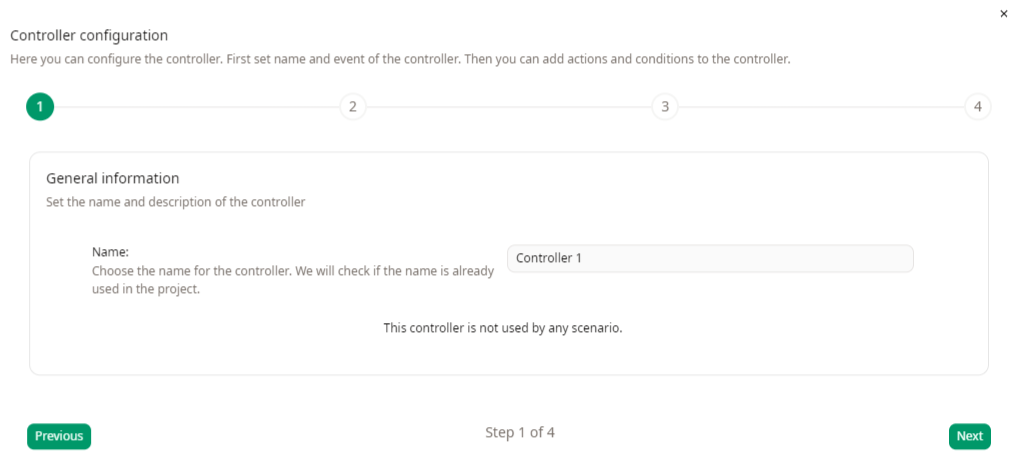
Step 1 - General information
You can set the name of the controller and see if it is used in scenarios
Step 2 - Event configuration
Define an event to trigger the controller.
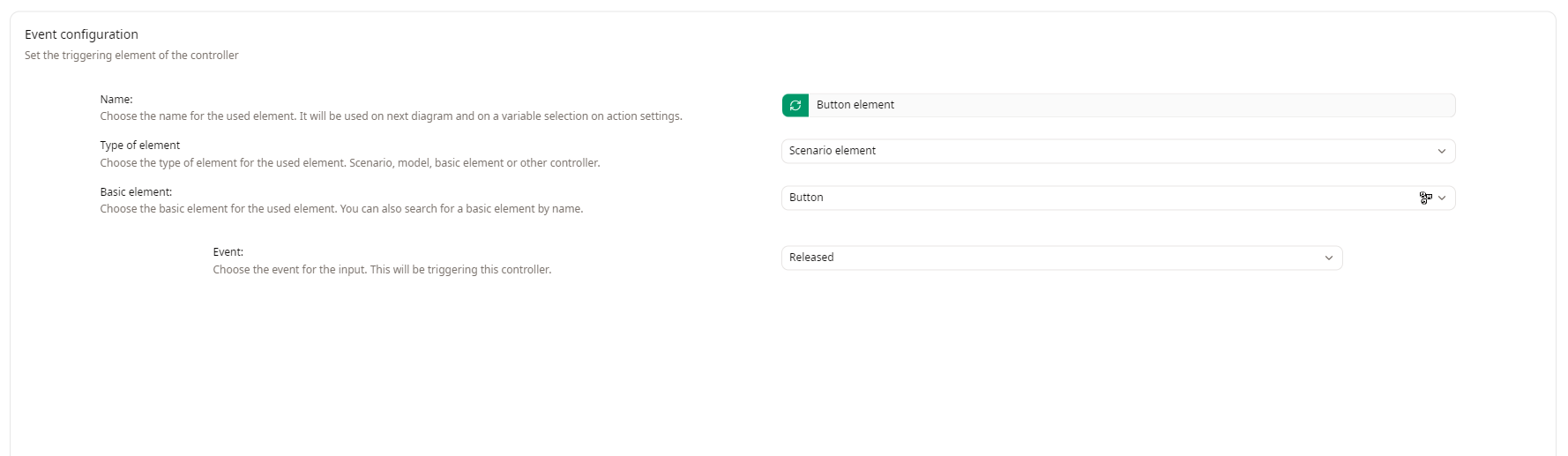
See the Event dedicated page for more informations.
Step 3 - Sequence diagram
Create your sequence of actions :
- Add lifeline as target of actions or origin of External variables.
- Set conditions to create conditions for this controller.
- Add Actions.
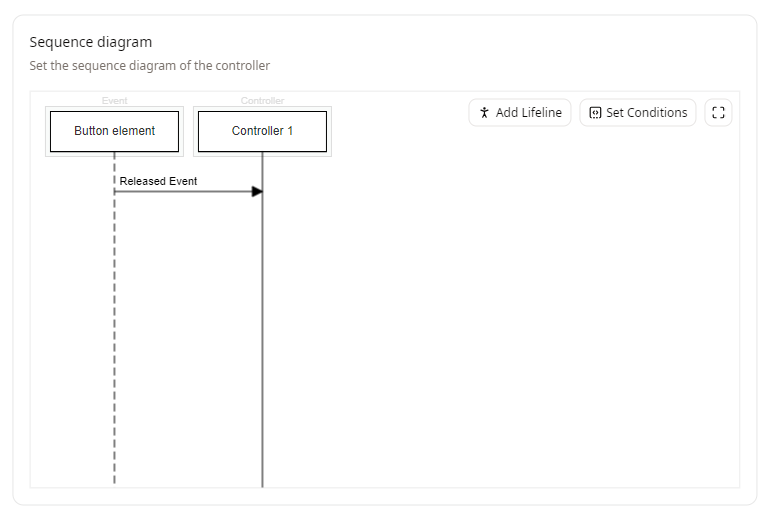
You can click on Maximize to open the sequence diagram in fullscreen.
Step 4 - Result
The last step is to review your controller and confirm it.
A summary of your controller is shown : event, a list of used elements in the controller, all the actions and specified conditions.
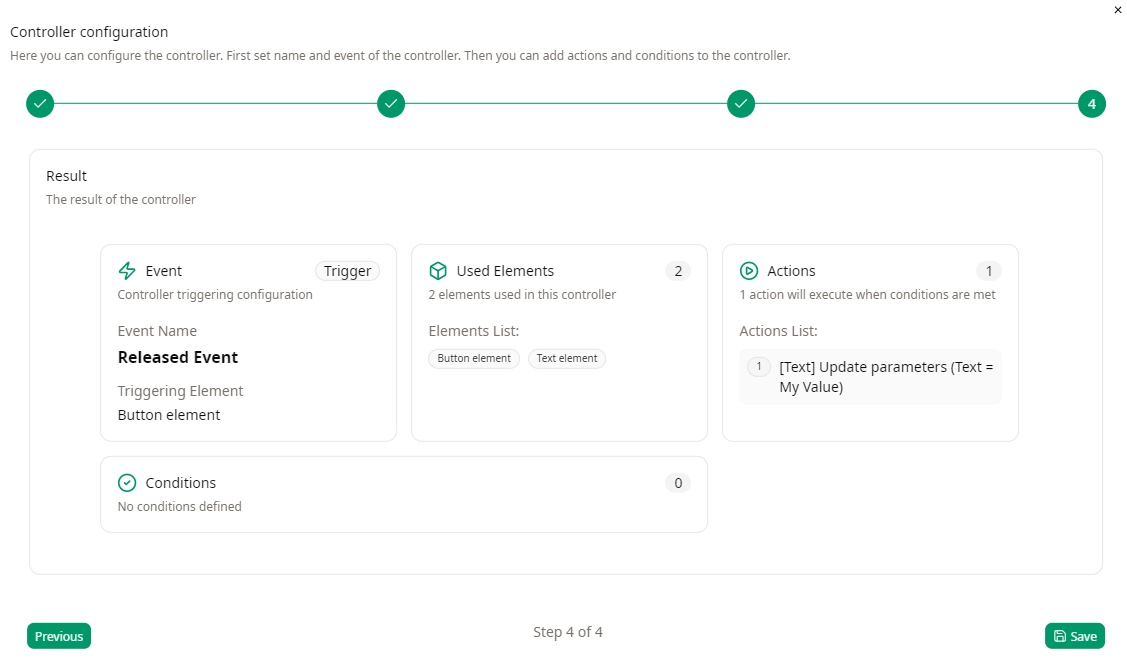
Once you're satisfied with your controller, click Save.
DUPLICATE CONTROLLERS
To duplicate controllers, go to the Project Resources menu > Controllers tab.
Click on .
The duplicated controller will not be used in a scenario and you need contributors or owner rights in the project to be able to do so.
APPLY CONTROLLERS
In order to use your controllers, you need to apply them to elements of your scenario.
You can either do it by right clicking on an element used in the scenario and choosing Reuse :
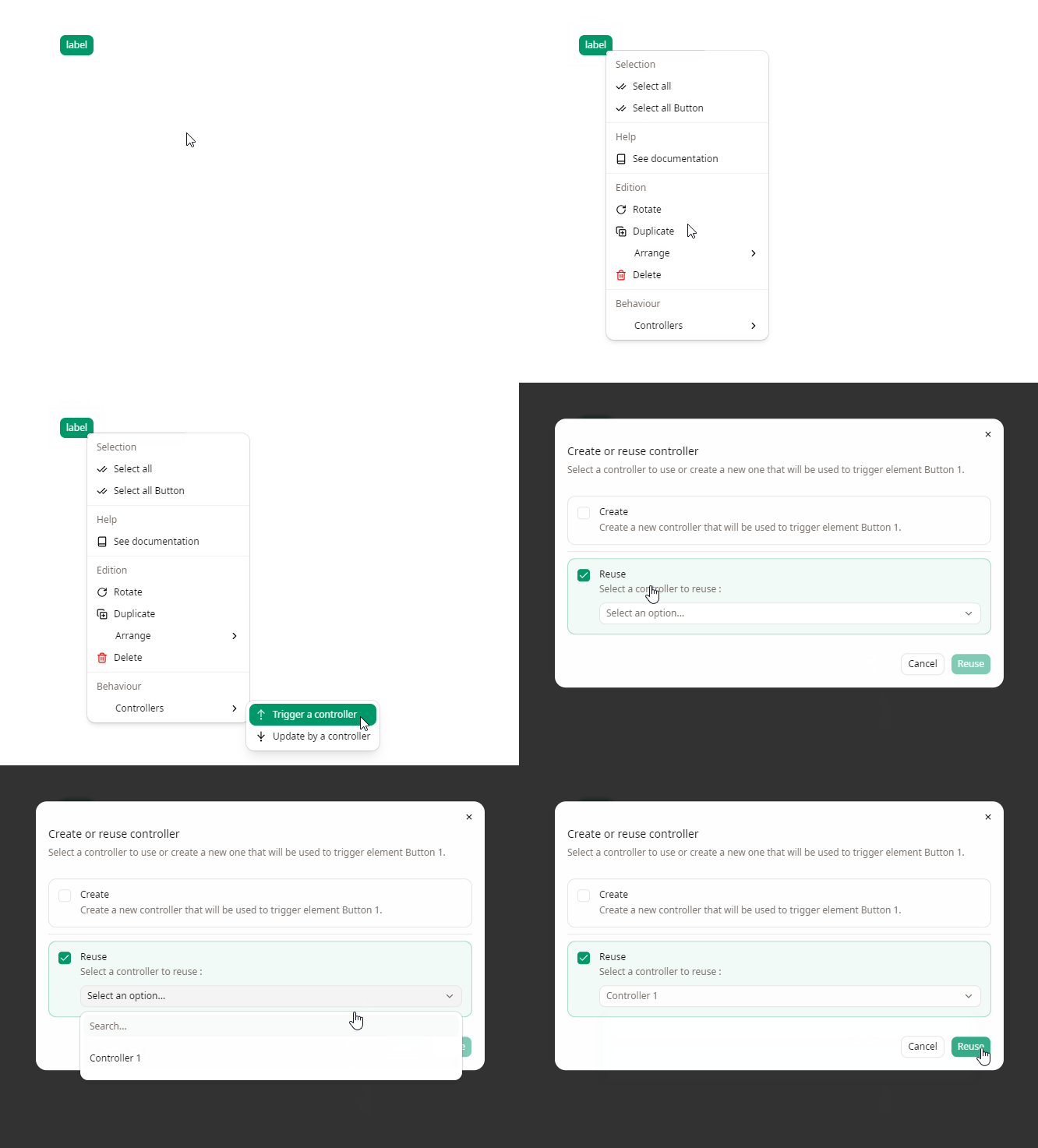
Or by going into the Behaviours tab, click on next to the controller type you want to use (Triggered controllers or Update Controllers) and choose Reuse.
The reuse select field will only show controllers related to the corresponding category (Trigger or Update).
The Controller application configuration window will then open to assign elements to your controller :
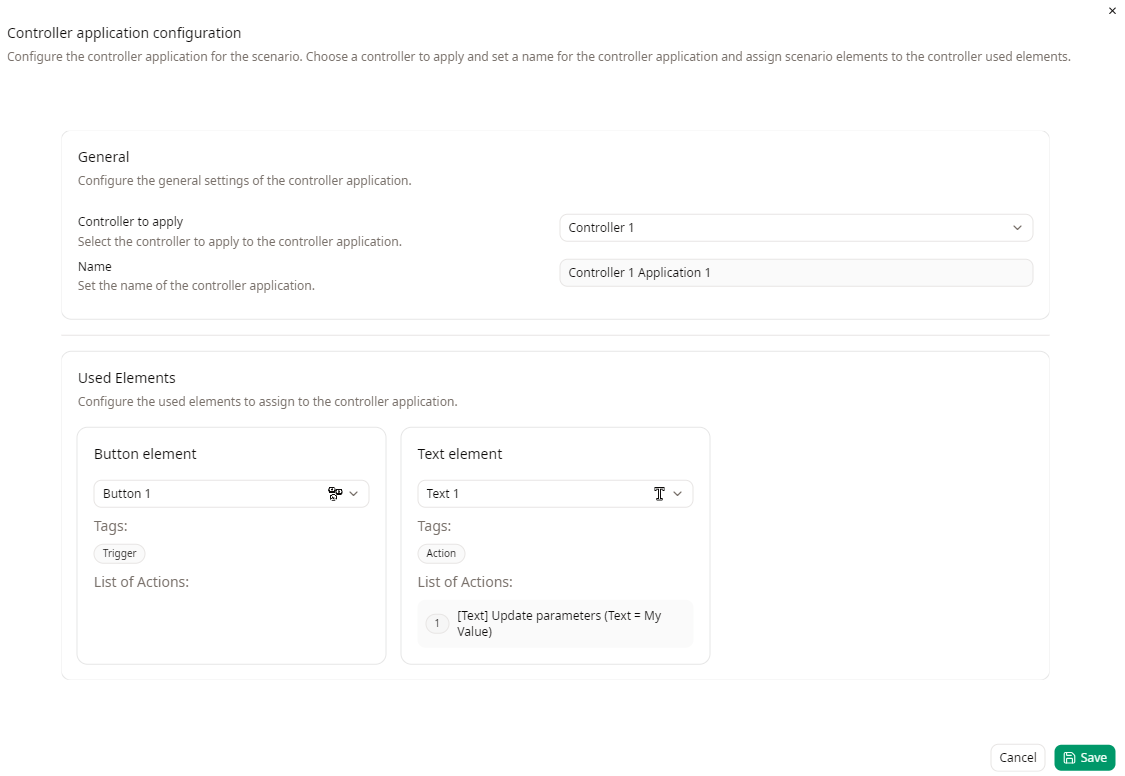
In the Used Elements section, assign for each used elements a scenario element. This will apply the controller to the selected elements.
MODIFY CONTROLLERS & THEIR APPLICATIONS
Controllers actions, conditions, lifelines and external variables can be edited or deleted.
Once a controller is created, the Event's basic element cannot be edited.
Edit Controllers
You can modify controllers from the Project Resources menu > Controllers tab.
Click on the button next to the controller you want to edit.
Invalid Elements
Controller application may become invalid due to:
- updating a controller
- updating a project model, following the modification of a Type or a Flow in a model,
- missing or incorrect parameter values in certain elements (see the example bellow).
The list of Invalid Elements can be found in the right side view, in the Behaviours tab.
For each one, an explanation of the problem is provided. You can open the controller application to edit and correct it by opening the menu and clicking Controller Application | Edit.
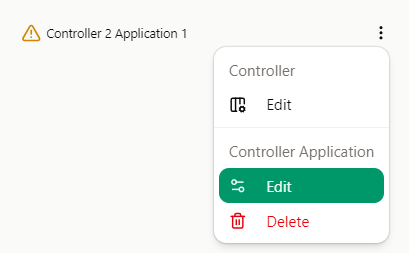
It is strongly recommended to resolve these problems before running the scenarios (to avoid any unexpected crashes of the executable).
Edit Controller Applications

You can modify controller applications from the Behaviours tab.
Click on the button next to the controller you want to edit, then Edit under the Controller Application section.
You can also edit the controller by clicking on Edit.
DELETE CONTROLLERS
Controllers
You can delete unused controllers in the Project Resources menu > Controllers tab.
Click on to delete the controller. A confirmation will be asked.
It is not possible to delete a controller that is used in the scenario, the associated controllers applications must be deleted first. You need contributors or owner rights in the project to be able to do so.
Controllers Application
To delete a controller application, open the contextual menu of a controller application and click Delete
A confirmation will be required.