SVG library
A pre-existing SVG library is at your disposal. You can access it from Resources > Scalable vector graphics
In this library you will find :
- Project SVGs, you can create new SVGs or copy existing SVGs from Virtual Bench SVGs and they will be available across all scenarios of the same project and are editable.
- Virtual Bench SVGs, they are made available to the user by the Virtual Bench team. You can use them directly, or copy them to you project SVGs.
SVGs that are not inside the Project SVGs are not editable. If you want to edit them you will have to copy them to your Project SVGs.
WHAT IS AN SVG ?
A Scalable Vector Graphic (SVG) is a unique type of image format.
Unlike other varieties, SVGs don’t rely on unique pixels to make up the images you see. Instead, they use ‘vector’ data.
By using SVGs, you get images that can scale up to any resolution.
Tools for SVG
Inkscape is a graphic drawing program.
You can use it to create SVG, it uses SVG as native file format.
Download it here
Find all the information you need about SVG here
Basic Transformations
The transform attribute defines a list of transform definitions that are applied to an element and the element's children.
Translation
The translate(<x> [<y>]) transform function moves the object by x and y. If y is not provided, it is assumed to be 0.
<svg viewBox="0 0 100 100" width="200px" height="200px">
  <rect x="0" y="0" width="50" height="50" fill="red" />
  <rect x="0" y="0" width="50" height="50" fill="pink" transform="translate(35,70)" />
</svg>
Rotation
The rotate(<a> [<x> <y>]) transform function specifies a rotation by a degrees about a given point. If optional parameters x and y are not supplied, the rotation is about the origin of the current user coordinate system. If optional parameters x and y are supplied, the rotation is about the point (x, y).
<svg viewBox="0 0 100 100" width="200px" height="200px">
  <rect x="0" y="0" width="30" height="30" fill="red" />
  <rect x="50" y="0" width="30" height="30" fill="pink" transform="rotate(20)" />
</svg>
Scaling
The scale(<x> [<y>]) transform function specifies a scale operation by x and y. If y is not provided, it is assumed to be equal to x.
<svg viewBox="0 0 100 100" width="200px" height="200px">
  <rect x="0" y="0" width="30" height="30" fill="red" />
  <rect x="25" y="0" width="30" height="30" fill="pink" transform="scale(1.5)" />
</svg>
CREATE SVG
By clicking on the New button of the Project SVGs section, you will have access to the window below:
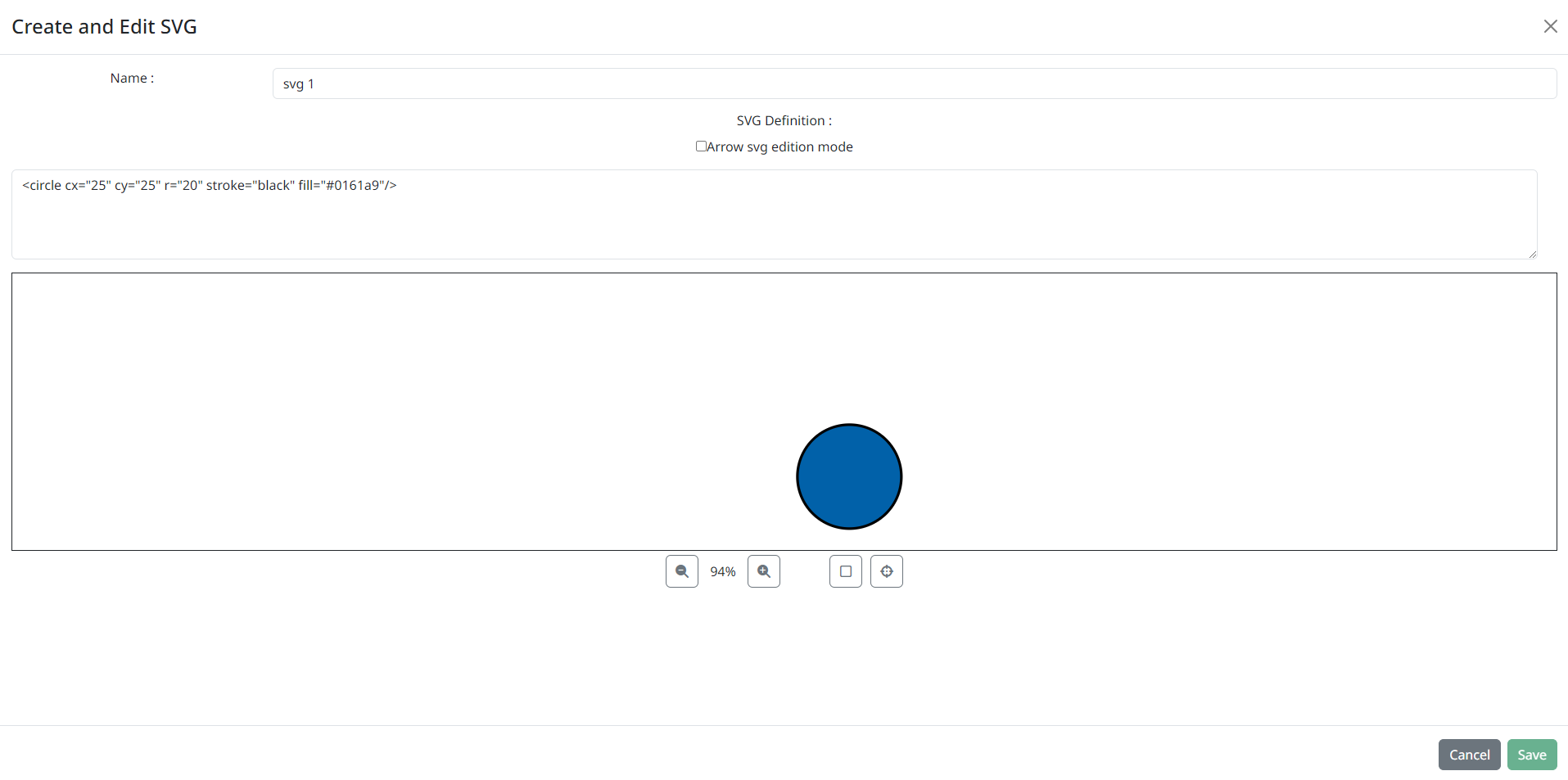
Here, you can:
- name your SVG
- create its SVG definition
- see a preview of the SVG
- save the SVG
- cancel the SVG creation
COPY SVG TO PROJECT SVGs
If you want to add an existing SVG from Virtual Bench library in order to edit it, hover the SVG and click on the Copy to project button :
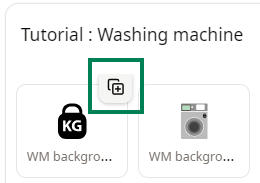
The "Edit scalable vector graphic" will open, if you want, change the SVG name or modify the svg definition and click on Edit button. The SVG will be added to you Project SVGs.
EDIT SVG
By clicking on a SVG from your Project SVGs, you can edit the SVG definition. Only the SVG of your project can be edited.
The "Edit scalable vector graphic" window opens.
Editing a SVG from the library will change the SVG definition for all the elements of the project that are using this SVG.
REUSE A SVG
All SVGs from the SVG library can be reused on elements that have a SVG definition parameter, like the Generic Drone on the Scene2D, timeline action on the Timeline, or the HMI element SVG Image.
In these elements' Properties, you have a field called "SVG Def".
- You can have access to the library, by clicking on the button:
Click on the SVG your want to reuse, then click on the Select button.
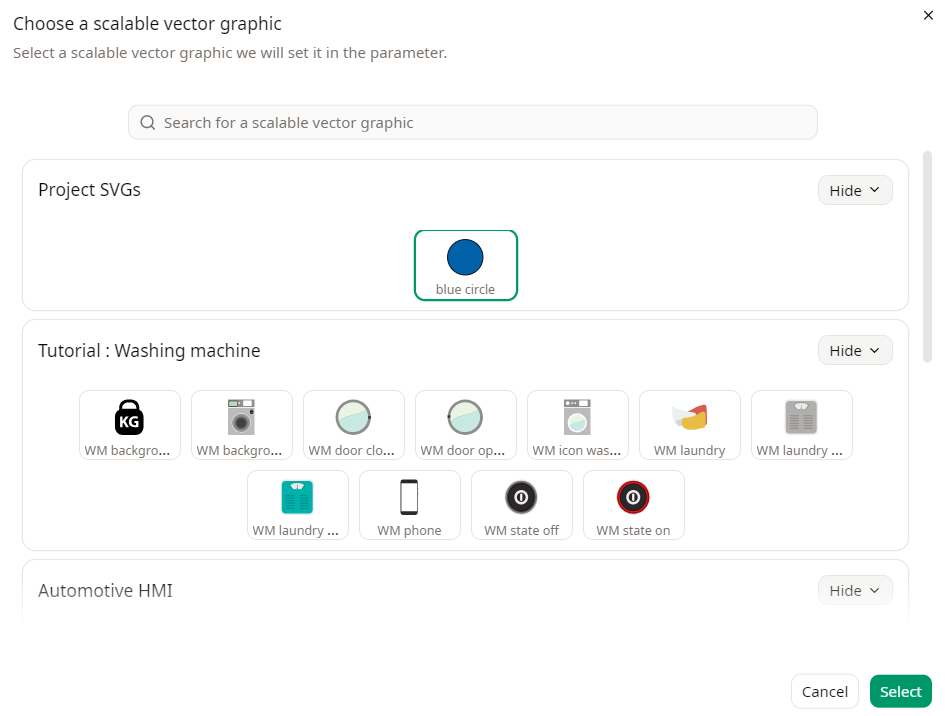
The SVG definition is copied inside the "SVG Def" now your element is represented by the selected SVG..
Edit a reused SVG
You can edit a reuse SVG, by clicking on .
Reused SVGs are linked to the SVGs inside the project library and you cannot edit them directly.
If you want to edit the SVG only for an element, uncheck the option "Linked to a shared project SVG resource".
The edit scalable vector graphic window will open, in order to edit the SVG, go into the code tab :
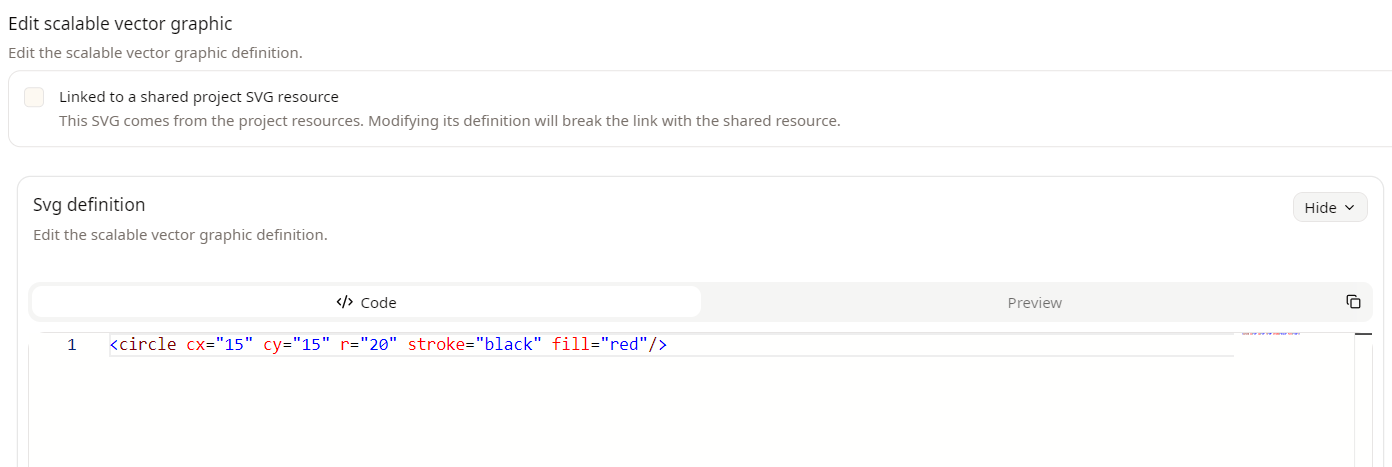
If the option Linked to a shared project SVG resource is unchecked, the changes made will not be applied to its definition in the library and the SVG definition of the element will not be affected if the SVG is modified from the SVG library

COMPARE SVGs CHANGES
You can compare the changes made to an svg by two ways :
- SVG preview
- Code comparison
SVG Preview
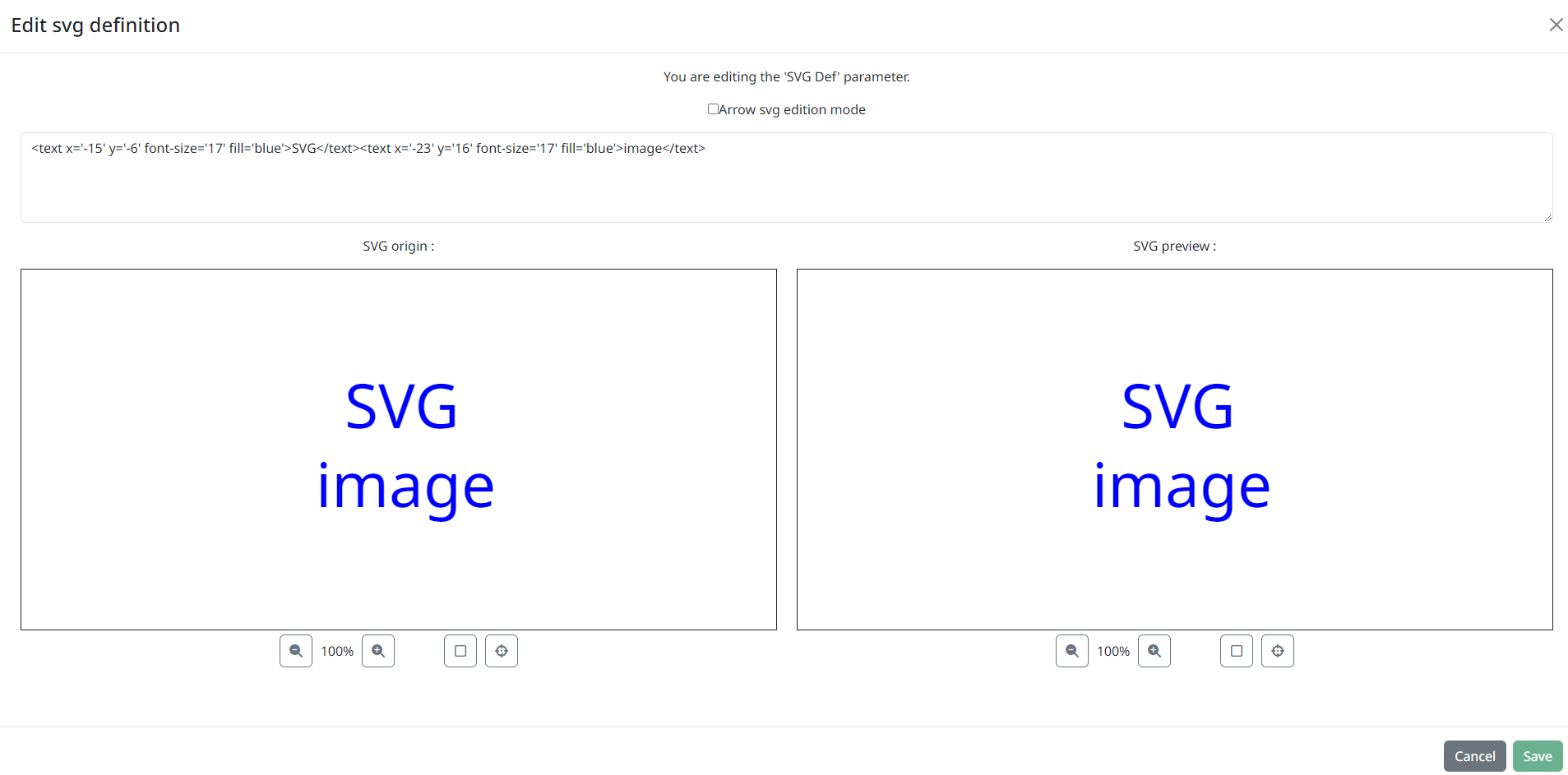
In the Edit scalable vector graphic window, go to the Preview tab. The SVG will be previewed and you can drag the vertical slider in order to compare before/after changes.
Code comparison
You can compare the changes made in the code of the SVG definition. From the Edit scalable vector graphic window (code or preview tab), scroll down and you will see the code comparison section where the changes made to the code will be highlighted.
