Conditions
What is a condition ?
Conditions can be used to trigger a controller only under specific circumstances. In order to create a condition, you will need to have external variables to compare values.
In the following example, both Button element and Car element share their parameters as external variables for the controller:

You can then use these external variables inside a condition.
How to create a condition
Simple condition
- Click on the Set Conditions button
- Then click on the Add condition button
One condition will be added, the condition is composed of two operands and one operator :
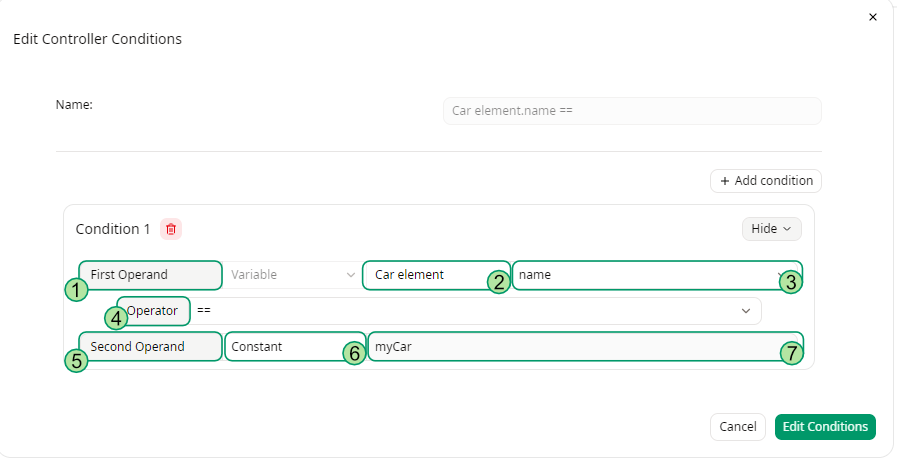
- — First Operand : left operand of the condition, it represents the external variable that you want to test.
- — Element type : type of element you are testing. Corresponds to a lifeline.
- — Element parameter : available parameters of the element.
- — Operator : comparison operator.
==: Equal To.!=: Not Equal To.>: Greater Than (only available for numeric parameters).<: Less Than (only available for numeric parameters).<=: Less Than or Equal To (only available for numeric parameters).>=Greater Than or Equal To (only available for numeric parameters).
- — Second Operand : right operand of the condition, it represents the value used to verify the condition.
- — Constant/Variable field : choose between a constant value or an external variable.
- — Constant value/Variable parameter : input the constant value or variable parameter (if variable is selected).
Multiple conditions
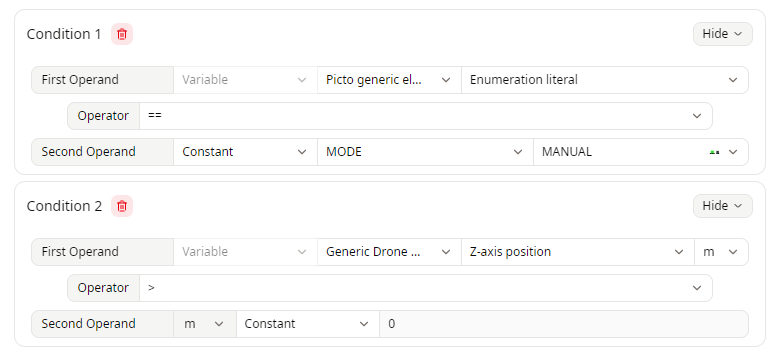
If you click on the Add condition button , you can add multiple conditions.
If multiple conditions are defined, all of them must be satisfied (logical AND). They are not evaluated as alternatives (OR)
Examples
Below are a few examples of conditions :
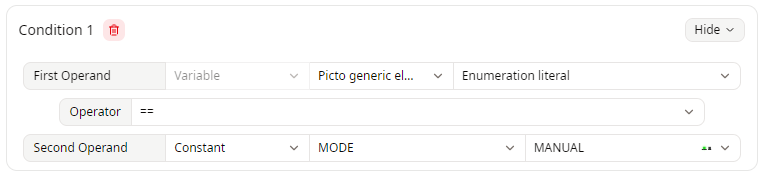
Simple Equal condition
Multiple conditions
Change the Unit of a Parameter in a Condition
When the Operand of a condition is an element variable with a defined unit, you can select another compatible unit for the comparison value.
The value is automatically converted to the selected unit.
Click the unit selector next to the selected variable and choose one of the available compatible units :
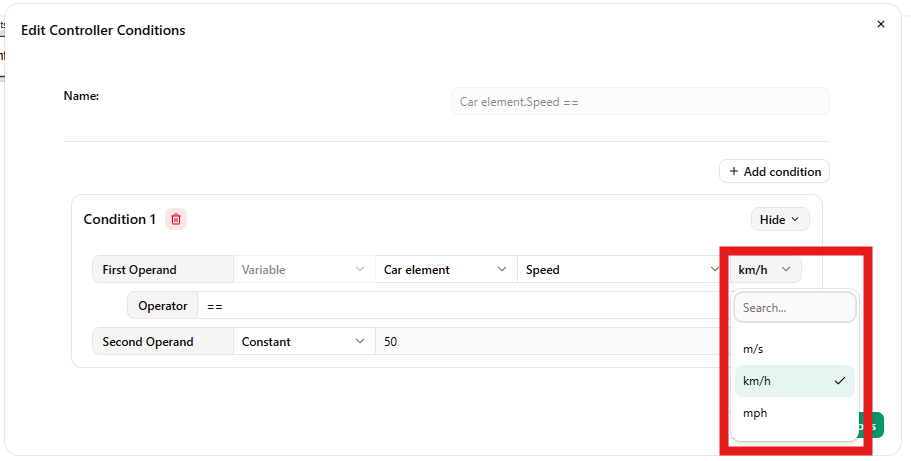
The unit selector is only available for element variables with a defined unit.
Changing the selected unit only changes how the comparison value is displayed and entered. The value is automatically converted, ensuring that the condition keeps the same meaning regardless of the selected unit.