Edit Path
Some elements have path parameters. Path editing allows you to create a line made of curved and straight segments. Examples of such elements include Road Line, Road Pavement, Trajectory, and Railway.
Edit path
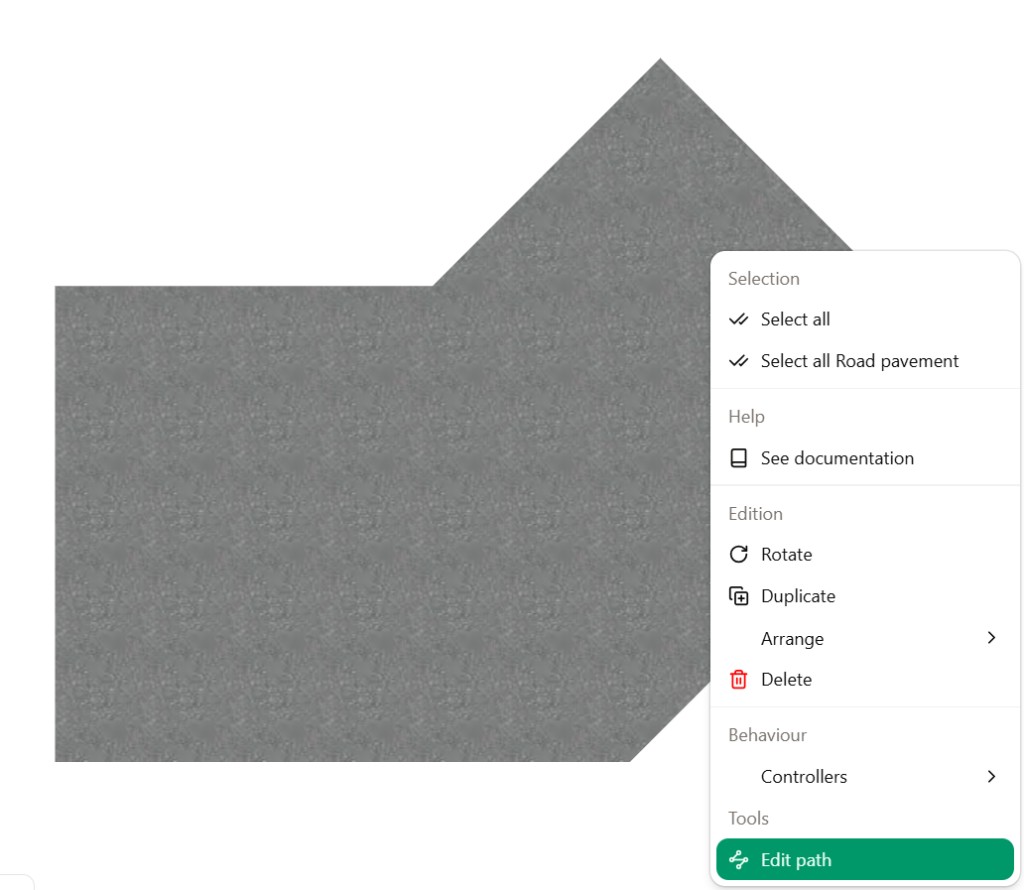
For path-based elements such as Road pavement or Trajectory:
- Right-click the element in the scene.
- In the context menu, open the Tools section and choose Edit path.
In path editing mode, the path is shown as a dashed line with nodes (control points) along it:
- Move nodes by dragging them.
- Remove nodes you no longer need.
- Add line or curve segments to extend or reshape the path.
The vertical toolbar (top to bottom) contains these controls:
| Icon | Name | What it does |
|---|---|---|
| Line | Use straight line segments on the path. | |
| Curve | Use curved segments between nodes. | |
| Node | Select or place vertices (nodes) on the path. | |
| Remove node | Remove the selected node or simplify the path at the selection. | |
| Cancel | Cancel the current operation or exit without applying changes, depending on context. | |
| Save | Save the path and confirm your edits. |