Air conditioning and interior lighting in a car
Now is the time to take the plunge and to practice with the concept of parallel states.
DURATION
You should be able to complete this exercise in 2 hours.
GOAL
The objective of this project is to model some features of the car (air conditioning and interior lighting). Keep in mind that the model is valid for all cars with different options.
CONTEXT
This service is dedicated to control interior lighting and air conditioning of a vehicle. The manipulation of the system is done directly by the driver :
- The Driver switches ON/OFF/Automatic the interior lighting.
- The Driver selects the speed of air conditioning / the temperature.
ASSUMPTIONS
We assume that:
- The interior lighting and air conditioning are two separate features.
- The User can modify the state of the interior lighting at any time (switches ON/OFF/Automatic).
- The User can modify the state of the air conditioning (ON/OFF), increase or decrease the temperature.
- The internal lighting switch implemented in this model is similar to this one (see the screenshot below).
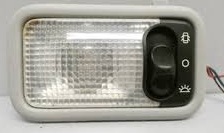
- In its initial state, the light is off.
- From the initial state, the user can switch directly to ON/Automatic Mode.
- Once the ON mode is activated, it must be switched back to the initial state (OFF) before switching to automatic mode. For Air conditioning feature, the ventilation is available only when the engine is running.
START MODELING ON Designer
- Create a new service.
- Drag & Drop the life phase “Standard Use” to the Life Phase diagram.
- Create a User actor named "User".
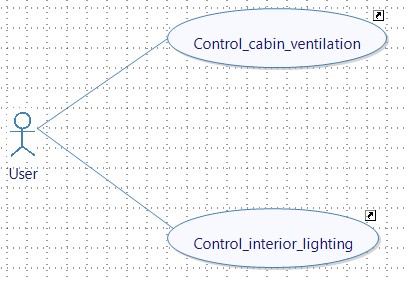
- Create the following use cases of the life phase “Standard Use” and associations between them and User (AirConditioner, InternalLighting).
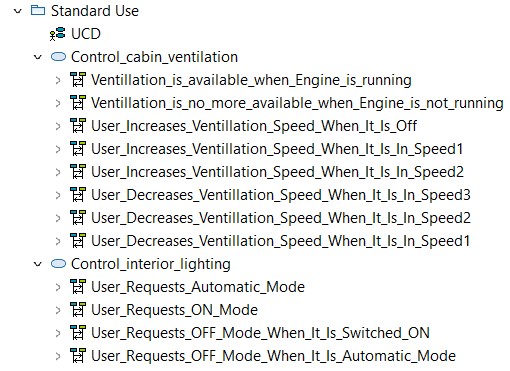
- Create the following user stories for the use cases you have already created.
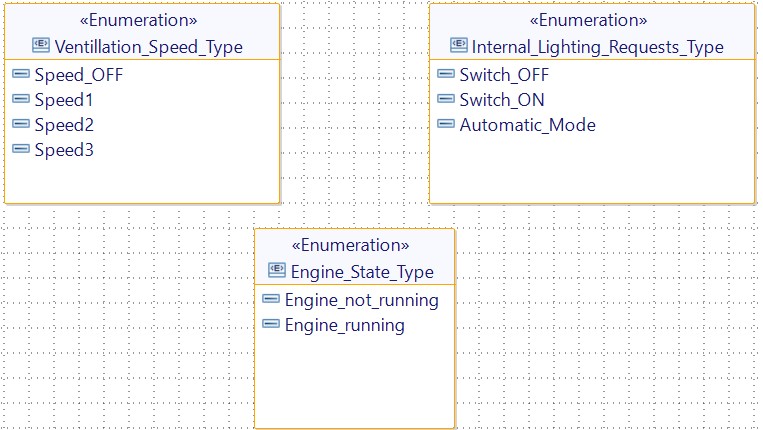
- Create the following flows and interfaces.
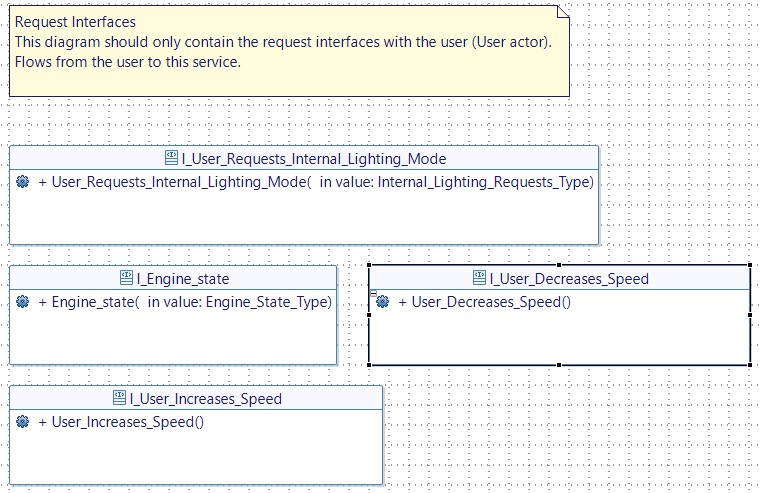
To accomplish this step successfully, you will need to create these enumerations.
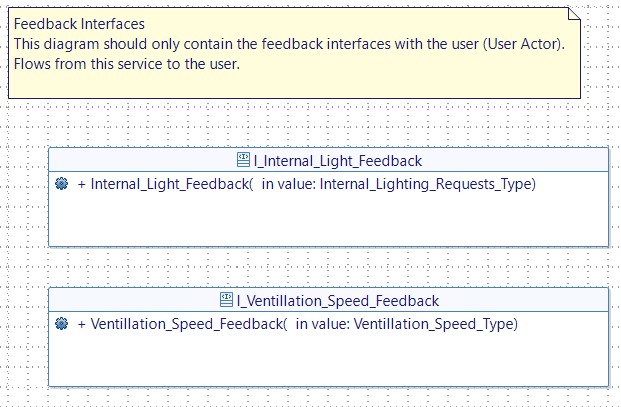
- Create Feedback flows and interfaces.
State Machine Creation
- Drag & Drop a new state in MySpecStateMachine , name it "System_Available".
- Define the state already created as initial State.
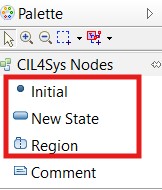
- In order to create parallel states : you need to divide the area of the already created state using the button "Region" in the Palette part.
- After completing the previous steps, you should have a state machine similar to this one.
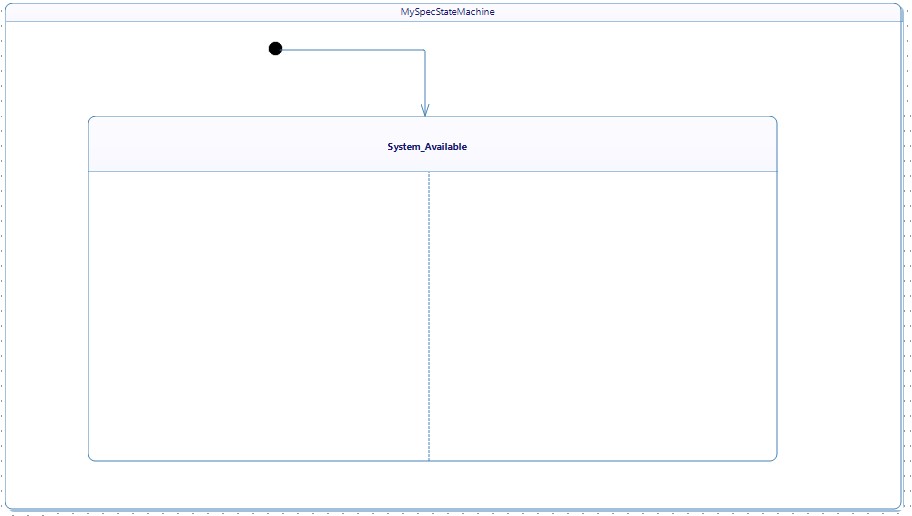
- Drag & drop an initial state named "InternalLightingState" in the first region and another one named "AirConditioningState" in the second region.
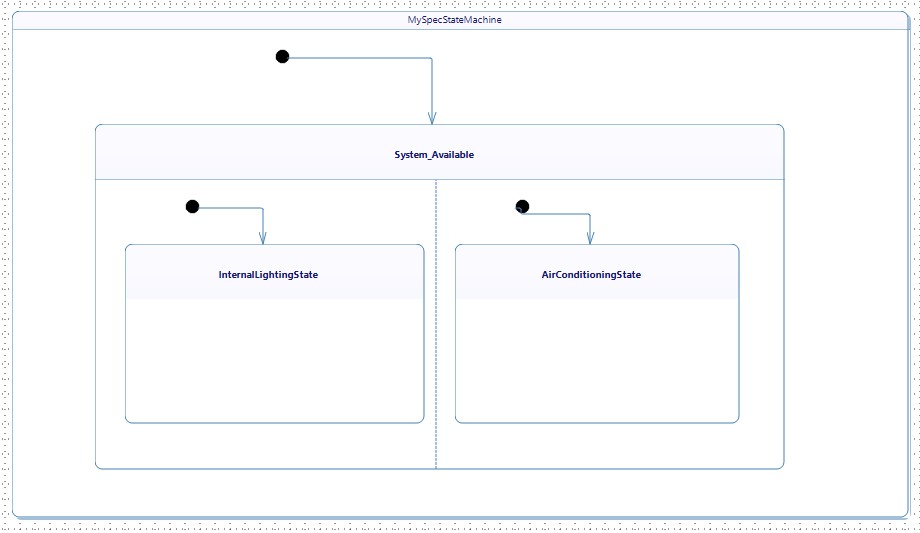
- Now you can continue the modeling by creating the states of each system in the dedicated region.
Papyrus doesn't allow us to have transitions directly inside the regions created, that's why we have to create intermediate states "AirConditioningState" & "InternalLightingState" to avoid compilation problems related to this problem.
- The region of "InternalLightingState" should contain three substates : Light_OFF, Light_ON, Light_Automatic_Mode.
- The region of "AirConditioningState" should contain two substates : Ventilation_Unavailable, Ventilation_Available. When the ventilation is available there are four possible cases : Speed_OFF, Speed1, Speed2, Speed3.
User Stories Creation For Control_cabin_ventilation
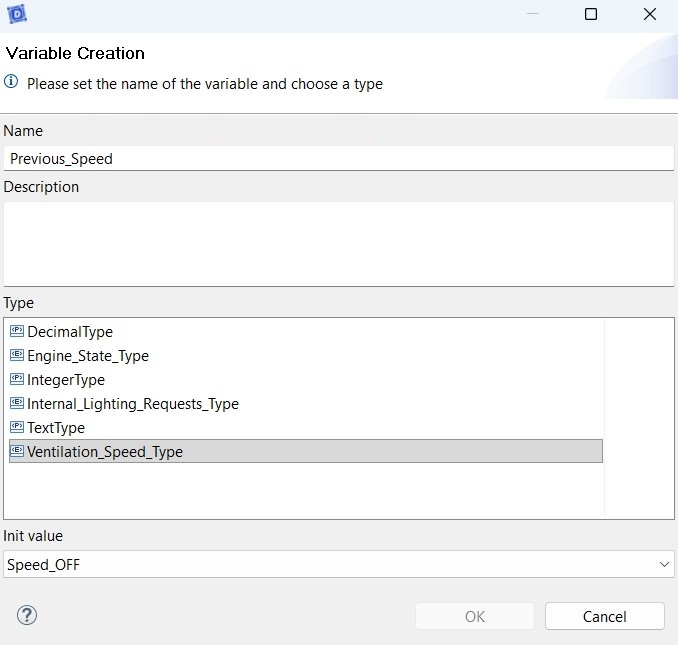
- Right click on the lifeline MySpecBB> Create variable, then click on 'OK'.
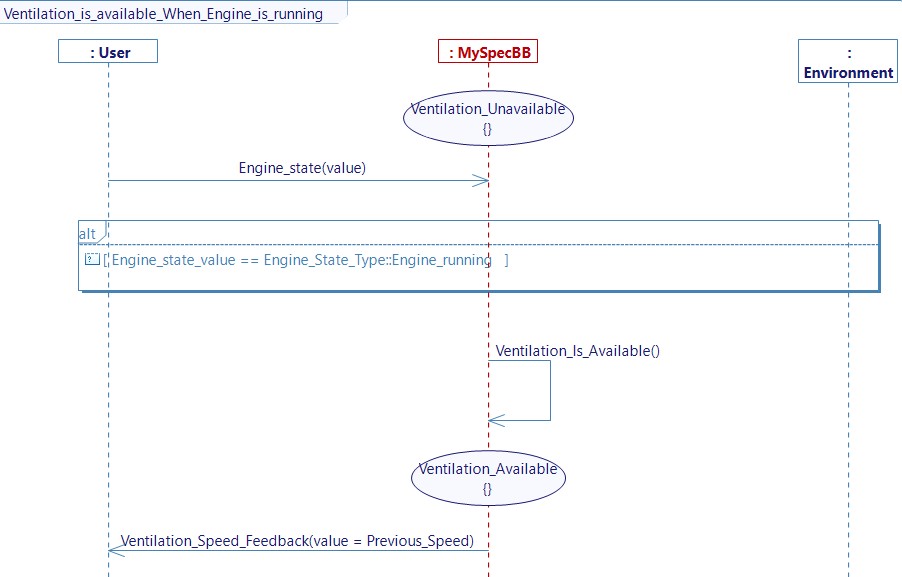
- Create a user story "Ventilation_is_available_when_Engine_is_running": This sequence diagram is used to transition the system from the Ventilation Unavailable state to the Ventilation Available state. N.B : The car's ventilation system is always linked to the engine state.
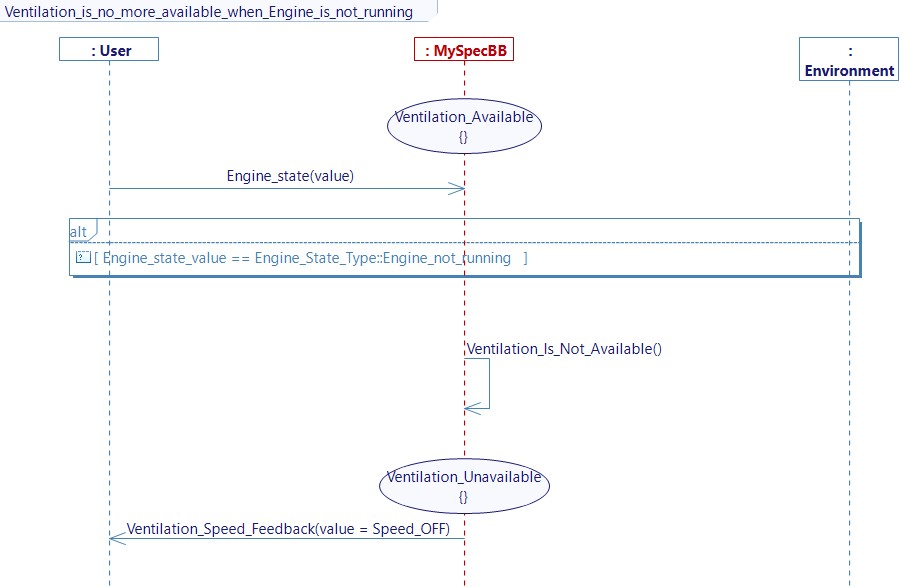
- Create a user story "Ventilation_is_no_more_available_when_Engine_is_not_running": This sequence diagram is used to transition the system from the Ventilation Available state to the Ventilation Unavailable state when the engine is not running.
- Create a user story "User_Increases_Ventilation_Speed_When_It_Is_Off": This sequence diagram is used to pass the ventilation from speed off to speed 1.
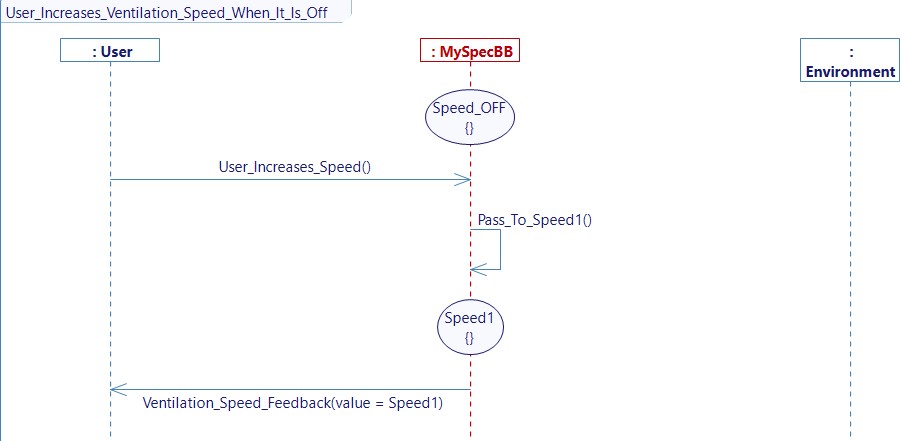
- Type the code to Pass_To_Speed1 :
Previous_Speed = Ventilation_Speed_Type::Speed1;
- Create a user story "User_Increases_Ventilation_Speed_When_It_Is_In_Speed1": This sequence diagram is used to increase the ventilation from speed 1 to speed 2.
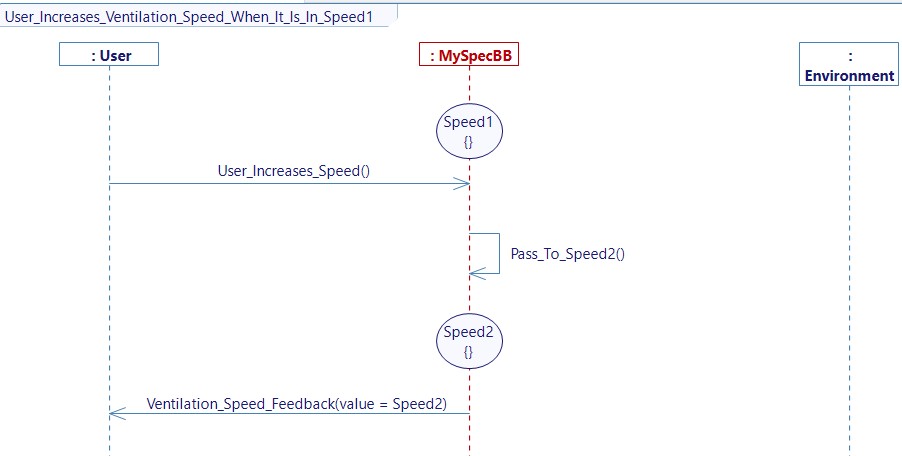
- Type the code to Pass_To_Speed2 :
Previous_Speed = Ventilation_Speed_Type::Speed2;
- Create a user story "User_Increases_Ventilation_Speed_When_It_Is_In_Speed2": This sequence diagram is used to increase the ventilation from speed 2 to speed 3.
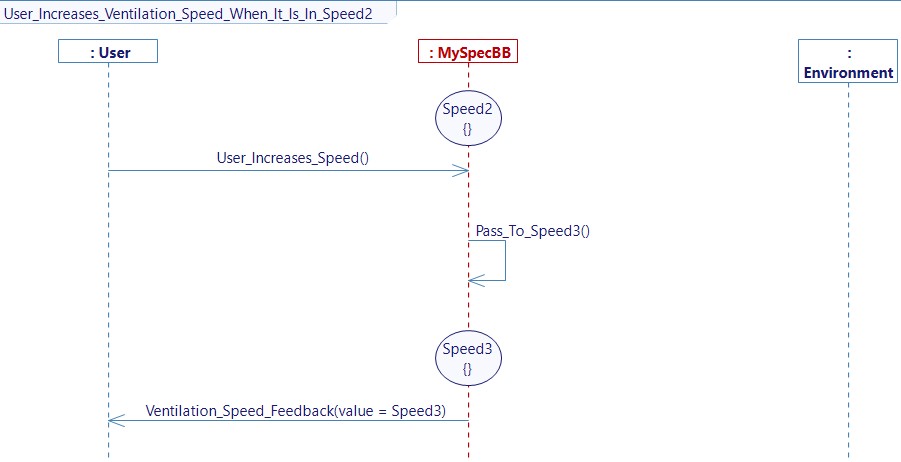
- Type the code to Pass_To_Speed3 :
Previous_Speed = Ventilation_Speed_Type::Speed3;
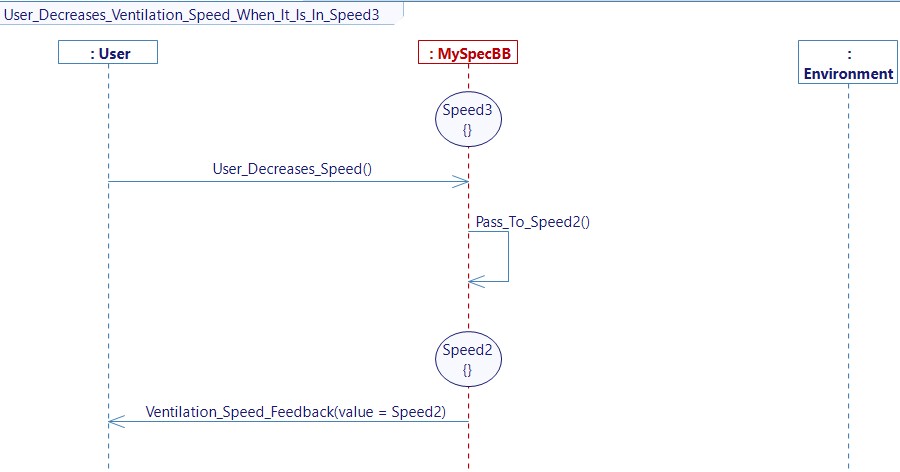
- Create a user story "User_Decreases_Ventilation_Speed_When_It_Is_In_Speed3": This sequence diagram is used to decrease the ventilation from speed 3 to speed 2.
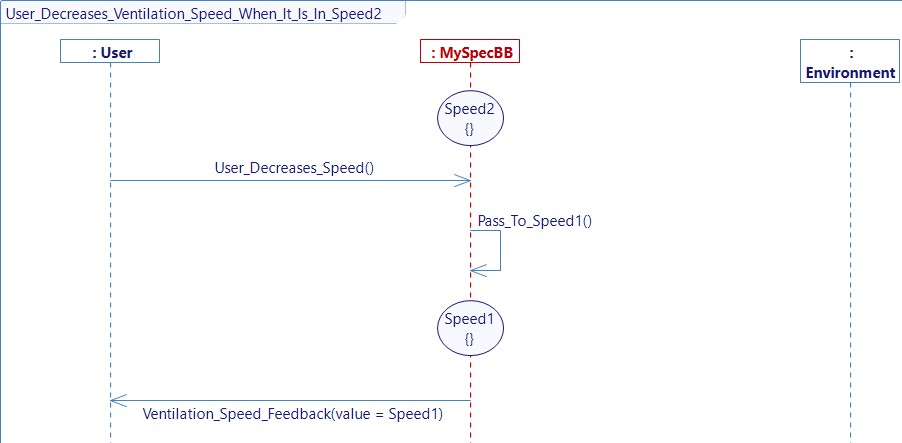
- Create a user story "User_Decreases_Ventilation_Speed_When_It_Is_In_Speed2": This sequence diagram is used to decrease the ventilation from speed 2 to speed 1.
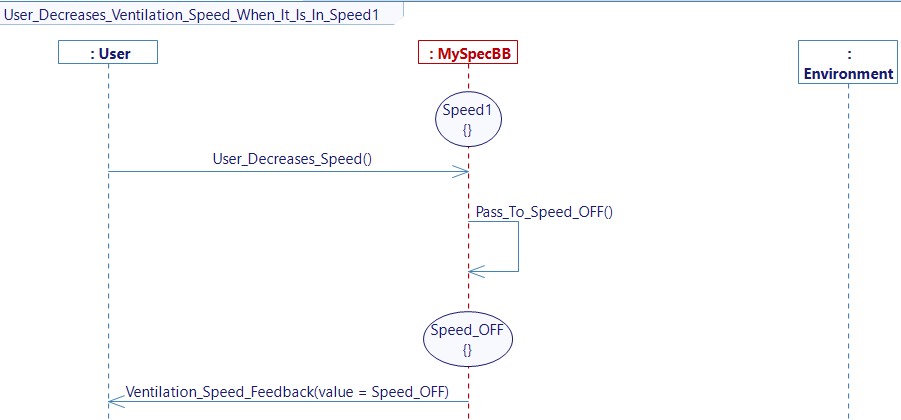
- Create a user story "User_Decreases_Ventilation_Speed_When_It_Is_In_Speed1": This sequence diagram is used to pass the ventilation from speed 1 to speed OFF.
User Stories Creation For Control_interior_lighting
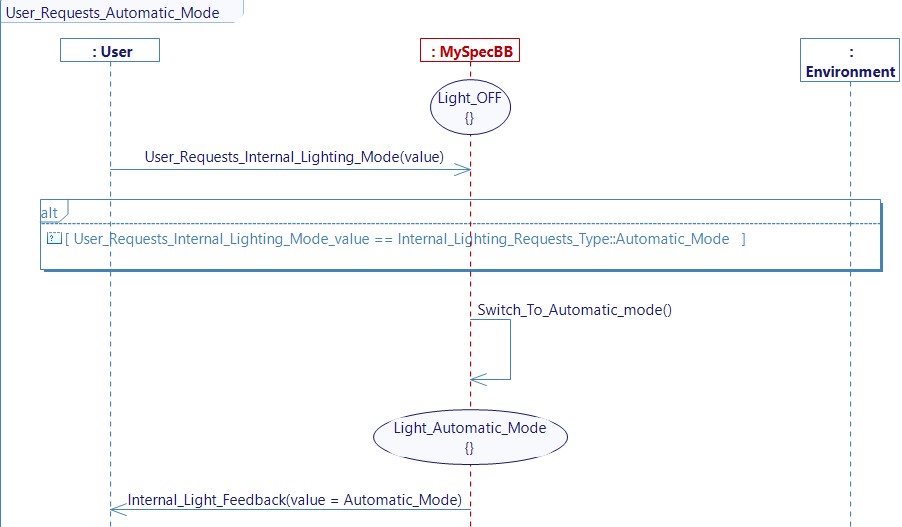
- Create a user story "User_Requests_Automatic_Mode": This sequence diagram is used to switch the interior lighting from OFF to Automatic Mode.
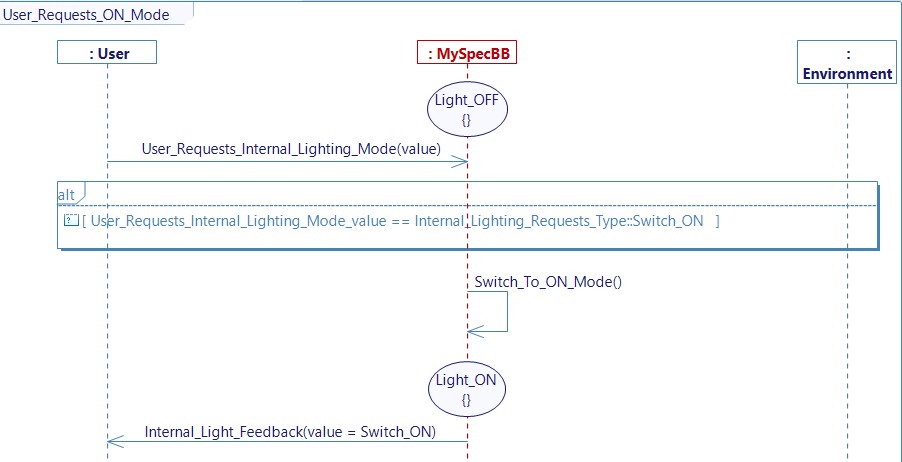
- Create a user story "User_Requests_ON_Mode": This sequence diagram is used to switch ON the interior lighting when it is initially OFF.
- Create a user story "User_Requests_OFF_Mode_When_It_Is_Switched_ON": This sequence diagram is used to switch OFF the interior lighting when it is already switched ON.

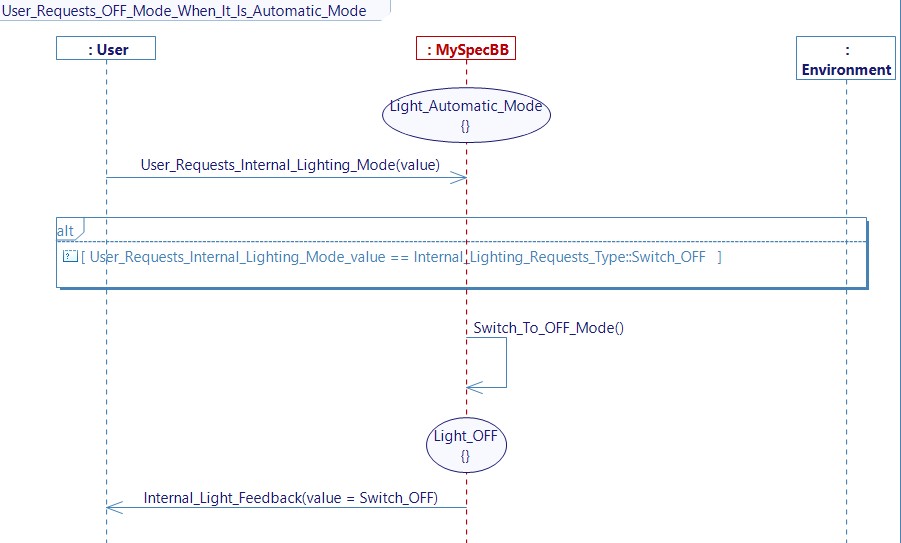
- Create a user story "User_Requests_OFF_Mode_When_It_Is_Automatic_Mode": This sequence diagram is used to switch OFF the interior lighting when it is already in automatic mode.
State Machine Generation
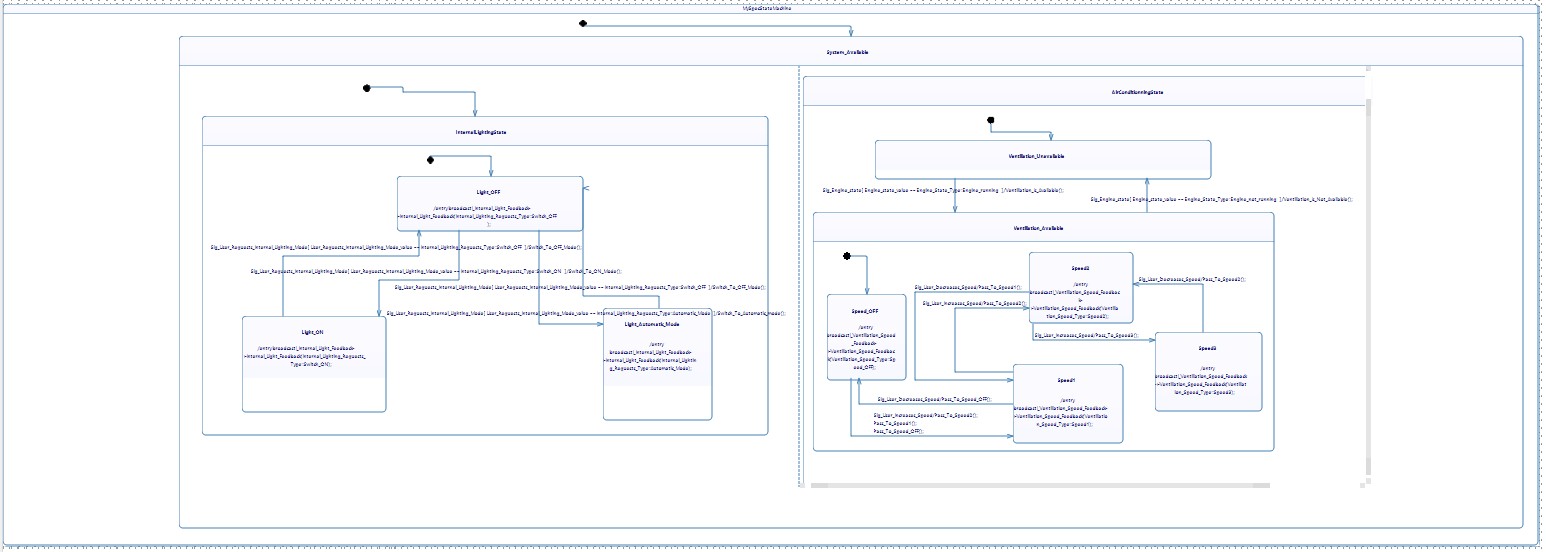
Once you have generated the state machine for all sequence diagrams, you should have the StateMachine diagram for the service as follows:
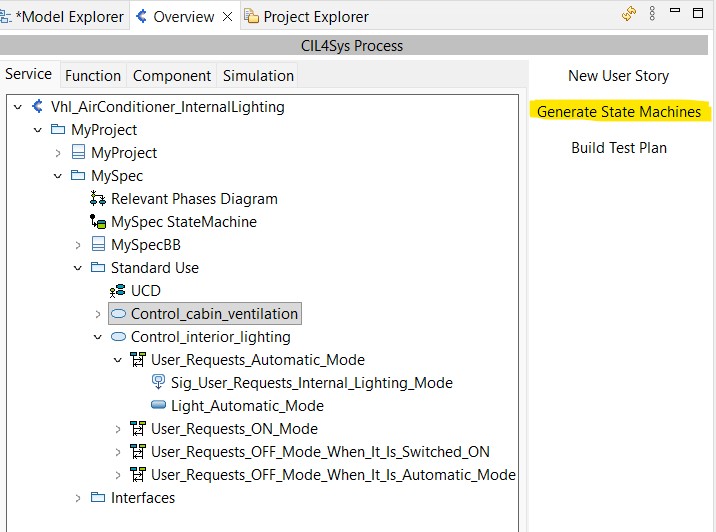
- You can generate the state chart of all sequence diagrams of a Use Case by selecting the Use Case in the Overview tab then clicking on "Generate State Machines"
Code Compilation
-
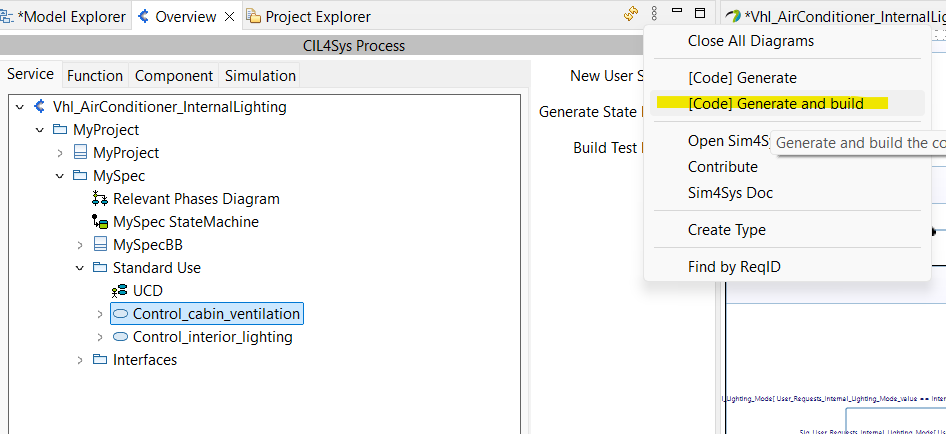
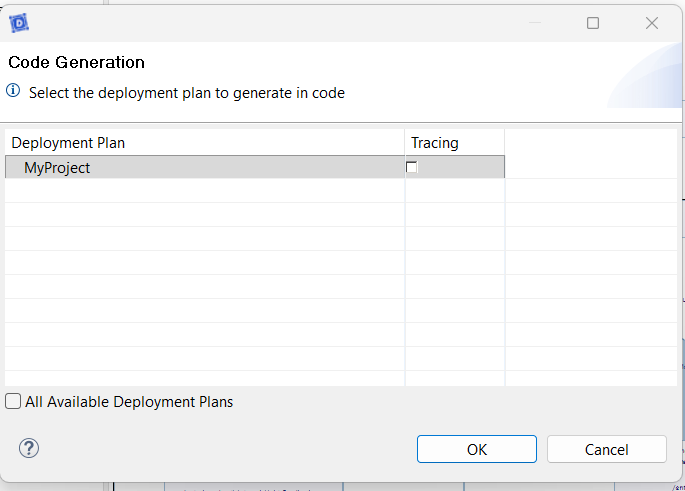
To compile code you need to click on "[code] Generate and build";
-
Select "MyProject" then click on OK.
-
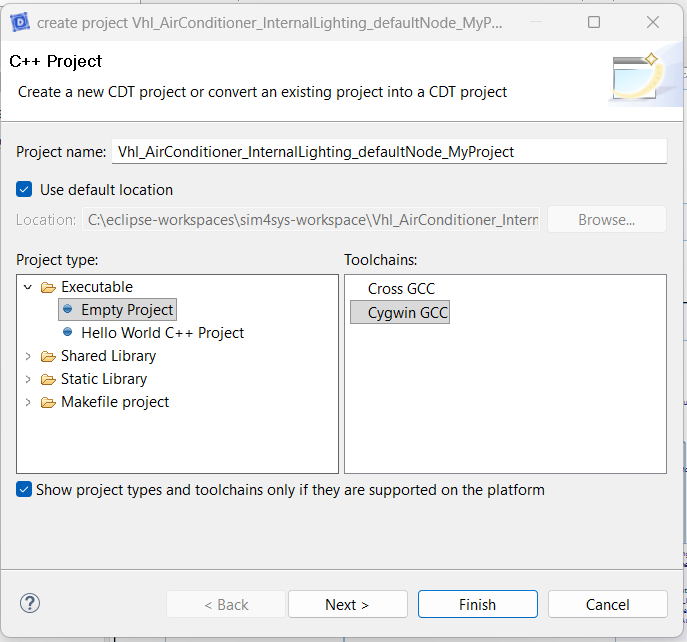
Choose "Cygwin GCC" then click on Finish.
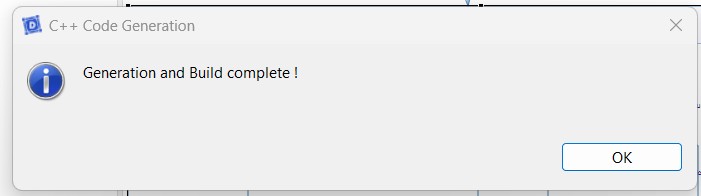
When the code generation is finished successfully, you will have this pop-up :
Export XML file
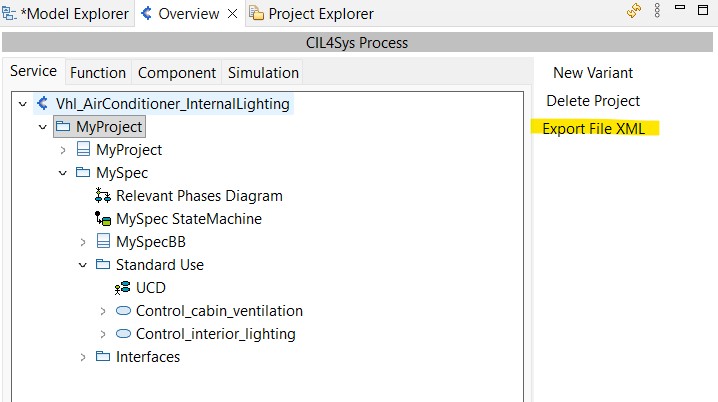
Simply you need to click on the project in the Overview tab then click on "Export File XML"
Simulation with Virtual Bench
- Go on the Sim4Sys Virtual Bench: https://vb.sim4sys.com/.
- Identify with your login and password.
Configure project
- In the Projects tab choose your sandbox project.
- In the Project tab, click on 'Resources'.
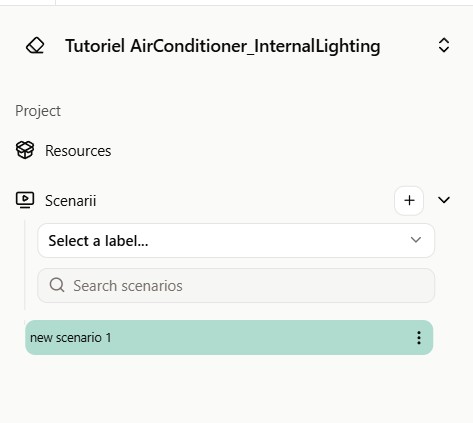
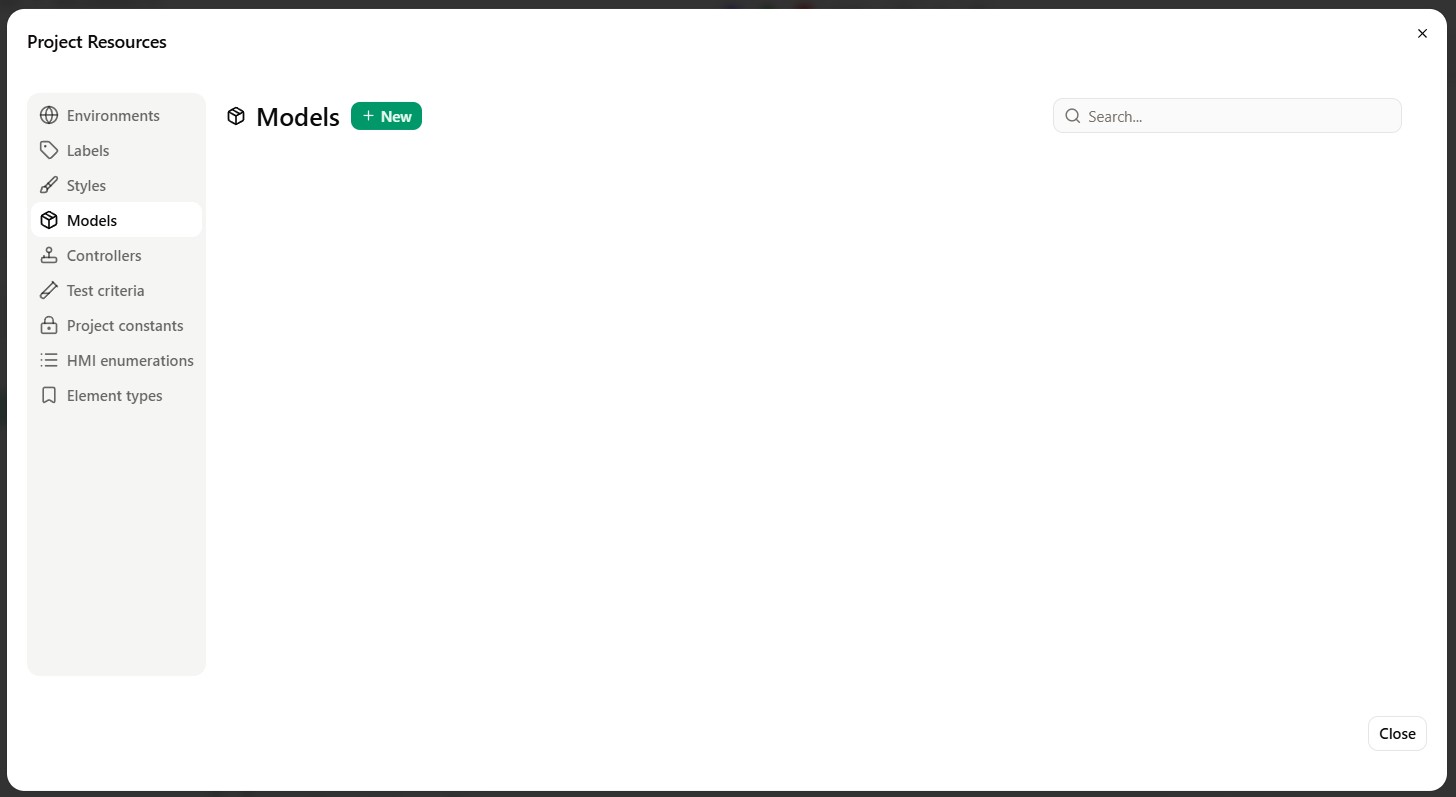
- Navigate to 'Models' in the Sidebar, then click on 'New'.
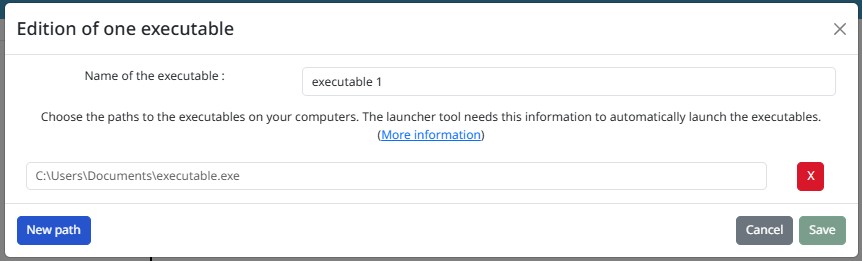
- Navigate to 'Connectivity' in toolbar and drag & drop your .exe, or choose the path to it. Next, press on 'Save'. A pop-up opens to inform you that your .exe was saved successfully.
 tip
tipYou can click on the trash icon to remove the path anytime.
- In order to add the .xml file you need to click again on 'new' then navigate to 'Data'. You can either drag & drop directly you xml file or you can browse to your file.
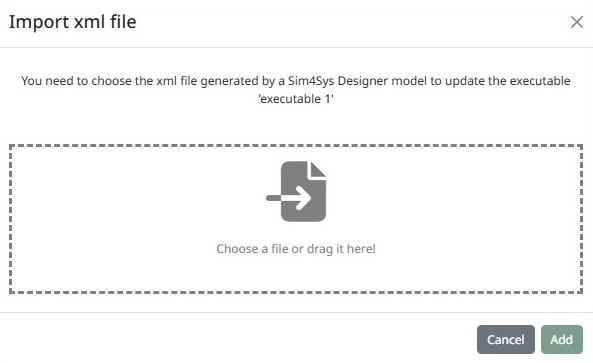
- Next, check that the types and flows were correctly imported, then click on 'Confirm Import'.
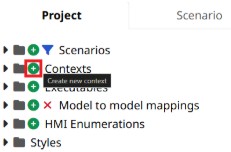
- Create Scenario contexts by clicking on the New Scenario sign (+).
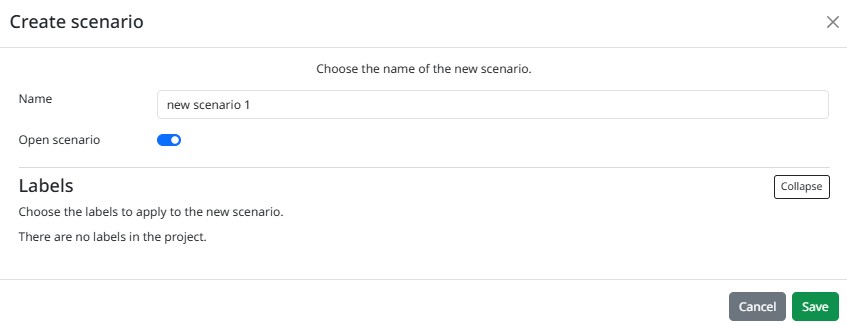
- Choose a name for your scenario and press "Save".
The new scenario should now be opened if you selected 'Open scenario after creation' option.
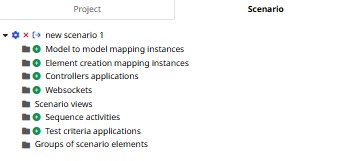
- In your scenario tab, Add a new model instance and link it to the Executable that you added earlier: Go to the "Model Instances" tab at the top right of your screen, then click on the '+'.
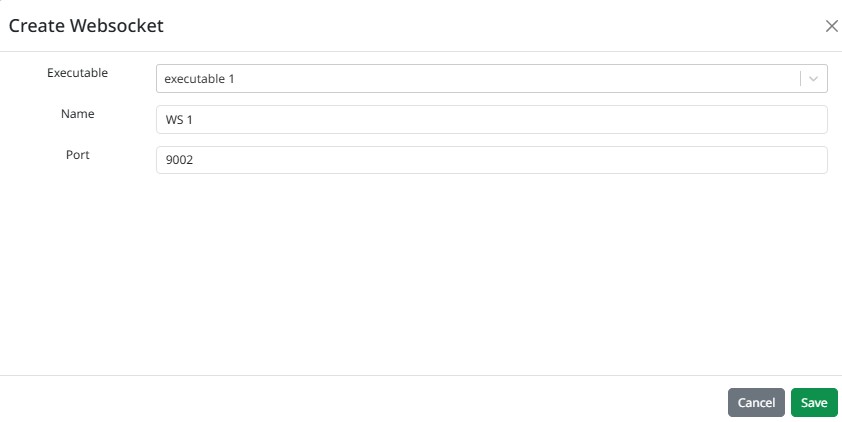
- Configure your websocket then click on "Save".
Create Controllers
-
Controller : Establish links between the types and flows defined in the model and their representation in Virtual Bench (on timeline).
- In the context menu below, select the timeline context (don't forget to add a timeline context before that).

- Create a timeline action element by double-clicking somewhere in the timeline events axis to add a timeline action element. Then select it, and go to the Parameter (Properties tab) Choose the name and change the Event type from "continuous" to "trigger" (in order to apply the associated controller only one time), and click on 'Save' on the TimelineAction pop-up.
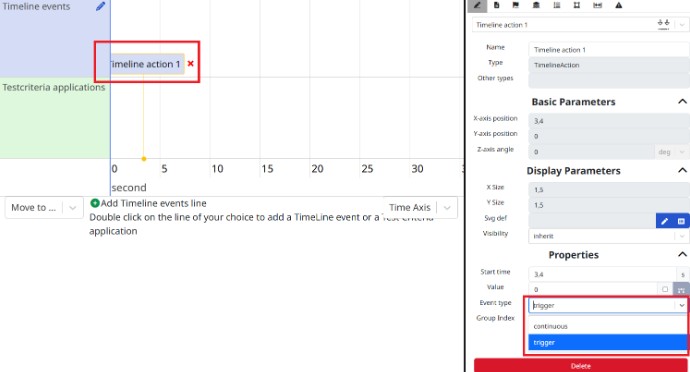
- Right-click on the action and select Controllers > Trigger a controller.
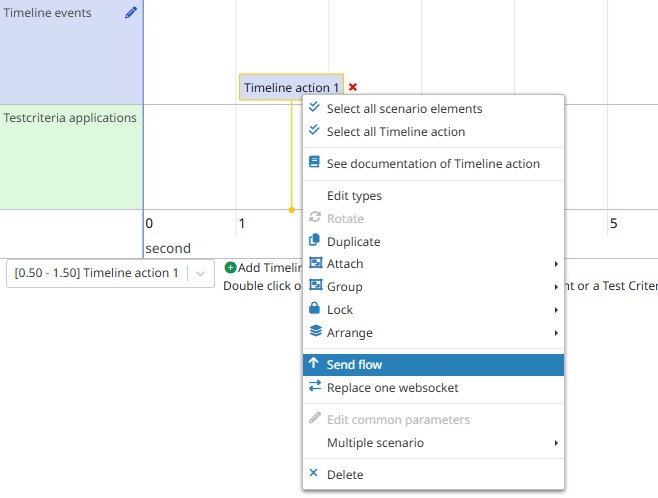
- Virtual Bench will ask you if you want to Create a new controller, or Reuse an existing one, select "Create":

- First, name for your controller 'Turn on the engine' then click on next.
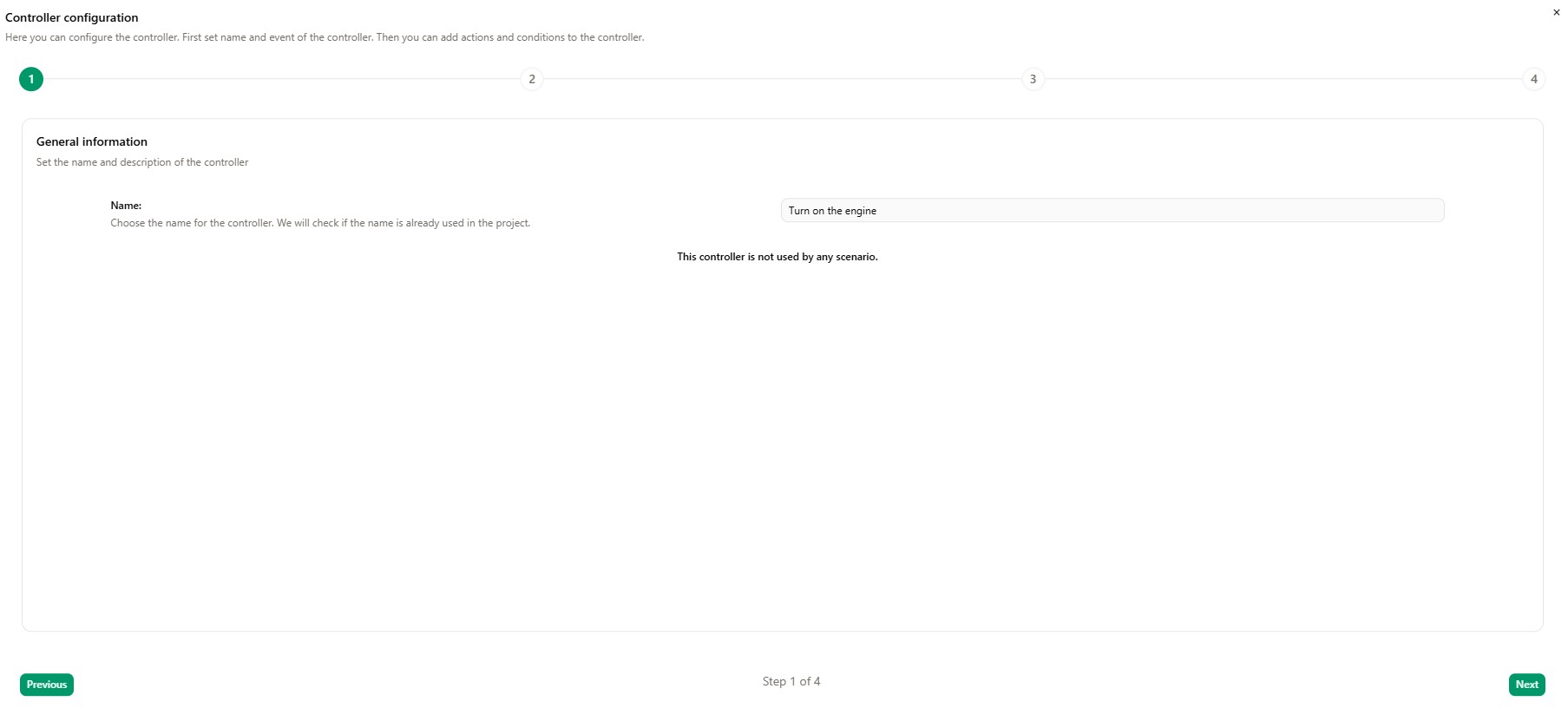
- Configure the controller then click on Next.
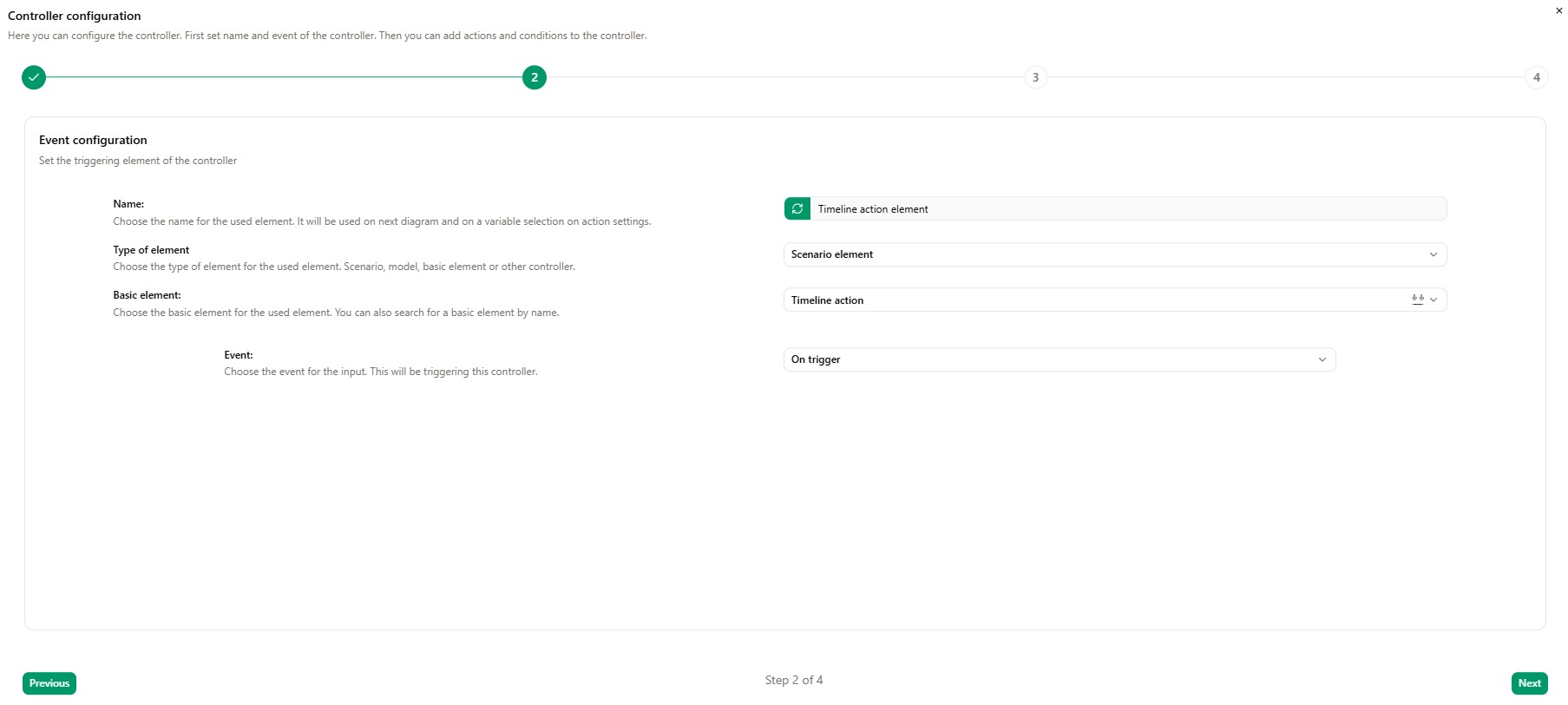
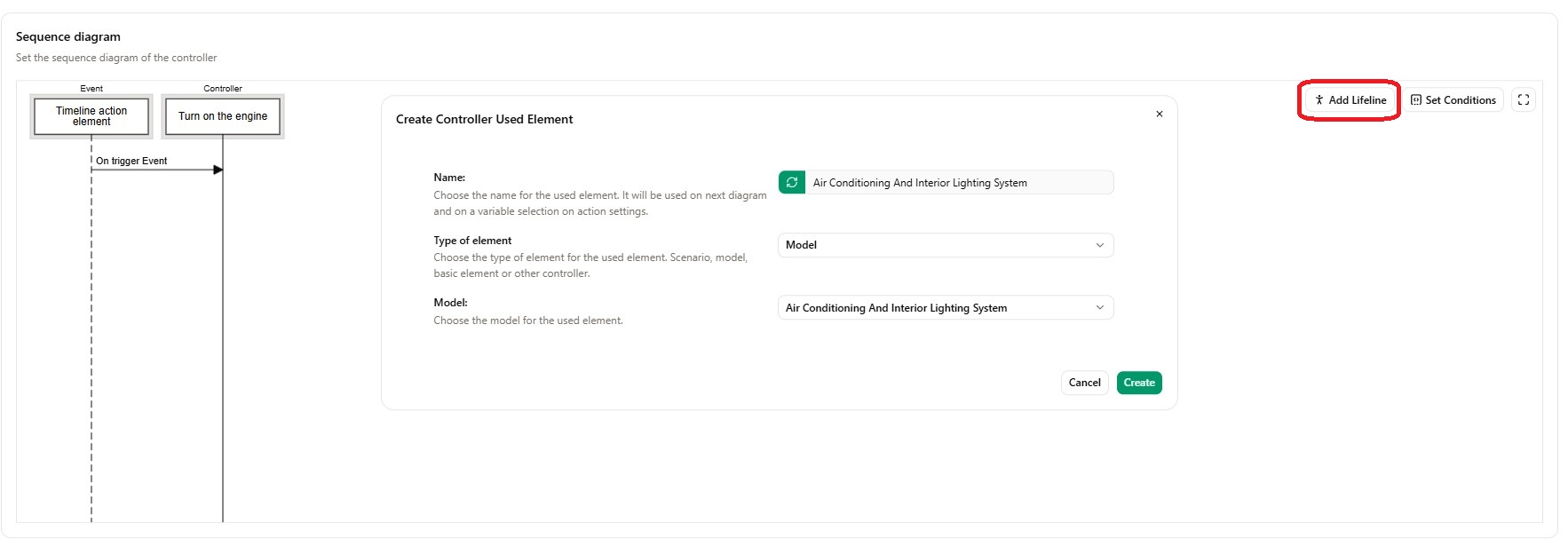
- Click on 'Add Lifeline', then configure it as shown in the screenshot, then click on 'Create'.
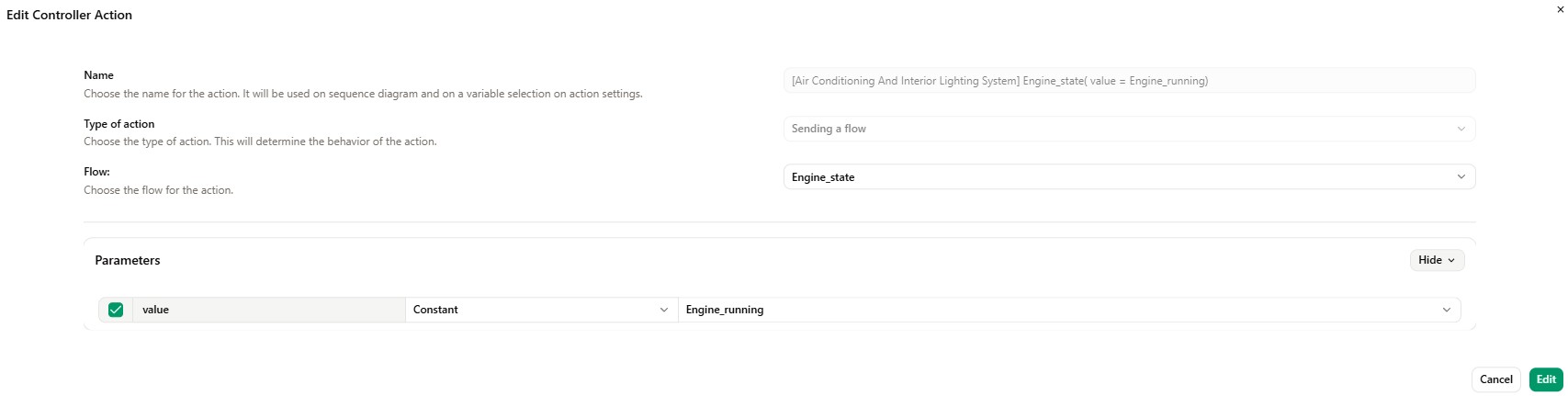
- Trace an outgoing flow from Controller (Turn on the engine), going to other elements lifeline (Air Conditioning And Interior Lighting) then Edit Controller Action and click on 'Edit'.
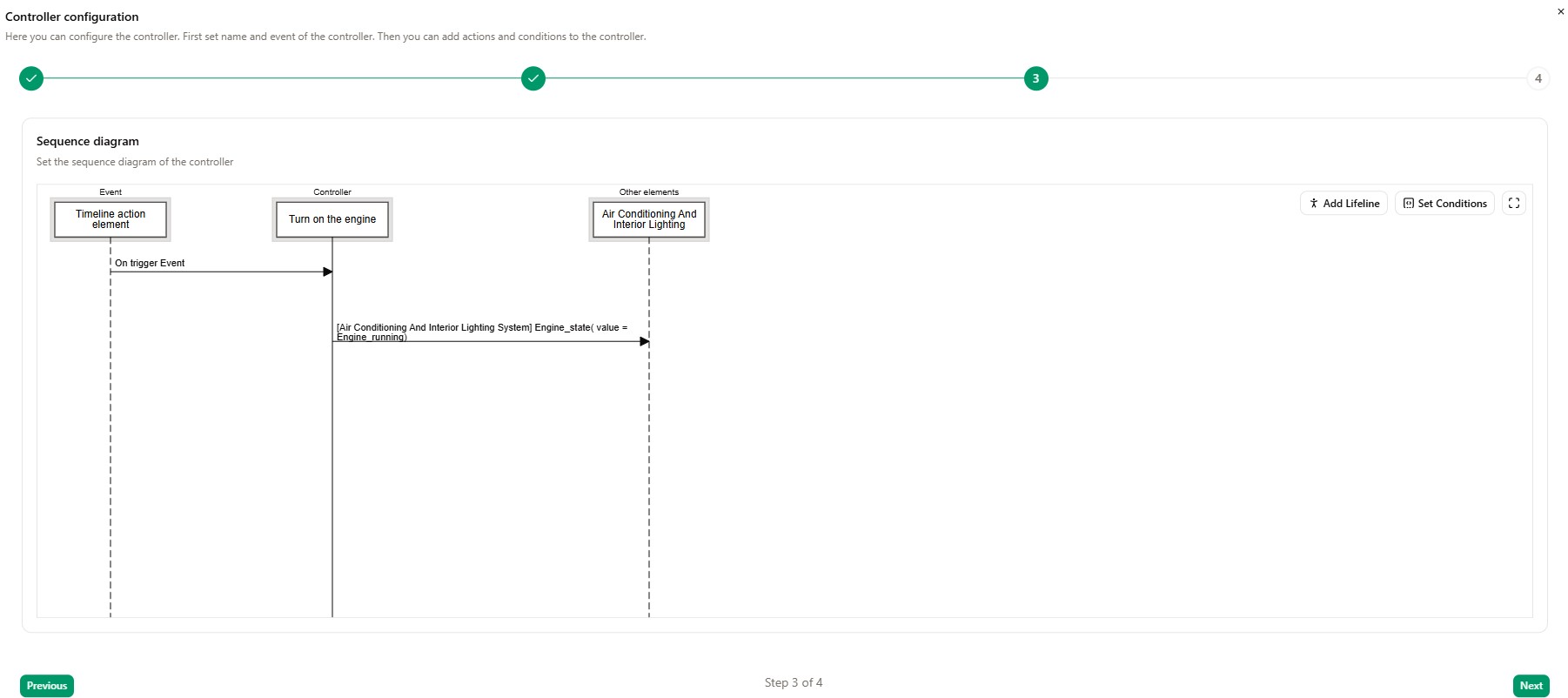
Now you should have this sequence diagram in your VB, then click on 'next'.
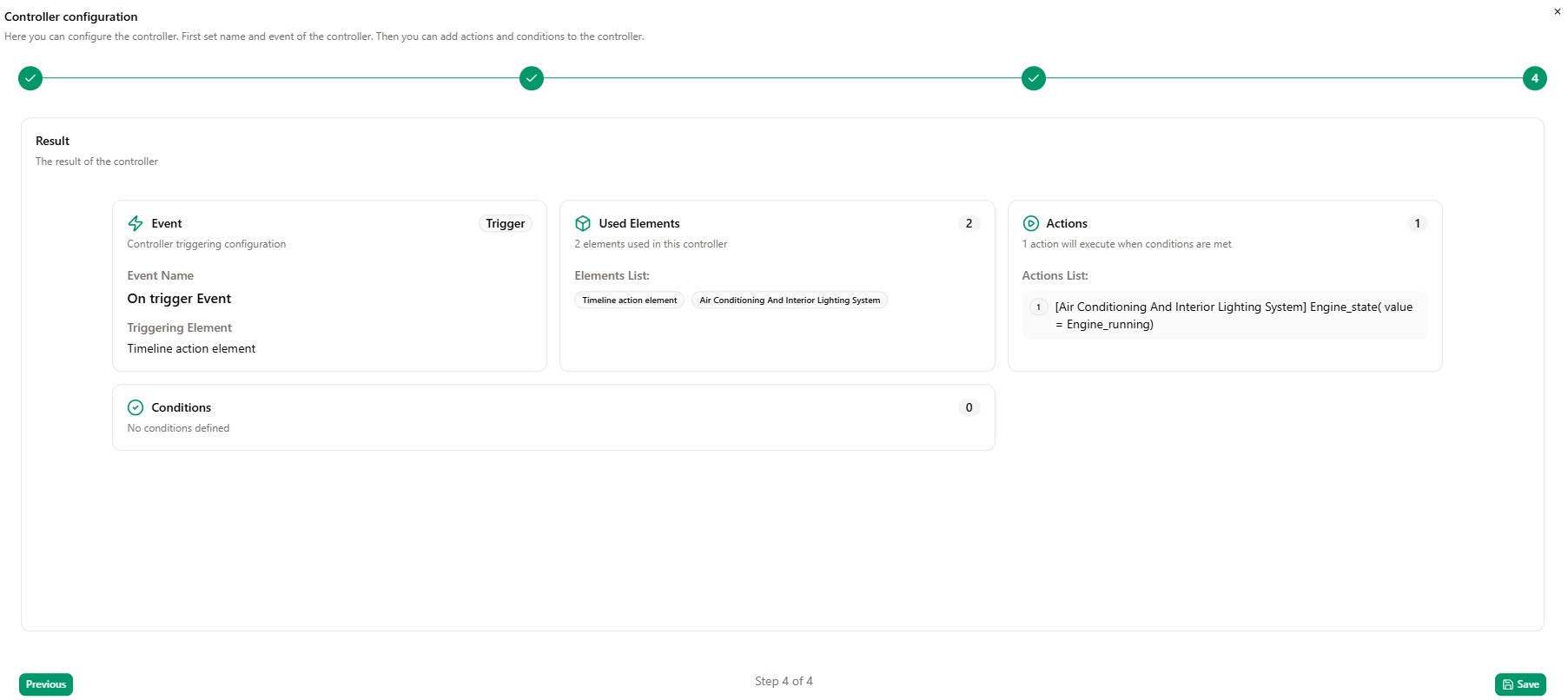
- Click on save, no modification needed in this page
- In Air Conditioning And Interior Lighting System tab select the associated web socket, then click on save.
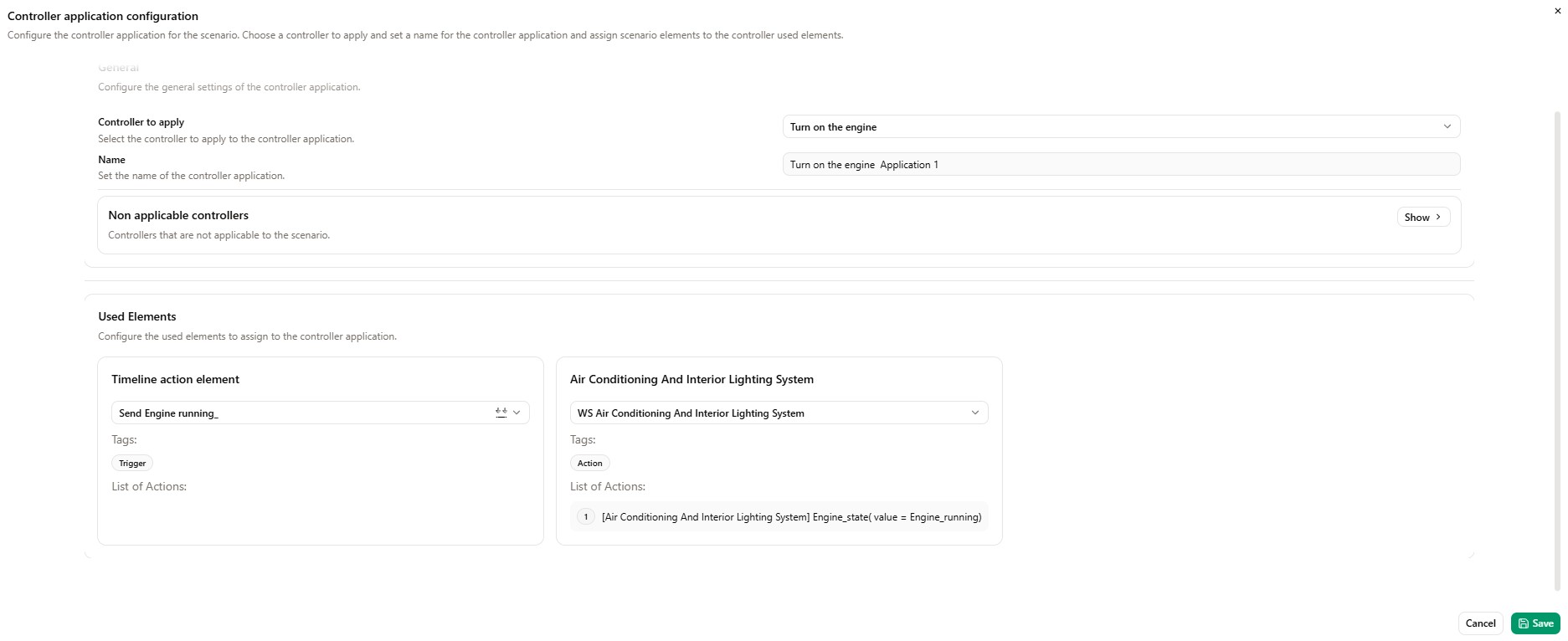
- Now, switch to HMI context, click on 'Add element' then Drag & Drop a Text element.
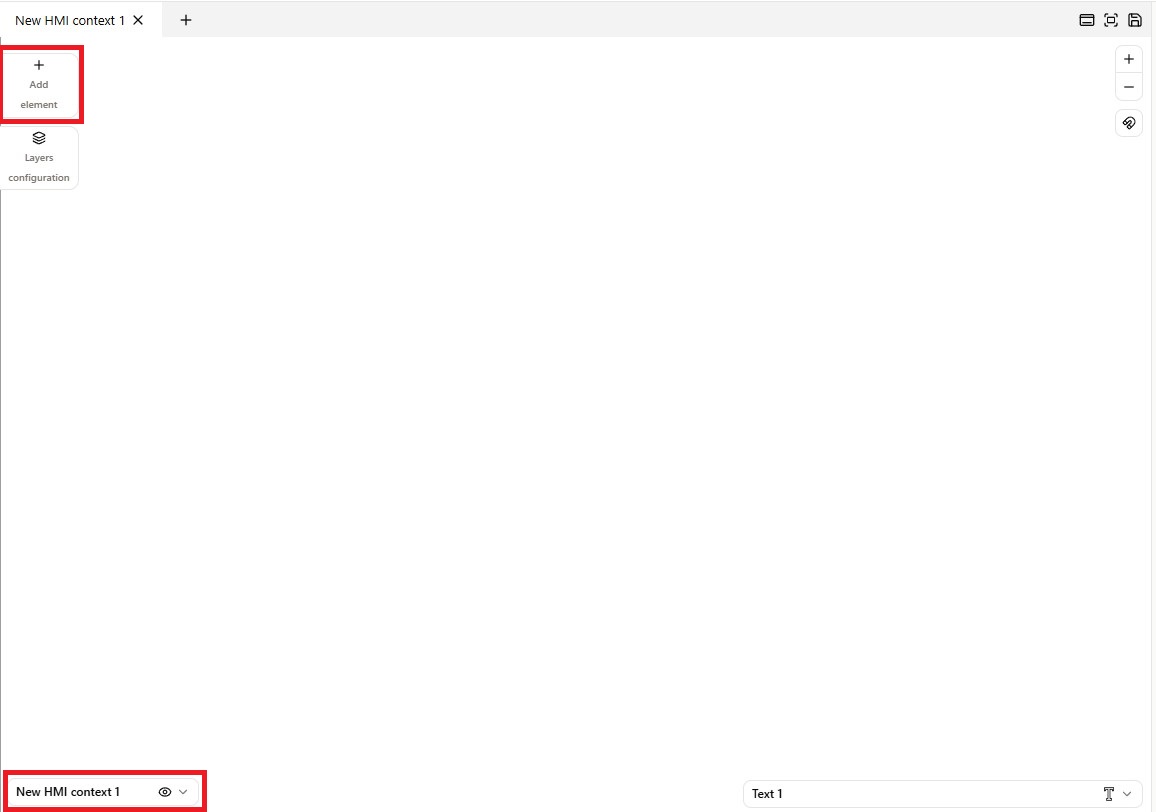
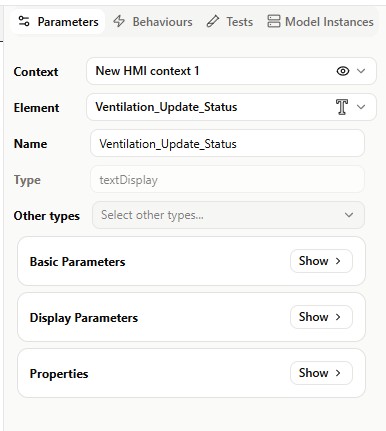
You can choose a name for the created element, you can type the name 'Ventilation_Update_Status' in the parameters tab.
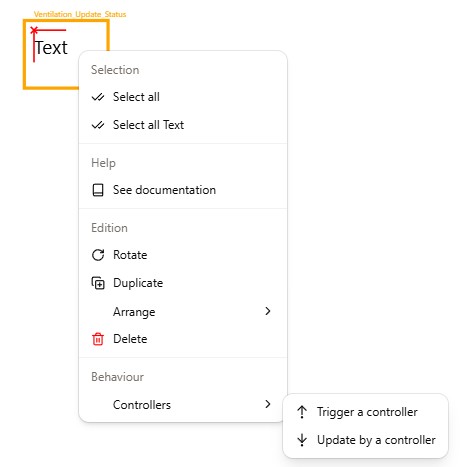
- Right-click on the Text element and select Controllers > Update by a controller:
- Virtual Bench will ask you again if you want to Create or Reuse a controller, select "Create".

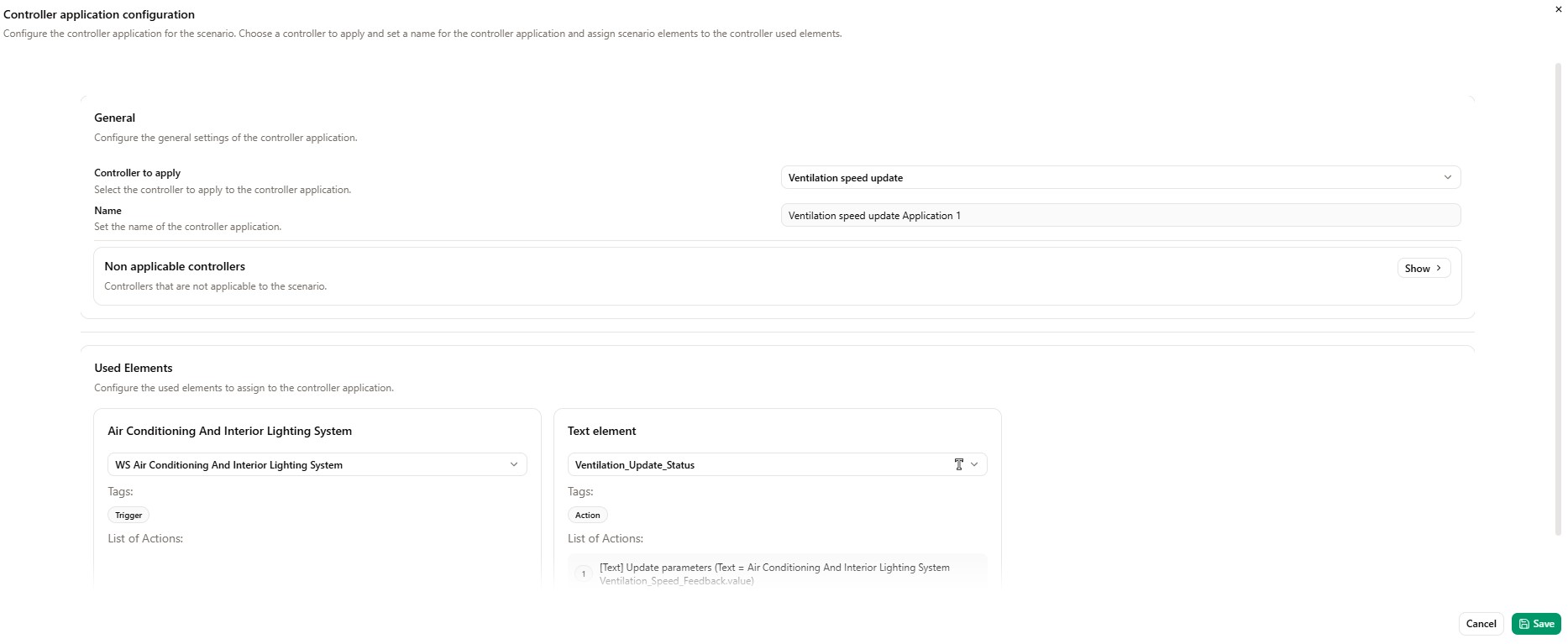
- Type a name for the Controller (Ventilation speed update) then click on 'Next'.

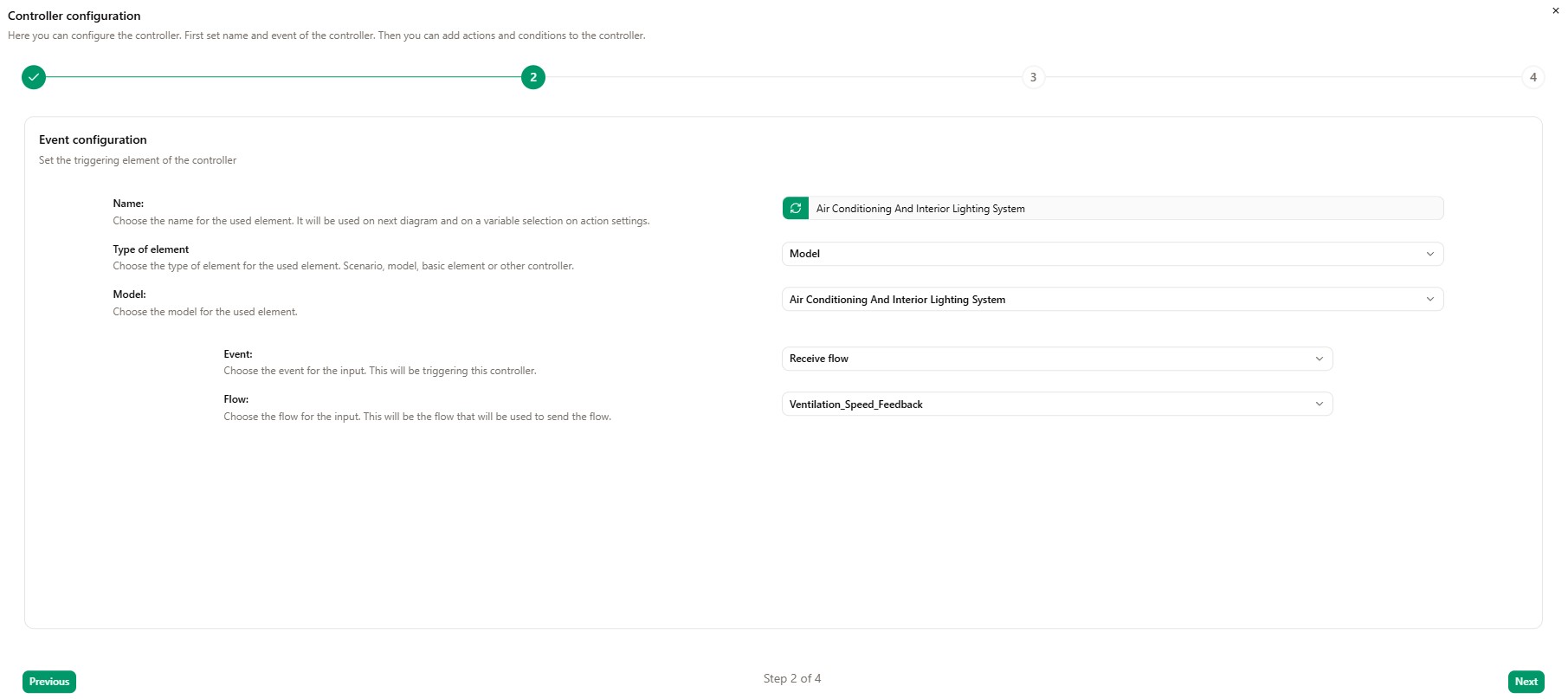
- Configure the Event as shown below in the screenshot then click on Next.
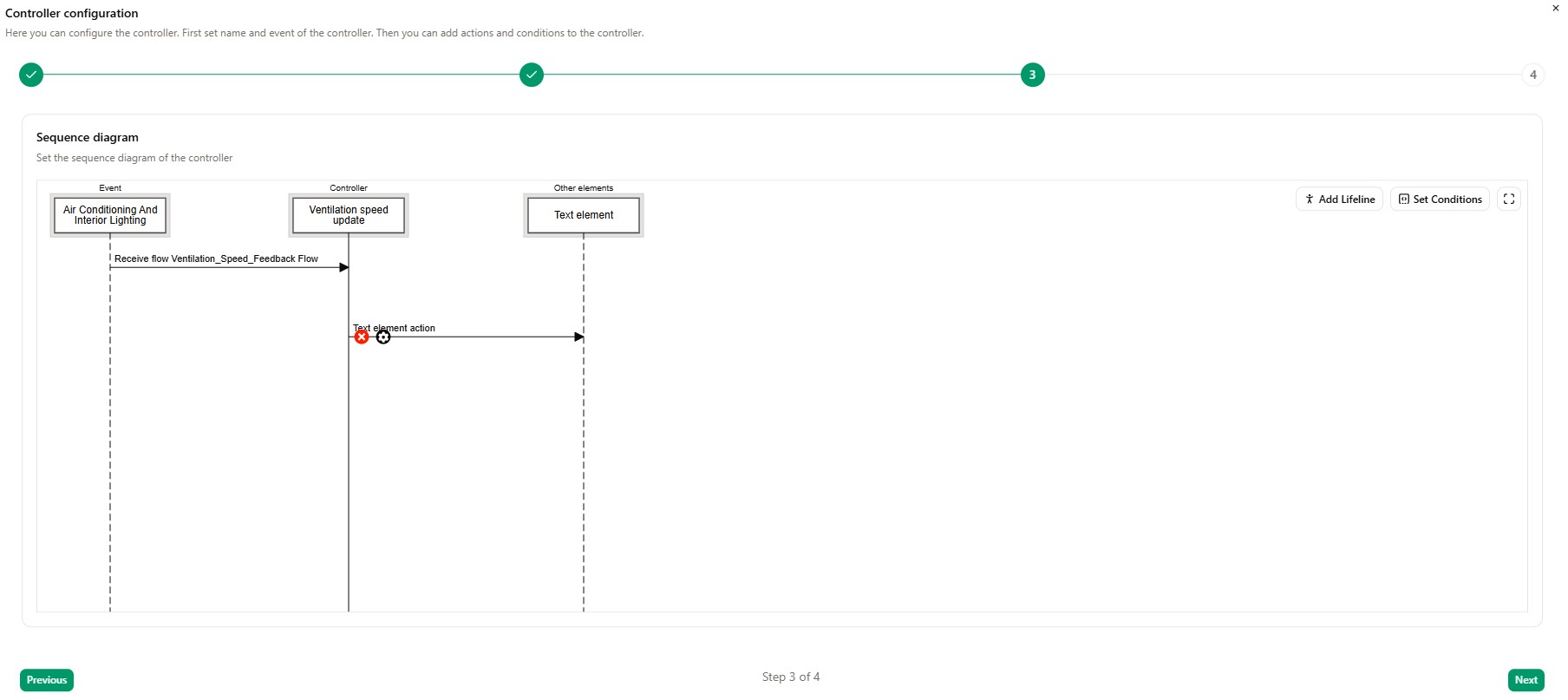
- Click on the 'Settings icon' available on the flow outgoing from Controller going to 'Other elements'.
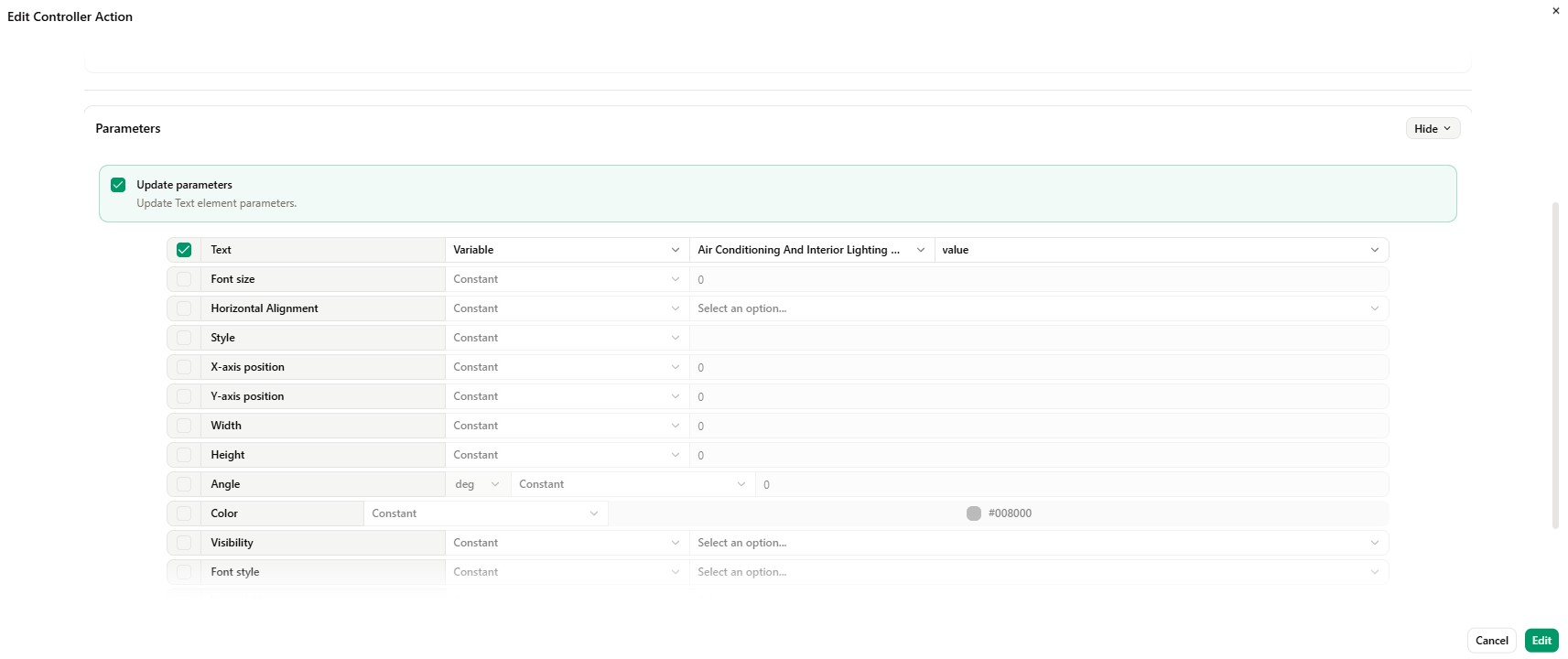
- Configure the controller action, then click on Edit.
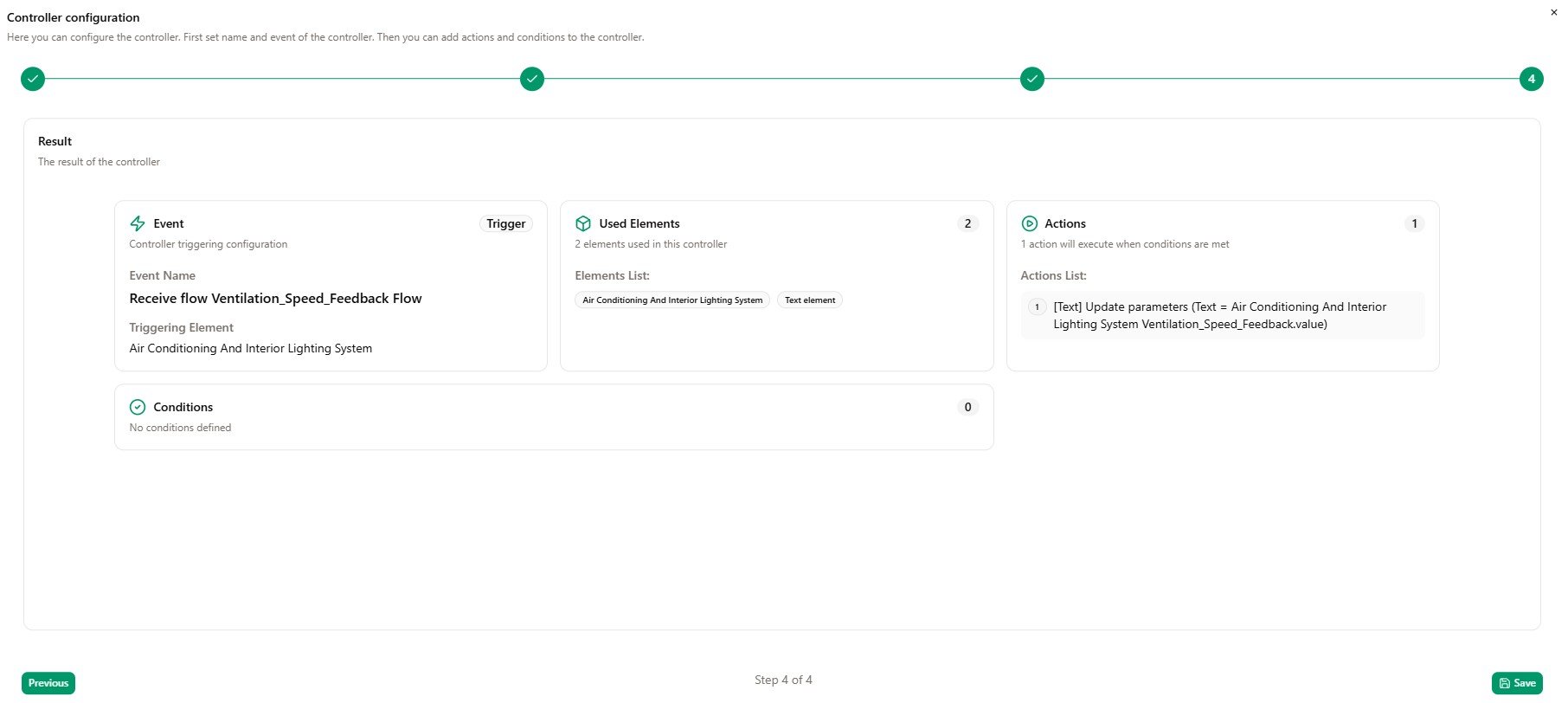
Click on Next.
- Click on Save.
- Select the associated model instance, then click on Save.
Run scenario
Now you can run the configured simulation scenario and analyze the results to evaluate the system’s behaviour.