Launcher
Purpose
The goal of the Launcher is to connect all the executable WebSockets at once.
Download
To download the Launcher, open Virtual Bench (if it is not already opened), connect to your account.
On the top menu bar, click on "Help", then click on "Downloads". You will be automatically redirected to the "Downloads" page of the documentation. At the bottom of it you will find the link which allow you to get last version of the Launcher.
Extract the archive, open it, you should see a file named "launcher.exe". If you are on Windows you can drag and drop the ".exe" to attach it to your task bar. If you don't want it on the task bar, you can always find it by pressing "Super"  and type "launcher.exe".
Usage
Prerequisite : all the executables you want to run in Virtual Bench must be compiled.
To use the Launcher, you need to indicate the path to your compiled executables in Virtual Bench. To do that, in the left sidebar, under Project, click on "Resources", then navigate to "Models".
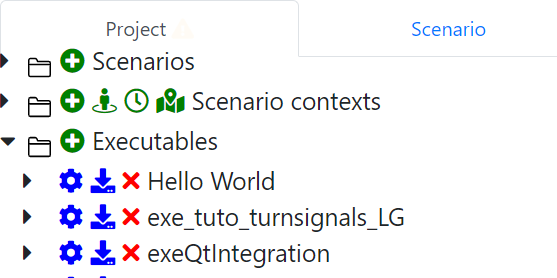
Click on the pencil  next to the executable. In the pop-up window you have to navigate to the tab "Connectivity" then you can type the path.
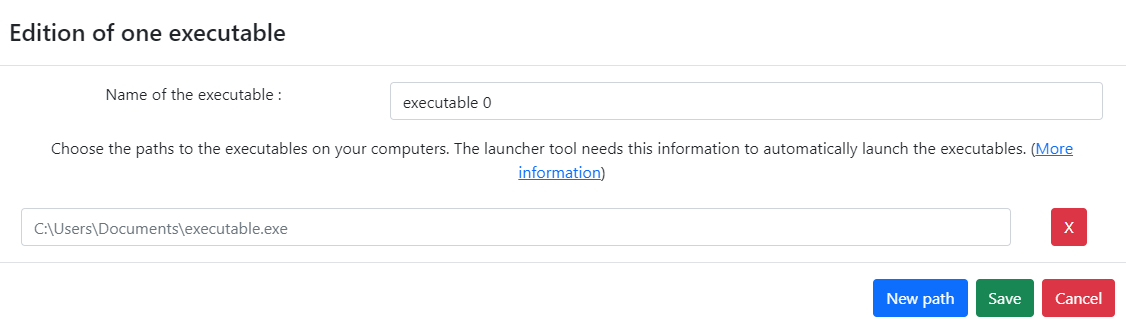
You may already have configured the path location as this window is shown at the creation of the executable.
Run "launcher.exe" and start the Launcher.
The first time you start the Launcher, you will have this warning from windows:
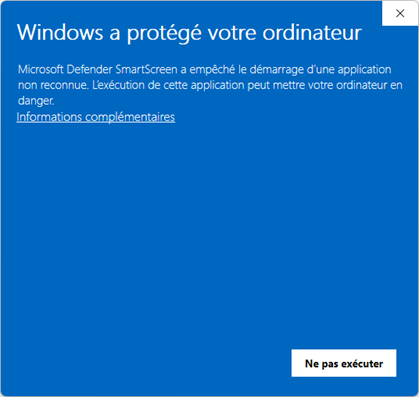
You need to click on "More info" and "Run anyway".
If you have multiple WebSockets and the Launcher is unable to connect all of them, you need to start the Launcher in Administrator mode.
Go to Virtual Bench, in the top right of the window click on  . then select the Launcher in the menu drop down.
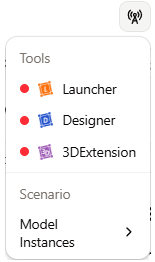
By clicking on the launcher, you should see all your websocket connecting (going from  to
to  ).
You will also be able to check the current state of your Launcher by taking a look at the icon in the menu drop down (top right of the window). It becomes green in other to let you know that it is connected.
).
You will also be able to check the current state of your Launcher by taking a look at the icon in the menu drop down (top right of the window). It becomes green in other to let you know that it is connected.
While the Launcher is running, each time you stop  the simulation, the laucher restart the executables.
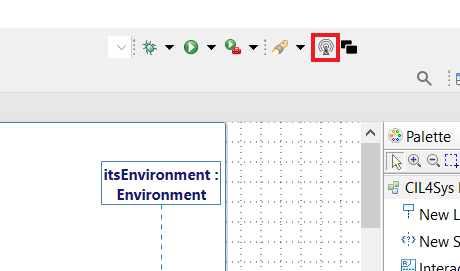
You can start the Launcher directly in Designer (without running launcher.exe), by clicking on the little antenna in the top right.