User Settings
Purpose
User Settings let you manage your account settings and preferences for Virtual Bench. Changes can apply to the current session or to all your projects depending on the option.
Opening User Settings
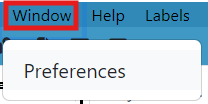
- In the bottom-left corner of the application, locate your user profile.
- Click the () next to your profile.
- In the menu that opens, select Settings.
The User Settings dialog opens with the subtitle "Manage your account settings and preferences here." It contains four tabs: Display, Connections, 3D Extension, and Advanced.
Display
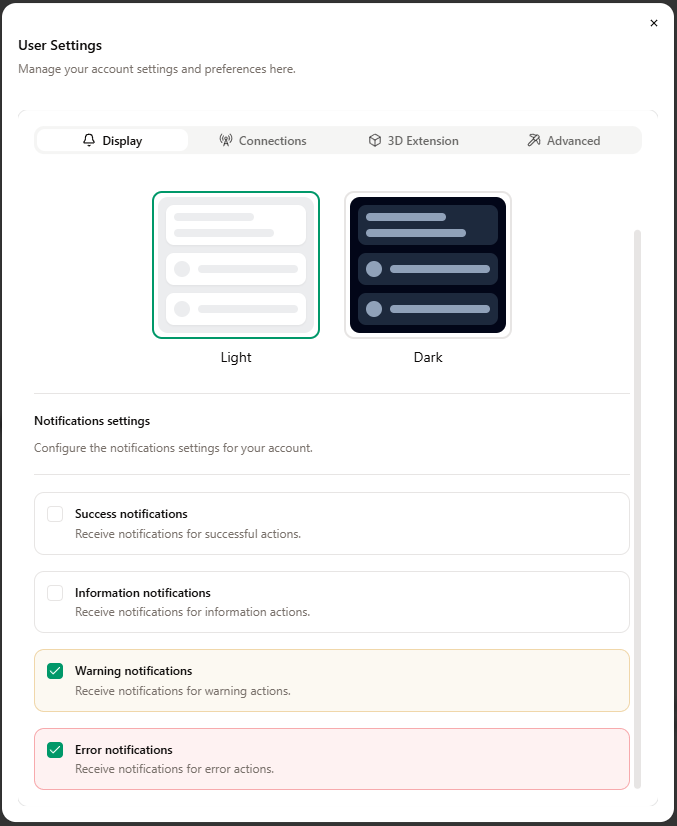
Configure the display theme and which notifications you see.
-
Theme
Choose Light or Dark to set the application theme. -
Notifications settings
Configure the notifications settings for your account. You can enable or disable:- Success notifications
- Information notifications
- Warning notifications
- Error notifications
Connections
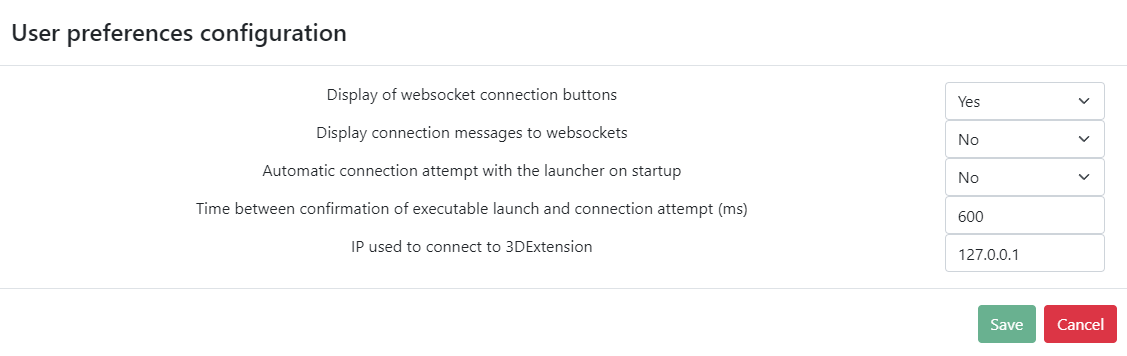
Configure the connections preferences for your account.
-
Connection timeout
Time between confirmation of model launch and connection attempt (ms).
Enter a value in milliseconds (e.g. 600). In some cases, the time must be extended to allow the model to start correctly before Virtual Bench tries to connect. -
Notify connection messages
Notify you when the connection is established or lost.
Turn on or off to show or hide messages when the connection to the model is established or lost. -
Startup connection with launcher
Launch the connection with the launcher when the project is loaded.
Turn on for an automatic connection to the models when the project is loaded; turn off for manual connection.
When you use the Launcher tool, the models are launched automatically. A connection between Virtual Bench and the models is made after launch.
3D Extension
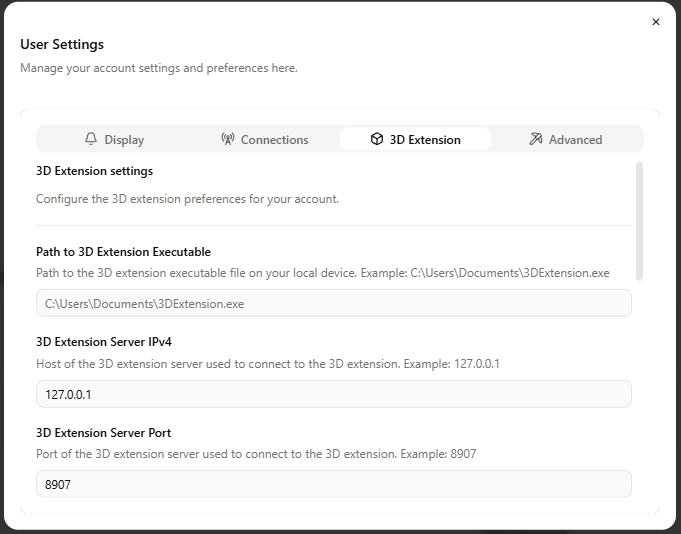
Configure the 3D extension preferences for your account.
-
Path to 3D Extension Executable
Path to the 3D extension executable file on your local device.
Example:C:\Users\Documents\3DExtension.exe -
3D Extension Server IPv4
Host of the 3D extension server used to connect to the 3D extension.
By default the address is set so that the 3D extension runs on the same machine as Virtual Bench. Example:127.0.0.1. You can change it to run the 3D extension on another computer. -
3D Extension Server Port
Port of the 3D extension server used to connect to the 3D extension.
Example:8907
Advanced
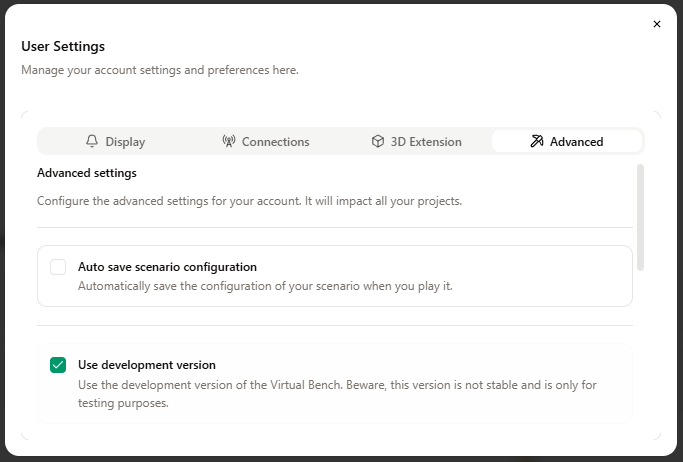
Configure the advanced settings for your account.
-
Auto save scenario configuration
Automatically save the configuration of your scenario when you play it.
When enabled, scenario window size, zoom, and opened contexts are saved automatically when you play. -
Use development version
Use the development version of the Virtual Bench. Beware, this version is not stable and is only for testing purposes.
Enable only if you need features or builds intended for development and testing.