General view
BEFORE OPENING A PROJECT
At Virtual Bench's start page (accessible at sim4sys.com) you will find all the projects you have access to. Projects are shown with your role on each card: Owner, Contributor, or Guest.
The main view shows "All Projects" with carousels for Recent Projects, Favorites, My Projects, Public Projects, and Recently Deleted Projects. A user is considered a guest in a public project if they are not an owner or contributor.
Where to find features

-
Search: Use the "Search projects..." field in the top header to filter projects by name.
-
Sidebar filters: In the left sidebar, under "Projects", choose:
- All Projects — default view with all carousels
- Recents — recently accessed projects
- Favorites — projects you marked as favorites
- My Projects — projects you own
- Public Projects — all public projects
- Recently Deleted Projects — projects recently deleted
-
Create project: Use the green "+ Create Project" button in the top right of the header.
-
Project card actions: On each project card, use the heart icon to add or remove from favorites, and the three-dot menu for other actions (e.g. open, settings). Double-click a card to open the project.
Project Opened
After you open a project (e.g. by double-clicking a project card), you enter the project workspace. The flow is: project dashboard → open or create a scenario → scenario view → editing and run the scenario. You can also open Project Resources and the Sim4Sys connection menu from the same project page.
Project dashboard
When no scenario is open, the central area shows:
- Statistics: Four cards — Scenarios, Models, Controllers, Members — with counts for the current project.
- Create New Scenario: If you have edit rights, an empty-state panel with the message "You are allowed to create a new scenario" and a "+ New Scenario" button. Use it to create your first scenario or another one.
- Last Opened Scenarios: A list of scenarios you opened recently in this project, with an "Open" action to open them again.
Where to find features:
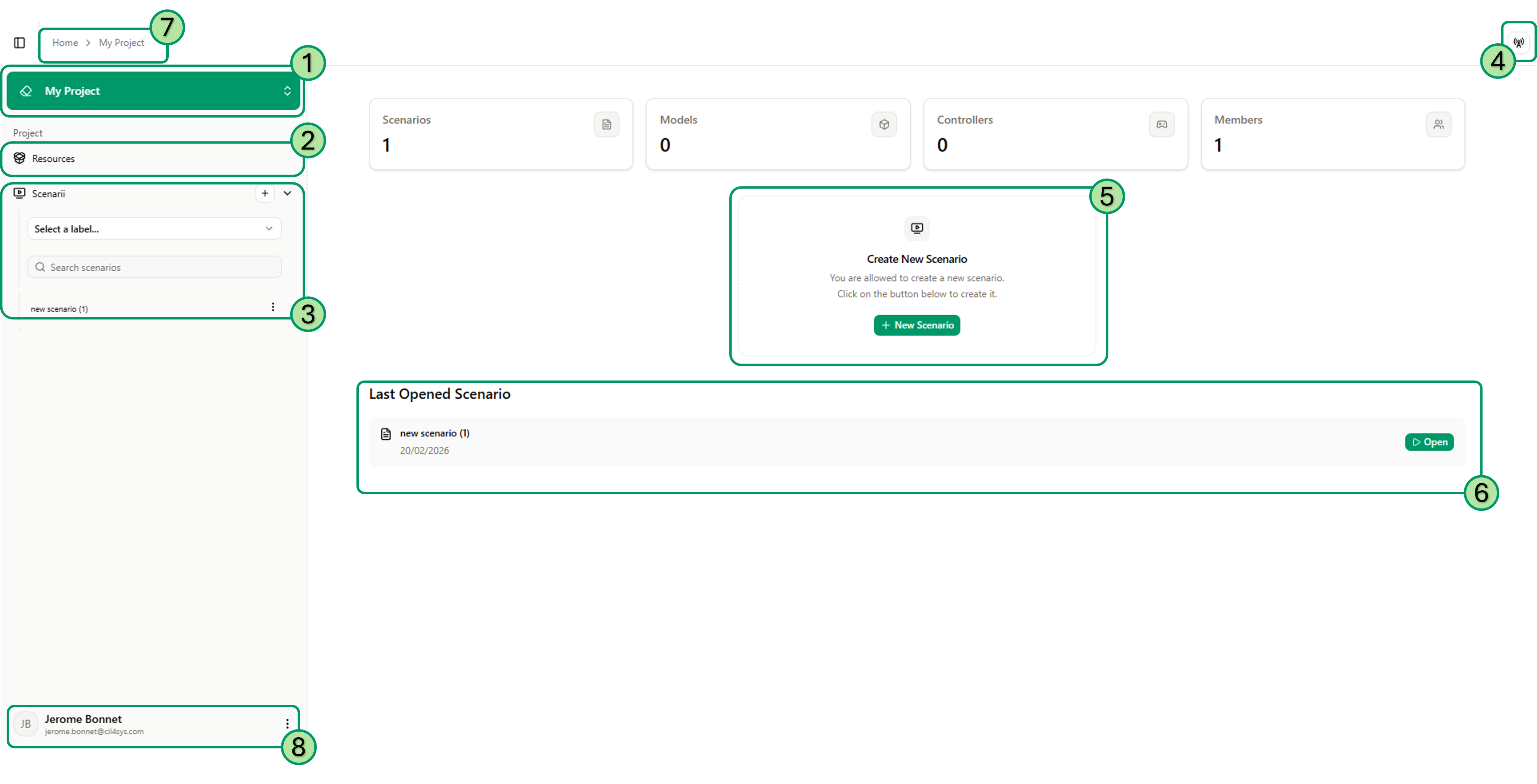
- — My Project (top of left sidebar): Click to open a dropdown; use Edit to go to project configuration (see Project Configuration).
- — Resources — opens the "Project Resources" dialog (see below).
- — Scenarii section: A + button to create a new scenario; "Select a label..." to filter by label; "Search scenarios" to search by name; then the list of scenarios. Click a scenario to open it.
- — Connexion status pop-up to see which external tool is connected. When a scenario is open, you can see the connexion status to model instances here too.
- — Create a new scenario by clicking on this button you create a new scenario.
- — Last open scenarios The last 3 scenarios opened by the user in this project, with a quick "Open" button.
- — Breadcrumb: "Home > My Project > scenario name when open" — use it to navigate to the project or even the home page.
- — Account: User profile and settings (e.g. password, log out), usually via an icon or menu in the top bar.
Project Resources
Click Resources in the left sidebar to open the Project Resources dialog. It contains tabs to manage shared project assets:
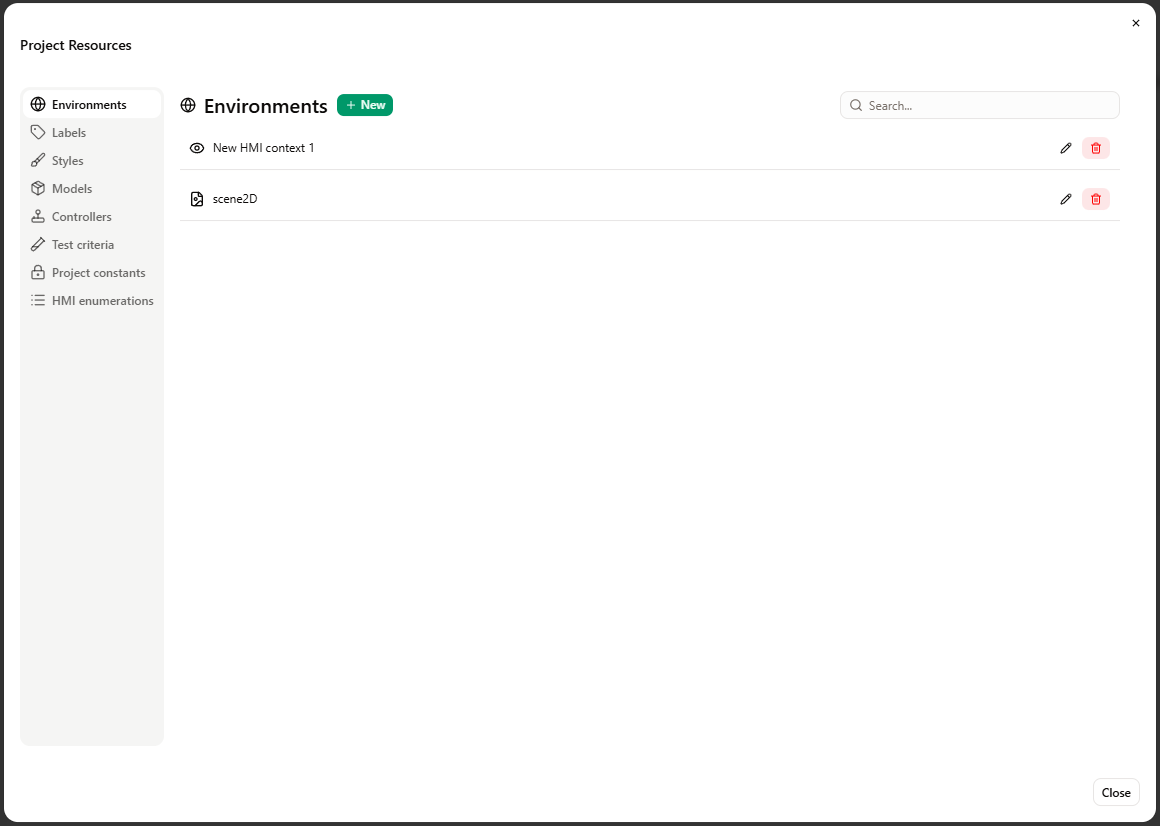
- Environments, Labels, Styles, Models, Controllers, Test criteria, Project constants, HMI enumerations — each tab lists items of that type with + New, search, and actions (view, edit, delete).
Scenario open
When a scenario is open, the interface switches to the scenario view: HMI context editing, run controls, and the right-side panel.
Where to find features:
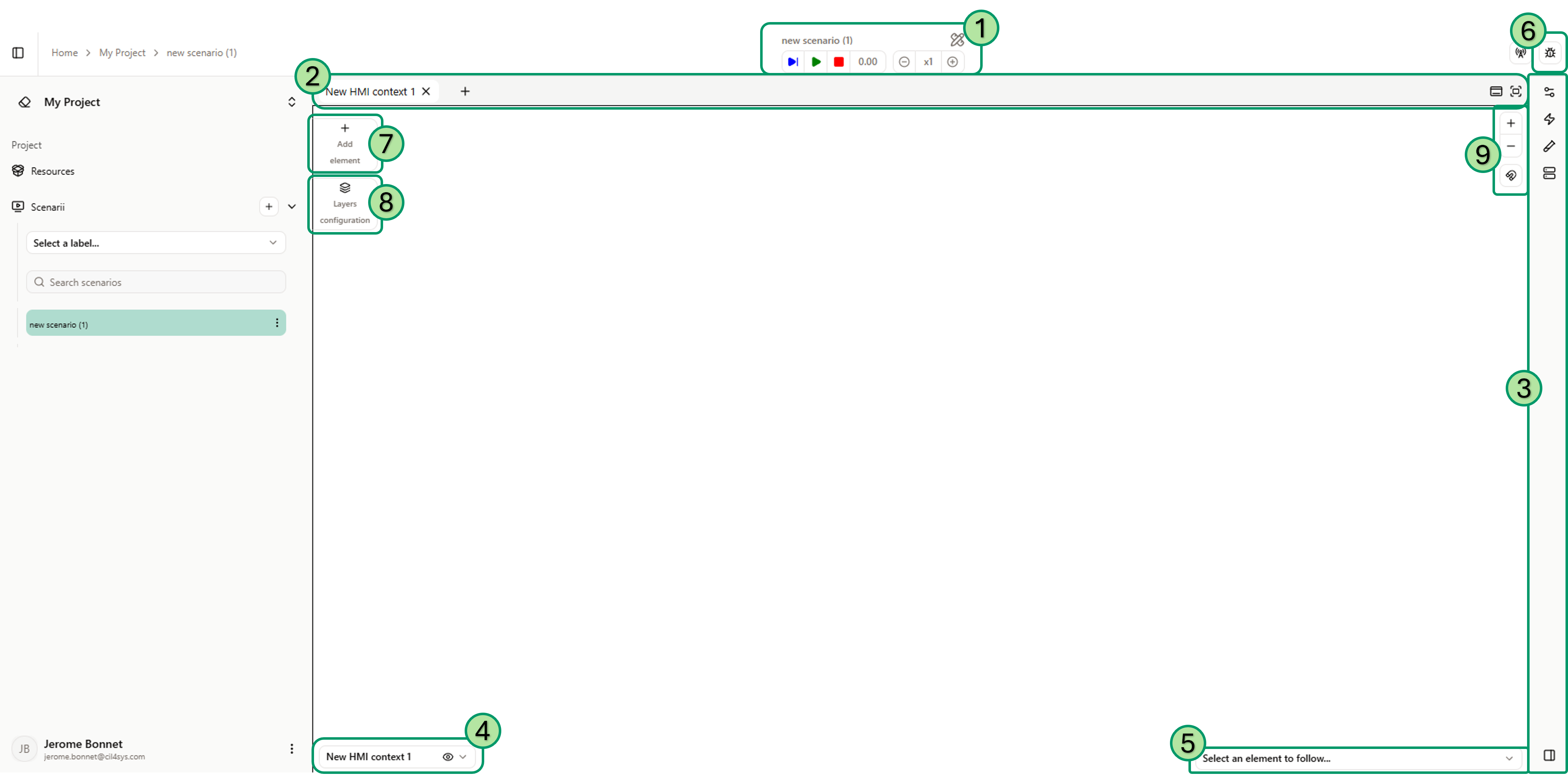
Central canvas: The main area shows the active environment(s) tab(s), Add element and Layers configuration when editing. The bottom bar shows the active environment name and "Select an element to follow..." for run/debug.
- — Run controls: Play, Pause, Stop, simulation time, speed (e.g. x1), reset (see Run).
- — Window configuration: Change layout of environment windows. Add, close and move environments in the windows or open them in an other window.
- — Right side view: Expandable panel with tabs: Parameters, Controllers, Tests, Model Instances.
- — Select displayed environment: Choose the environment displayed in this tab.
- — Scenario Element Follower: Choose the scenario element to follow.
- — Debug Window: Open the debug window.
- — Add Element: Expand a list of element to add to your environment in this scenario.
- — Layers configuration: Move the element in this list to arrange them differently. The element to the top of the list are displayed on top of the others.
- — Environment Tools: Tools to zoom in or out. You can also change the snapping value.