Models Configuration
Model List
In the project Resources tab, the model list shows all models in the project. You can add a New model, Edit an existing model's configuration, or Delete one.
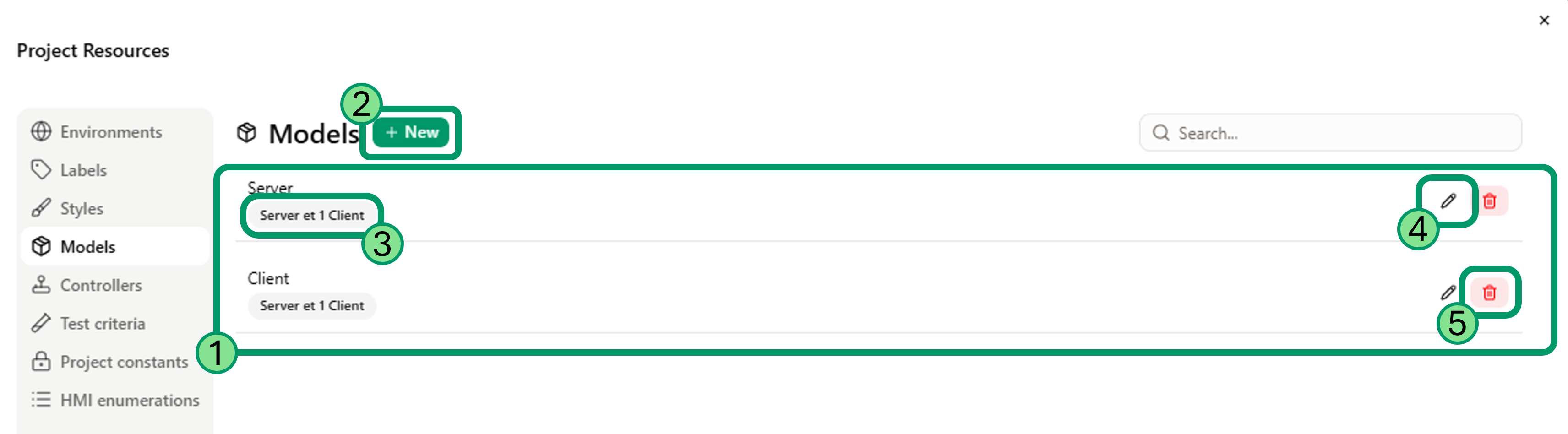
- Model list - All models present in this project.
- New - Add a new model to your project.
- Scenarios List - List the scenario where the model is instanciated.
- Edit - Configure a model.
- Delete - Delete a model from the project.
Configuring a model
To configure a model, click on Edit model list. The Edit model dialog offers several tabs:
- General to name your model.
- Data to import model informations.
- Connectivity to set the executable to use.
- Flows to define all the flows in your model.
- Model Parts to define all the model parts in your model.
Confirm your changes with Save or cancel with Cancel.
General
Name
The General tab lets you set the model name. The Name field is editable; the name must be unique among all models in the project.

Identifiers
Identifiers show the model's Export ID and Tool ID. These fields are read-only and uniquely identify the model.
- Export ID: the id of the exported model. Allow us to detect if the imported data comes from the same model each time.
- Tool ID: The id of the tool used to create the model (Papyrus, Rhapsody, etc..)

Import History
The Import History section shows the last import date and the user who performed it. This information is read-only and is here to help you manage the versionning of the a model in Virtual Bench.

Data
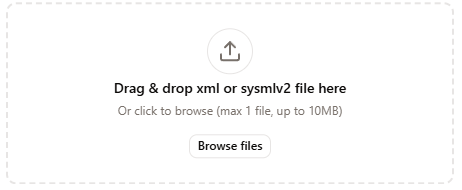
The Import Data tab lets you import model data by uploading an XML or SysML v2 file: drag and drop the file or use "Browse files".
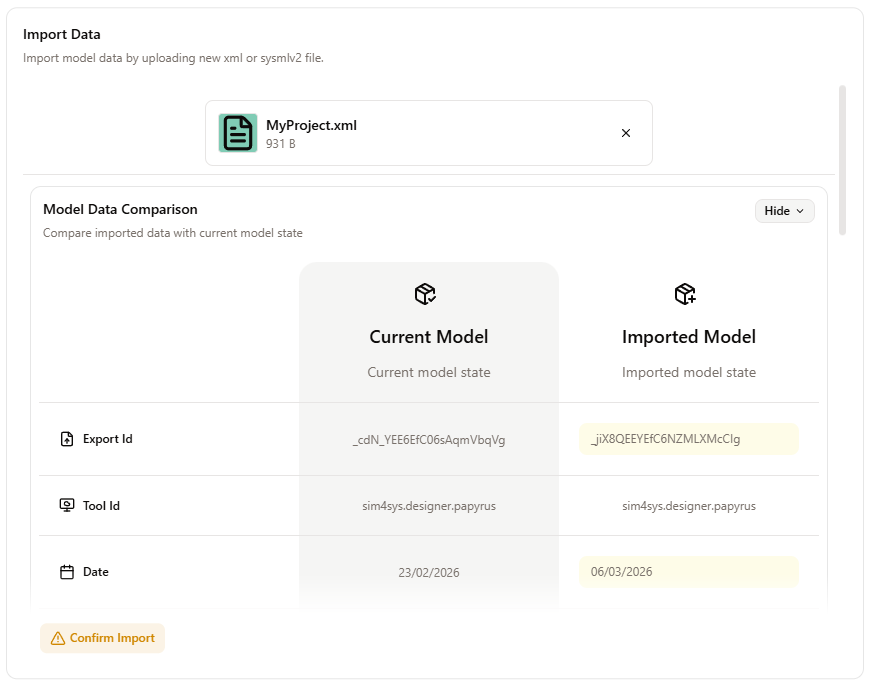
After importing datas, you will be able to compare with the old version. This will allows you to make sure the datas was correctly imported before overwritting old data.
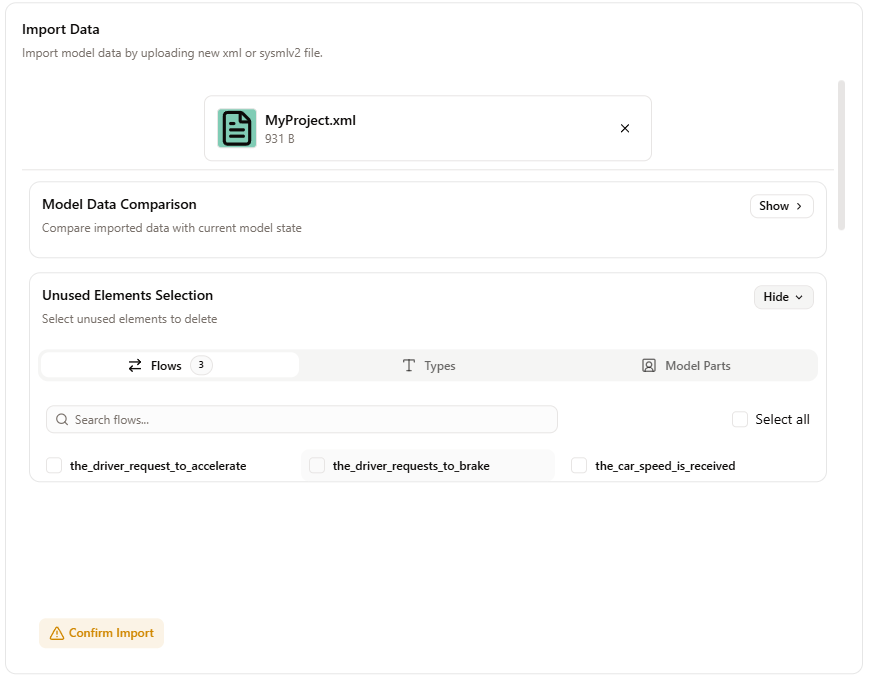
You can select unused deprecated elements (flows, types, model parts) to remove before confirming with the Confirm Import button.
Using SysML v2, will automatically configure the model parts and flows. We advise you to use it.
Connectivity
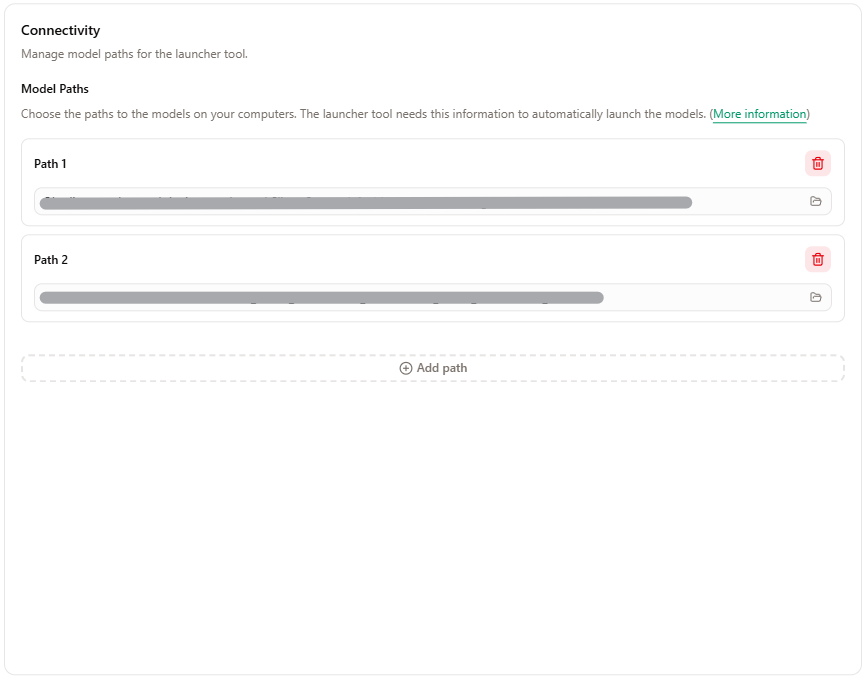
The Connectivity tab manages the model paths used by the Launcher tool to start the executable automatically. You can enter a path manually or use the browse button to select an .exe file. Paths are stored per user; you can add or remove them.
Flows
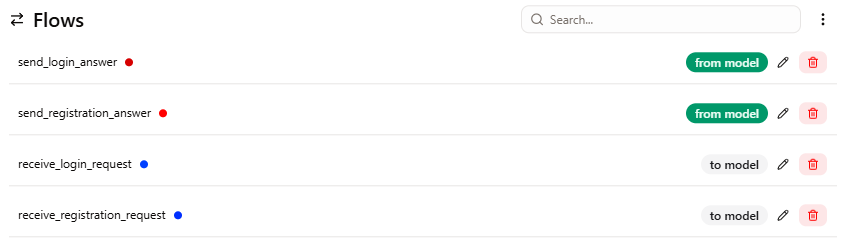
The Flows tab shows a paginated list of the model's flows. You can filter by direction, search by name, and for each flow Edit or Delete. The Delete unused element menu action finds unused flows and opens a dialog to confirm their removal.
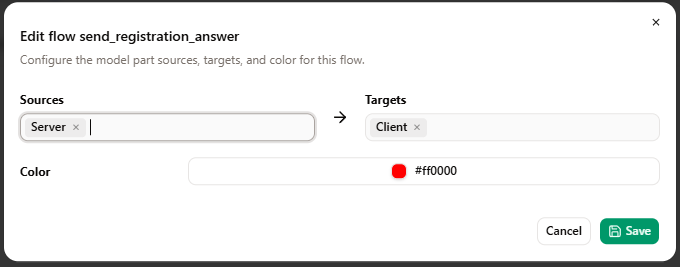
Clicking Edit on a flow opens the flow configuration dialog. There you can set the source model part and the target model part of the flow, and choose a color used to represent the flow in diagram elements such as the Sequence Diagram and the Architecture Diagram.
Model Parts
The Model Parts tab shows a paginated list of the model's model parts. You can filter by type, search by name, and create a new model part with the New button. For each item, Edit opens the model part configuration and Delete are available.

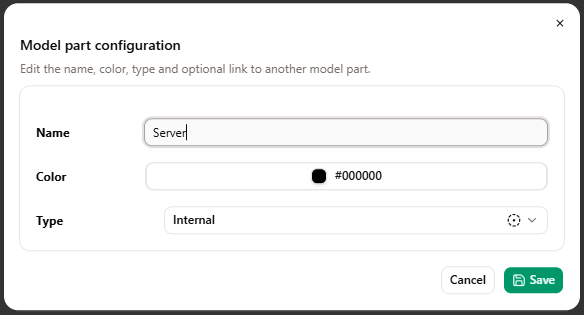
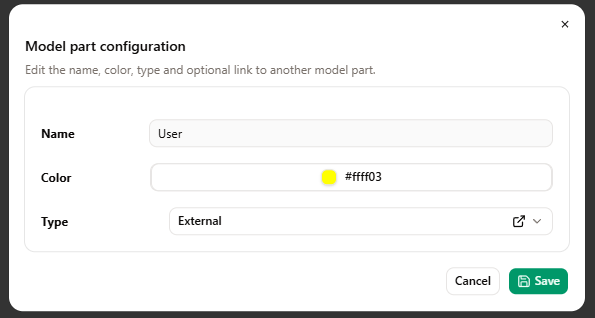
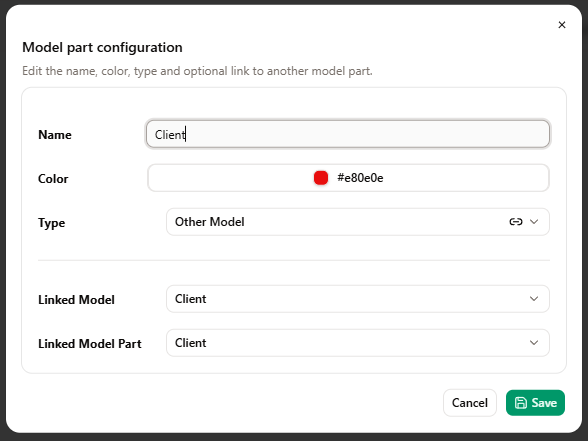
On each model part you can edit the name, color, used to represent the model part in diagram elements such as the Sequence Diagram and the Architecture Diagram, and type. The type determines how the model part is used (Internal, External, or Other Model).
Internal
A model part of type Internal represents an internal part of the model (e.g. a subsystem, a component, or a logical block that belongs to the same model).
External
A model part of type External represents a part external to the model (e.g. hardware, a physical device, or an external system that interacts with the model).
Other Model
A model part of type Other Model refers to another model in the project (e.g. a linked simulation, a sub-model, or a separate model that this one depends on). For this type you must also define which model is targeted and which model part within that model.
Deleting a model
Deleting a model is done through the delete dialog. The application first checks whether the model is used in any scenarios. If so, an error message lists the scenarios and the dialog closes. Otherwise, a confirmation dialog appears: you must type "permanently delete" to confirm. Deletion is permanent and removes the model and its associated types, flows, and controllers.