Elements Management
Right-clicking on an element within a scenario presents multiple options.
Select all scenario elements of the current Context
By right-clicking anywhere within the context and selecting "Select all", you can choose every element of the context:
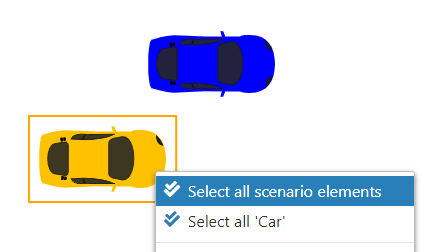
This proves highly beneficial for moving all elements at once.
Select all elements with same type
This feature enables the selection of all elements within the context that are of the same type. Simply right-click on any element and choose "Select all [type]":
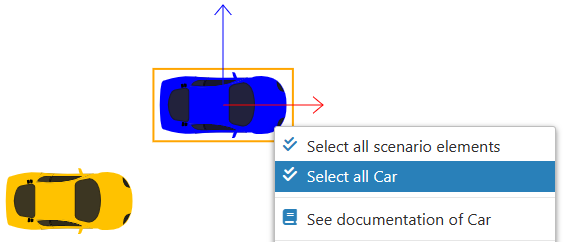
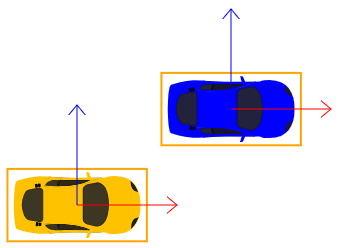
In the illustrated example, every element classified as Car type has been selected:
See Documentation
In 'Edit mode', users can access documents linked to an element by right-clicking on the object and choosing 'See documentation of [selected Element type]'.
This feature guides the user to the operational instructions for the object, detailing its proper usage and various capabilities.
Rotate an element
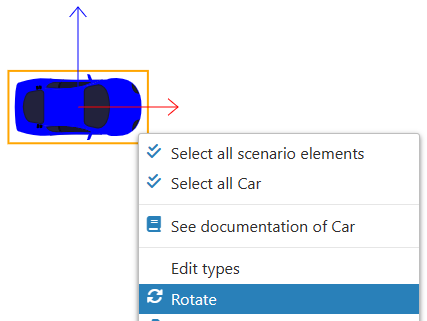
By right-clicking on an element and selecting "Rotate", you can rotate it 90 degrees in the counterclockwise direction:
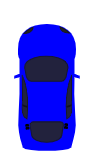
Result:
Elements attached will not rotate alongside their owner element.
Duplication
This feature enables you to replicate elements within the scenario. Duplication is not feasible if an element belongs to a group (the "duplicate" option will appear dimmed and unavailable).
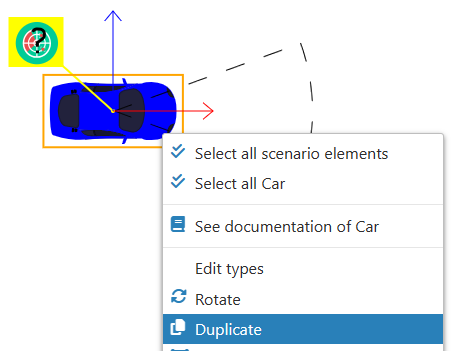
Duplicating an element which has elements attached to it will also result in the duplication of those attached elements.
Right-click on the element and select "Duplicate":
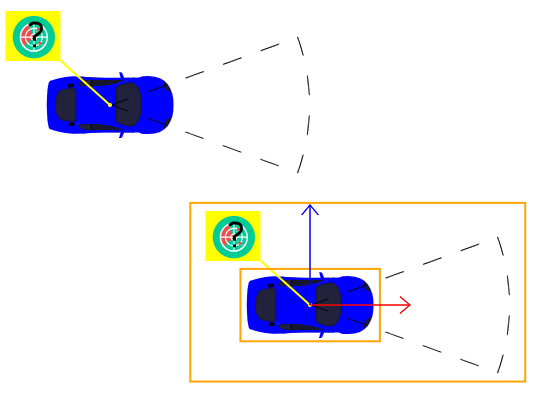
The copied element will be displayed within the context:
Arrange
You possess the capability to organize objects in a designated sequence. This ordering dictates the arrangement of scenario elements, specifying which are positioned at the forefront or the back.
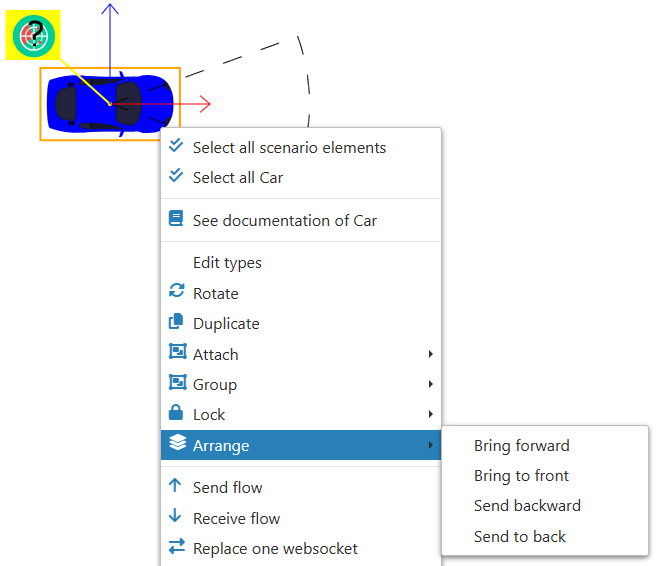
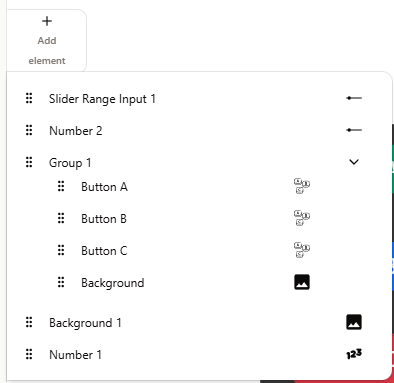
This is also demonstrated visualy in the layer configuration menu. Here, you can drag and drop elements over each others. The elements at the top are on the top of others.
Create/Add Controllers
See Controllers.
Delete scenario element(s)
Utilizing this feature will remove all elements selected within the context:
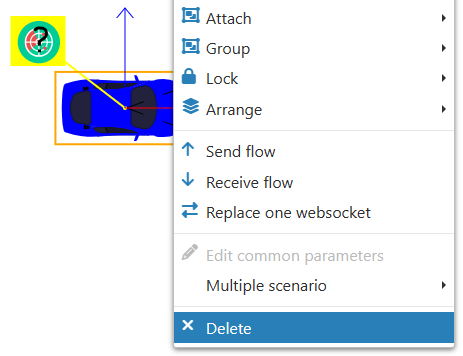
If the element(s) you want to delete have associated controller application(s), you must delete those first before you can delete the element(s) itself.
Grouping
Create a Group
To activate the "Group" option, a minimum of two elements must be selected.
Hold Ctrl and left-click to select two or more elements, then right-click on any of the selected items to group them together:
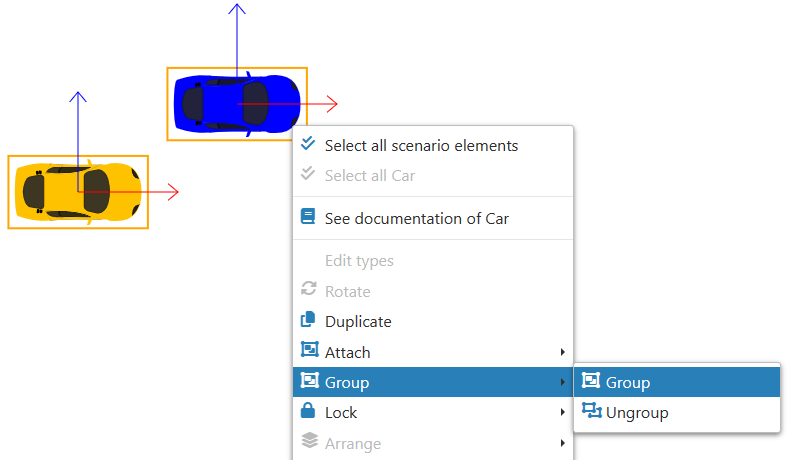
Grouping an element that has elements attached to it with one or more other elements will automatically incorporate its attached elements into the group.
Editing your groups
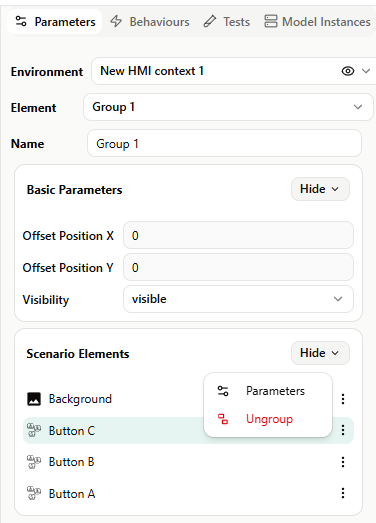
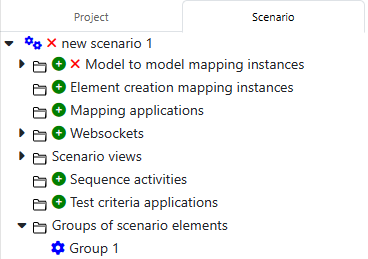
Every group within your scenario can be found through the scenario element selecter in the right lateral view.
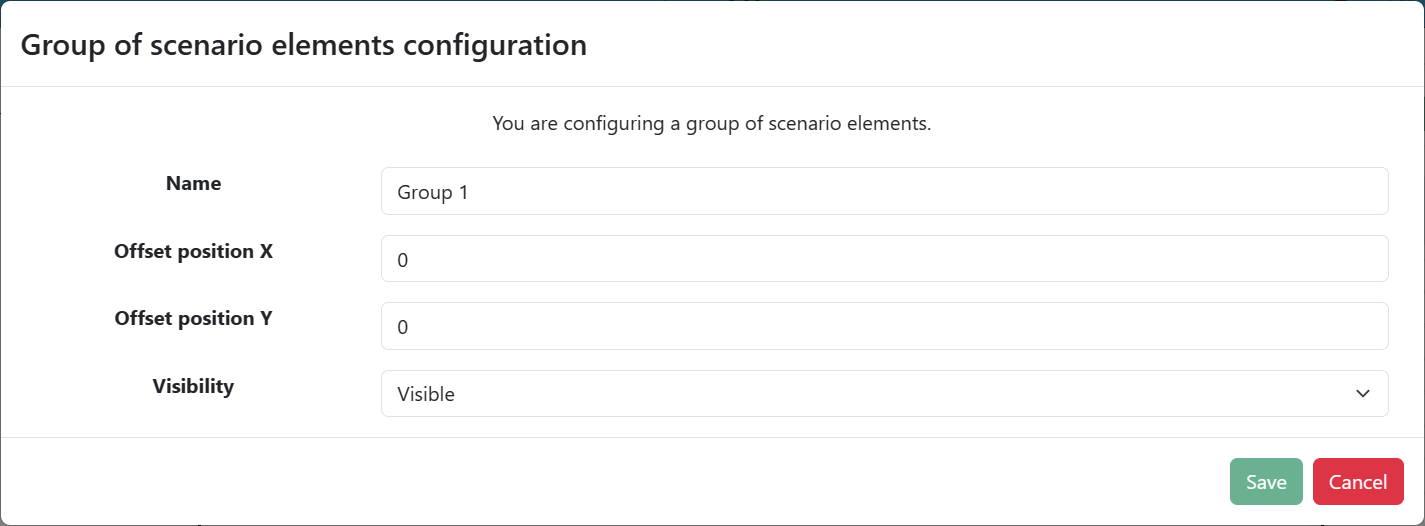
Once selected, you will be able to modify the group's initial parameter as its name, offsets, and visibility.
Ungroup
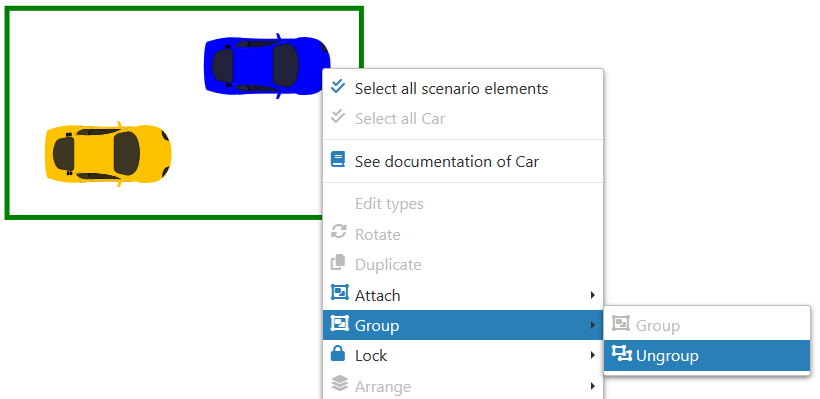
The group entirely
By selecting the group and left clicking on it, you'll have the possibility to "Ungroup" the group, this will delete the group itself but not the elements within it.
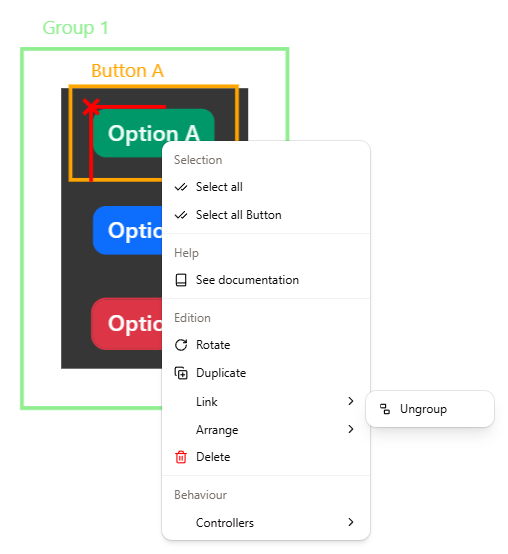
An element in the group
By selecting an element in the group and left clicking on it, you'll have the possibility to "Ungroup" the element. This will get the element out of the group but the group will still exist if there is at least two other elements still in it.
This option is also avalaible in the group's parameter throught the right lateral view.