Environments configuration
This page explains how to create, configure, and manage environments at the project level.
All of the information on this page refers to the Project Resources modal:
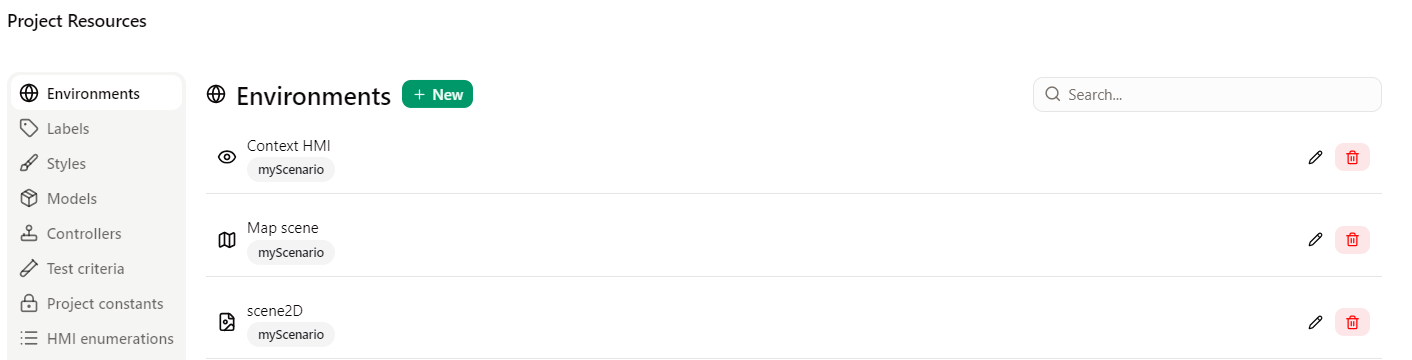
Scenario Environments
Adding a New Environment
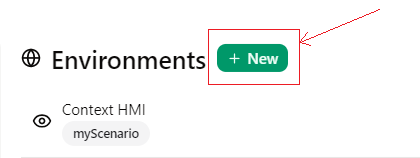
Creating new environments for your scenarios enhances the project's flexibility, as each environment is accessible from any scenario in the project. Note that the HMI context is an exception, since it can be created multiple times. To create a new environment, go to the "Environments" tab in the Resources modal and click "+ New".
- When creating an environment, you must select its type. Remember that HMI contexts are the only type that can be added multiple times.
- Choose a unique name for your environment and avoid names that already exist in the project.
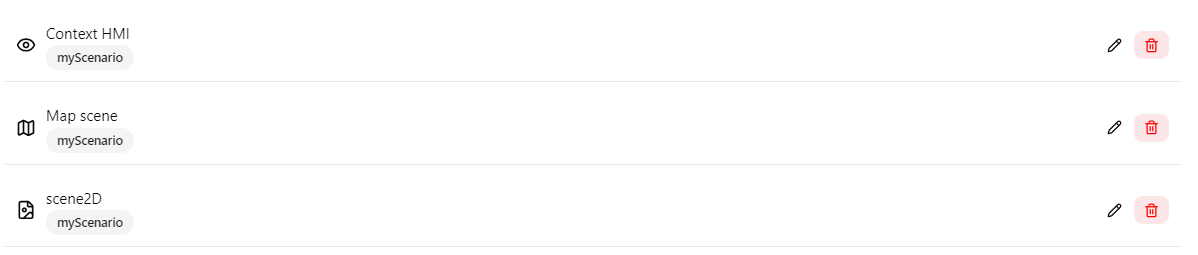
Upon creation, the new environment appears in the scenario environments list:
Modifying an Environment
To alter an environment, simply click on (edit icon) on the right side of the modal.
This action grants you access to the environment's configuration settings:
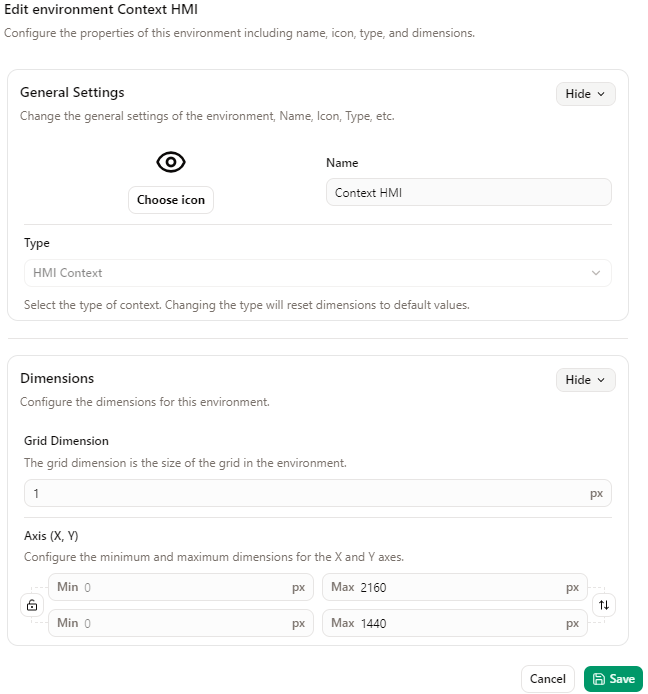
Name, Icon
In the Name, icon section, you can rename the environment (applicable only to HMI environments) and modify its icon. The icon helps you identify the environment quickly in the scenario view.
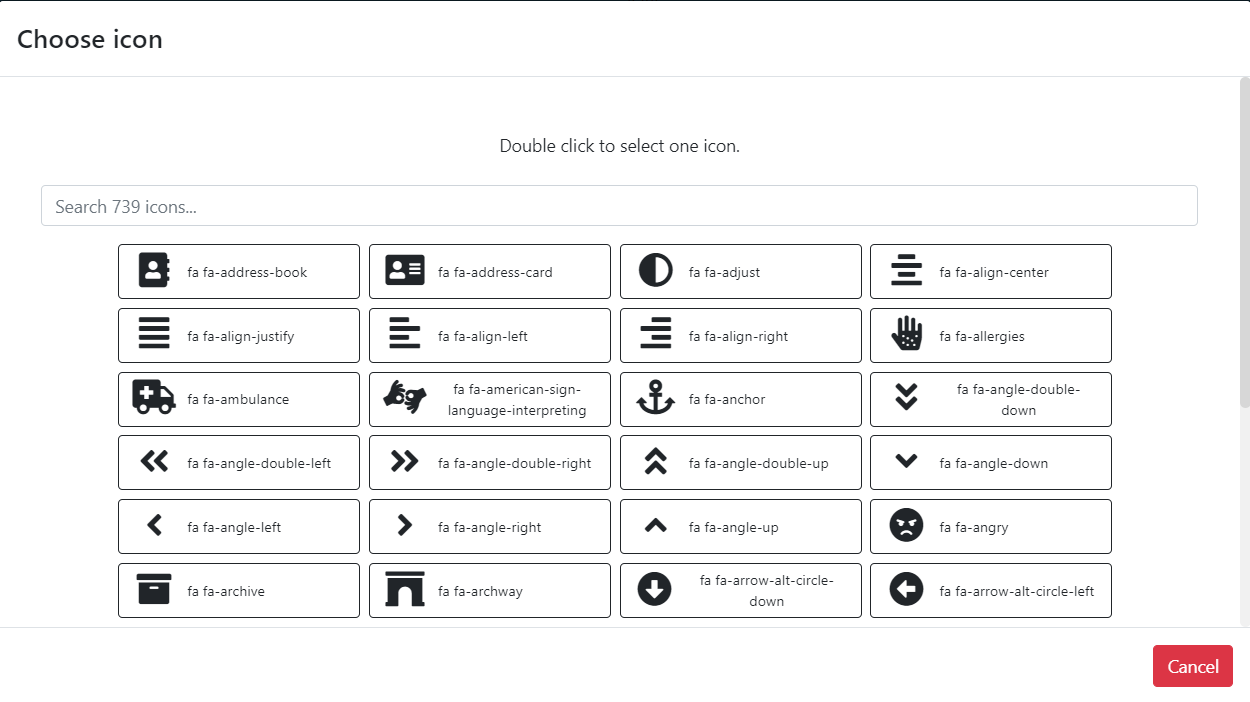
Dimensions
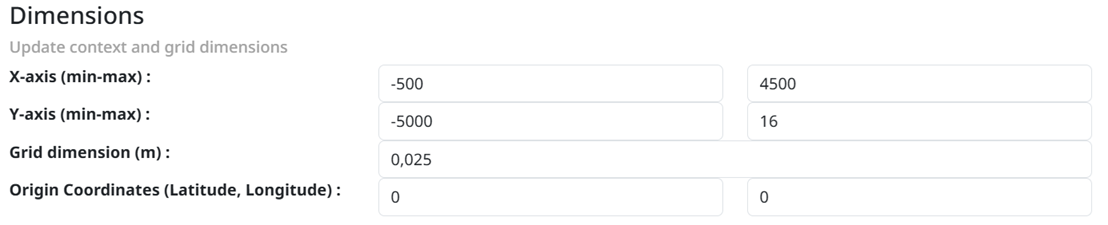
In the Dimensions section, you can adjust the maximum X and/or Y dimensions of the environment. Certain dimensions remain fixed depending on the environment type. If an element is positioned at the environment's edge, it will appear truncated — expand the workspace by adjusting the X maximum and Y maximum fields.
The grid dimension defines the movement step for all elements in the environment, which helps align elements (e.g., in 10px increments).
For the Scene2D environment, you can also set different origin coordinates.
Swap and lock HMI dimensions
For an HMI environment, use  to swap the X and Y dimensions.
You can also lock the X and Y dimension ratio with  .
.