Playing a scenario
Scenario Execution Control
When a scenario is open, you will see at the top of your screen the following controls for the visualisation of this scenario.
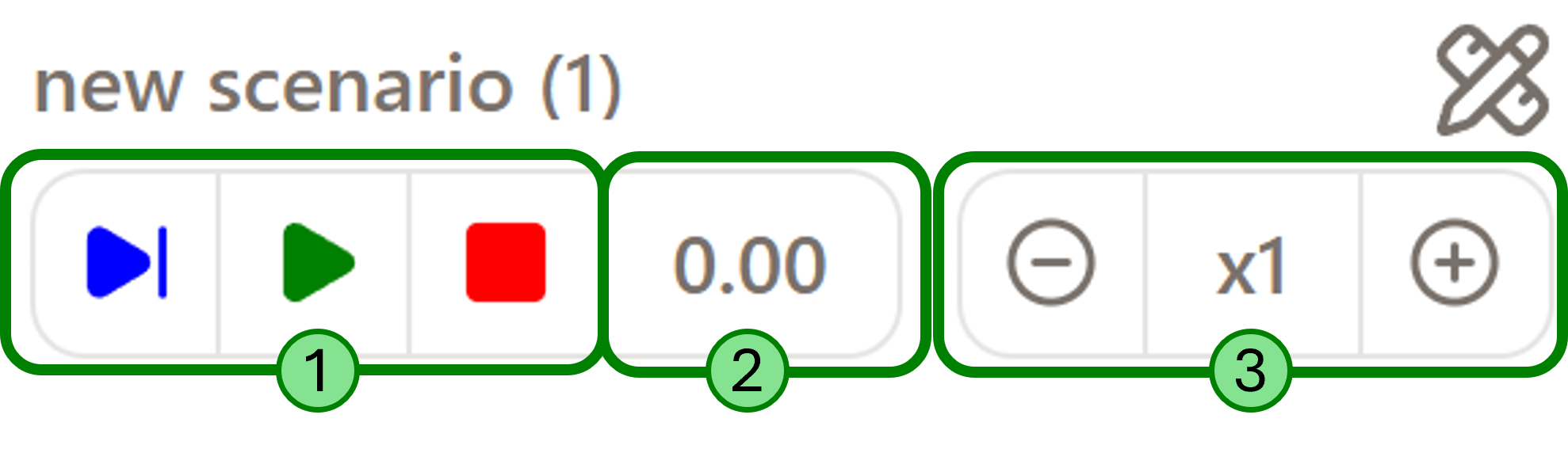
- Simple player controls. It works like a video player, from left to right :
- Step by step, make the scenario advance on step with the sampling time as a reference.
- Play/Pause to start, pause or resume visualization.
- Stop to stop the simulation.
-
The timer indicating how long the scenario as been running for in simulated time (in seconds).
-
The visualisation speed factor controls allows you to change the visualisation speed. The simulated time will stay the same but will go faster or slower compared to real life.
Window configuration
When a scenario is first open, the main context will be displayed by default. You can change this by customizing the window configuration.
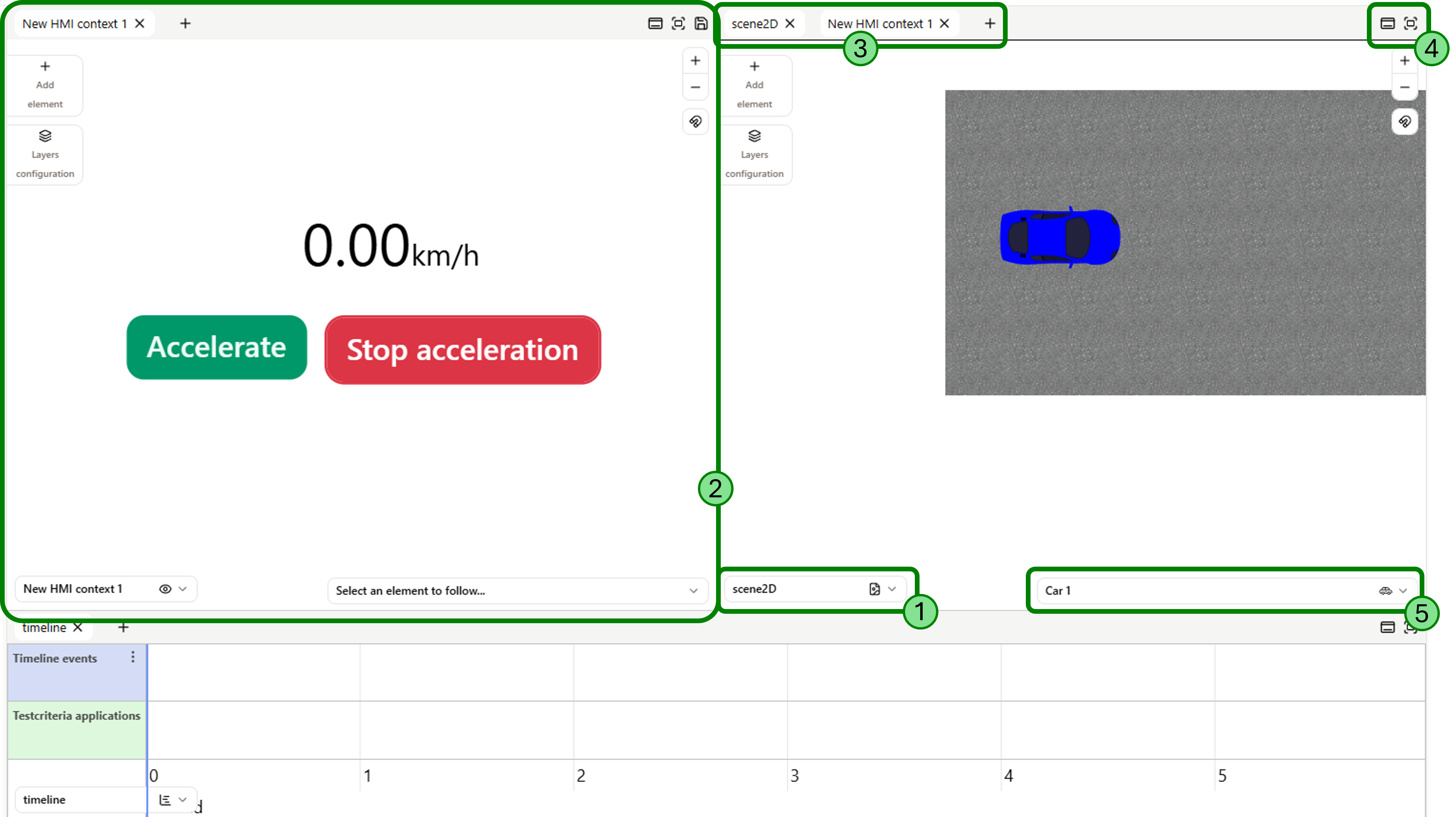
-
Choose a context here to display it.
-
The context window allows you to set contexts as windows in your application, docking and undocking them in Virtual Bench.
-
In a same context window, you can set context tabs to quickly change the displayed context.
-
Each context window has its menu. There is 5 possible button :
- undock the context window and open it in a different browser window
- close an undocked context window and reopen it as a docked version in the main browser window
- maximize the context window and hide other docked ones.
- minimize the context window and show other hided ones.
- save the window configuration for the next time your open the scenario.
-
Choose a element to follow here
Model instance connection
Most of the time, your scenario will come with one or more model instances to run with. Those take the form of executable running or your PC. To connect those executable you can use the connection menu in the top-right corner. Under Model Instances you will be able to see the model instances needed and their connection status.
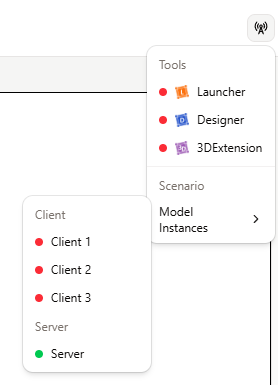
A model instance with a red dot is not connected whereas a green dot indicate a connected model instance.
You can either :
- connect a model instance manually. Run the associated executable, and then click on the model instance in the connection menu.
- simply use the Launcher. Run the Launcher, connect it to Virtual Bench with the connection menu. It will take care of the rest for you.
Only the method with the Launcher allows you to connect multiple model instances.