Scenario Configuration and Customization
Overview
- You can only edit a scenario if you are its creator.
If you are the project owner but didn't create the scenario, you will only be able to view the parameters associated with each element, and cannot edit them.
Environments
Definition
Scenarios are modifiable through Environments, which offer different perspectives on the visualized environment. Elements can be added to these environments by dragging and dropping them from the menu.
The environments are specifically tailored for the scenario that is currently open.
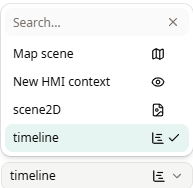
There are five types of environments:
- Scene 2D: Provides a top-down view of the ground, available once per scenario.
- Scene 3D: Offers a three-dimensional perspective based on the Scene 2D, also limited to one per scenario.
- Timeline: Displays a chronological sequence of actions undertaken by users, the environment, and engineers, with one timeline per scenario.
- HMI (Human-Machine Interface): Showcases the HMI components.
- Map scene: Provides a top-down map view with the possibility to add multiple, available once per scenario.
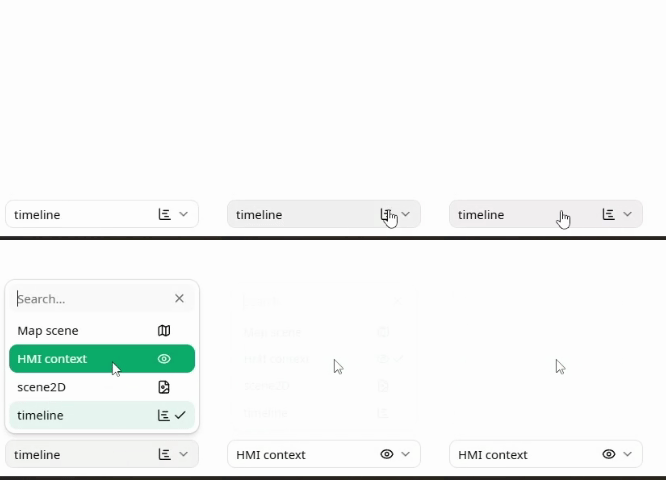
You can access a specific Environment by changing the current Environment in the open tab.
Or by opening a new tab and then selecting the desired Environment
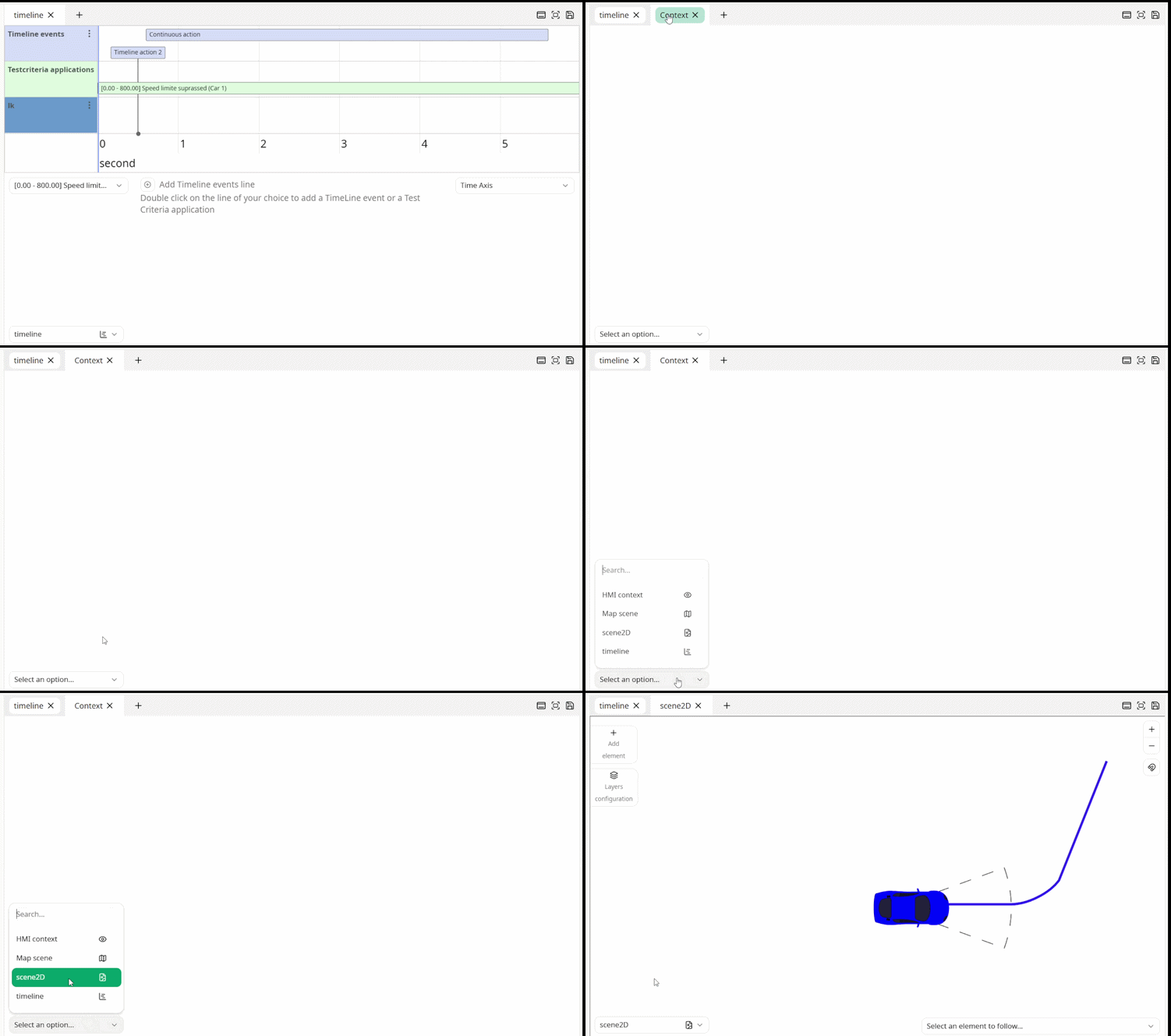
Once you open an environment, you can edit it directly. You can also switch between environments at any time while editing.
Main environment
Upon opening a scenario, the main environment will be automatically opened in a new tab.
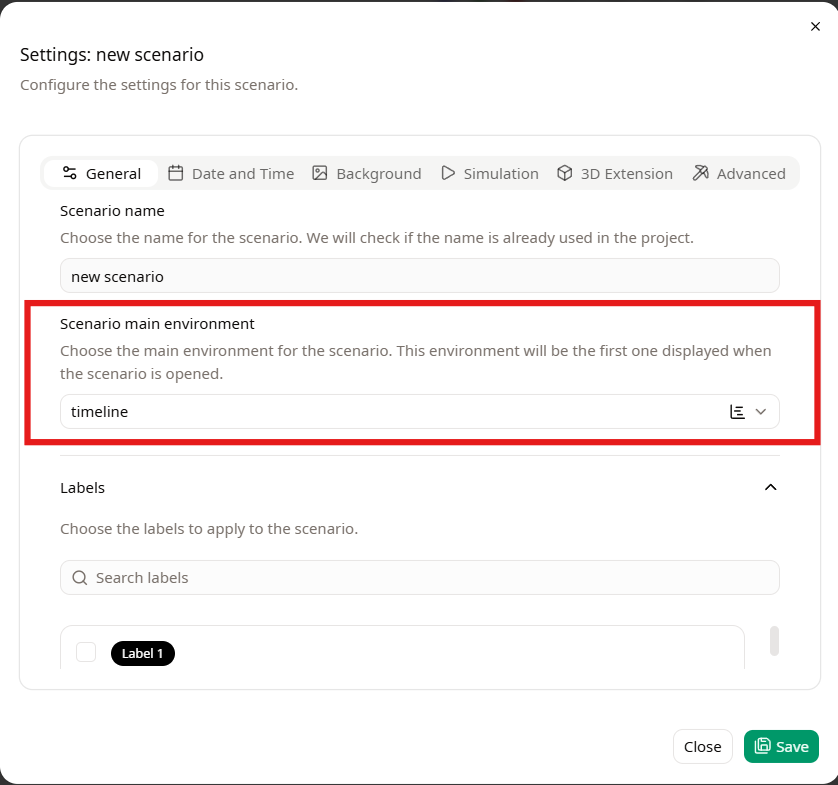
You can change the 'main environment', via Scenario → Settings → scenario main environment.
Secondary environments
Beyond the main environment, secondary environments can be accessed via the dropdown at the bottom left of the scenario view. Multiple environments can be opened simultaneously in different tabs.
Be aware that when using Chrome, you may experience slowdowns if a secondary environment is in focus.
Elements
Upon clicking on  , a right-side panel becomes visible, featuring four tabs:
-
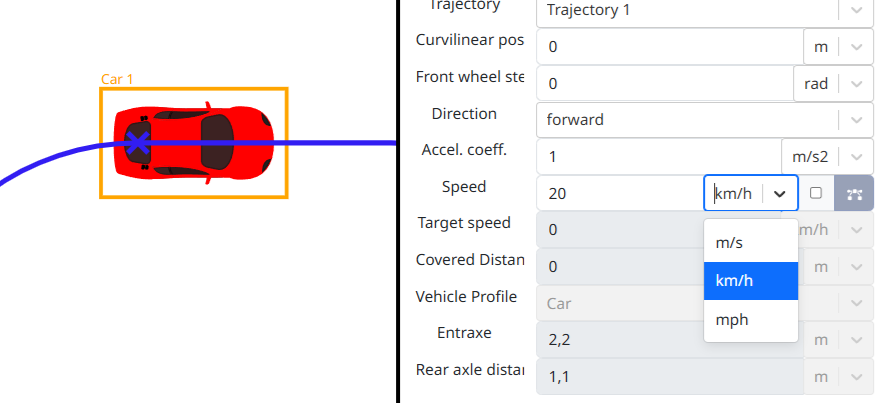
Parameter: This tab displays the parameters of the element selected within the scenario. For each applicable parameter, you can change the unit used.
-
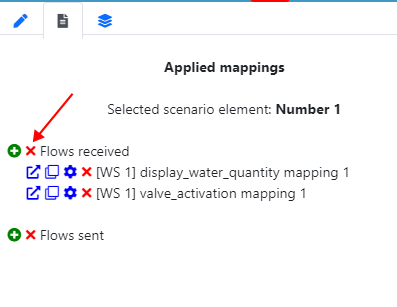
Behaviours: Here, you'll find the Controller Applications tied to the selected scenario element. Within this tab, you have the capability to edit the Controllers as well as to edit or delete the Controller Applications, related to the chosen element.
-
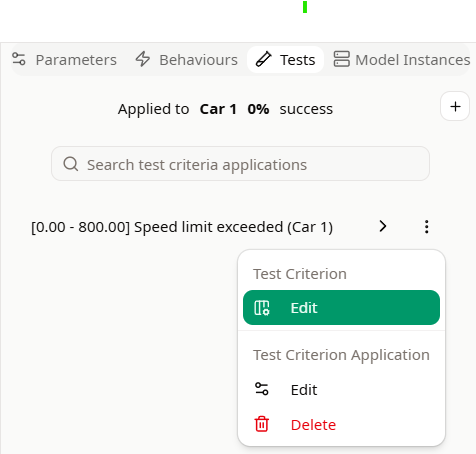
Tests: Here, you'll find the Test Criteria tied to the selected scenario element. Within this tab, you have the capability to edit Test Criteria as well as to edit or delete the Test Criteria Applications, related to the chosen element.
-
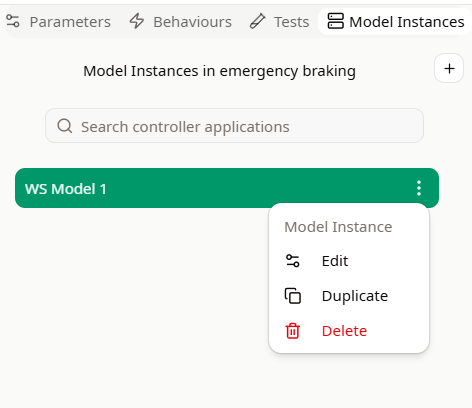
Model Instances: Here, you'll find the Model Instances tied to the selected scenario element. Within this tab, you have the capability to edit, duplicate or delete the Model Instances, related to the scenario.
Definition
Elements, which are either objects or actions, can be introduced into a scenario's environments through drag and drop.
The availability of elements varies across different menus, contingent on the environment in question.
When an element is placed within an Environment, selecting an element allows you to modify it. The right-side panel will display all of its parameters, whether they are editable or not.
Save
Following a modification, the changes will be automatically saved within 400ms.
Delete
To delete an element, you can click on the "Delete" button at the bottom of the Parameters tab on the sidebar, or simply press the “Del” key. A confirmation prompt will appear to ensure the action is intentional before the element is completely removed.
You can select multiple elements by pressing "Ctrl" and clicking on the desired elements. The selected elements can be deleted by pressing the "Del" key.
Scenario Parameters
Within the left sidebar, you can access the scenario parameters pop-up by clicking three points in front of your scenario and then choosing "Settings":

This Scenario Setting pop-up will then appear. It will allow you to easily modify the scenario parameters:
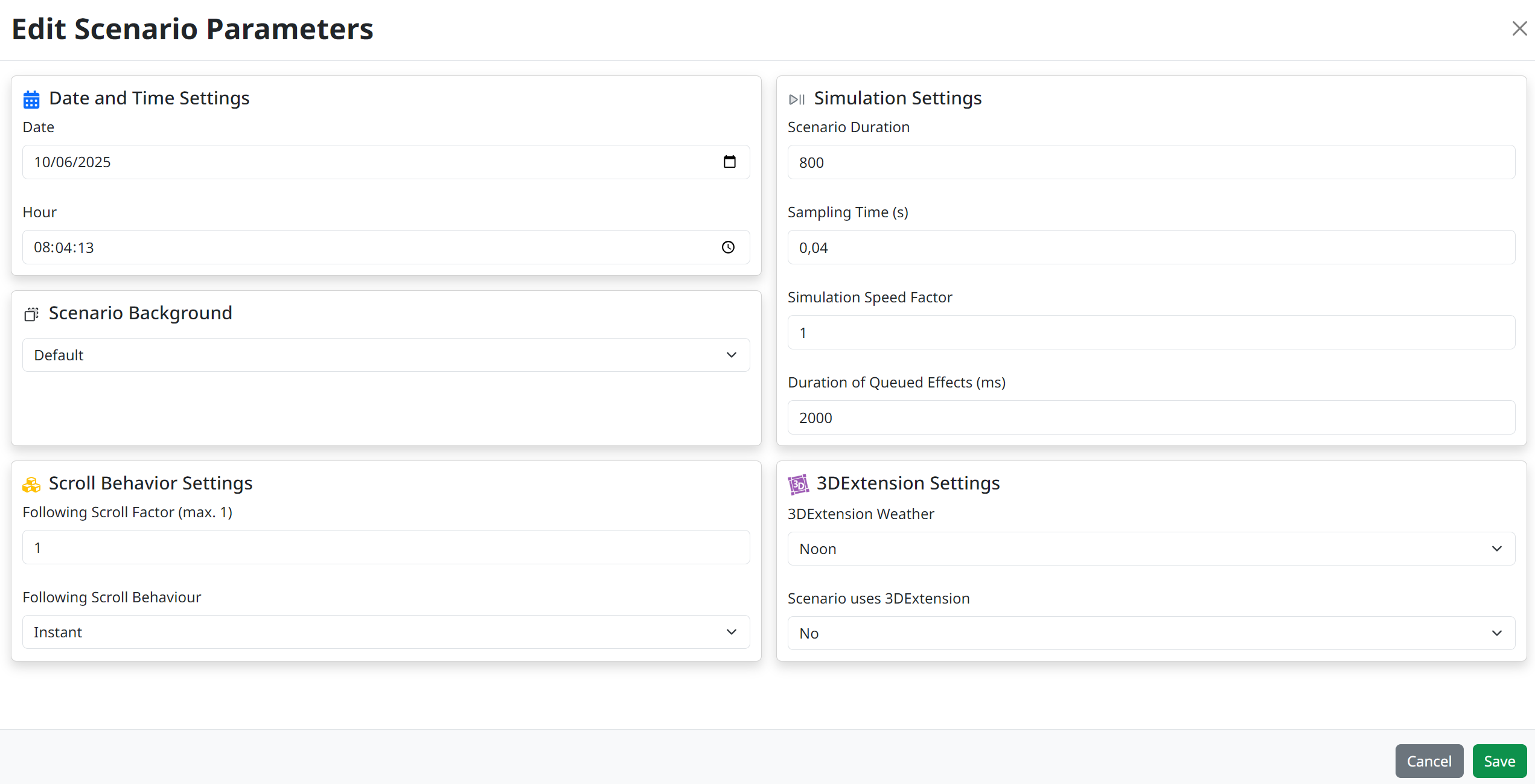
The parameters which are modifiable are the following:
| Parameter | Default | Description |
|---|---|---|
| Date (DD:MM:YYYY) | The date of the scenario creation. | Represents the initial date for the scenario. |
| Hour (HH:MM:SS) | The hour of the scenario creation. | Specifies the starting time for the scenario. |
| Scenario background | Default | Allows selection of the desired ground type for the 2D and 3D scenes. |
| Scenario Duration (s) | 800 s | Defines the total length of the scenario in seconds. (minimum equal to Sampling time) |
| Sampling time (s) | 0.04 s | Indicates the interval between consecutive visualization updates. (minimum = 0.01s) |
| Speed Factor (no unit) | 1 | Determines the visualization's speed. A value of 1 implies real-time speed, less than 1 for slower, and greater than 1 for faster execution. (min = 0) |
| Use 3DExtension | Inactive | Offers the ability to use the 3DExtension tool in the Simulation |
| 3DExtension Weather | Noon | Offers the ability to set the weather conditions within the 3D view of the 3DExtension tool. |
| Following scroll factor | 1 | Refresh rate for the 2D view when auto-tracking an object. A value of 1 updates every frame, lower values reduce the refresh frequency. (min = 0) |
| Following scroll behaviour | Instant | The method of tracking an object in the 2D scene: either an immediate update or a smooth, gradual follow. |
Initialization of the scenario
Some of these values are communicated to the model (and to 3DExtension, if it is used) at the start of the scenario.
To ensure optimal performance throughout the scenario, it is recommended to maintain a consistent ratio of 25 (Hz) between the speed factor and the sampling time.
Scenario Element Types
You have the option to establish a scenario element type, facilitating the organization of elements into a distinct subgroup.
Check scenario elements
Within the Project Resources, you can view all the Element Types in your project, from the Element Types tab:
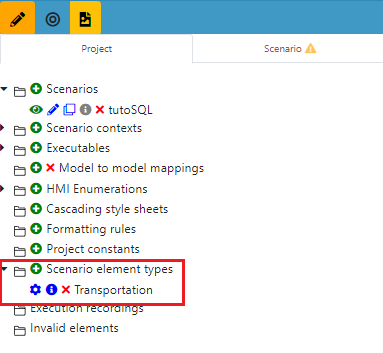
Within the Project tab, you're able to review the types of scenario elements:
Creation of a Scenario element type
- Navigate to the Element Types tab and click on
 next to Element Types.
 - Enter your desired name for the element type and click on Save.

Delete a Scenario element type
In the Element Types tab, proceed to the element type you want to delete and click on  .
.
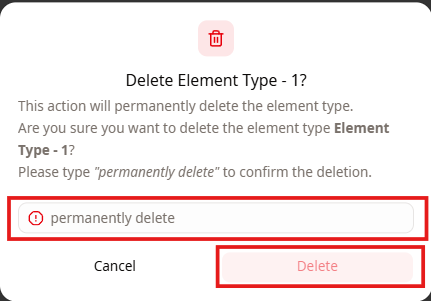
A pop up will appear, asking you to confirm the deletion by typing permanently delete and then clicking on Delete.
If the element is not utilized within the project, it will be removed immediately.
Associate a scenario element type to an element
- Select the element you want to associate with an element type.
- Navigate to the Side bar, and under Other types you can associate as many types as you want with your element.