Project Settings
This page focuses on the Project settings , detailing how to access, manage, and customize your projects on the sim4sys platform. It covers member management, and essential settings adjustments to streamline your workflow.
As the owner of a project, you can access its settings by clicking on the configuration button displayed here:

You are taken to the project edit page (e.g. Home > My Project > Edit). In the left sidebar, under Settings, the following sections are available: General, Statistics, Collaborators, Units, and Advanced.
General
Change the general settings of the project: Name, Description, Icon, etc.
- Project Icon — Choose the icon for the project. Click the Choose icon button to select a new icon.
- Project Name — The name must start with a lowercase or uppercase letter, digit, emoji, or underscore. It can also contain dots, pluses, dashes, or spaces.
- Project ID — Read-only; displays the project identifier.
- Project Description — Describe the project in a few words.
- Main Context — The main context of the project is the context that will be selected by default when the project is opened. Select it from the dropdown.
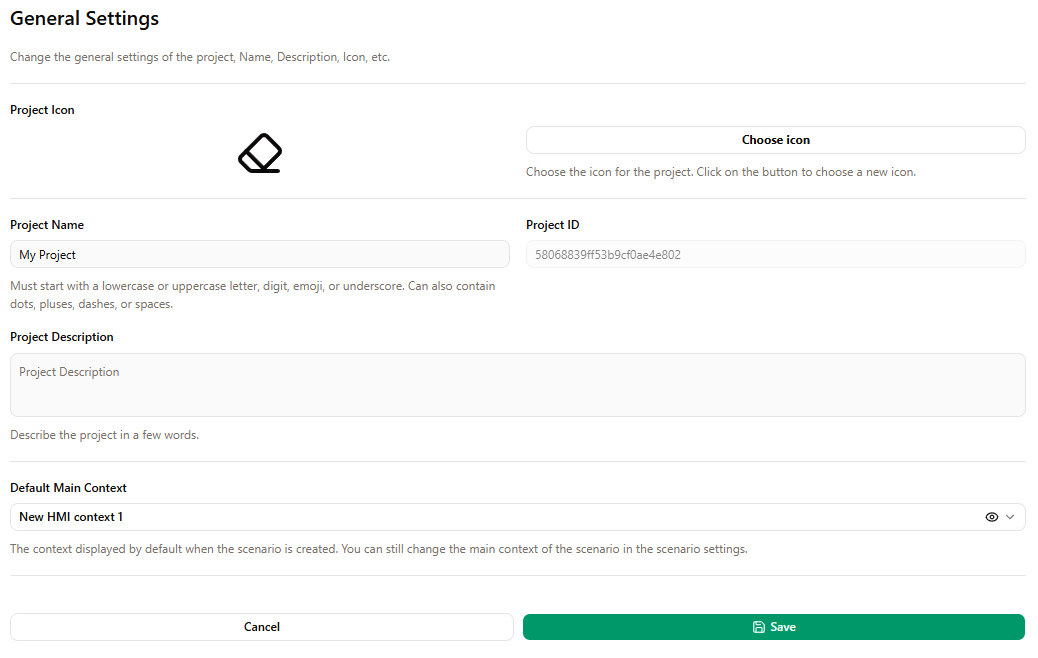
Use Cancel to discard changes or Save to apply them.
Statistics
See the statistics of the project: number of users, number of scenarios, number of models, etc.
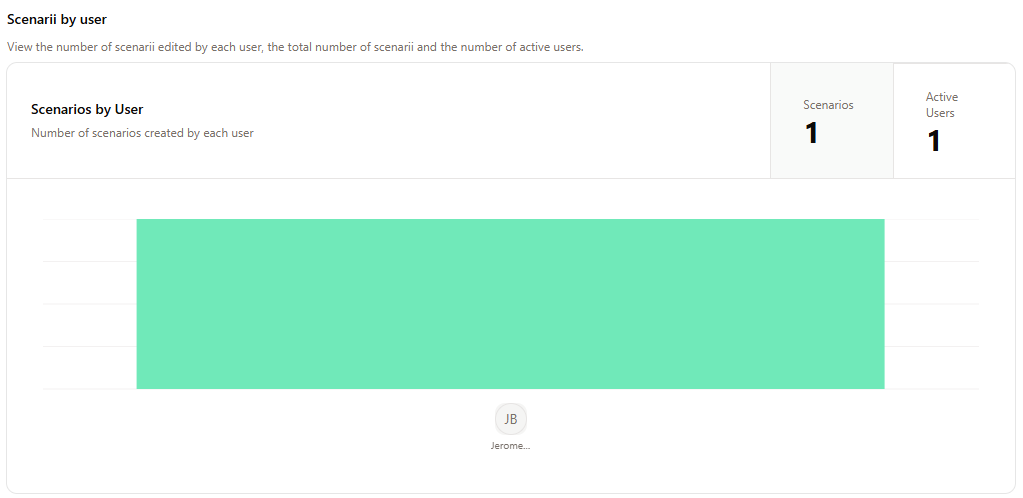
Scenarios by user
View the number of scenarios edited by each user, the total number of scenarios and the number of active users. A Scenarios by User card shows the number of scenarios created by each user, with summary metrics (e.g. Scenarios, Active Users) and a chart.
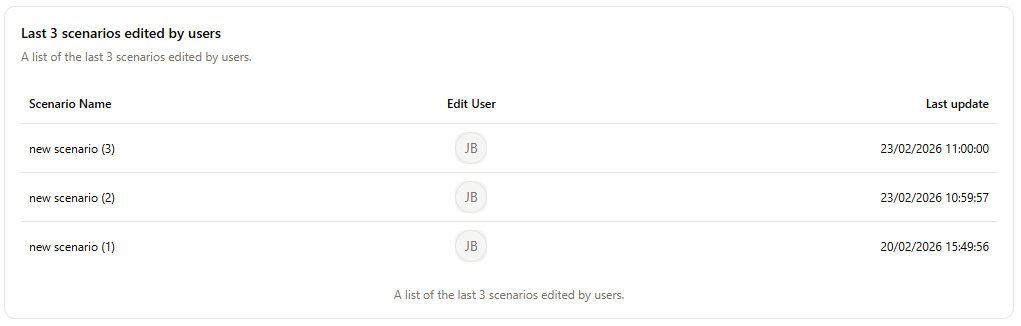
Last edited scenarios
A list of the last 3 scenarios edited by users, in a table with columns Scenario Name, Edit User, and Last update.
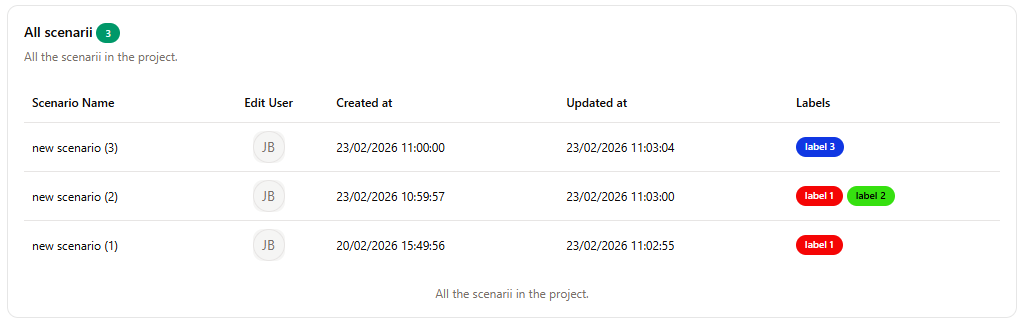
All Scenarios
A list of all the scenarios present in the project with informations on them in a table with columns Scenario Name, Edit User, Created At, Updated At, and Labels.
Scenarios by Label
A graph showing the number of scenarios using each labels.
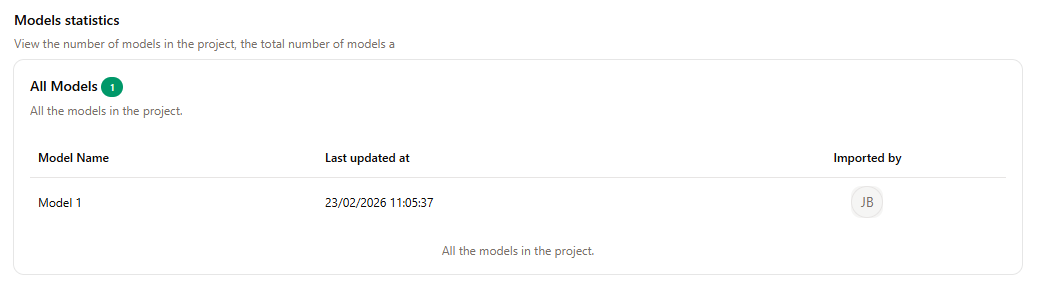
Model Statistics
A list showing the models present in the project with informations on them in a table with columns Model Name, Last updated at and Imported by.
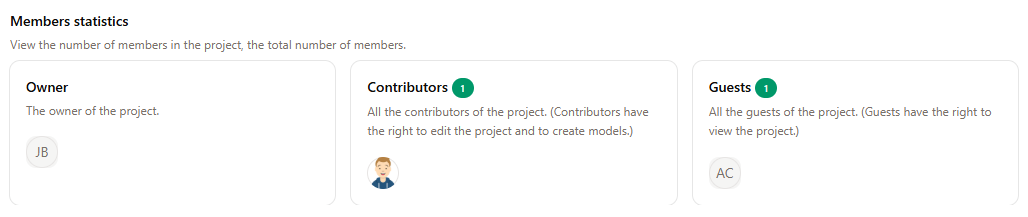
Members Statistics
A list of the members of the project sorted by right : Owner, Contributors or Guest.
Collaborators
View the collaborators of the project, and manage them by adding or removing them or changing their rights.
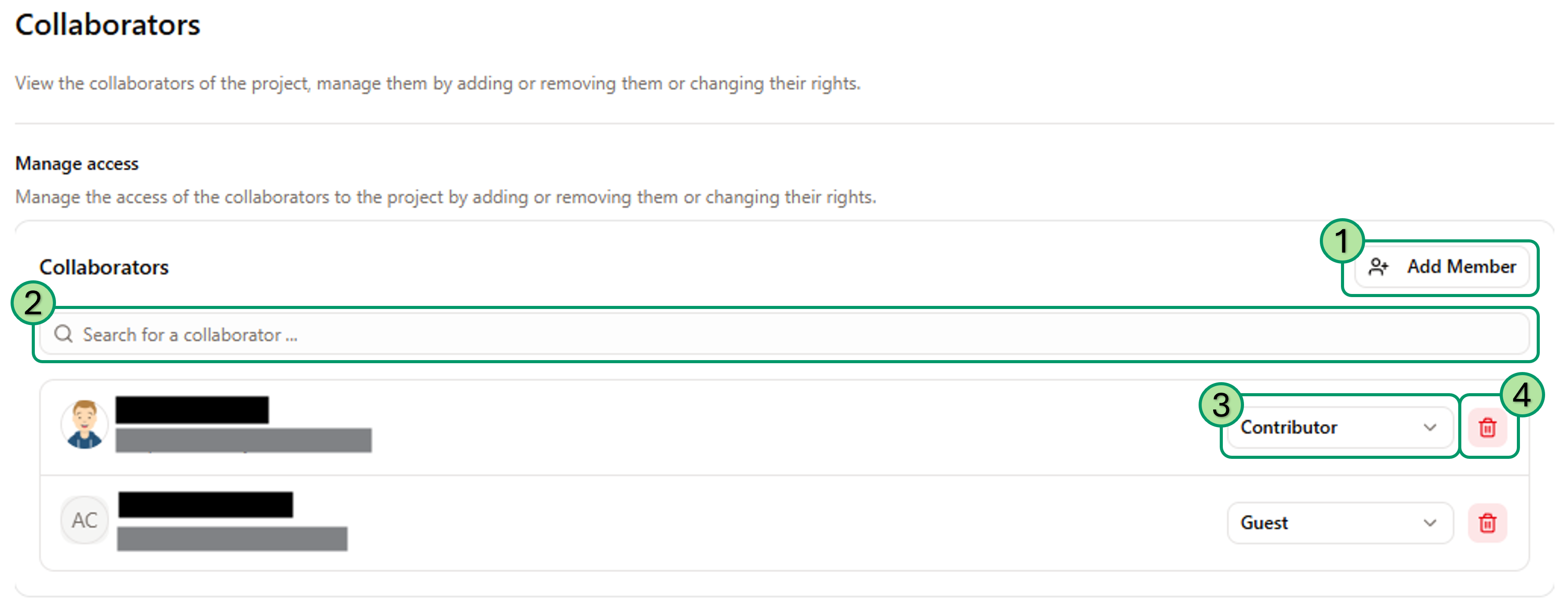
- Add Member — Click here too add a new member to the projet.
- Search Member — Search a member in the project.
- Manage Access — With this combobox, you can change the access rights of a member.
- Delete Member — Click here to delete the access to the project for a member.
Units
Units Selection
View the units settings of the project. Change units usable for each measure; scenario elements parameters will use the selected units. You can choose multiple units for each measure to have the necessary precision for your project.
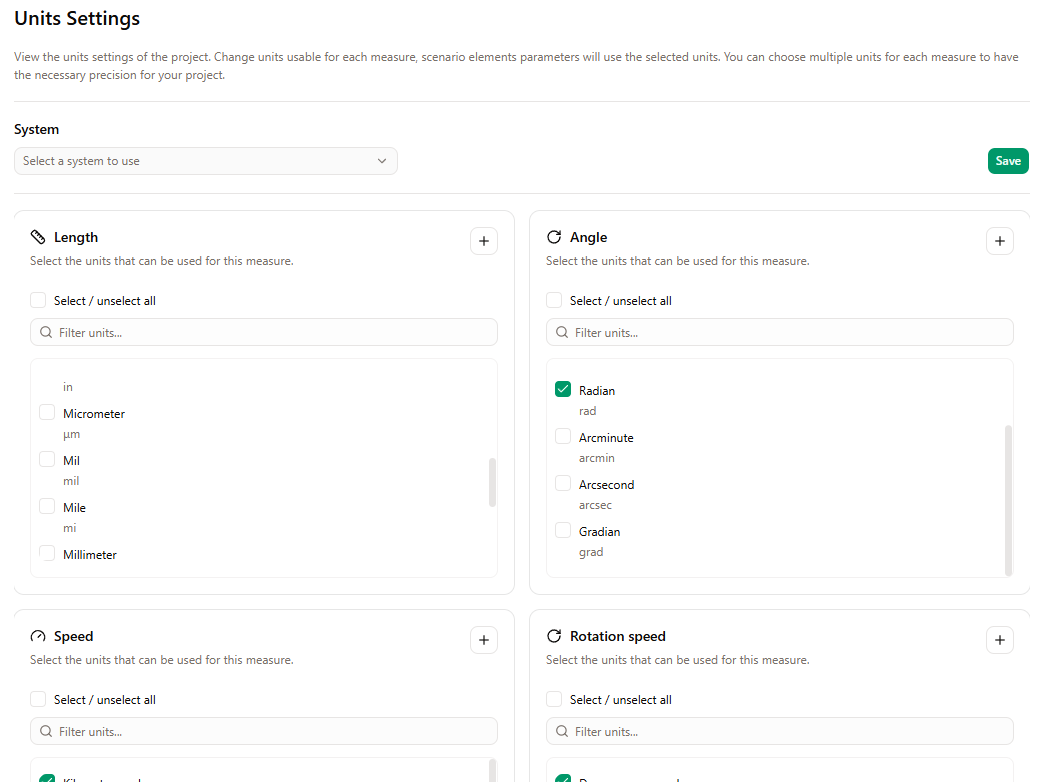
- System — Select a system to use: Custom, International System, or Imperial System. Click Save to apply. Custom enables nothing by default so you can choose units from scratch. International System enables SI units (e.g. metre, radian, degree, second, Hertz, Kelvin). Imperial System enables imperial units (e.g. inch, yard, foot, mile, Fahrenheit).
- Per measure — For each type (Length, Angle, Speed, Rotation speed, Acceleration, Rotation acceleration, Frequency, Temperature), select the units that can be used for that measure. Use Select / unselect all to toggle all units in the list, and Filter units... to search. Check or uncheck units as needed. Use the + button to add a custom unit for that measure.
Creating a custom unit
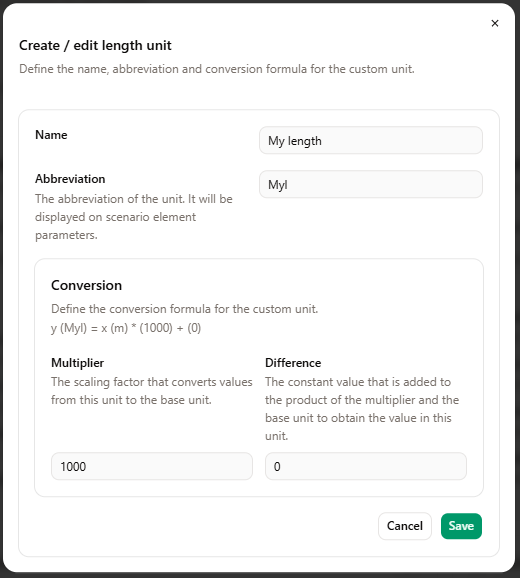
Custom units let you define your own measure units and their conversion to the reference base unit for that measure. Open the dialog by clicking the + button next to the measure type (e.g. Length); for an existing custom unit, use the edit (pencil) icon. The dialog Create / edit [measure] unit asks you to define the name, abbreviation (shown on scenario element parameters), and the conversion formula to the base unit.
Each measure type has a fixed base unit used as reference for conversions:
| Measure | Base unit |
|---|---|
| Length | m |
| Angle | deg |
| Speed | km/h |
| Rotation speed | rad/s |
| Acceleration | m/s² |
| Rotation acceleration | rad/s² |
| Frequency | Hz |
| Temperature | °C |
The conversion is a linear formula: value in your custom unit = (value in base unit) × Multiplier + Difference.
- Multiplier — The scaling factor applied to the base-unit value: e.g. a multiplier of 1000 for length means 1 m (base) = 1000 in your custom unit (like millimetres); 0.001 means 1 m = 0.001 in your unit (like kilometres). The multiplier converts from the base unit to your unit when combined with the difference.
- Difference — A constant added after multiplying by the base value. Use 0 for purely proportional units (e.g. km = 1000 × m). For temperature-like scales where the zero is offset (e.g. Celsius vs Kelvin), set the difference so that the formula matches the real conversion (e.g. °C = K × 1 − 273.15).
Example: for a length unit “My length” with abbreviation “Myl” where 1 m = 1000 Myl (millimetre-like), set Multiplier = 1000 and Difference = 0. Then a value of 1 in the base unit (m) gives 1000 in your unit (Myl).
After Save, the unit is added to the project and appears in the measure list (enabled by default). You can edit it via the pencil icon or remove it via the delete icon; only custom units can be edited or deleted.
Advanced
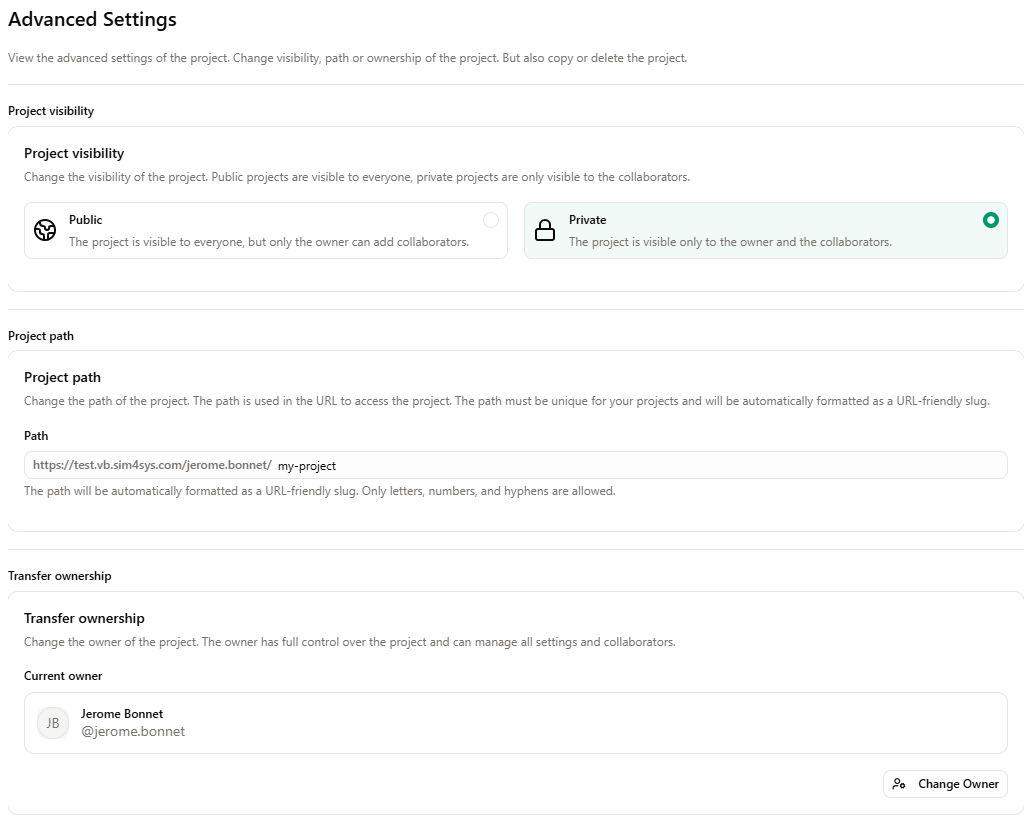
View the advanced settings of the project. Change visibility, path or ownership of the project. You can also copy or delete the project.
-
Project visibility — Public: The project is visible to everyone, but only the owner can add collaborators. Private: The project is visible only to the owner and the collaborators.
-
Project path — The path is used in the URL to access the project. It must be unique for your projects and will be automatically formatted as a URL-friendly slug. Only letters, numbers, and hyphens are allowed.
-
Transfer ownership — Change the owner of the project. The owner has full control over the project and can manage all settings and collaborators. The Current owner is displayed; use the Change Owner action to transfer ownership.
-
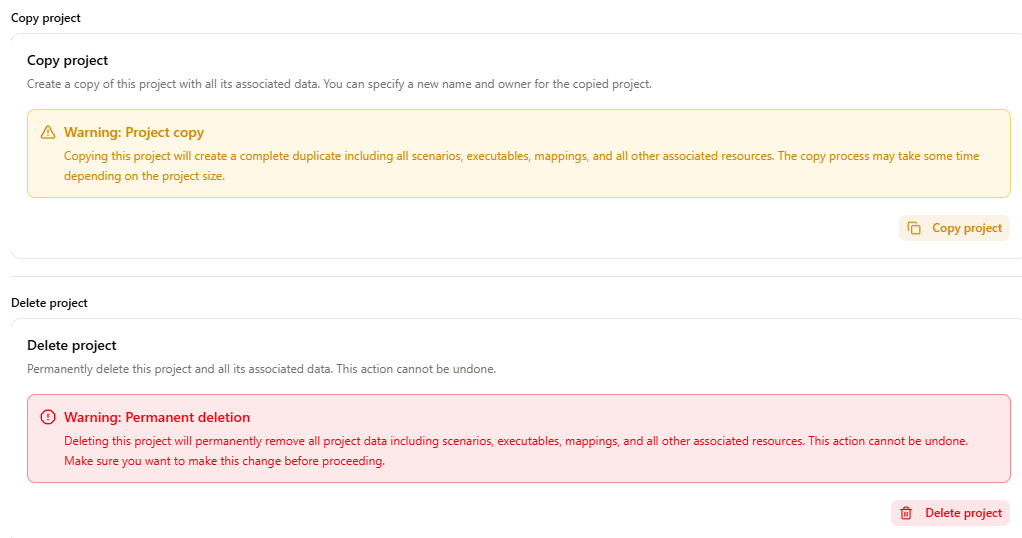
Copy and Delete project — Options to duplicate the project or to delete it. Use caution when deleting; this action cannot be undone.