Démarrer avec Sim4Sys avec un modèle simple (boîte noire)
PRÉSENTATION
Ce tutoriel est une introduction à la pratique de la méthode. Vous serez guidé à travers le processus pour réaliser votre premier modèle et la simulation associée.
Prérequis
Vous devez avoir déjà effectué le premier tutoriel Hello World.
Nouvelles compétences que vous acquerrez
Sur Designer :
- Définir un Type,
- Ajouter des conditions dans une User Story.
Sur Virtual Bench :
- Modifier un Contexte,
- Utiliser de nouveaux éléments de Contexte : Jauge, Voiture, Revêtement routier,
- Ajouter un profil de courbe.
Durée
2 h
CRÉER UN MODÈLE
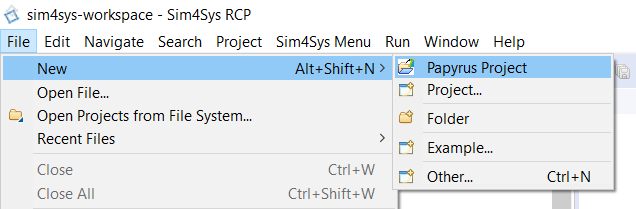
- Cliquez sur Fichier > Nouveau > Projet Papyrus
- Cochez la case CIL4SysLanguage
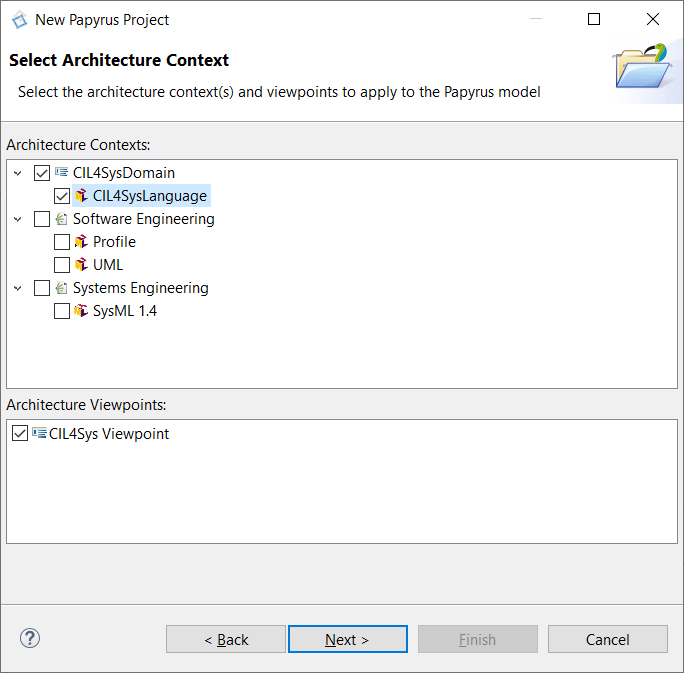
- Cliquez sur Suivant
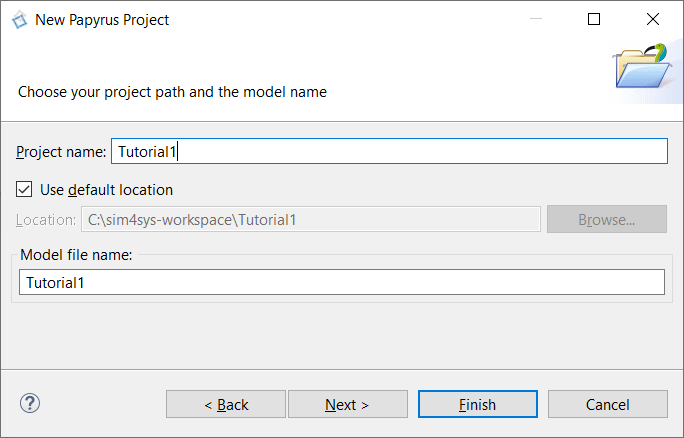
- Saisissez le nom du projet Papyrus : Tutorial1, dans le champ nom du projet
- Cliquez sur Suivant
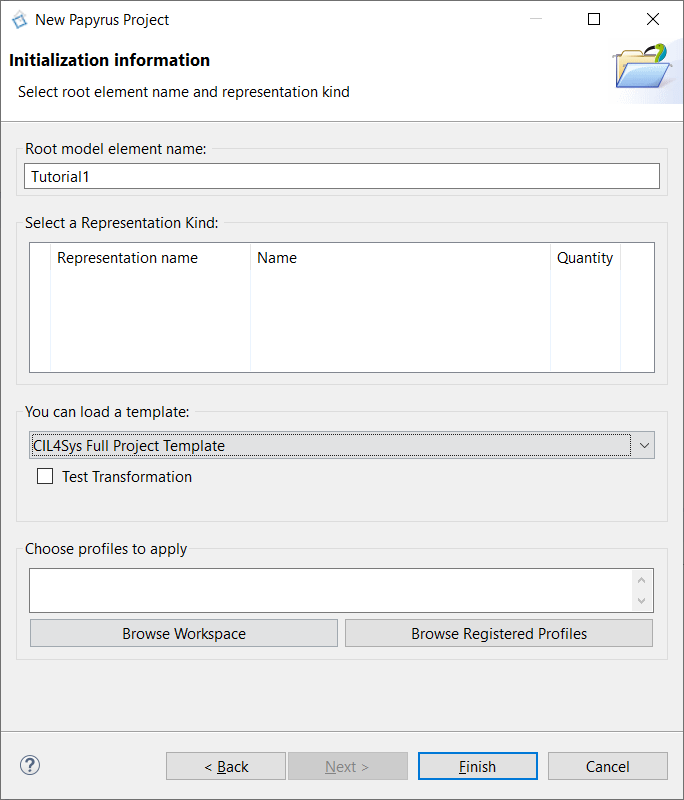
- Sélectionnez CIL4Sys Full Project Template dans le champ : « Vous pouvez charger un modèle »
- Cliquez sur Terminer
CRÉER UN PROJET
- Sélectionnez Tutorial1 dans la vue d’ensemble CIL4Sys. Vous pouvez utiliser le bouton Actualiser la vue lors de la sélection de l’onglet Vue d’ensemble.

- Cliquez sur Nouveau projet
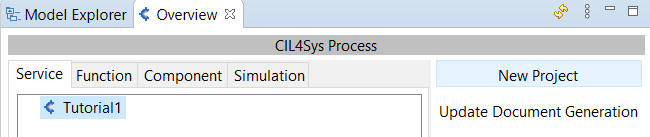
Parfois, le bouton n’apparaît pas à cause de la taille de la fenêtre. Vous pouvez soit redimensionner l’onglet Vue d’ensemble horizontalement, soit utiliser un écran plus grand.
- Saisissez le nom du projet : Car
- Cliquez sur OK
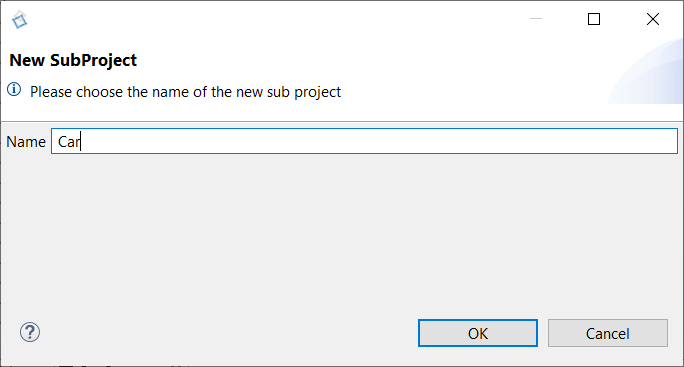
- Cliquez sur OK dans la boîte de dialogue de confirmation
CRÉER UN SERVICE GESTION DE LA VITESSE
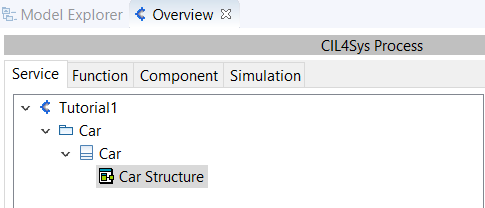
- Double-cliquez sur le diagramme Car Structure
Vous pouvez redimensionner le diagramme de structure composite en faisant glisser les coins
- Glissez-déposez un Nouveau service dans Product CSD
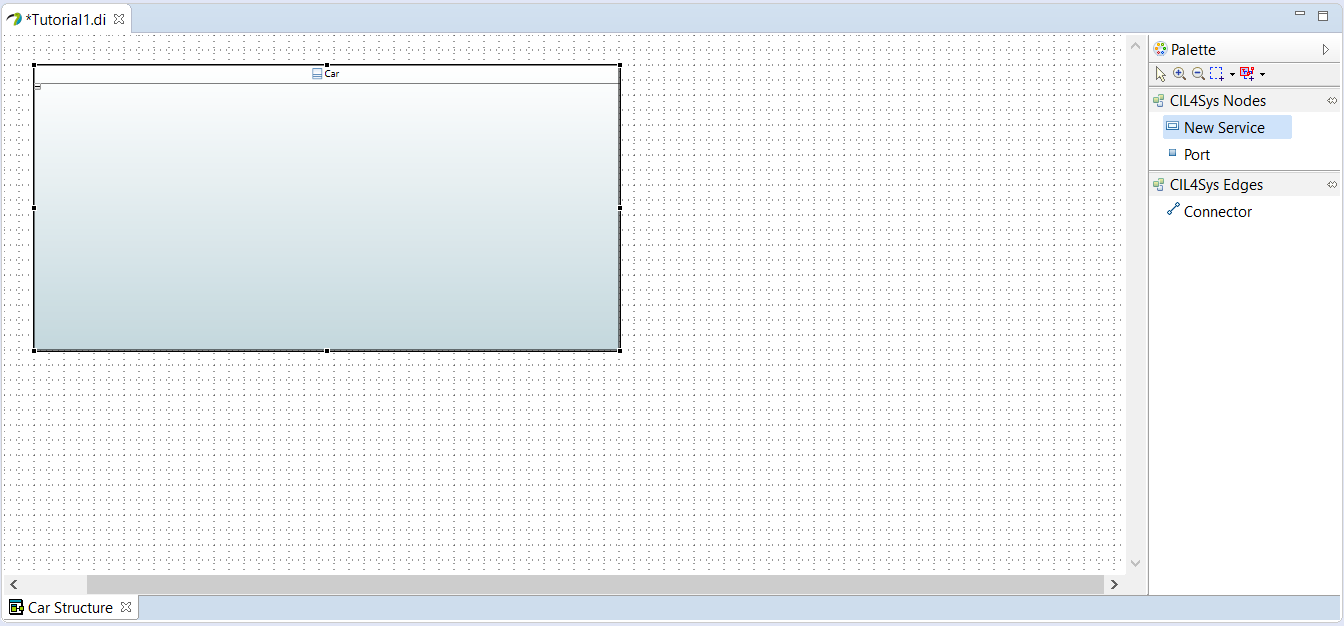
- Sélectionnez Créer
- Saisissez le nom du service : Speed_Management
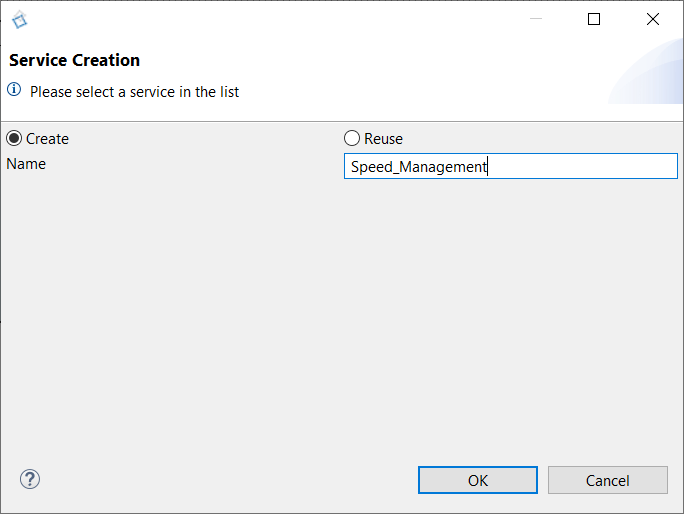
- Cliquez sur OK
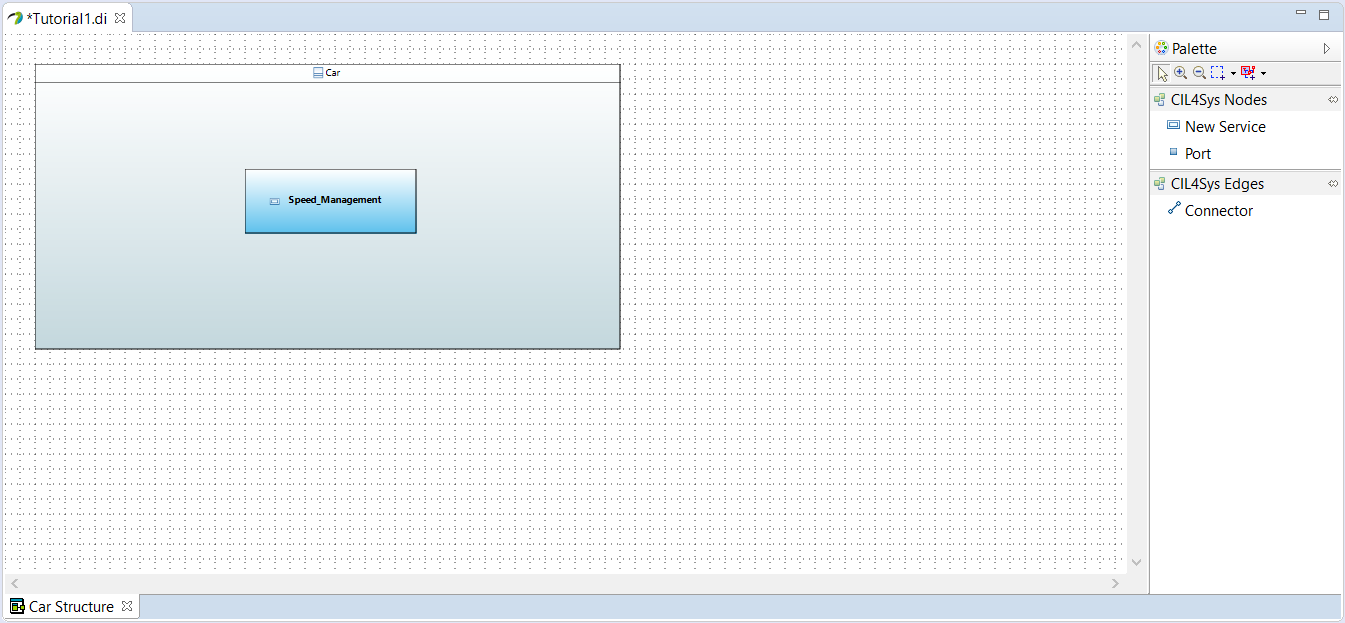
AJOUTER UNE PHASE DE VIE À UN SERVICE
- Sélectionnez le package Speed_Management dans la vue d’ensemble CIL4Sys (actualisez s’il n’apparaît pas).
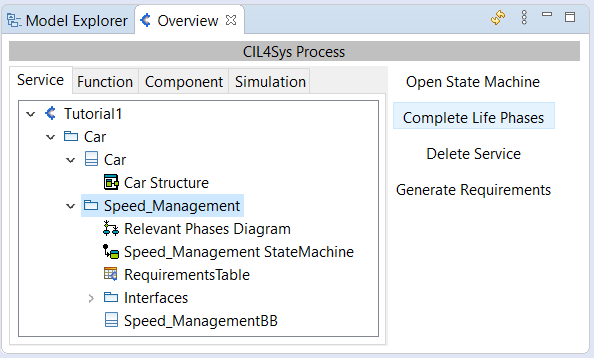
- Cliquez sur Compléter les phases de vie
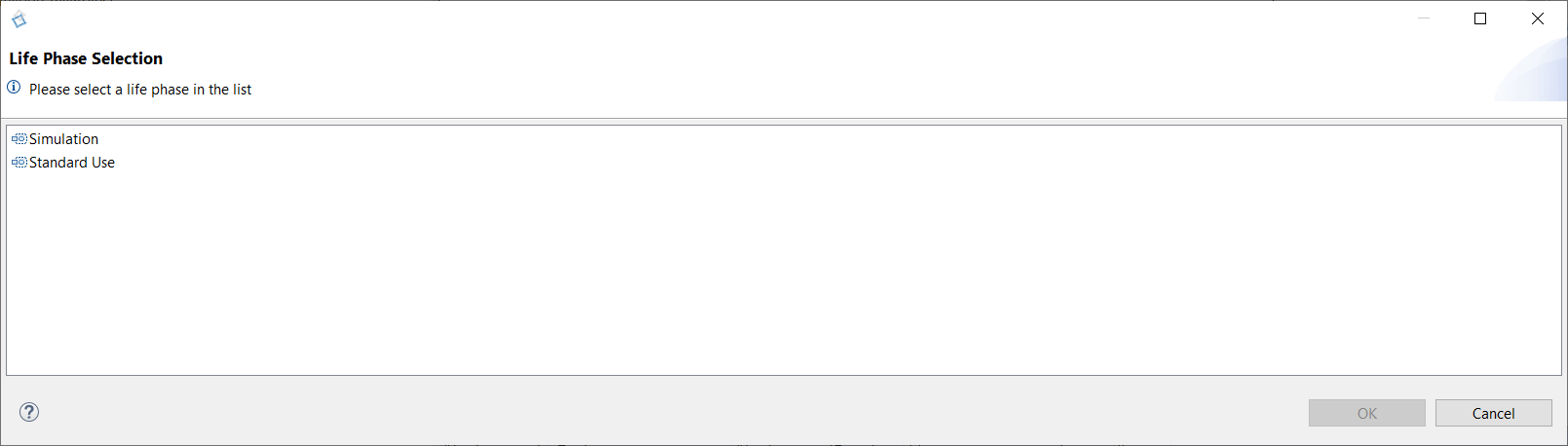
- Glissez-déposez une Nouvelle phase de vie dans le diagramme pour les phases pertinentes du service
- Sélectionnez Utilisation standard
- Cliquez sur OK
CRÉER UN CAS D’USAGE SIMPLE
- Sélectionnez Utilisation standard
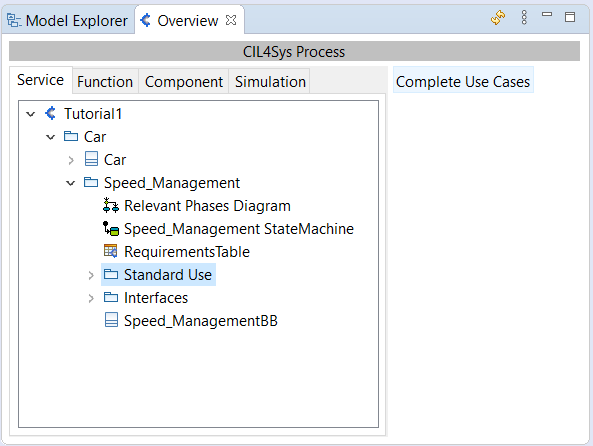
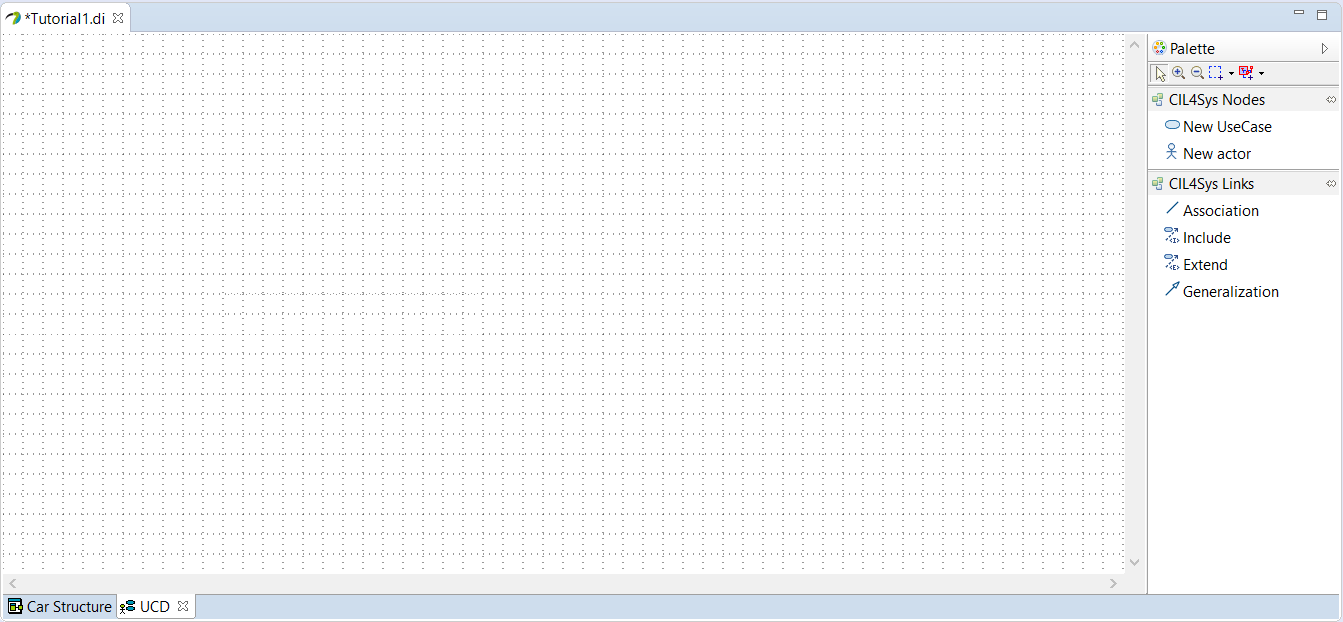
- Cliquez sur Compléter les cas d’usage
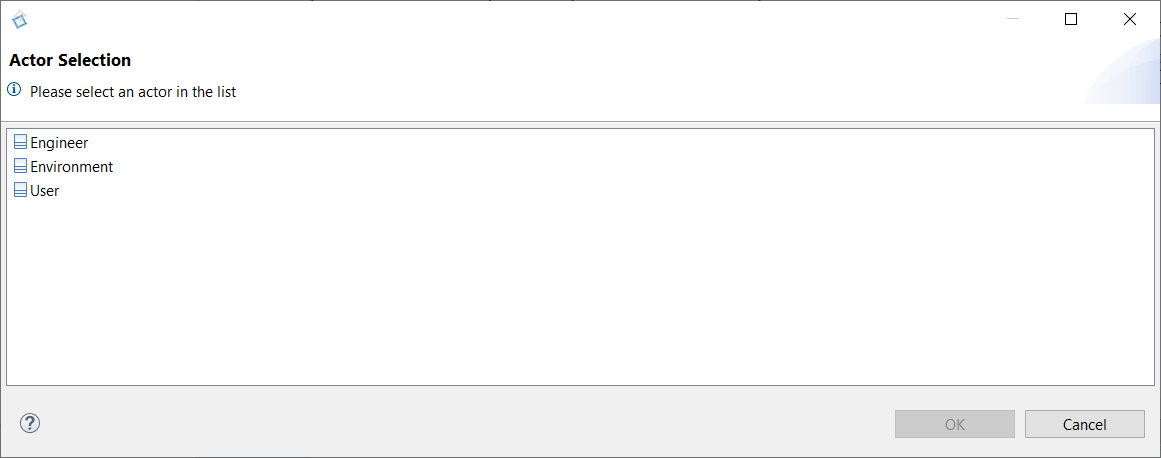
- Glissez-déposez un acteur sur le diagramme
- Sélectionnez User
- Cliquez sur OK
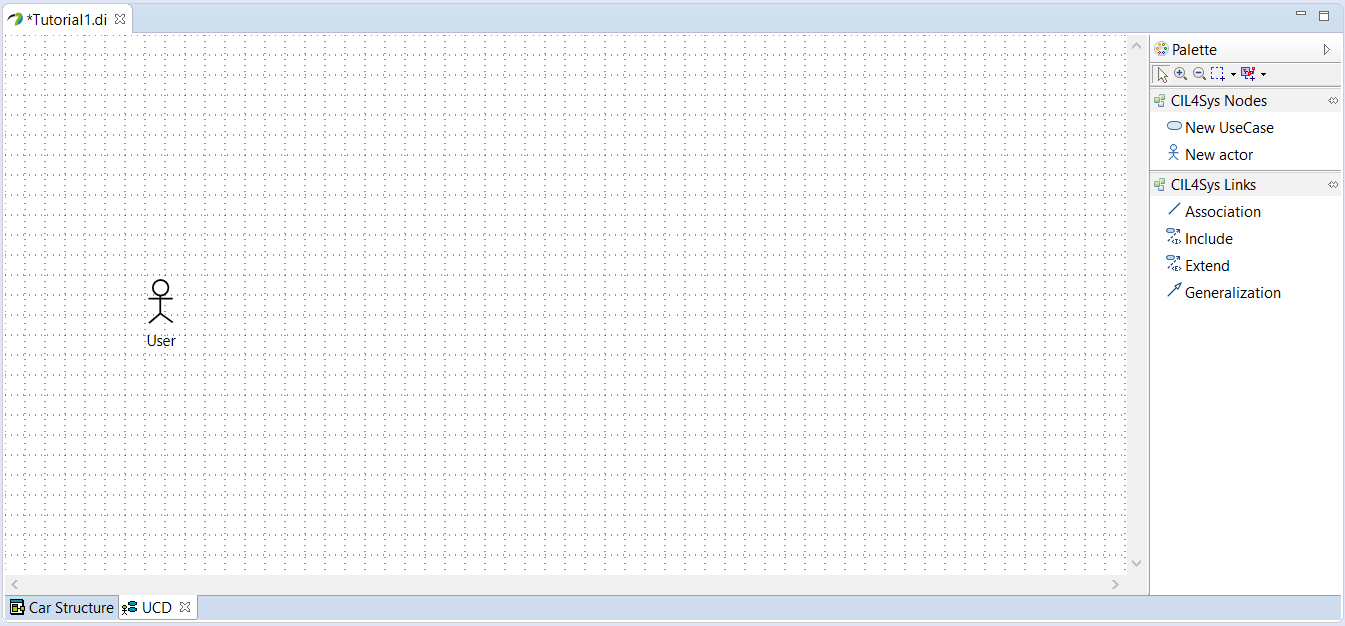
- Glissez-déposez un Nouveau cas d’usage sur le diagramme
- Saisissez le nom du cas d’usage : Accelerate
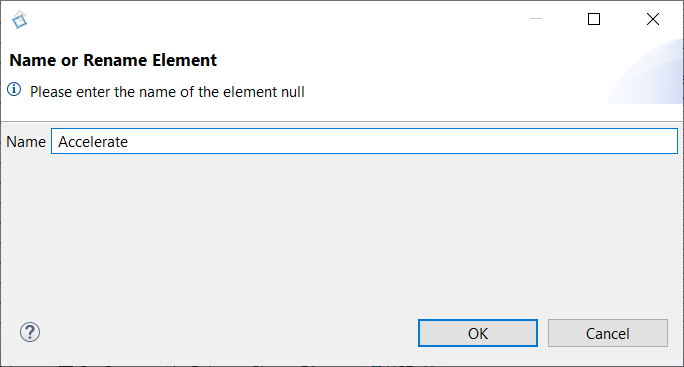
- Cliquez sur OK
- Tracez une association entre l’acteur et le cas d’usage
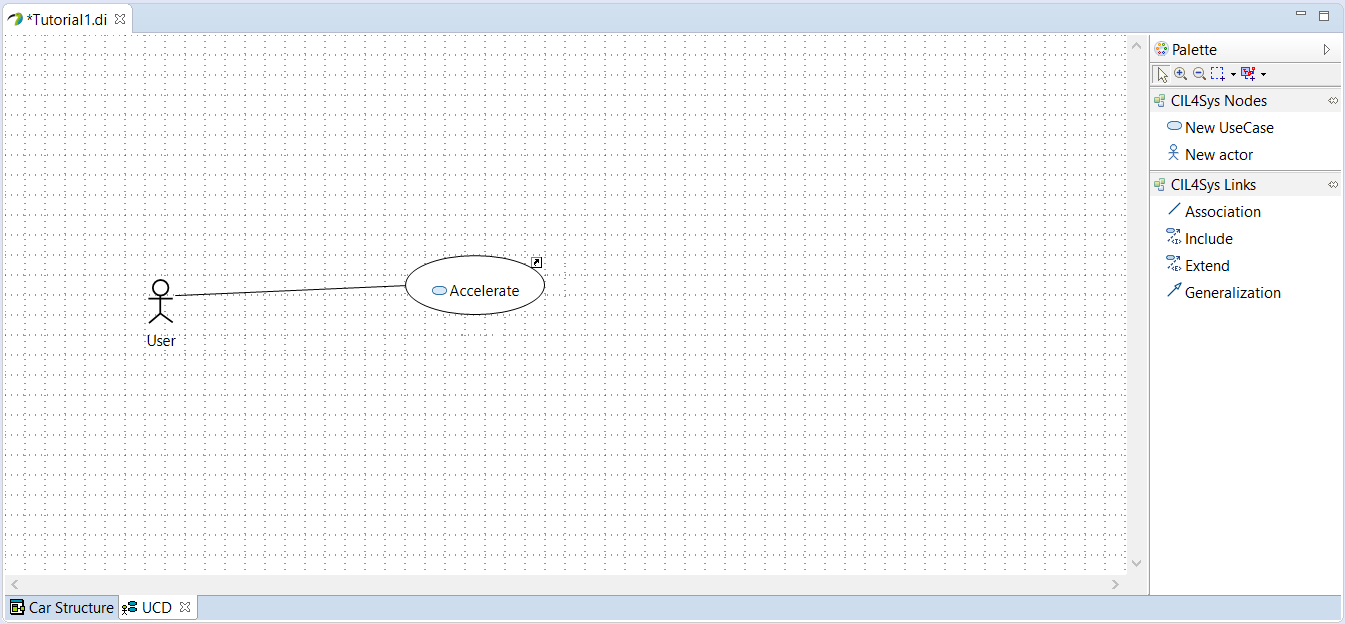
CRÉER UNE USER STORY DANS UN CAS D’USAGE
- Sélectionnez le package Accelerate dans la vue d’ensemble CIL4Sys
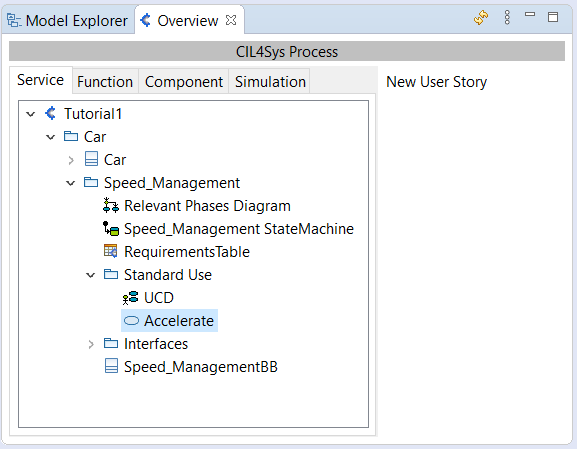
- Cliquez sur Nouvelle User Story
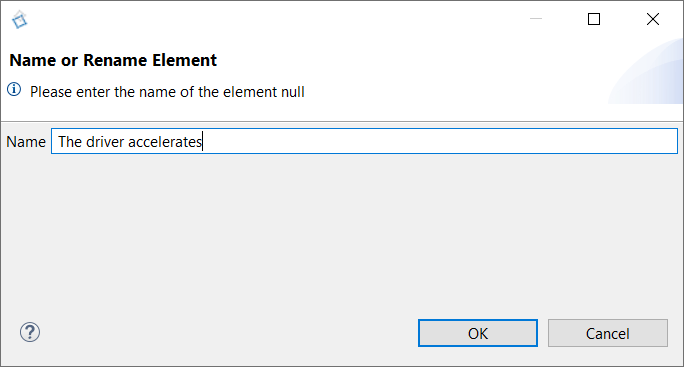
- Saisissez le nom de la user story : The driver accelerates
- Cliquez sur OK
- Double-cliquez sur la user story : The driver accelerates
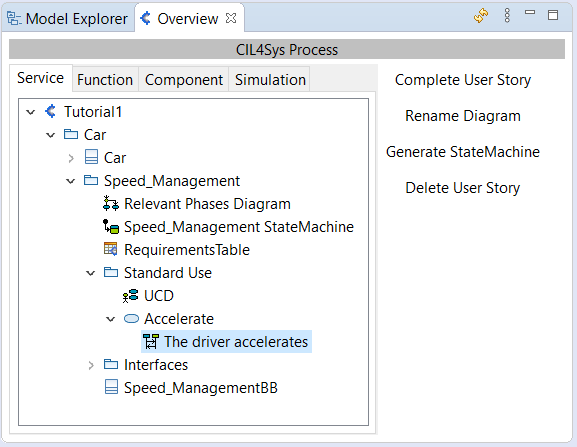
COMPLÉTER LA USER STORY
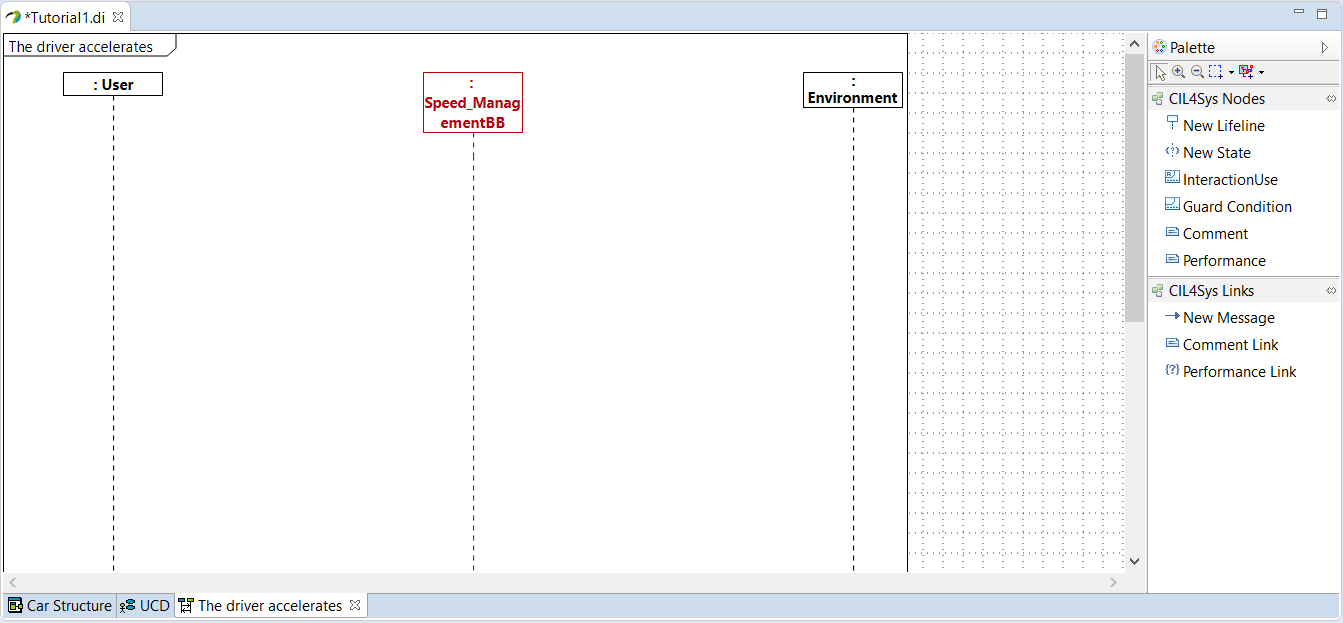
- Glissez-déposez un Nouvel état sur la ligne de vie du service Speed_Management
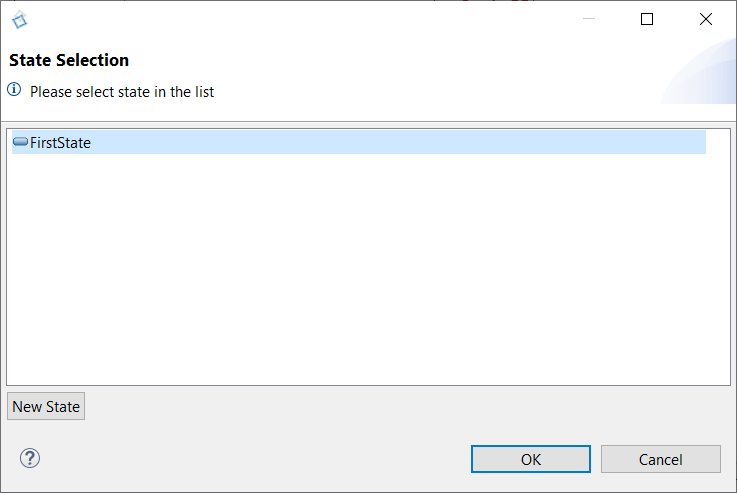
- Sélectionnez FirstState
- Cliquez sur OK
- Renommez l’état après création (en Active). Vous pouvez le faire juste après la création ou via la vue Propriétés de Papyrus
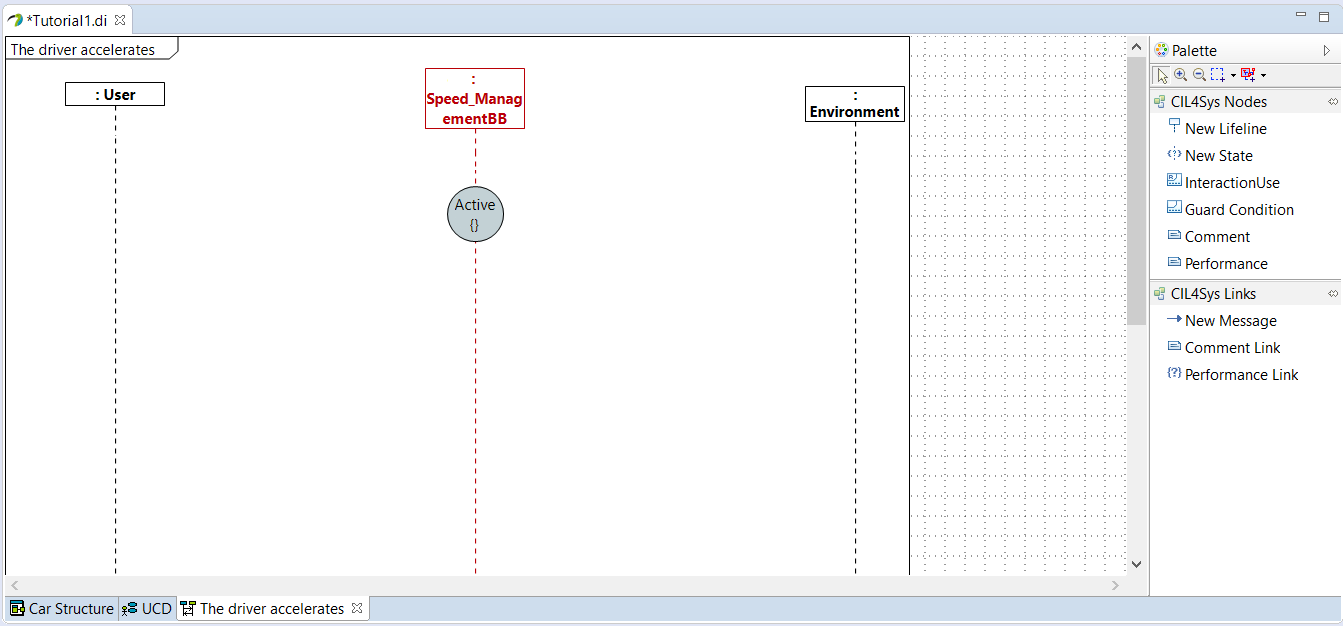
- Tracez un Nouveau message entre l’utilisateur et le service
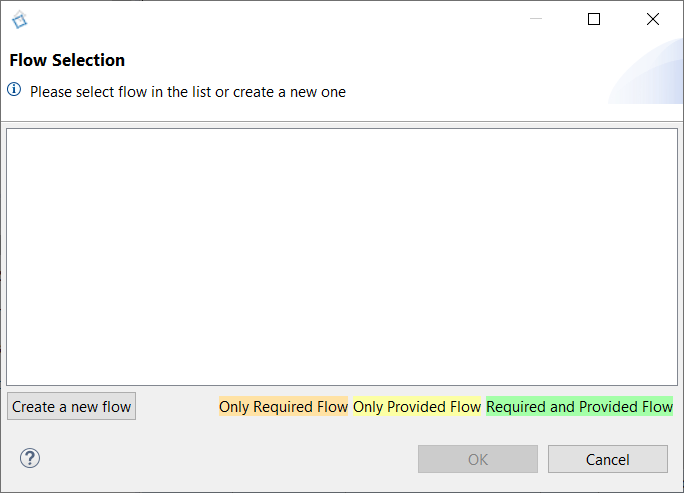
- Cliquez sur Créer un nouveau flux
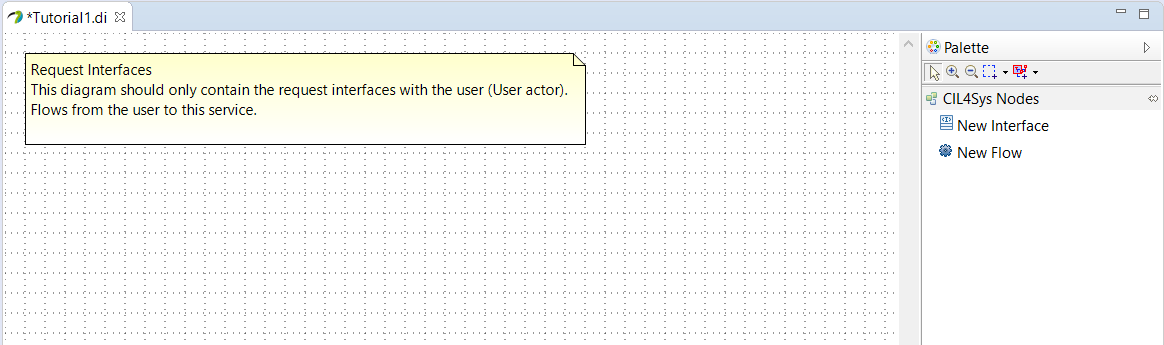
- Glissez-déposez une Nouvelle interface sur le diagramme
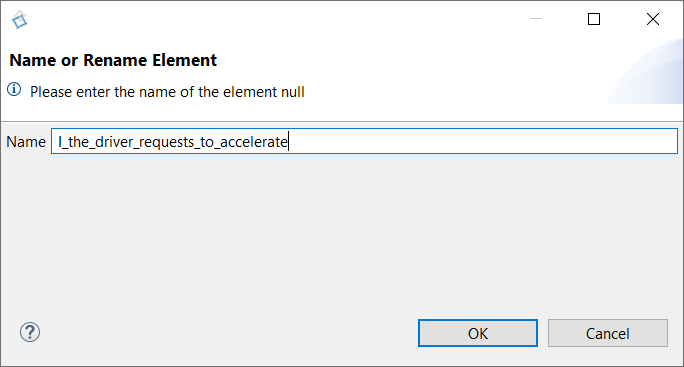
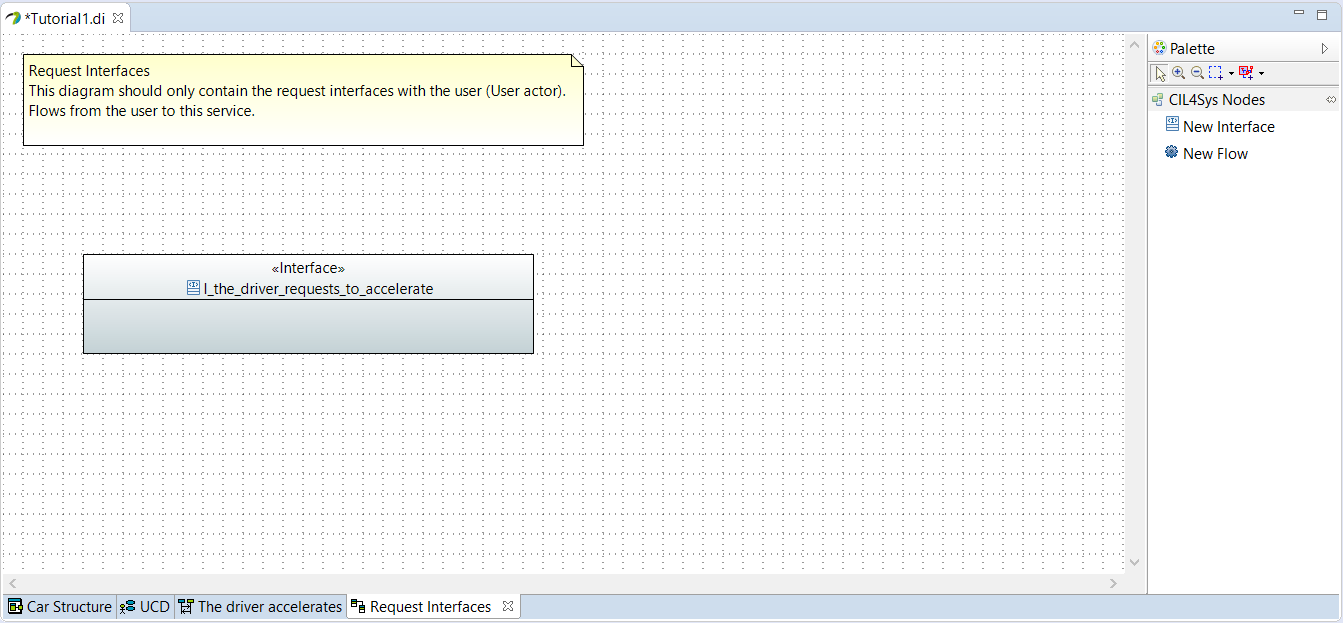
- Saisissez le nom de l’interface : I_the_driver_requests_to_accelerate
- Cliquez sur OK
- Avant de créer un nouveau flux dans l’interface, nous devons créer un nouveau type de données AccelerationType
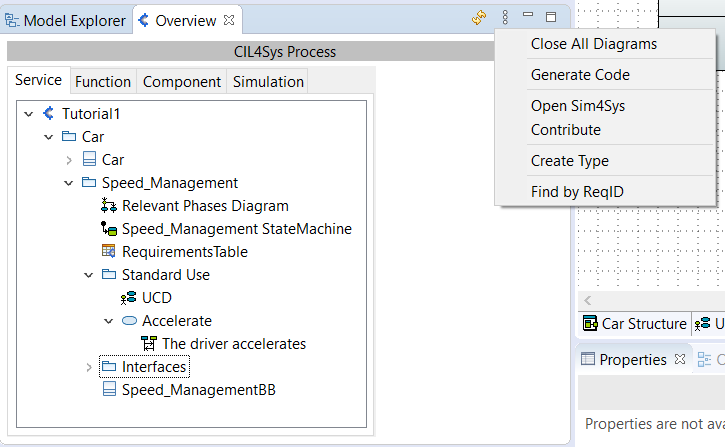
- Cliquez sur le bouton du menu Vue dans la vue d’ensemble CIL4Sys
- Cliquez sur Créer un type
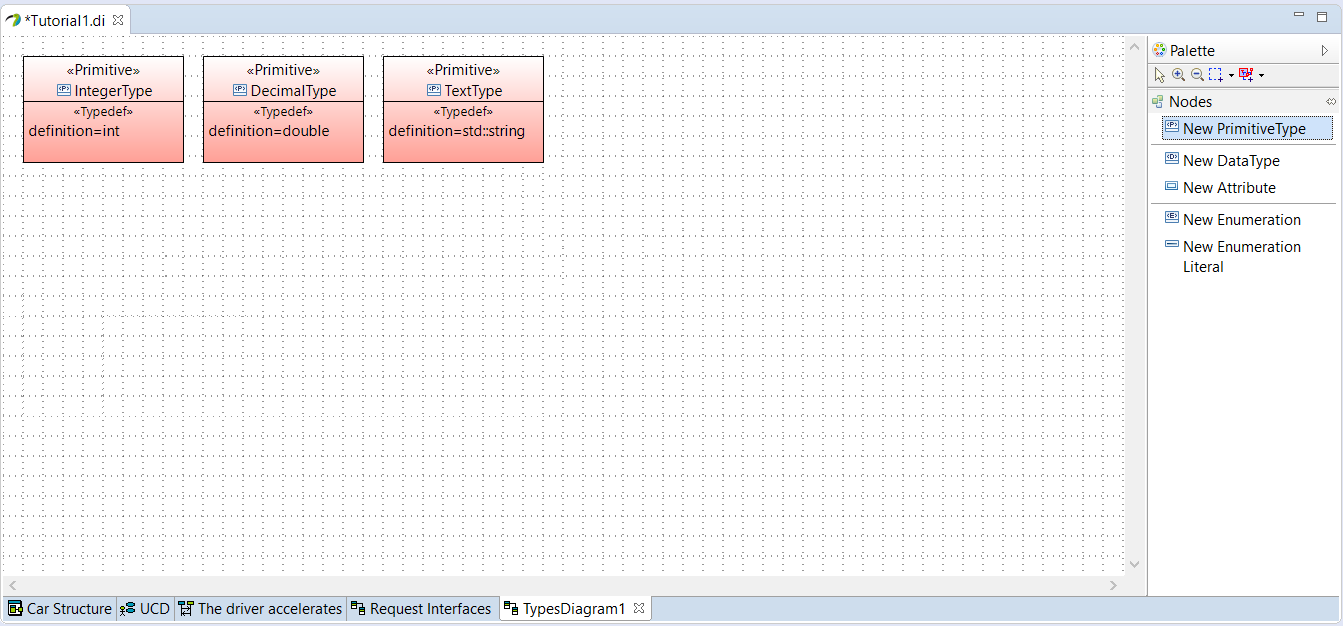
- Créez un New PrimitiveType
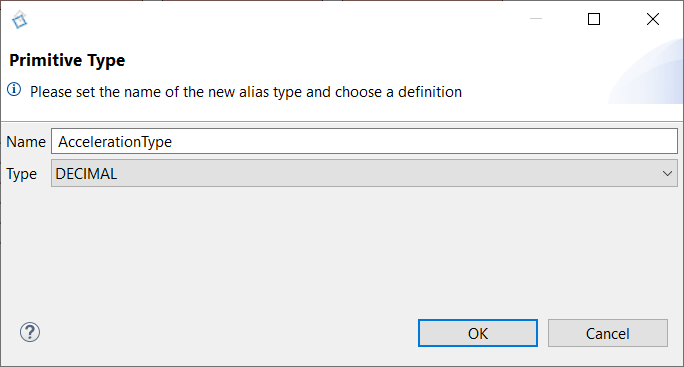
- Saisissez le nom : AccelerationType
- Choisissez le type : DECIMAL
- Cliquez sur OK
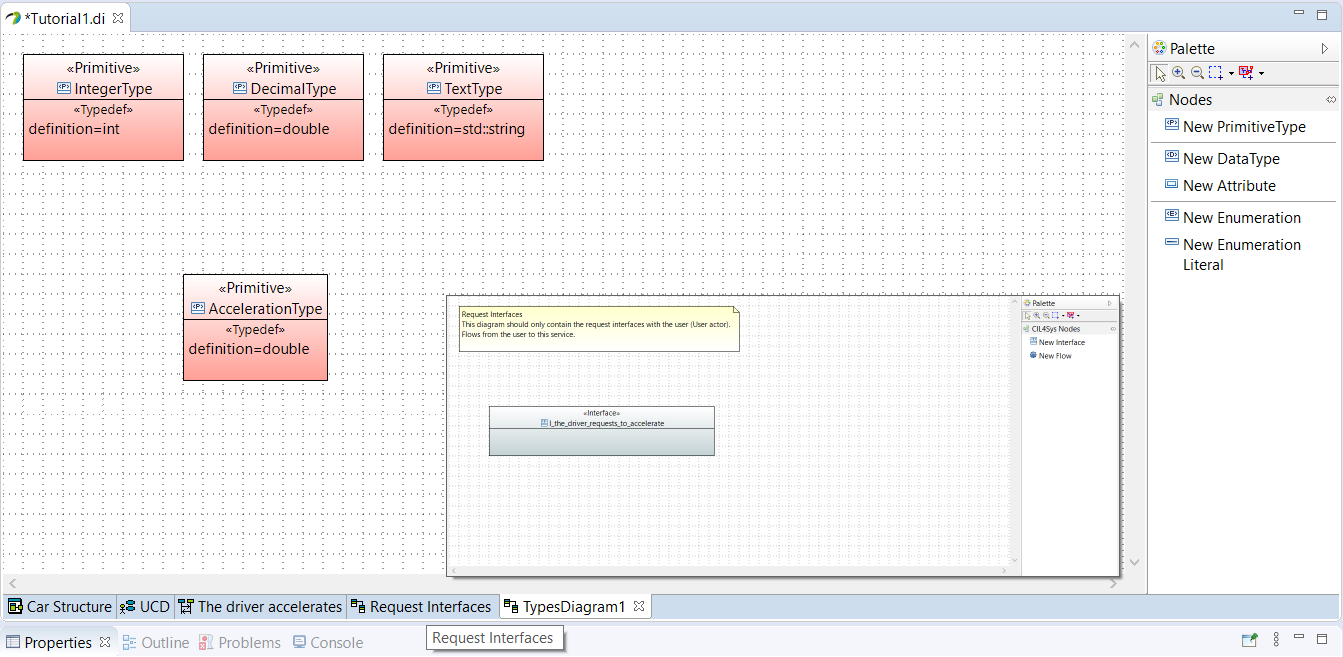
- Revenez au diagramme Request Interfaces en cliquant sur l’onglet Request Interfaces
Si vous avez fermé le diagramme précédemment, vous pouvez y revenir via la vue d’ensemble CIL4Sys dans le package Interface
- Glissez-déposez un Nouveau flux dans l’interface nouvellement créée
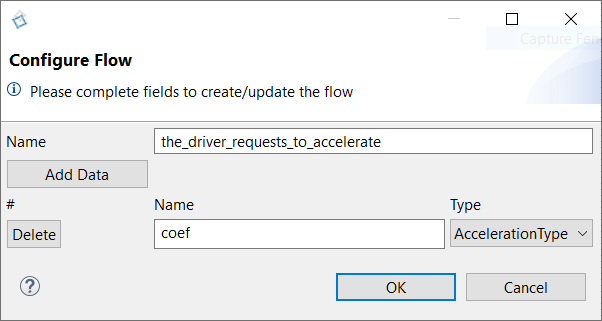
- Saisissez le nom
- Cliquez sur Add Data
- Saisissez le nom de la donnée : coef
- Sélectionnez le type de la donnée : AccelerationType
- Cliquez sur OK
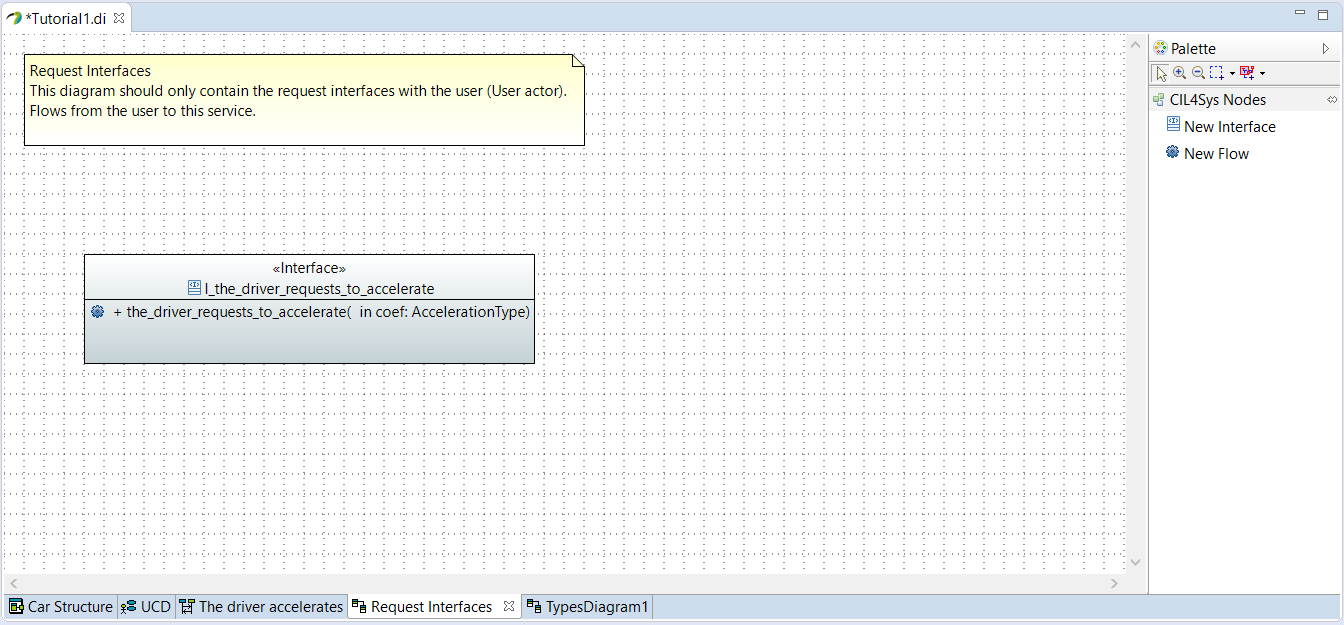
- Revenez sur la user story
- Tracez un Nouveau message entre l’utilisateur et le service
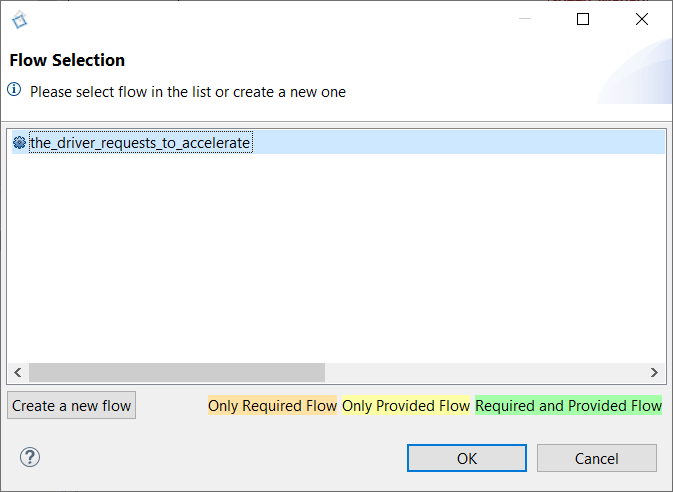
- Sélectionnez le flux nouvellement créé
- Cliquez sur OK
- Tracez un message entre la ligne de vie du service sur elle-même (activité interne)
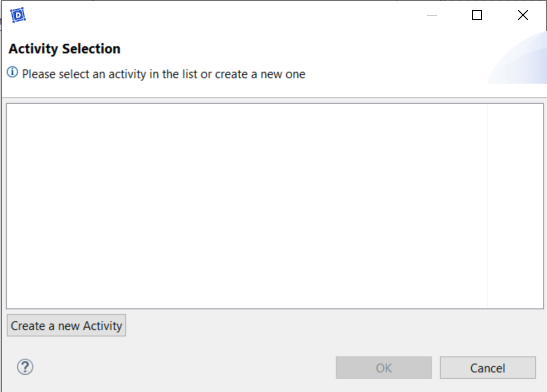
- Cliquez sur Créer une nouvelle activité
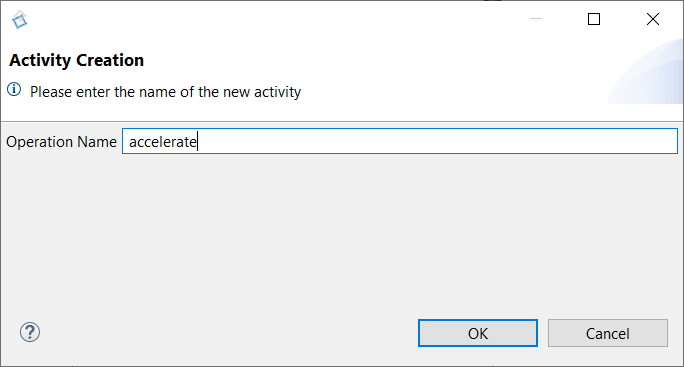
- Saisissez le nom de l’activité : accelerate
- Cliquez sur OK
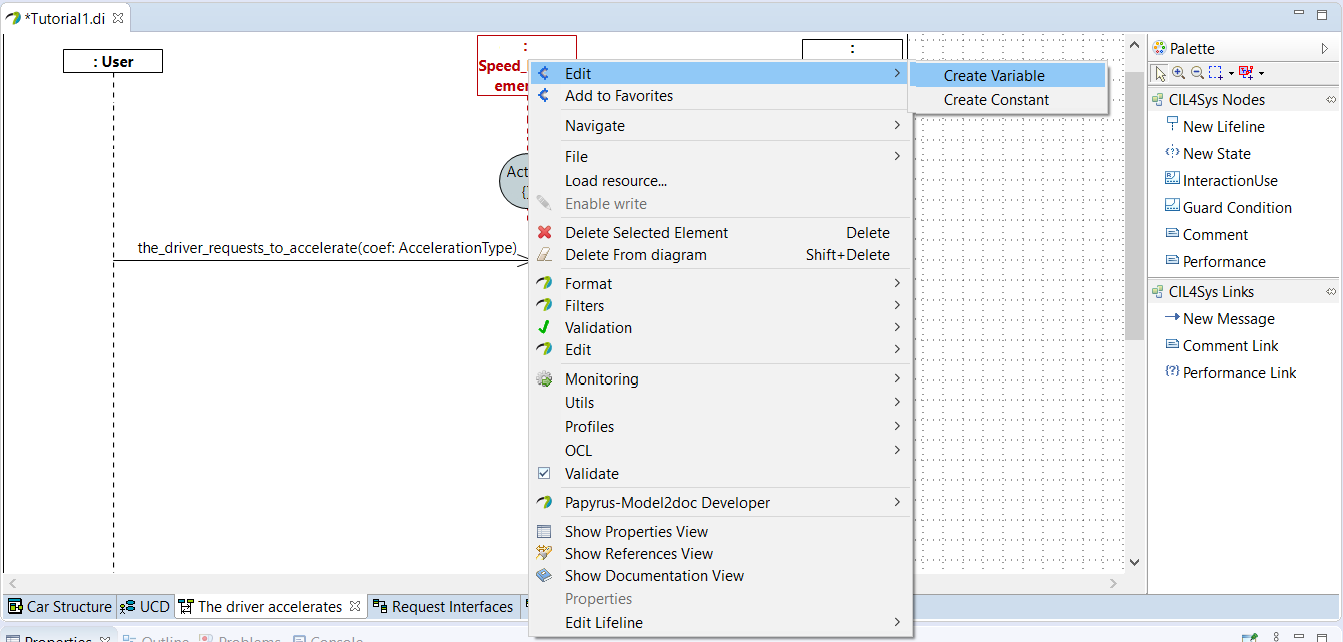
- Clic droit sur la ligne de vie du service
- Sélectionnez Edit > Create Variable
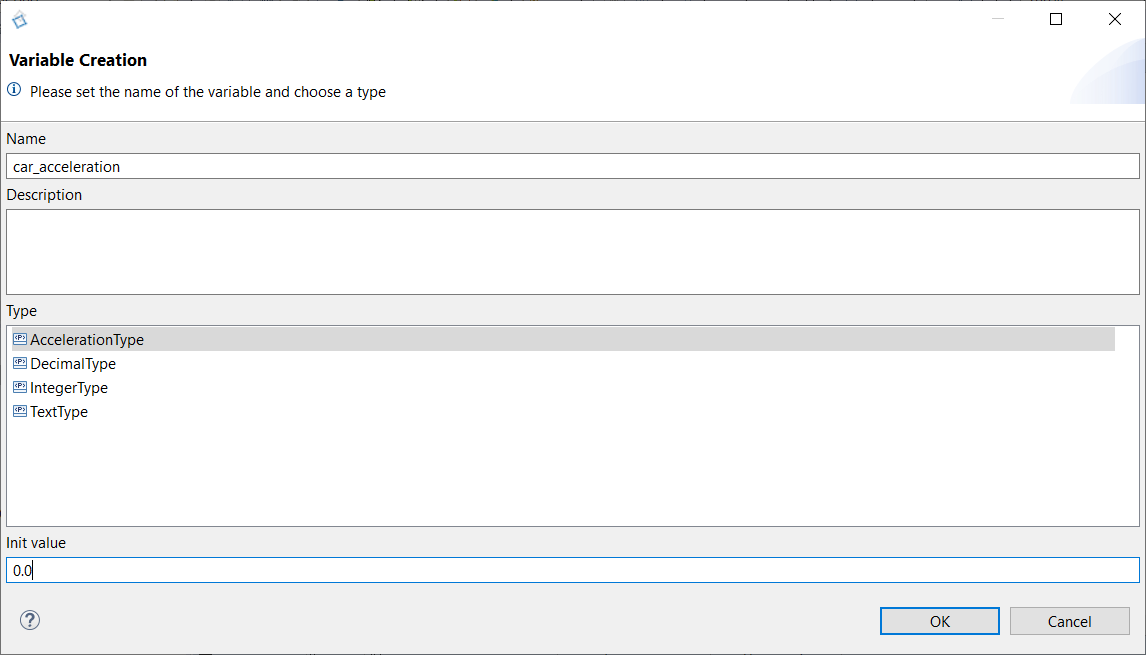
- Saisissez le nom de la variable : car_acceleration
- Choisissez le type : AccelerationType
- Définissez une valeur initiale : 0.0
- Cliquez sur OK
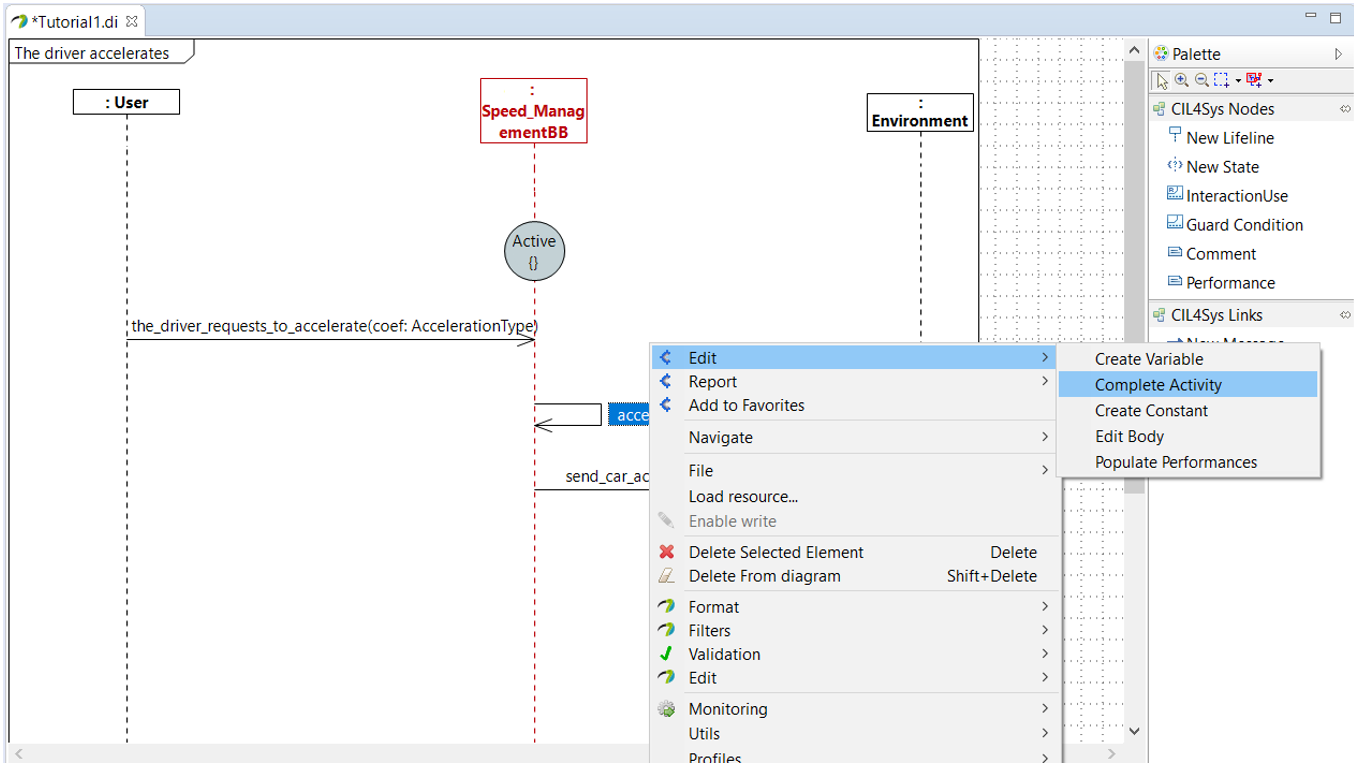
- Clic droit sur l’activité accelerate
- Choisissez Edit > Complete Activity
- Sélectionnez C++ Code
- Cliquez sur Suivant
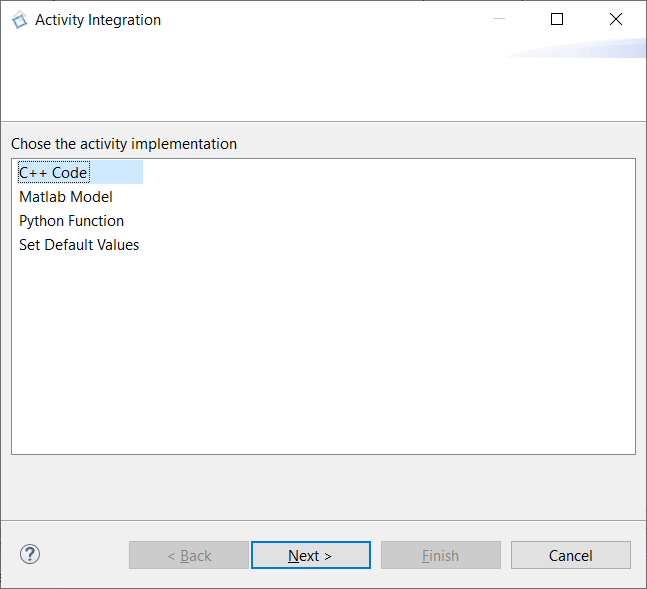
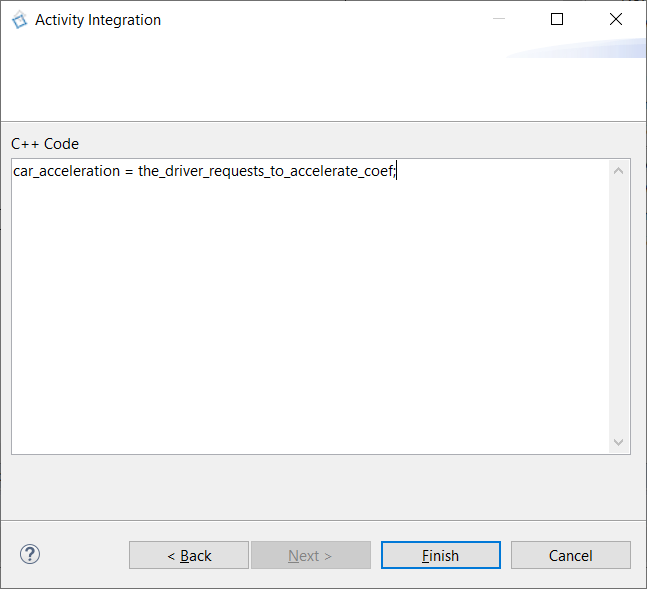
- Saisissez le code pour accélérer : accélération voiture = accélération demandée par le conducteur (les deux en m/s²)
car_acceleration = the_driver_requests_to_accelerate_coef;
- Cliquez sur Terminer
- Tracez un Nouveau message entre le service et l’environnement
- Cliquez sur Create a New Flow
- Glissez-déposez une Nouvelle interface sur le diagramme
- Saisissez le nom de l’interface : I_send_car_acceleration
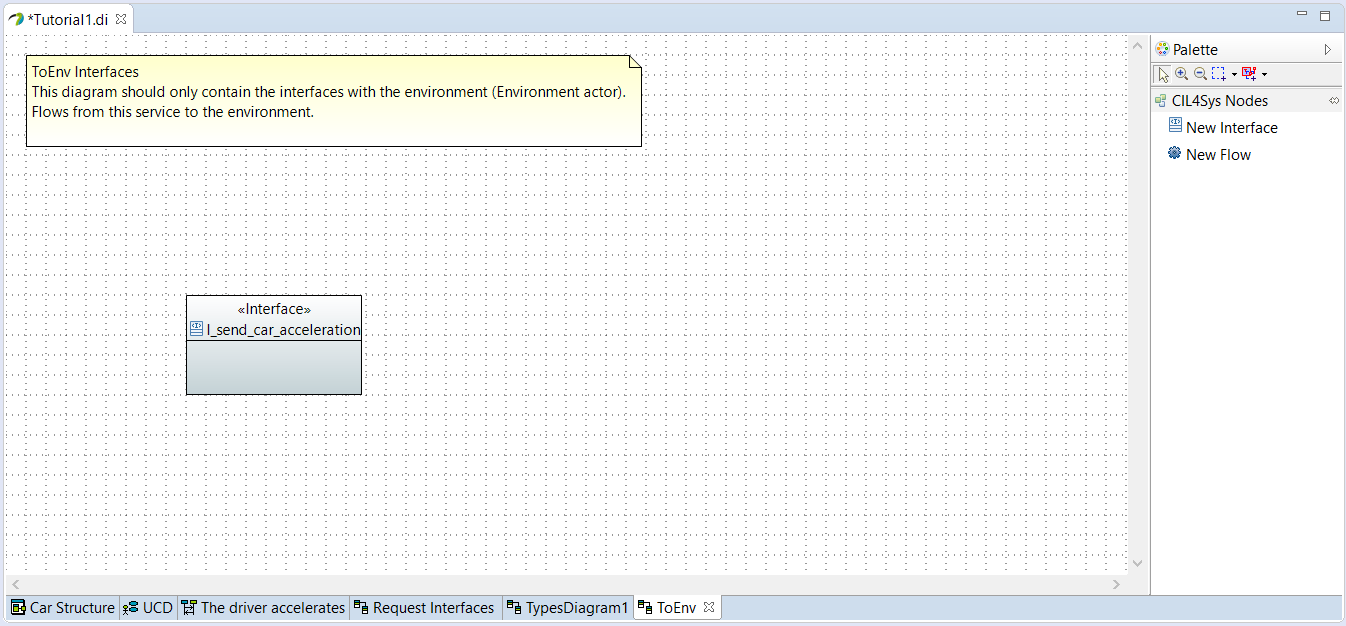
- Glissez-déposez un Nouveau flux dans l’interface nouvellement créée
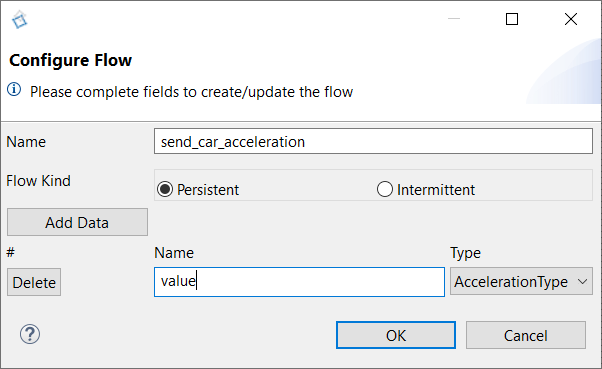
- Saisissez le nom : send_car_acceleration
- Cliquez sur Add Data
- Saisissez le nom de la donnée : value
- Sélectionnez le type de la donnée : AccelerationType
- Cliquez sur OK
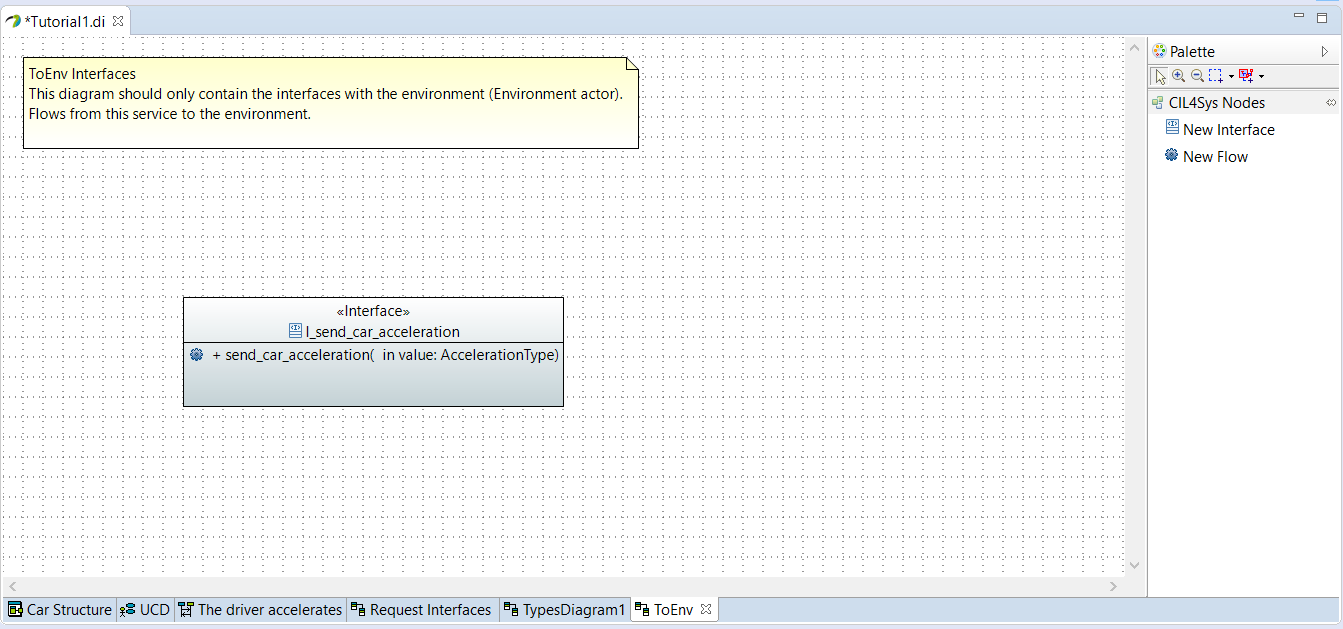
- Revenez sur la user story
- Tracez un nouveau message entre le service et l’environnement
- Sélectionnez le flux nouvellement créé
- Cliquez sur OK
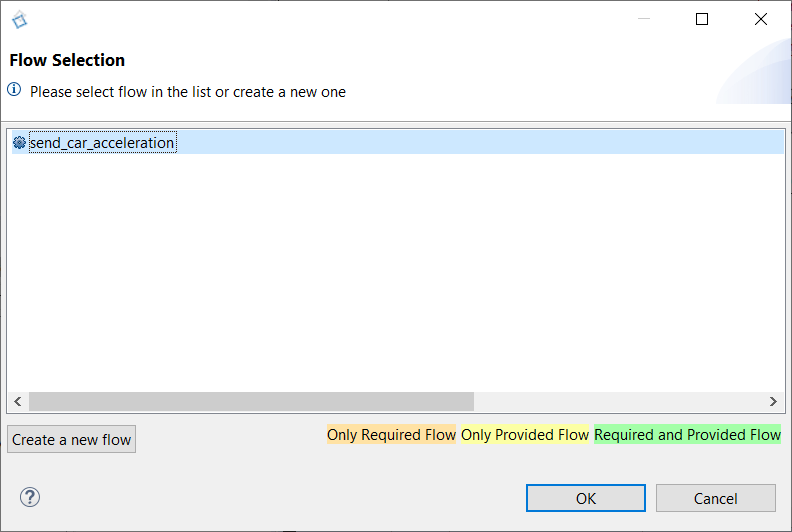
- Sélectionnez la valeur de donnée : car_acceleration
- Cliquez sur OK
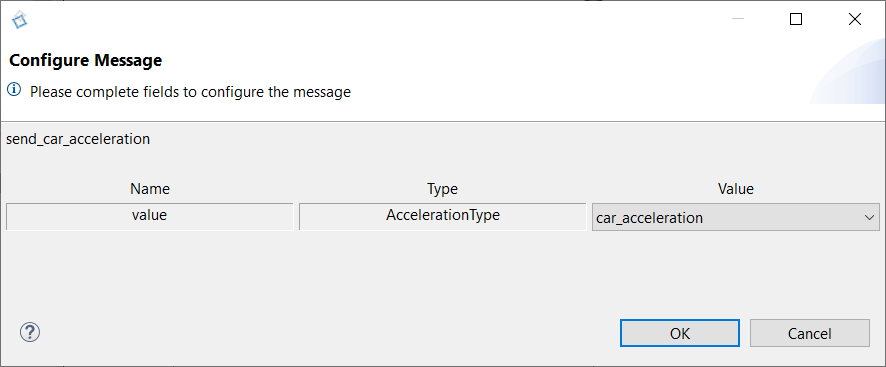
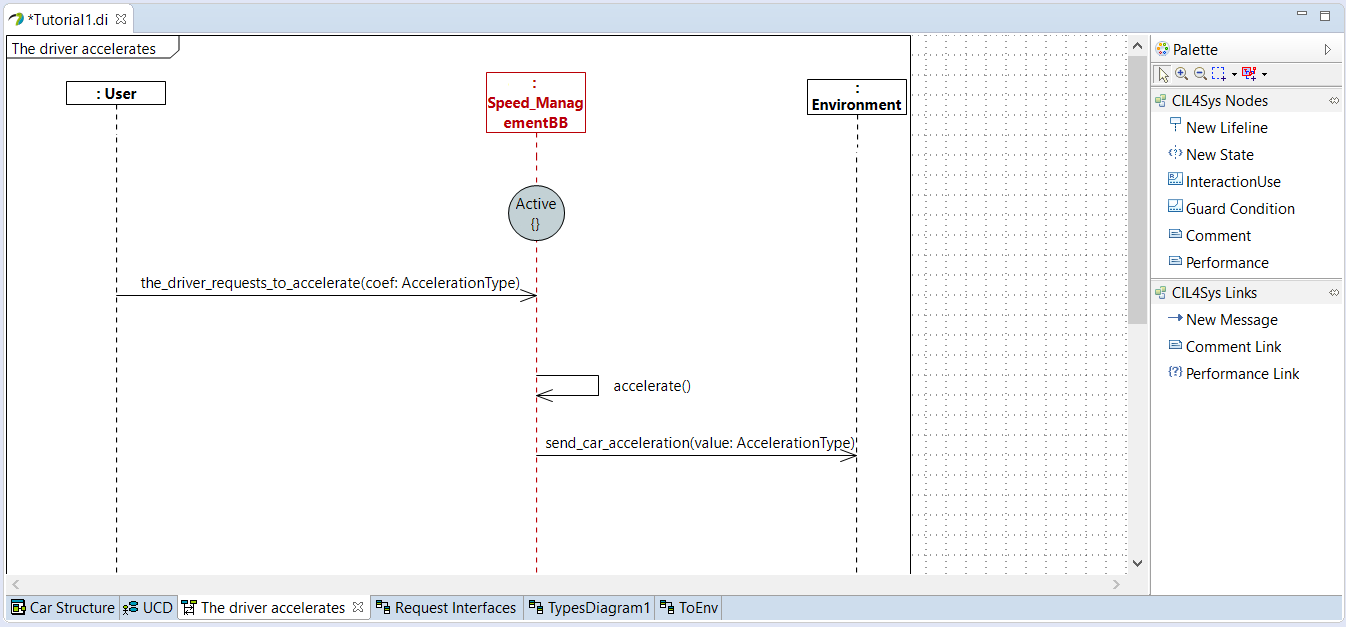
- Sélectionnez la user story dans la vue d’ensemble CIL4Sys
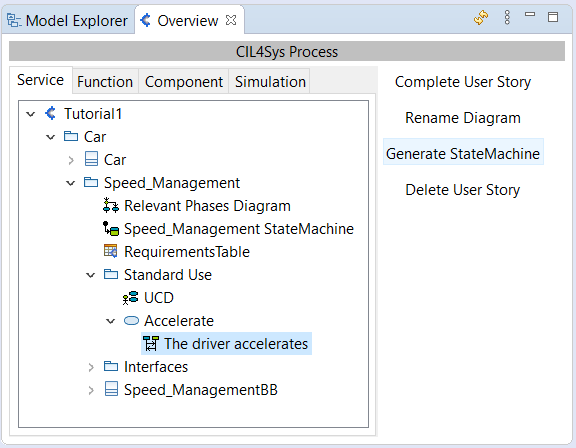
- Cliquez sur Generate State Machine
- Cliquez sur Ok dans la boîte de dialogue de confirmation
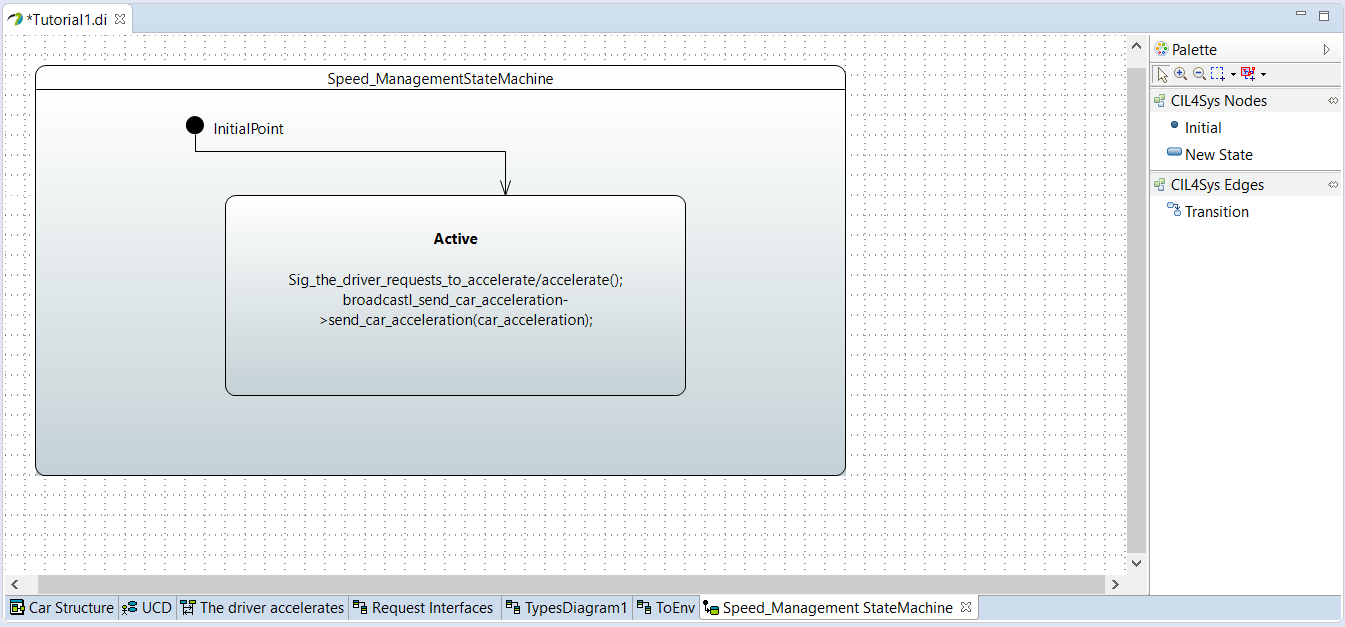
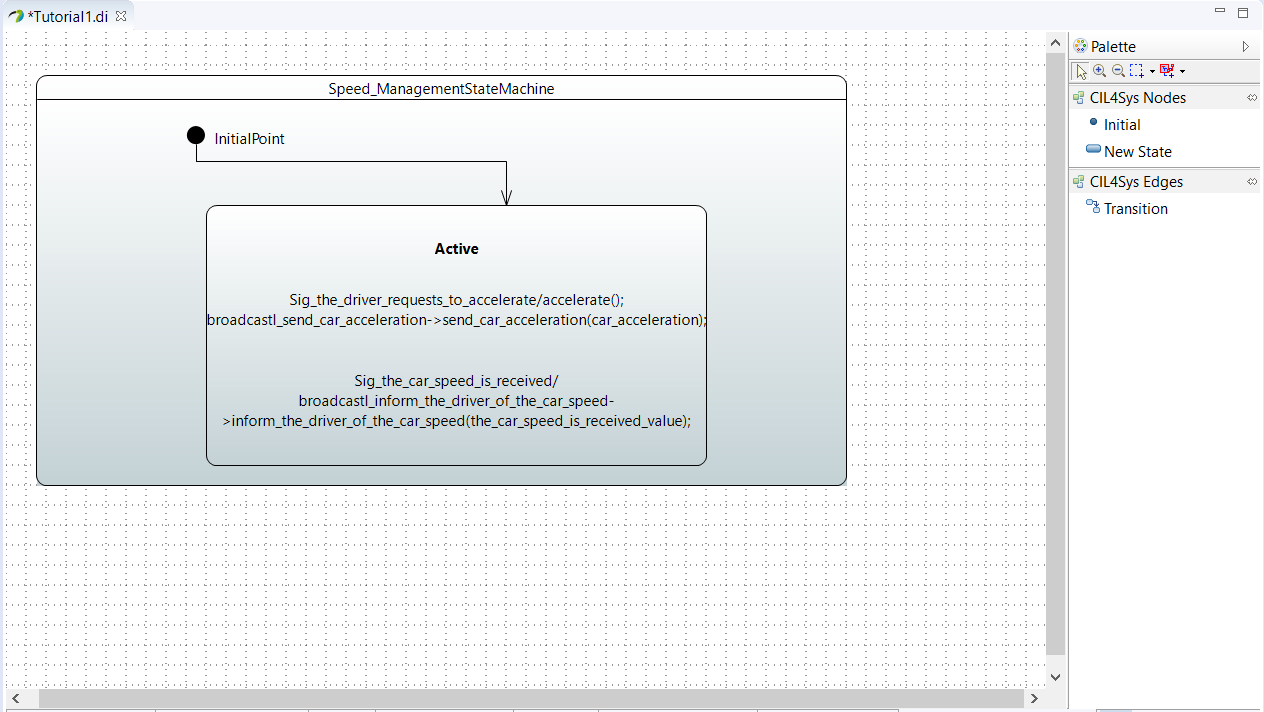
Régénérez la machine d’états après chaque modification des diagrammes. Vous devriez retrouver dans la machine d’états tout ce que vous avez écrit dans les diagrammes. La machine d’états vous aide à vérifier la cohérence du modèle. Elle est aussi essentielle au bon fonctionnement de la simulation.
POUR ALLER PLUS LOIN Pour vos futurs projets, vous devriez :
- Utiliser la même structure de projet : projet > produits > services > phases de vie > cas d’usage > user stories. Un projet peut avoir plusieurs produits, un produit plusieurs services, etc.
- Utiliser des types (comme AccelerationType) pour clarifier le type d’information que vous souhaitez échanger dans votre modèle ; c’est un outil pour vous aider, même si cela vous semble inutile au début de la formation, c’est une bonne habitude de travail.
Dans la suite, nous allons appliquer les mêmes étapes pour créer d’autres cas d’usage.
CAS D’USAGE « INFORM OF CAR SPEED »
- Cliquez sur le bouton du menu Vue dans la vue d’ensemble CIL4Sys
- Cliquez sur Create Type
- Cliquez sur Create a new primitive type
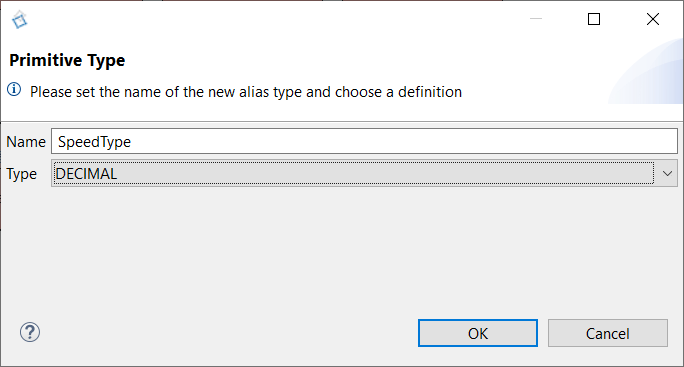
- Saisissez le nom : SpeedType
- Choisissez le type : Decimal
- Cliquez sur OK
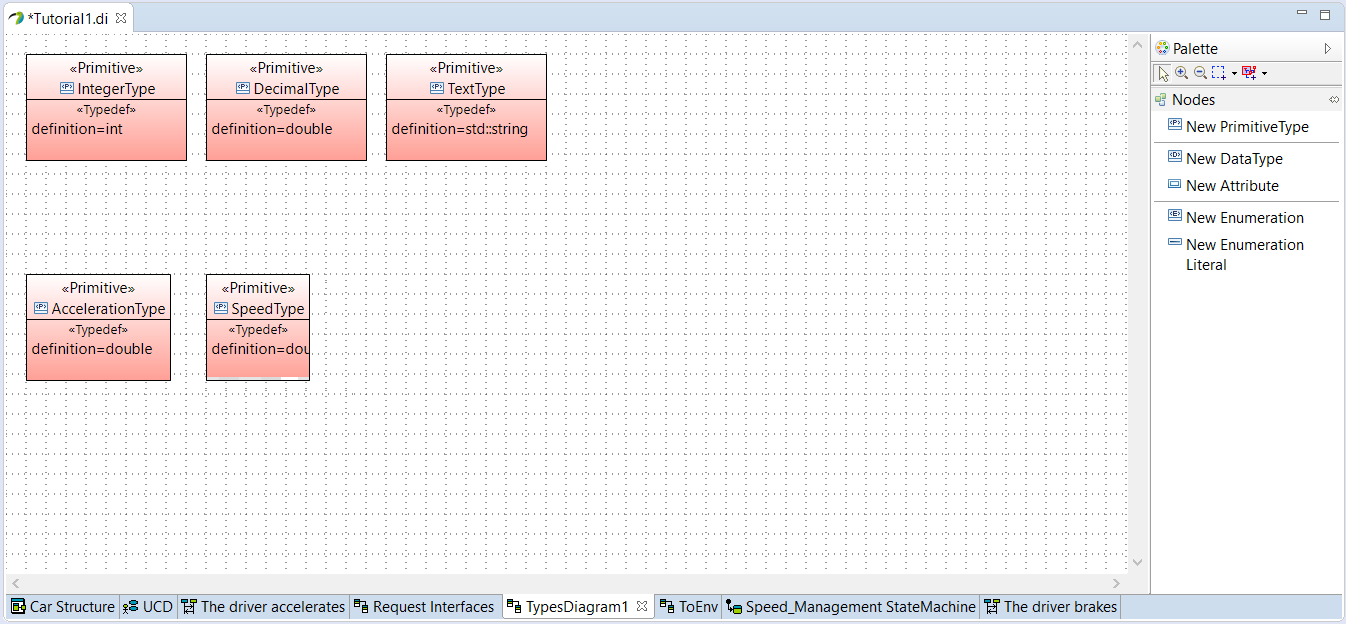
- Sélectionnez le package Standard Use Package dans la vue d’ensemble CIL4Sys
- Cliquez sur Complete Use Cases
- Glissez-déposez un Nouveau cas d’usage sur le diagramme
- Saisissez le nom du nouveau cas d’usage : Inform of car speed
- Cliquez sur OK
- Tracez une association entre l’acteur et le nouveau cas d’usage
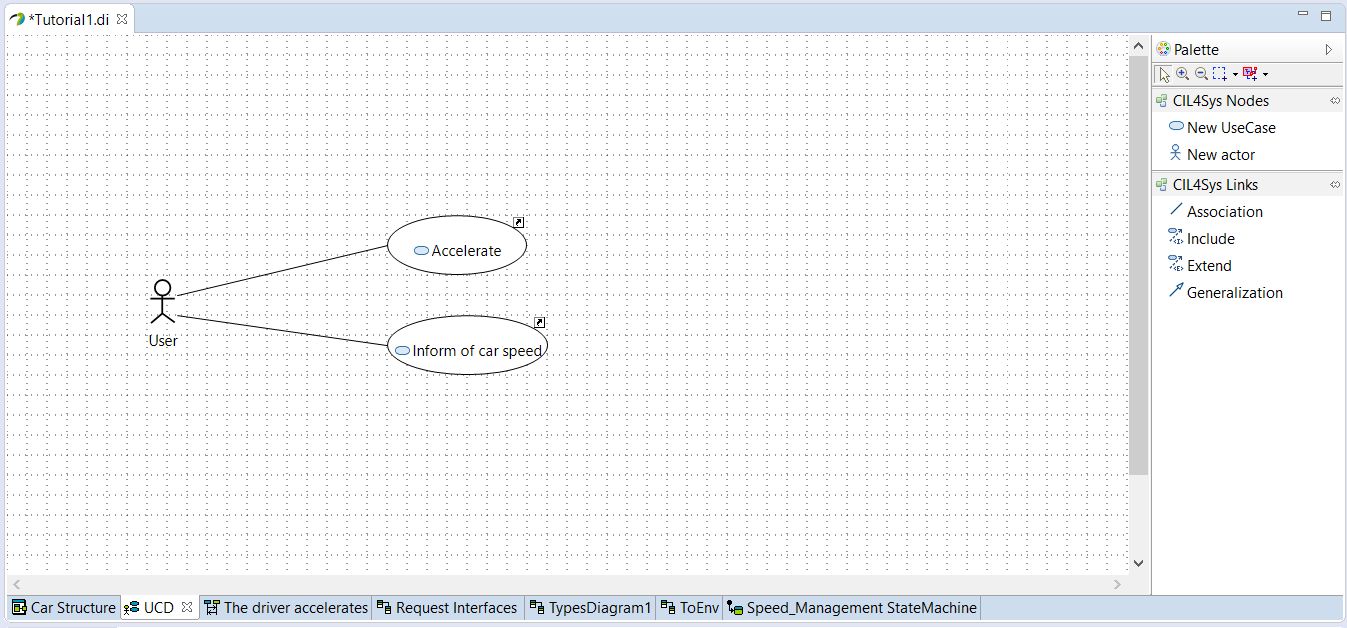
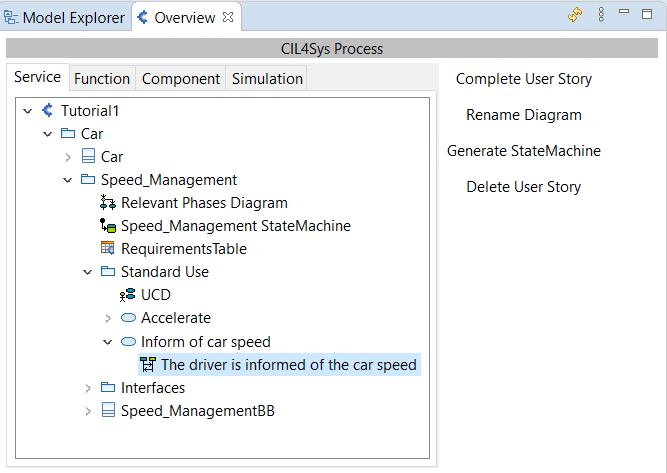
- Sélectionnez le cas d’usage Inform of car speed dans la vue d’ensemble CIL4Sys
- Cliquez sur New User Story
- Saisissez le nom de la user story : The driver is informed of the car speed
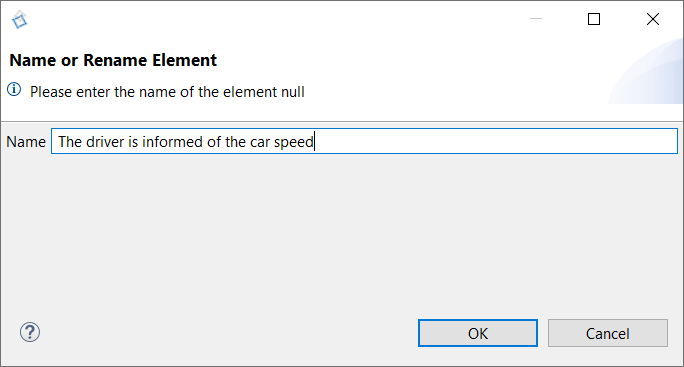
- Cliquez sur OK
- Double-cliquez sur la user story nouvellement créée dans la vue d’ensemble CIL4Sys
- Glissez-déposez un Nouvel état sur la ligne de vie du service
- Sélectionnez Active
- Cliquez sur OK
- Tracez un message entre l’environnement et le service
- Cliquez sur Create a new flow
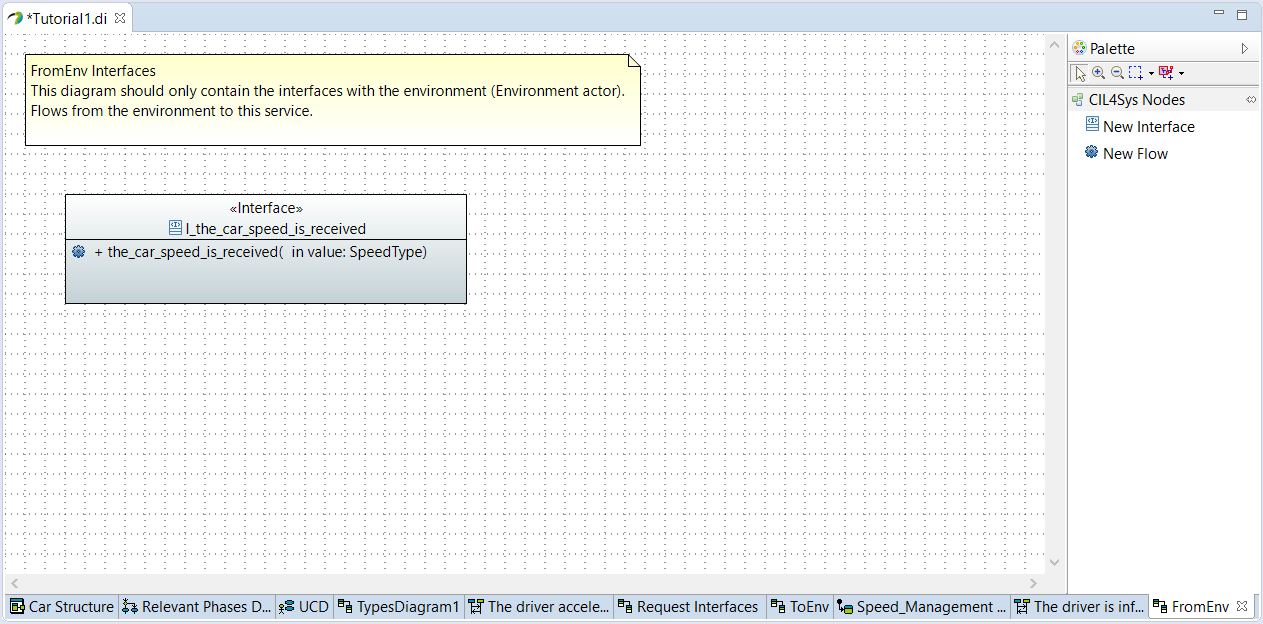
- Glissez-déposez une Nouvelle interface sur le diagramme FromEnv Interfaces
- Saisissez le nom de l’interface : I_the_car_speed_is_received
- Cliquez sur OK
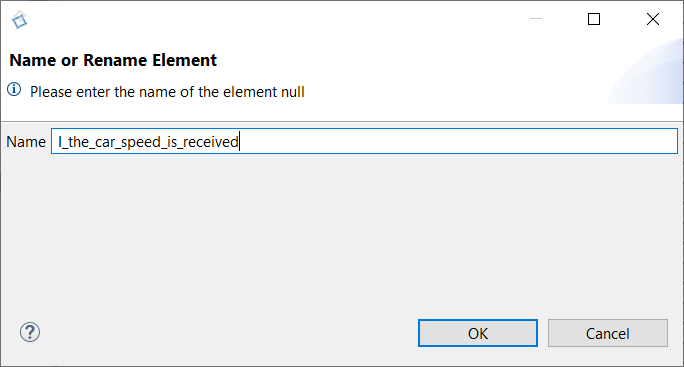
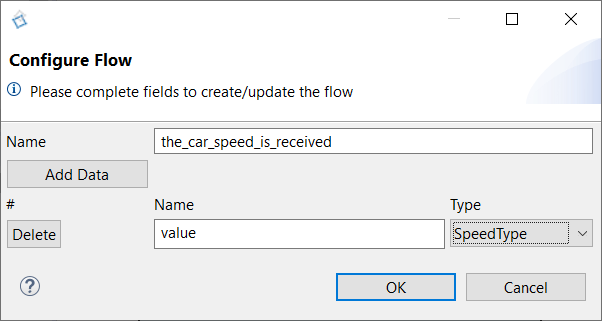
- Glissez-déposez un Nouveau flux dans l’interface nouvellement créée
- Saisissez le nom : the_car_speed_is_received
- Cliquez sur Add data
- Saisissez le nom : value
- Définissez le type de la donnée : SpeedType
- Revenez sur le diagramme de séquence
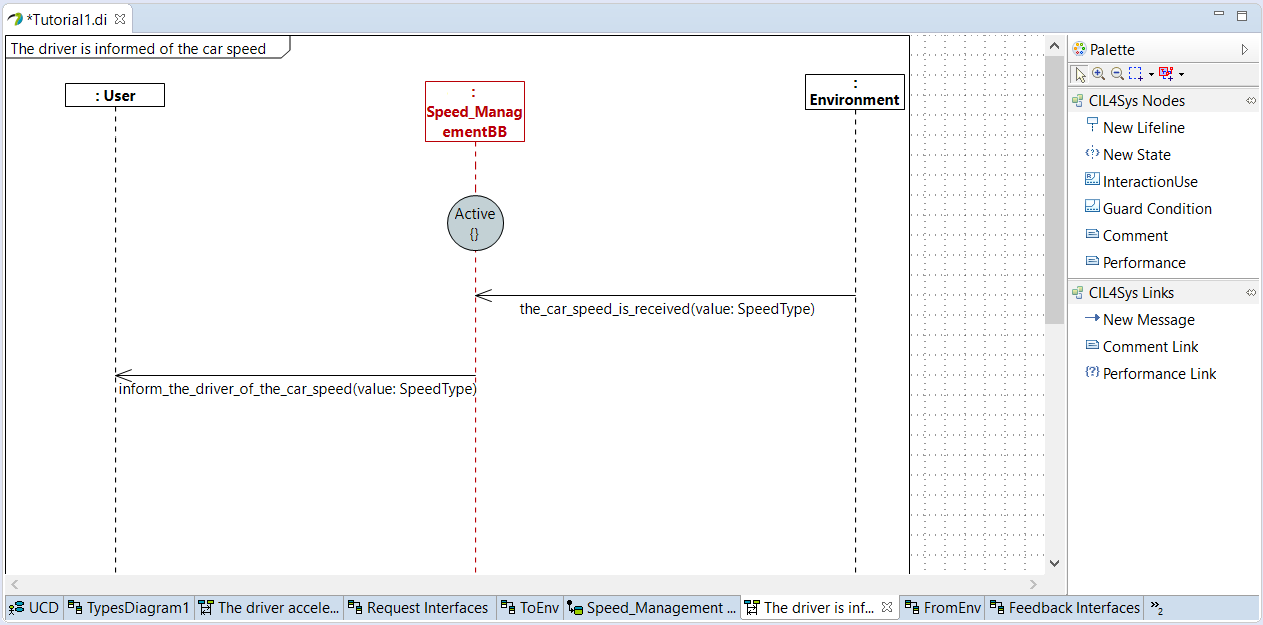
- Tracez un message entre l’environnement et le service
- Choisissez the_car_speed_is_received
- Tracez un Nouveau message entre le service et l’utilisateur
- Cliquez sur Create a New Flow
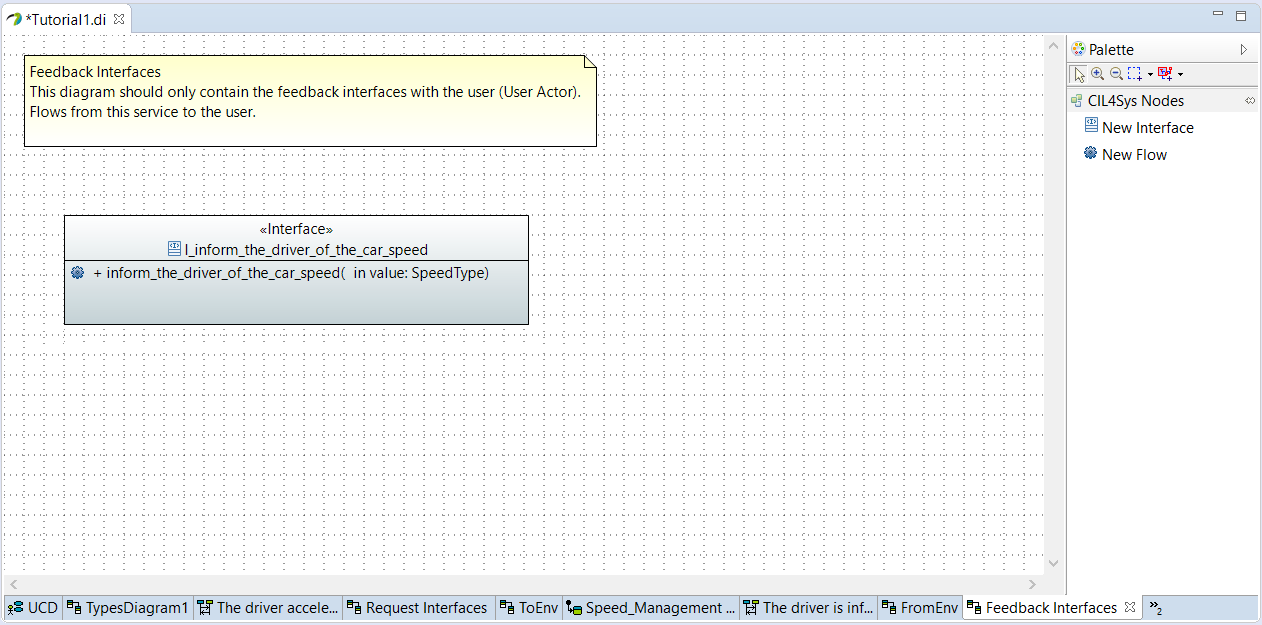
- Glissez-déposez une Nouvelle interface sur le diagramme Feedback Interfaces
- Saisissez le nom de l’interface : I_inform_the_driver_of_the_car_speed)
- Cliquez sur OK
- Glissez-déposez un Nouveau flux dans l’interface nouvellement créée
- Saisissez le nom : inform_the_driver_of_the_car_speed
- Cliquez sur Add data
- Saisissez le nom : value
- Définissez le type de la donnée : SpeedType
- Revenez sur le diagramme de séquence
- Tracez un message entre le service et l’utilisateur
- Choisissez inform_the_driver_of_the_car_speed
- Cliquez sur OK
- Sélectionnez la valeur : the_car_speed_is_received_value
- Cliquez sur OK
- Sélectionnez la user story dans la vue d’ensemble CIL4Sys
- Cliquez sur Generate State Machine
- Cliquez sur Ok dans la boîte de dialogue de confirmation
CAS D’USAGE « BRAKE »
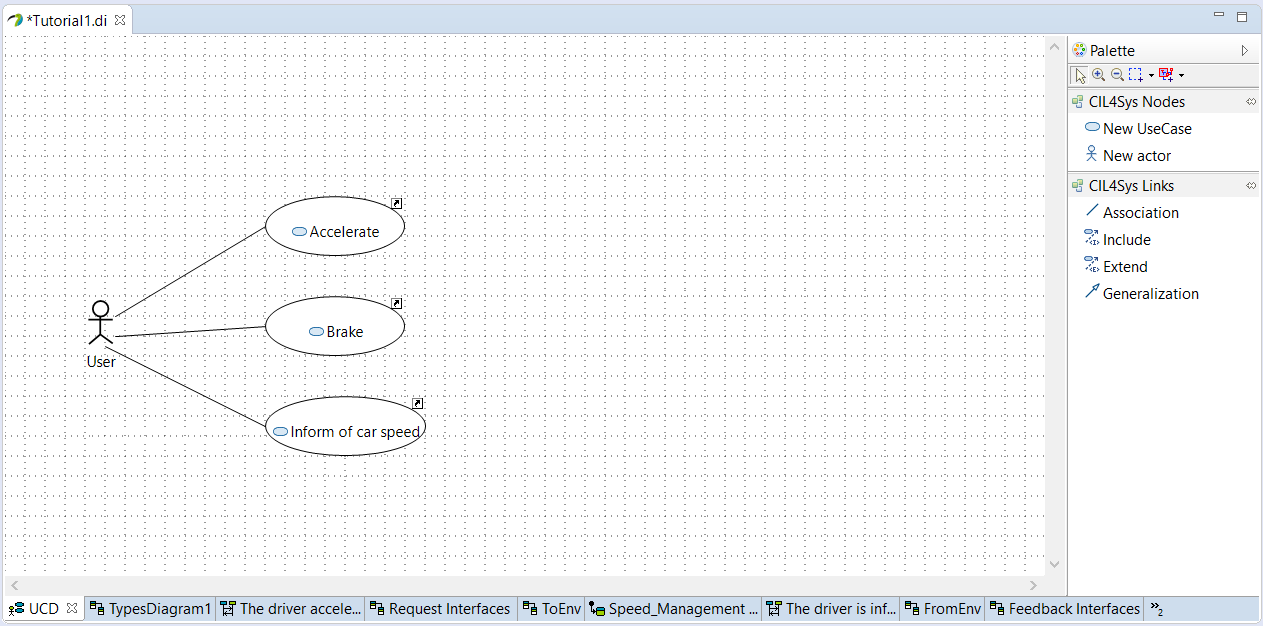
- Sélectionnez le package Standard Use Package dans la vue d’ensemble CIL4Sys
- Cliquez sur Complete Use Cases
- Glissez-déposez un Nouveau cas d’usage sur le diagramme
- Saisissez le nom du nouveau cas d’usage : Brake
- Cliquez sur OK
- Tracez une association entre l’acteur et le nouveau cas d’usage
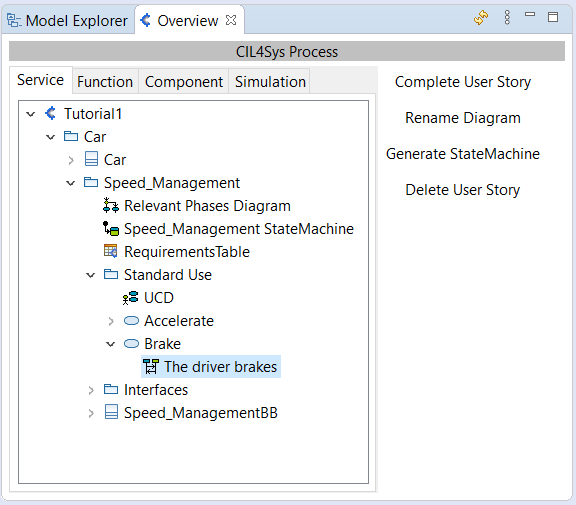
- Sélectionnez le cas d’usage Brake dans la vue d’ensemble CIL4Sys
- Cliquez sur New User Story
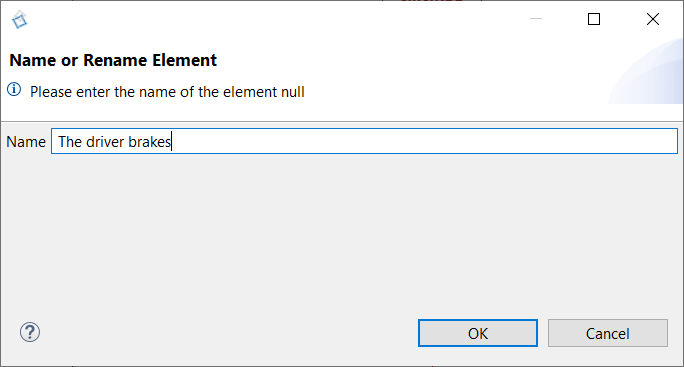
- Saisissez le nom de la user story : The driver brakes
- Cliquez sur OK
- Double-cliquez sur la user story nouvellement créée dans la vue d’ensemble CIL4Sys
- Glissez-déposez un Nouvel état sur la ligne de vie du service
- Sélectionnez Active
- Cliquez sur OK
- Tracez un message entre l’utilisateur et le service
- Cliquez sur Create a new flow
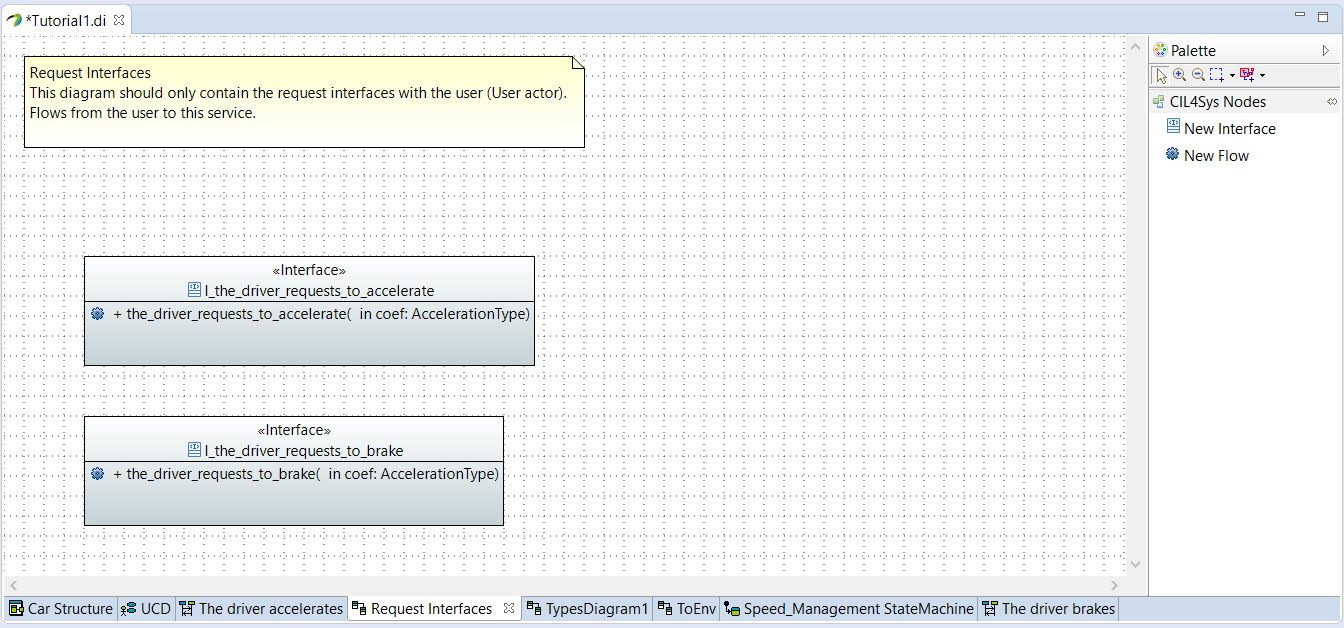
- Glissez-déposez une Nouvelle interface sur le diagramme Request Interfaces
- Saisissez le nom de l’interface : I_the_driver_requests_to_brake
- Cliquez sur OK
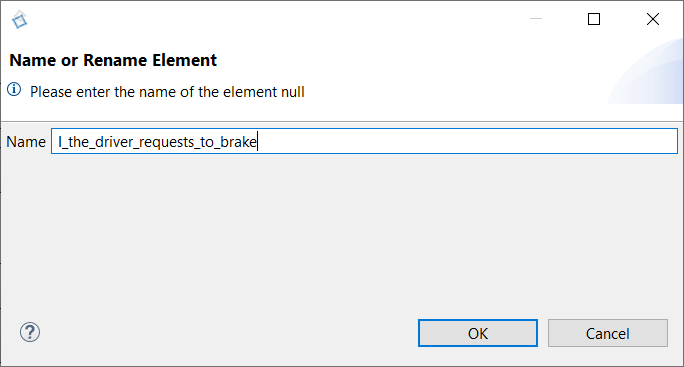
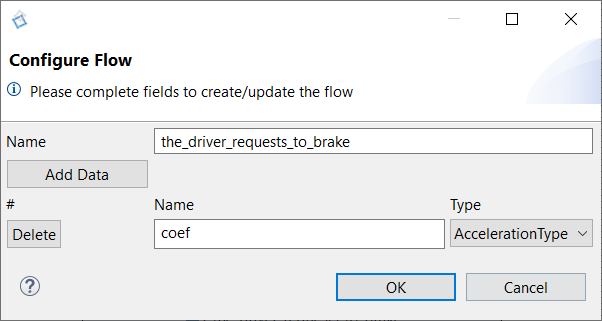
- Glissez-déposez un Nouveau flux dans l’interface nouvellement créée
- Saisissez le nom : the_driver_requests_to_brake
- Cliquez sur Add data
- Saisissez le nom : coef
- Définissez le type de la donnée : AccelerationType
- Revenez sur le diagramme de séquence
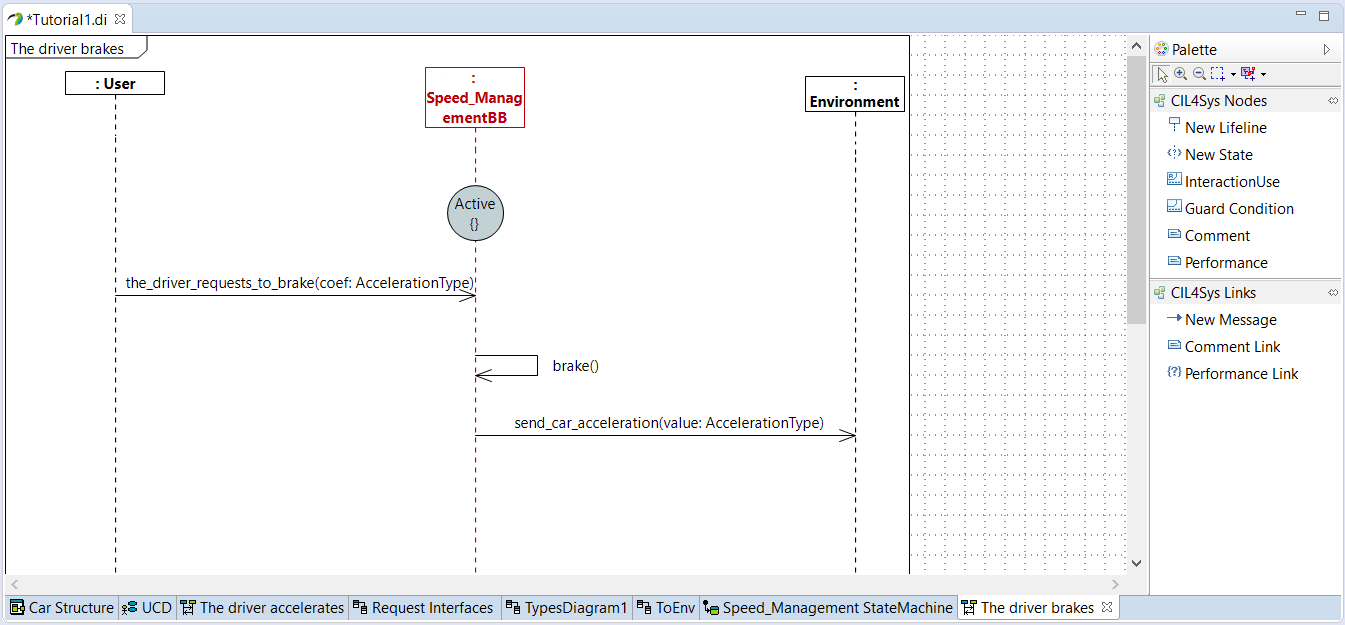
- Tracez un message entre l’utilisateur et le service
- Choisissez the_driver_requests_to_brake
- Tracez un Nouveau message entre le service et lui-même
- Cliquez sur Create a New Flow
- Saisissez le nom du flux : brake
- Tracez un Nouveau message entre le service et l’environnement
- Choisissez send_car_acceleration
- Cliquez sur OK
- Sélectionnez la variable car_acceleration à retourner
- Cliquez sur OK
- Clic droit sur l’activité interne brake
- Clic droit sur l’activité interne, Edit > Complete Activity
- Sélectionnez _C++ Code _
- Cliquez sur Suivant
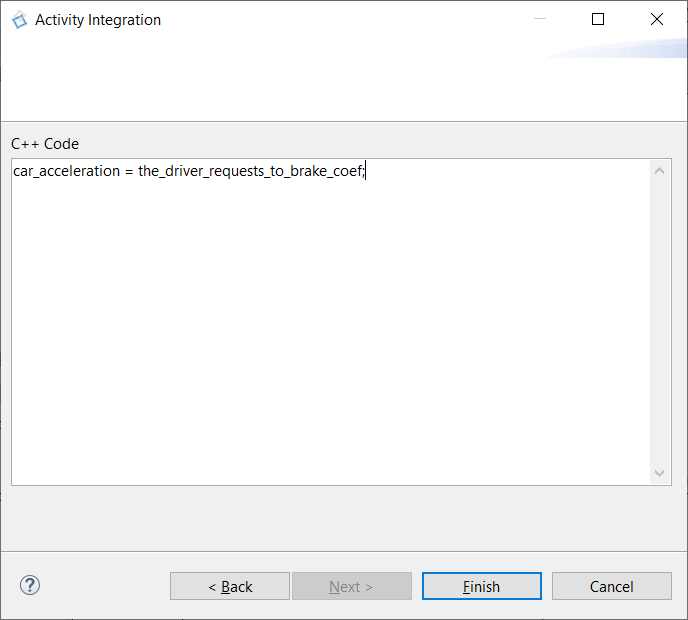
- Saisissez le code pour freiner
car_acceleration = the_driver_requests_to_brake_coef;
- Cliquez sur Terminer
- Clic droit sur la ligne de vie du service
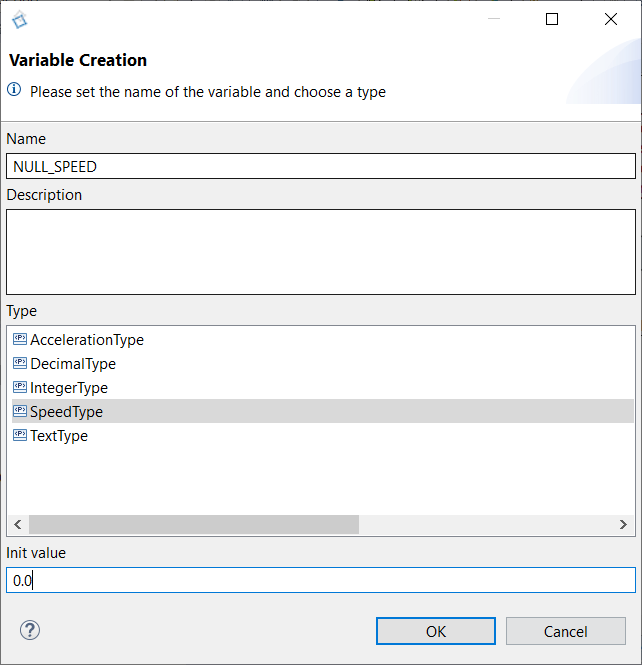
- Cliquez sur Edit > Create Constant
- Saisissez le nom : NULL_SPEED
- Choisissez le SpeedType
- Définissez la valeur initiale à 0.0
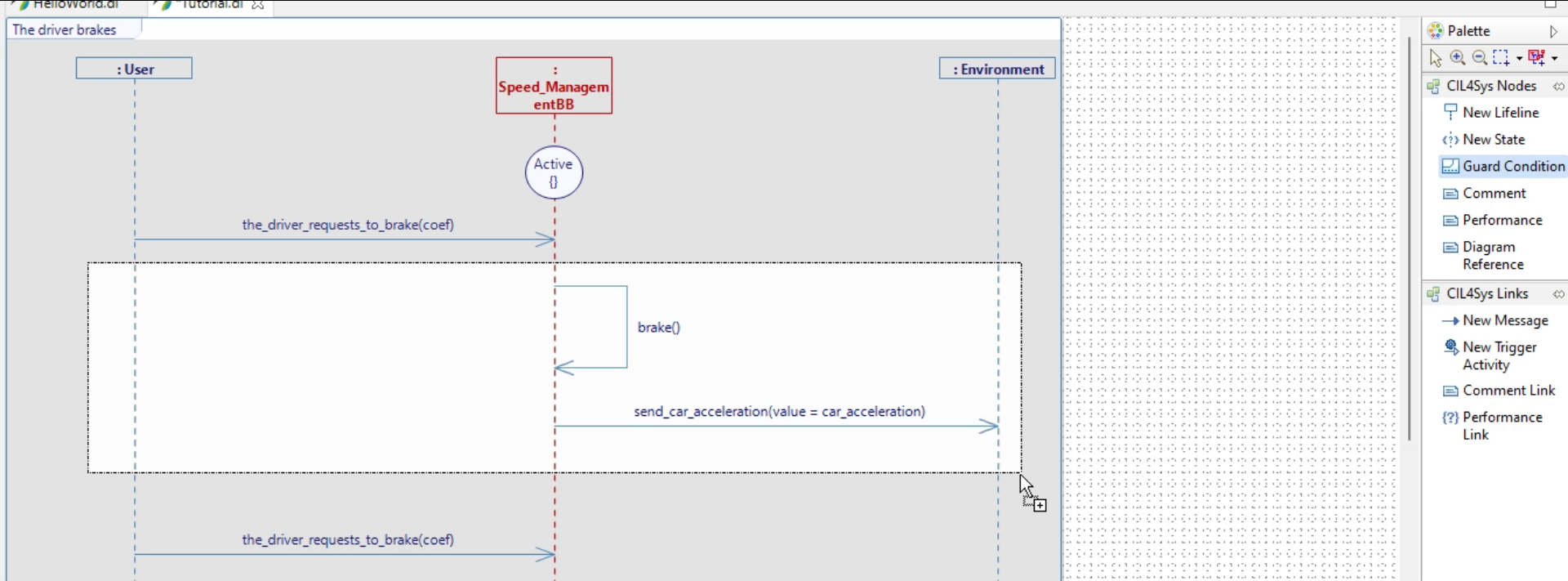
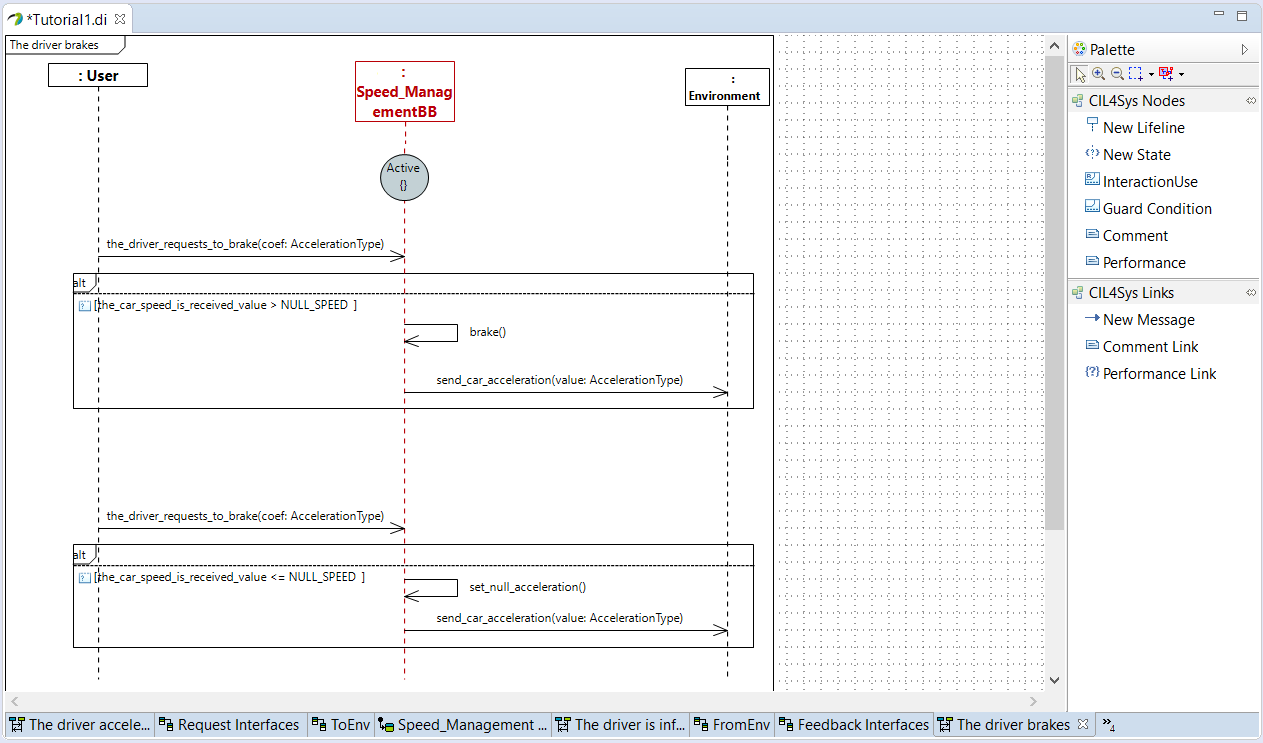
- Glissez-déposez une Guard Condition sur le diagramme
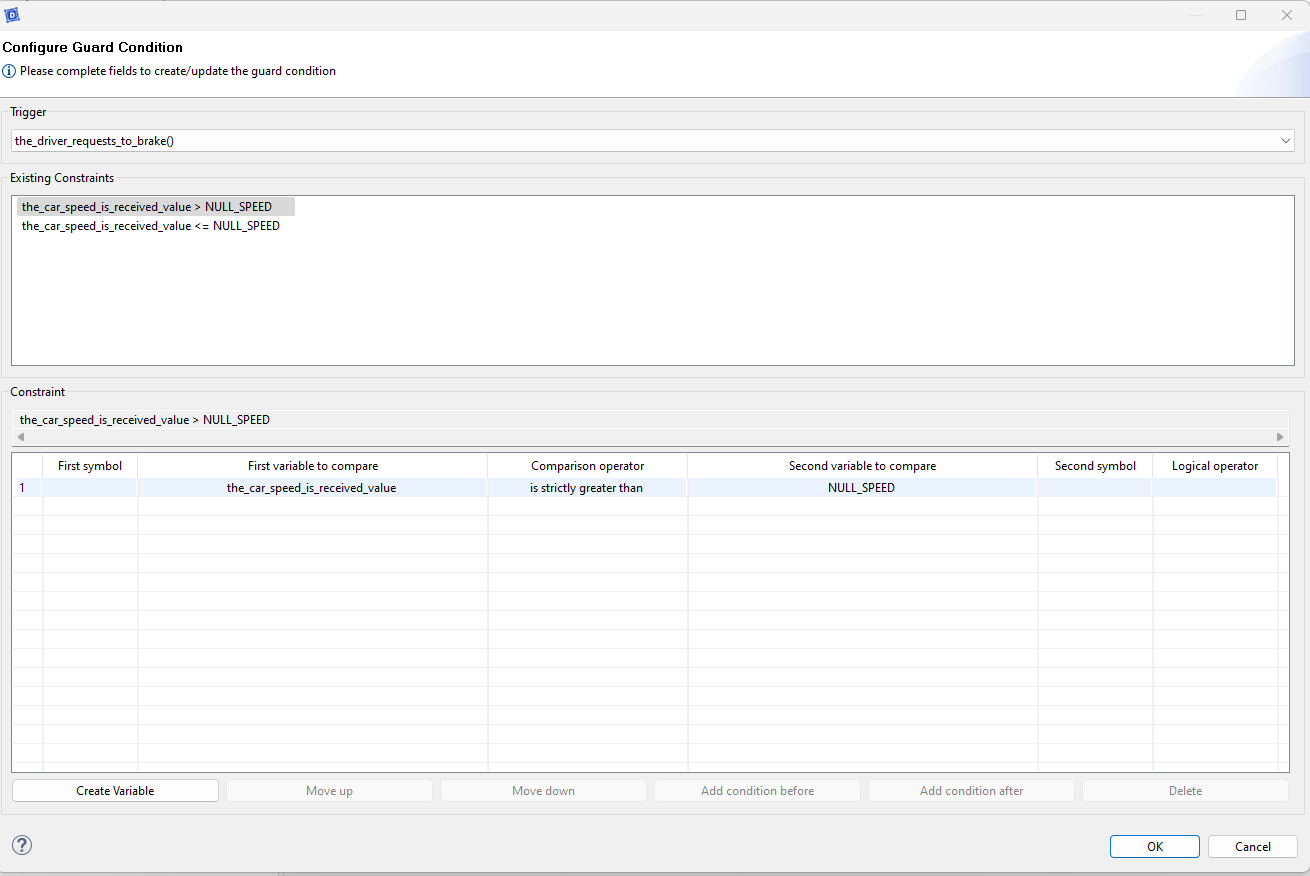
- Choisissez le déclencheur the_driver_requests_to_brake
- Définissez la condition comme suit
- Complétez le diagramme de séquence pour le cas où la vitesse est nulle (reportez-vous aux étapes précédentes si nécessaire)
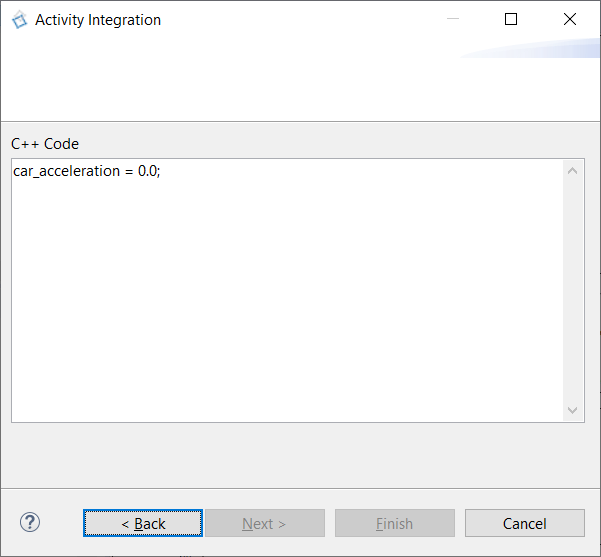
- Complétez l’activité interne set_null_acceleration
car_acceleration = 0.0;
- Sélectionnez la user story dans la vue d’ensemble CIL4Sys
- Cliquez sur Generate State Machine
- Cliquez sur Ok dans la boîte de dialogue de confirmation
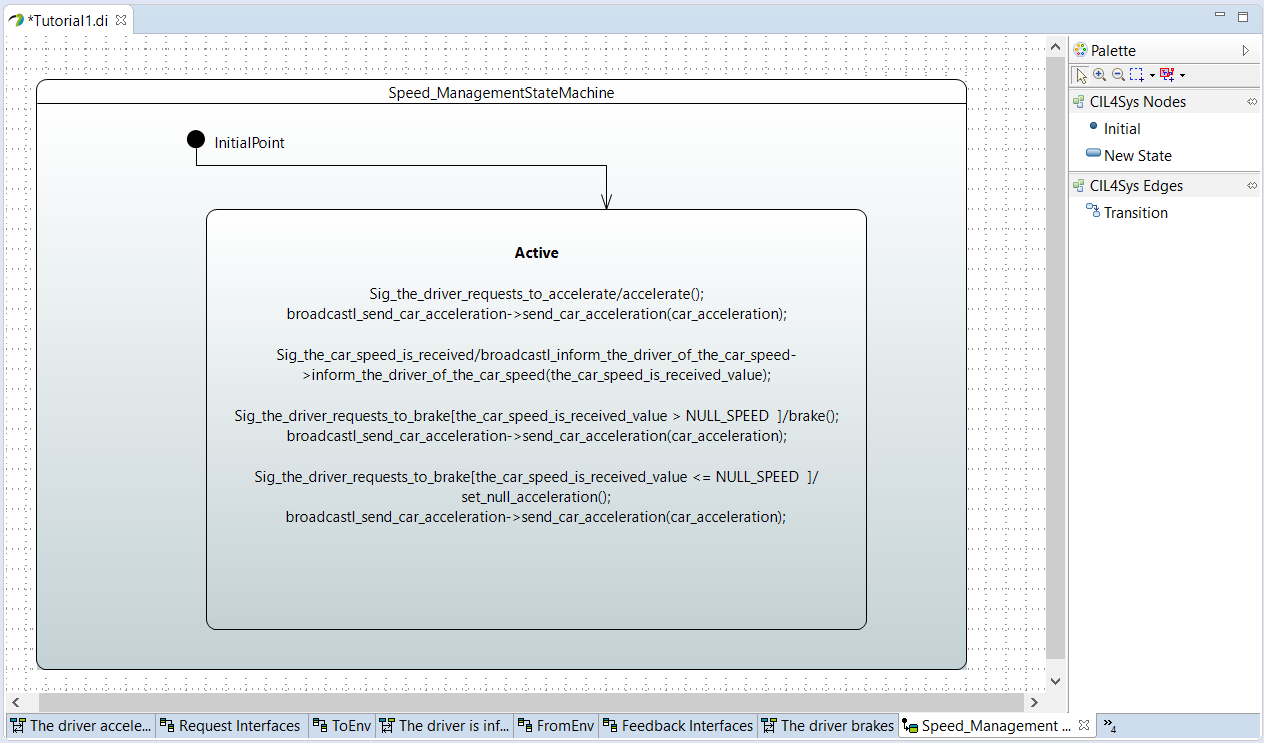
POUR ALLER PLUS LOIN Pour ce tutoriel simple, nous ne considérons qu’un seul état (Active). Il est possible d’introduire plusieurs états. Vous pouvez l’essayer par vous-même dans un projet vierge :
- Dans une user story, commencez par un état « Active » et tracez quelques messages comme nous l’avons fait.
- Terminez la user story par un autre état, « Turbo » par exemple.
- Générez la machine d’états : vous devriez voir les messages que vous avez écrits et une condition pour passer de l’état « Active » à l’état « Turbo ».
- Vous pouvez aussi faire l’inverse : passer de l’état « Turbo » à l’état « Active » avec une autre user story.
GÉNÉRER LE CODE
Si vous avez la version communautaire de Designer (version gratuite), veuillez construire l’exécutable via Hub4Sys comme indiqué sur cette page
- Avant de générer le code, assurez-vous que les CIL4SysLibs font déjà partie du projet.

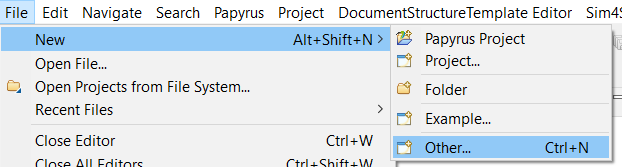
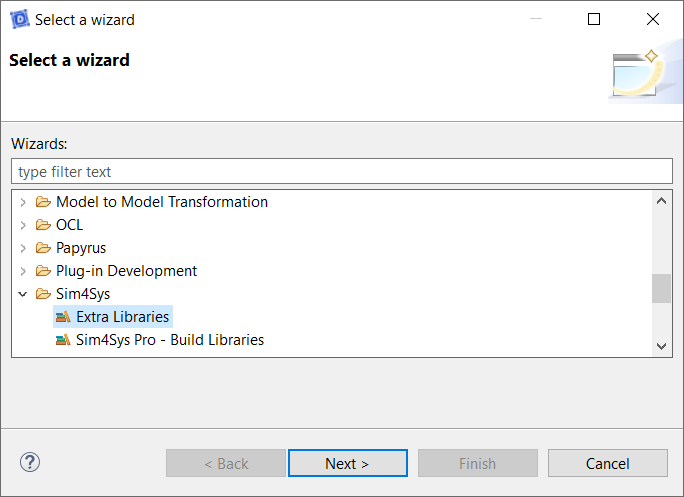
- Si ce n’est pas le cas, vous devez ajouter les librairies dans Fichier > Nouveau > Autre... Dans la nouvelle fenêtre, sélectionnez Extra Libraries dans le dossier Sim4Sys. Si vous avez un accès Pro, vous pouvez ajouter Sim4Sys Pro - Build Libraries à la place :
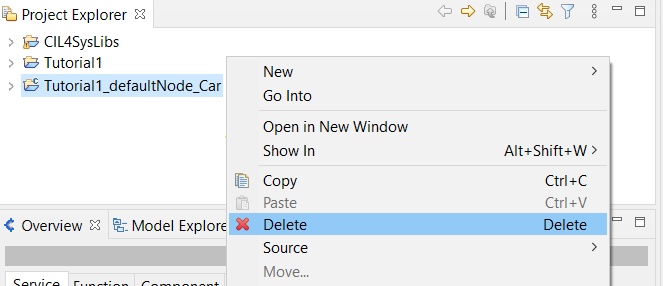
Si vous avez déjà essayé de générer le code sans les CIL4SysLibs, vous ne pourrez peut-être pas compiler même après avoir ajouté les bibliothèques. Pour tout réinitialiser, clic droit sur le dossier de code généré, puis supprimez-le.
Suivez les étapes suivantes pour générer le code.
- Cliquez sur le menu Vue d’ensemble, grâce à l’icône suivante :
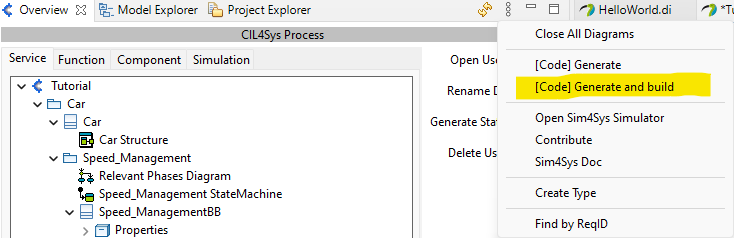
- Cliquez sur [Code] Generate and build dans la vue d’ensemble CIL4Sys
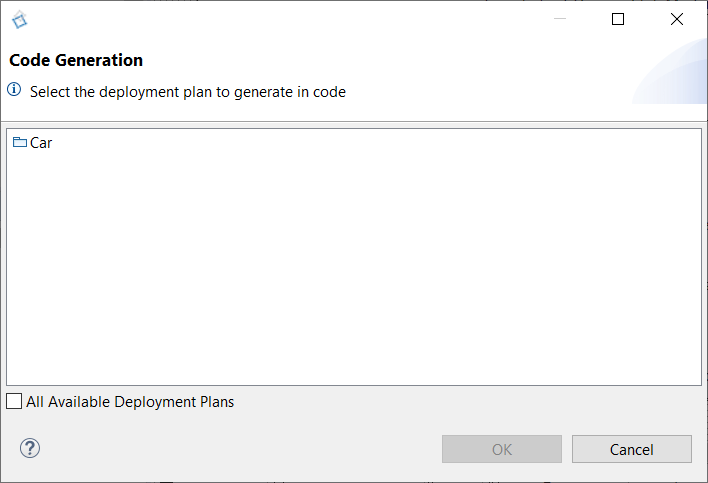
- Sélectionnez Car (ou CarMainProduct)
- Cliquez sur OK
- Sélectionnez Cygwin GCC (Cygwin 64 doit être installé, pour Windows uniquement)
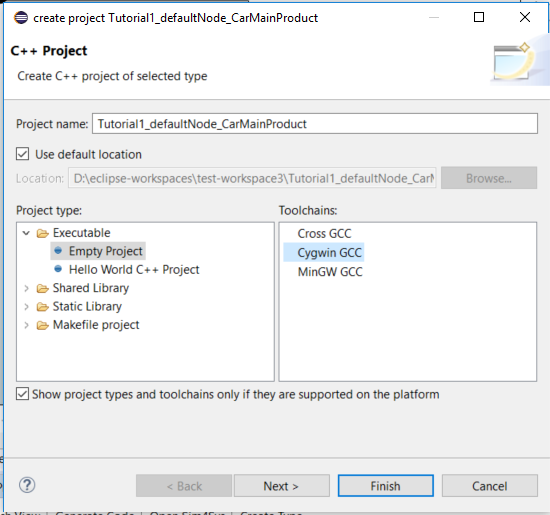
- Cliquez sur Terminer
- Cliquez sur OK dans la boîte de dialogue de confirmation
- Clic droit sur le projet C++ nouvellement créé
- Avant de construire le projet, vous pouvez faire un clic droit dessus, puis sélectionner Propriétés. Ensuite allez dans la section C/C++ Build, et dans l’onglet Behavior. Vous pouvez cocher Enable parallel Build. Appliquer et fermer. Le processus de construction sera alors beaucoup plus efficace.
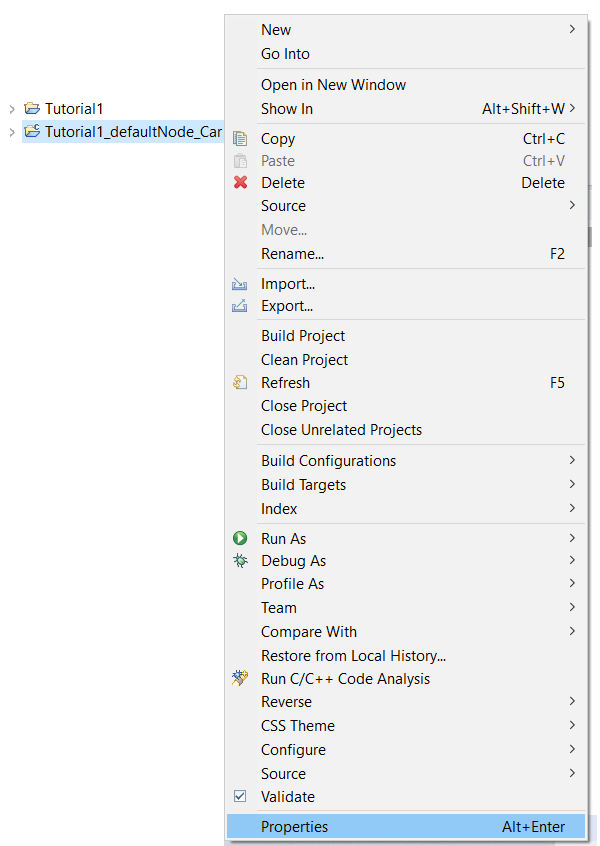
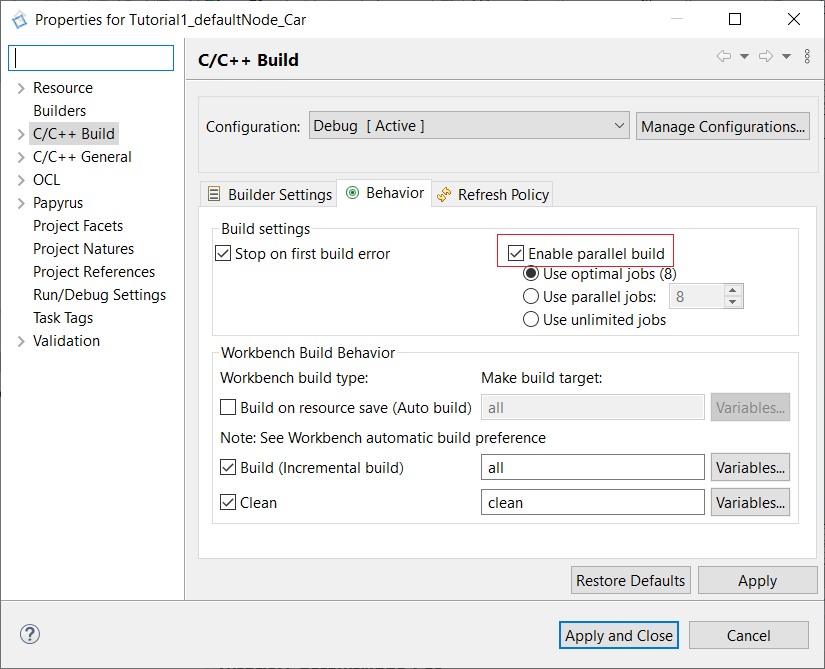
- Sélectionnez Build Project (si les CIL4SysLibs ne sont pas encore importées, reportez-vous à l’étape précédente), puis nous pouvons construire notre projet Car.
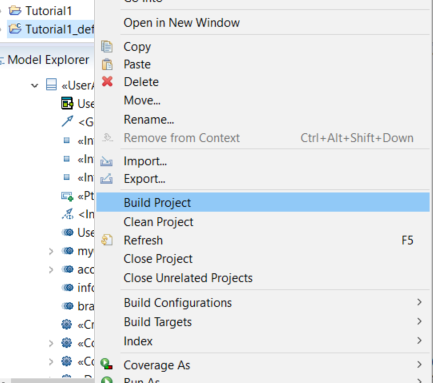
-
En cas d’erreur avec des types non déclarés, suivez la procédure suivante :
-
Allez dans Fenêtre > Préférences

-
Dans Papyrus > C++ Code Generation, cochez Generate "using namespaces"
-
Décochez Use C++11 class enumerations
-
Clic droit sur le projet C++
-
Sélectionnez RunAs > C/C++ Application
-
Revenez à votre projet Virtual Bench.
-
Comportement du contrôleur (ACCÉLÉRATION)
Se connecter à Virtual Bench
Connectez-vous à la plateforme Sim4Sys Virtual Bench pour préparer votre modèle à la visualisation.
- Ouvrez Sim4Sys Virtual Bench dans votre navigateur.
- Connectez-vous avec votre nom d’utilisateur et mot de passe.
- Sur la page d’accueil, trouvez votre projet bac à sable et ouvrez-le :
- Double-cliquez sur la carte du projet, ou
- Cliquez sur le menu et sélectionnez Run.

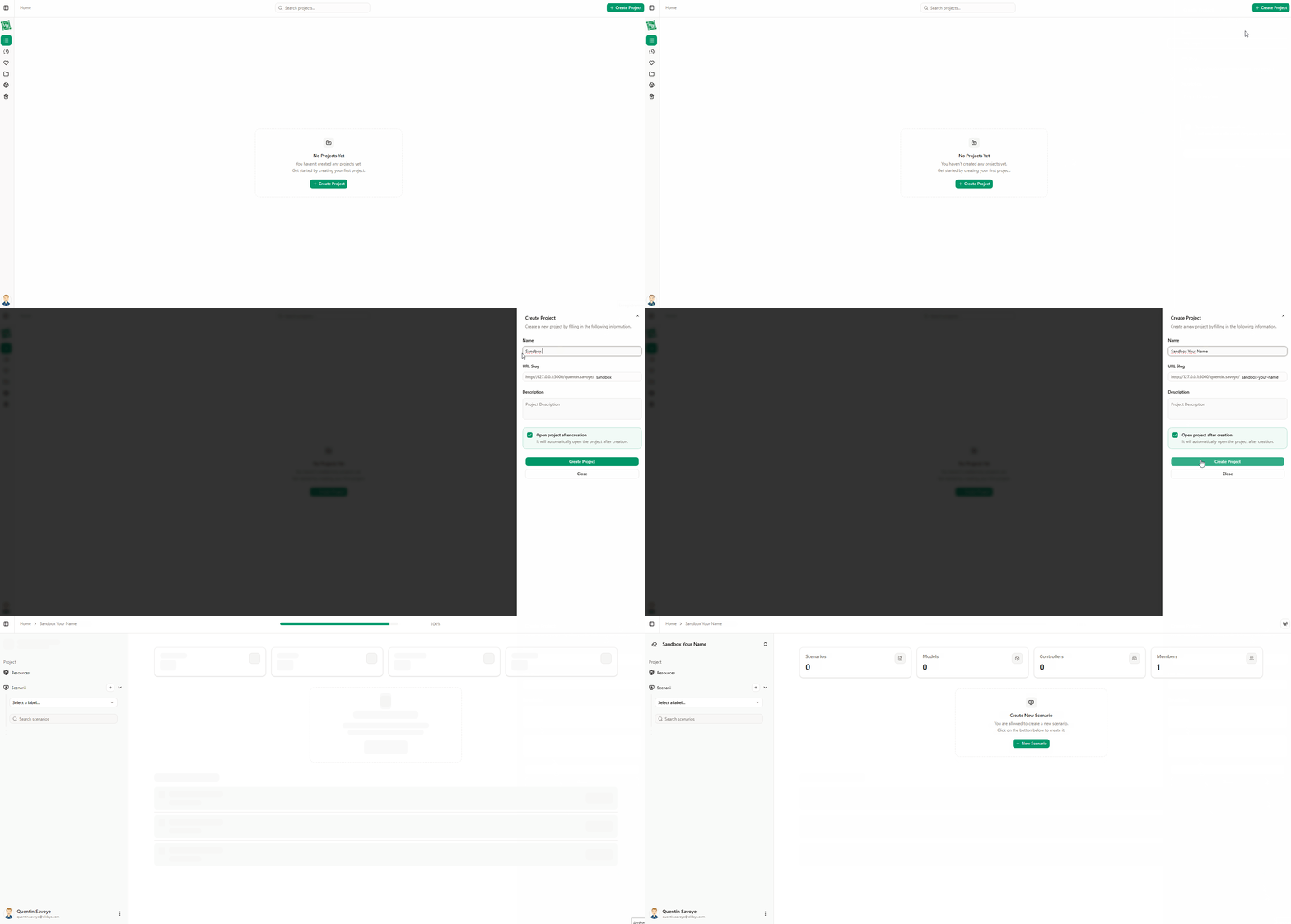
Créez-en un en cliquant sur Nouveau projet. Dans le champ Nom du projet, saisissez par ex. « Sandbox votre nom » — l’URL est générée automatiquement. Ajoutez une courte description pour le projet et cochez l’option pour ouvrir le projet automatiquement après création.
Configurer l’environnement et le scénario
-
Ajouter un modèle
- Ouvrez le panneau Resources du projet et ajoutez un nouveau modèle.
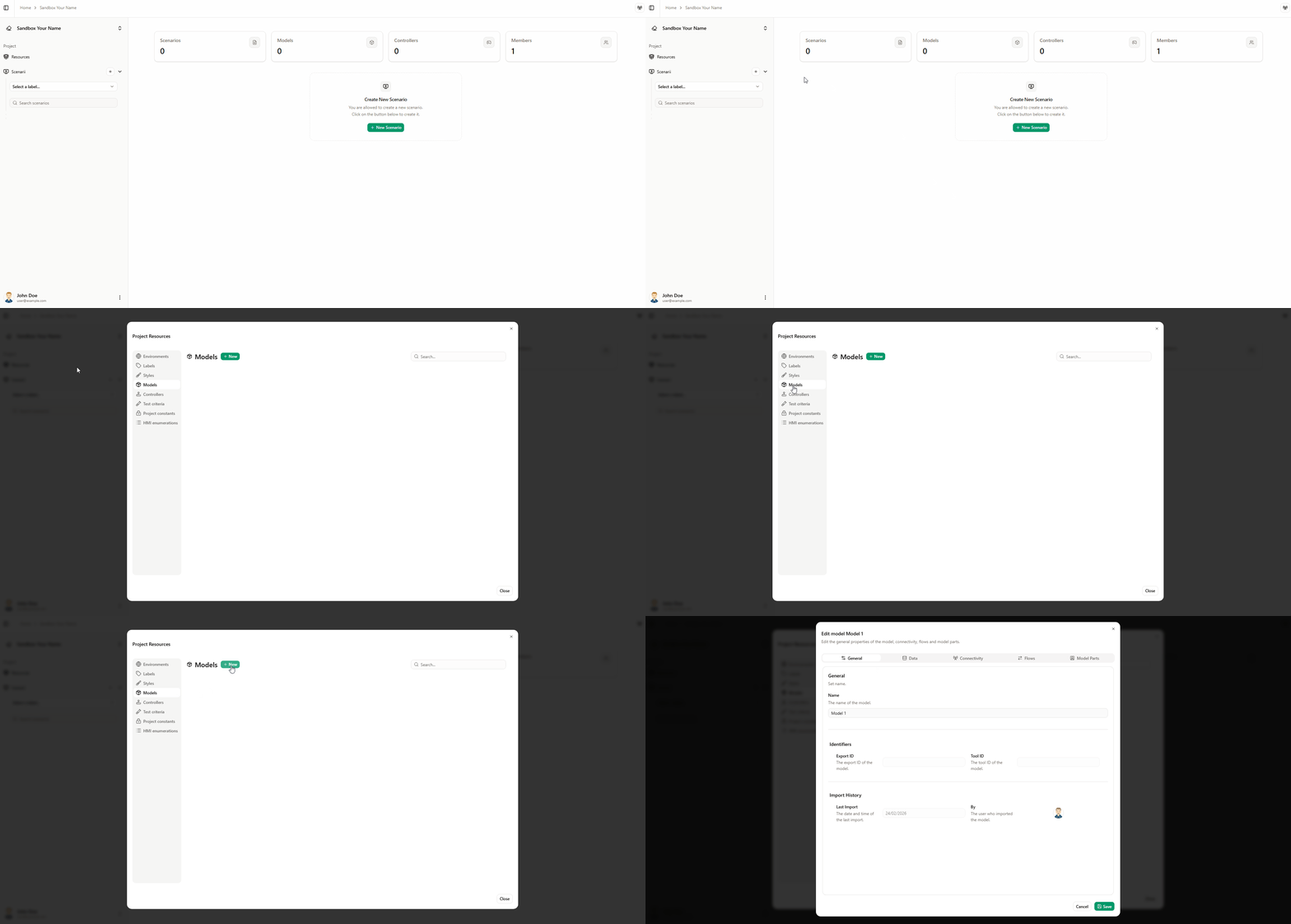
- Configurez le modèle sous Général et Connectivité, puis importez les types et flux de votre modèle dans Virtual Bench.
-
Vérifier les environnements
- Dans le panneau Resources du projet, assurez-vous que les environnements suivants sont disponibles pour le projet : HMI, Scene2D et Timeline. Voir Gestion des scénarios pour plus de détails.
-
Créer un scénario
- Créez un nouveau scénario et nommez-le comme vous le souhaitez (ex. accBrake, tuto1).
- Cochez Ouvrir automatiquement le nouveau scénario, puis cliquez sur Créer le scénario. Le nouveau scénario s’ouvre.
-
Ajouter une instance de modèle
- À droite, cliquez sur Instances de modèle, puis Nouveau.
- Saisissez le nom de l’instance de modèle (ex. AccBrakeTuto1) et cliquez sur Créer.
Comportement du contrôleur pour le flux the_driver_requests_to_accelerate
Configurons le comportement du contrôleur pour que la valeur d’accélération soit envoyée au modèle à un instant donné via l’environnement timeline.
- Ajouter une action timeline
- Ouvrez l’environnement timeline.
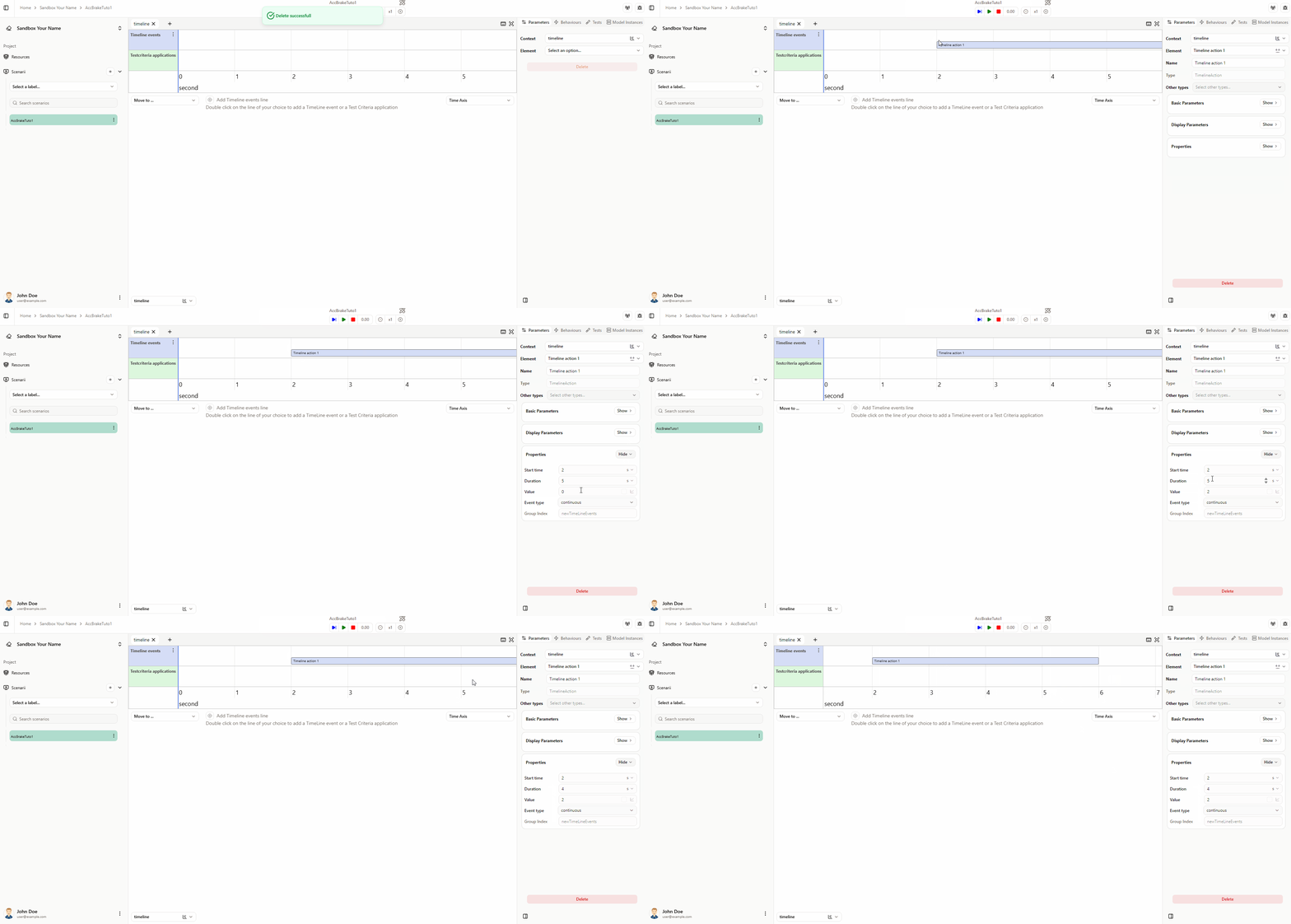
- Double-cliquez sur l’axe des événements de la timeline pour ajouter un élément Action timeline.
- Définissez la durée à 4 s et la valeur à 2.
- Créer un comportement déclencheur
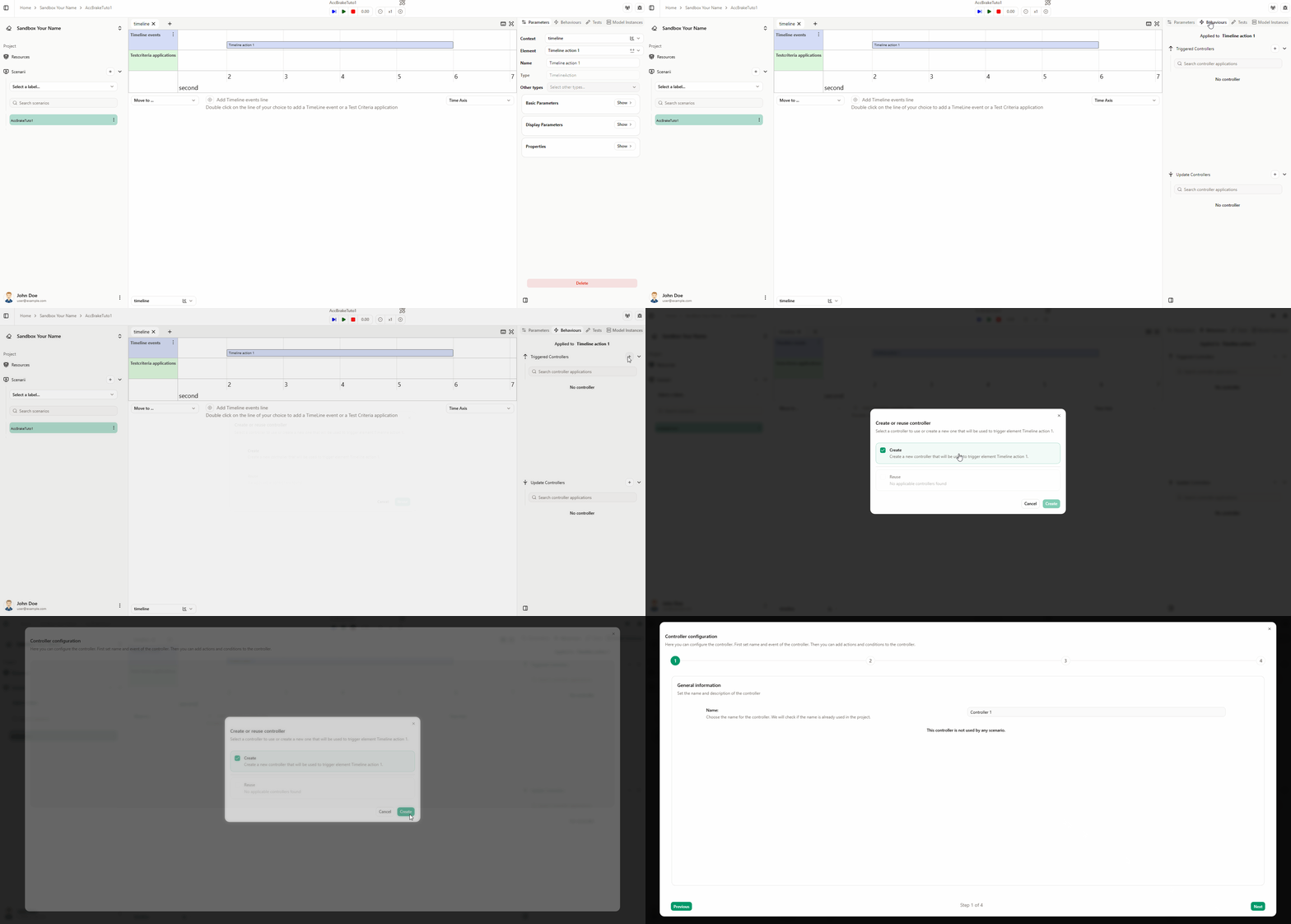
- À droite, assurez-vous que Action timeline est sélectionné, ouvrez l’onglet Comportements et cliquez sur Nouveau pour créer un nouveau comportement déclencheur.
- Dans la fenêtre, cliquez sur Créer.
- Nommer le contrôleur et définir l’événement
- Saisissez un nom (ex. the_driver_requests_to_accelerate behaviour) et cliquez sur Suivant.
- Confirmez que l’événement est réglé sur on Trigger, puis cliquez sur Suivant.
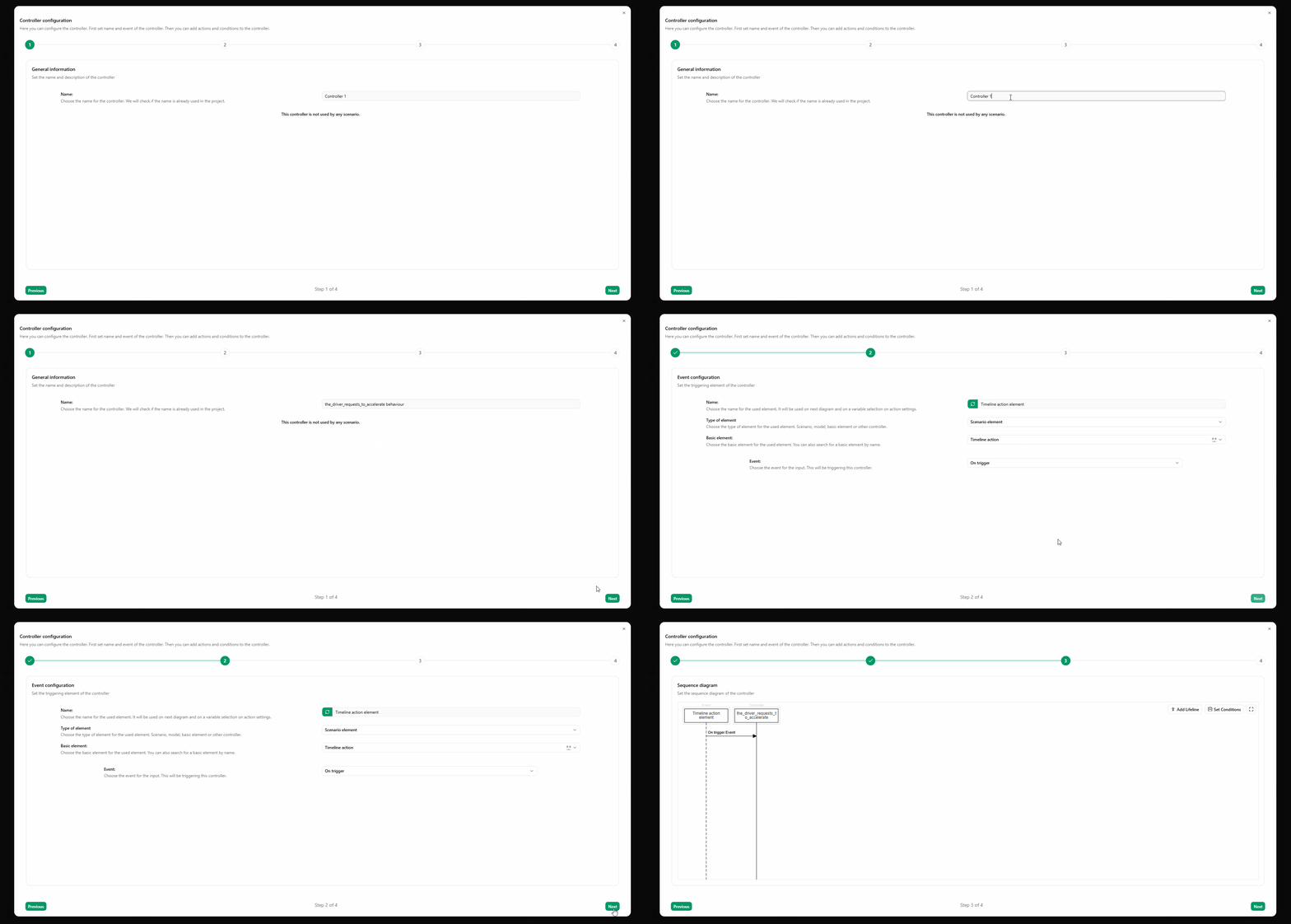
- Relier le flux au modèle
- Ajoutez une nouvelle ligne de vie pour votre modèle.
- Créez une action entre la ligne de vie du contrôleur et la ligne de vie du modèle.
- Sélectionnez le flux the_driver_requests_to_accelerate.
- Définissez le paramètre coef d’accélération sur variable, puis choisissez action timeline → value. Le coefficient d’accélération utilisera la valeur de l’action timeline.
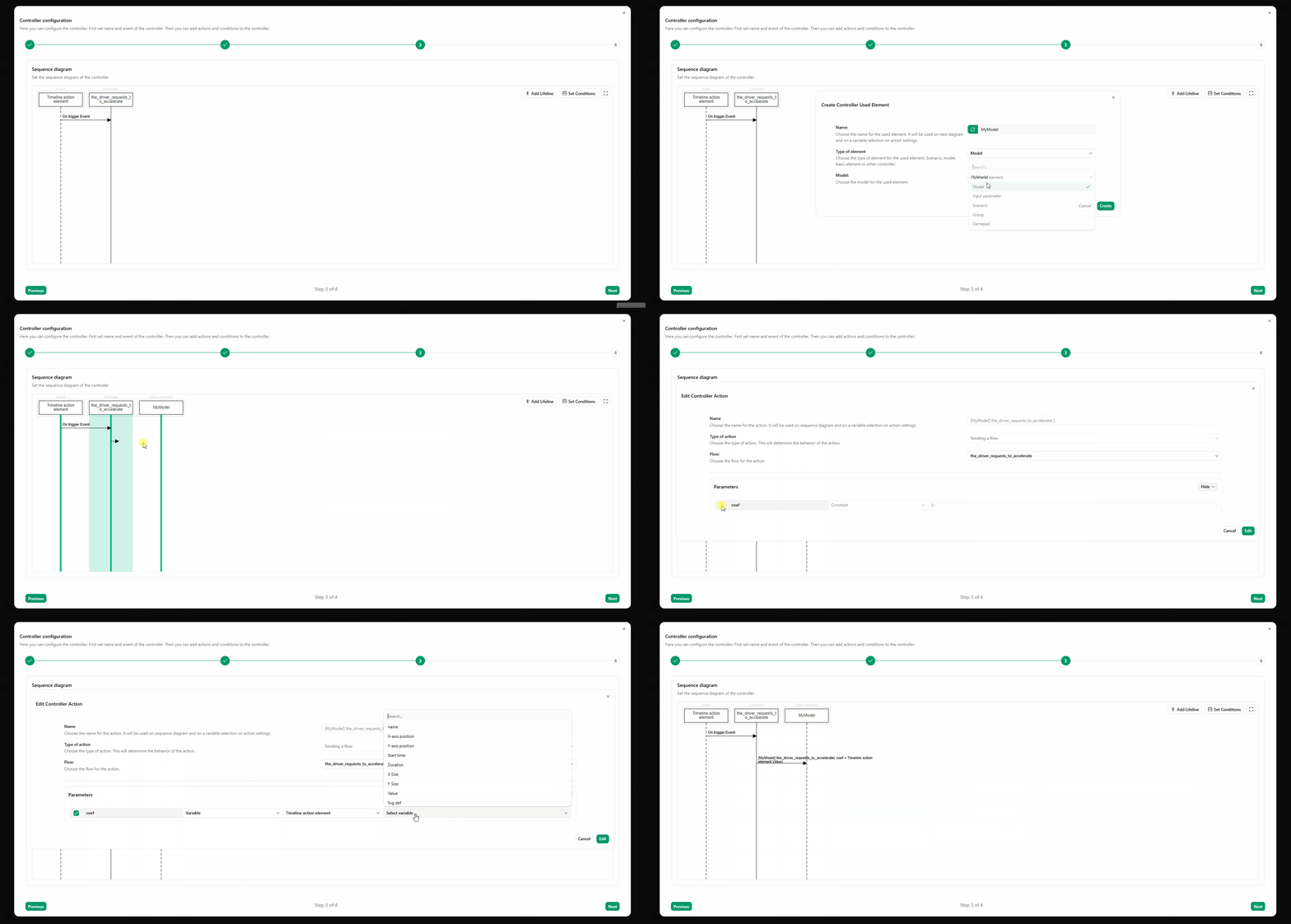
-
Enregistrer le contrôleur
- Cliquez sur Suivant, puis enregistrez le contrôleur.
-
Appliquer le contrôleur
- Appliquez le contrôleur à la bonne instance de modèle (l’élément de scénario Action timeline devrait déjà être sélectionné), puis cliquez sur Enregistrer.
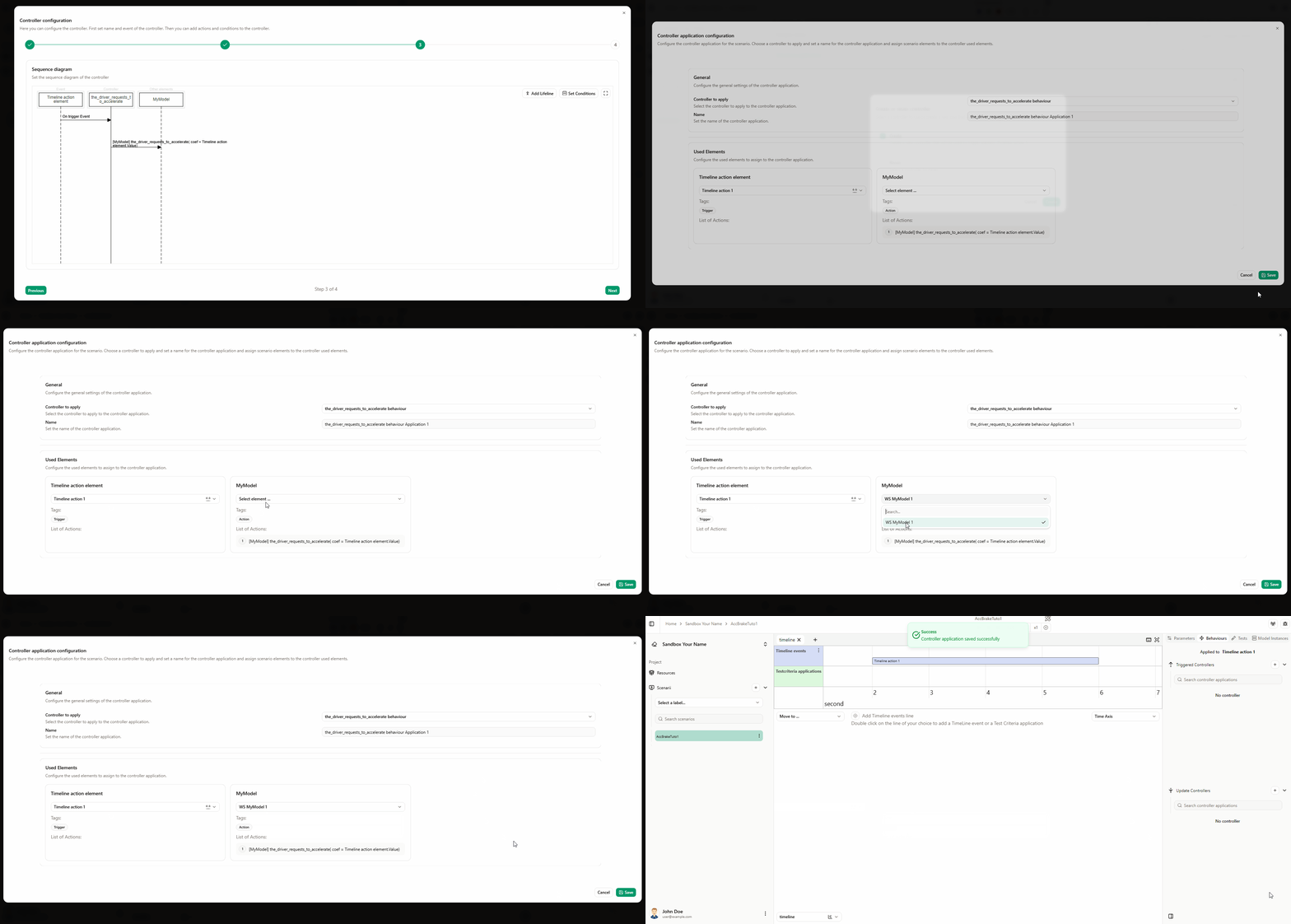
-
Ajouter un profil de courbe à la valeur (optionnel)
- Dans les paramètres de l’action timeline, la valeur est actuellement fixée à 2. Pour la faire varier dans le temps, trouvez le paramètre Value, cochez sa case et cliquez sur le bouton pour ajouter un profil de courbe.

- Dans la fenêtre : réglez la durée sur 4 s, cliquez sur pour ajouter un nouveau point, définissez la valeur à 50 % sur 4 (ou un autre coefficient d’accélération de votre choix), puis cliquez sur Enregistrer.
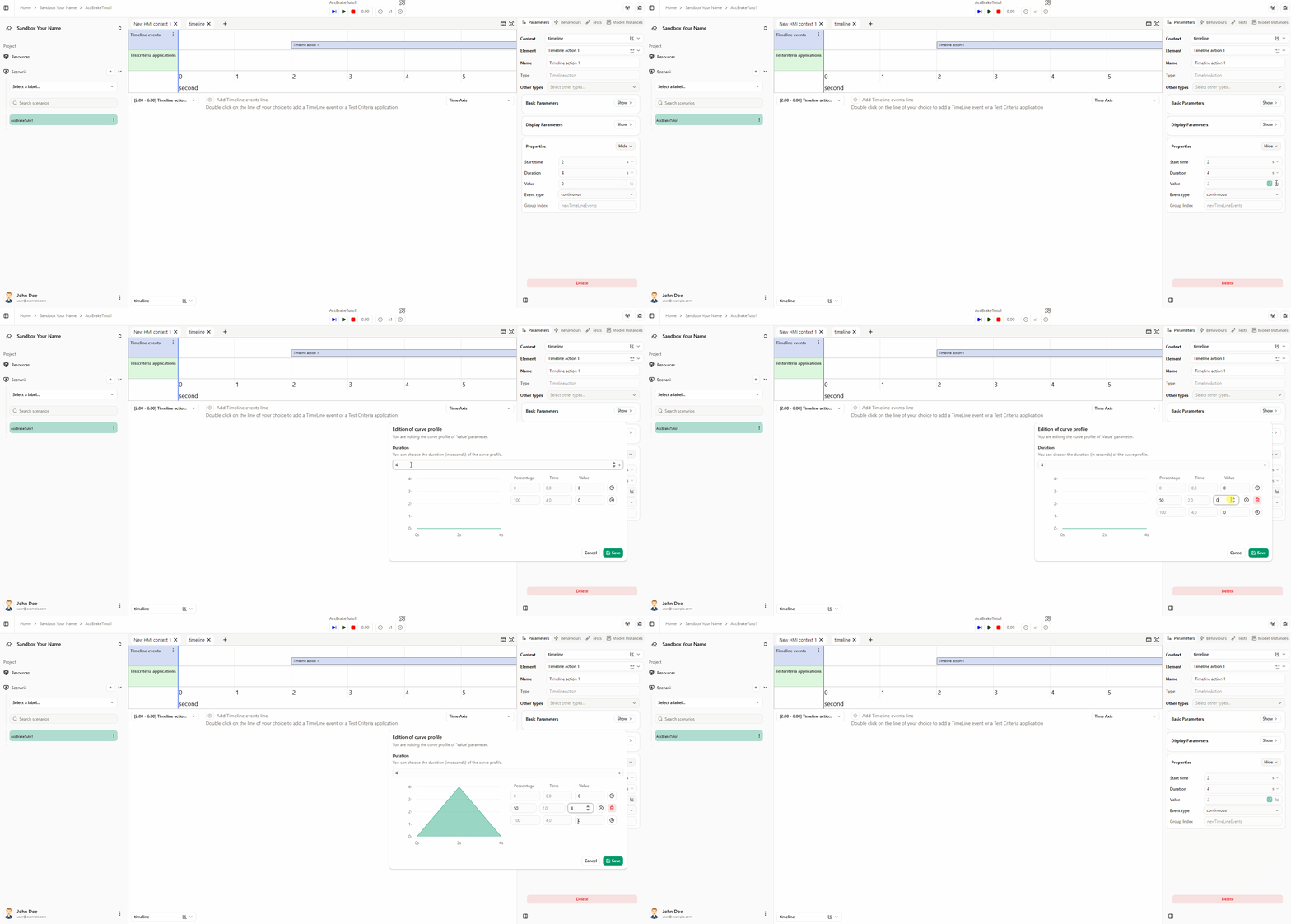
Pour plus d’options, voir Modifier le profil de courbe.
Le comportement du contrôleur est maintenant configuré.
Comportement du contrôleur pour le flux the_car_speed_is_received
Créez un comportement de contrôleur pour le flux de vitesse envoyé au modèle (the_car_speed_is_received).
-
Ajouter la route et la voiture dans Scene2D
- Passez à l’environnement Scene2D.
- Glissez-déposez un revêtement routier et une voiture depuis la bibliothèque d’éléments d’environnement sur la scène.
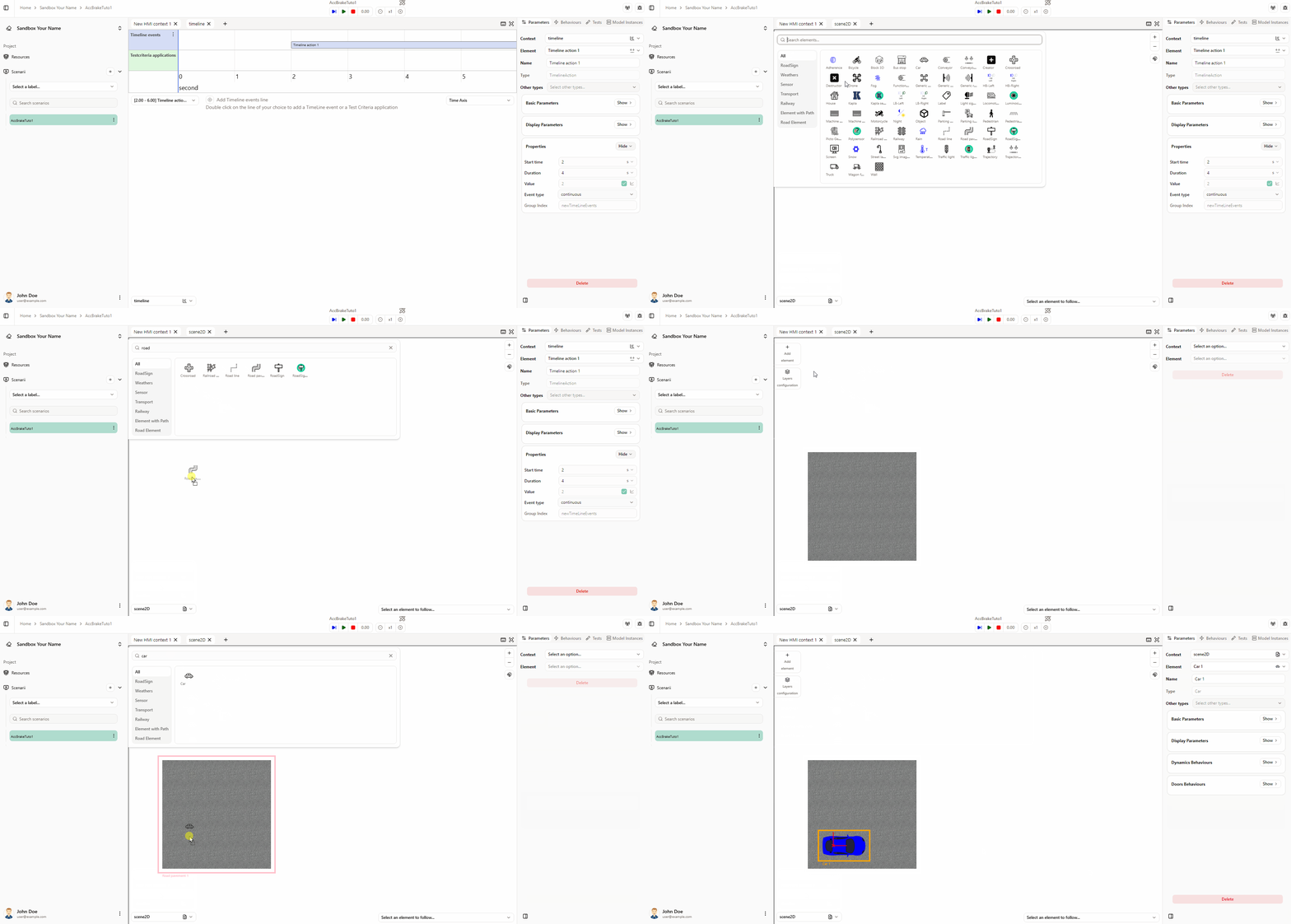 Déplacer les éléments
Une fois les éléments ajoutés, vous pouvez les déplacer le long de l’axe x ou y en maintenant Alt et en faisant glisser.
-
Modifier le tracé du revêtement routier
- Sélectionnez l’élément revêtement routier. Dans le panneau des paramètres, ouvrez Propriétés et trouvez le paramètre Path.
- Cliquez sur le bouton modifier. Dans la fenêtre, cliquez sur pour ajouter un nouveau segment, définissez la longueur à 800 m, puis cliquez sur Enregistrer.
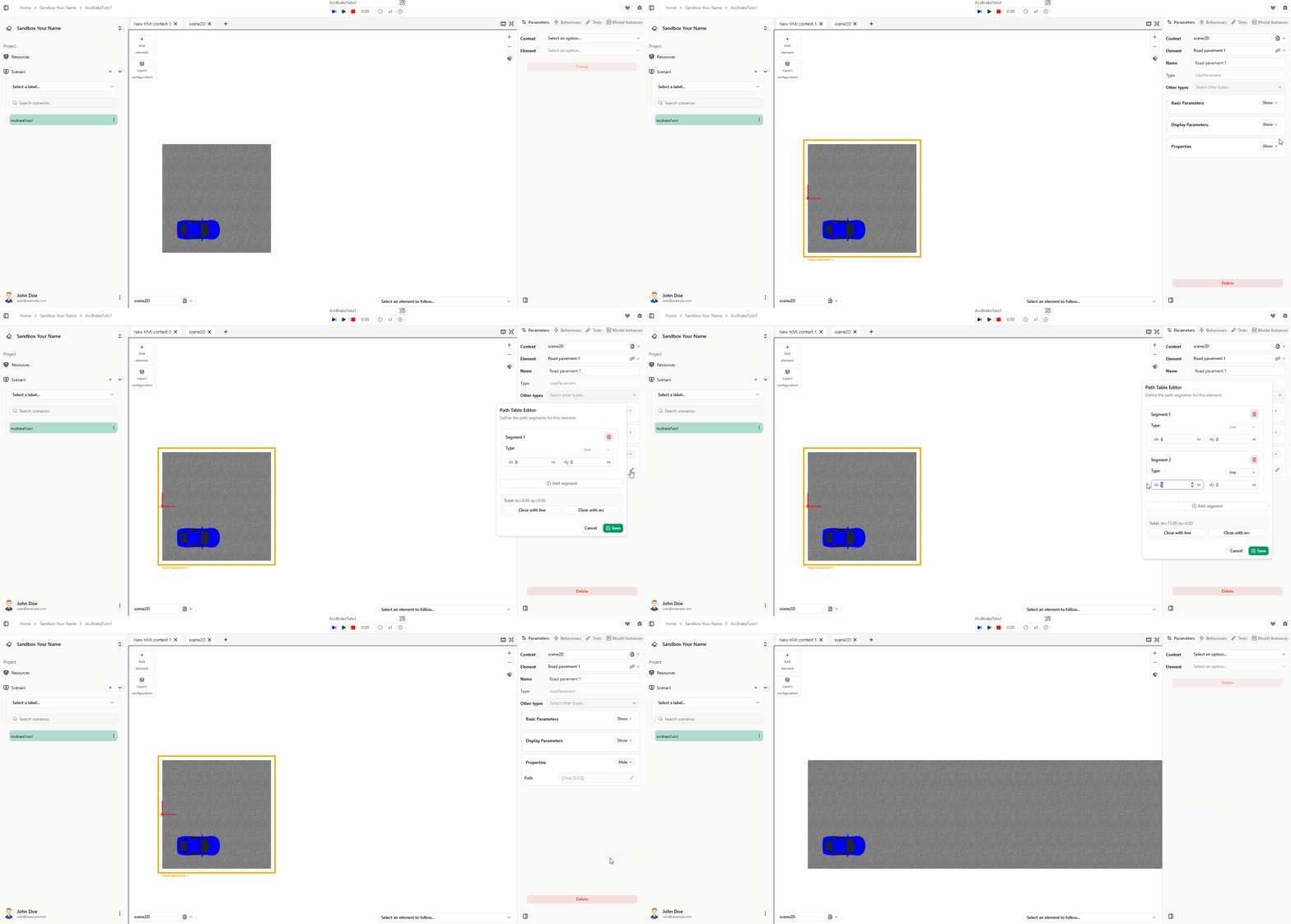 Modifier le tracé
Pour plus d’options, voir Modifier le tracé.
-
Créer le comportement du contrôleur
- Créez un comportement de contrôleur pour le flux the_car_speed_is_received qui envoie la vitesse de la voiture au modèle. L’événement du contrôleur doit être le changement de la valeur de vitesse de la voiture. Vous pouvez le créer vous-même ; si vous avez besoin d’aide, voir l’animation ci-dessous.
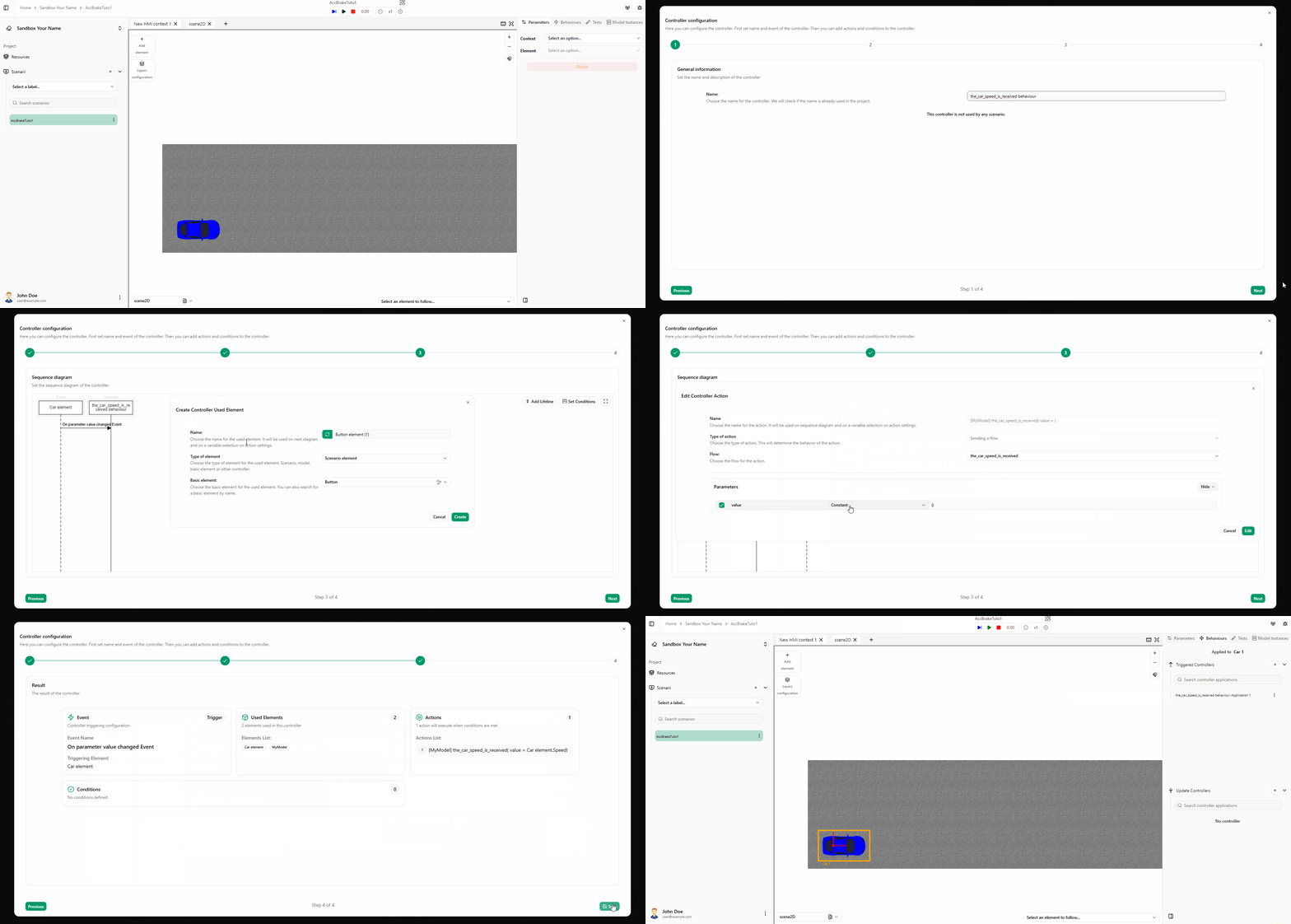 La valeur dépend des unités
Lors de la définition du comportement du contrôleur, les valeurs suivent les unités des paramètres. Ici, la vitesse de la voiture est en km/h, donc définissez la valeur en km/h. Voir Modifier l’unité pour plus de détails.
Le comportement du contrôleur est maintenant configuré.
Comportement du contrôleur pour le flux send_car_acceleration
Créez un comportement de contrôleur pour le flux send_car_acceleration qui reçoit la valeur d’accélération du modèle et l’affecte à la voiture. C’est l’inverse du flux précédent : ici le modèle envoie la valeur, et l’événement du contrôleur est receive flow pour send_car_acceleration.
-
Ouvrir l’assistant contrôleur
- Clic droit sur l’élément voiture, puis Contrôleurs → Mise à jour par un contrôleur.
- Sélectionnez Créer un nouveau contrôleur.
-
Nommer le contrôleur et définir l’événement
- Nommez le contrôleur comme vous le souhaitez (ex. send_car_acceleration behaviour).
- Définissez l’événement sur Receive flow et sélectionnez le flux send_car_acceleration.
- Cliquez sur Suivant.
-
Lier le paramètre d’accélération
- Définissez le paramètre acceleration sur Variable et Flow parameter value.
- Cliquez sur Suivant, puis Enregistrer.
-
Appliquer le contrôleur
- Appliquez le contrôleur à la bonne instance de modèle, puis cliquez sur Enregistrer.
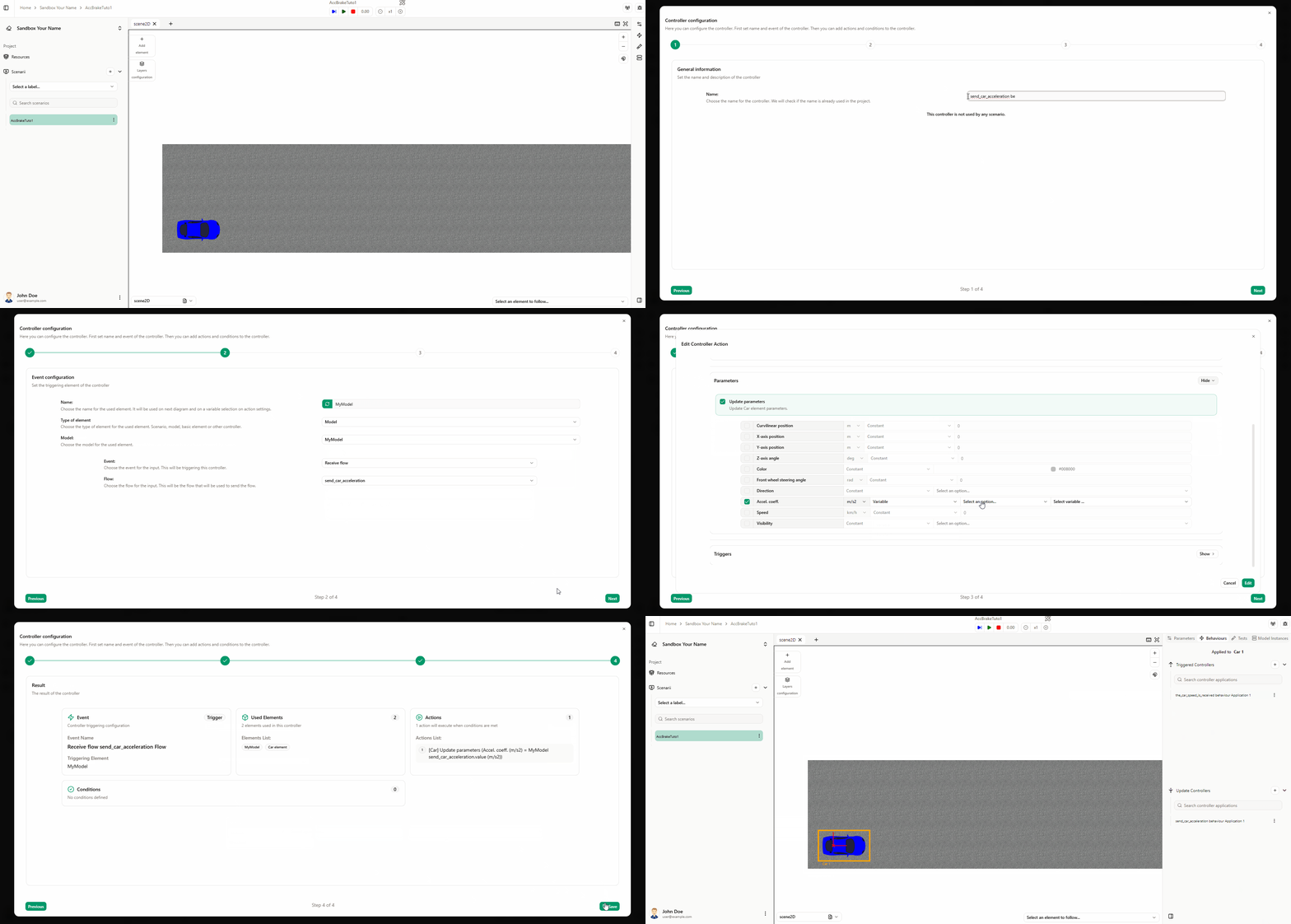
Le comportement du contrôleur pour le flux send_car_acceleration est maintenant configuré.
Comportement du contrôleur pour le flux inform_the_driver_of_the_car_speed
Enfin, nous allons créer l’autre sortie du modèle : une jauge dans laquelle on peut voir la vitesse actuelle de notre voiture. Créons un comportement de contrôleur pour le flux inform_the_driver_of_the_car_speed qui met à jour la valeur de la jauge. Suivez ces étapes :
-
Ajouter une jauge dans l’IHM
- Allez dans l’environnement HMI.
- Glissez-déposez un élément jauge depuis la bibliothèque d’éléments d’environnement sur la scène.
-
Ouvrir l’assistant contrôleur
- Clic droit sur l’élément jauge, puis Contrôleurs → Mise à jour par contrôleur.
- Sélectionnez Créer un nouveau contrôleur.
-
Nommer le contrôleur et définir l’événement
- Nommez le contrôleur comme vous le souhaitez (ex. inform_the_driver_of_the_car_speed behaviour).
- Définissez l’événement sur Receive flow et sélectionnez le flux inform_the_driver_of_the_car_speed.
- Cliquez sur Suivant.
-
Lier le paramètre valeur de la jauge
- Définissez le paramètre gauge value sur Variable et Flow parameter value.
- Cliquez sur Suivant, puis Enregistrer.
-
Appliquer le contrôleur
- Appliquez le contrôleur à la bonne instance de modèle, puis cliquez sur Enregistrer.
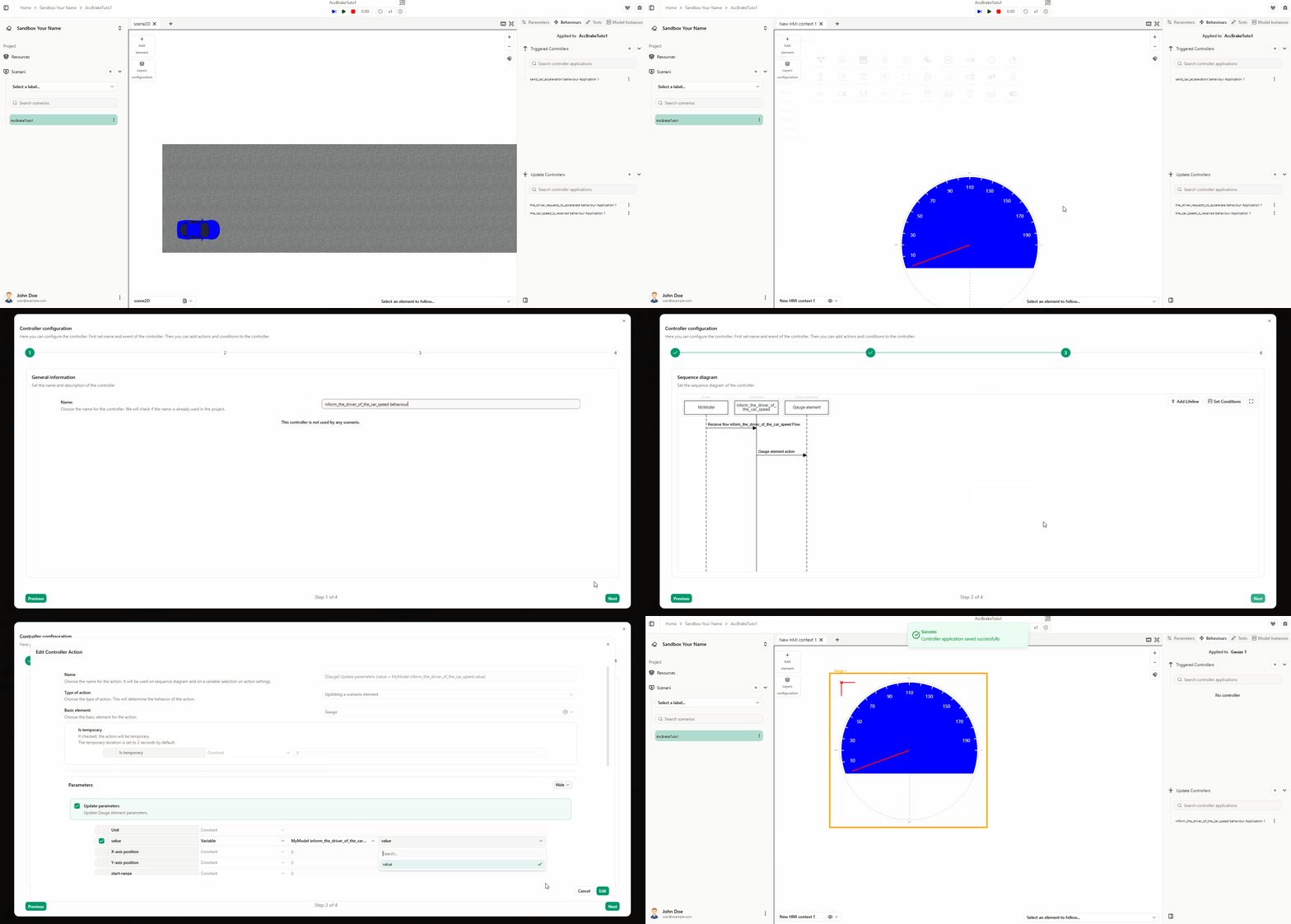
Le comportement du contrôleur pour le flux inform_the_driver_of_the_car_speed est maintenant configuré. Tout devrait être relié. Revenez à Designer.
Vous pouvez ajouter des vues d’environnement, les organiser et les configurer comme vous le souhaitez. Voir Configuration et personnalisation du scénario pour plus de détails.
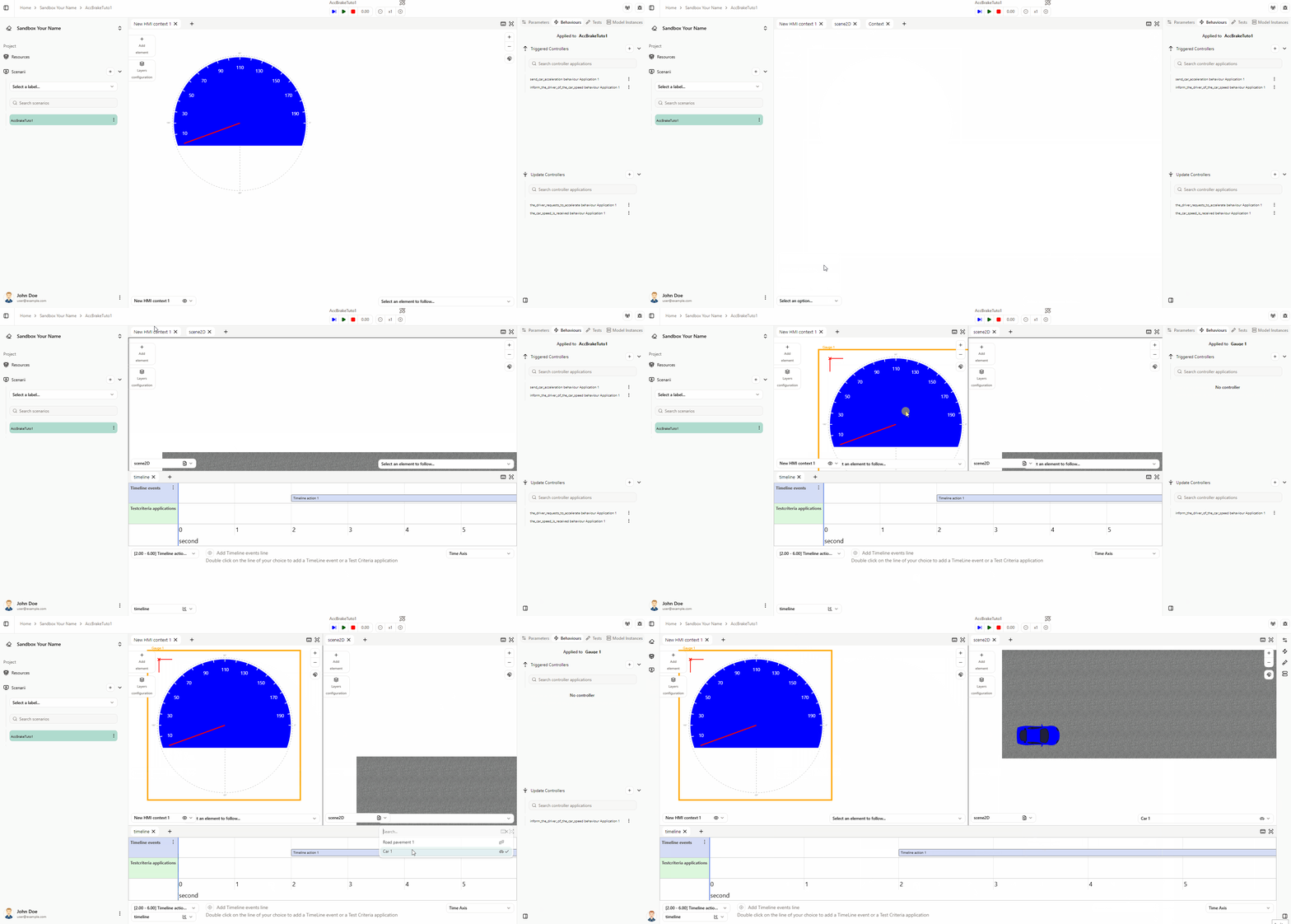
FAIRE FONCTIONNER
Avant de lancer la simulation, le modèle doit être en cours d’exécution et connecté. Vous avez deux options :
Option 1 — Lancement automatique
- Assurez-vous que le chemin vers l’exécutable du modèle est correctement défini dans les paramètres du modèle. Voir Paramètres de connectivité du modèle pour plus de détails.
- Le lanceur démarrera alors automatiquement l’exécutable du modèle. Connectez-vous en cliquant sur le bouton de menu → Launcher.
Option 2 — Lancement manuel
- Démarrez l’exécutable manuellement en double-cliquant dessus.
- Connectez-vous en cliquant sur le bouton de menu → Instances de modèle → « [nom de votre instance de modèle] ».
Vous pouvez vous connecter au lanceur automatiquement au démarrage en activant Tentative de connexion automatique au lanceur au démarrage dans les Paramètres utilisateur.
Lancer la simulation
- Cliquez sur le bouton Play .
- Suivez la timeline et vérifiez que la simulation s’exécute ; la voiture devrait accélérer.
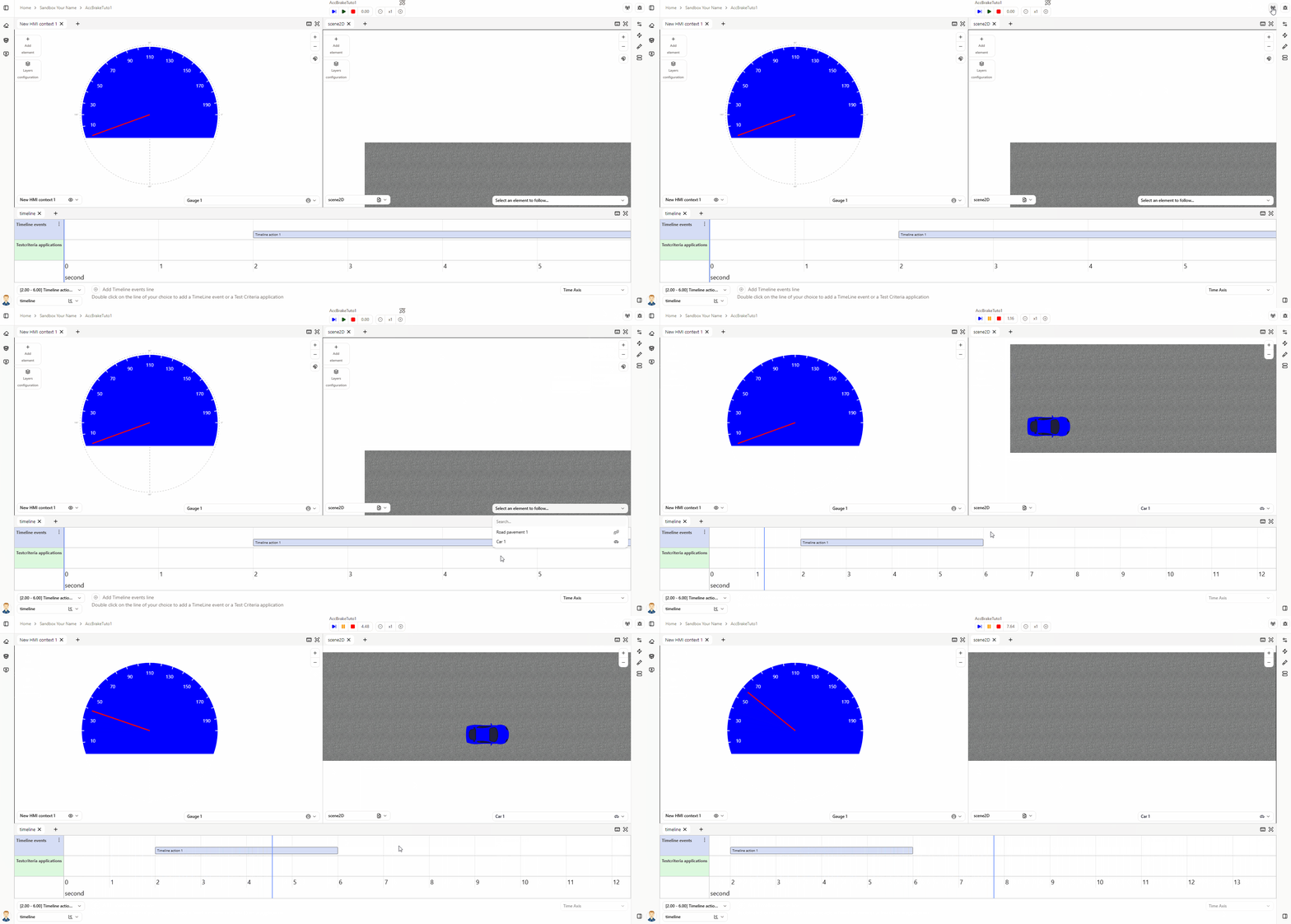
Comportement de freinage
Pour finaliser la configuration, ajoutez le comportement de freinage. Commencez par augmenter la taille x de l’environnement scene2d pour simuler une distance de freinage.
1. Augmenter la taille x de l’environnement scene2d
- Ouvrez le panneau Resources du projet, onglet Environnements.
- Modifiez l’environnement scene2d et définissez la valeur max x à 800 m.
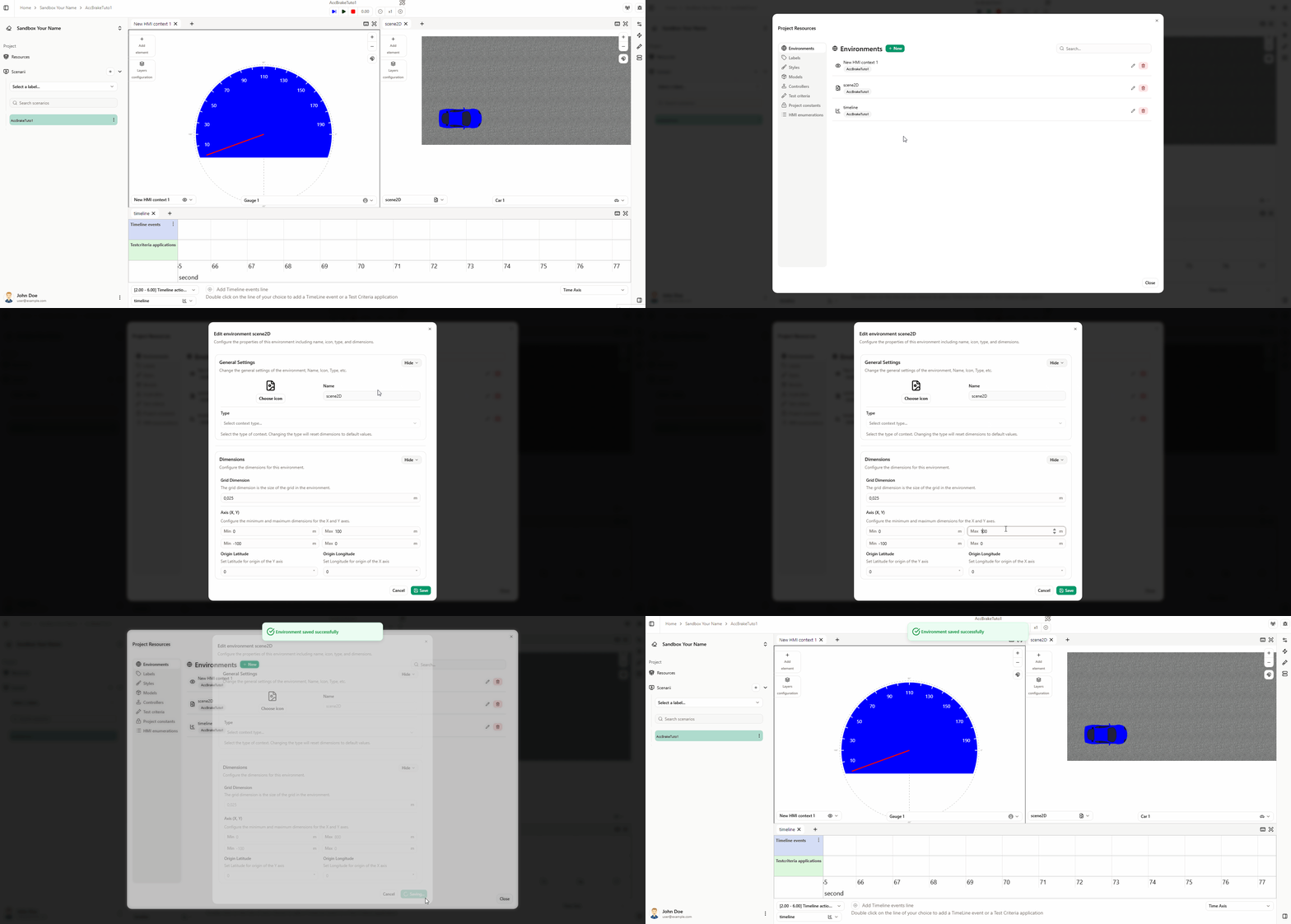
2. Ajouter le comportement de freinage
- Ajoutez une nouvelle action timeline pour freiner la voiture (durée 10 s), placée juste après l’accélération. Utilisez un profil de courbe de valeur (doit être négatif) : 0 → -3 → 0 sur 10 s.
- Créez un nouveau comportement de contrôleur pour le flux driver_requests_to_brake.
- Définissez le paramètre value pour qu’il soit transmis au démarrage de l’action timeline.
- Appliquez le contrôleur.
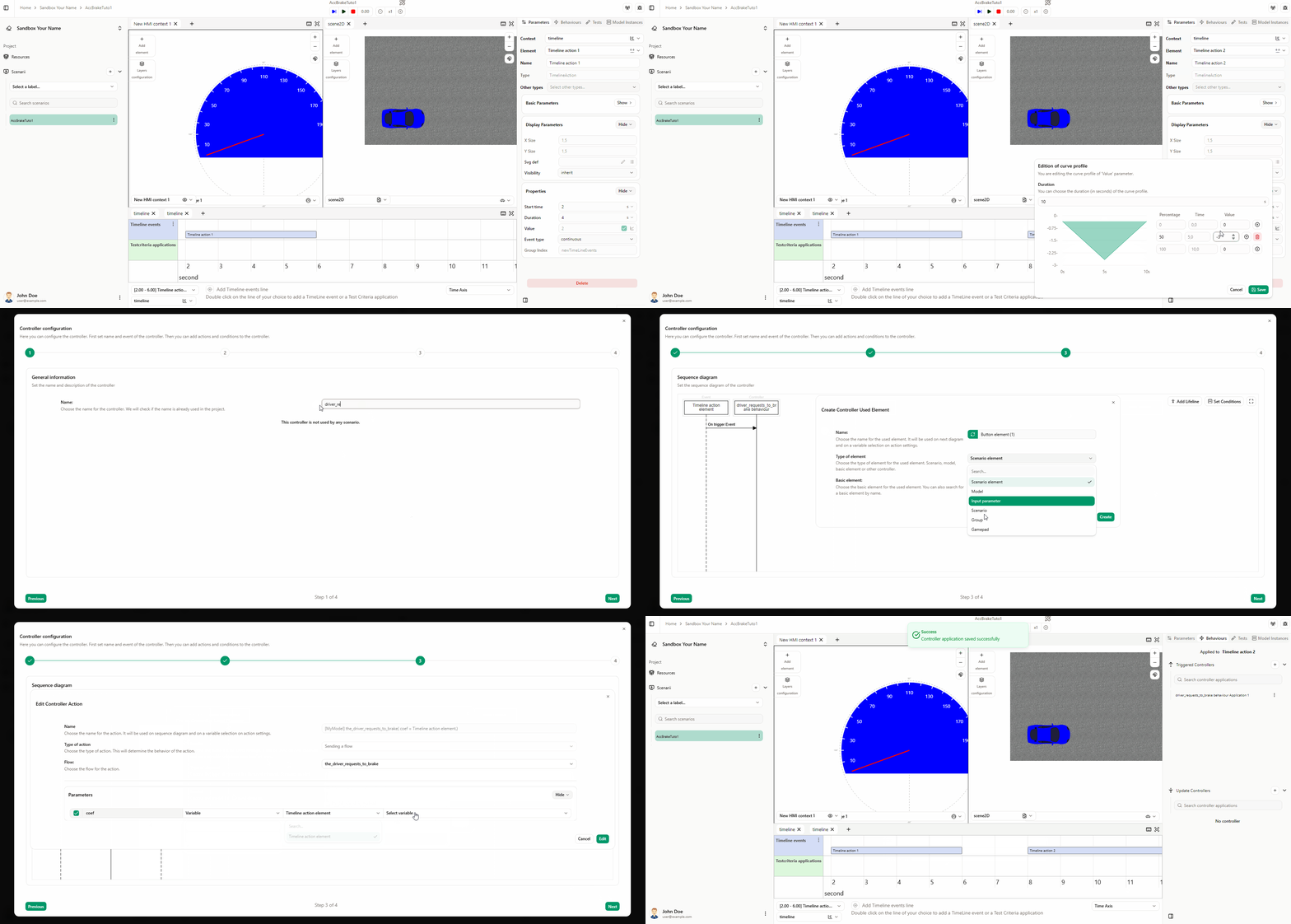
3. Vérifier le comportement de freinage
- Lancez la simulation. La voiture devrait freiner et s’arrêter à 0 km/h à la fin du scénario.
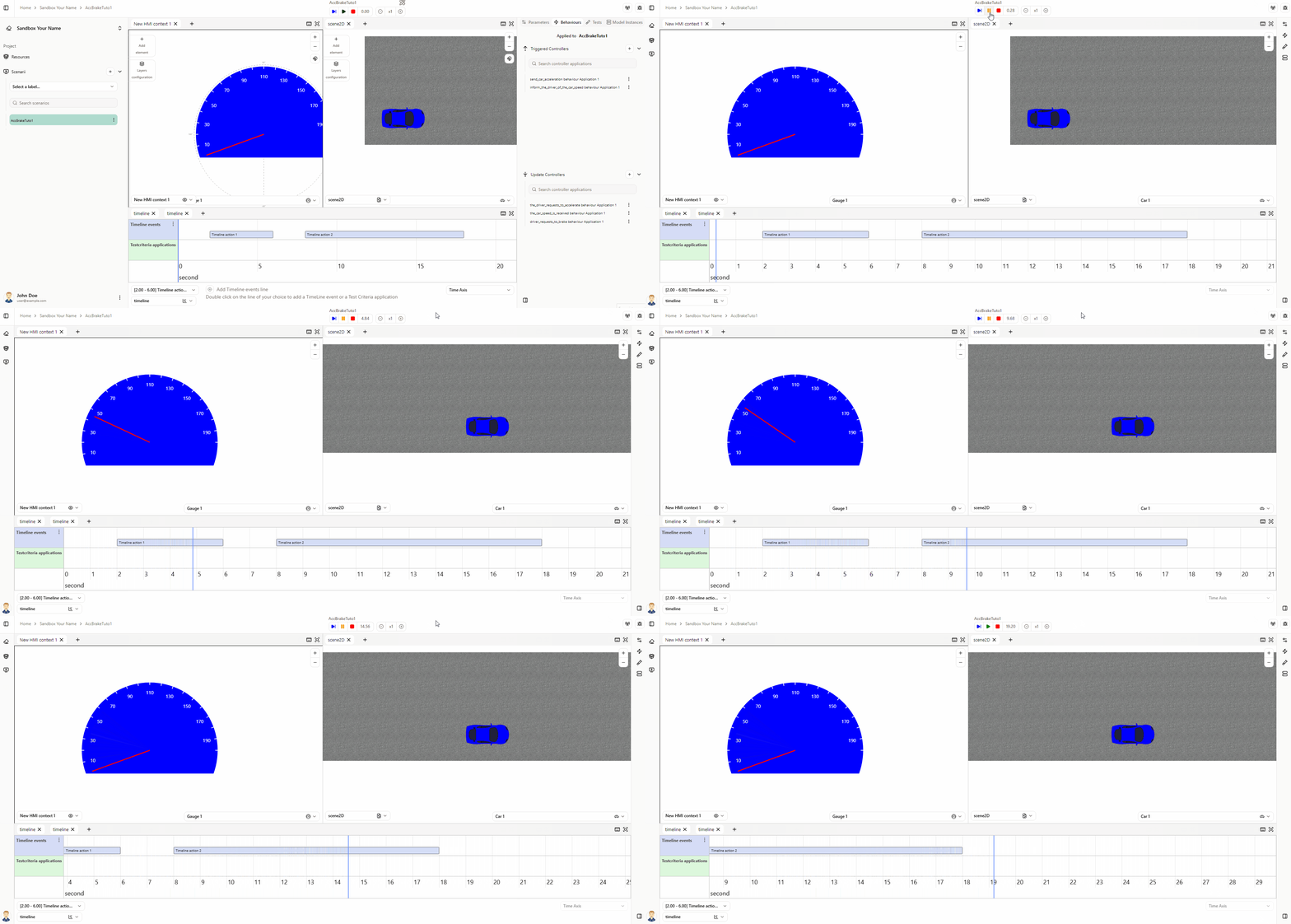
Vous devriez voir l’accélération, puis la décélération, avec l’aiguille qui s’arrête à 0. Si ce n’est pas géré correctement, la vitesse peut devenir négative et la jauge affichera la valeur absolue (l’aiguille semblera remonter après avoir passé zéro pendant le freinage). Si l’aiguille s’arrête à 0, le comportement de freinage est correct.