Start to use Sim4Sys with a simple model (blackbox)
PRESENTATION
This tutorial is an introduction to the practice of the method. You will be guided through the process to realize your first model and the associated simulation.
Prerequisites
You should have already done the first tutorial Hello World.
News skills that you will acquire
On Designer:
- Define a Type,
- Add conditions in a User Story.
On Virtual Bench:
- Edit a Context,
- Use new Context elements: Gauge, Car, Road Pavement,
- Add a Curve Profile.
Duration
2h
CREATE A MODEL
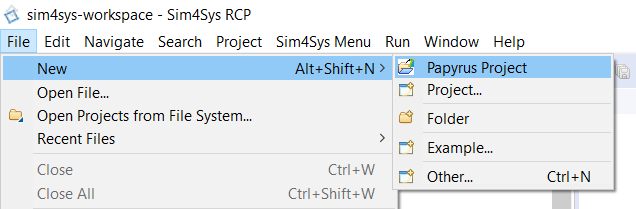
- Click on File > New > Papyrus Project
- Select CIL4SysLanguage checkbox
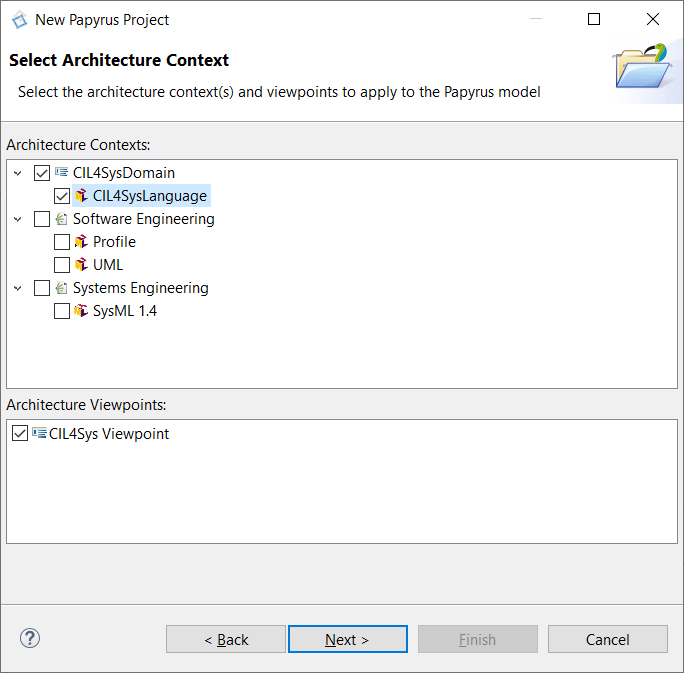
- Click on Next
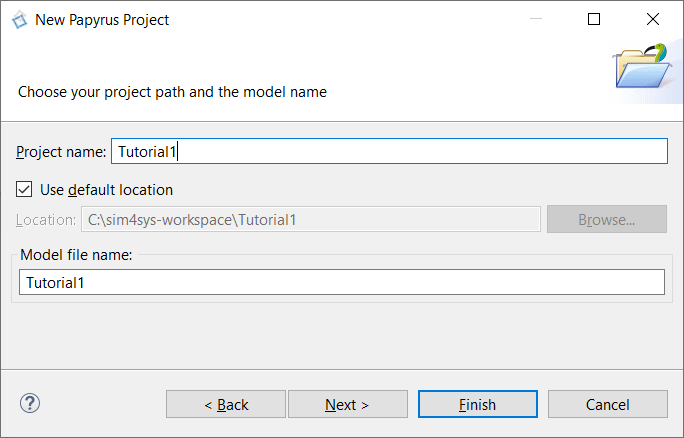
- Type the name of the Papyrus Project: Tutorial1, in the project name field
- Click on Next
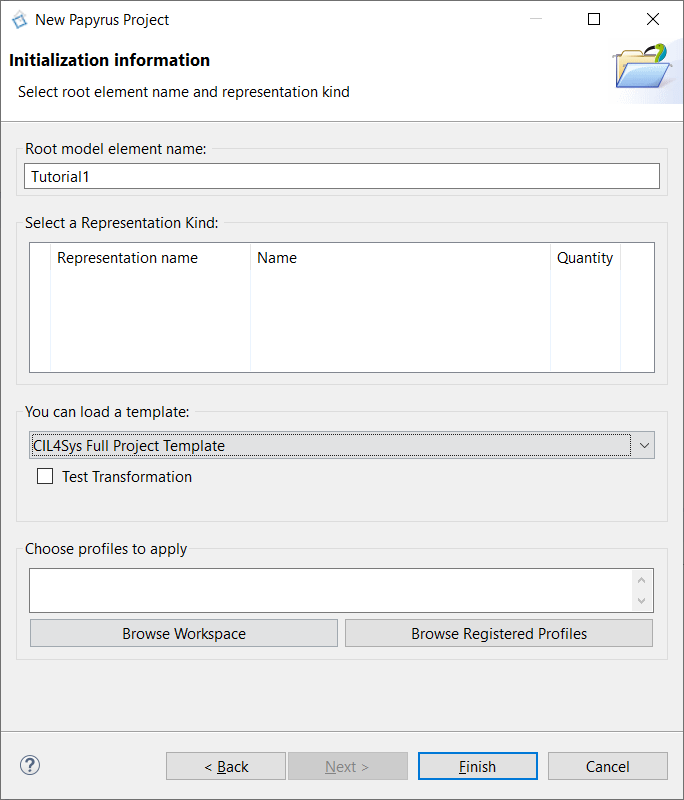
- Select CIL4Sys Full Project Template in the field: “You can load a template”
- Click on Finish
CREATE A PROJECT
- Select Tutorial1 in CIL4Sys Overview. You can use the Refresh View button when selecting the Overview tab.

- Click on New Project
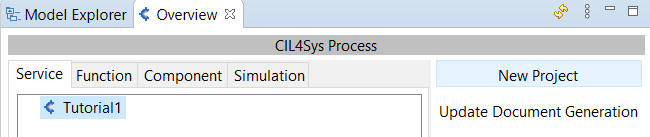
Sometimes, the button does not appear because of the size of the window. You can either resize the Overview tab horizontally or use a bigger screen.
- Type the name of the project: Car
- Click on OK
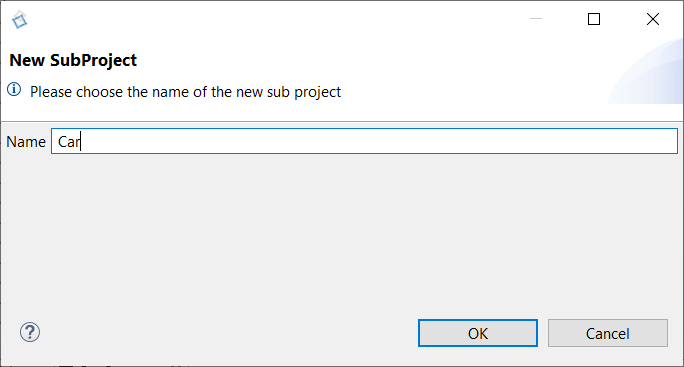
- Click on Ok in the confirmation dialog box
CREATE A SERVICE SPEED MANAGEMENT
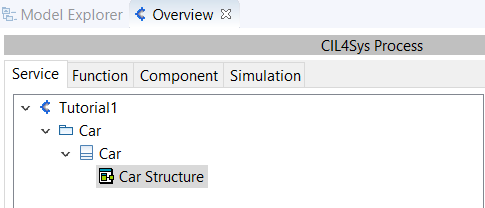
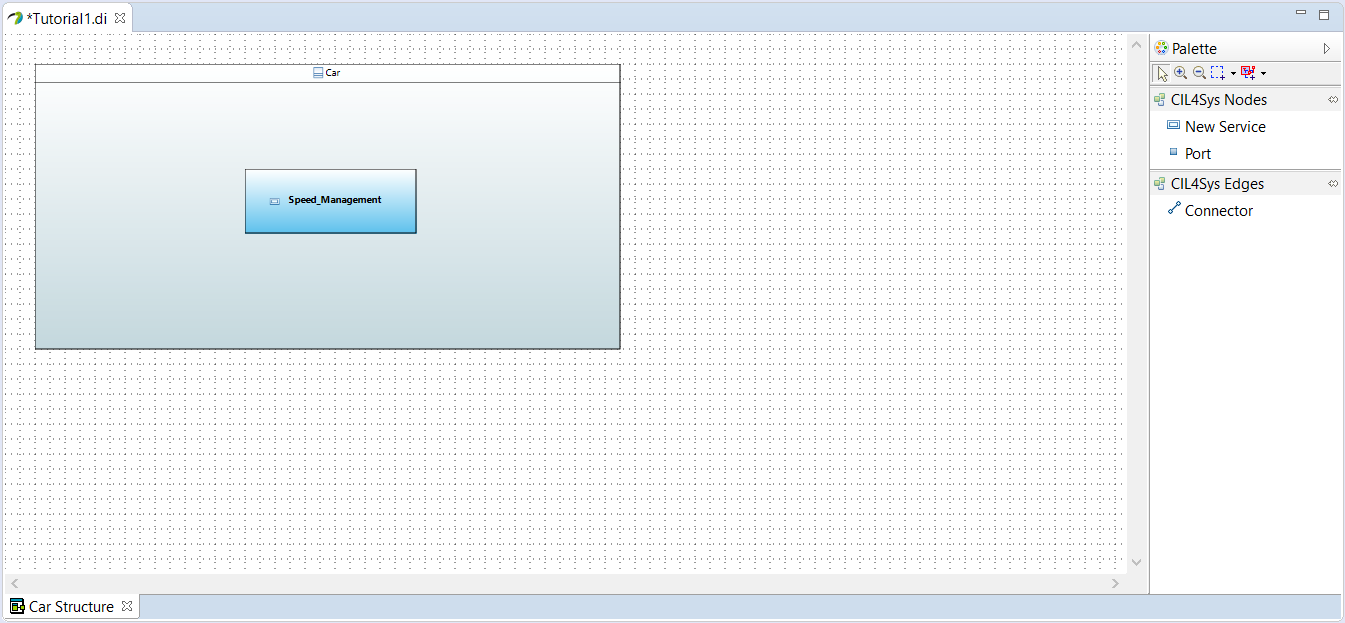
- Double Click on the Car Structure diagram
You can resize the composite structure diagram by dragging the corners
- Drag&Drop a New Service in Product CSD
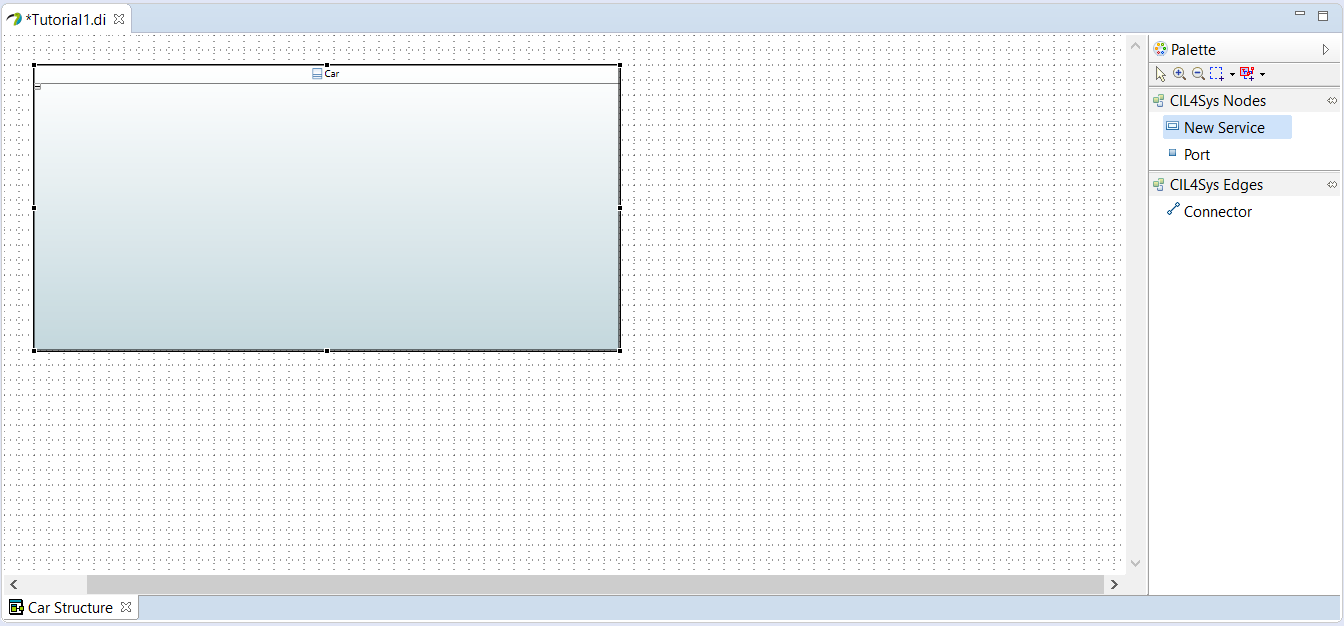
- Select Create
- Type the name of the service: Speed_Management
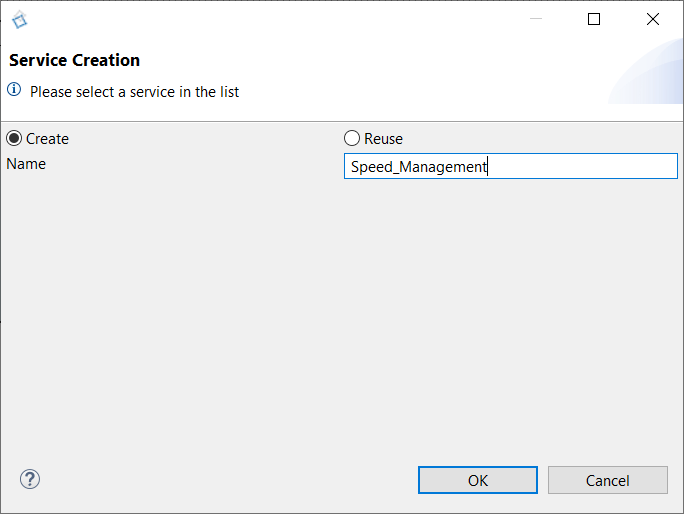
- Click on OK
ADD A LIFE PHASE TO A SERVICE
- Select Speed_Management Package in CIL4Sys Overview (refresh if it does not appear).
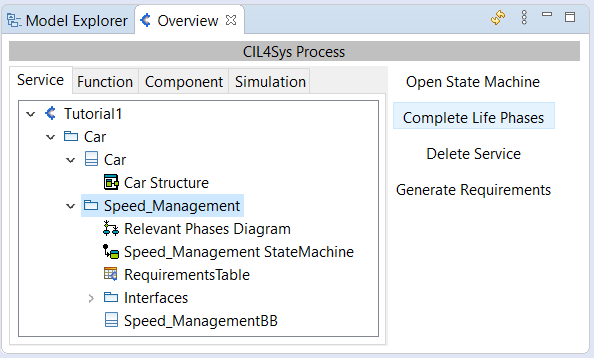
- Click on Complete Life Phases
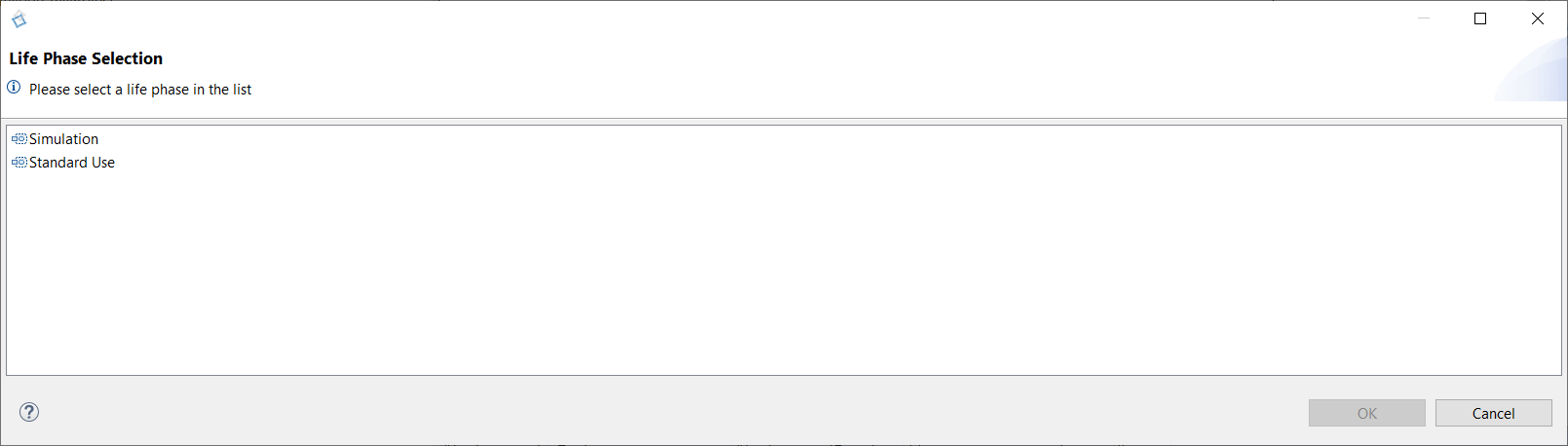
- Drag&Drop a New Life Phase in the diagram for relevant phases of the service
- Select Standard Use
- Click on OK
CREATE A SIMPLE USE CASE
- Select Standard Use
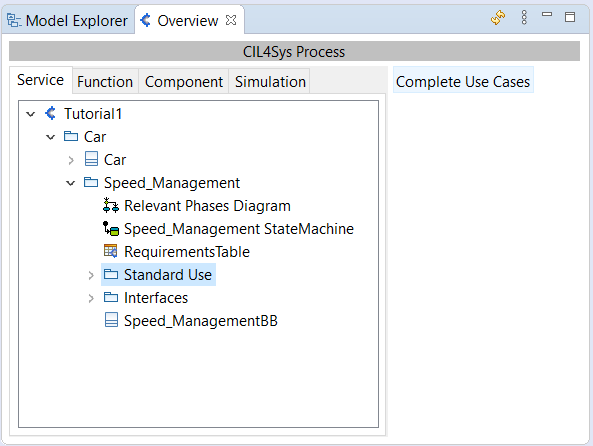
- Click on Complete Use Cases
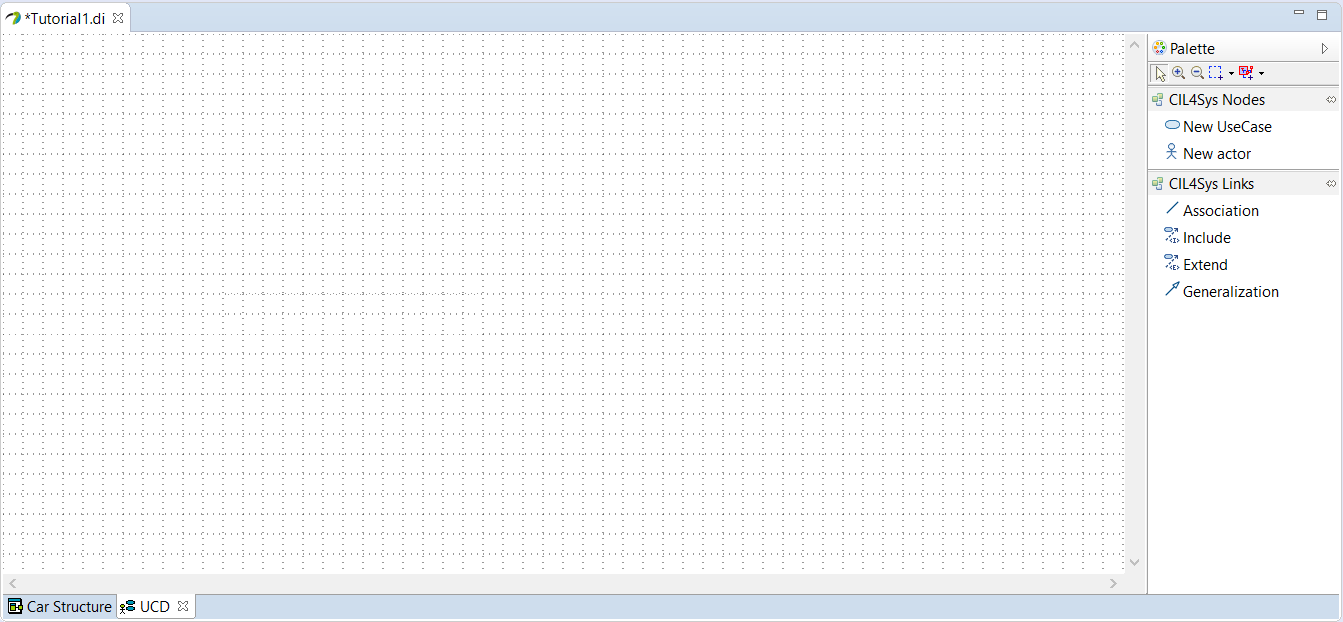
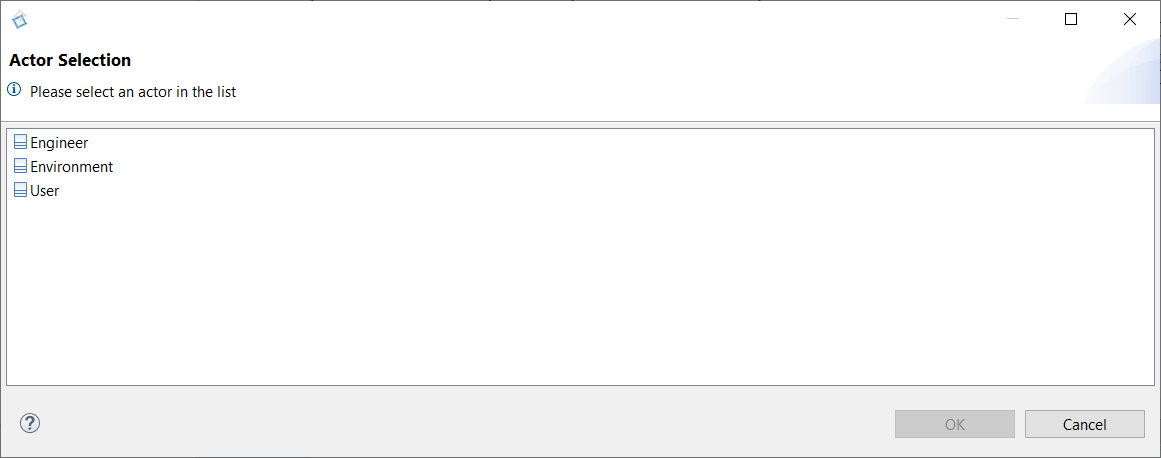
- Drag&Drop an actor on the diagram
- Select User
- Click on OK
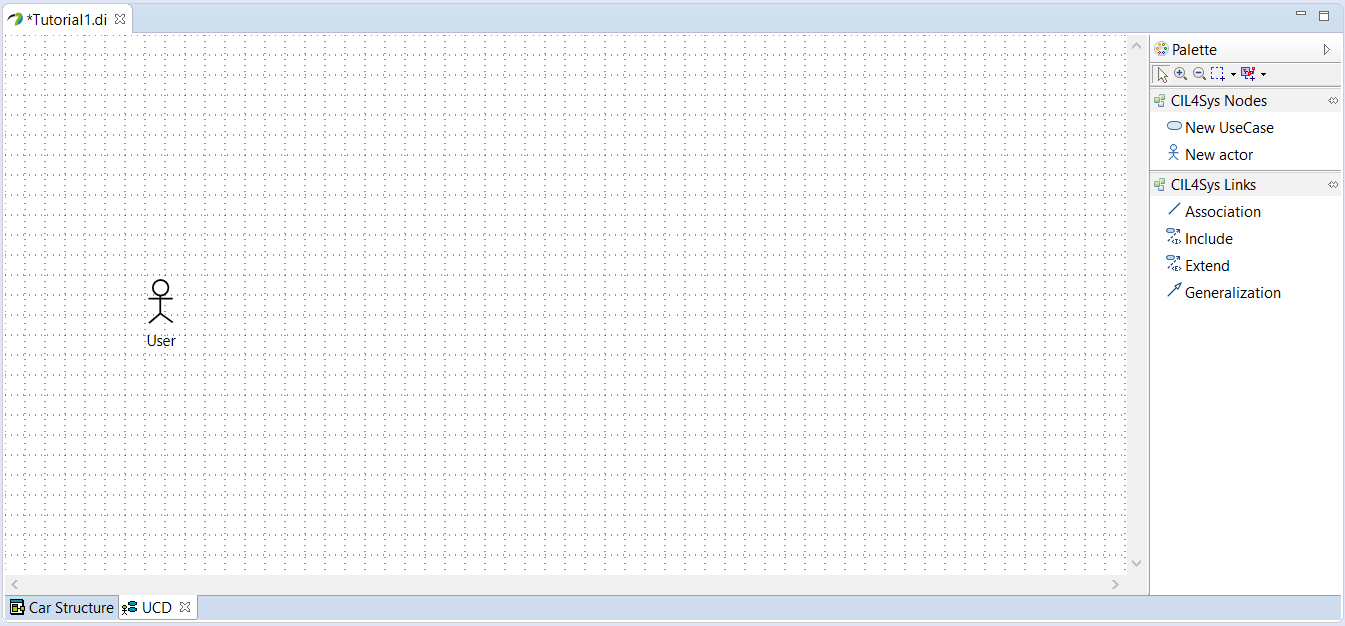
- Drag&Drop a New UseCase on the diagram
- Type the name of the use case: Accelerate
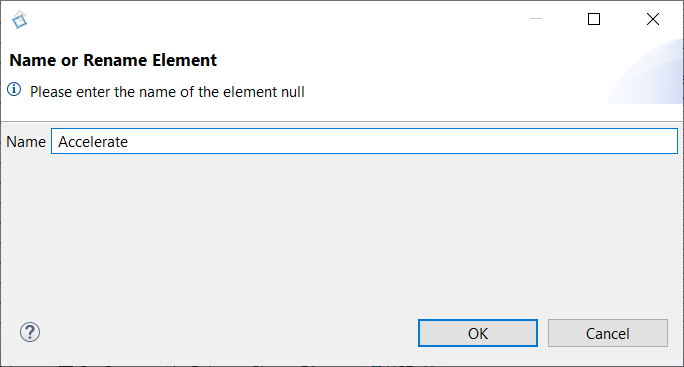
- Click on OK
- Trace an association between the actor and the use case
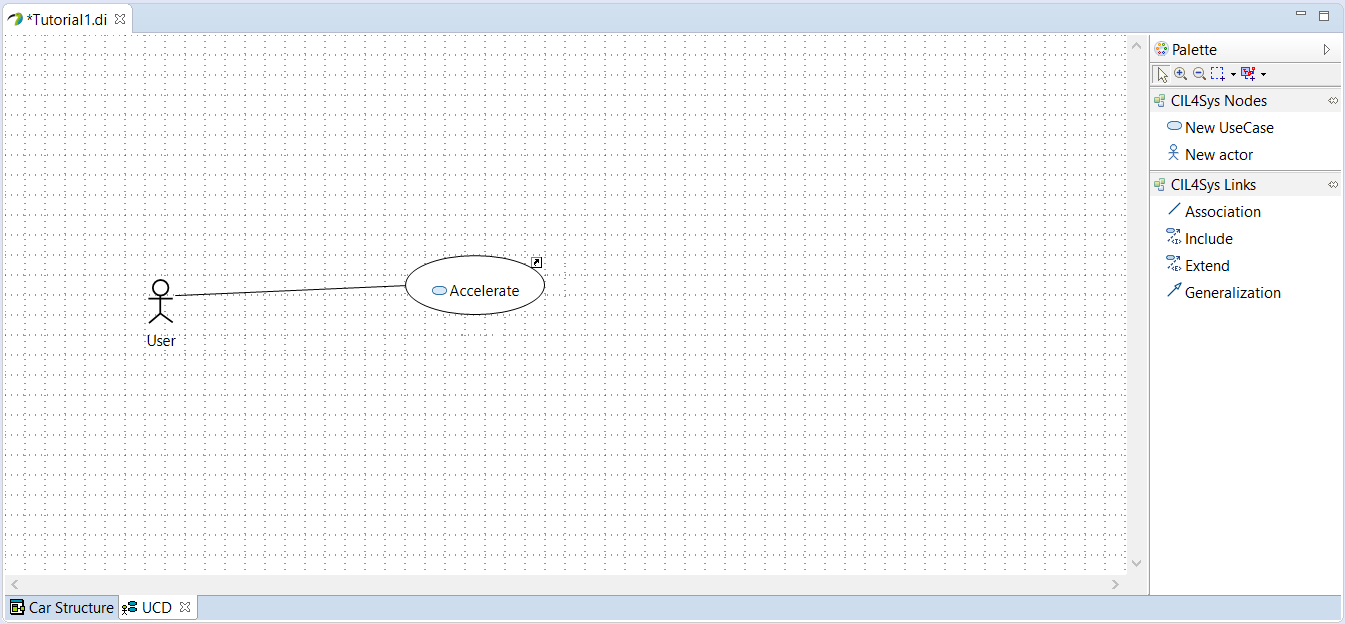
CREATE A USER STORY IN A USE CASE
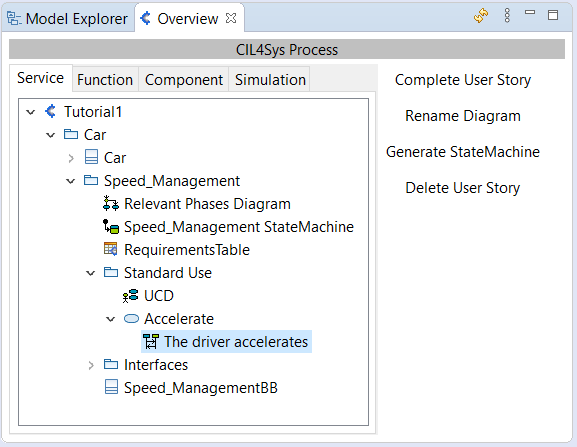
- Select Accelerate package in the CIL4Sys Overview
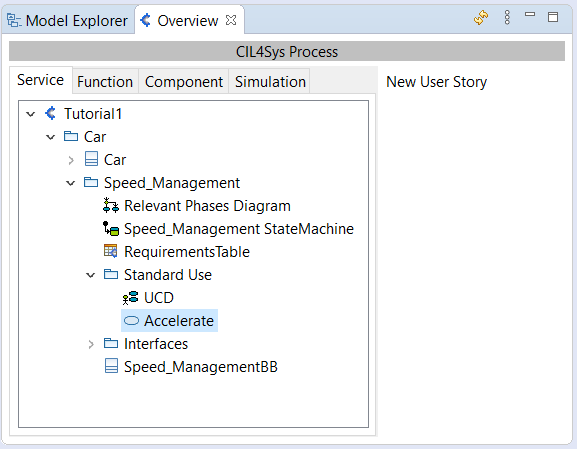
- Click on New User Story
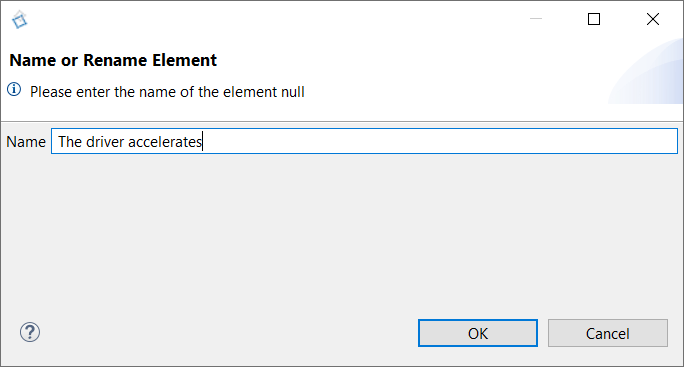
- Type the name of the user story: The driver accelerates
- Click on OK
- Double Click on the user story: The driver accelerates
COMPLETE THE USER STORY
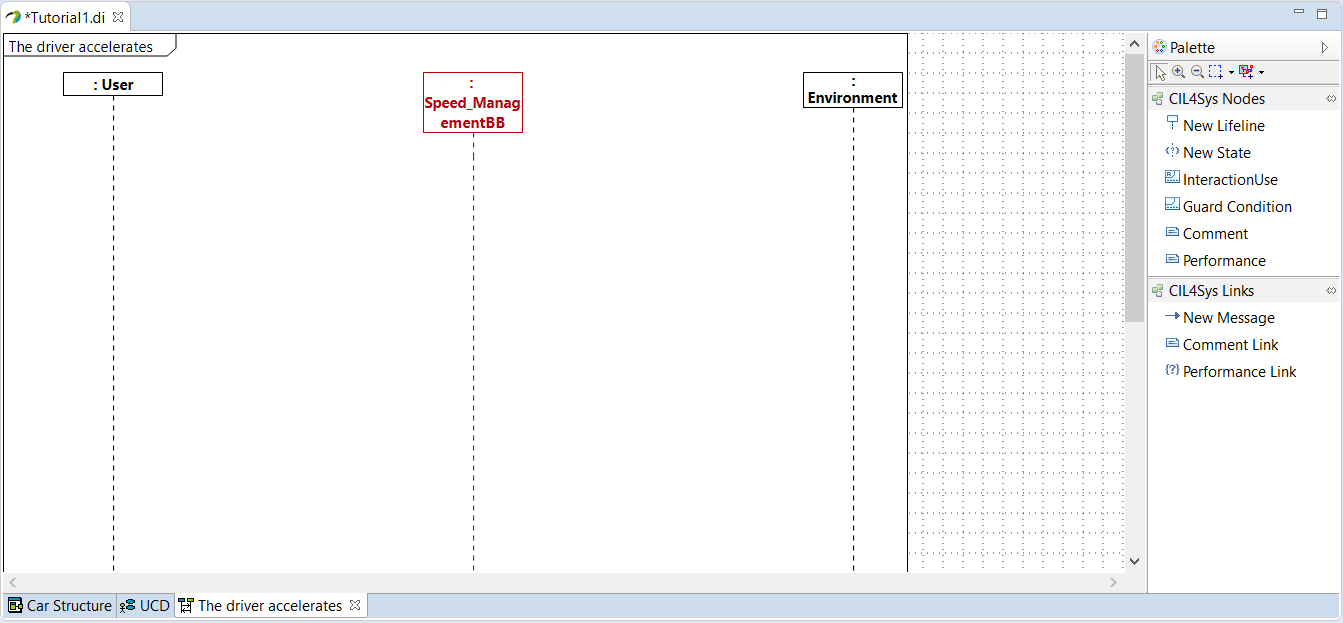
- Drag&Drop a New State on the Speed_Management Service lifeline
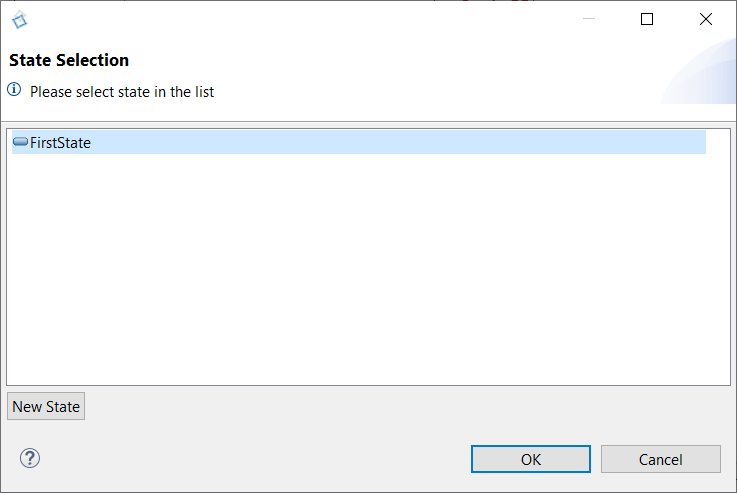
- Select FirstState
- Click on OK
- Rename the state after creation (in Active). You can do it just after the creation or by the Properties view of Papyrus
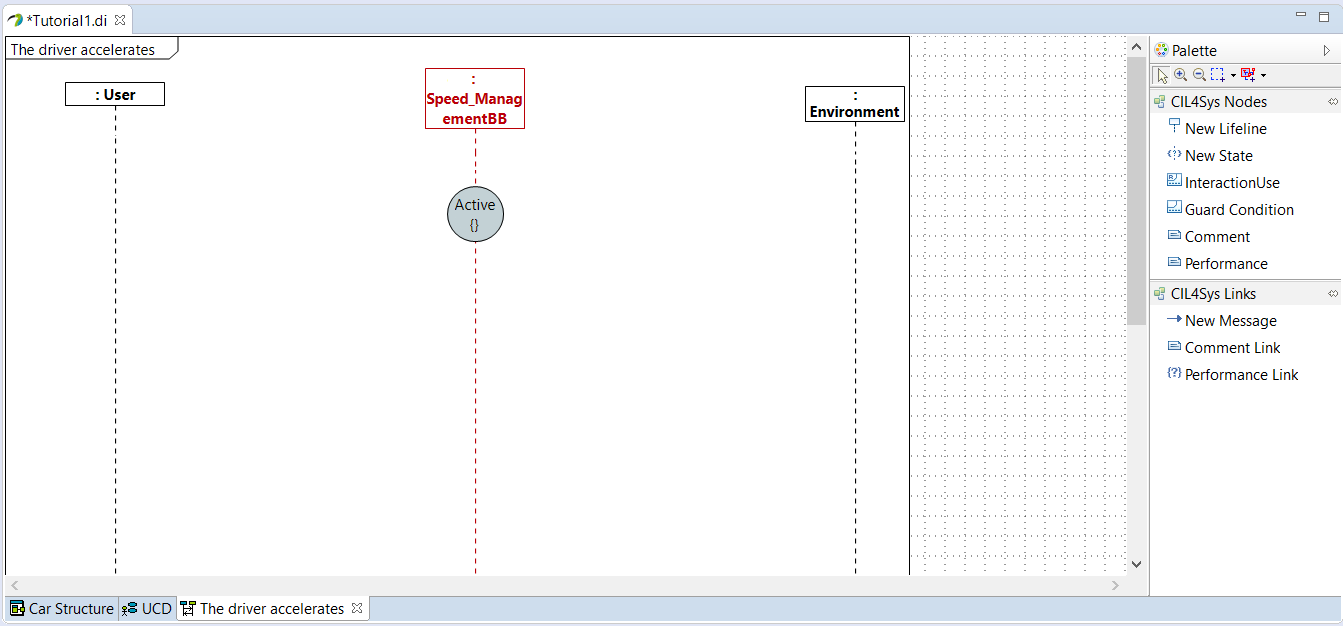
- Trace a New Message between the user and the service
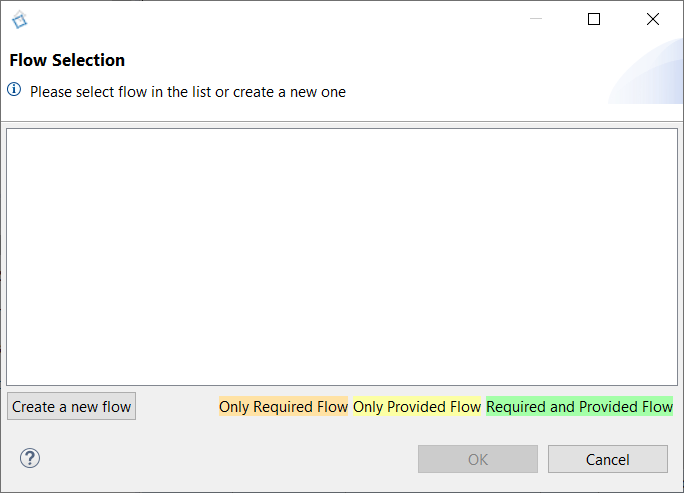
- Click on Create a new flow
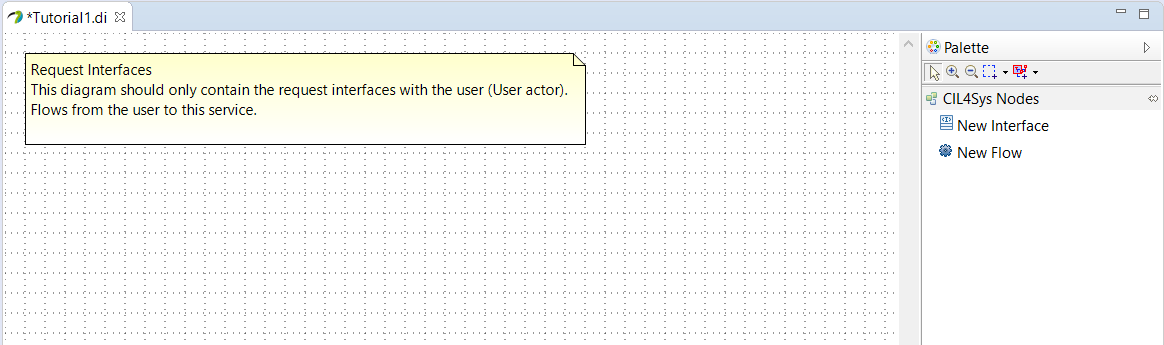
- Drag&Drop a New Interface on the diagram
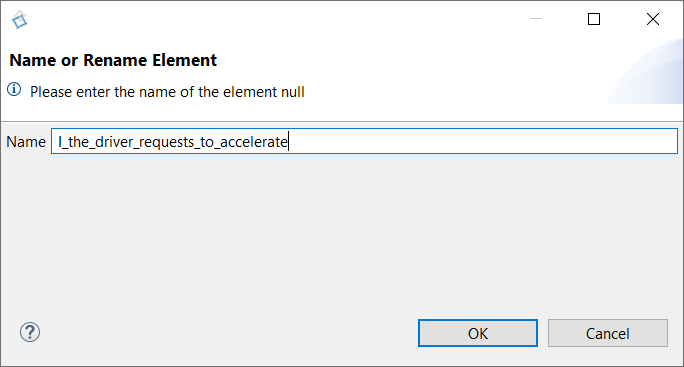
- Type the name of the interface: I_the_driver_requests_to_accelerate
- Click on OK
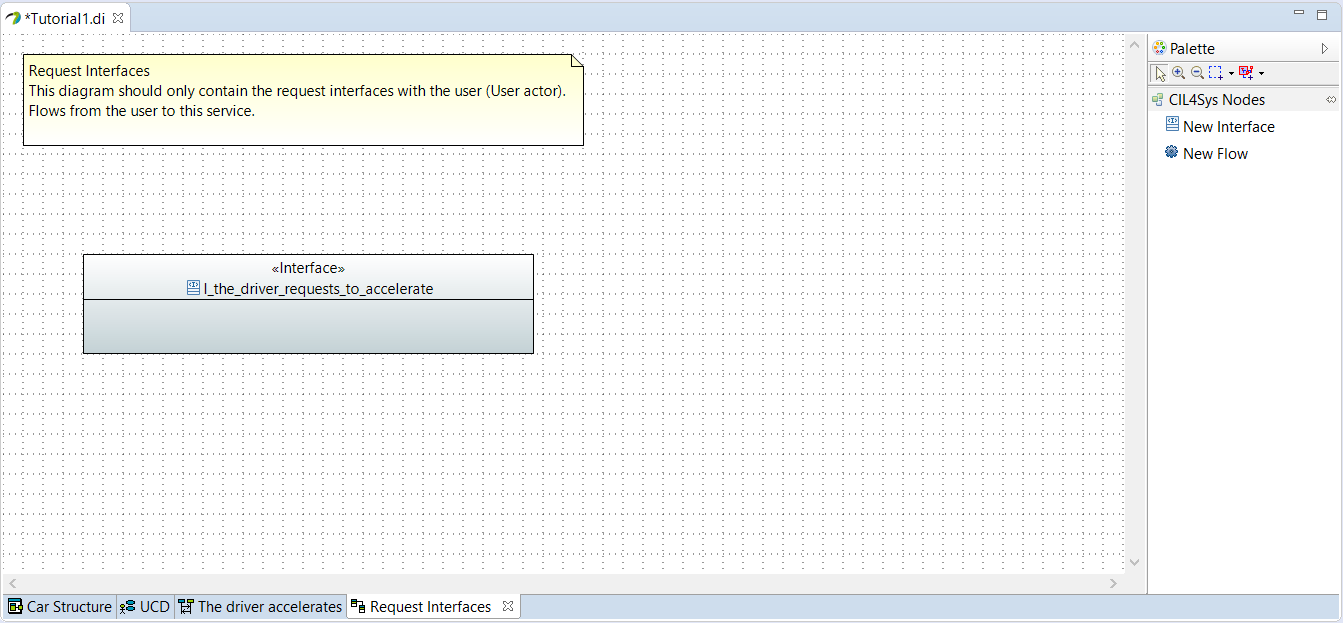
- Before creating a new flow in the interface, we need to create a new data type AccelerationType
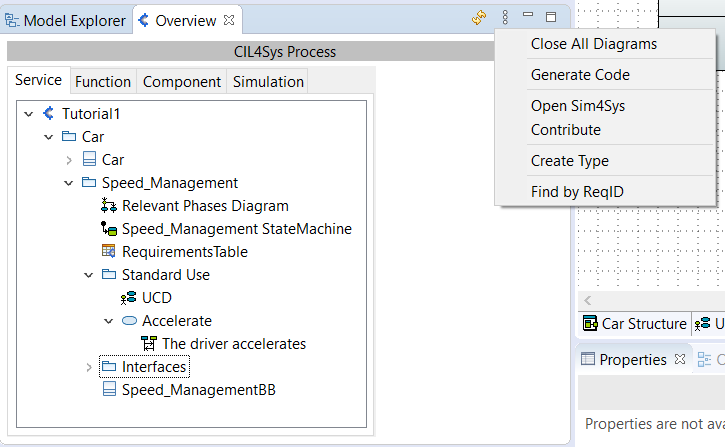
- Click on the View menu button in the CIL4Sys Overview
- Click on Create Type
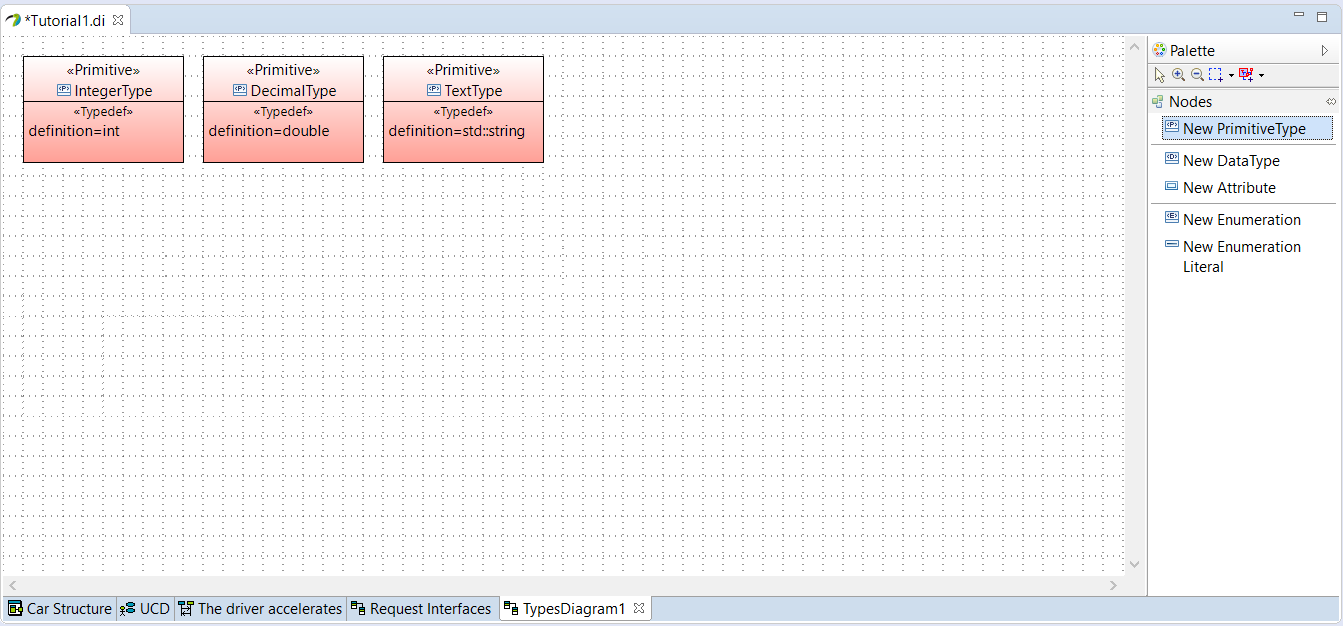
- Create a New PrimitiveType
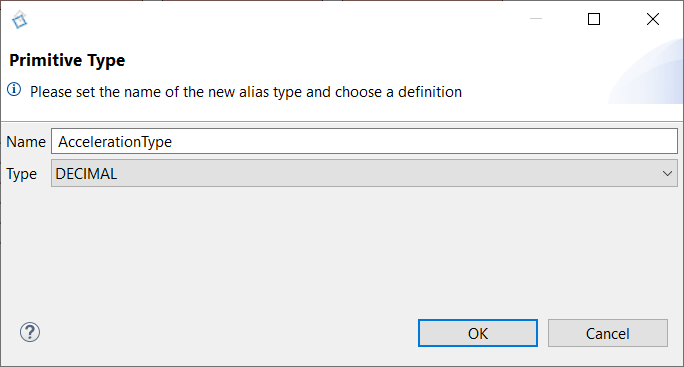
- Type the name: AccelerationType
- Choose the type: DECIMAL
- Click on OK
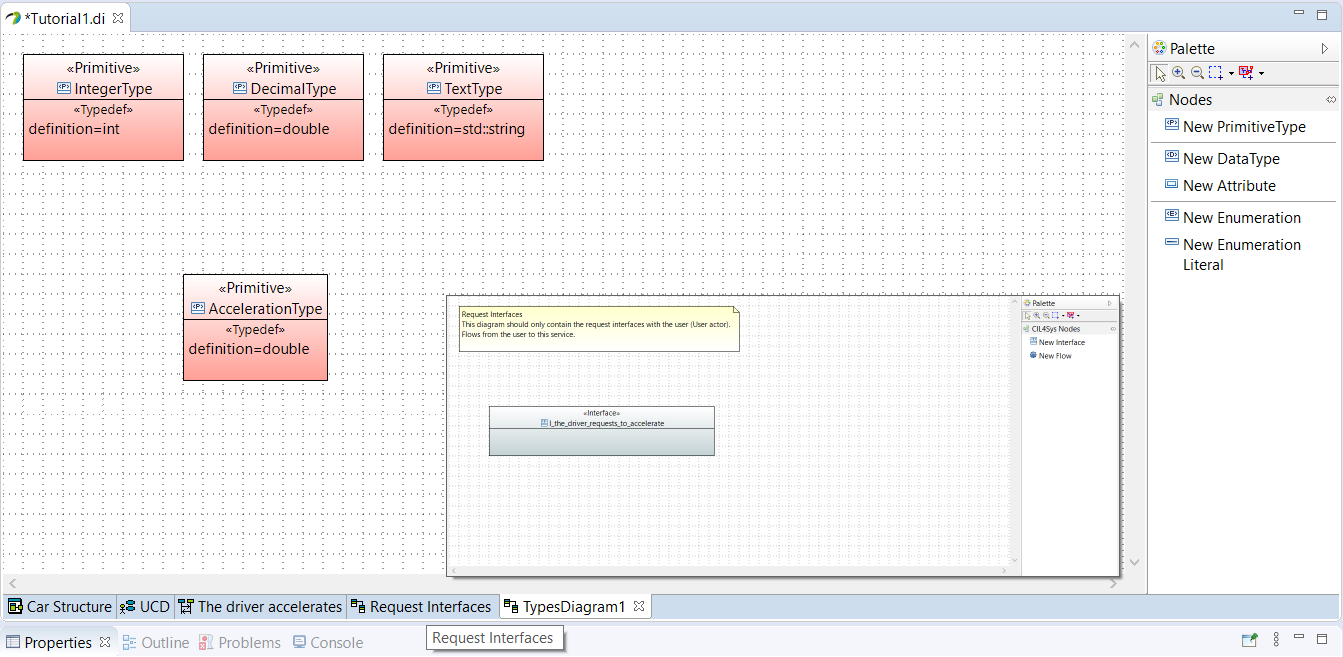
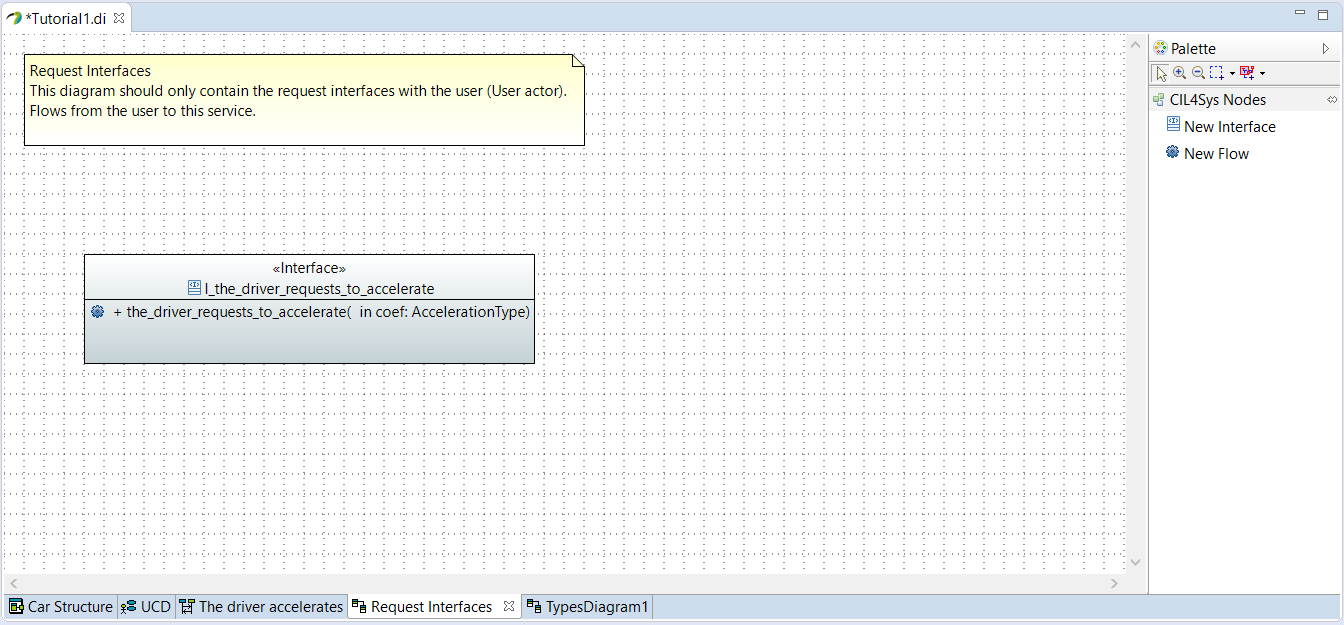
- Go back to the Request Interfaces diagram by clicking on the tab Request Interfaces
If you have closed the diagram previously, you can still get back to it via the CIL4Sys overview in the Interface package
- Drag&Drop a New Flow in the newly created interface
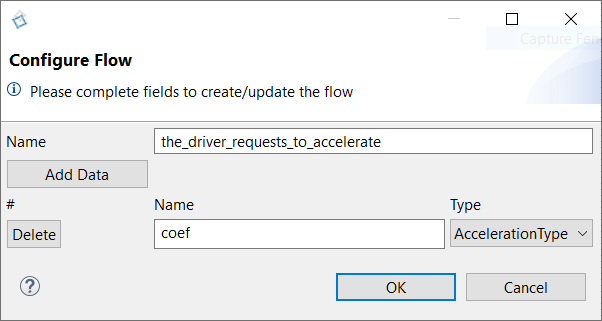
- Type the name
- Click on Add Data
- Type the name of the data: coef
- Select the type of the data: AccelerationType
- Click on OK
- Go back on the user story
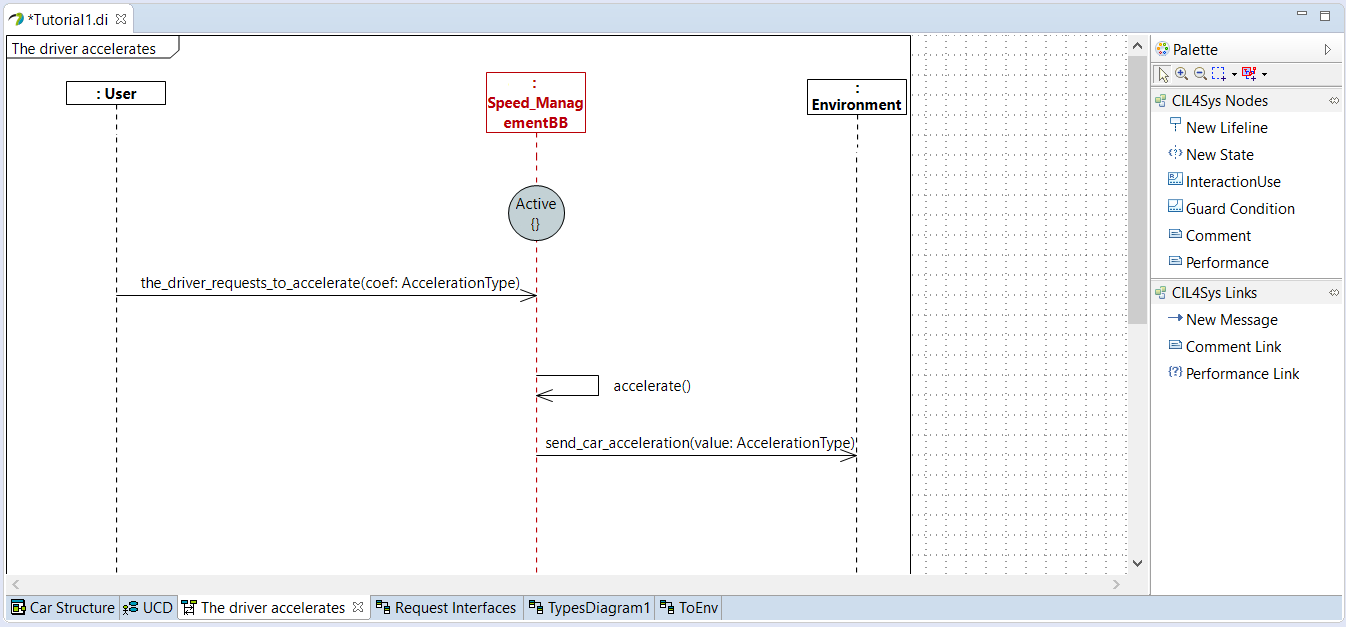
- Trace a New message between the user and the service
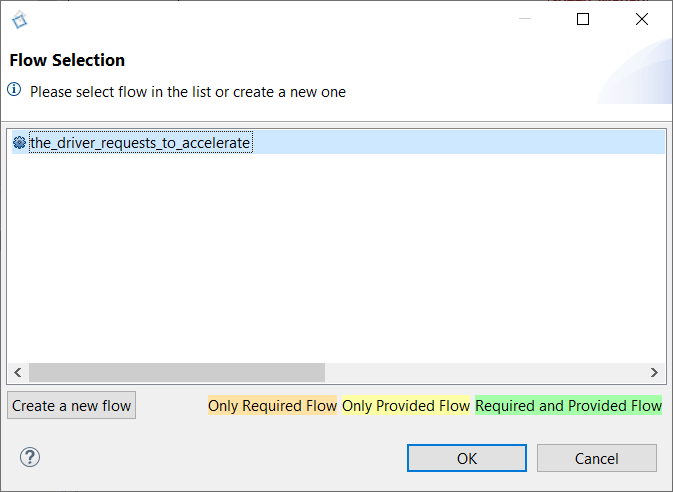
- Select the newly created flow
- Click on OK
- Trace a message between the service lifeline on itself (internal activity)
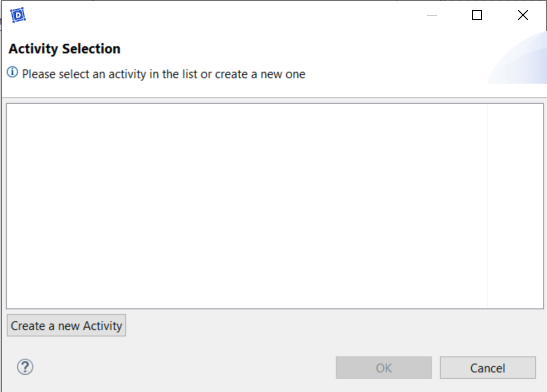
- Click on Create a new activity
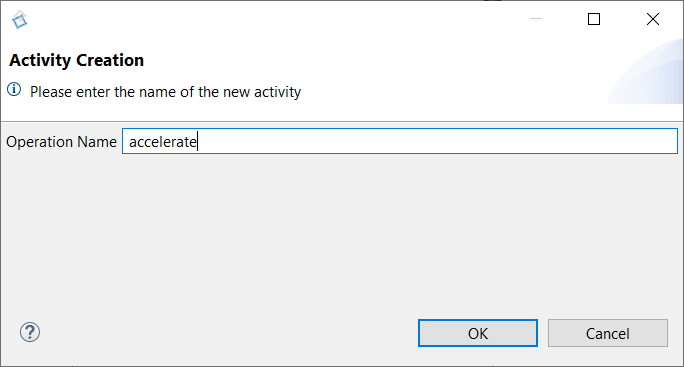
- Type the name of the activity: accelerate
- Click on OK
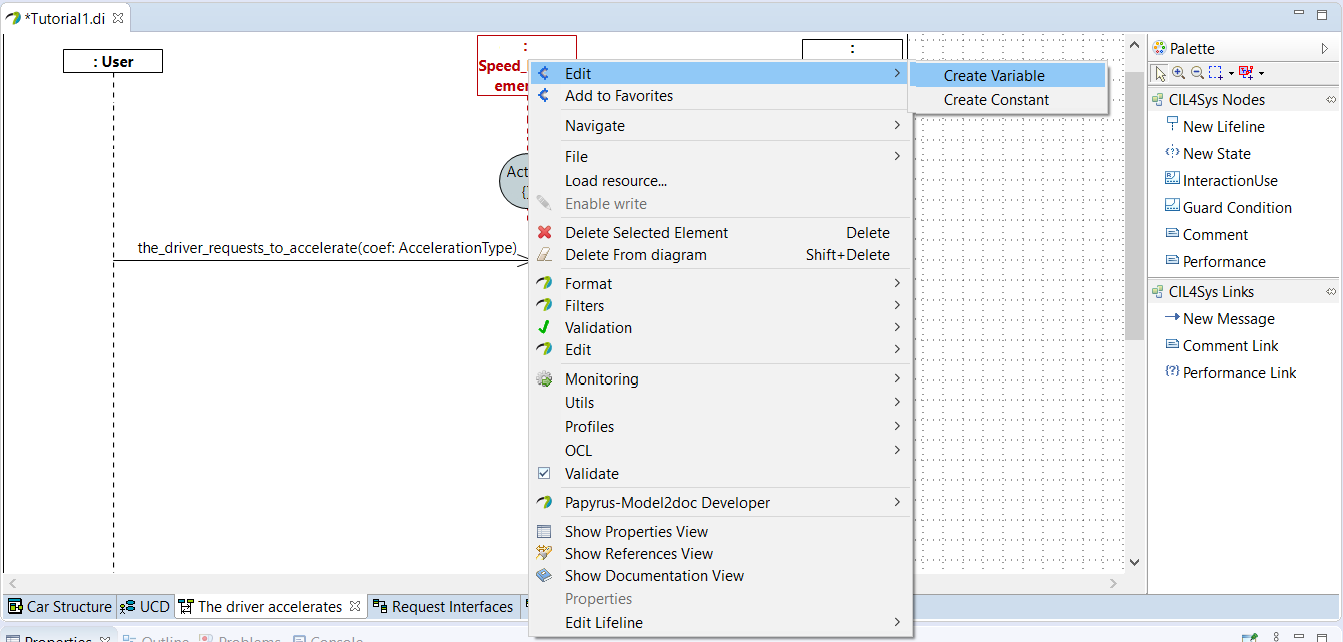
- Right-click on the service lifeline
- Select Edit > Create Variable
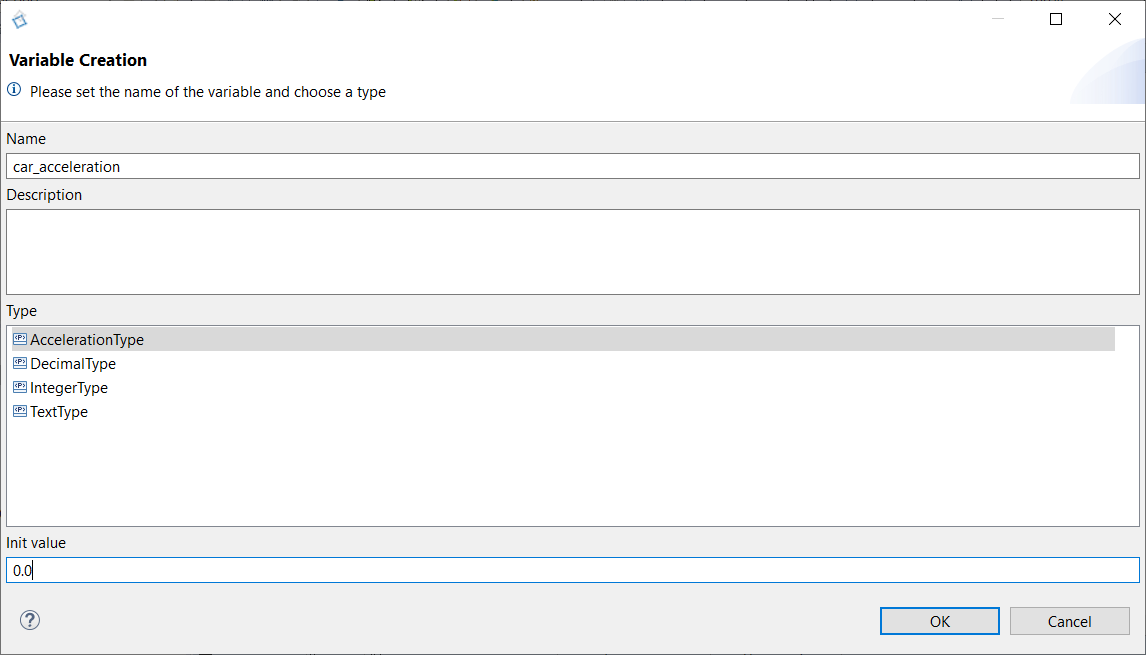
- Type the name of the variable: car_acceleration
- Choose the type: AccelerationType
- Set an init value: 0.0
- Click on OK
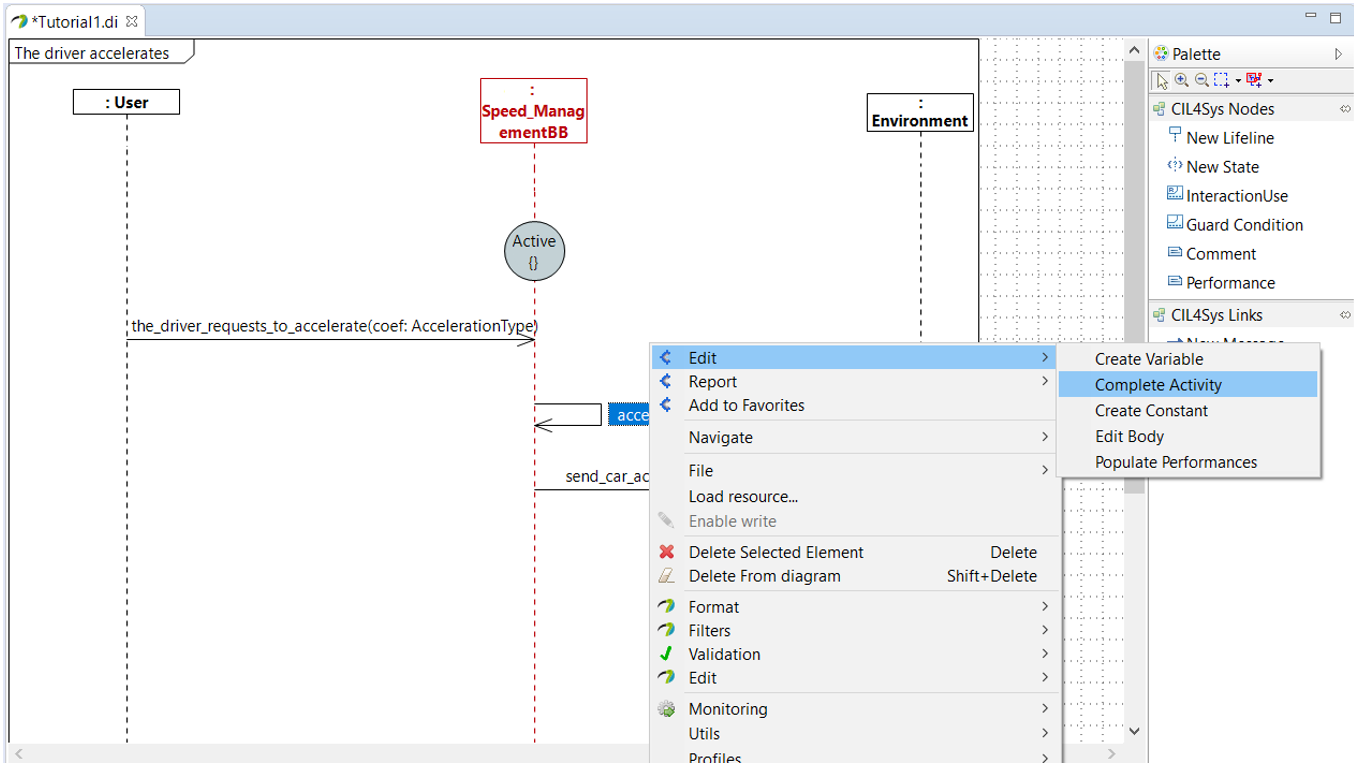
- Right-click on the accelerate activity
- Choose Edit > Complete Activity
- Select C++ Code
- Click on Next
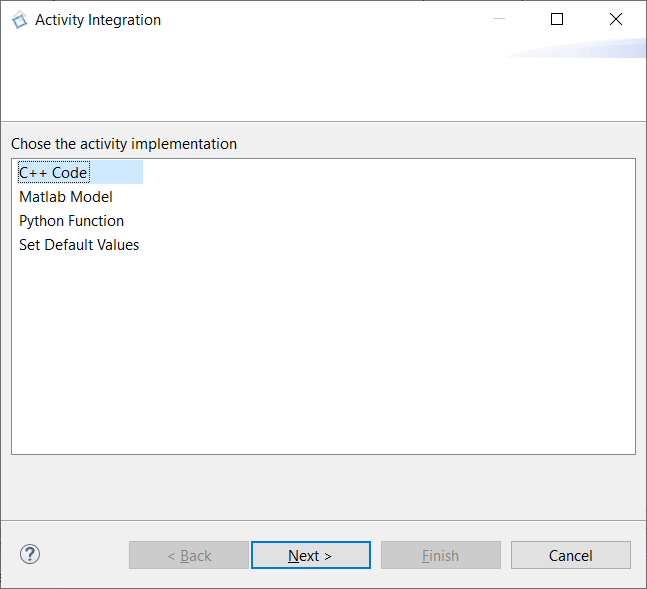
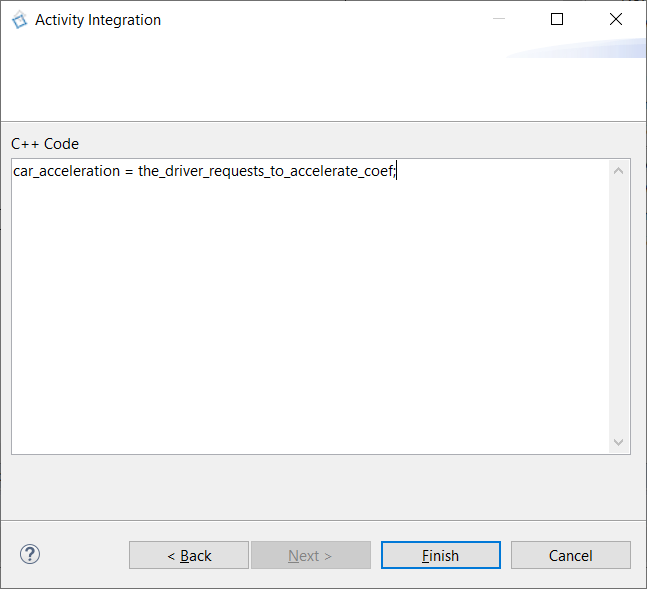
- Type the code to accelerate: car acceleration = driver request acceleration (with both accelerations in m/s²)
car_acceleration = the_driver_requests_to_accelerate_coef;
- Click on Finish
- Trace a New Message between the service and the environment
- Click on Create a New Flow
- Drag&Drop a New Interface on the diagram
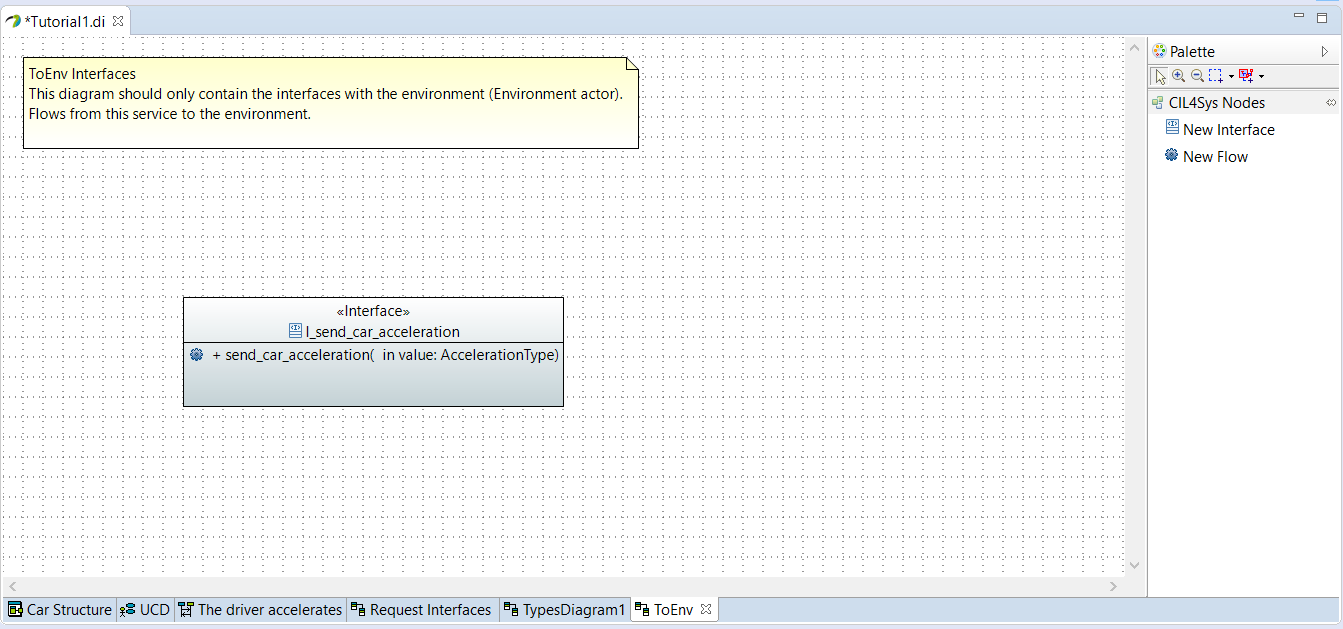
- Type the name of the interface: I_send_car_acceleration
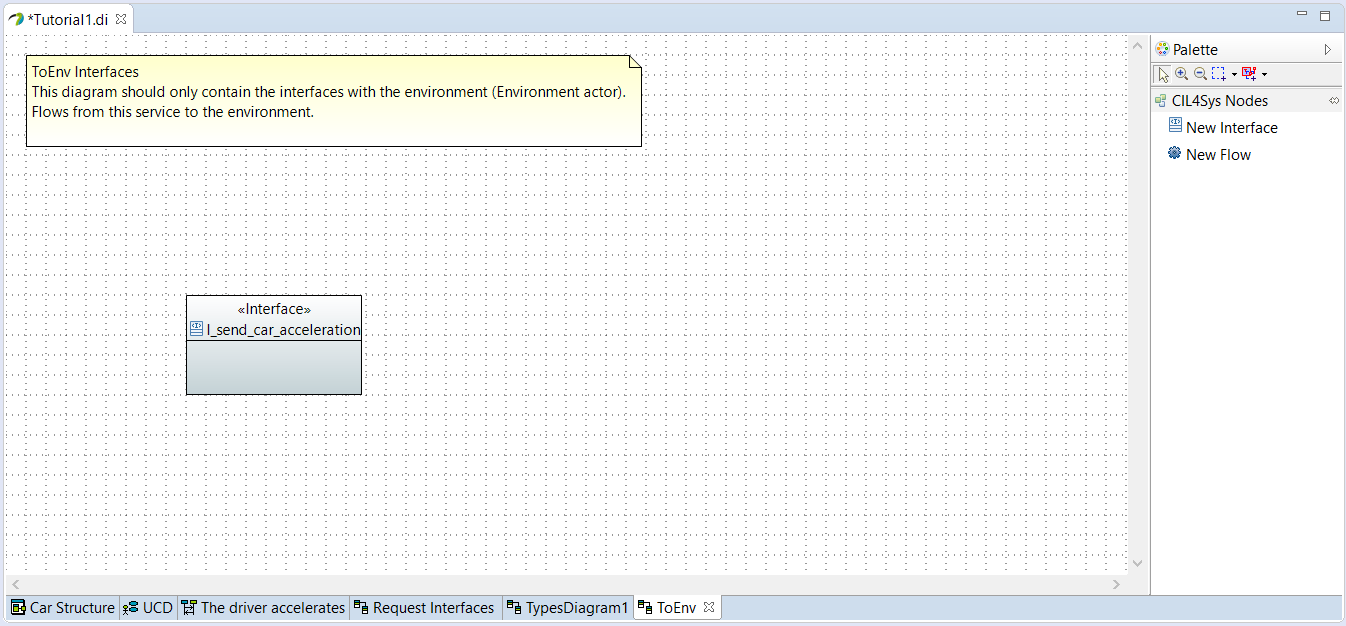
- Drag&Drop a New Flow in the newly created interface
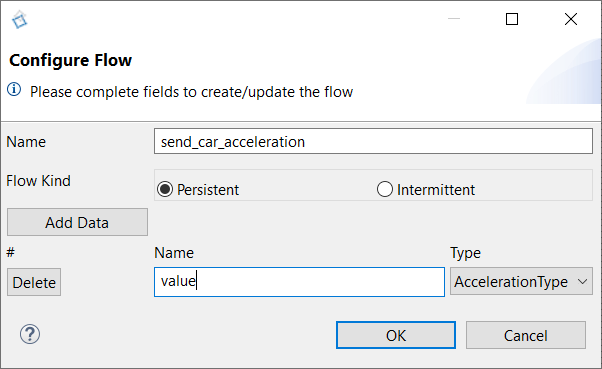
- Type the name: send_car_acceleration
- Click on Add Data
- Type the name of the data: value
- Select the type of the data: AccelerationType
- Click on OK
- Go back on the user story
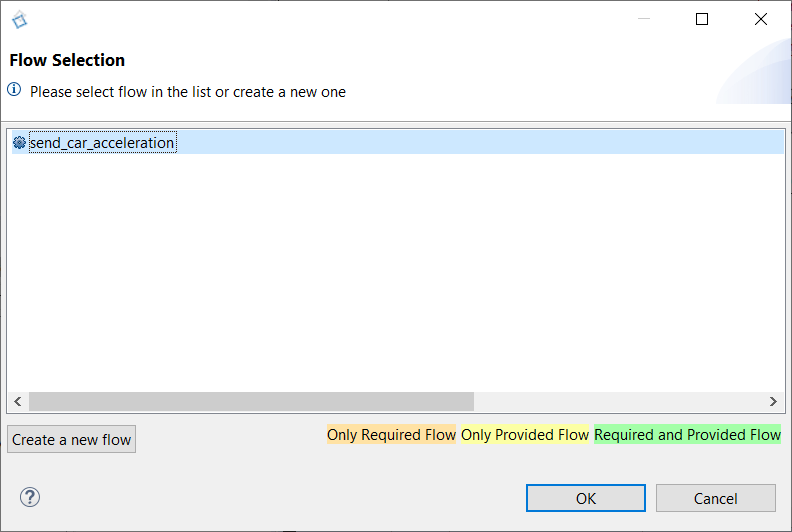
- Trace a new message between the service and the environment
- Select the newly created flow
- Click on OK
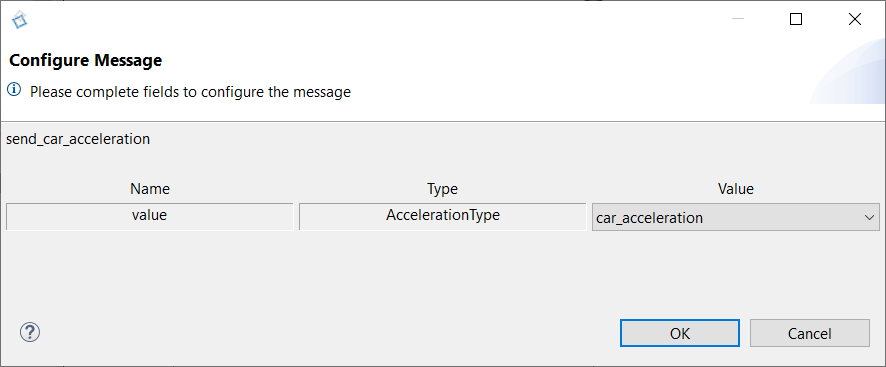
- Select the data value: car_acceleration
- Click on OK
- Select the user story in the CIL4Sys Overview
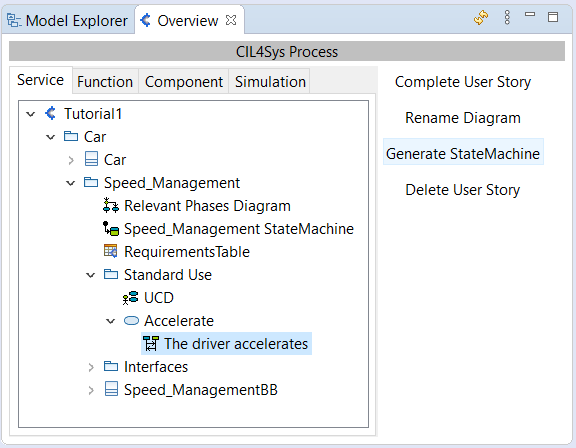
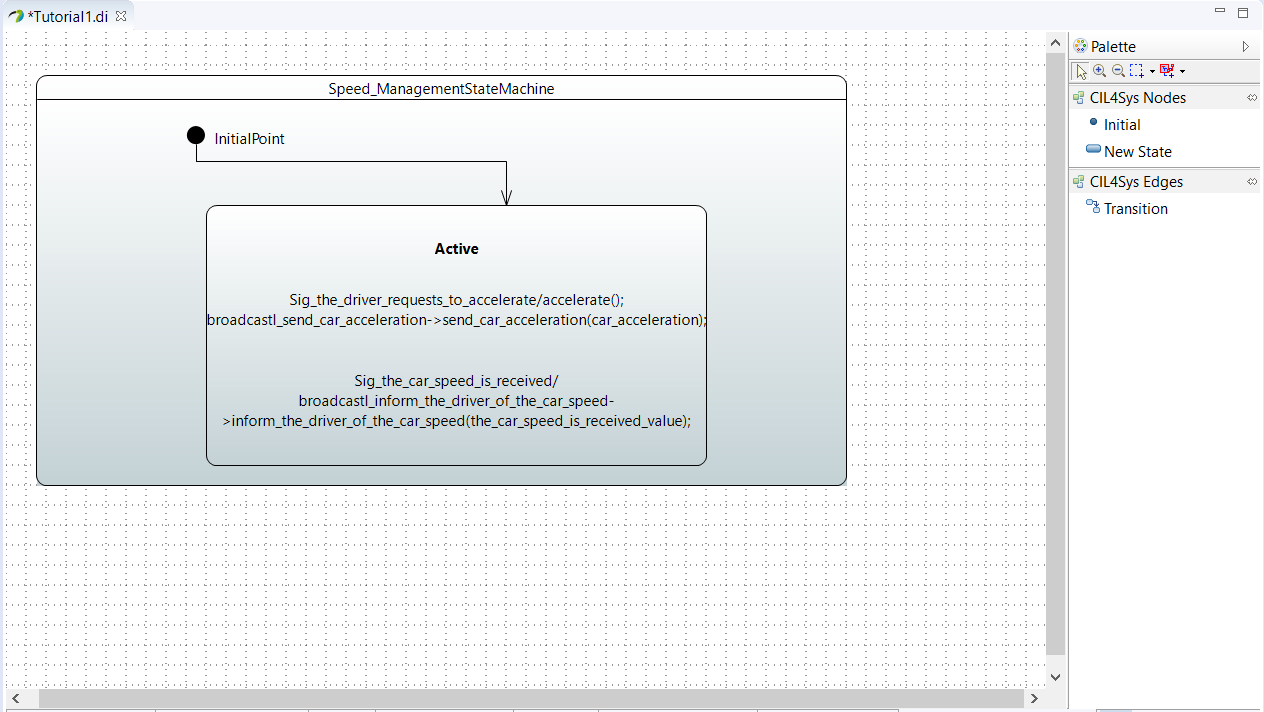
- Click on Generate State Machine
- Click on Ok in the confirmation dialog box
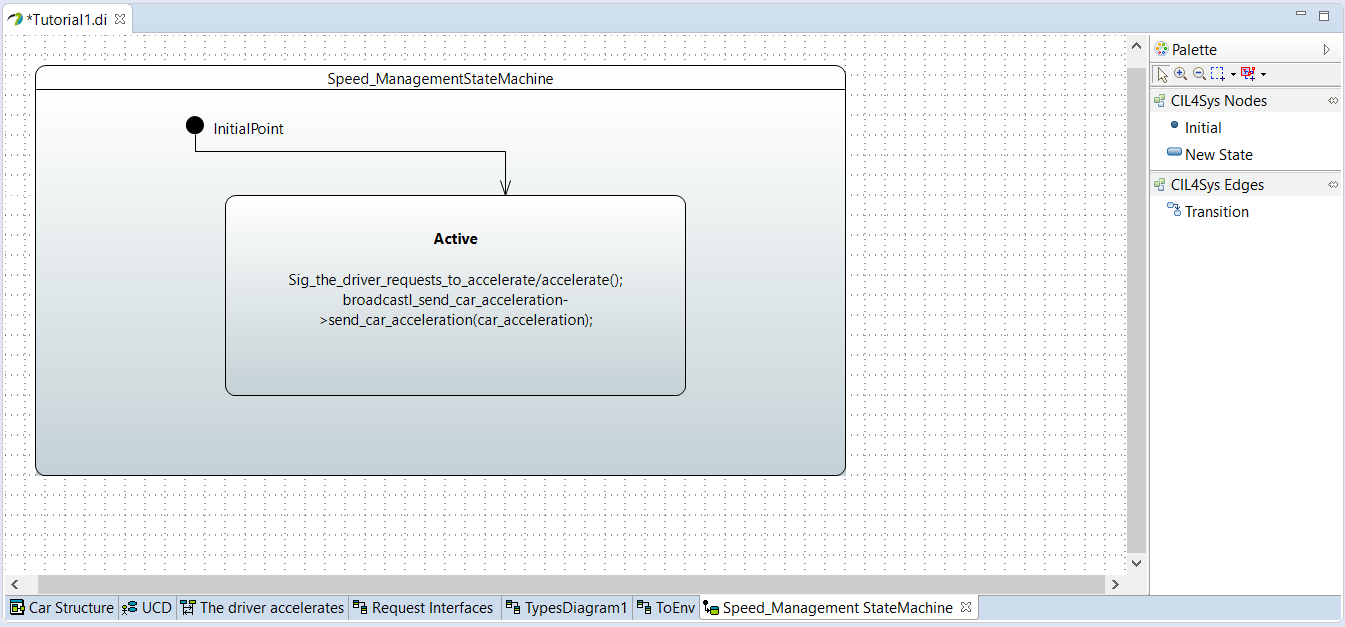
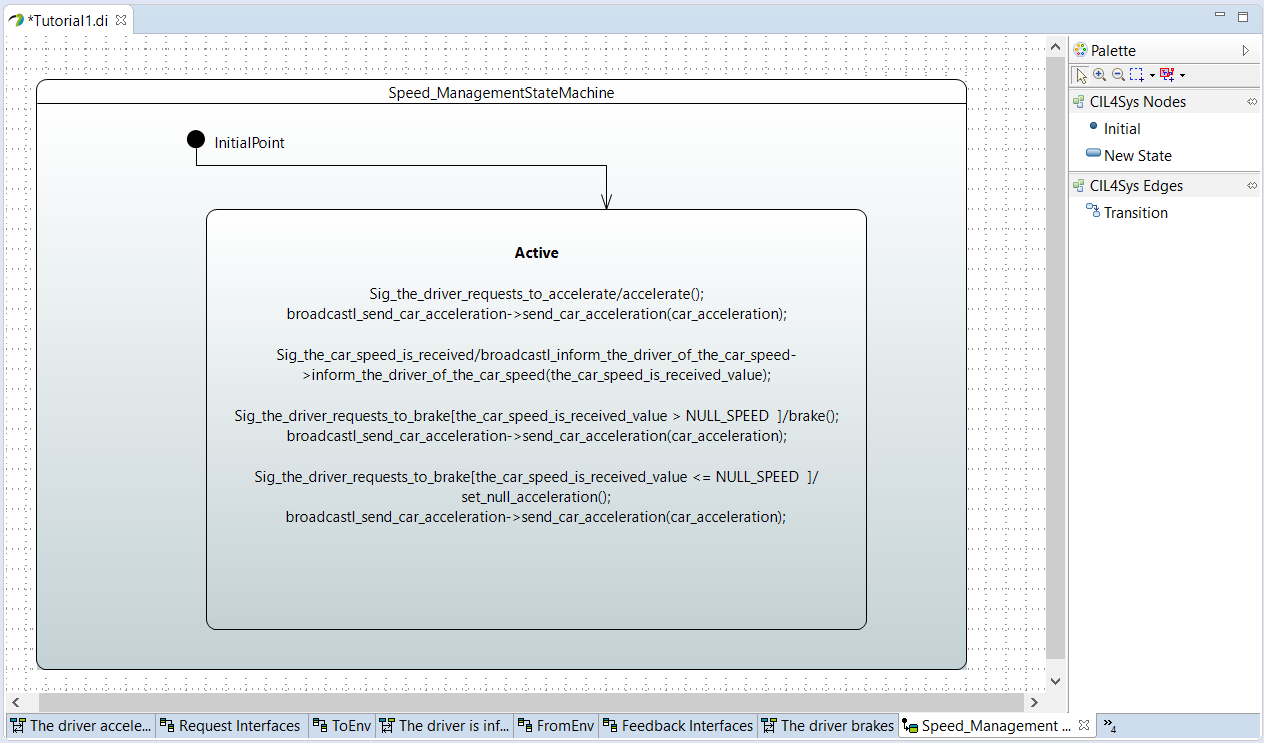
Regenerate the state machine after each change in diagrams. You should find in the state machine everything that you have written in the diagrams. The state machine helps you to check the model consistency. It is also essential for the simulation to work.
TO GO FURTHER
For your future projects you should :
- Use the same project structure: project > products > services > life phases > use cases > user stories. One project can have several products, one product can have several services, and so on.
- Use types (as AccelerationType) to clarify the type of information you want to exchange in your model, it’s a tool to help you even if you find it useless at the beginning of the training, it is a good work habit.
In the following, we are going to apply the same steps to create other usecases.
USECASE "INFORM OF CAR SPEED"
- Click on the View menu button on the CIL4Sys overview
- Click on Create Type
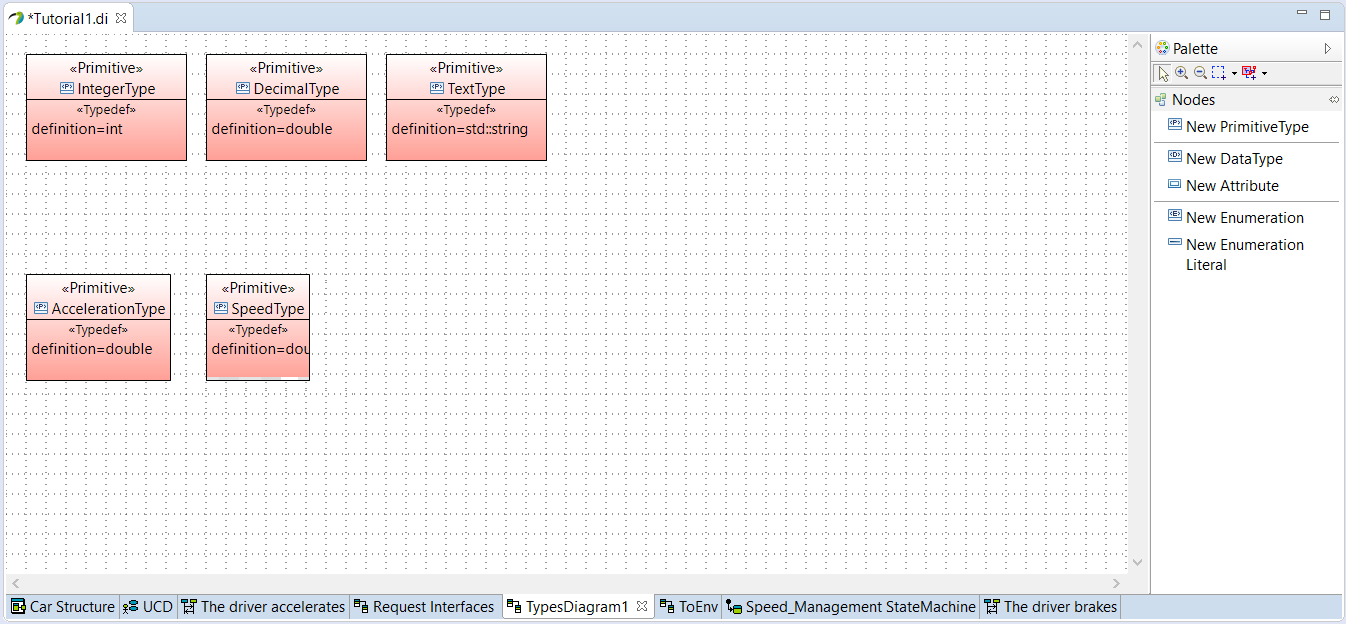
- Click on Create a new primitive type
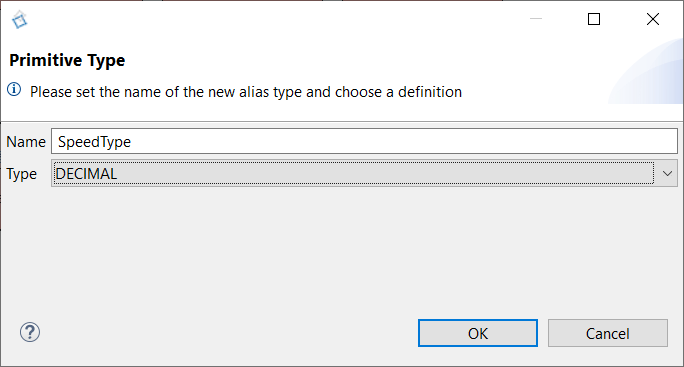
- Type the name: SpeedType
- Choose the type: Decimal
- Click on OK
- Select Standard Use Package in CIL4Sys Overview
- Click on Complete Use Cases
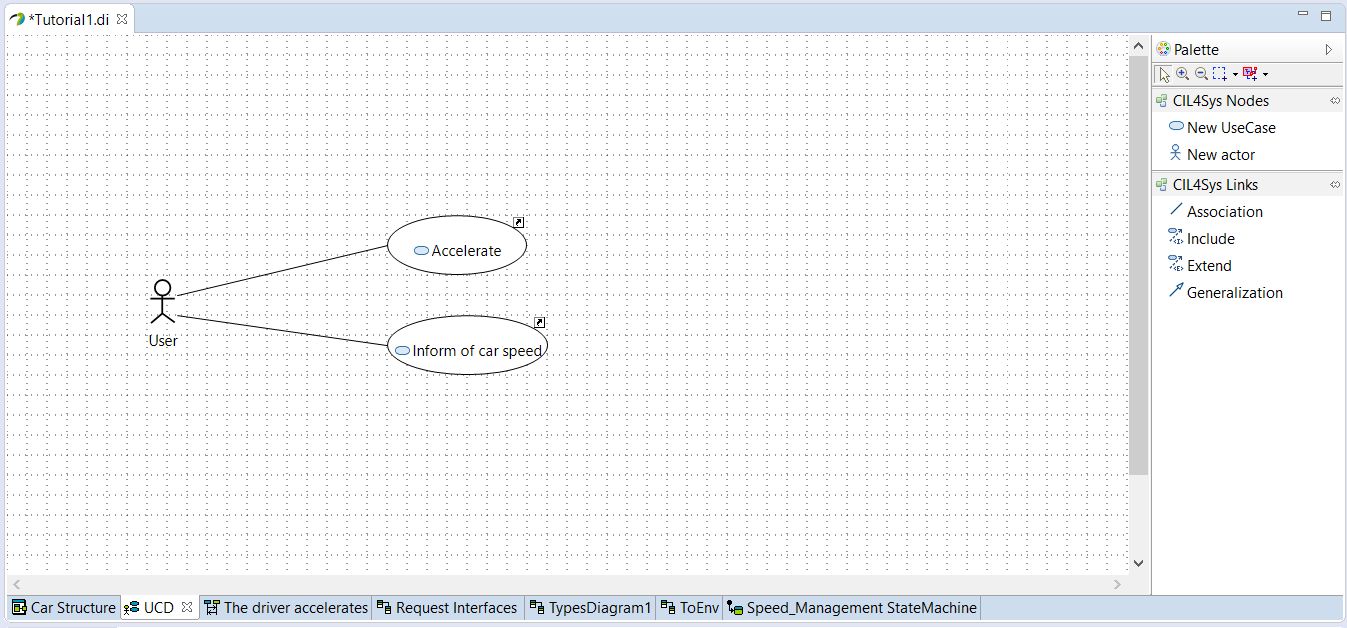
- Drag&Drop a New UseCase on the diagram
- Type the name of the new use case: Inform of car speed
- Click on OK
- Trace an association between the actor and the newly created use case
- Select the use case Inform of car speed in the CIL4Sys Overview
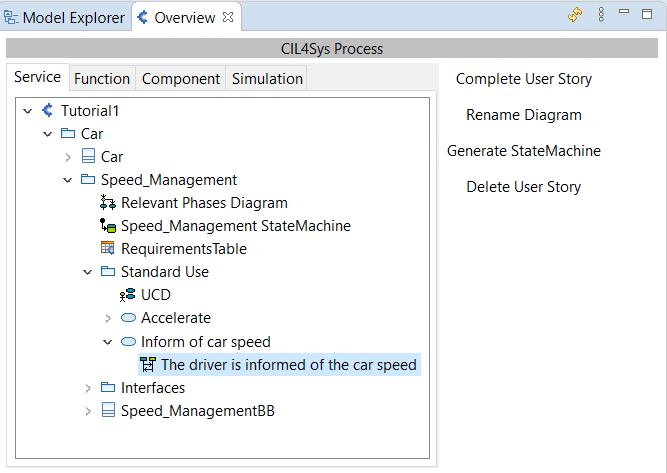
- Click on New User Story
- Type the name of the user story: The driver is informed of the car speed
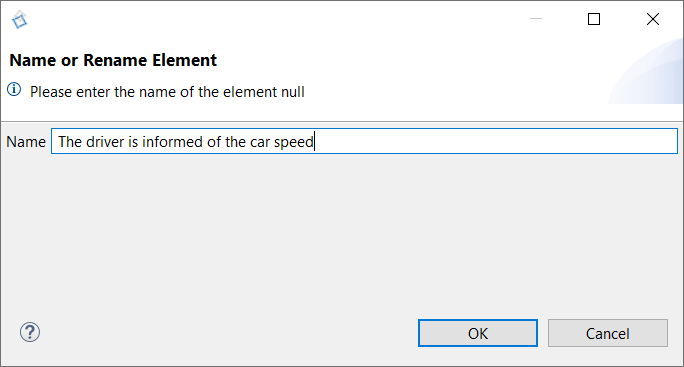
- Click on OK
- Double Click on the newly created user story in the CIL4Sys Overview
- Drag&Drop a New State on the service lifeline
- Select Active
- Click on OK
- Trace a message between the environment and the service
- Click on Create a new flow
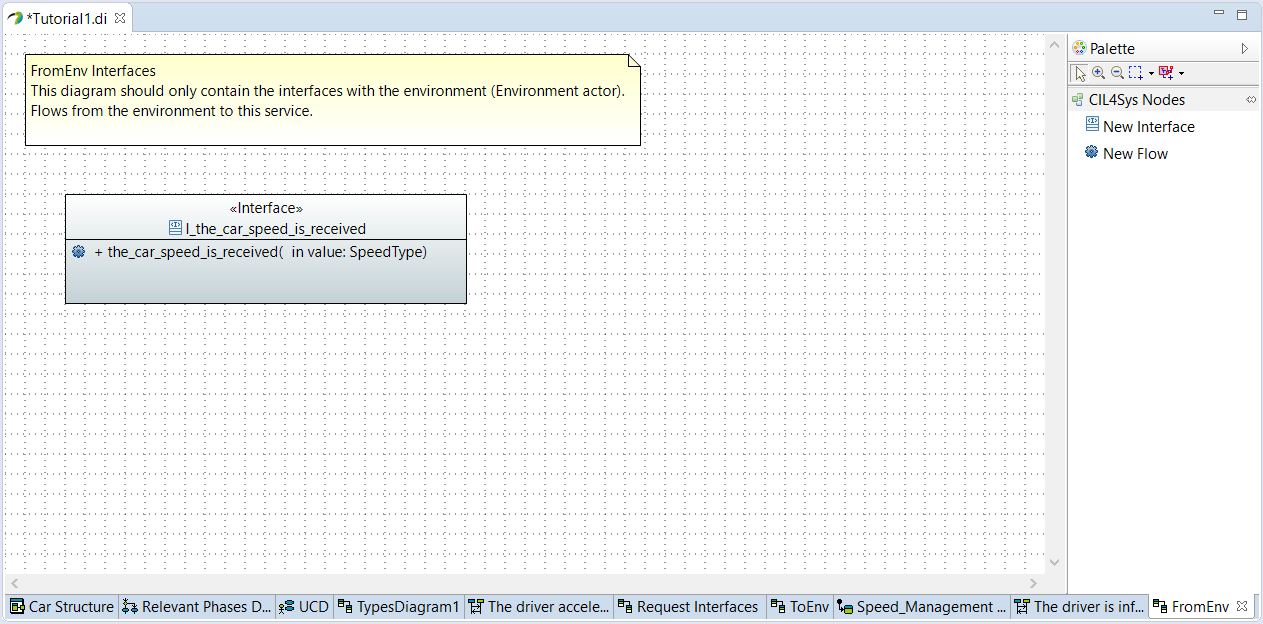
- Drag&Drop a New Interface on the FromEnv Interfaces diagram
- Type the name of the interface: I_the_car_speed_is_received
- Click on OK
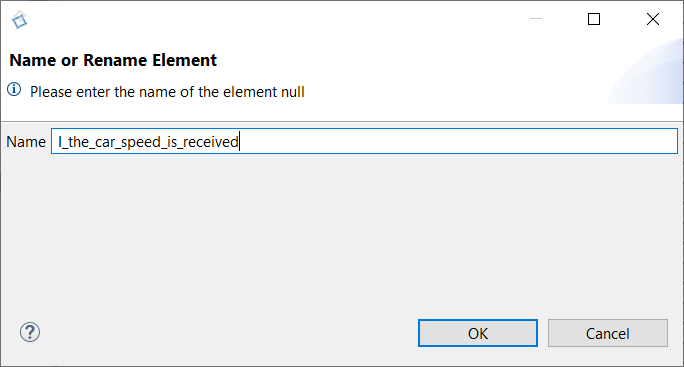
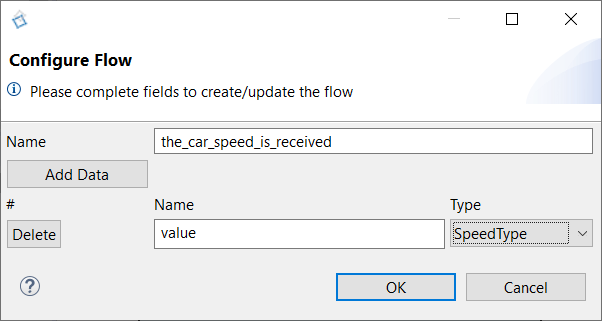
- Drag&Drop a New flow in the newly created interface
- Type the name: the_car_speed_is_received
- Click on Add data
- Type the name: value
- Set the type of the data: SpeedType
- Go back on the sequence diagram
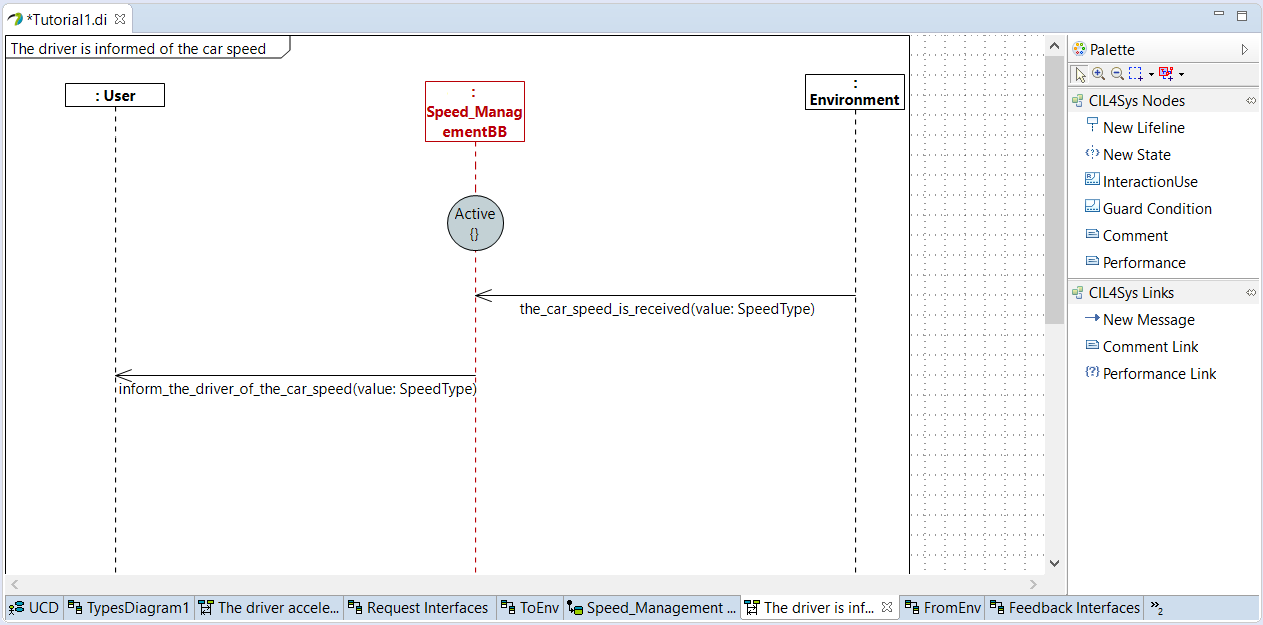
- Trace a message between the environment and the service
- Choose the_car_speed_is_received
- Trace a New Message between the service and the user
- Click on Create a New Flow
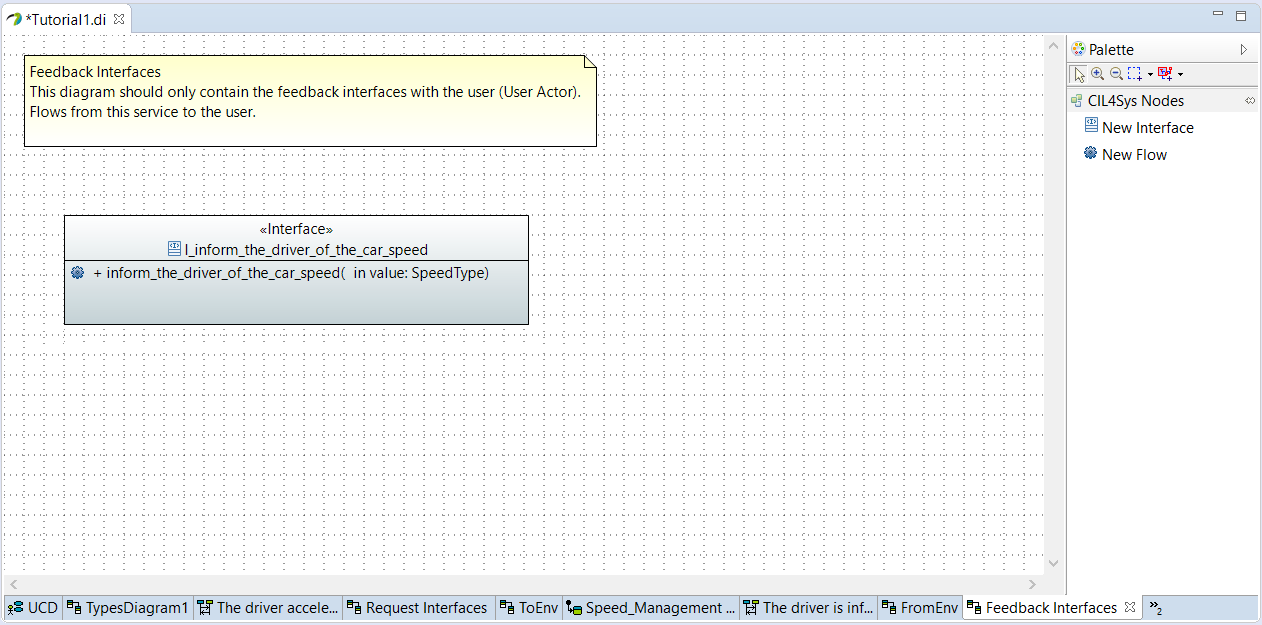
- Drag&Drop a New Interface on the Feedback Interfaces diagram
- Type the name of the interface: I_inform_the_driver_of_the_car_speed)
- Click on OK
- Drag&Drop a New flow in the newly created interface
- Type the name: inform_the_driver_of_the_car_speed
- Click on Add data
- Type the name: value
- Set the type of the data: SpeedType
- Go back on the sequence diagram
- Trace a message between the service and the user
- Choose inform_the_driver_of_the_car_speed
- Click on OK
- Select the value: the_car_speed_is_received_value
- Click on OK
- Select the user story in the CIL4Sys Overview
- Click on Generate State Machine
- Click on Ok in the confirmation dialog box
USECASE "BRAKE"
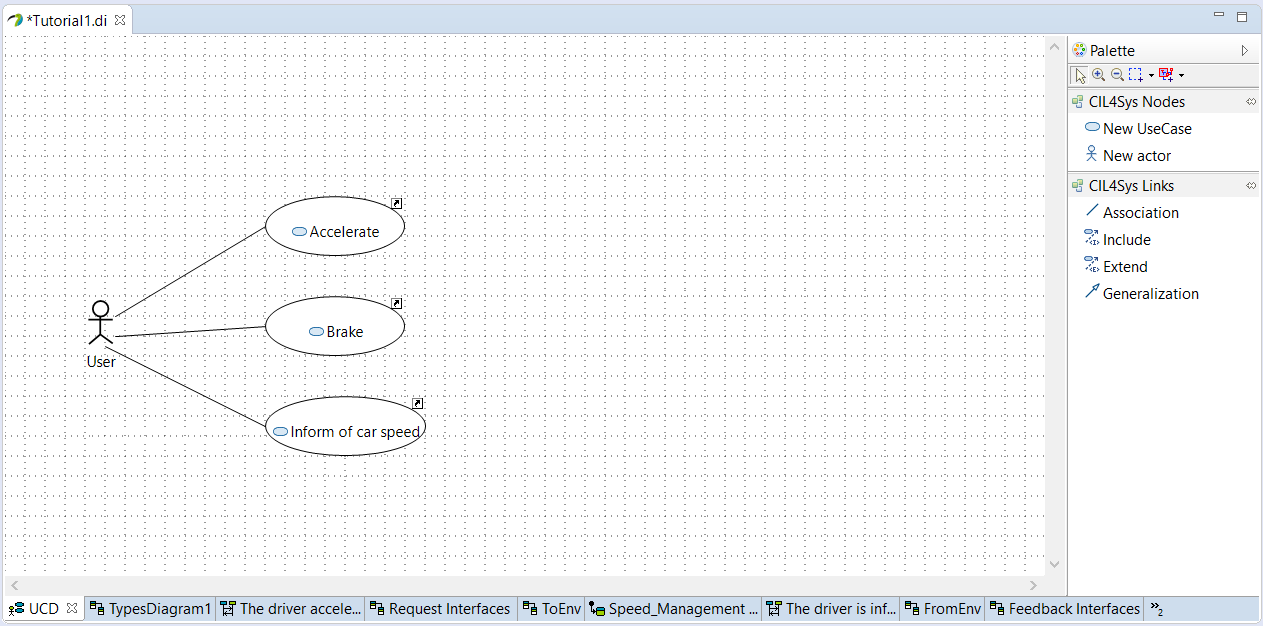
- Select Standard Use Package in CIL4Sys Overview
- Click on Complete Use Cases
- Drag&Drop a New UseCase on the diagram
- Type the name of the new use case: Brake
- Click on OK
- Trace an association between the actor and the newly created use case
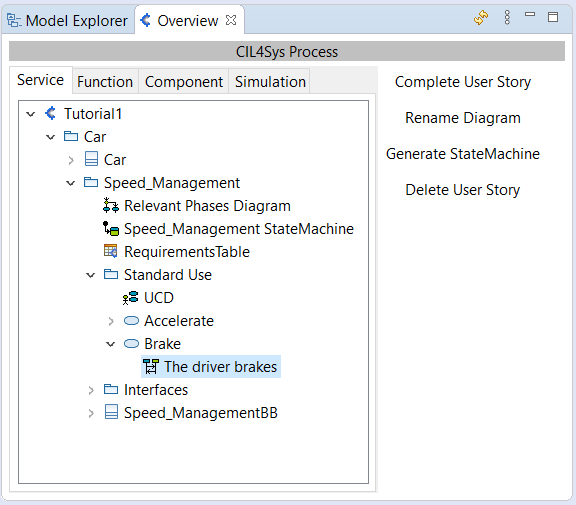
- Select the use case Brake in the CIL4Sys Overview
- Click on New User Story
- Type the name of the user story The driver brakes
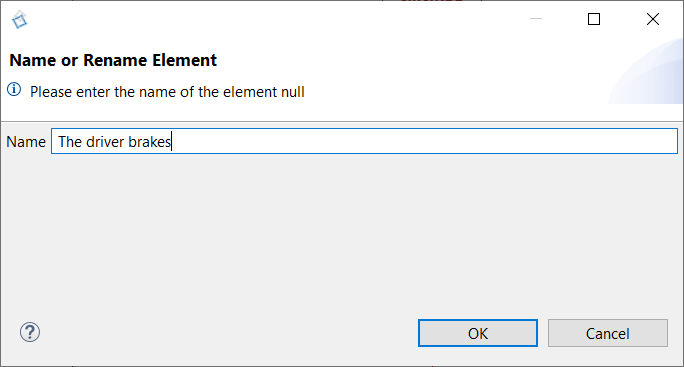
- Click on OK
- Double Click on the newly created user story in the CIL4Sys Overview
- Drag&Drop a New State on the service lifeline
- Select Active
- Click on OK
- Trace a message between the user and the service
- Click on Create a new flow
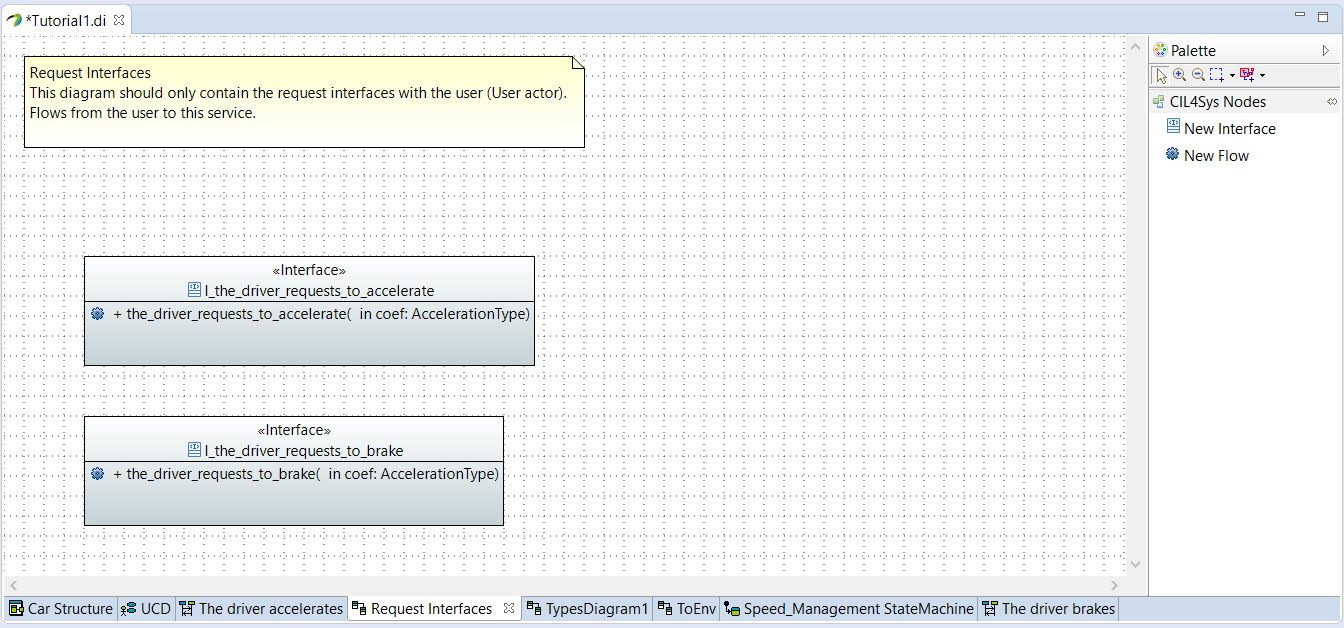
- Drag&Drop a New Interface on the Request Interfaces diagram
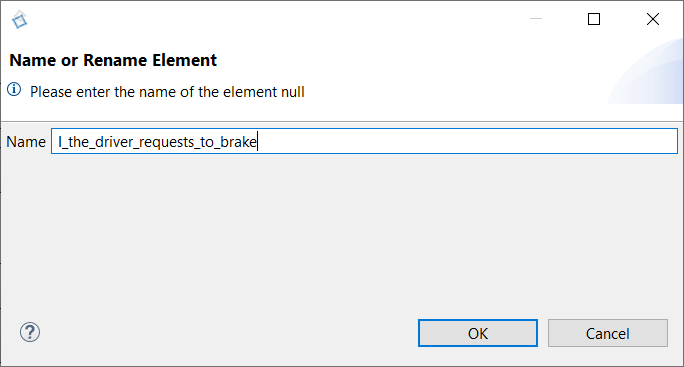
- Type the name of the interface: I_the_driver_requests_to_brake
- Click on OK
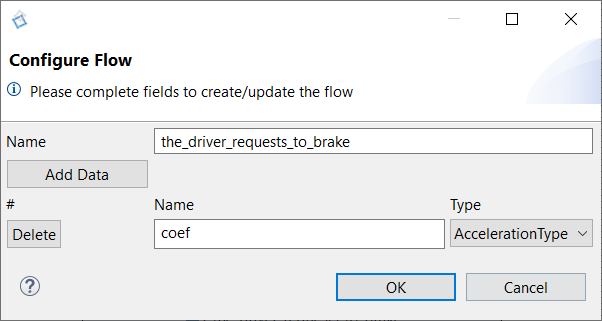
- Drag&Drop a New flow in the newly created interface
- Type the name: the_driver_requests_to_brake
- Click on Add data
- Type the name: coef
- Set the type of the data: AccelerationType
- Go back on the sequence diagram
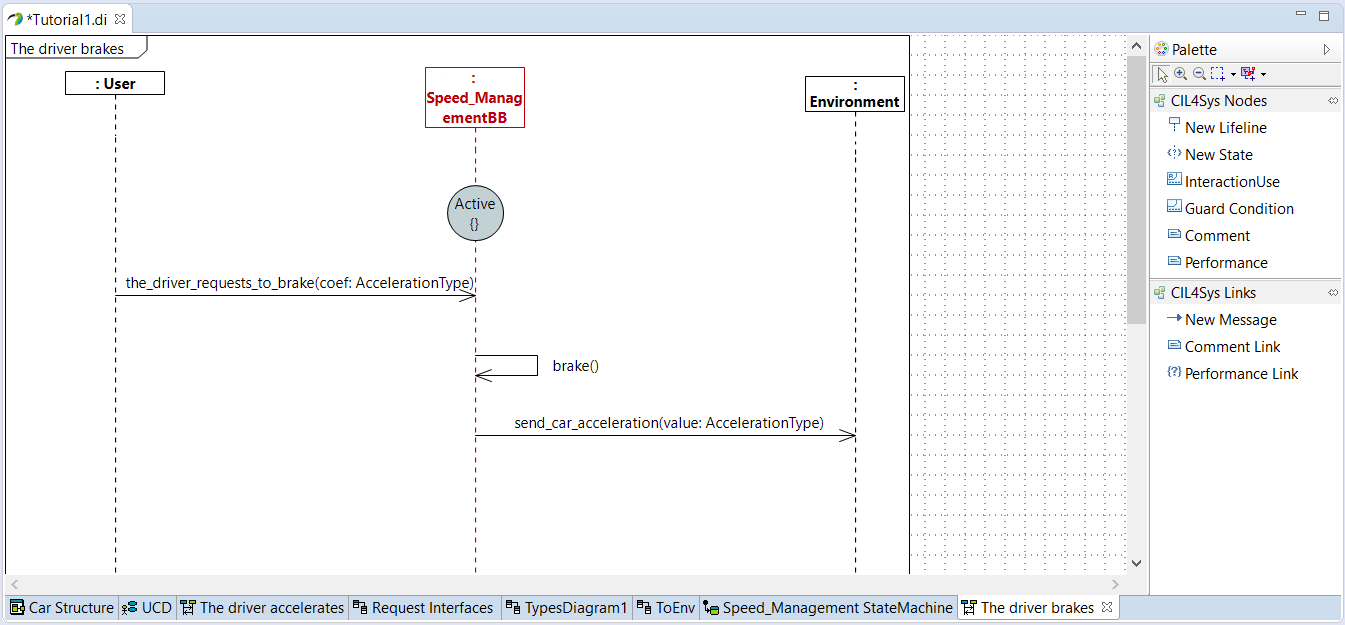
- Trace a message between the user and the service
- Choose the_driver_requests_to_brake
- Trace a New Message between the service and itself
- Click on Create a New Flow
- Type the name of the flow: brake
- Trace a New Message between the service and the environment
- Choose send_car_acceleration
- Click on OK
- Select the variable car_acceleration to return
- Click on OK
- Right-click on brake internal activity
- Right-click on the internal activity, Edit > Complete Activity
- Select _C++ Code _
- Click on Next
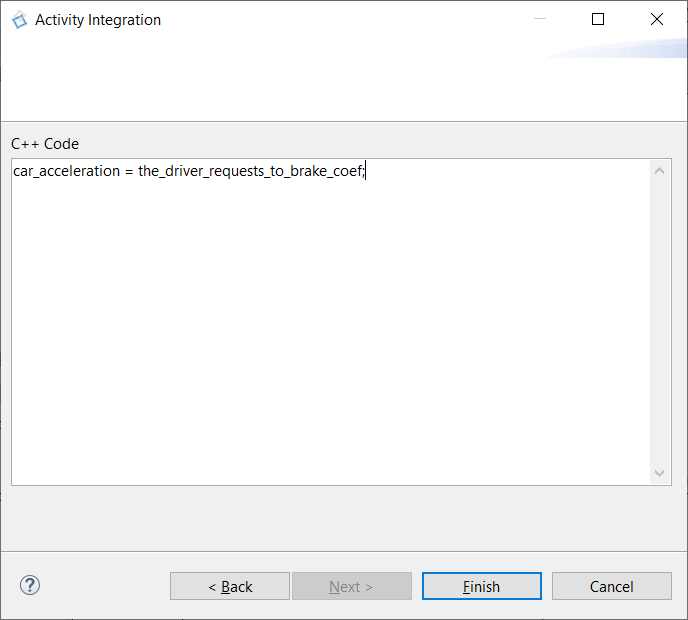
- Type the code to brake
car_acceleration = the_driver_requests_to_brake_coef;
- Click on Finish
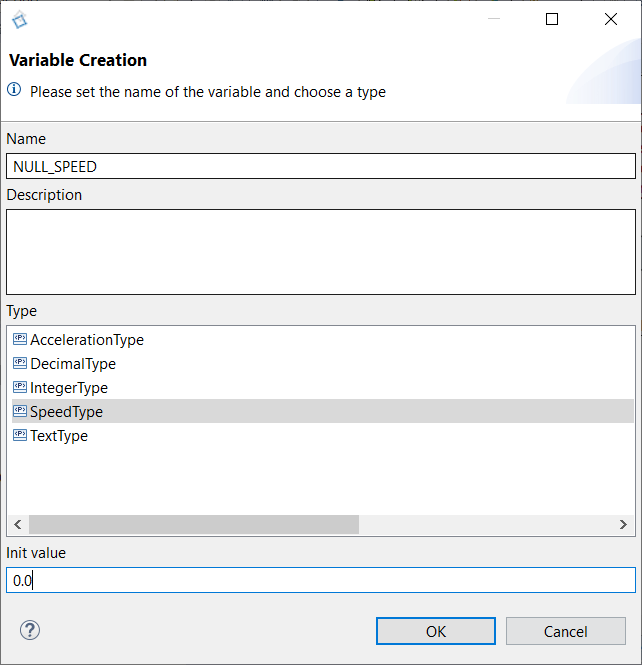
- Right-click on the service lifeline
- Click on Edit > Create Constant
- Type the name: NULL_SPEED
- Choose the SpeedType
- Set the initial value to 0.0
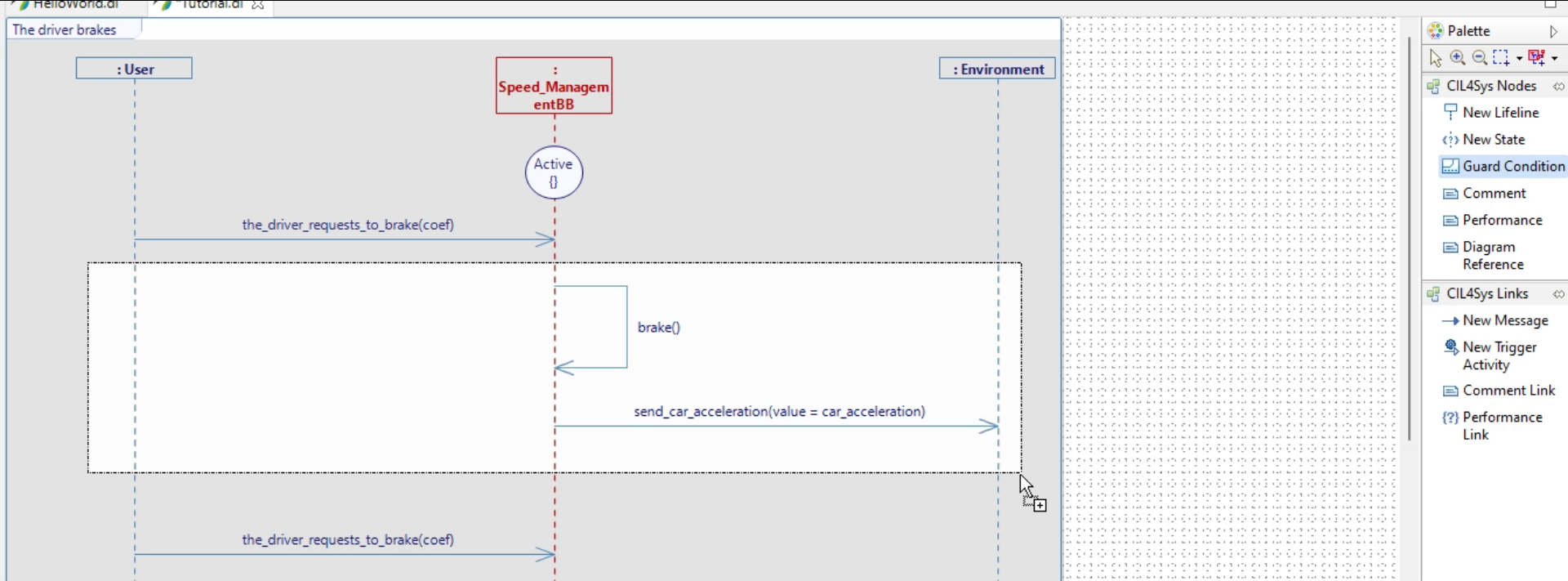
- Drag&Drop a Guard Condition on the diagram
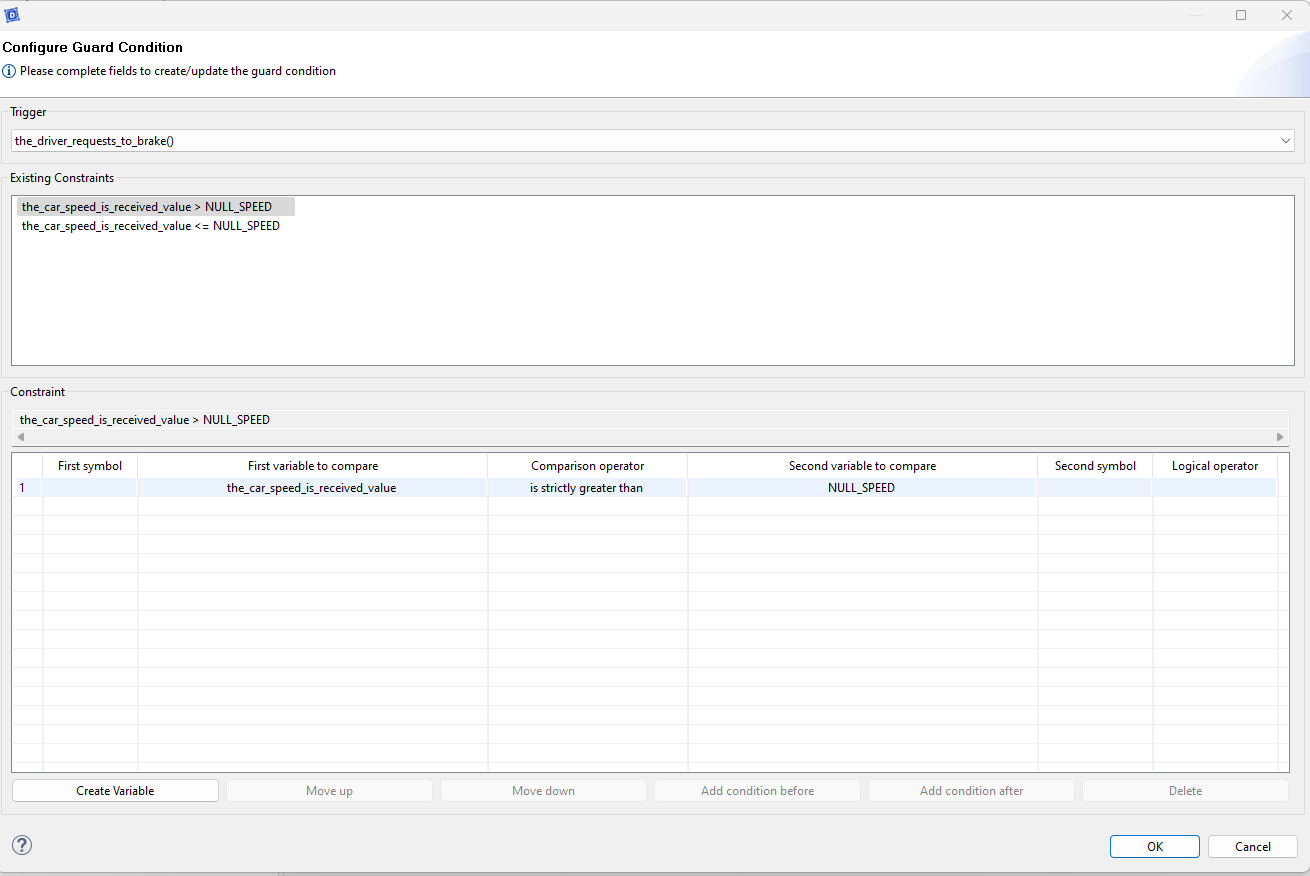
- Choose the trigger the_driver_requests_to_brake
- Set the condition as follow
- Complete the sequence diagram for the case where the speed is null (refer to previous steps if needed)
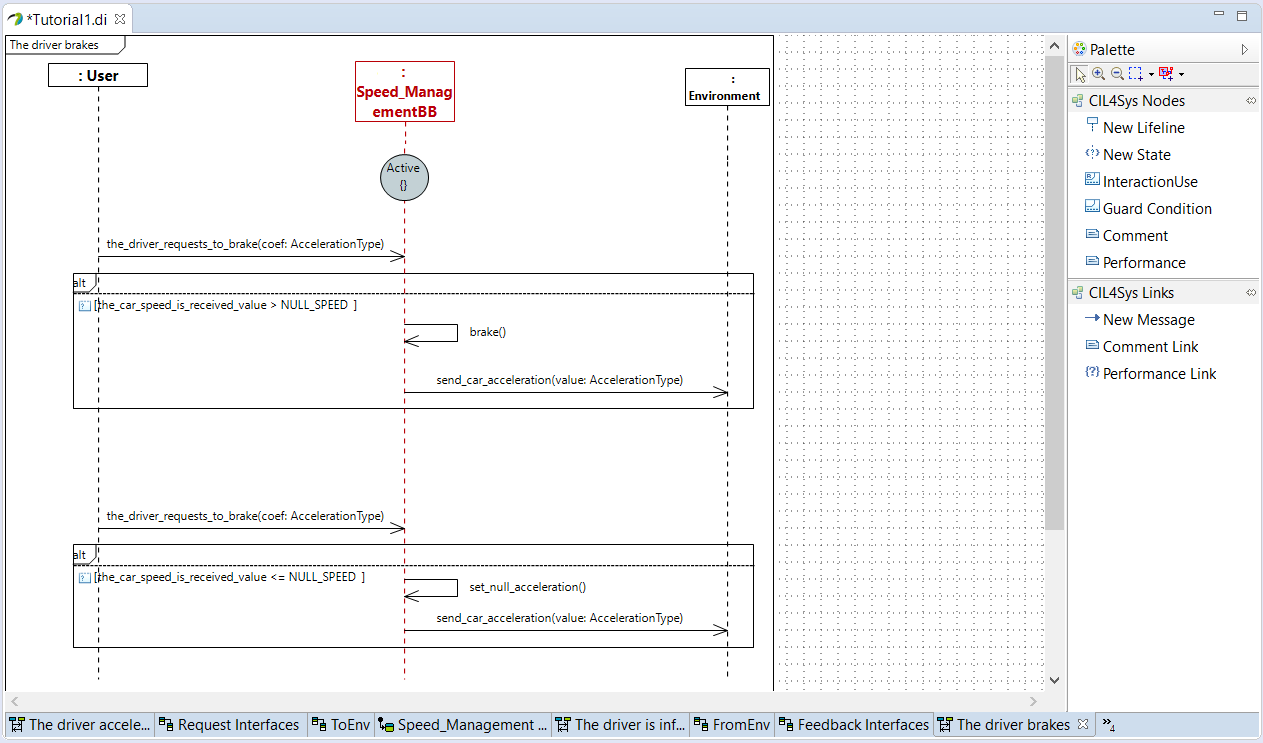
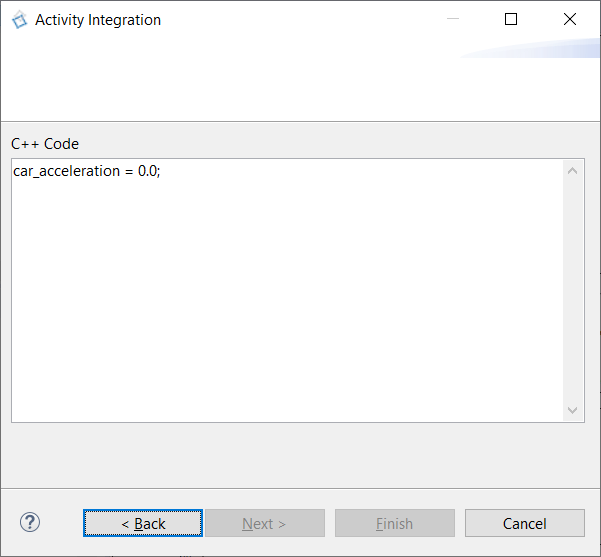
- Complete the internal activity set_null_acceleration
car_acceleration = 0.0;
- Select the user story in the CIL4Sys Overview
- Click on Generate State Machine
- Click on Ok in the confirmation dialog box
TO GO FURTHER
For this simple tutorial we consider only one state (Active). It is possible to introduce several states. You should try it by your own in a blank project:
- In a user story, begin with a state “Active” and draw some messages as we did before.
- End the user story by another state, “Turbo” for example.
- Generate the state machine: you should see the messages you wrote and a condition to go from the state “Active” to the state “Turbo”.
- You can also do it the other way around: to go from the state “Turbo” to the state “Active” with another user story.
GENERATE CODE
If you have the community version of Designer (free version), please build the executable via Hub4Sys as shown on this page
- Before generating the code, ensure that the CIL4SysLibs are already part of the project.

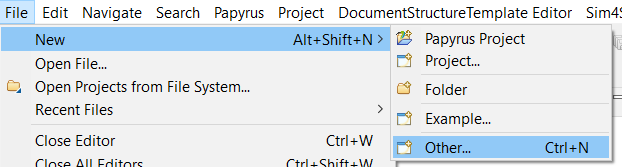
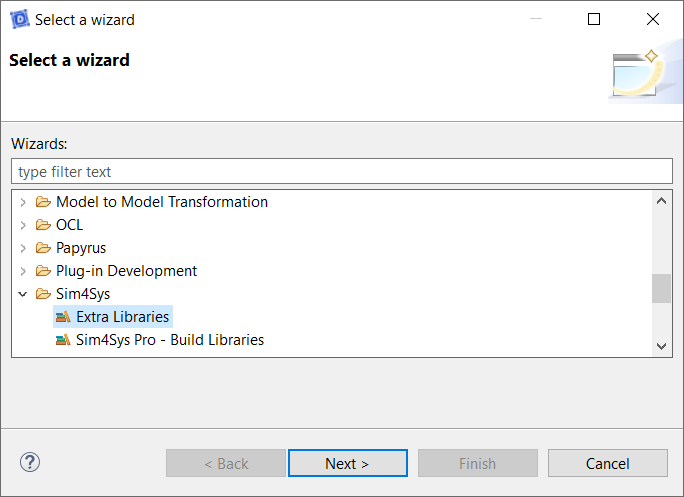
- If it's not the case, you must add the Libs in File > New > Other... In the new window, select Extra Libraries in the Sim4Sys folder. If you have a Pro access, you can add Sim4Sys Pro - Build Libraries instead:
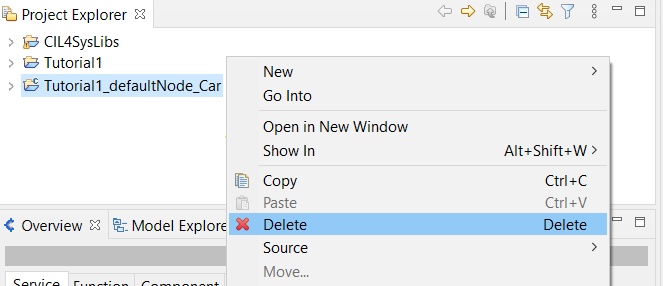
If you've already tried to generate the code without the CIL4SysLibs, you might not be able to compile even after adding the libraries. To reset everything, right-click on the generated code folder, and delete it.
Follow the next steps to generate the code.
- Click on the Overview menu, thanks to the following icon:
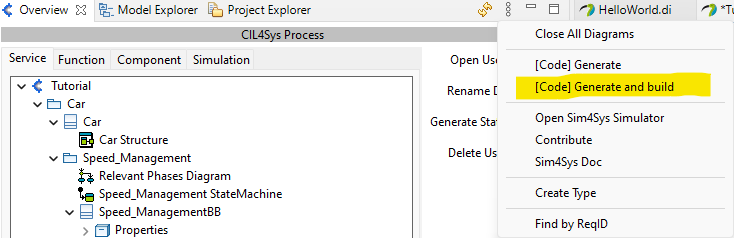
- Click on [Code] Generate and build in CIL4Sys Overview
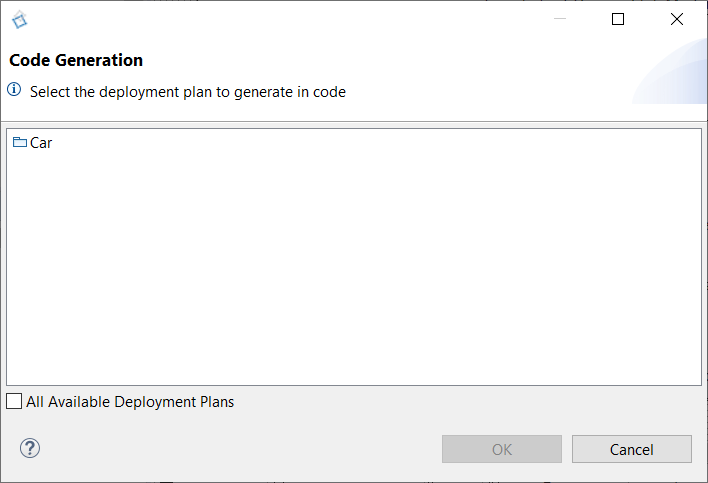
- Select Car (or CarMainProduct)
- Click on OK
- Select Cygwin GCC (Cygwin 64 must be installed, for Windows only)
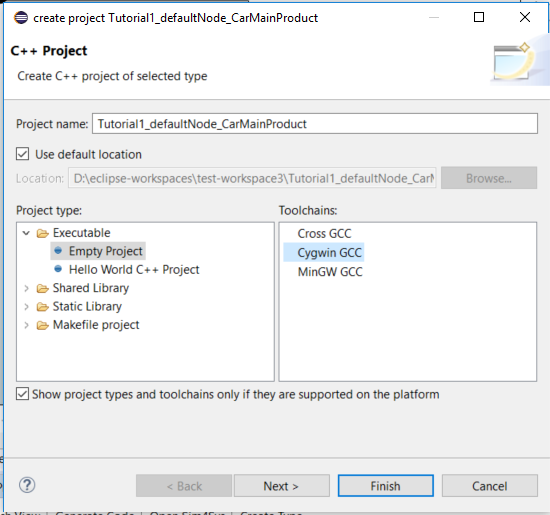
- Click on Finish
- Click on OK in the confirmation dialog box
- Right-click on the newly created C++ project
- Before building the project, you can right-click on it, and then select Properties. Then go into the C/C++ Build section, and in the Behavior tab. Here you can check Enable parallel Build. Apply and close. Now, the process of building will be much more efficient.
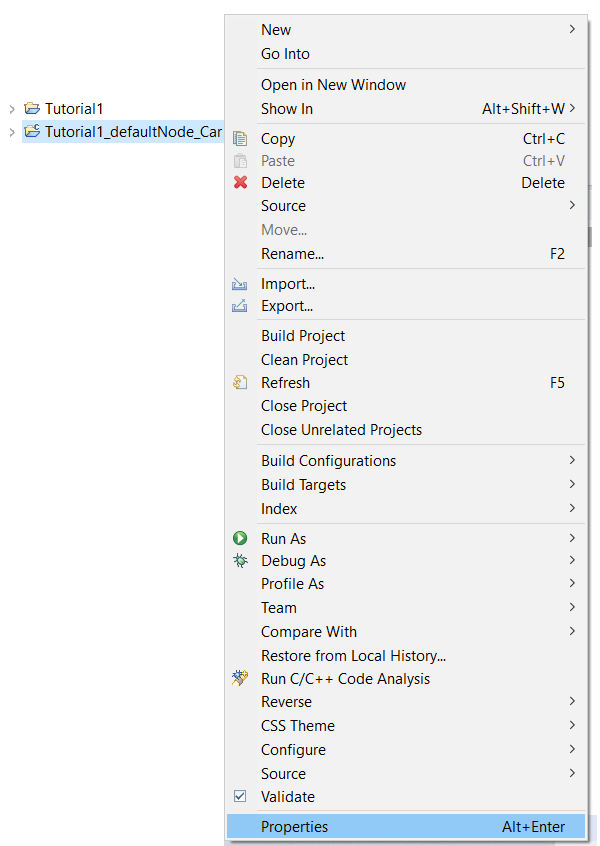
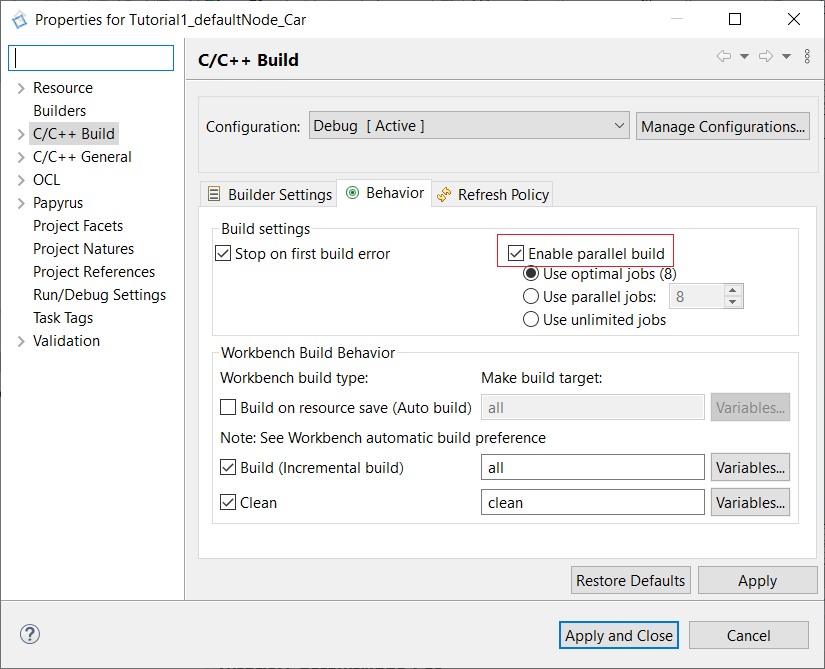
- Select Build Project (if the CIL4SysLibs are not imported yet, refers to the previous step before), then we can build our Car project.
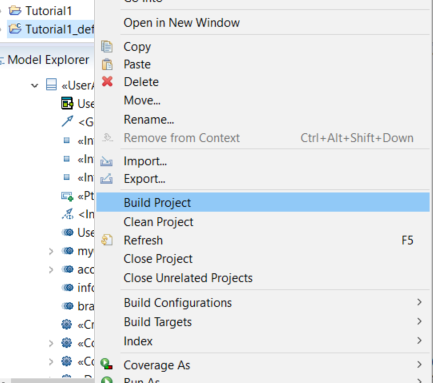
-
In case you have an error with undeclared types, follow the following procedure:
- Go to Window > Preferences

- In Papyrus > C++ Code Generation, check Generate “using namespaces”
- Uncheck Use C++11 class enumerations
- Right-click on C++ project
- Select RunAs > C/C++ Application
- Switch back to your Virtual Bench project.
Controller Behaviour (ACCELERATION)
Log in to Virtual Bench
Sign in to the Sim4Sys Virtual Bench platform to prepare your model for visualization.
- Open Sim4Sys Virtual Bench in your browser.
- Sign in with your username and password.
- On the Home page, find your sandbox project and open it:
- Double-click the project card, or
- Click the menu and select Run.

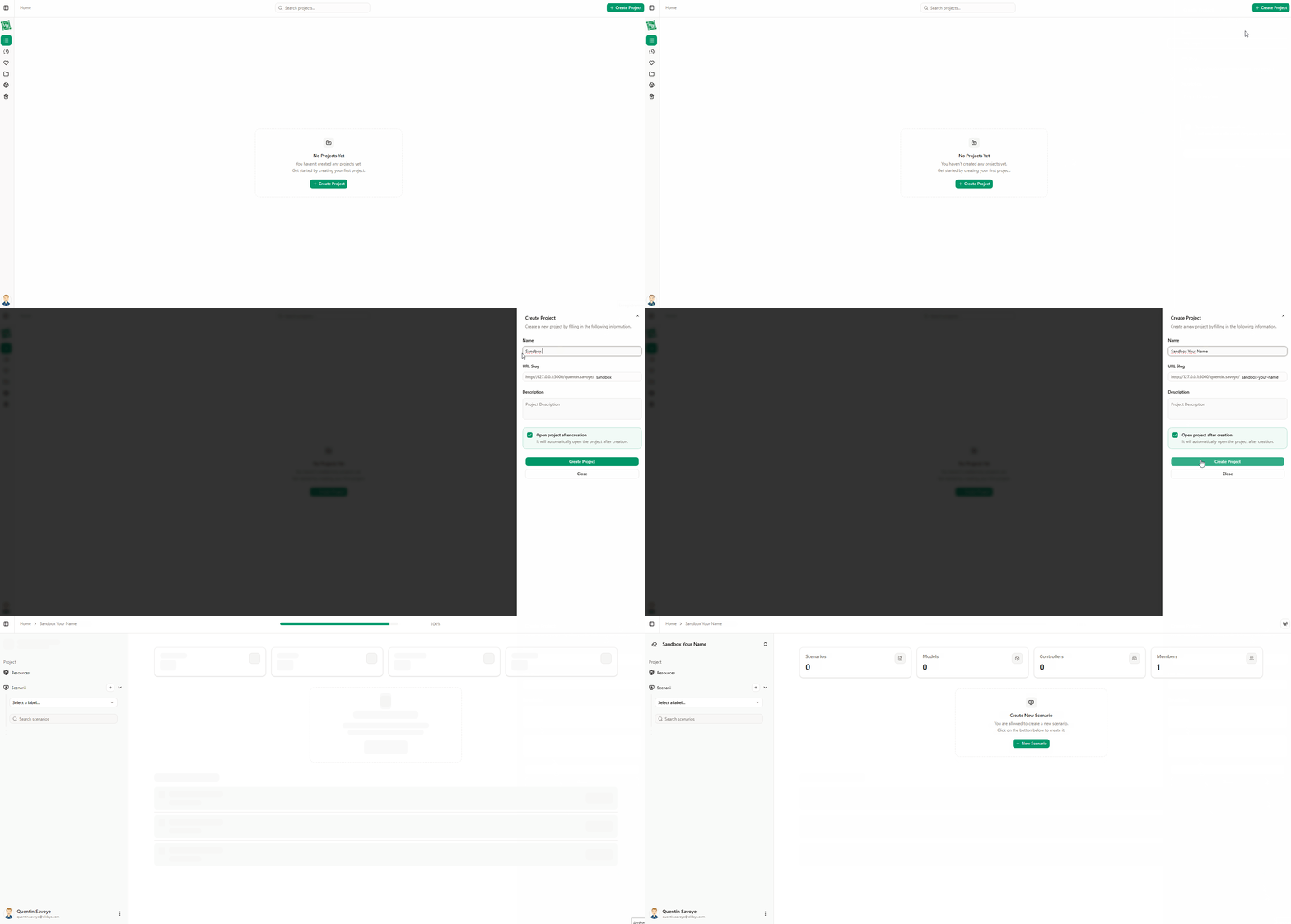
Create one by clicking New Project. In the Project name field, enter e.g. "Sandbox your name" — the URL is generated automatically. Add a short description for the project, and check the option to open the project automatically after creation.
Set up environment and scenario
-
Add a model
- Open the Project resources panel and add a new model.
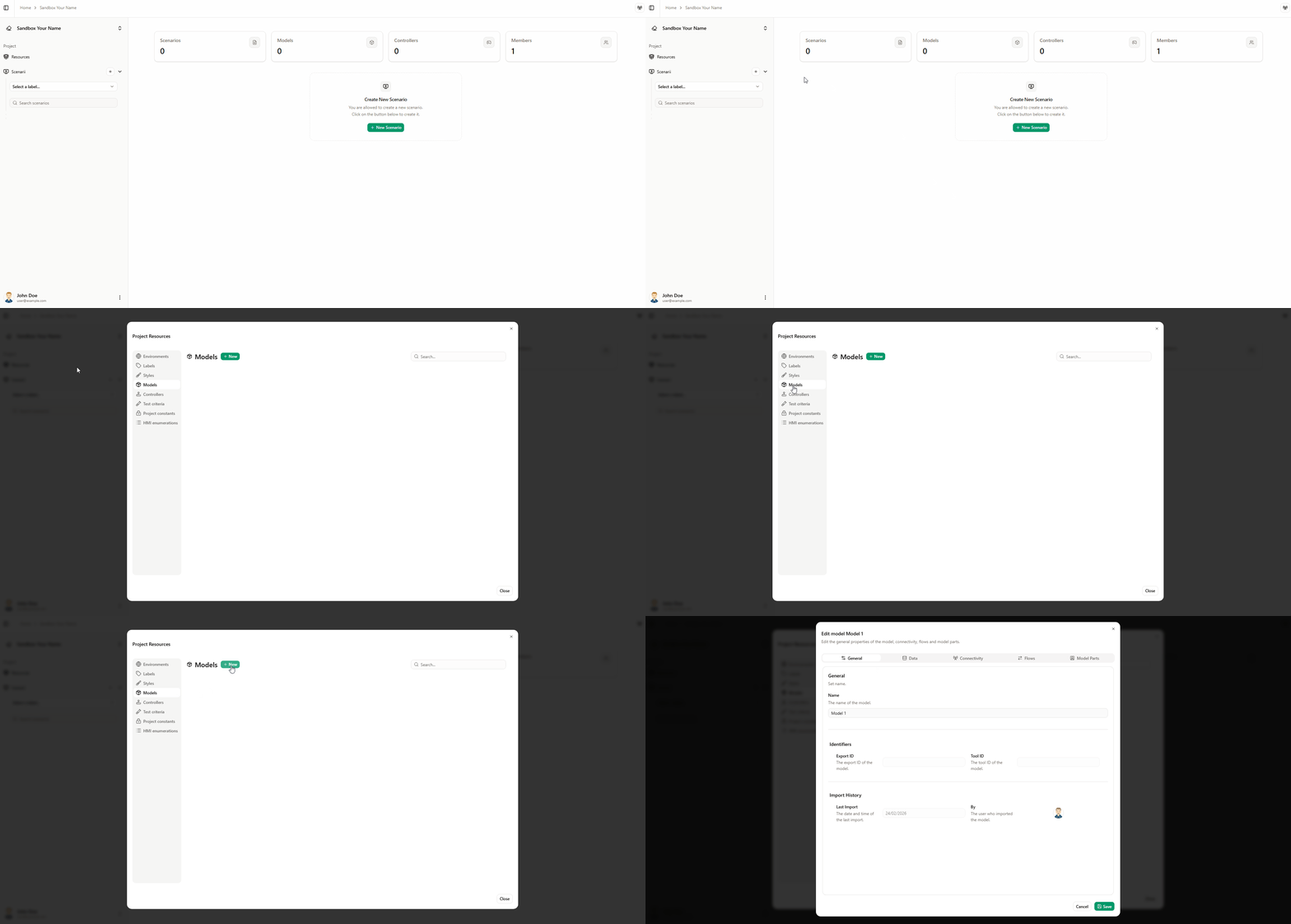
- Configure the model under General and Connectivity, then import types and flows from your model into Virtual Bench.
-
Check environments
- In the Project resources panel, ensure the following environments are available for the project: HMI, Scene2D, and Timeline. See Scenario management for details.
-
Create a scenario
- Create a new scenario and name it as you wish (e.g. accBrake, tuto1).
- Check Automatically open the new scenario, then click Create scenario. The new scenario opens.
-
Add a model instance
- On the right side, click Model instances, then New.
- Enter the model instance name (e.g. AccBrakeTuto1) and click Create.
Controller behaviour for the flow the_driver_requests_to_accelerate
Now let’s Set the controller behaviour so the acceleration value is sent to the model at a specific time using the timeline environment.
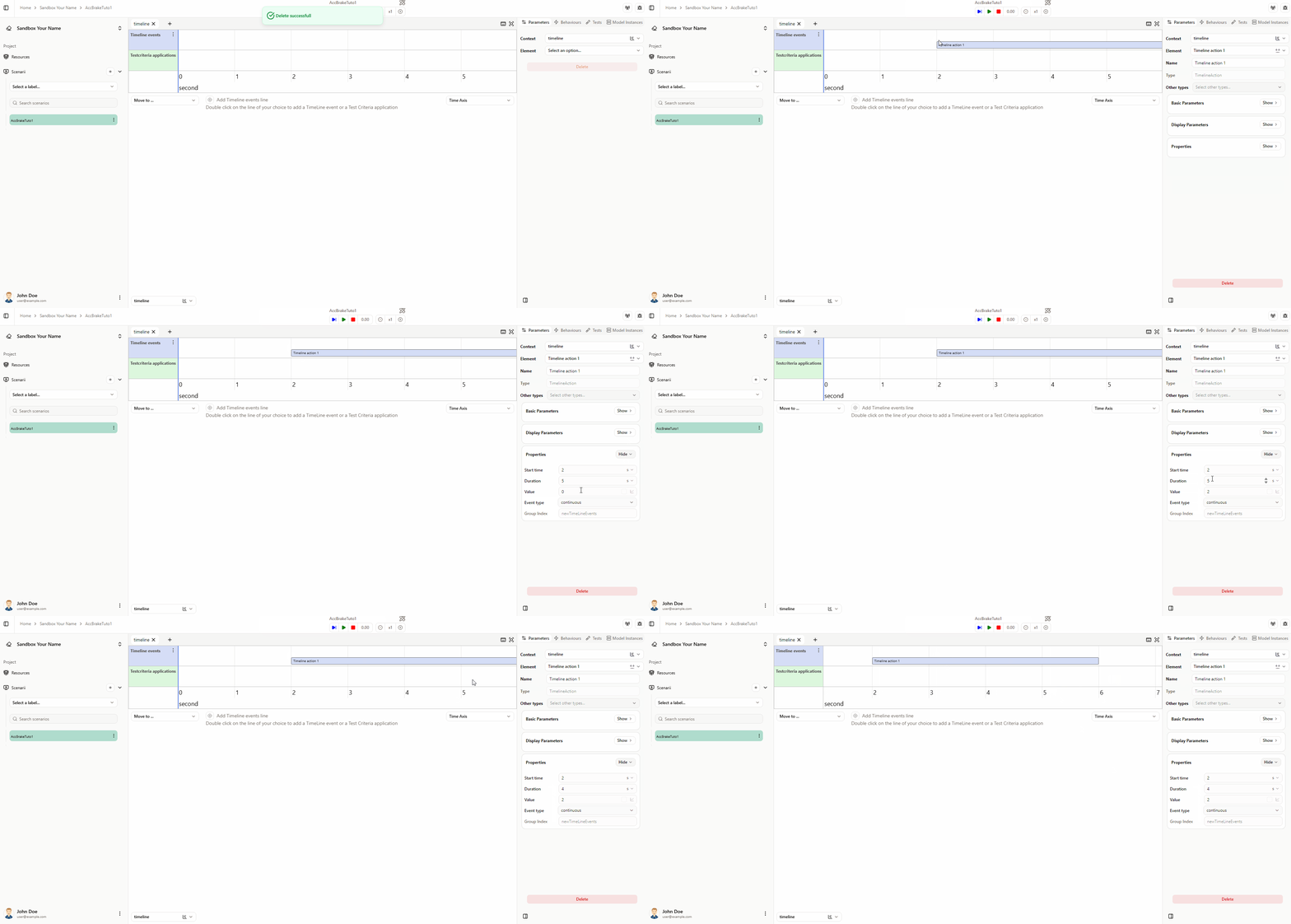
- Add a timeline action
- Open the timeline environment.
- Double-click the timeline events axis to add a Timeline action element.
- Set duration to 4s and value to 2.
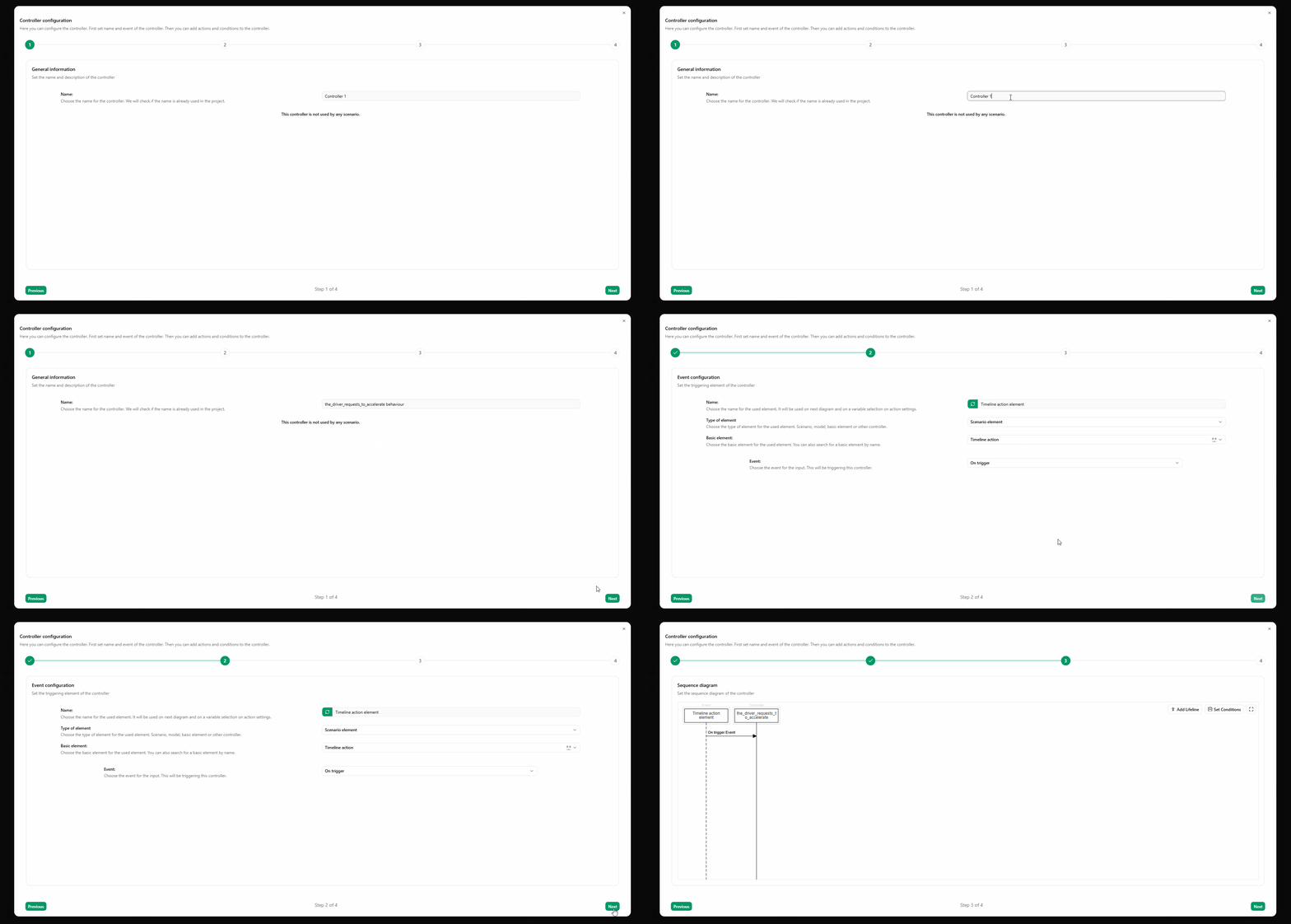
- Create a trigger behaviour
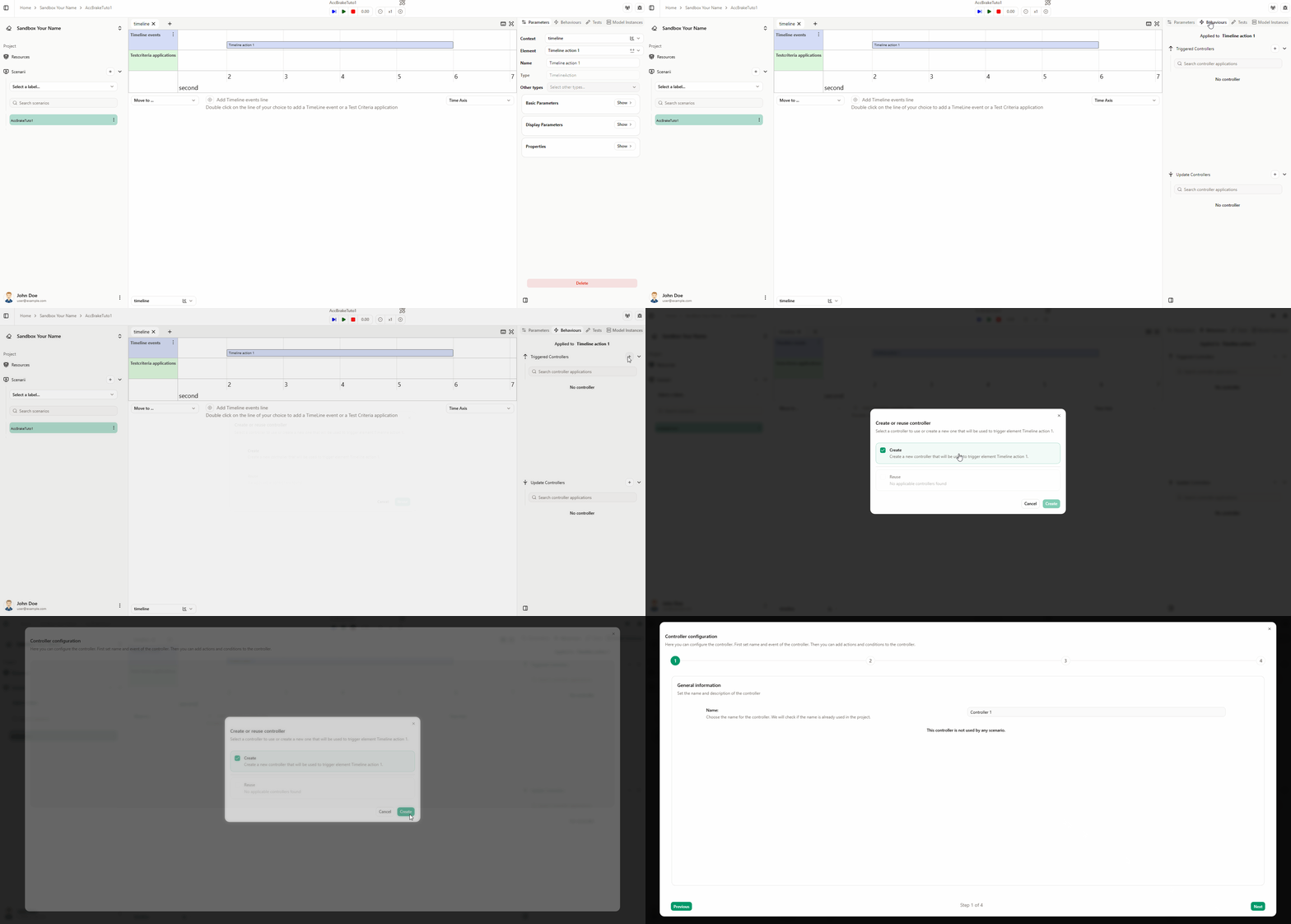
- On the right side, ensure Timeline Action is selected, open the Behaviours tab, and click New to create a new trigger behaviour.
- In the popup, click Create.
- Name the controller and set the event
- Enter a name (e.g. the_driver_requests_to_accelerate behaviour) and click Next.
- Confirm the event is set to on Trigger, then click Next.
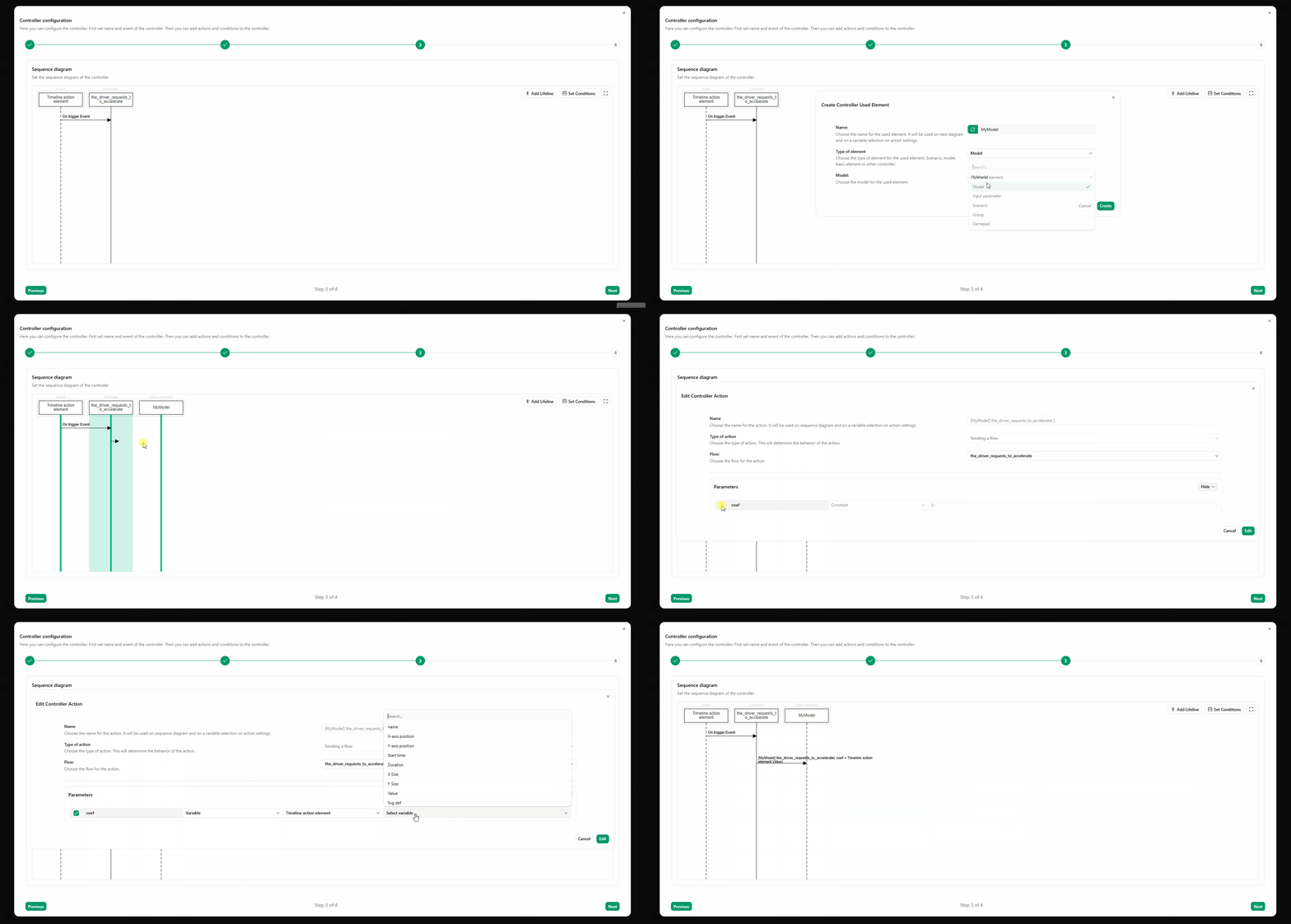
- Wire the flow to the model
- Add a new lifeline for your model.
- Create an action between the controller lifeline and the model lifeline.
- Select the flow the_driver_requests_to_accelerate.
- Set the acceleration coef parameter to variable, then choose timeline action → value. The acceleration coefficient will use the value from the timeline action.
-
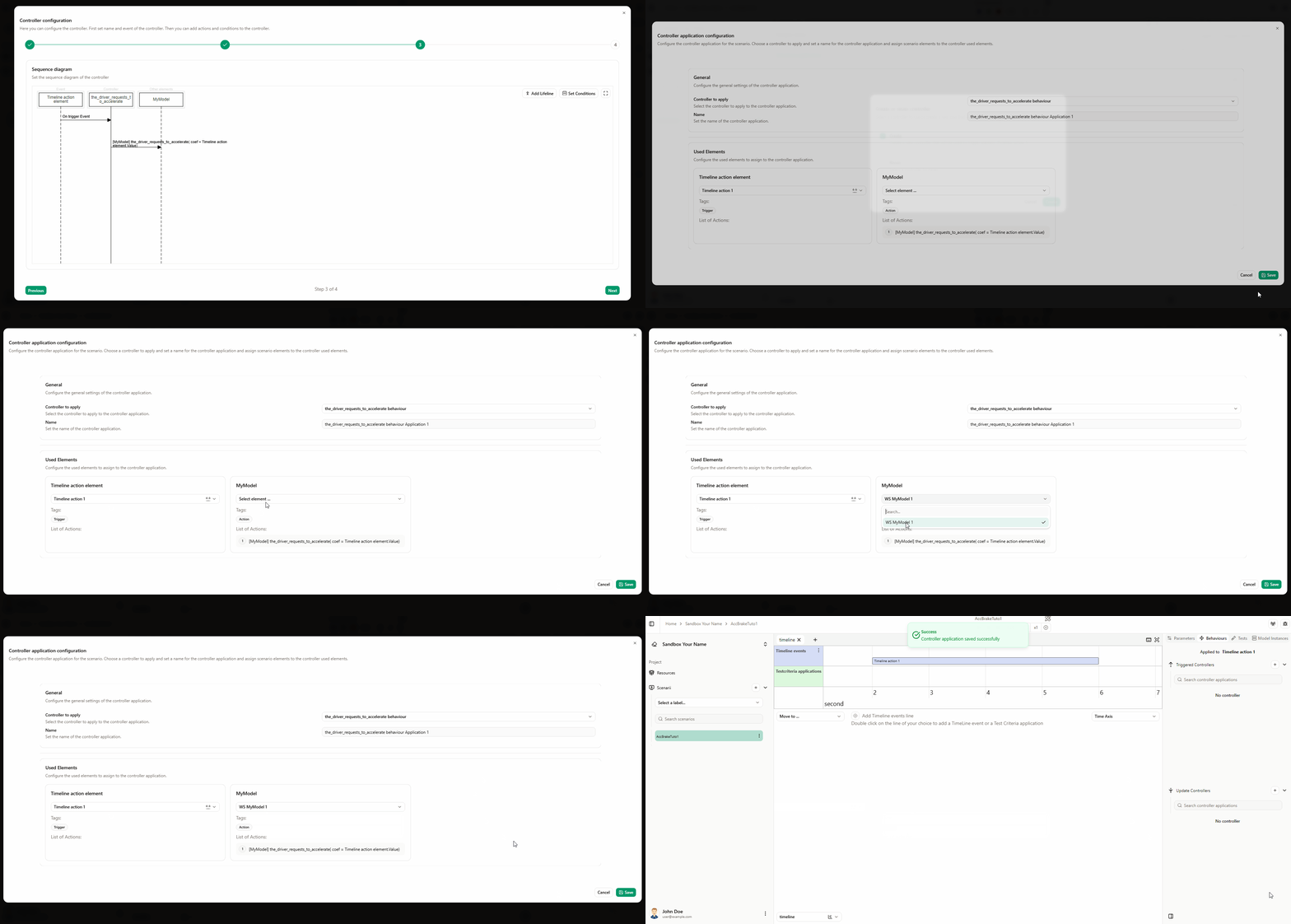
Save the controller
- Click Next, then save the controller.
-
Apply the controller
- Apply the controller to the correct model instance (the Timeline action scenario element should already be selected), then click Save.
-
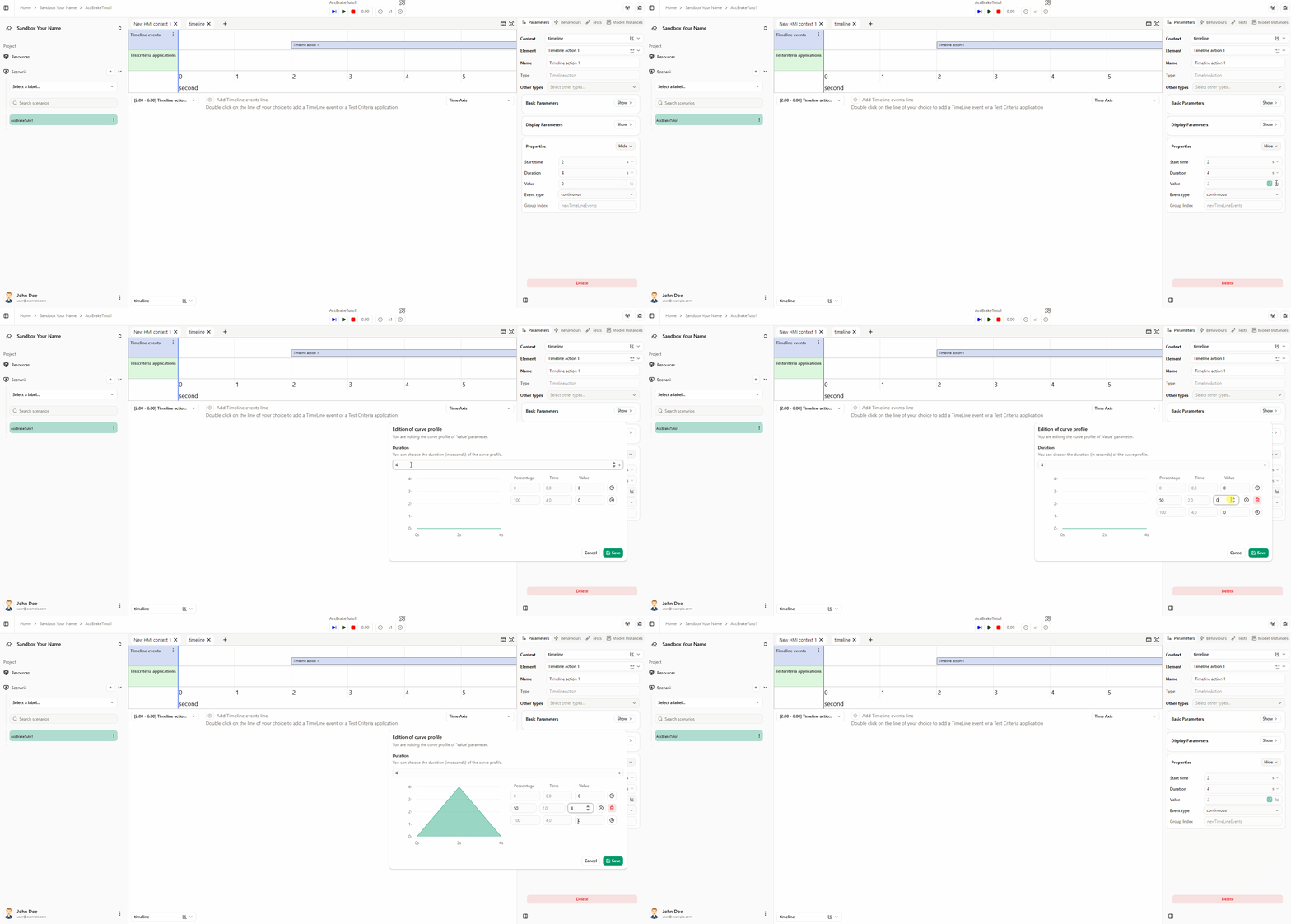
Add a curve profile to the value (optional)
- In the timeline action parameters, the value is currently fixed to 2. To vary it over time, find the Value parameter, check its checkbox, and click the button to add a curve profile.

- In the popover: set duration to 4s, click to add a new point, set the value at 50% to 4 (or another acceleration coefficient you want), then click Save.
For more options, see Edit Curve Profile.
The controller behaviour is now set.
Controller behaviour for the flow the_car_speed_is_received
Create a controller behaviour for the speed flow sent to the model (the_car_speed_is_received).
-
Add road and car to Scene2D
- Switch to the Scene2D environment.
- Drag and drop a road pavement and a car from the environment element library onto the scene.
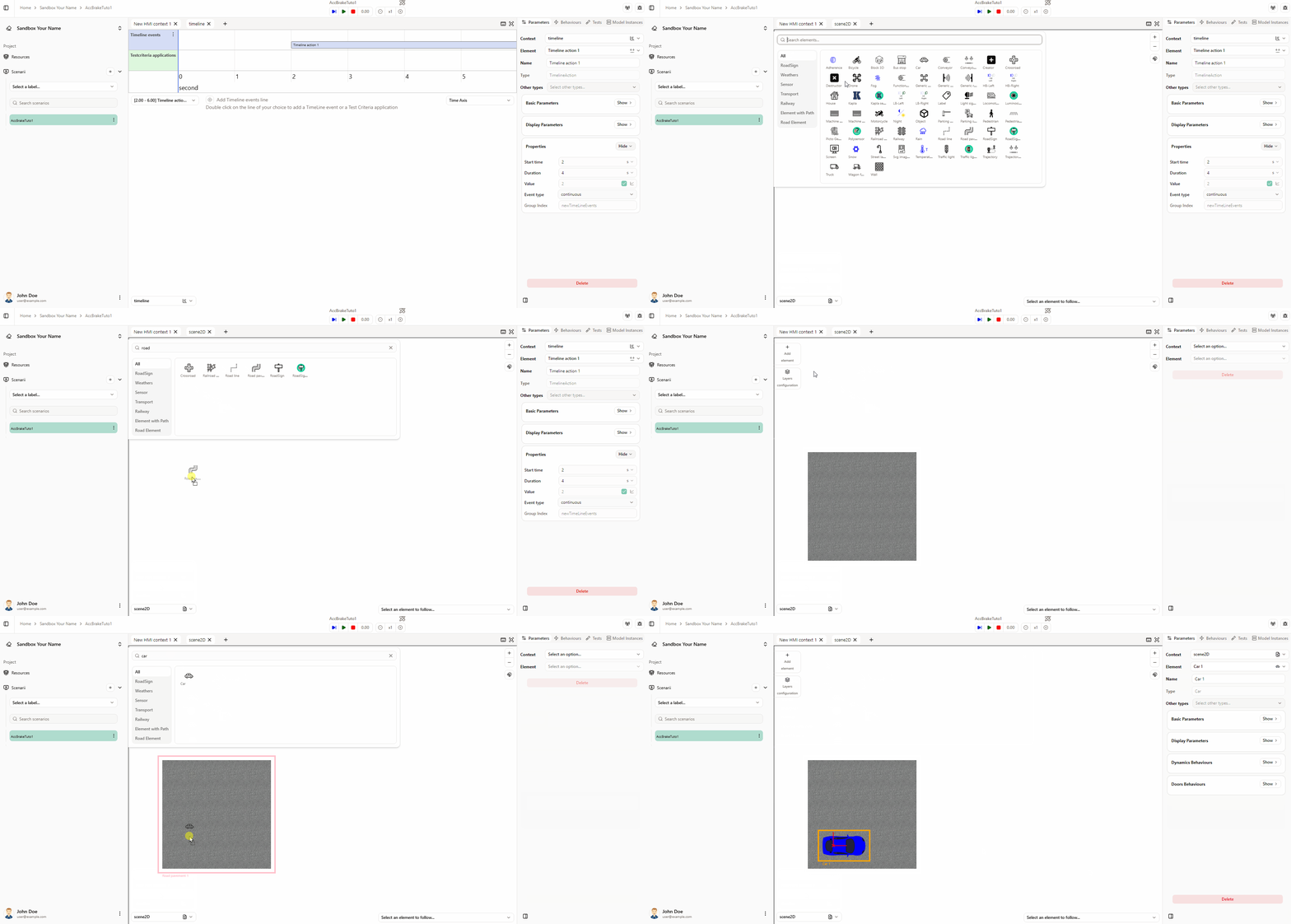 Move elements
Once the elements are added, you can move them along the x or y axis by holding Alt and dragging.
-
Edit the road pavement path
- Select the road pavement element. In the parameters panel, open Properties and find the Path parameter.
- Click the edit button. In the popover, click to add a new segment, set the length to 800 m, then click Save.
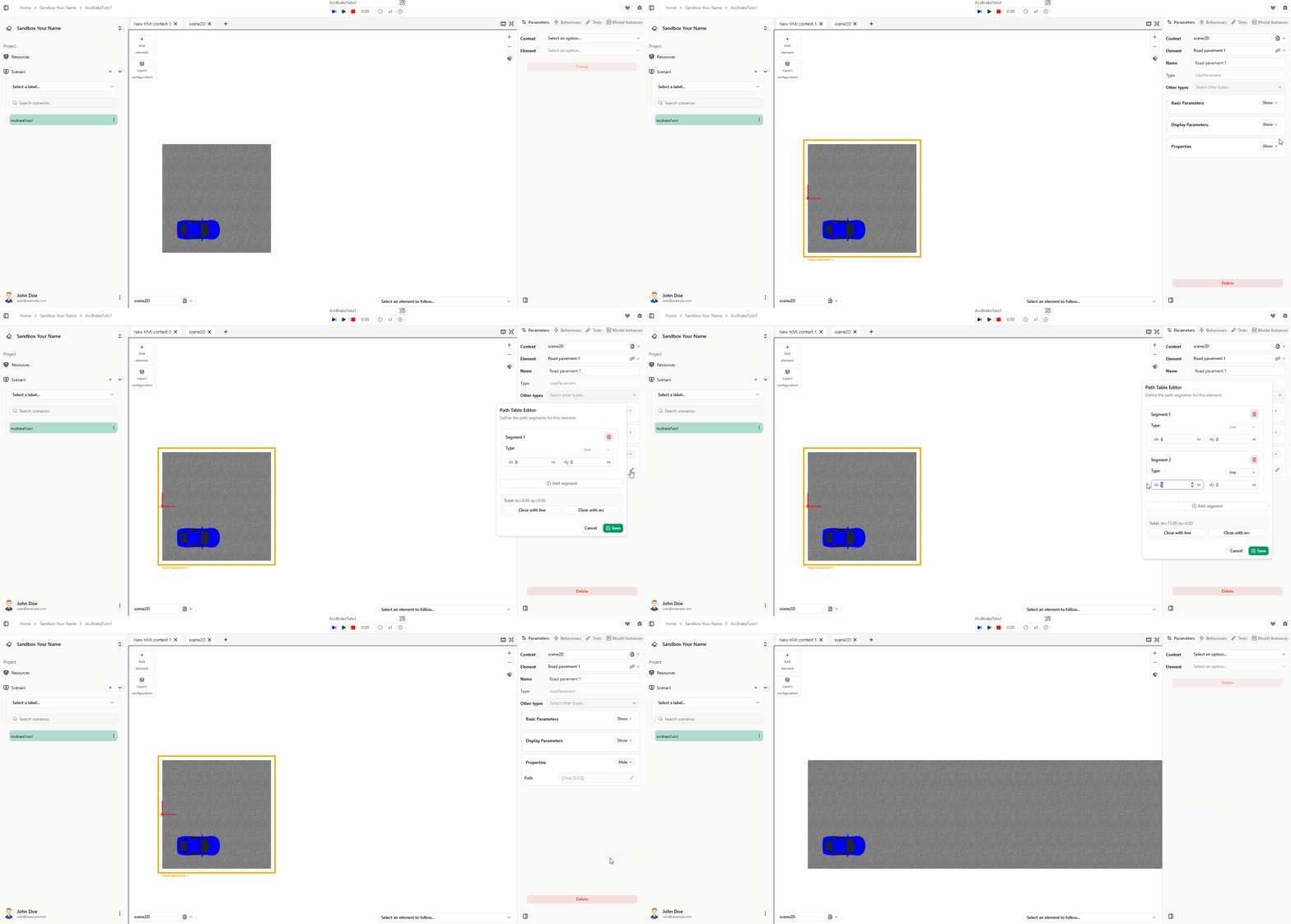 Edit path
For more options, see Edit Path.
-
Create the controller behaviour
- Create a controller behaviour for the flow the_car_speed_is_received that sends the car speed to the model. The controller event should be the change of the car speed value. You can create it yourself; if you need help, see the animation below.
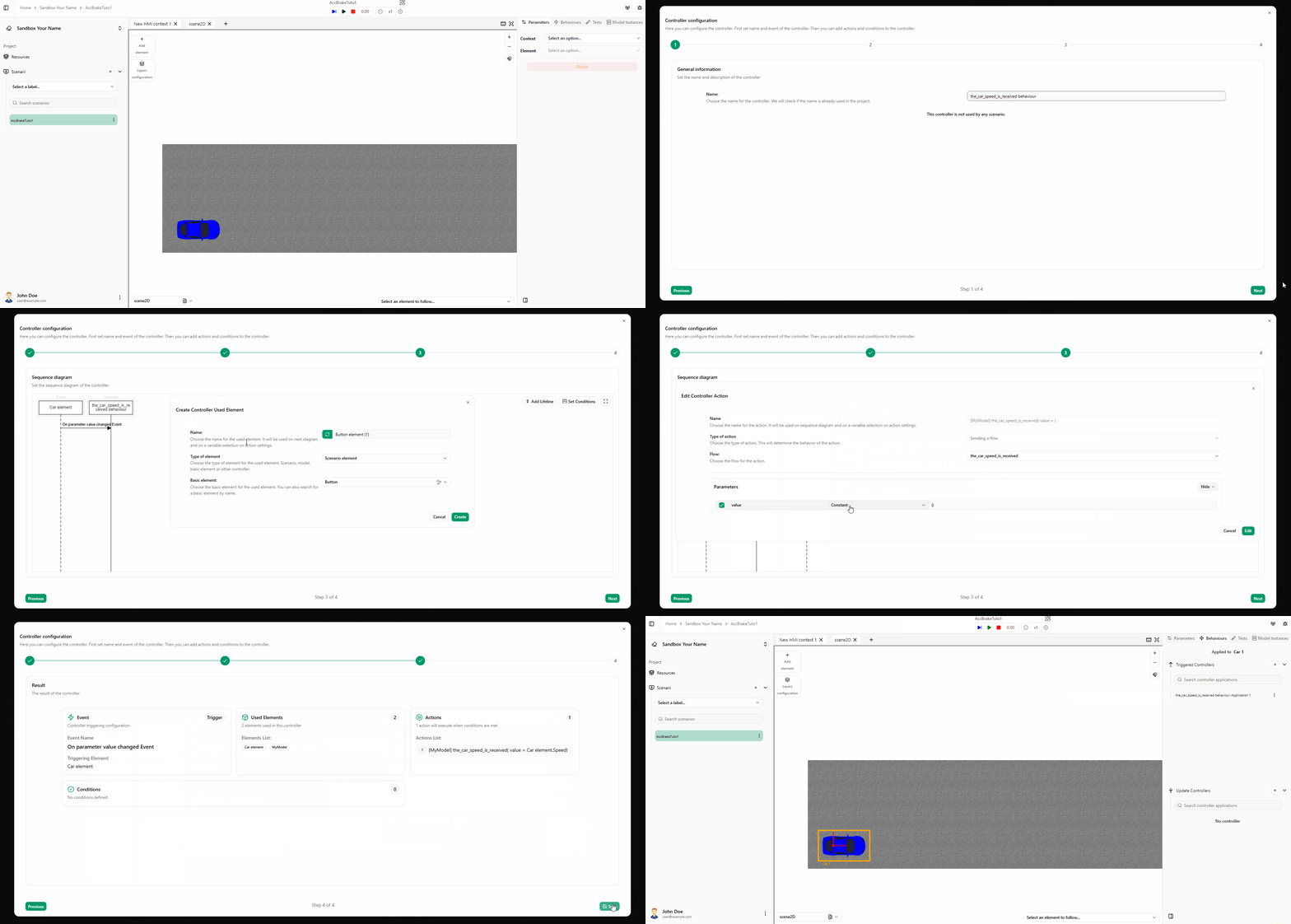 Value depends on units
When defining the controller behaviour, values follow the parameter units. Here, car speed is in km/h, so set the value in km/h. See Edit Unit for details.
The controller behaviour is now set.
Controller behaviour for the flow send_car_acceleration
Create a controller behaviour for the flow send_car_acceleration that receives the acceleration value from the model and assigns it to the car. This is the opposite of the previous flow: here the model sends the value, and the controller event is receive flow for send_car_acceleration.
-
Open the controller wizard
- Right-click the car element, then Controllers → Update by a controller.
- Select Create new controller.
-
Name the controller and set the event
- Name the controller as you wish (e.g. send_car_acceleration behaviour).
- Set the event to Receive flow and select the flow send_car_acceleration.
- Click Next.
-
Bind the acceleration parameter
- Set the acceleration parameter to Variable and Flow parameter value.
- Click Next, then Save.
-
Apply the controller
- Apply the controller to the correct model instance, then click Save.
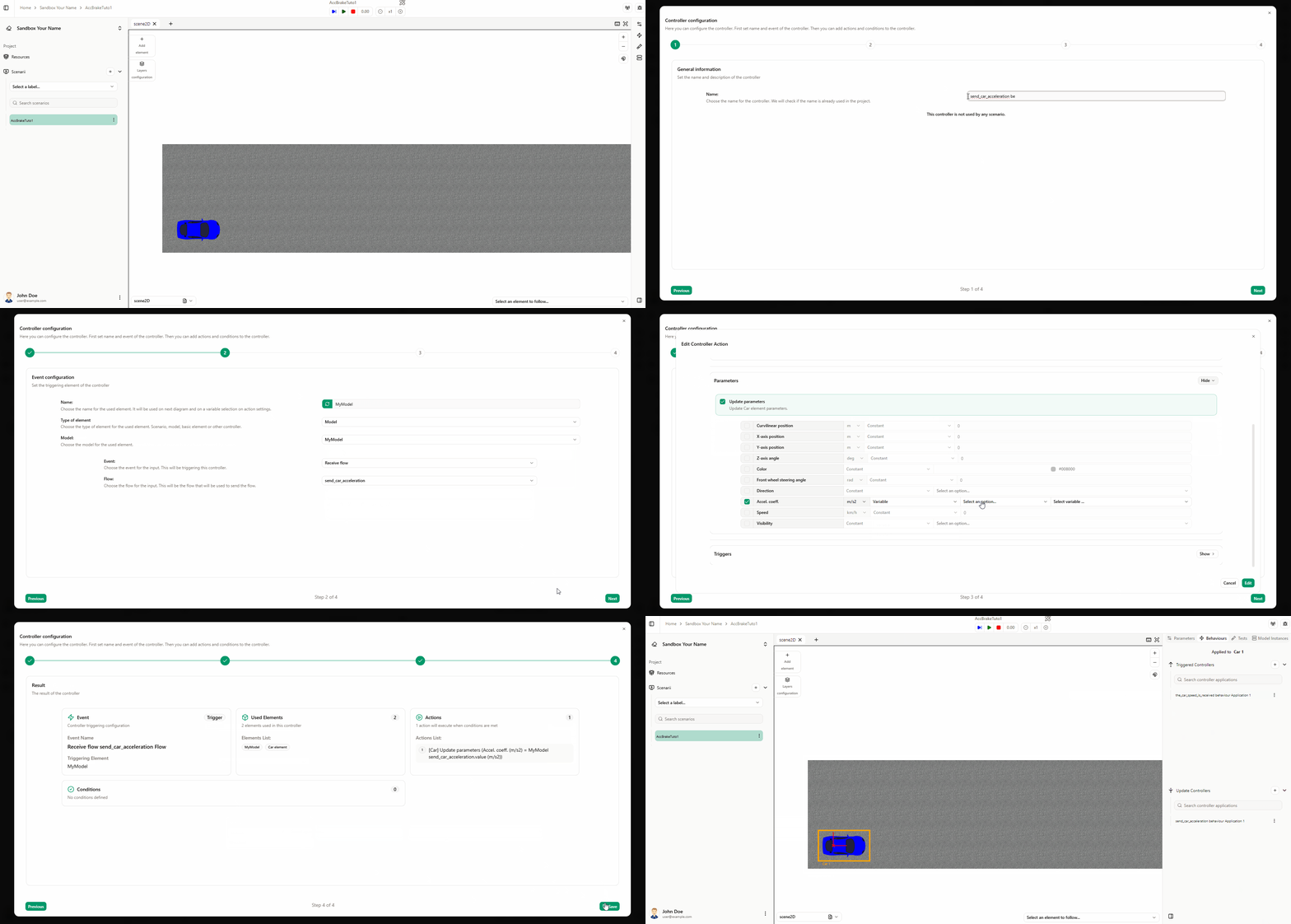
The controller behaviour for the flow send_car_acceleration is now set.
Controller behaviour for the flow inform_the_driver_of_the_car_speed
Finally, we will create the other model’s output, a gauge in which we can see the current speed of our car. Let's create a controller behaviour for the flow inform_the_driver_of_the_car_speed that updates the gauge value. Follow these steps:
-
Add a gauge in the HMI
- Go to the HMI environment.
- Drag and drop a gauge element from the environment element library onto the scene.
-
Open the controller wizard
- Right-click the gauge element, then Controllers → Update by controller.
- Select Create new controller.
-
Name the controller and set the event
- Name the controller as you wish (e.g. inform_the_driver_of_the_car_speed behaviour).
- Set the event to Receive flow and select the flow inform_the_driver_of_the_car_speed.
- Click Next.
-
Bind the gauge value parameter
- Set the gauge value parameter to Variable and Flow parameter value.
- Click Next, then Save.
-
Apply the controller
- Apply the controller to the correct model instance, then click Save.
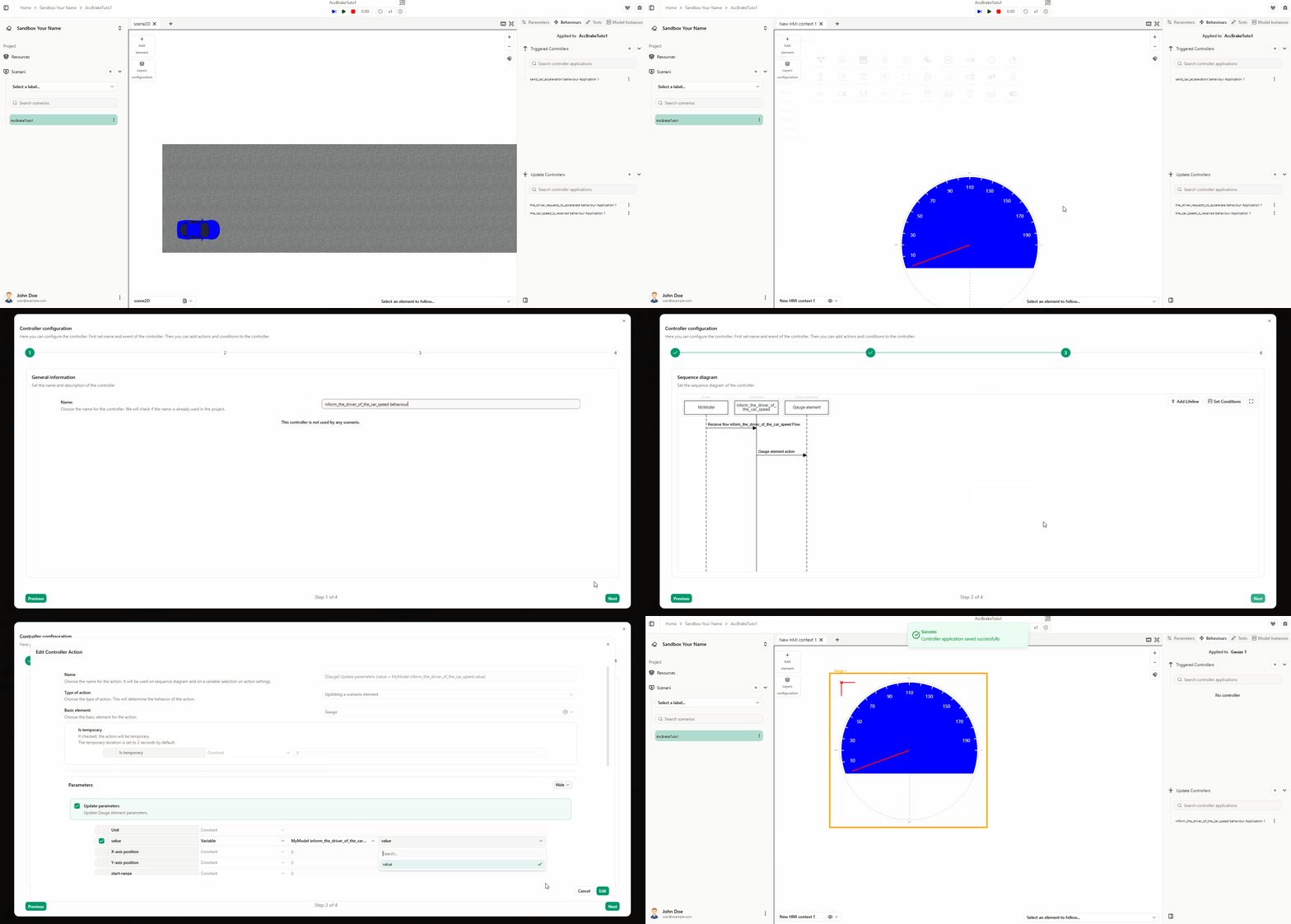
The controller behaviour for the flow inform_the_driver_of_the_car_speed is now set. Everything should be linked. Switch back to Designer.
You can add some environment views, organize them and configure them as you wish. See Scenario Configuration and Customization for details.
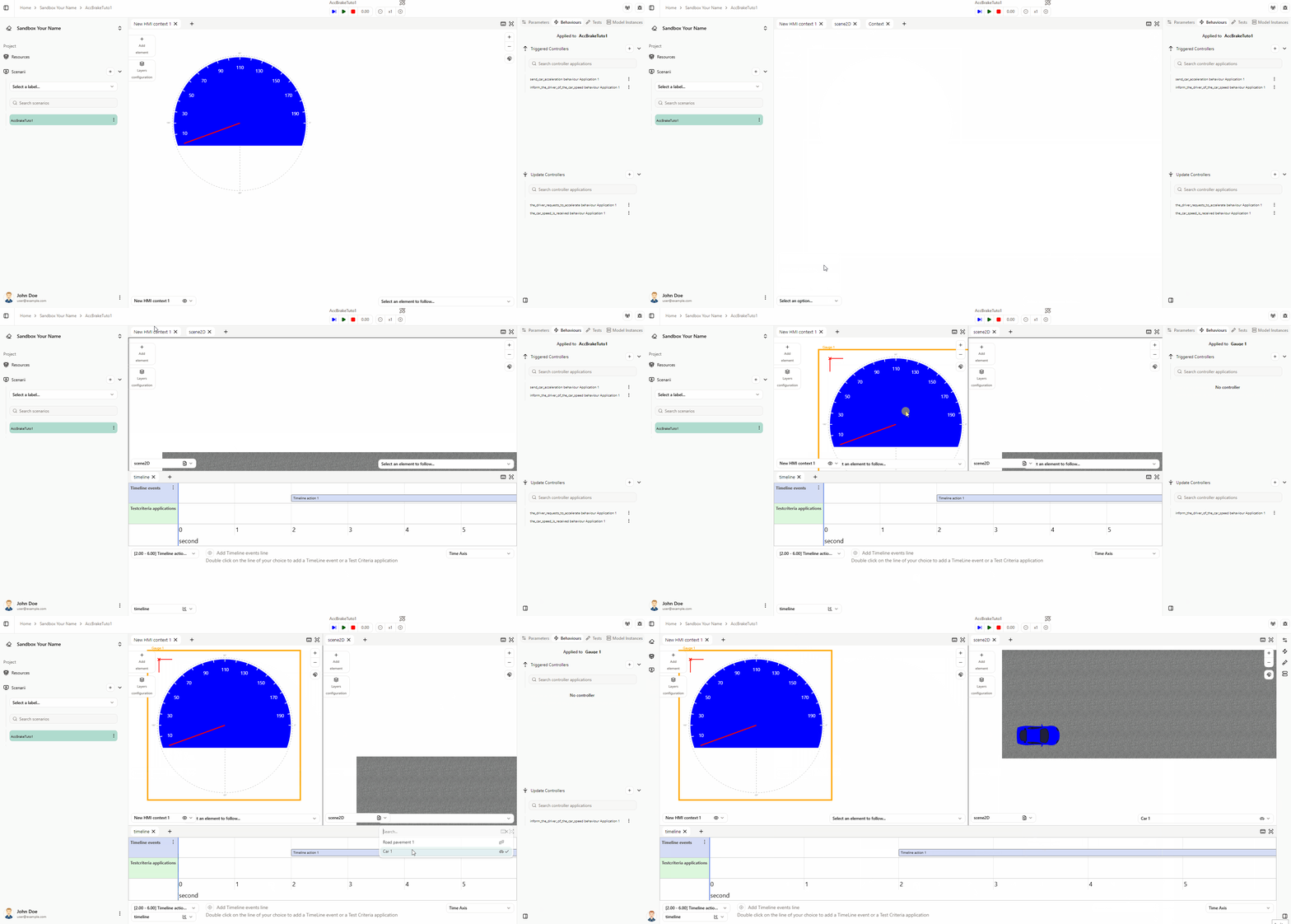
MAKE IT WORK
Before starting the simulation, the model must be running and connected. You have two options:
Option 1 — Automatic launch
- Ensure the path to the model executable is set correctly in the model settings. See Connectivity model settings for details.
- The launcher will then start the model executable automatically. Connect to it by clicking the menu button → Launcher.
Option 2 — Manual launch
- Start the executable manually by double-clicking it.
- Connect to it by clicking the menu button → Model instances → "[your model instance name]".
You can connect to the launcher automatically on startup by enabling Automatic connection attempt with the launcher on startup in User settings.
Run the simulation
- Click the Play button.
- Follow the timeline and verify that the simulation runs; the car should speed up.
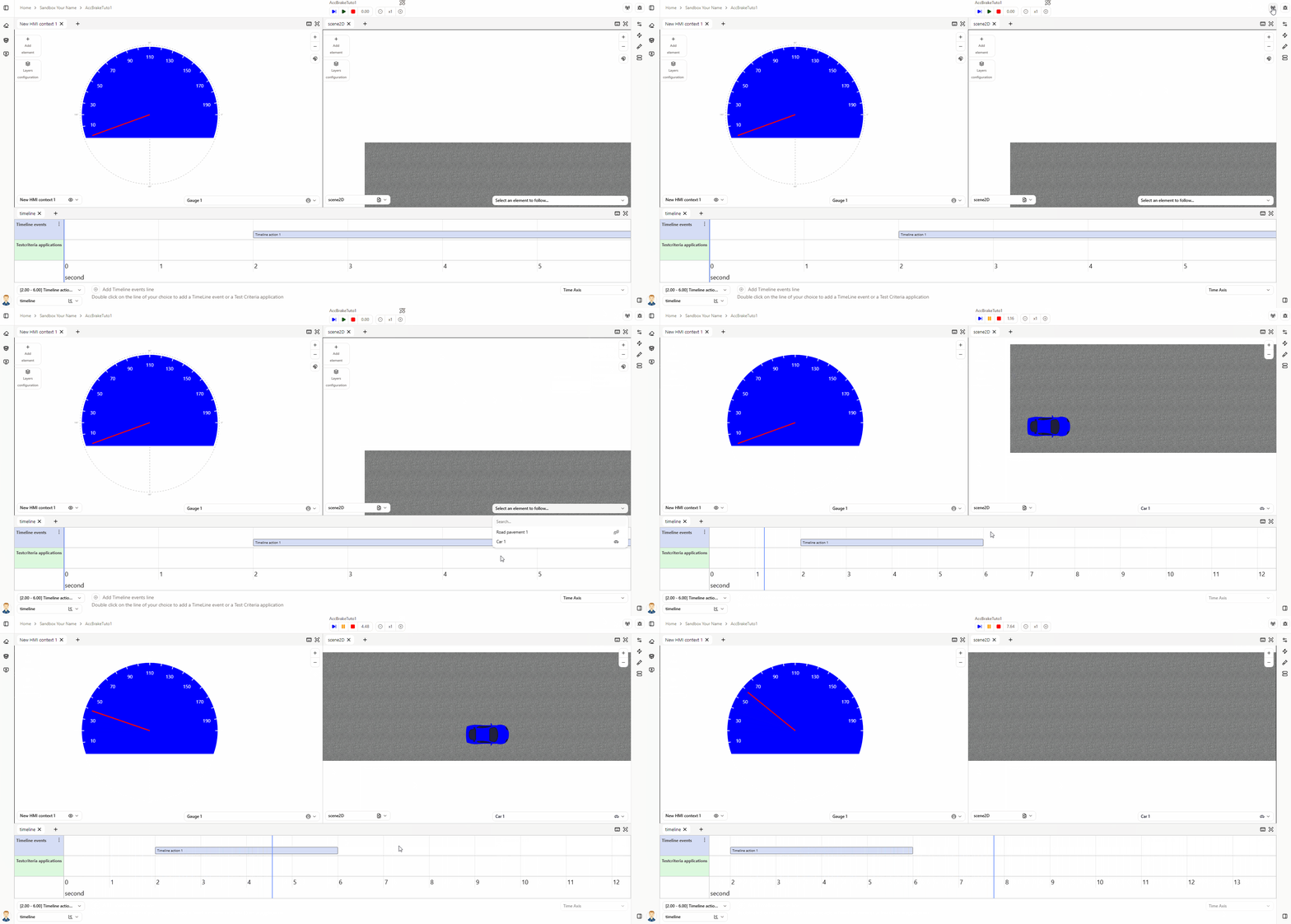
Brake behaviour
To complete the setup, add the brake behaviour. Start by increasing the x-size of the scene2d environment to simulate a braking distance.
1. Increase the x-size of the scene2d environment
- Open the Project resources panel, Environments tab.
- Edit the scene2d environment and set the max x value to 800 m.
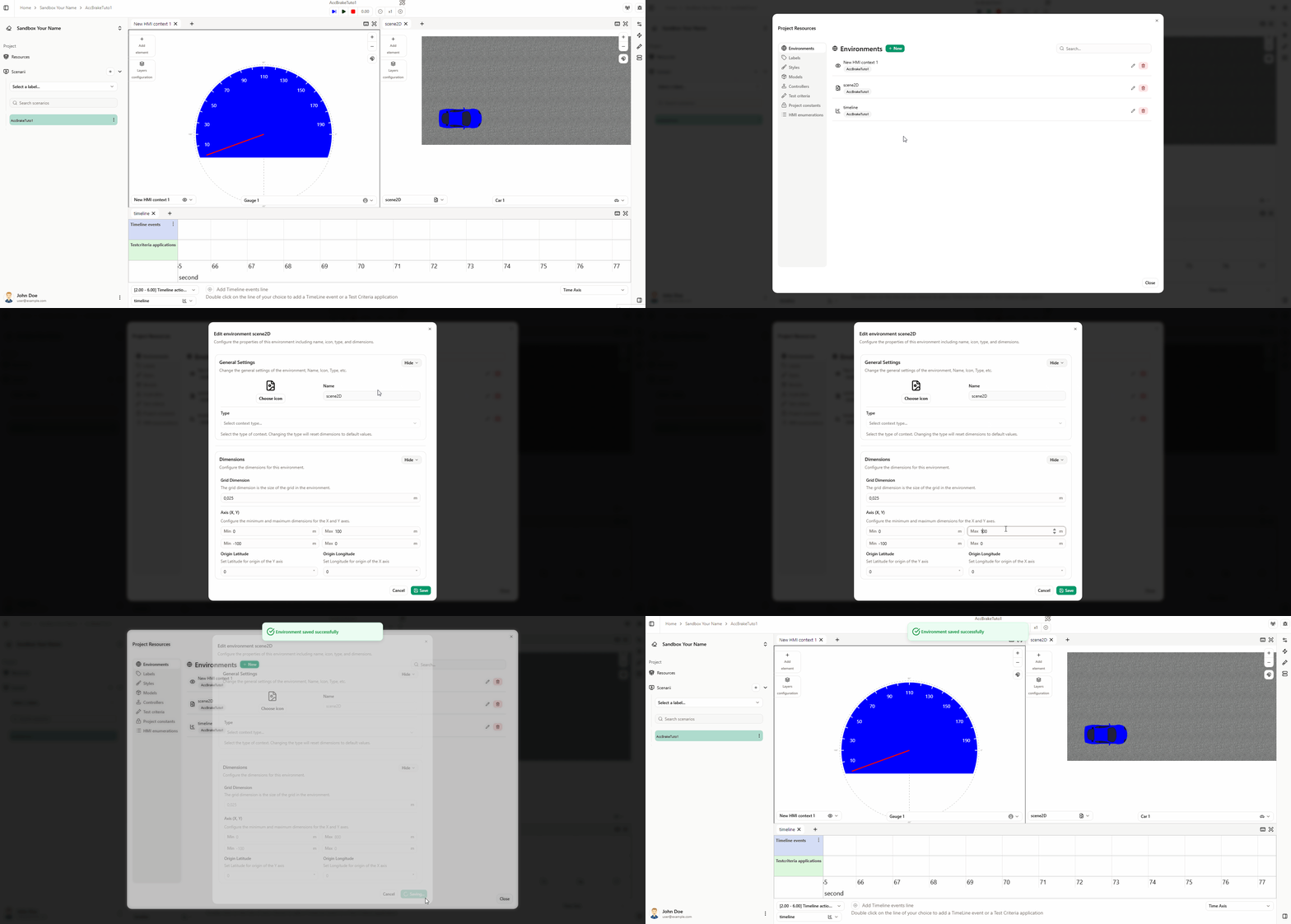
2. Add the brake behaviour
- Add a new timeline action to brake the car (10 s duration), placed just after the acceleration. Use a value curve profile (must be negative): 0 → -3 → 0 over 10 s.
- Create a new controller behaviour for the flow driver_requests_to_brake.
- Set the value parameter to be transmitted when the timeline action is started.
- Apply the controller.
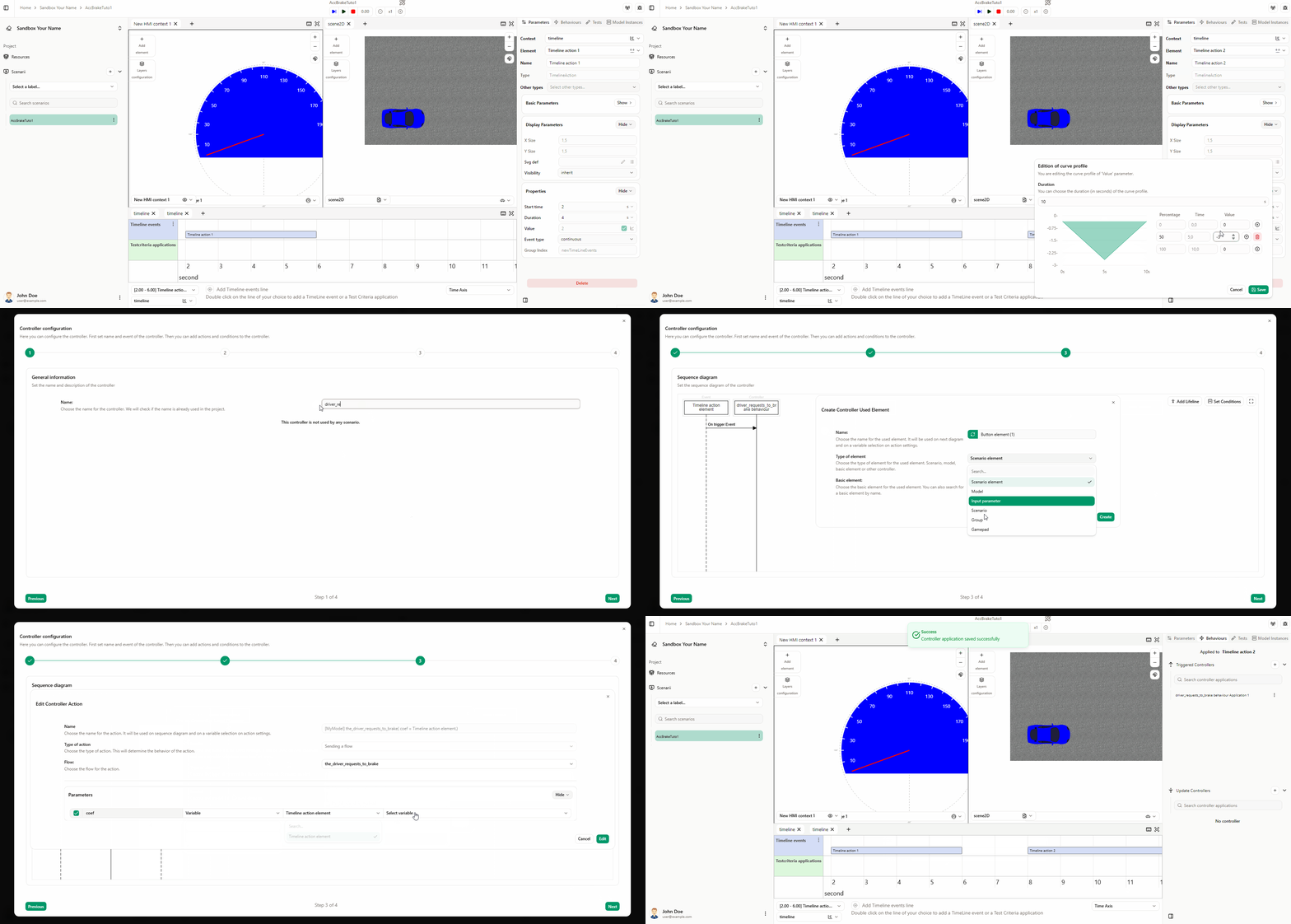
3. Check the brake behaviour
- Run the simulation. The car should brake and stop at 0 km/h by the end of the scenario.
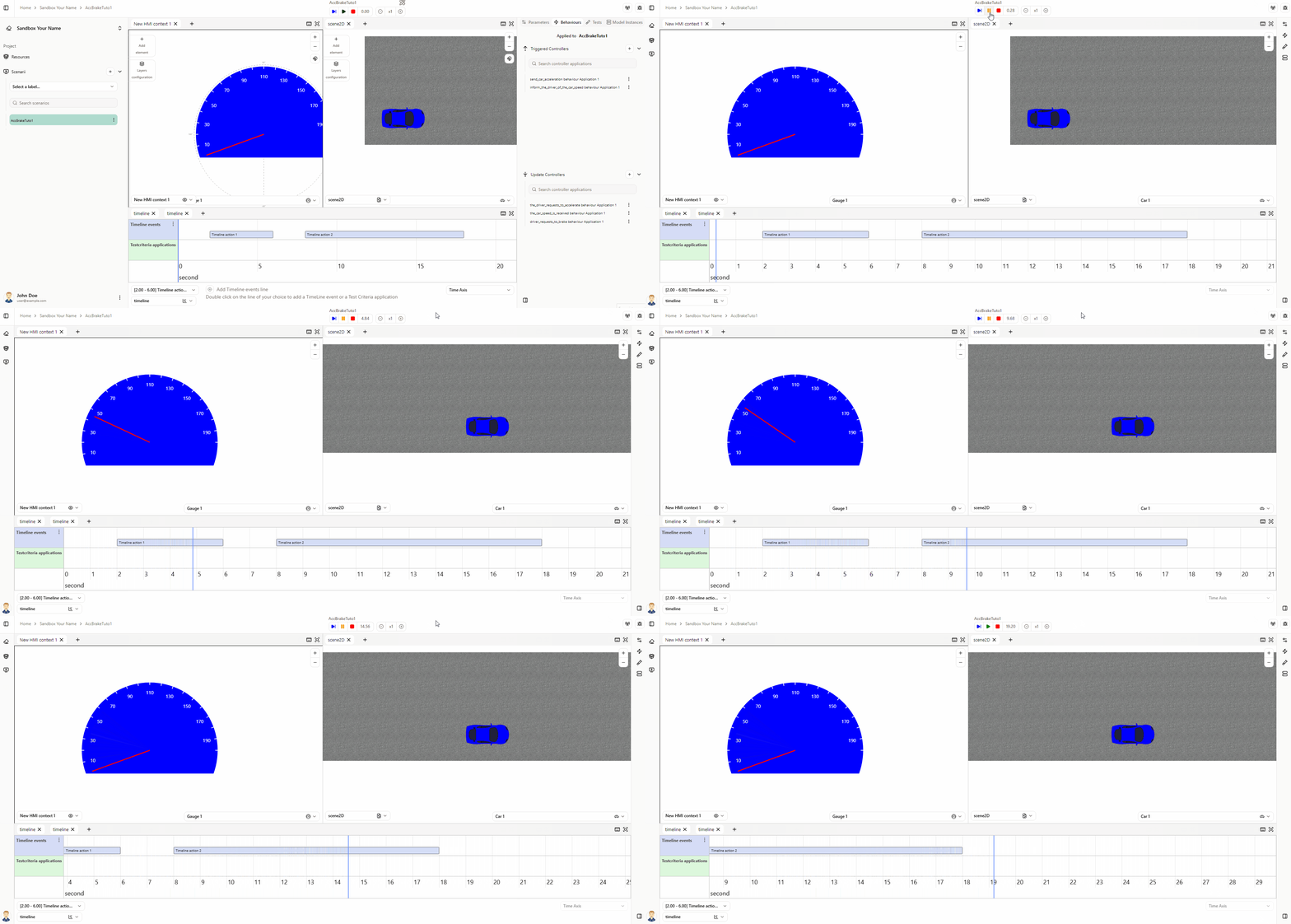
You should see acceleration, then deceleration, with the needle stopping at 0. If this is not handled correctly, the speed can go negative and the gauge will show the absolute value (the needle will appear to increase again after passing zero while braking). If the needle stops at 0, the brake behaviour is correct.