Hello World
PRESENTATION
Embark on your MBSE journey by learning to model and visualize your first system with Papyrus, laying the groundwork for your exploration into complex systems engineering, where your first model and visualization await to bring theory to vivid life.
Prerequisites
Ensure your workstation is set up with Designer, Launcher, and Cygwin installed to fully engage with the modeling and visualization process.
Skills that you will acquire
On Designer:
- Create a Model, a Project and a Service,
- Add a Life Phase to a Service,
- Create a Use Case and a User Story in this former,
- Complete a User Story with flow and interfaces, internal activities,
- Generate State Machine from User Stories and an associated C++ Code, as an executable,
- Export a XML contening Types and Flows created in your model.
On Virtual Bench:
- Login on Virtual Bench,
- Import Types and Flows,
- Create a Project and add Environments in it (HMI, Scene2D and Timeline),
- Add a New Scenario,
- Use Environment elements (Timeline action, Test Criteria, Text),
- Add Model Instance,
- Add behaviours between the bench and your model,
- Run your scenario.
Duration
1h
MODELISATION ON DESIGNER
Create a Model
- Papyrus
- Rhapsody
- Catia Magic
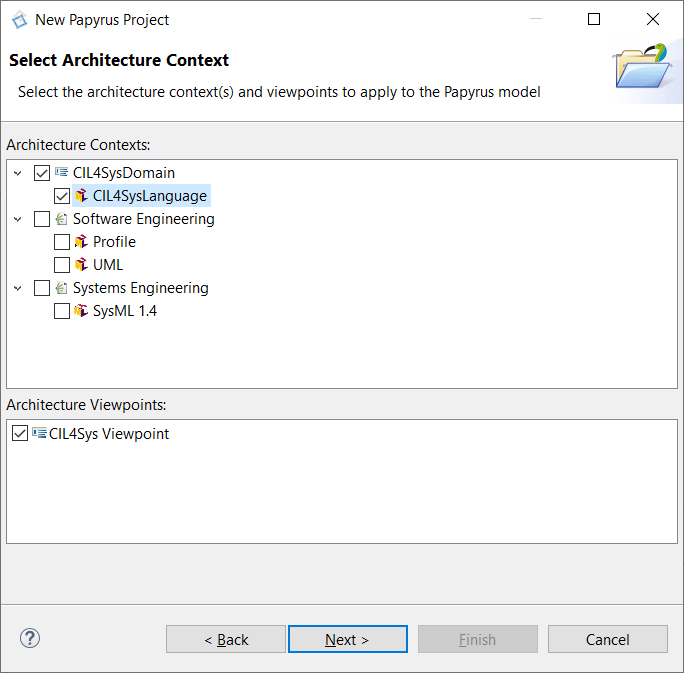
Start your model by establishing a new Designer project, selecting the CIL4SysLanguage for systems engineering.
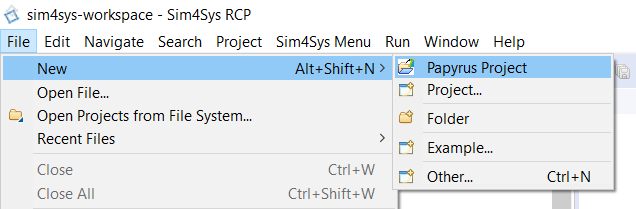
- Click on File > New > Papyrus Project
- Select CIL4SysLanguage checkbox
- Click on Next
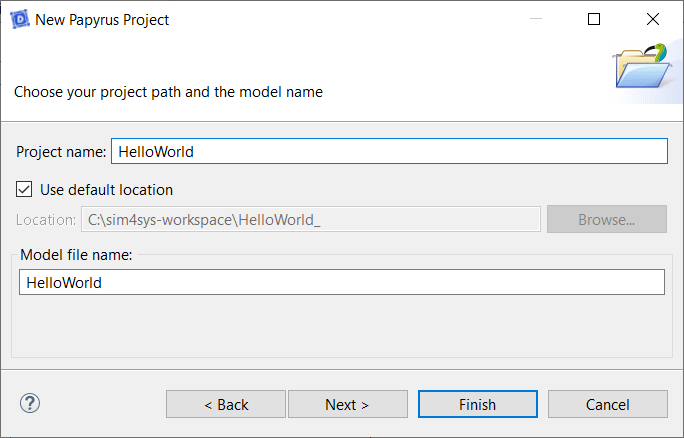
- Type the name of the Papyrus Project: HelloWorld, in the project name field
Please ensure that there are no spaces in your model name.
- Click on Next
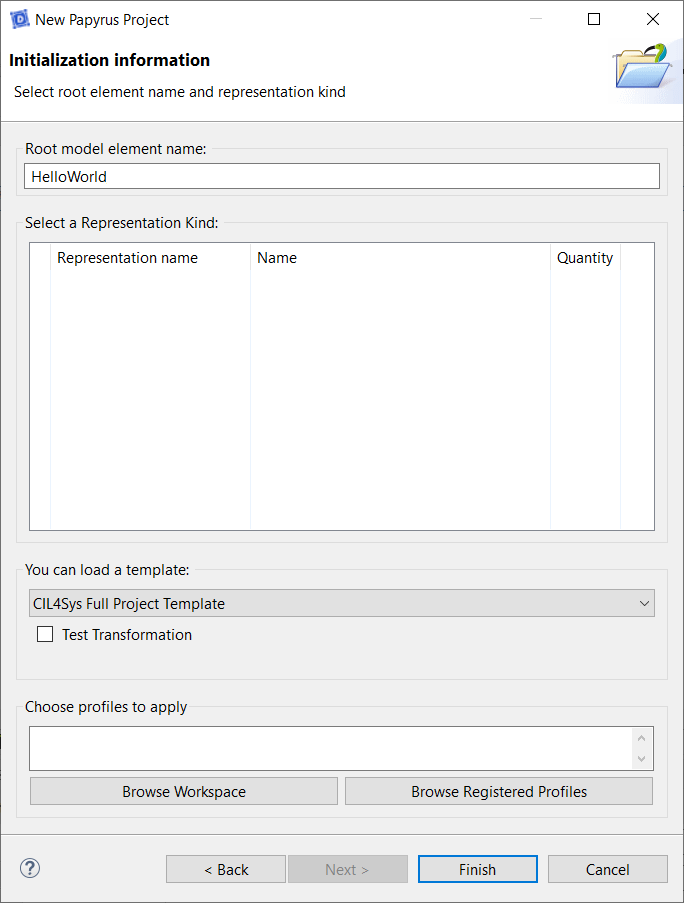
- Select CIL4Sys Full Project Template in the field: “You can load a template”
- Click on Finish
- Click on File > New

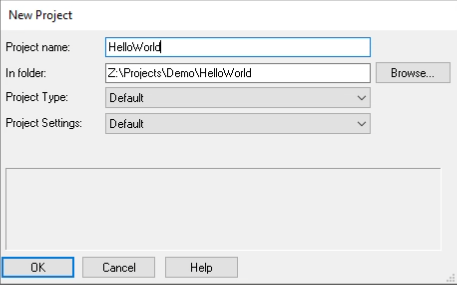
- Type the name of the project: HelloWorld
- Click on OK
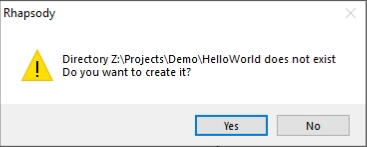
- Rhapsody will ask you if you want to create a new folder for the project, Click on Yes
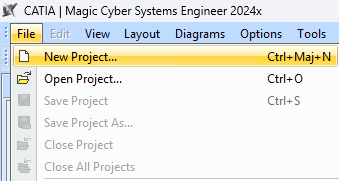
- Click File > New Project...
- Type the name of the project: HelloWorld
- Select "Sim4Sys Designer Quick Start" template
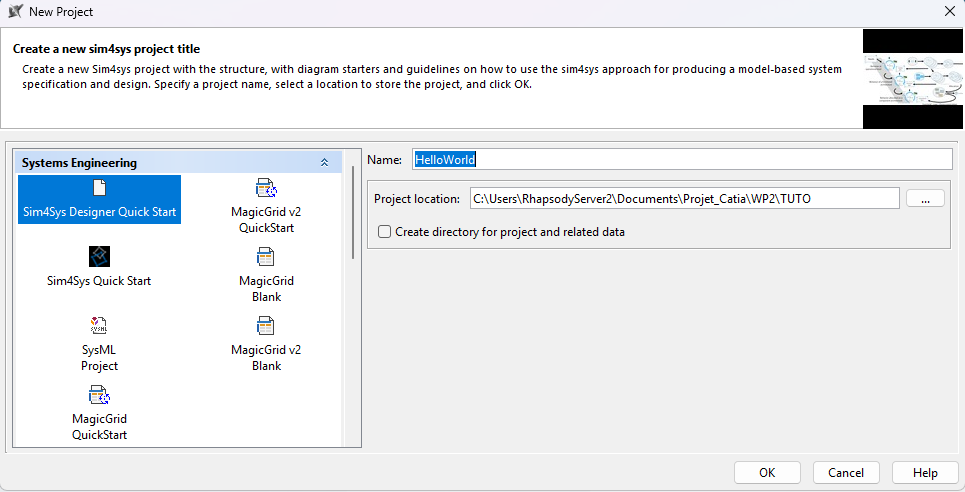
- Click OK
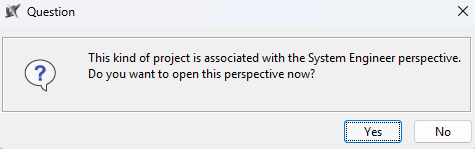
If prompted to open the System Engineer perspective, select “No.”
Create a Project
- Papyrus
- Rhapsody
- Catia Magic
Define your system's scope by creating a new project within Papyrus, preparing yourself for detailed modeling.
- Select HelloWorld in CIL4Sys Overview. You can use the Refresh View button when selecting the Overview tab.

- Click on New Project

Sometimes, the button does not appear because of the size of the window. You can either resize the Overview tab horizontally or use a bigger screen.
- Type the name of the project: MyProject
Please ensure that there are no spaces in your model name.
- Click on OK
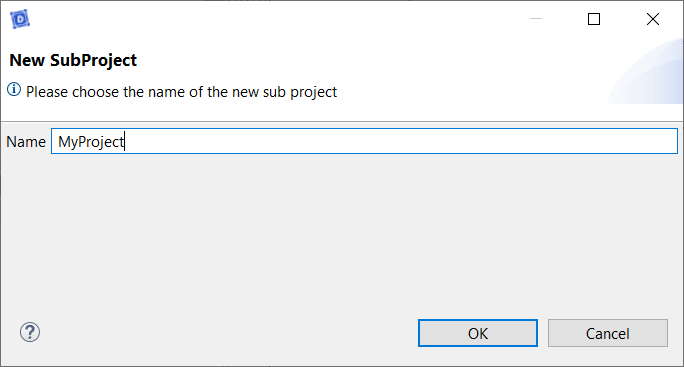
- Click on Ok in the confirmation dialog box
- Click on File > Add To Model
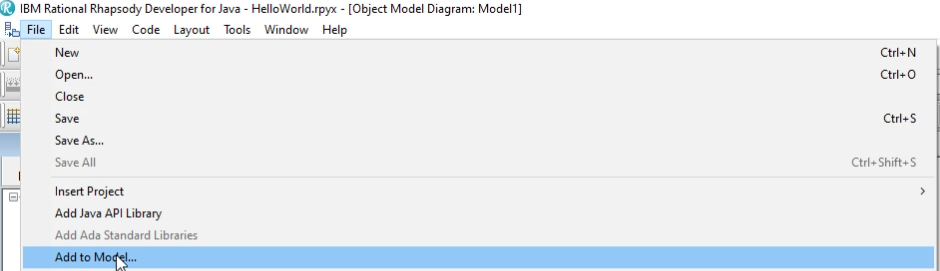
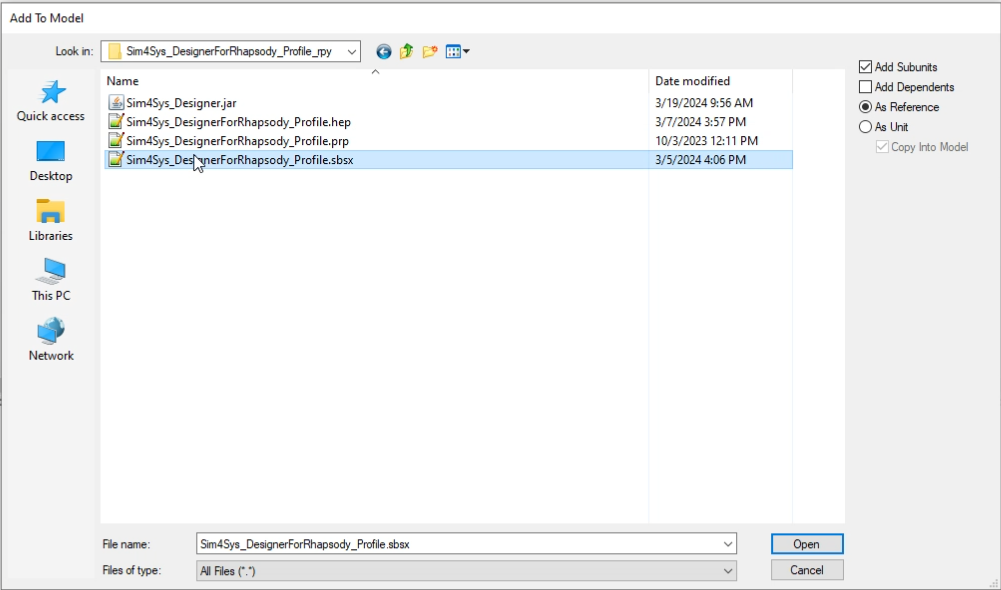
- Choose the file called Sim4Sys_DesignerForRhapsody_Profile.sbsx
- Click on Open
- Click on File > Add To Model
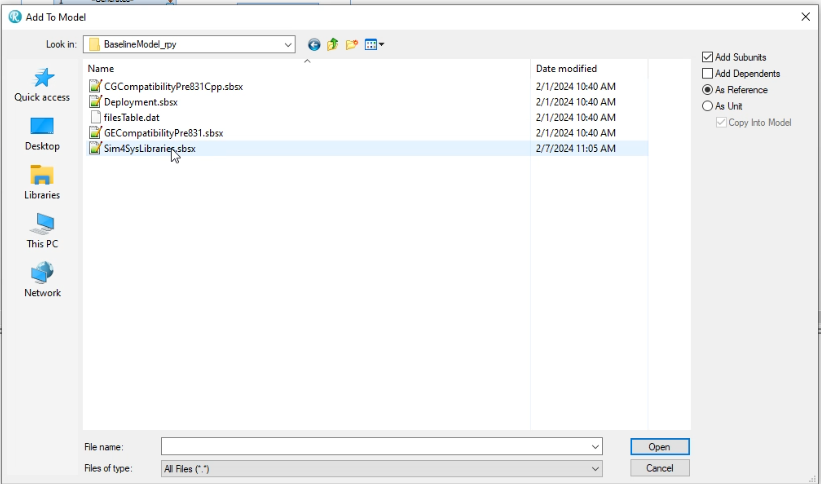
- Choose the file called Sim4SysLibraries.sbsx
- Click on Open
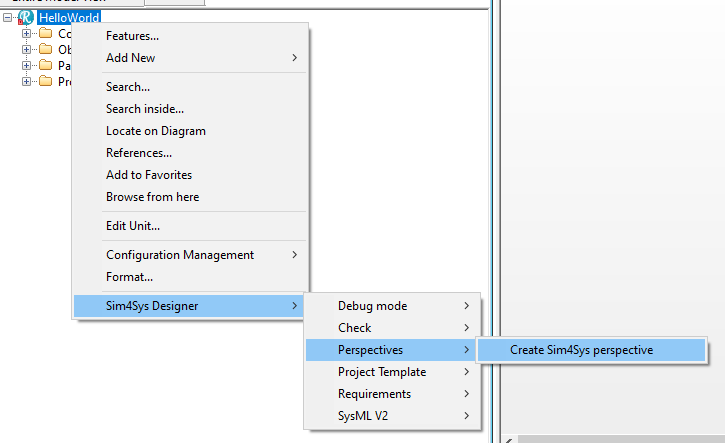
- Right Click on the Project
- Click on Sim4Sys Designer > Perspectives > Create Sim4Sys perspective
- Click on the Sim4Sys Perspective on the Toolbar
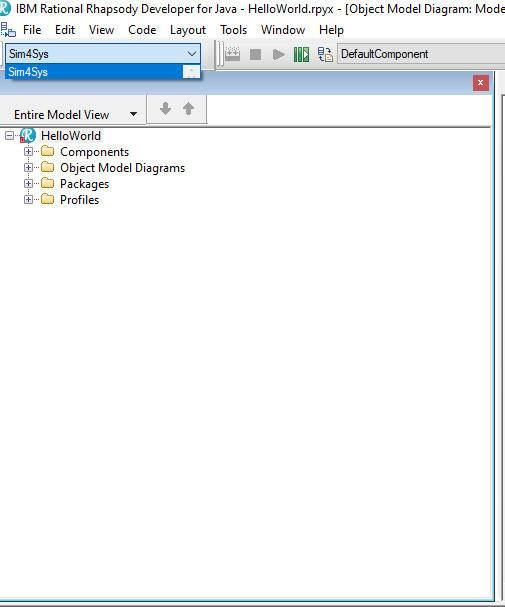
Even if the perspective is selected click on it again, sometime Rhapsody doesn't use the perspective even if it is selected.
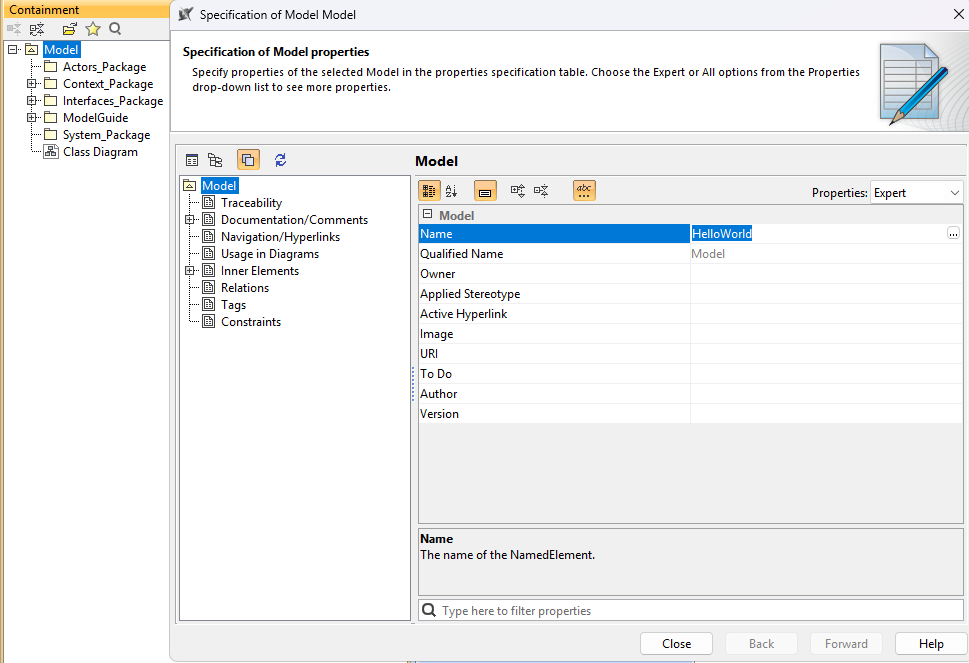
- Double-click on the root package named “Model” to open its specification
- Rename it to "HelloWorld"
Create a Service MySpec
- Papyrus
- Rhapsody
- Catia Magic
Action: Add a service named "MySpec" to the model.
Explanation: We are adding the 'MySpec' service to represent a key functionality of our system, such as user management. This service is crucial because it defines how users interact with our system, directly influencing the user experience and the system's security.
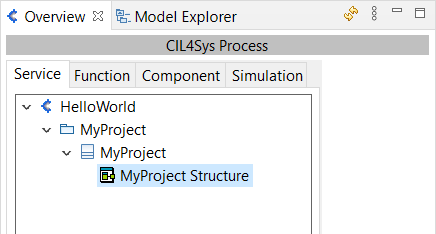
- Double Click on the MyProject Structure diagram. This will open the product composite structure diagram (CSD).
- You can resize the composite structure diagram by dragging the corners.
- Composite Structure Diagrams allow the users to "Peek Inside" a product to see exactly what it is composed of.
- Drag&Drop a New Service in the product CSD (the large box with the name of the product)
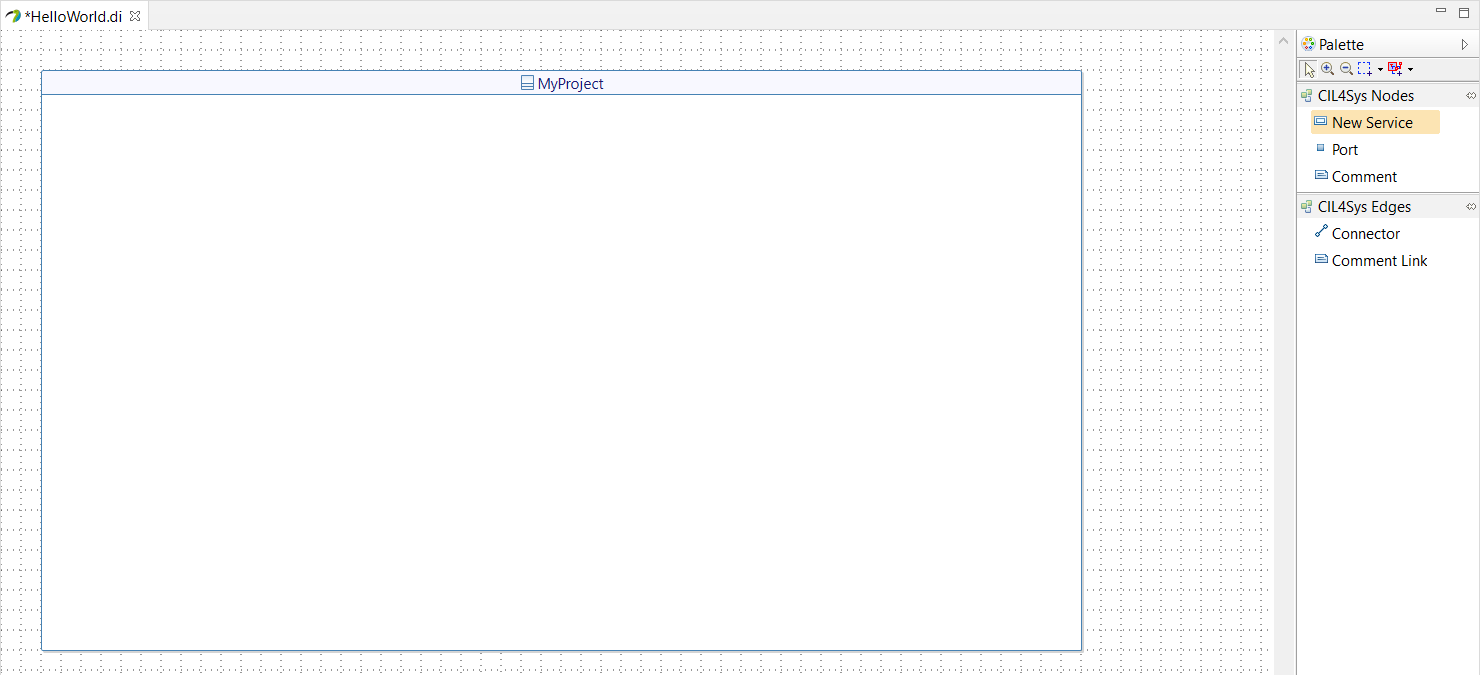
- Select Create
- Type the name of the service: MySpec
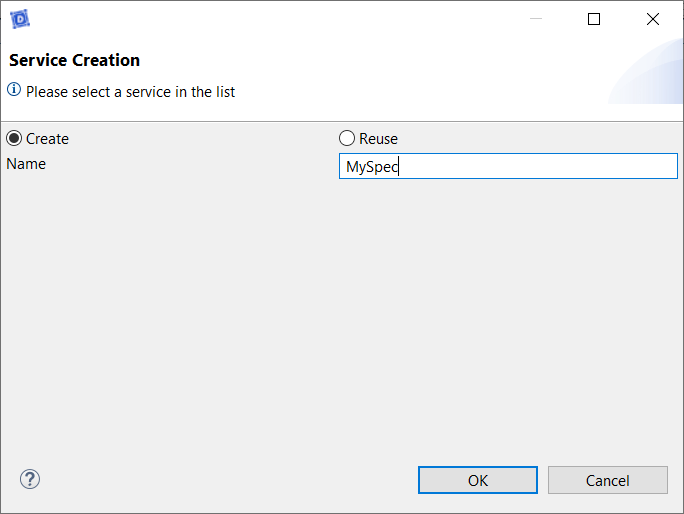
- Click on OK
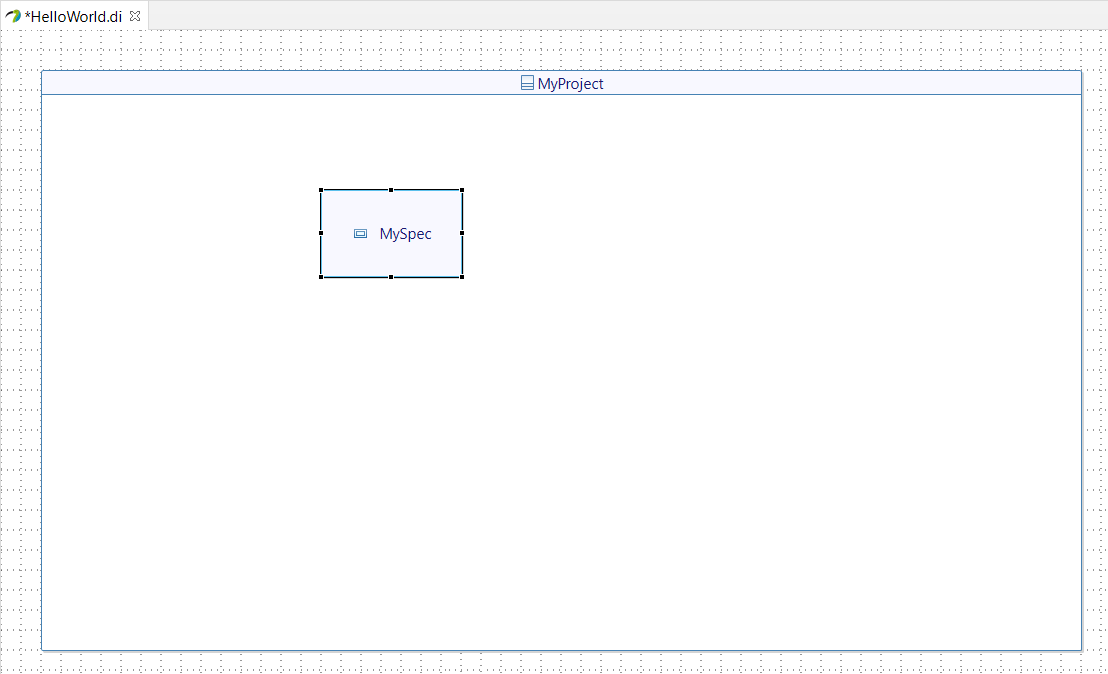
- Right Click on the Project
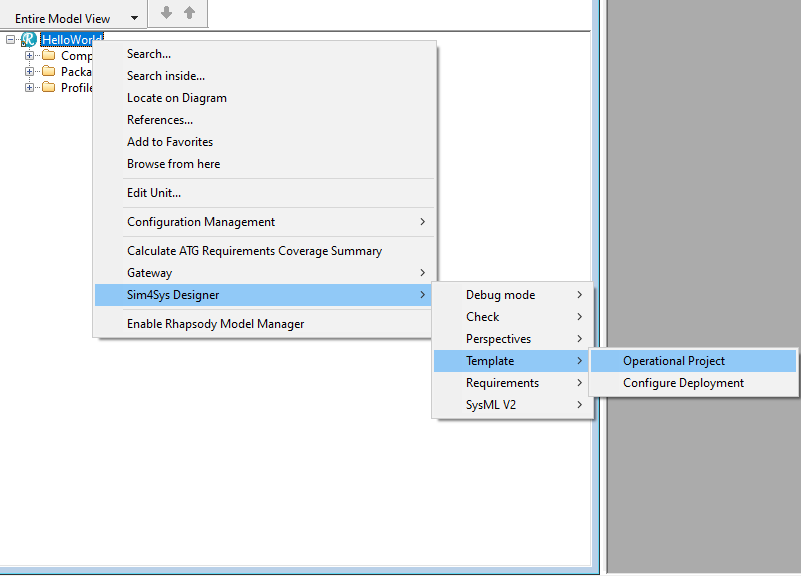
- Click on Sim4Sys Designer > Template > Operational Project
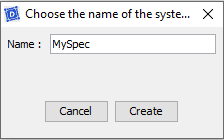
- Type the name of the attribute: MySpec
- Click on Create
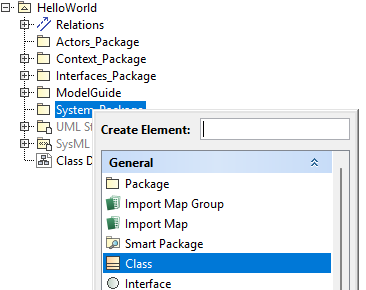
- Right-click on "System_Package"
- Click Create Element
- Select Class and name it "MySpec"
Add a Life Phase to a Service
- Papyrus
- Rhapsody
- Catia Magic
Action: *Define a lifecycle phase "Standard Use" for a service. *
Explanation: By specifying a 'Standard Use' lifecycle phase, we clarify the normal conditions under which this service is supposed to operate. This helps us model expected behaviors and prepare the system for robustness testing by visualizing real usage conditions.
By default, we suggest you two different phases: Standard Use and Visualization.
- Select MySpec Package in CIL4Sys Overview (refresh if it does not appear).
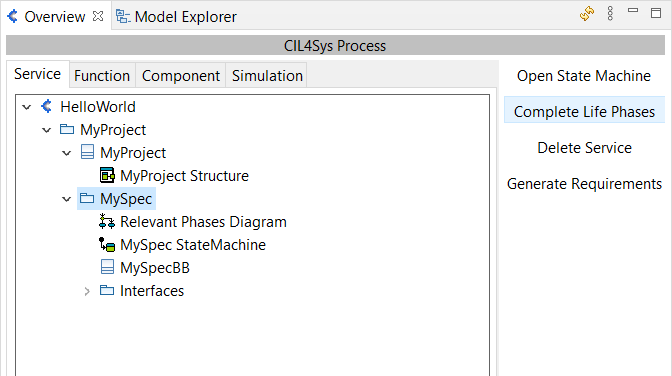
- Click on Complete Life Phases
- Drag&Drop a New Life Phase in the diagram pane for relevant phases of the service
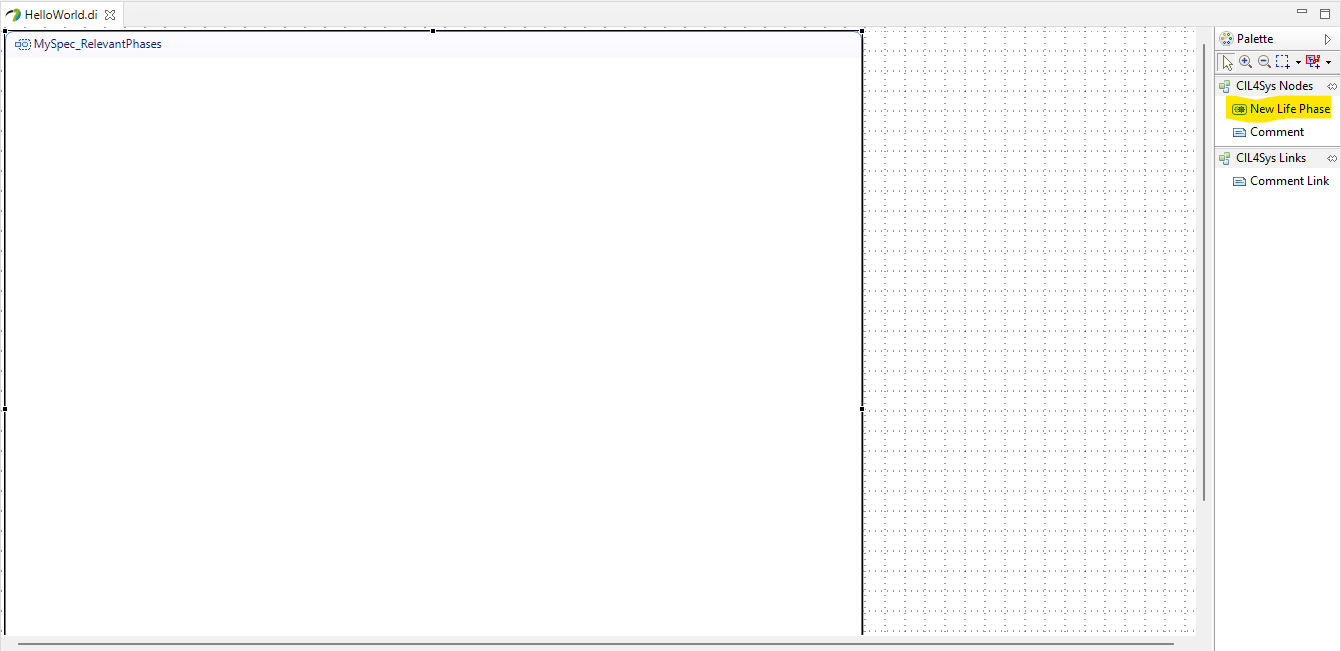
- Select Standard Use
- Click on OK
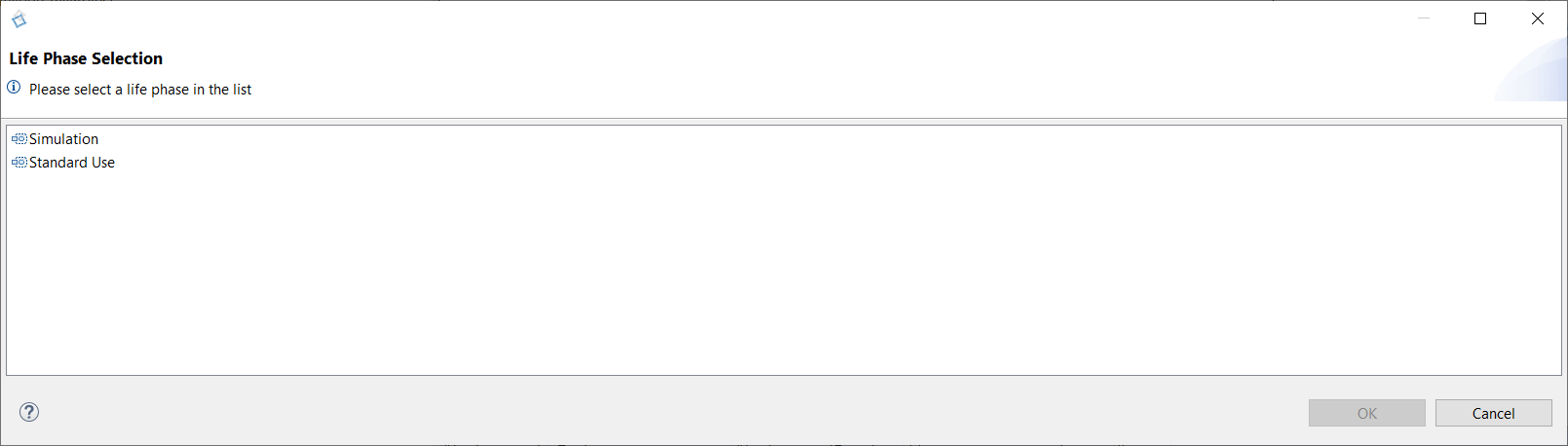
Explanation: There is no need to add a life phase to a service in Rhapsody, It will be done automaticly when completing the User Story.
Explanation: There is no need to add a life phase to a service in Catia.
Create a simple Use Case
- Papyrus
- Rhapsody
- Catia Magic
Action: Create a use case "say hello".
Explanation: The 'say hello' use case illustrates a simple yet fundamental interaction between the user and the system, where the system greets the user with a message. This use case serves as a starting point for modeling more complex interactions and demonstrates our system's responsiveness to user inputs.
- Select Standard Use
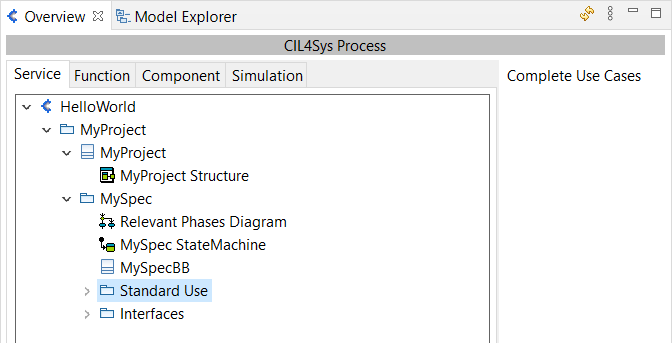
- Click on Complete Use Cases
- Drag&Drop an actor on the diagram
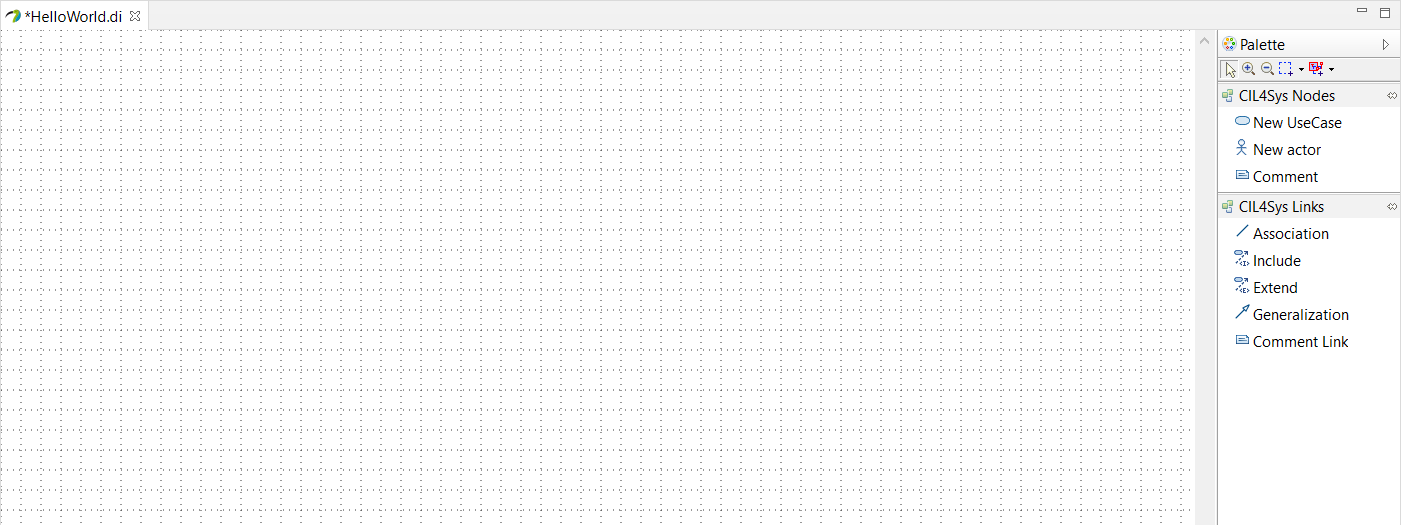
- Select User as the type of your new actor
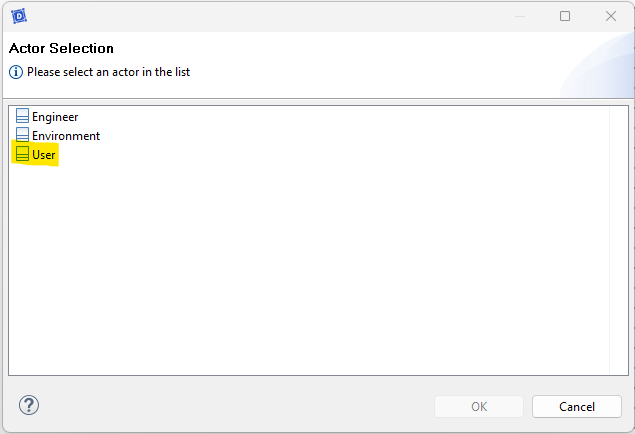
- Drag&Drop a New UseCase on the diagram
- Type the name of the use case: say hello
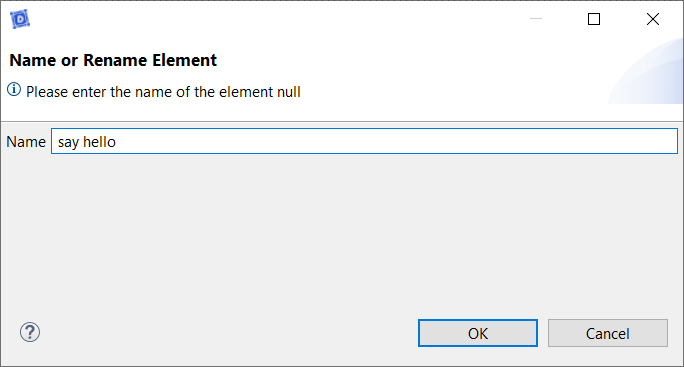
- Click on OK
- Double Click on the Use Case Diagram
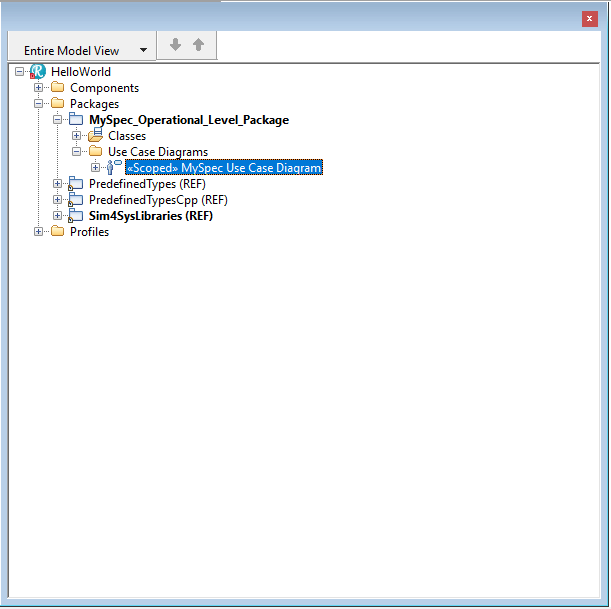
- Drag&Drop an Use Case on the diagram
- Type the name of the use case: say hello
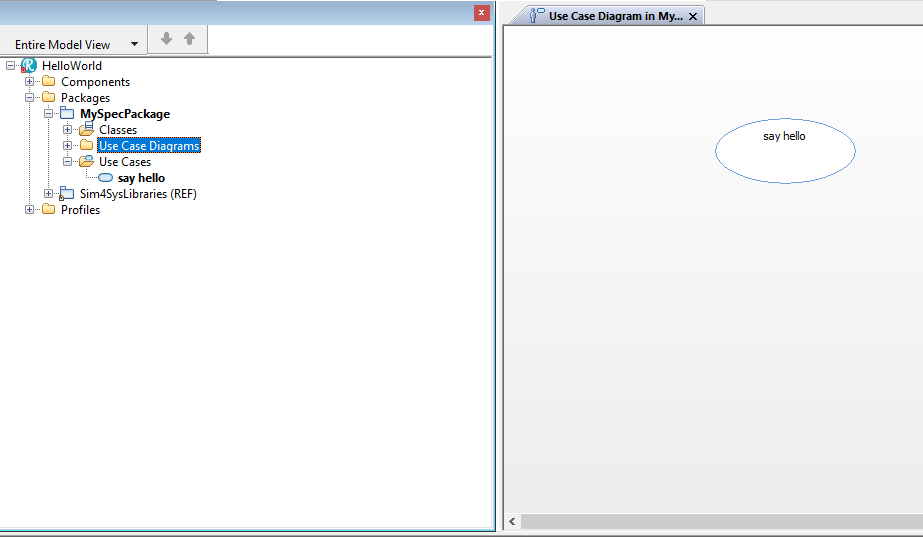
- Drag&Drop an Actor on the diagram
- Type the name of the Actor: User
- Click on Create
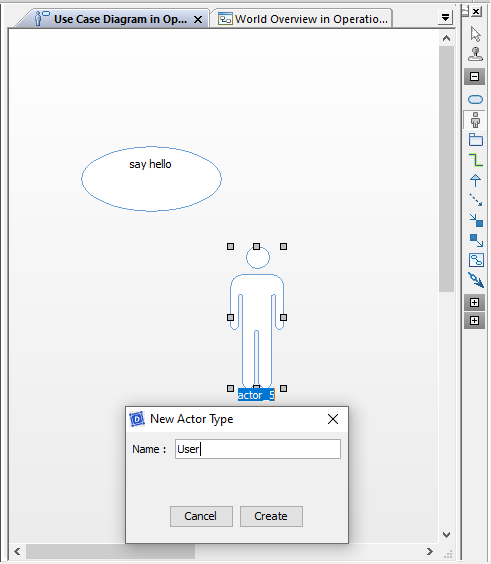
- Double-click on the Use Case Diagram
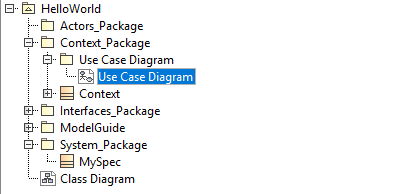
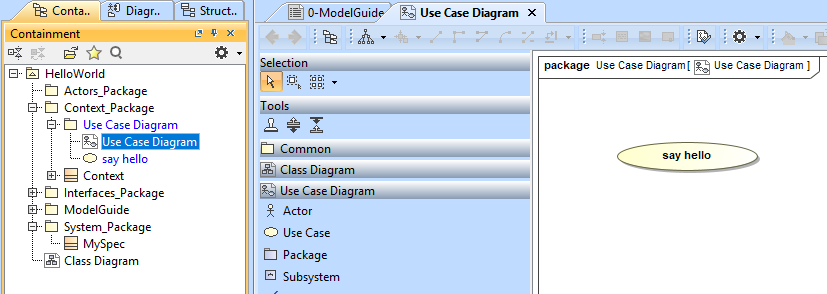
- Drag and drop a Use Case onto the diagram
- Type the name of the use case: say hello
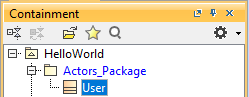
- From the Containment Tree, right-click on "Actor_Package"
- Create Element > Class
- Name it User
- Drag and drop the Actor onto the diagram
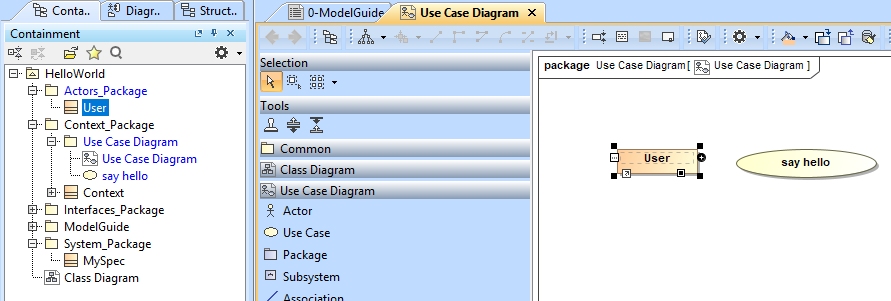
- Create an Association between the User class and the "say hello" Use Case.
Create a User Story in a Use Case
- Papyrus
- Rhapsody
- Catia Magic
Action: Develop a user story within the context of a defined use case.
Explication: Crafting a user story within a use case allows you to detail specific user interactions, providing clarity on how features should behave and be experienced by the user.
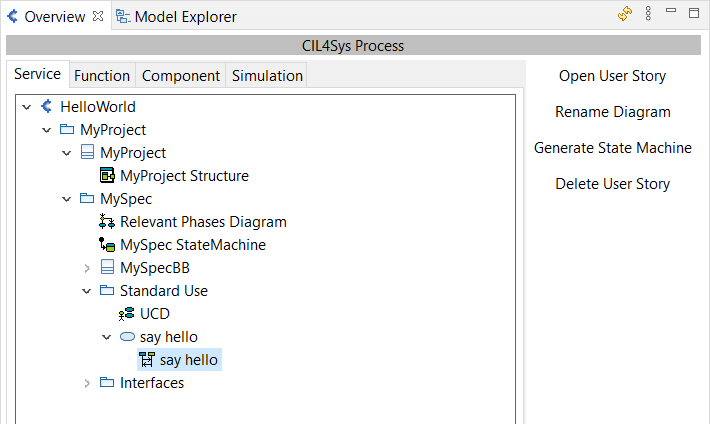
- Select say hello package in the CIL4Sys Overview

- Click on New User Story
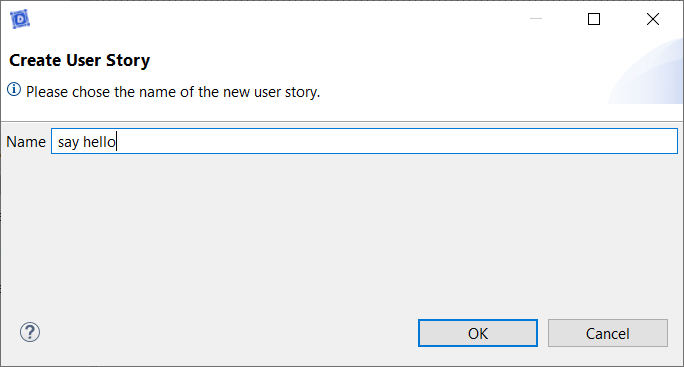
- Type the name of the user story: say hello
- Click on OK
- Double Click on the user story: say hello
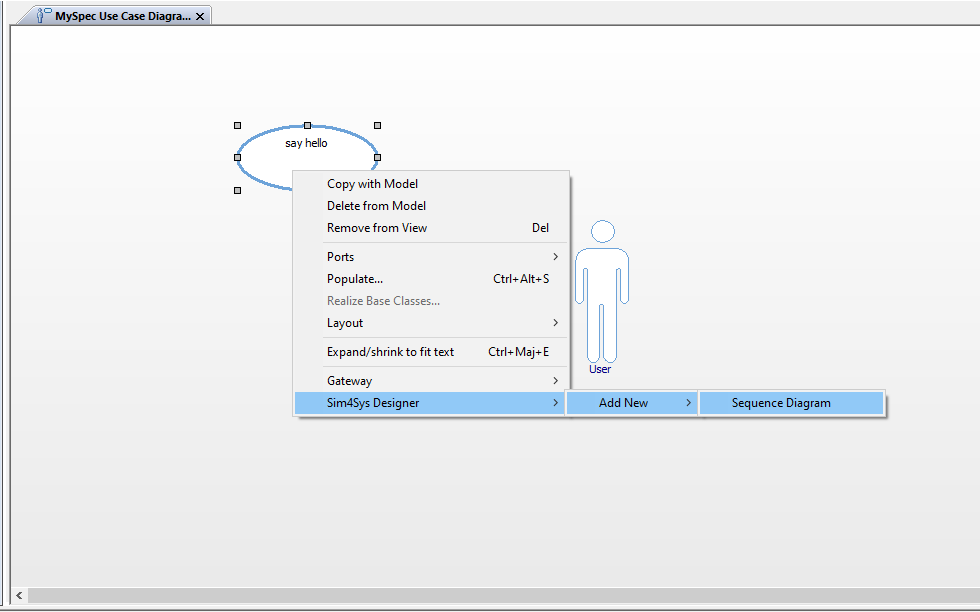
- Right Click on the use case in the diagram
- Click Sim4Sys Designer > Add New > Sequence Diagram
- Type the name of the Sequence Diagram: say hello
- Click on Create
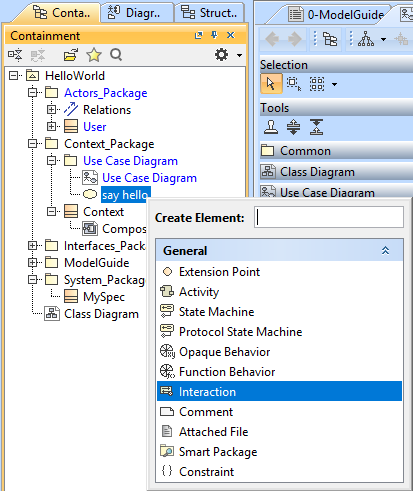
- From the Containment Tree: right click on the use case in the diagram "say hello"
- Create Element > interaction
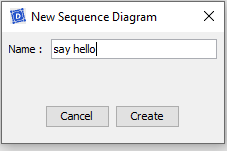
- Type the name of the interaction: say hello
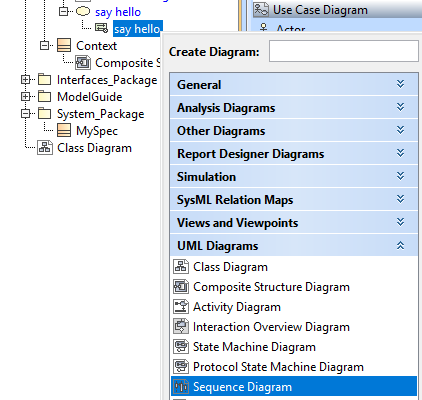
- Right-click on the Interaction > Create Diagram > UML Diagram > Sequence Diagram
Complete the User Story
- Papyrus
- Rhapsody
- Catia Magic
Action: Enrich your user story with detailed flows, states, and interfaces, and then generate a State Machine from all your user stories.
Explication: Completing the user story by adding detailed elements and generating a State Machine ensures that the dynamic behavior of the system is clearly modeled and executable, facilitating both understanding and implementation.
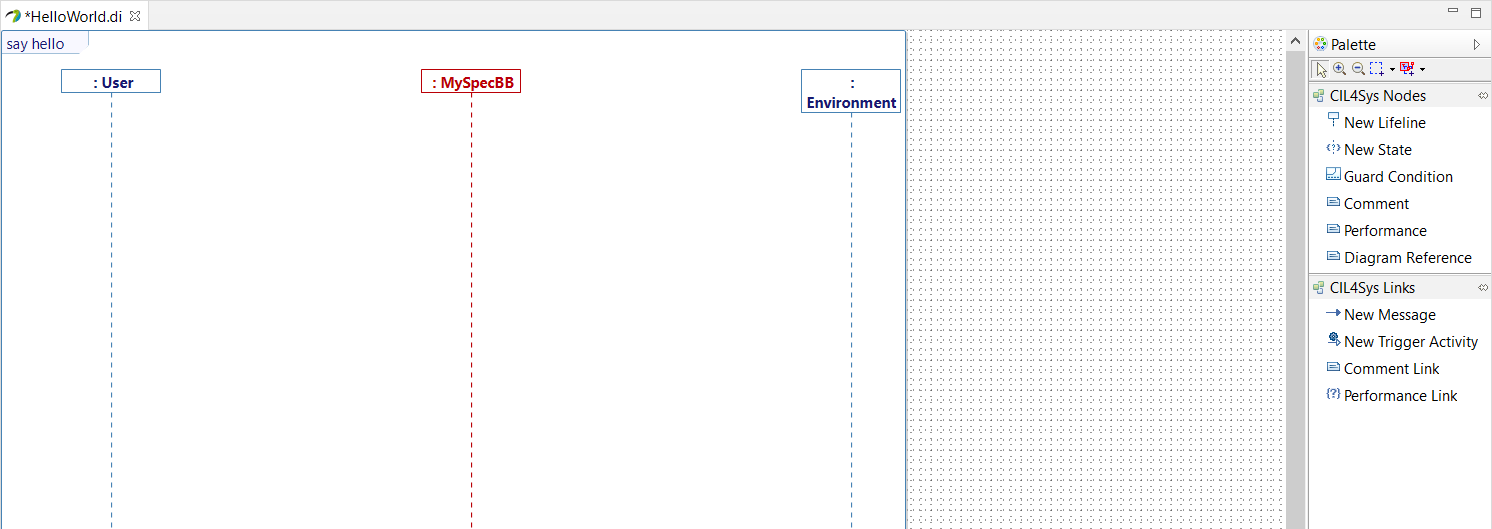
- Drag&Drop a New State on the MySpec Service lifeline
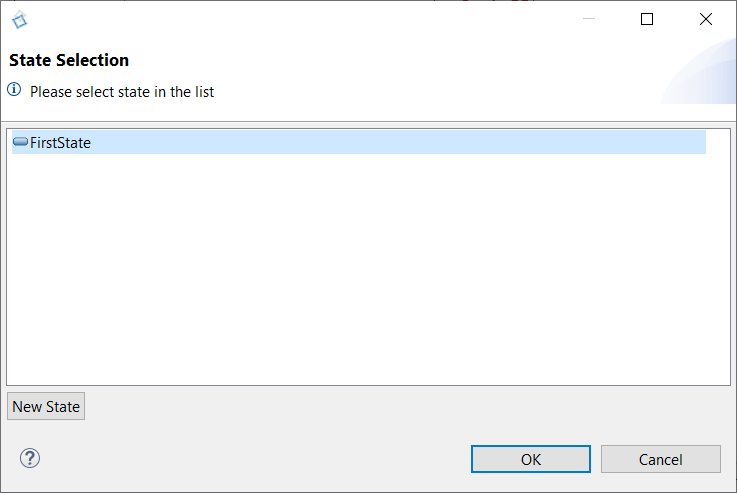
- Select FirstState
- Click on OK
- Rename the state after creation (in Active). You can do it just after the creation or by the Properties view of Papyrus
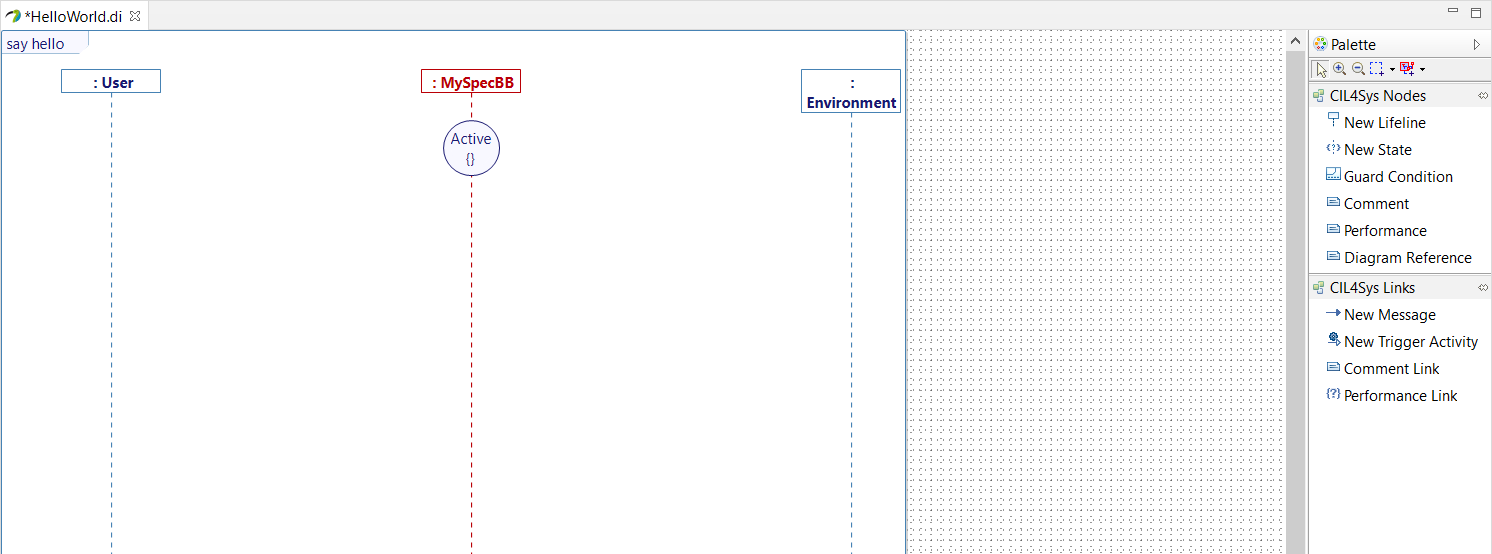
- Trace a New Message between the User lifeline and the MySpec Service lifeline
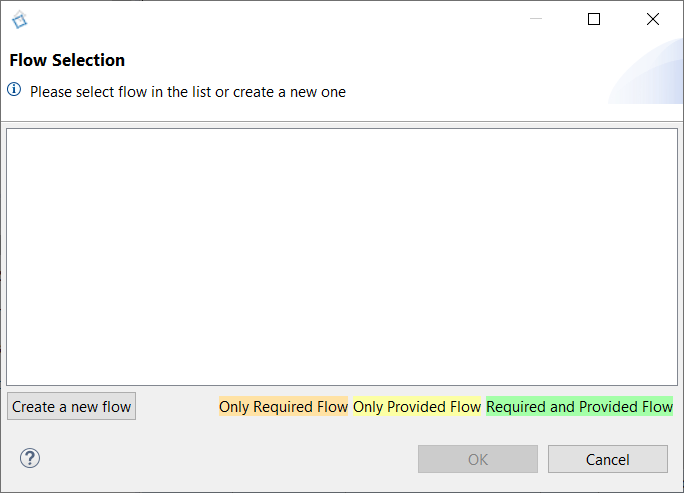
- In the Flow Selection window, click on Create a new flow
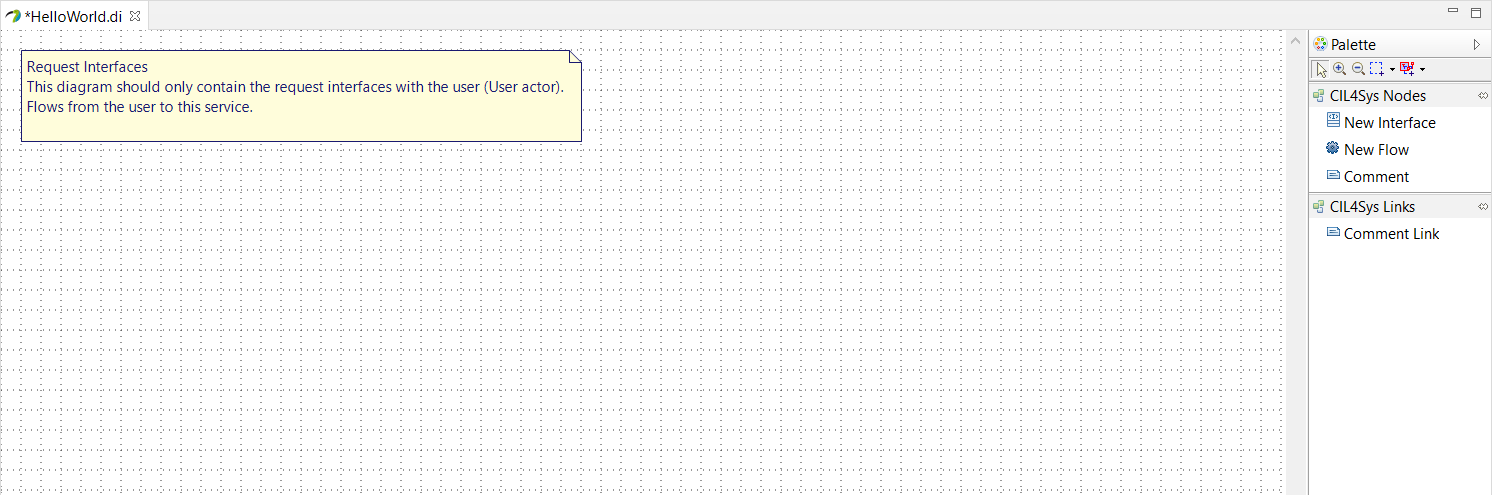
- Drag&Drop a New Interface on the diagram
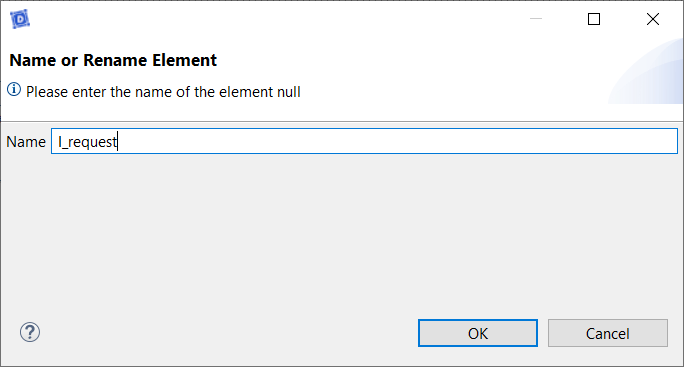
- Type the name of the interface: I_request
- Click on OK
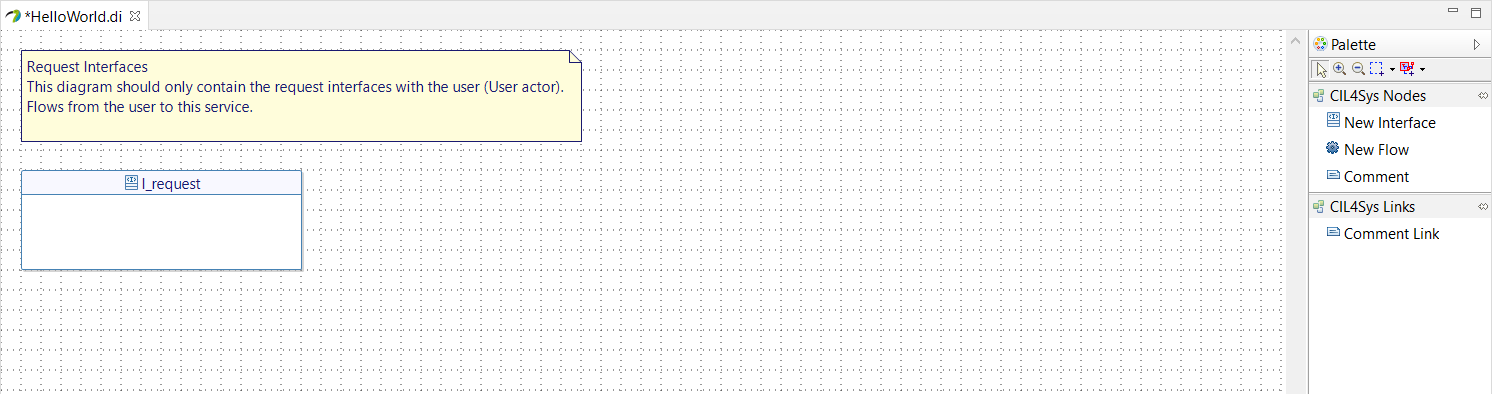
- Drag&Drop a New Flow in the newly created interface
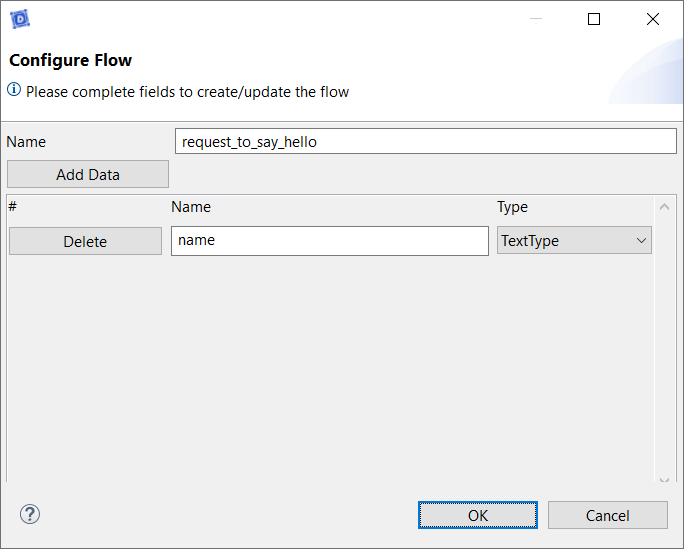
- Type the name
- Click on Add Data
- Type the name of the data: name
- Select the type of the data: TextType
- Click on OK
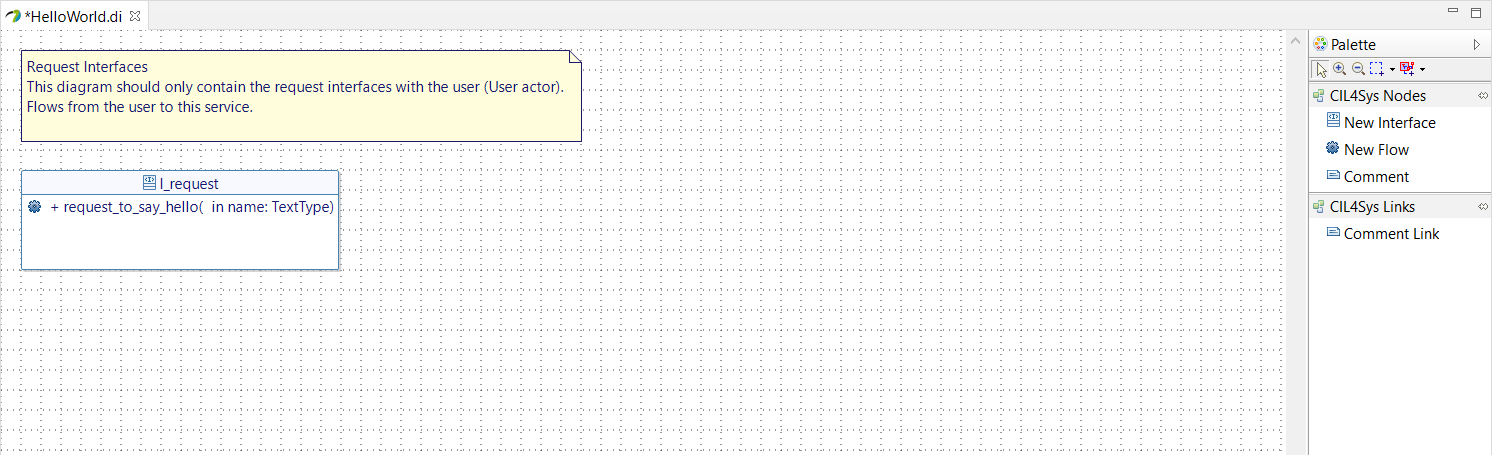
A good manner is to create an interface per flow.
- Go back on the user story
- Trace a New message between the user and the service
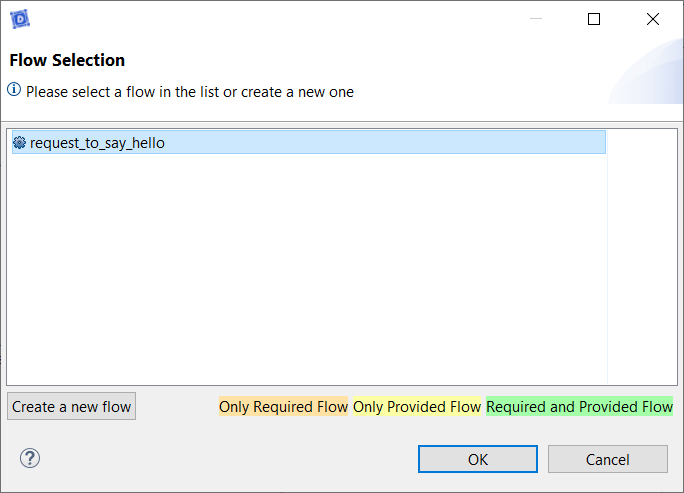
- Select the newly created flow
- Click on OK
- Trace a message between the service lifeline on itself (internal activity)
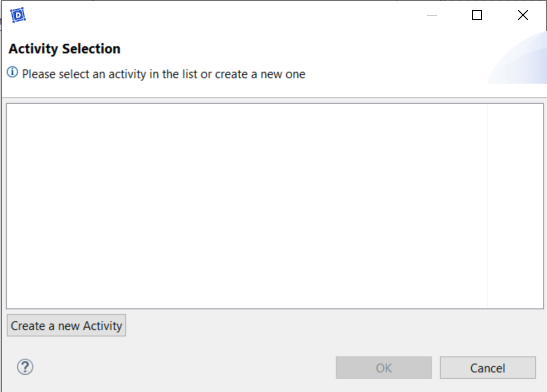
- Click on Create a new Activity
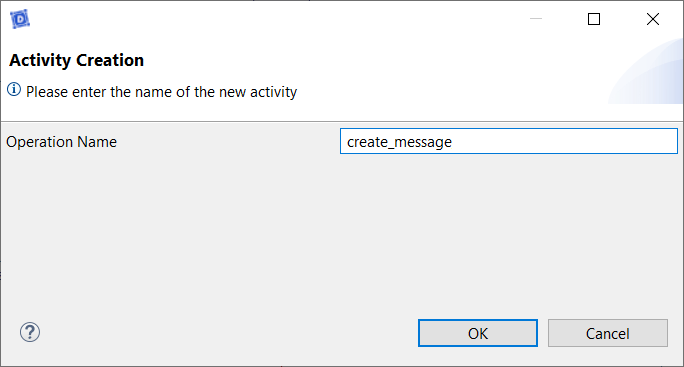
- Type the name of the activity: create_message
- Click on OK
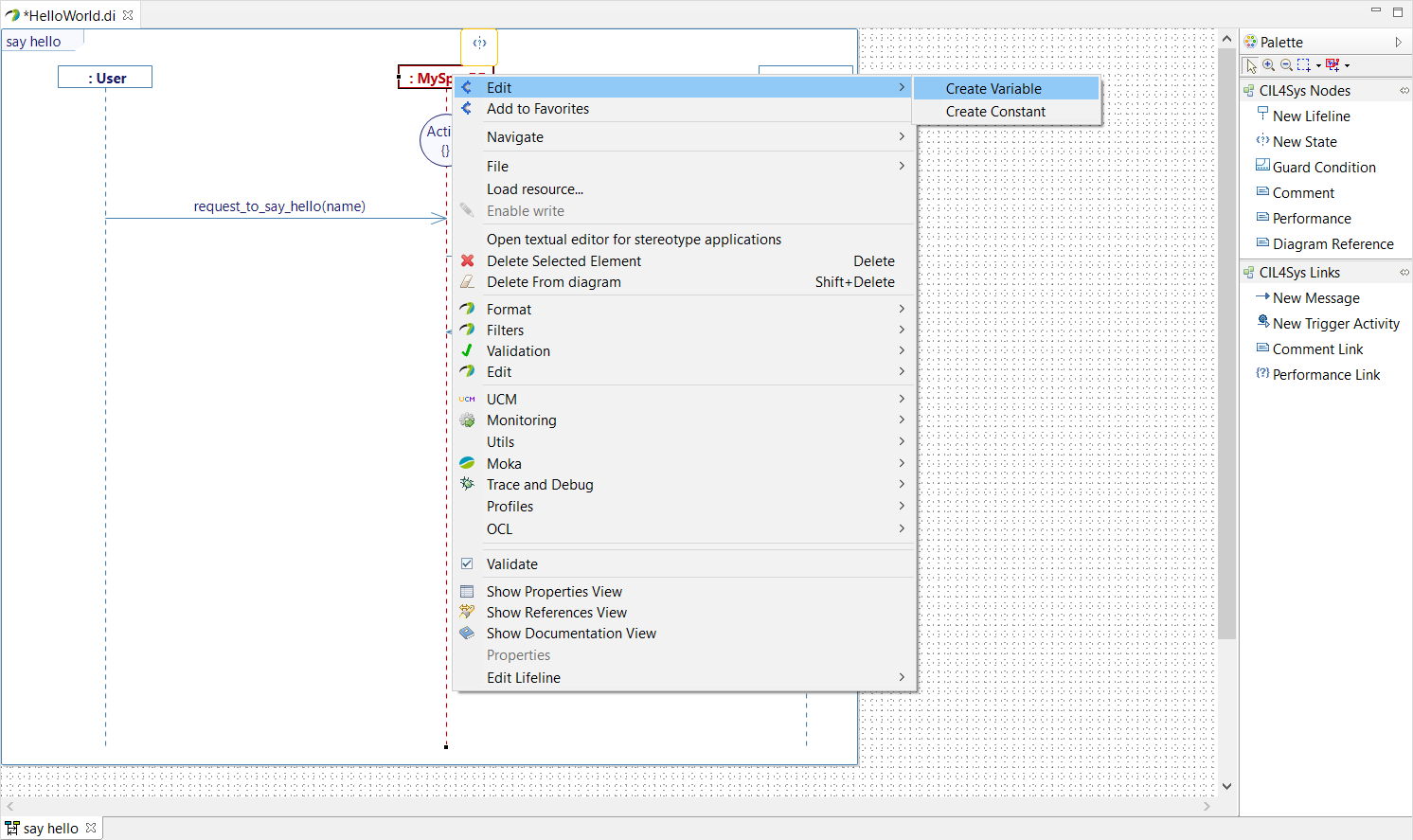
- Right-click on the service lifeline
- Select Edit > Create Variable
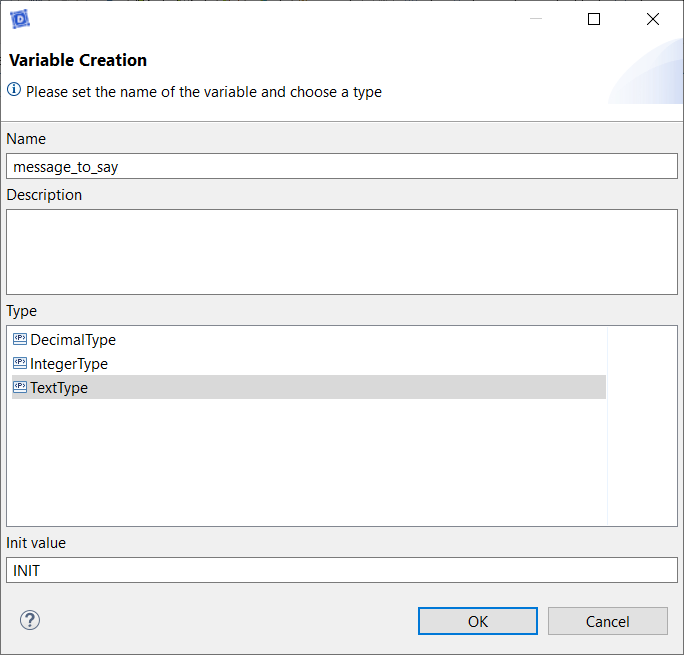
- Type the name of the variable: message_to_say
- Choose the type: TextType
- Set an init value: INIT
- Click on OK
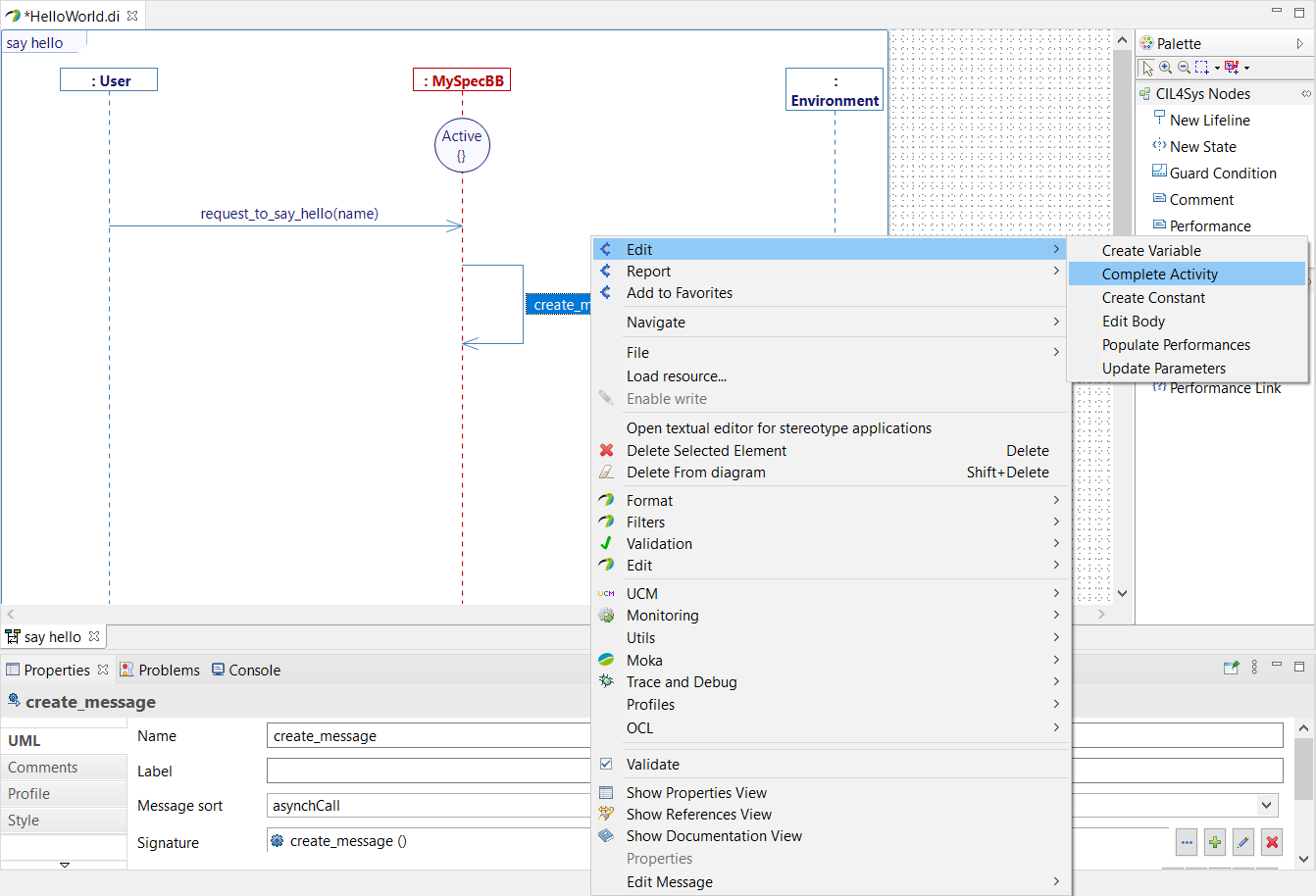
- Right-click on the create_message activity
- Choose Edit > Complete Activity
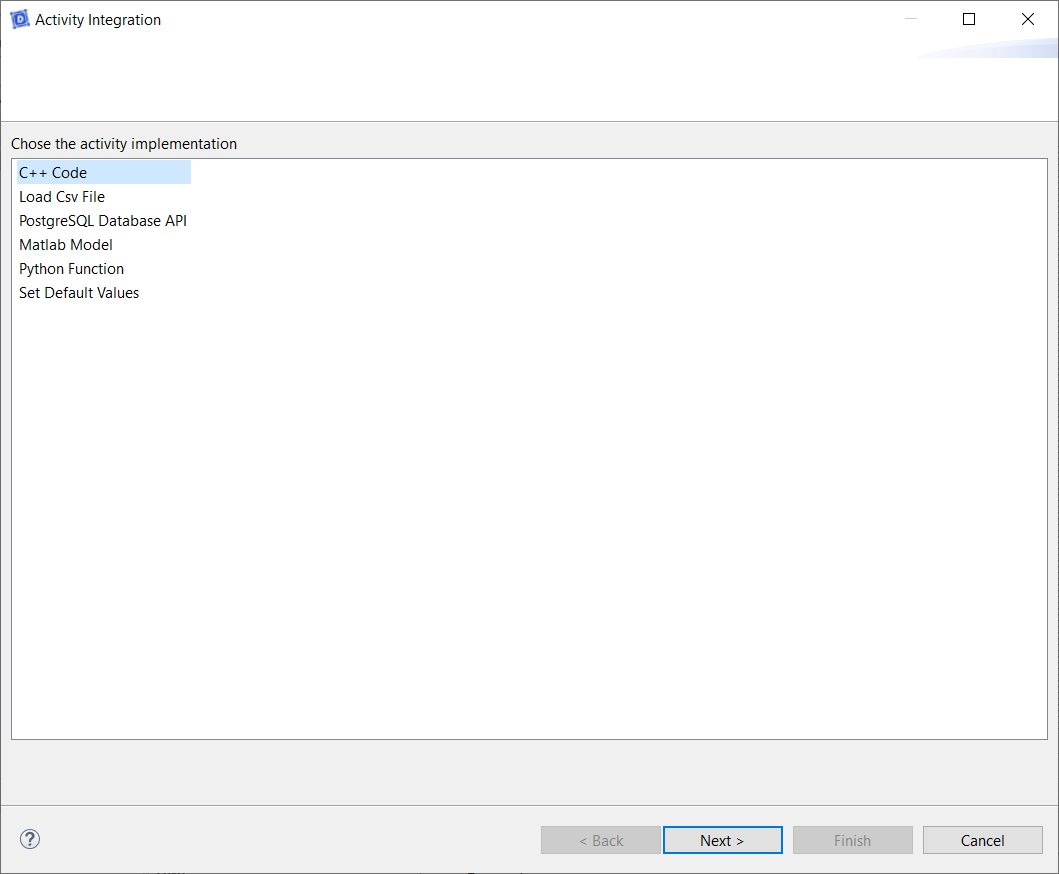
- Select C++ Code
- Click on Next
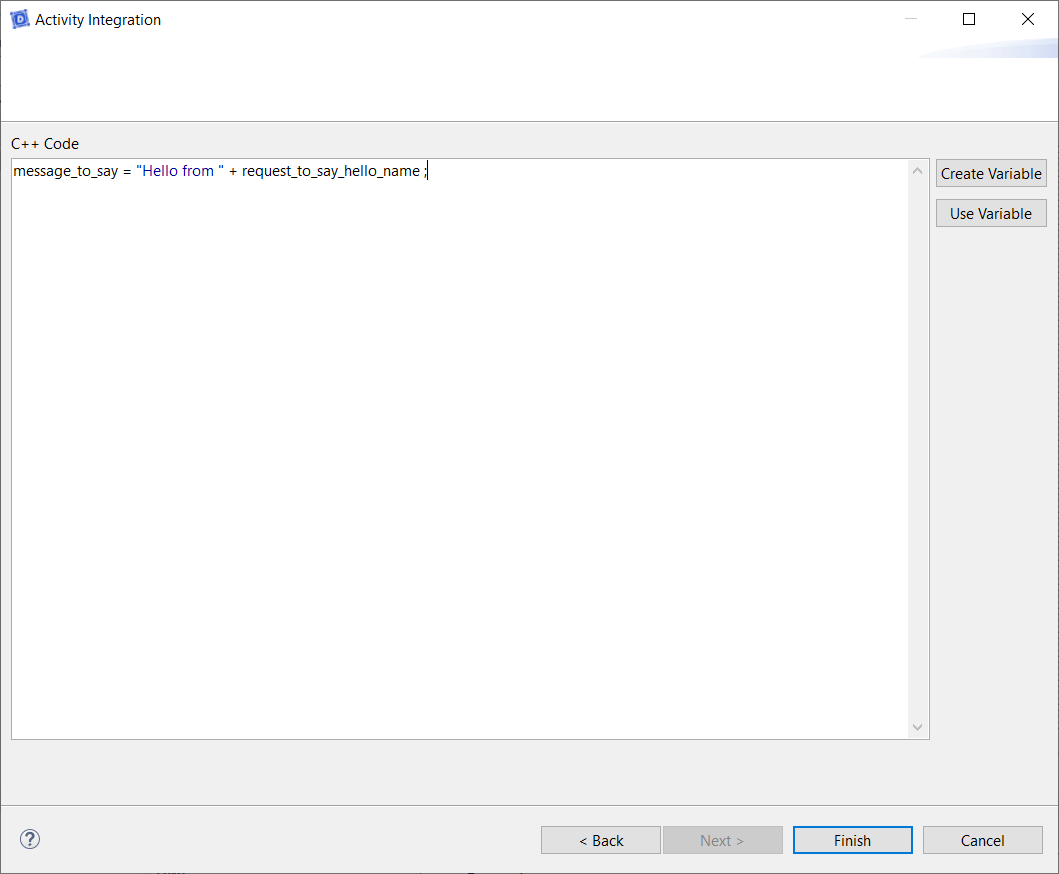
- Type the code to create_message:
message_to_say = "Hello from " + request_to_say_hello_name;
- Click on Finish
- Trace a New Message between the service and the user
- Click on Create a New Flow
- Drag&Drop a New Interface on the diagram
- Type the name of the interface: I_feedback
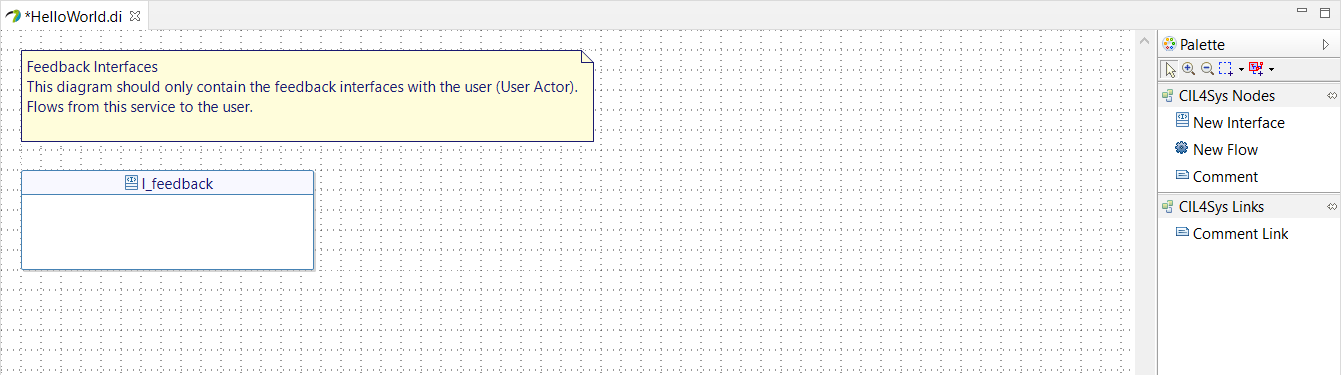
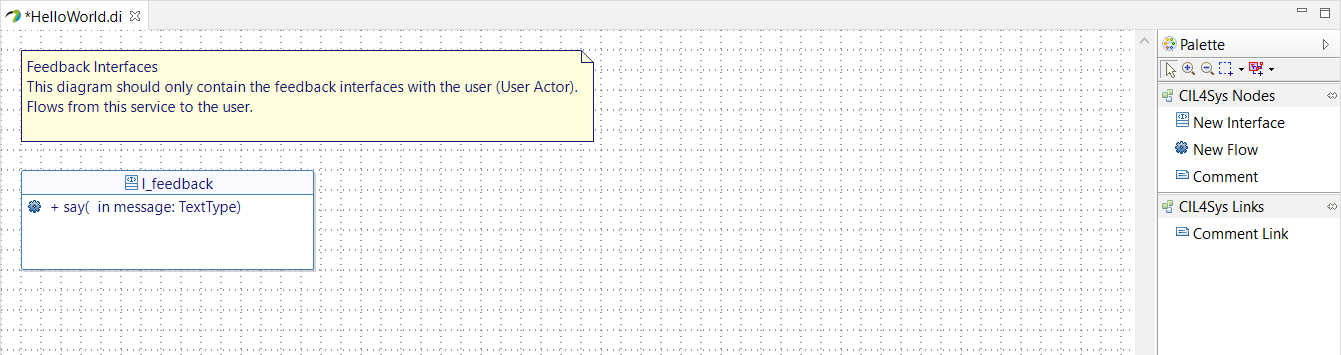
- Drag&Drop a New Flow in the newly created interface
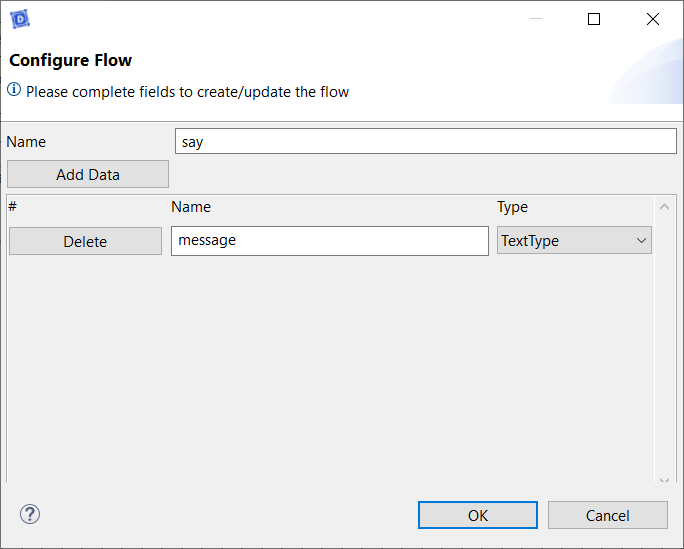
- Type the name: say
- Click on Add Data
- Type the name of the data: message
- Select the type of the data: TextType
- Click on OK
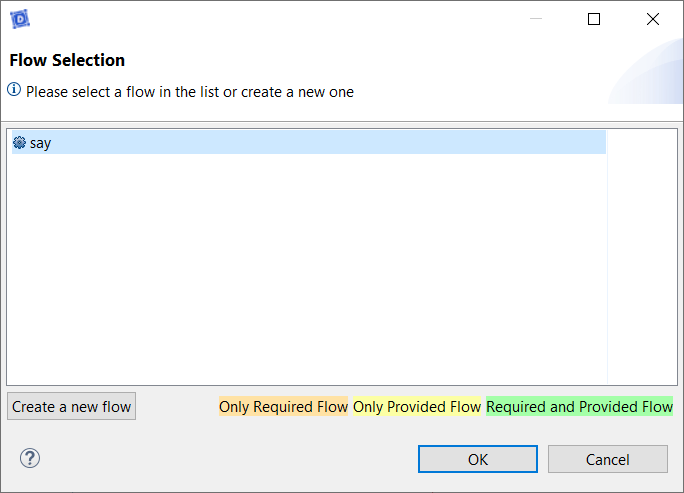
- Go back on the user story
- Trace a new message between the service and the user
- Select the newly created flow
- Click on OK
- Select the data value: message_to_say
- Click on OK
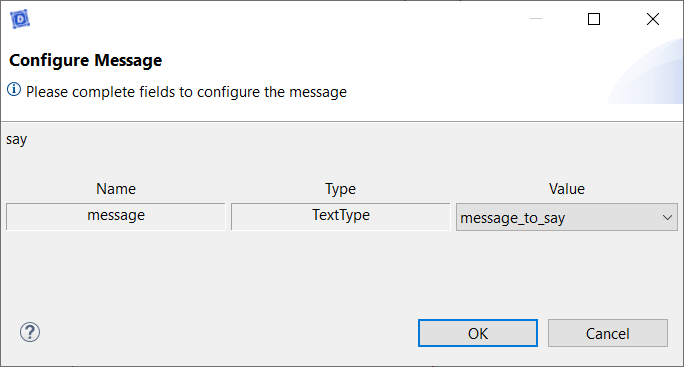

- Select the user story in the CIL4Sys Overview
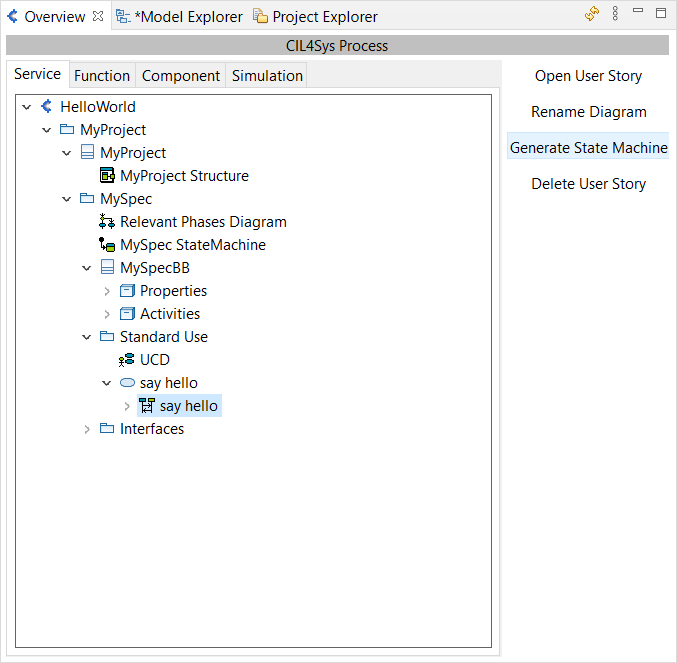
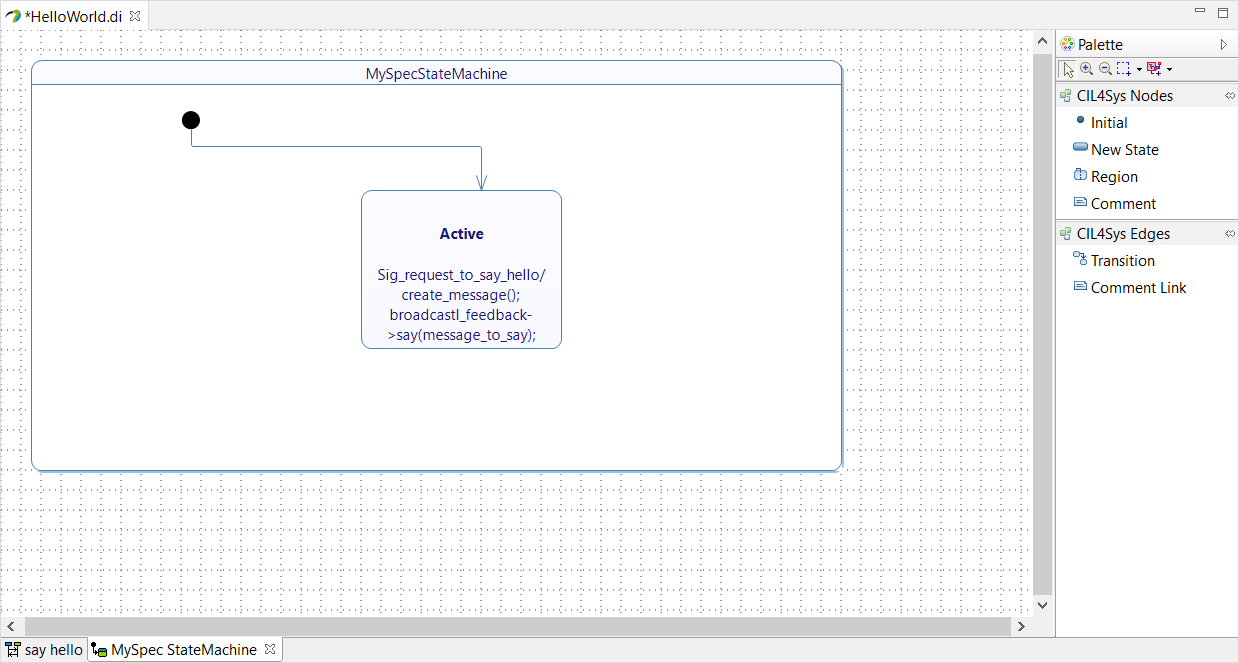
- Click on Generate State Machine
- Click on Ok in the confirmation dialog box
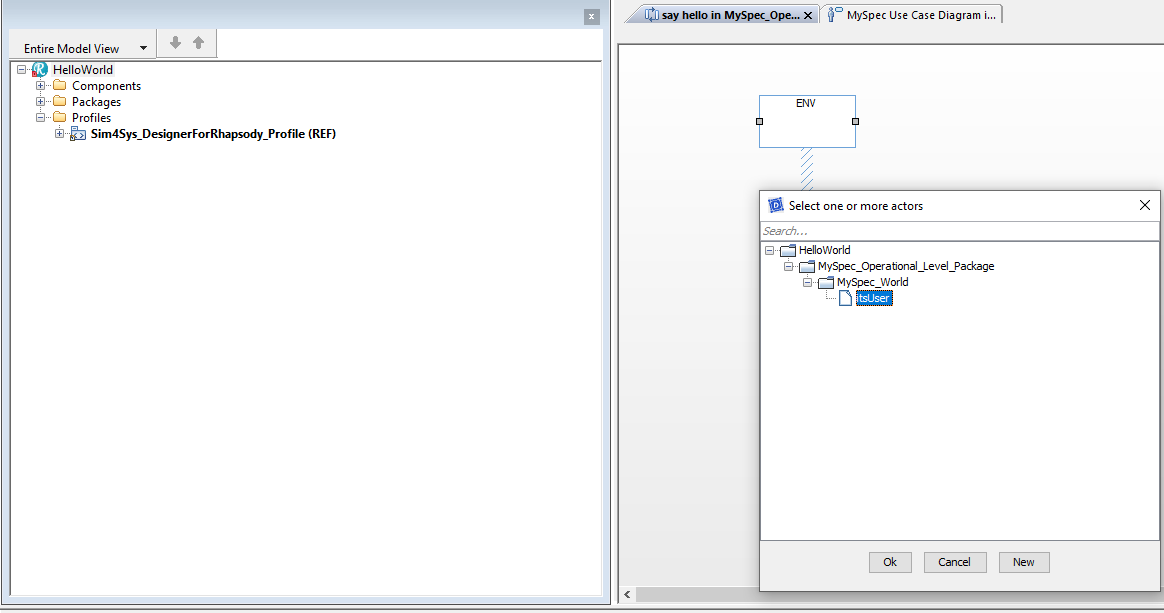
- Drag&Drop a System Border on the Diagram
- Select itsUser
- Click on Ok
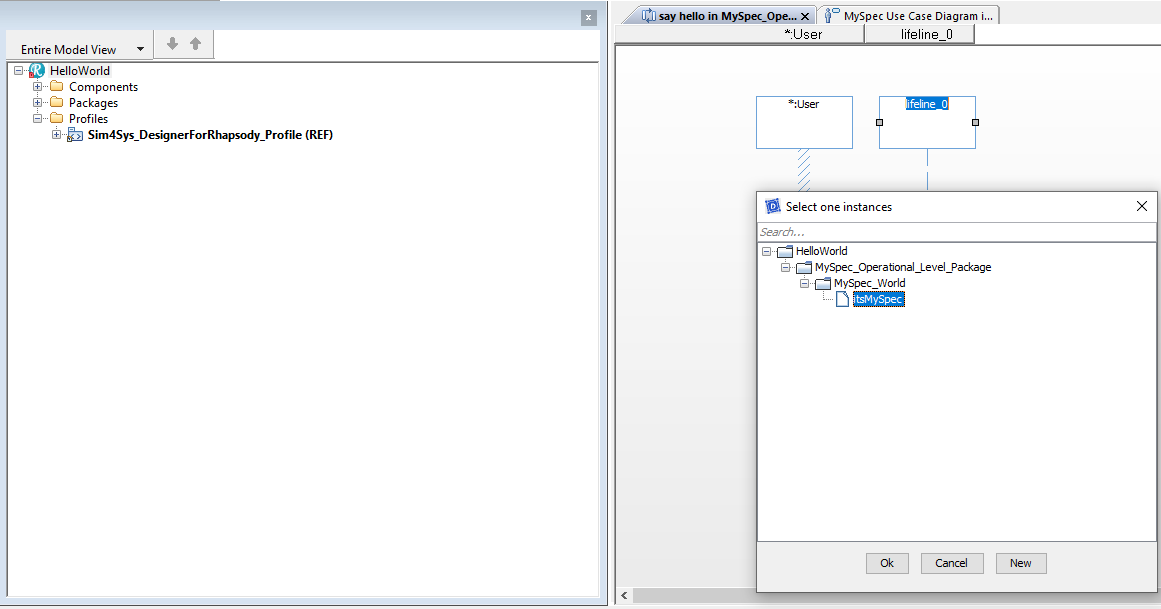
- Drag&Drop a Lifeline on the Diagram
- Select itsMySpec
- Click on Ok
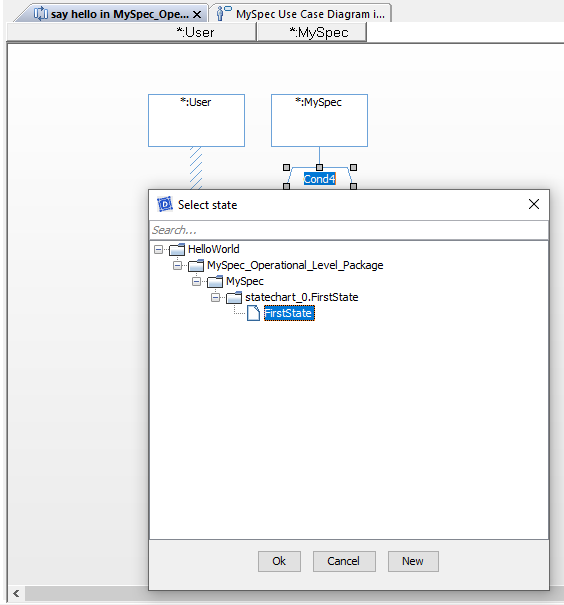
- Drag&Drop a Entrying State Condition Mark on the MySpec lifeline
- Select FirstState
- Click on OK
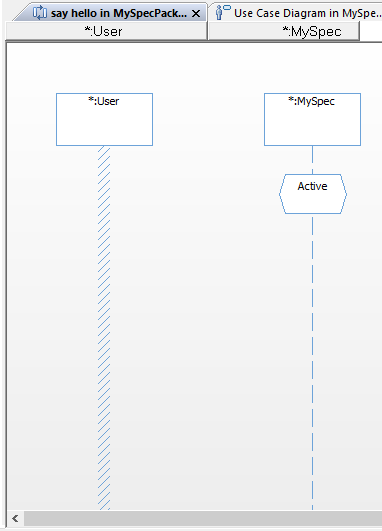
- Rename the state after creation (in Active). You can do it just after the creation or by the Properties view of Rhapsody
- Trace a New Message between the User lifeline and the MySpec lifeline
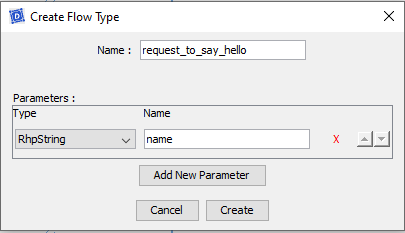
- Click on New
- Type the name of the Flow: request_to_say_hello
- Add New Parameter with type Rhpstring and Name name.
- Click on Create
- Click on Connect
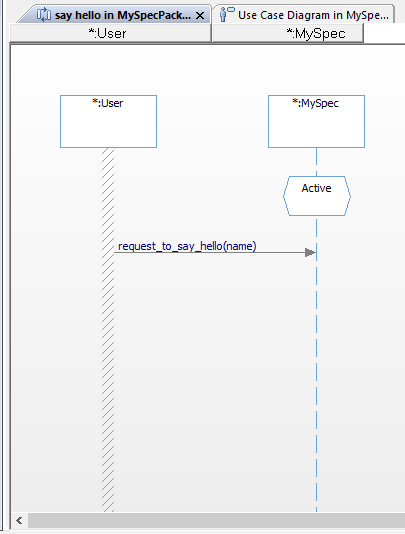
If the name is not change after the popup press escape
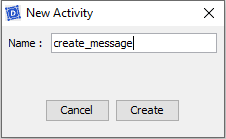
- Trace a message between the MySpec lifeline on itself (internal activity)
- Click on New
- Type the name of the activity: create_message
- Click on Create
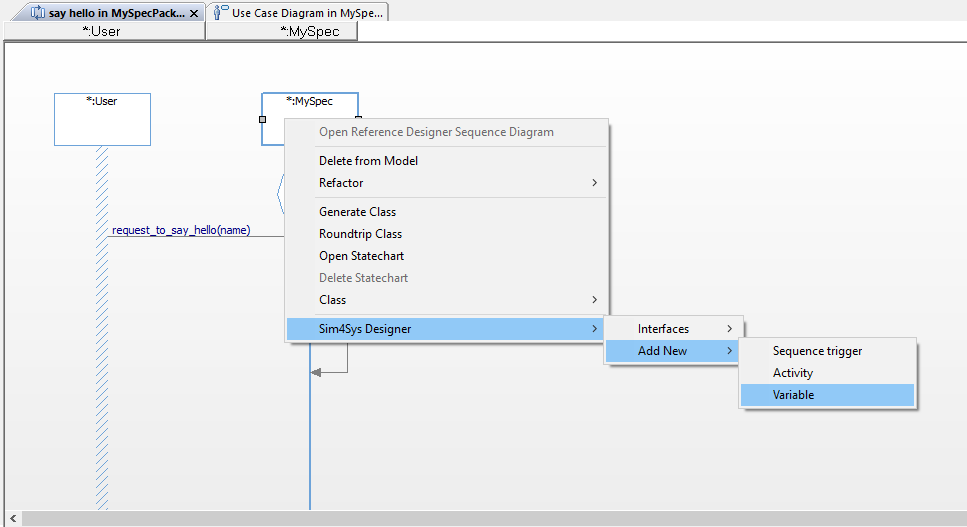
- Right-click on the MySpec lifeline
- Click on Sim4Sys Designer > Add New > Variable
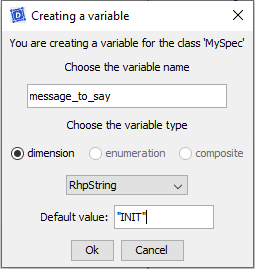
- Type the name of the attribute: message_to_say
- Choose the type: RhpString
- Set an init value: "INIT"
- Click on OK
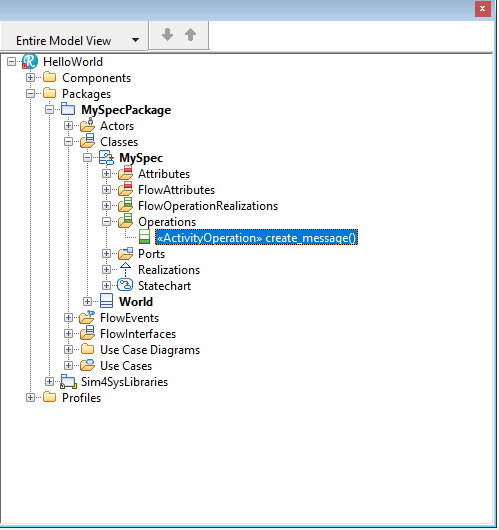
- Double Click on the create_message operation under MySpec
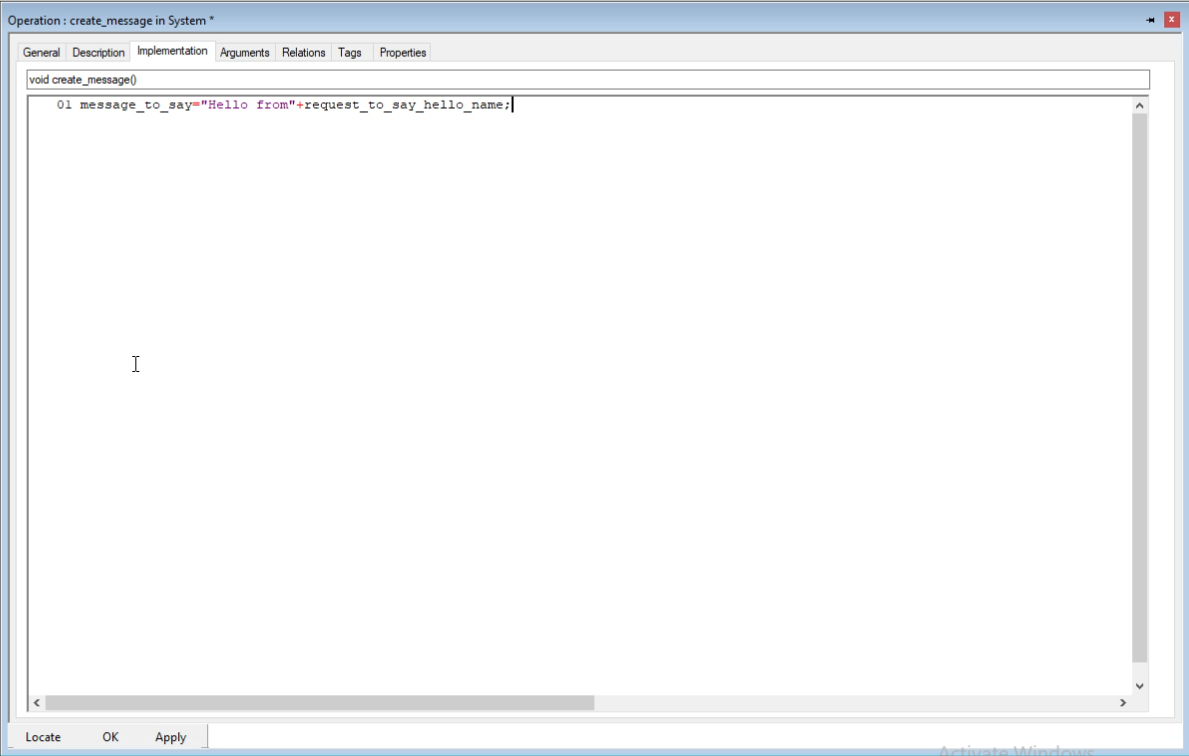
- Click on Implementation
- Type the code to create_message:
message_to_say = "Hello from " + request_to_say_hello_name;
- Click on OK
- Trace a New Message between the lifeline MySpec and the user
- Click on New
- Type the name of the Flow: say
- Add New Parameter with type RhpString and Name message.
- Click on Create
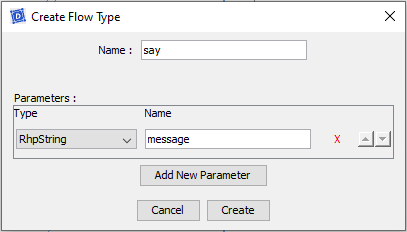
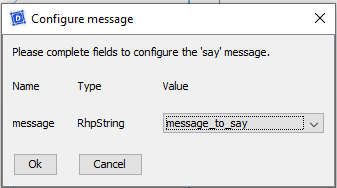
- Click on Connect
- Select the data value: message_to_say
- Click on OK
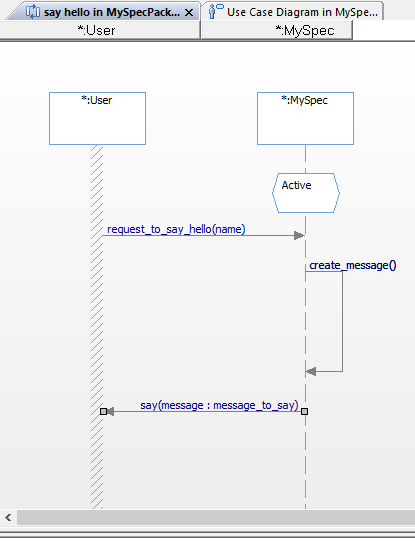
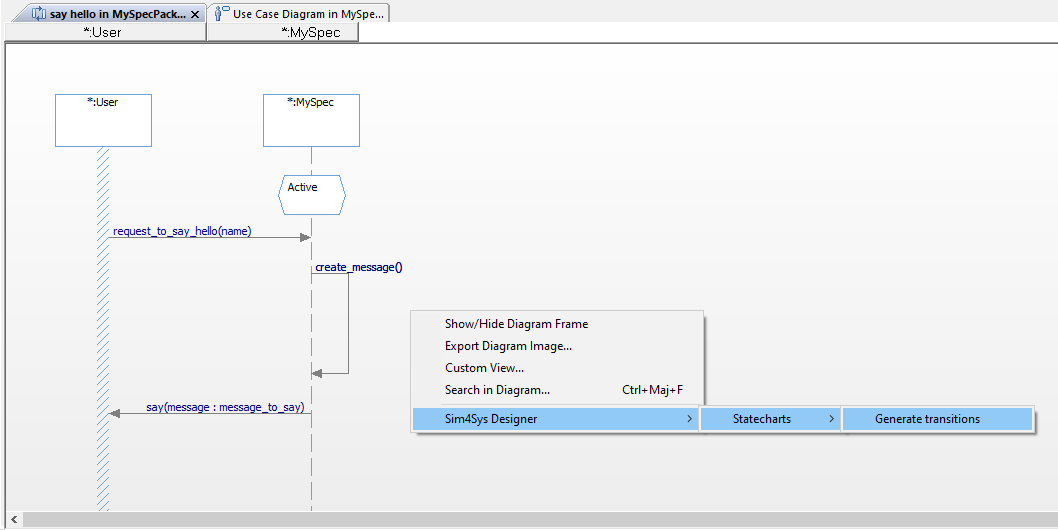
- Right Click on the Sequence Diagram
- Click on Sim4Sys Designer > Statecharts > Generate transitions
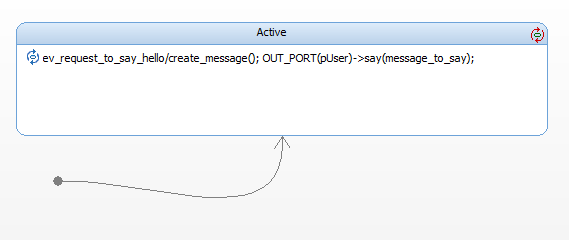
- Open the "Composite Structure Context Diagram" located in the Context_Package > Context class.
- Drag&Drop the "User" and "MySpec" classes into the diagram
- Rename them respectively to "aUser" and "aMySpec"
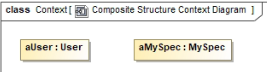
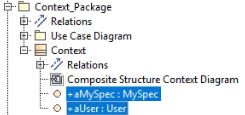
- Go back to the "say hello" Sequence Diagram, then drag and drop the MySpec and User instances into the diagram.
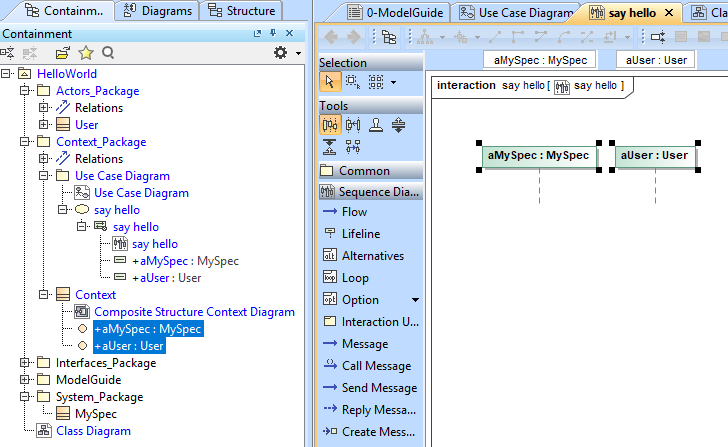
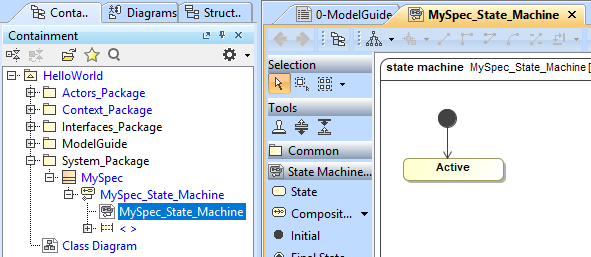
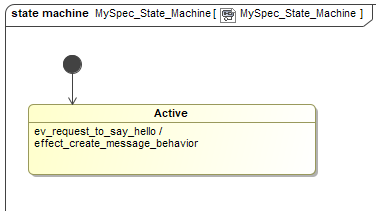
We need to specify the state of our system in the Sequence Diagram, so we will create a State Machine for the "MySpec" class to define its behavior.
- Right-click on the "MySpec" class → Create Element → State Machine.
- Name it "MySpec_State_Machine".
- Create its diagram: Create Diagram → UML Diagram → State Machine Diagram.
- Finally, name your state "Active".
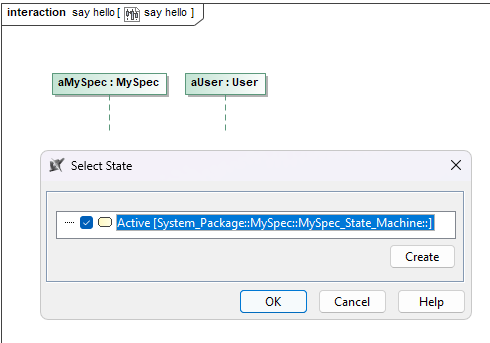
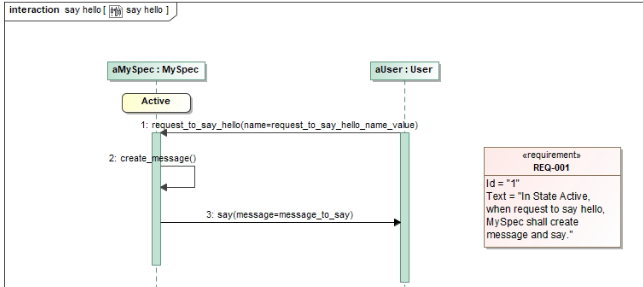
Go back to the "say hello" Sequence Diagram. Then add a State Invariant to the lifeline representing MySpec.
- Select the Active state.
- Click OK.
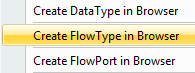
From the Containment Tree, right-click on the "Interfaces_Package" package and select "Create FlowType in Browser".
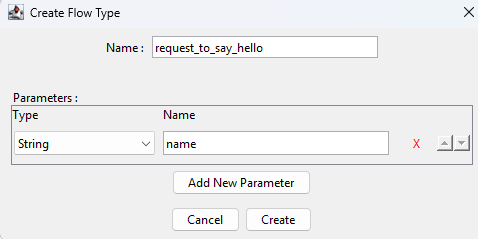
- Type the name of the Flow: "request_to_say_hello"
- Add New Parameter with type: String and name: "name"
- Click on Create
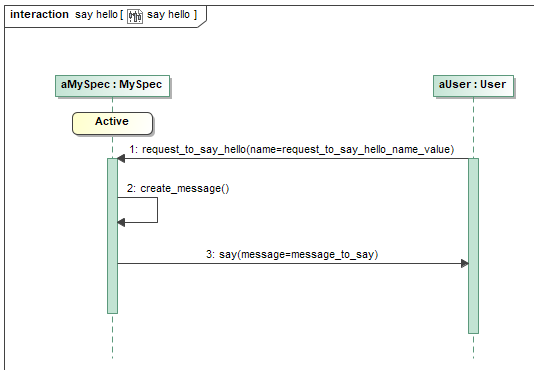
- Go back to the Sequence Diagram and trace a New Message between the User lifeline and the MySpec lifeline
- Select "request_to_say_hello"
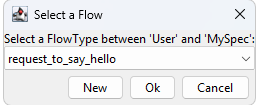
- Click OK.
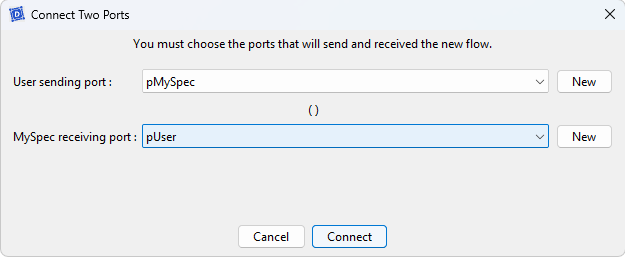
- Click Connect.
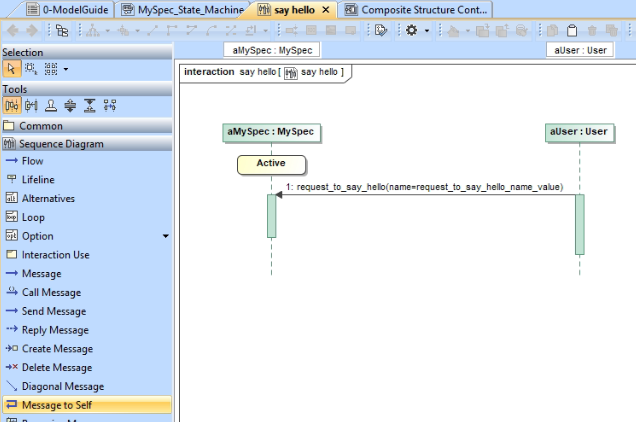
- Click Message to Self and then click the MySpec lifeline.
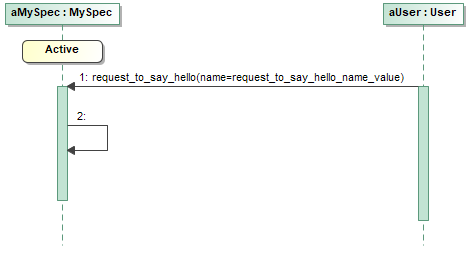
We now need to create the activity associated with this message to self.
- From the Containment Tree: right-click on "MySpec" Class:
- Create Element → operation
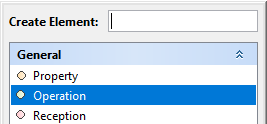
- Name it "create_message"
- Right-click on "MySpec" Class: Create Element > Property.
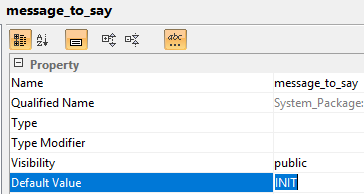
- Double-click the Property, name it "message_to_say" and set its type to String.
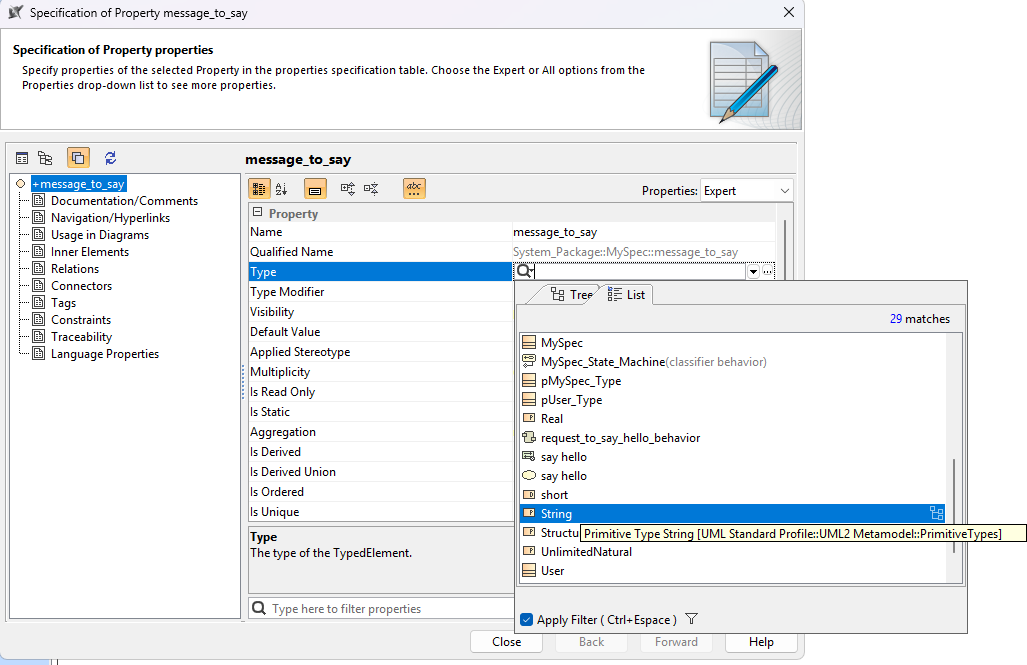
- Set the default value to “INIT”
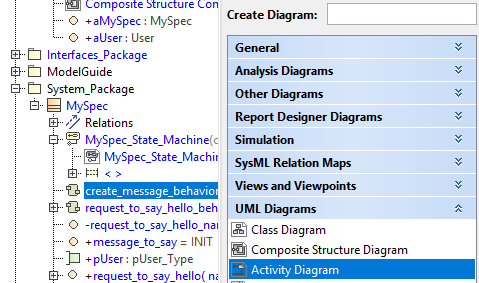
- Create an Activity by right-clicking: MySpec:Class → Create Element → Activity.
- Name it "create_message_behavior"
- Right-click on the Activity → Create Diagram → UML Diagram → Activity Diagram
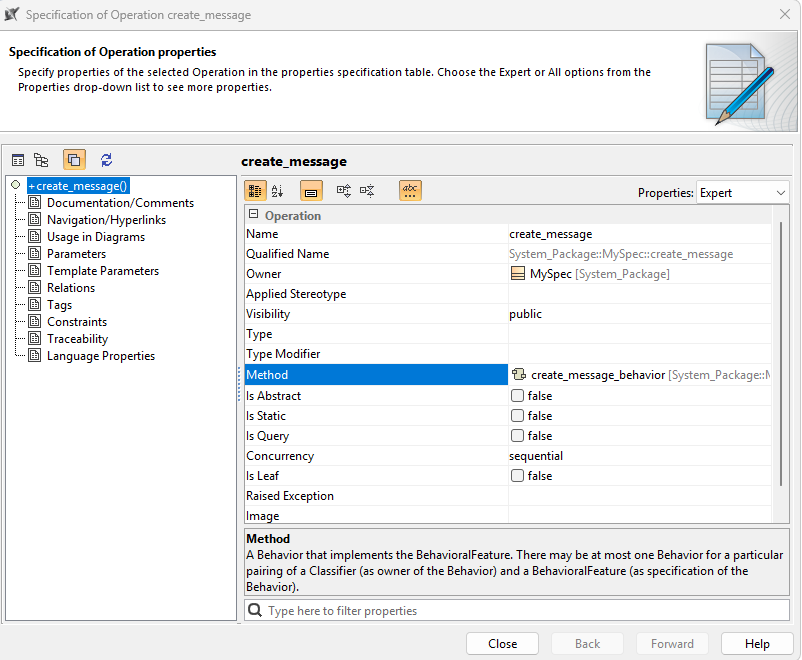
- Double-click the "create_message" operation.
- Set the method by dragging and dropping the activity into the method section.
- Go to the Activity Diagram "create_message".
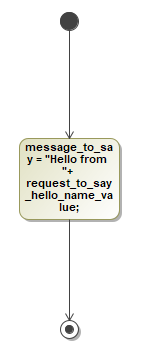
- Drag and drop an Initial Node and an Opaque Action
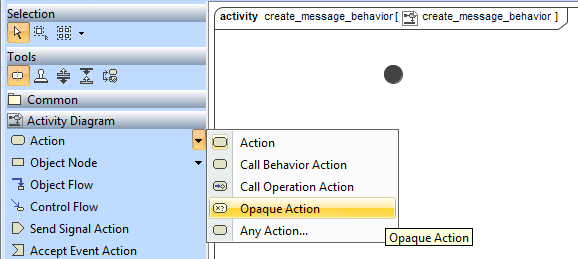
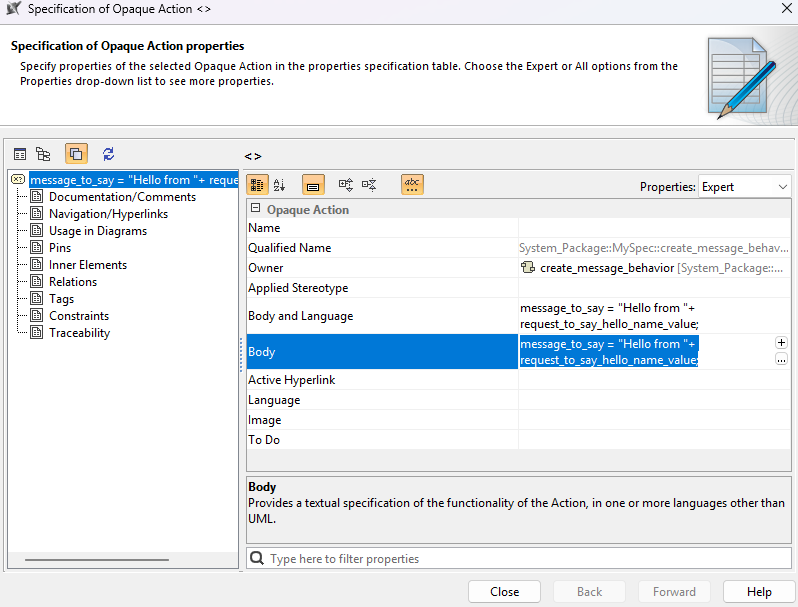
- Set the body of the Opaque Action with:
message_to_say = "Hello from " + request_to_say_hello_name_value;
- Drag and drop an Activity Final Node.
- Link all the elements with Control Flow
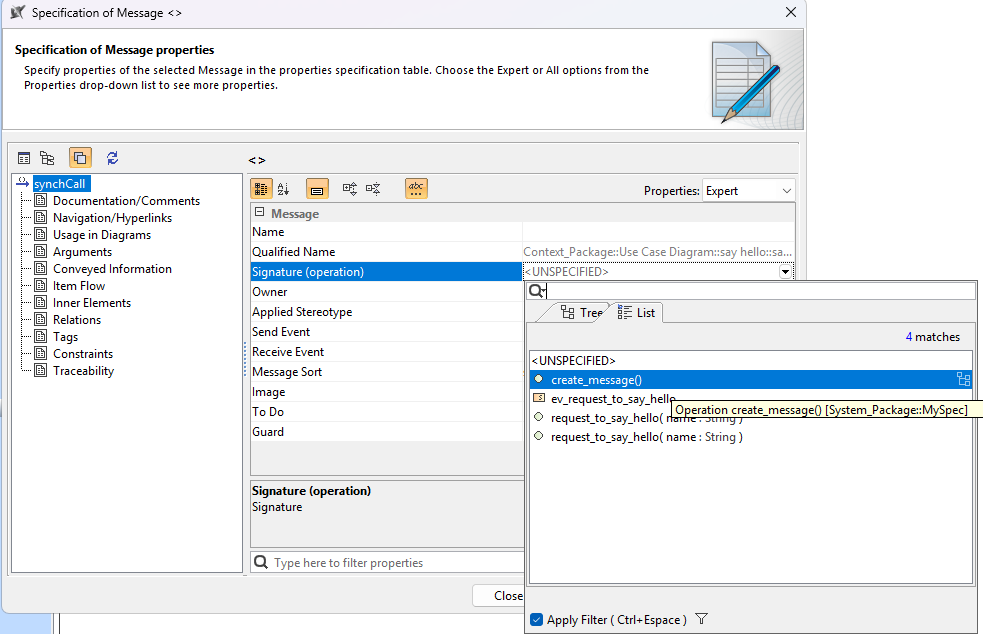
Go back to the Sequence Diagram, double-click the Message to self and set the Signature operation to "create_message".
- Trace a New Message between the lifeline MySpec and the User
- Click on New
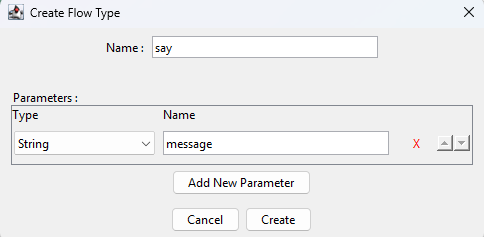
- Type the name of the flow: "say"
- Add New Parameter with type String and name message
- Click on Create
- Click OK.
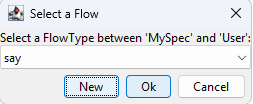
- Select the data value: message_to_say
- Click OK.
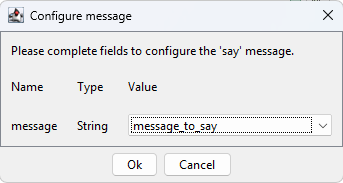
- Click on Connect
- Right-click on the Sequence Diagram.
- Click on Generate State Machine Transition and Requirement
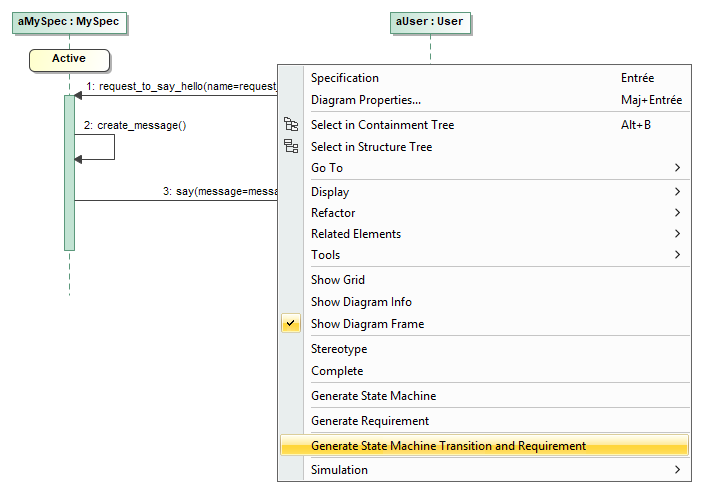
Sequence Diagram
State Machine
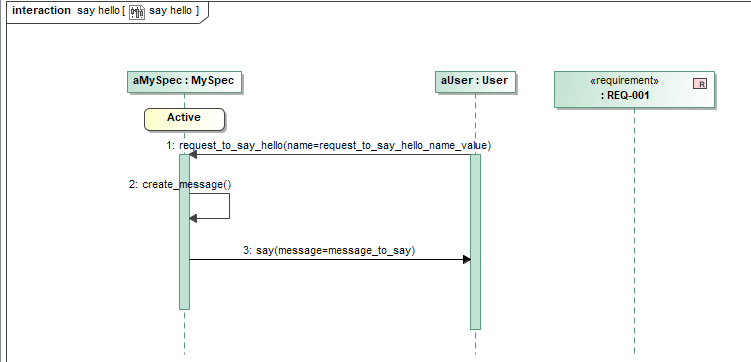
If the Requirement appears as a lifeline, delete it, then right-click → Generate Requirement.
Generate Code
- Papyrus
- Rhapsody
- Catia Magic
Action: Convert your detailed state machine into executable C++ code.
Explication: Generating C++ code from your state machine directly translates your model’s dynamics into a programmable format, bridging the gap between design and practical application.
If you have the community version of Designer (free version), please build the executable via Hub4Sys as shown on this page
- Before generating the code, ensure that the CIL4SysLibs are already part of the project.

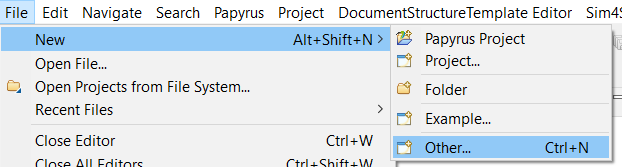
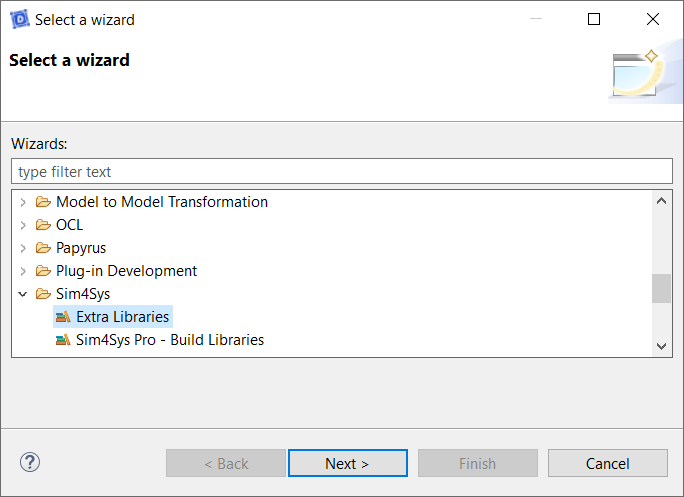
- If it's not the case, you must add the Libs in File > New > Other... In the new window, select Extra Libraries in the Sim4Sys folder. If you have a Pro access, you can add Sim4Sys Pro - Build Libraries instead:
- Click on the Overview menu, thanks to the following icon:
![[Code] Generate and build](/img/tutorials0/40_Generate_and_build.png "[Code] Generate and build")
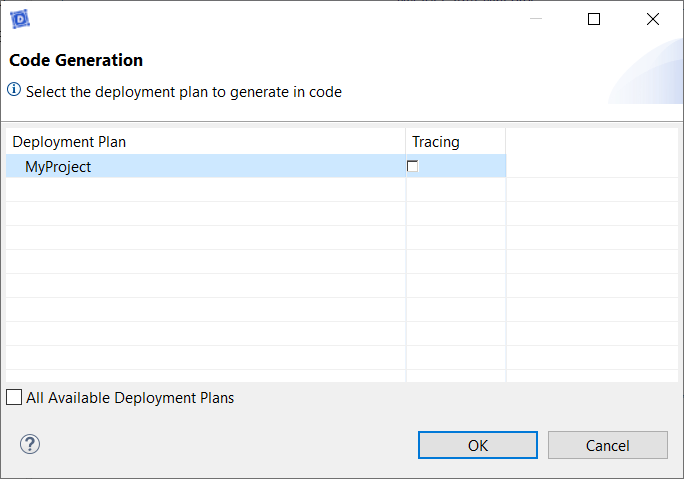
- Click on [Code] Generate and build in CIL4Sys Overview
- Select MyProject
- Click on OK
- Select Cygwin GCC
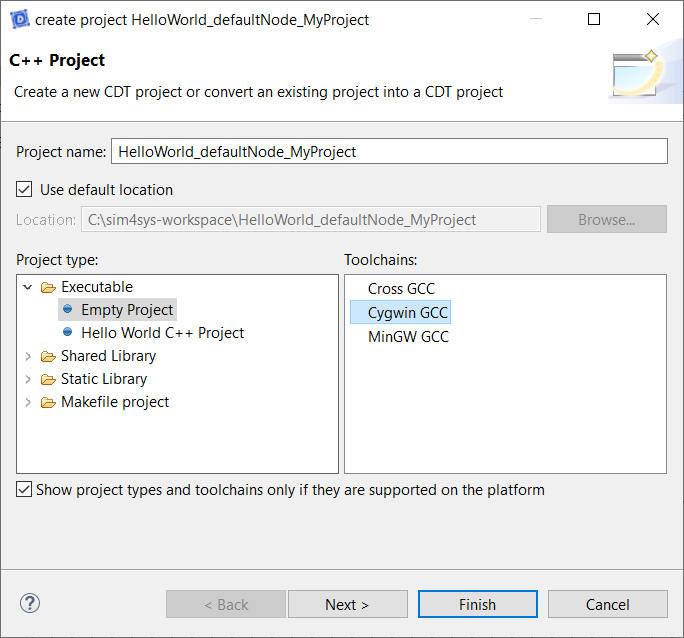
- Click on Finish
- Click on OK in the confirmation dialog box
You can also compile with MinGW.
To do that, please follow this process.
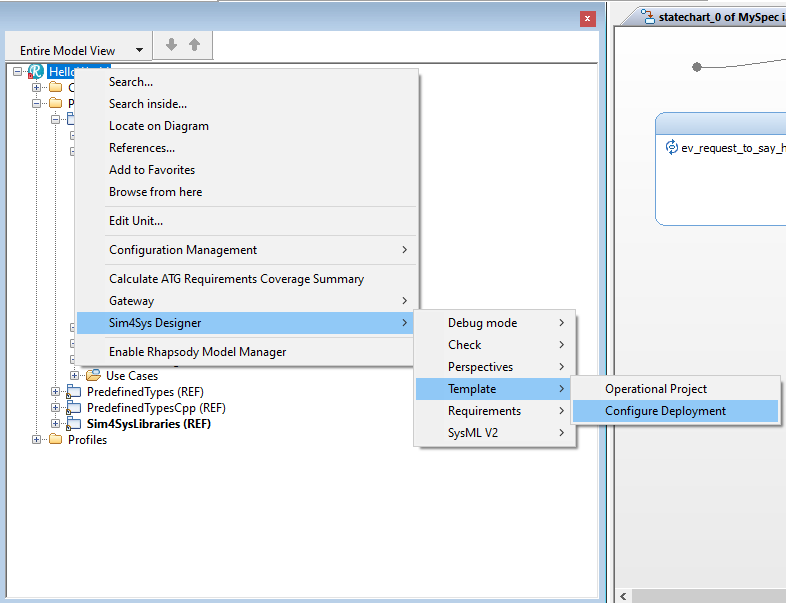
- Right Click on the Project
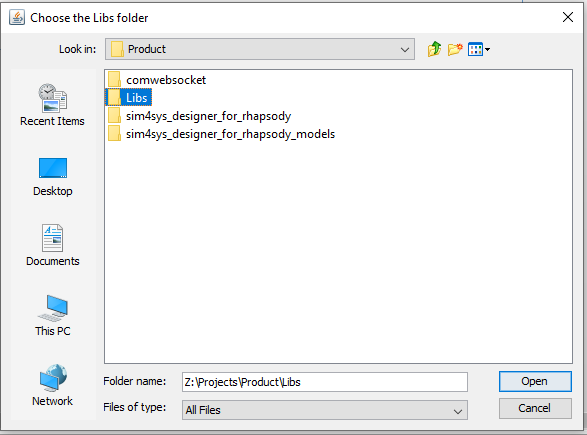
- Click on Sim4Sys Designer > Template > Configure Deployment
- Choose the folder called : Libs
- Click on Open
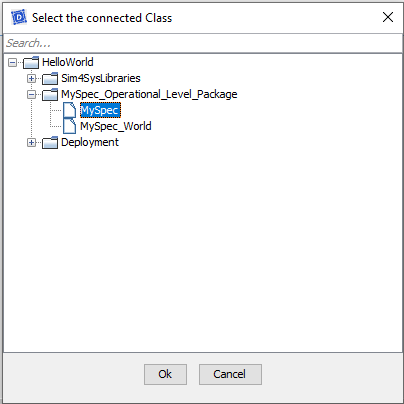
- Choose the System MySpec to connect it to Virtual Bench.
- Click on OK
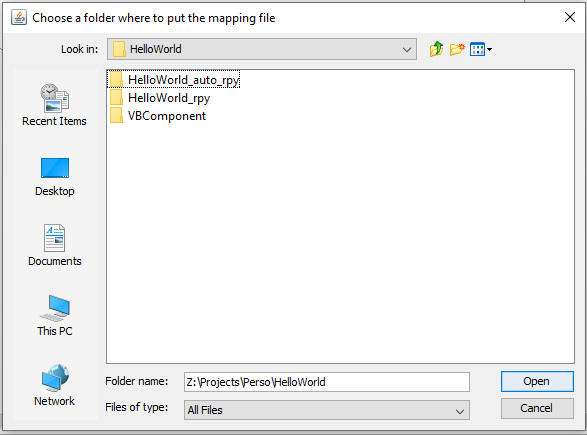
- Choose the folder where you want to put the .xml file.
- Click on Open
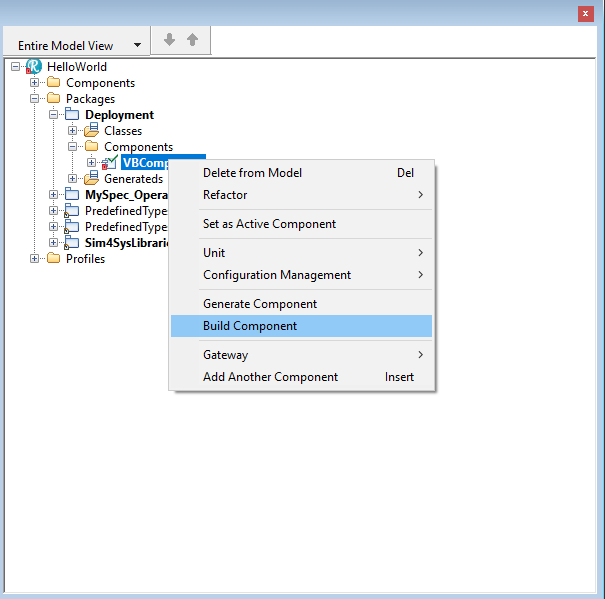
- Open the Components in the Deployement package.
- Right Click on VBComponent
- Click on Build Component
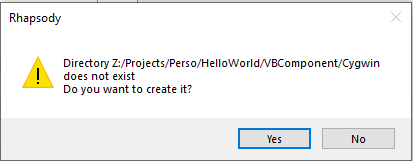
- Click on Yes
With CATIA Magic 2024x, unlike Papyrus and Rhapsody, we do not need to generate code in order to simulate our model.
Go to "Composite Structure Context Diagram", then click "Run Context execution".
Communication between CATIA Magic and Virtual Bench is set to port 9002.
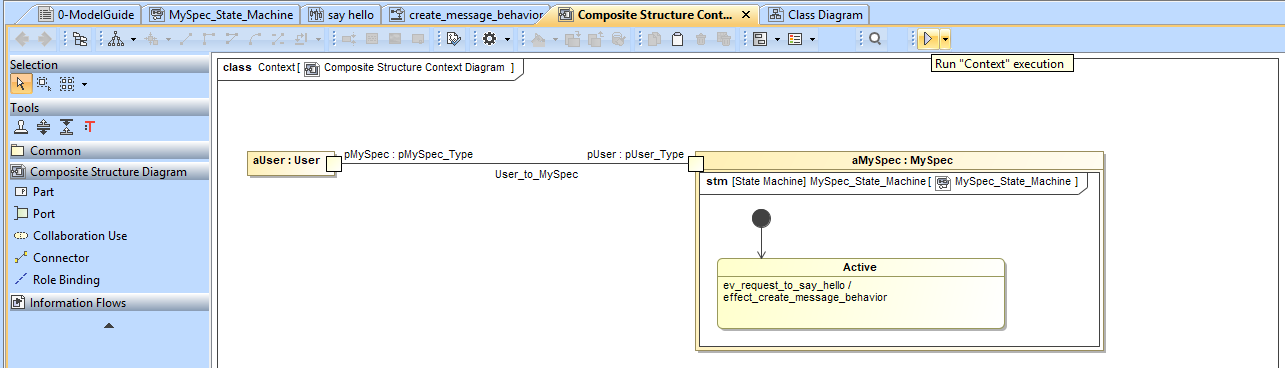
- To ensure correct simulation behavior between Virtual Bench and CATIA Magic, set the "Animation speed" to maximum.

Export a XML
- Papyrus
- Rhapsody
- Catia Magic
Action: Export the model to an XML file for integration with Virtual Bench.
Explanation: Exporting our model to XML plays a crucial role in preparing for simulation. This allows us to seamlessly transfer the model's structure and data to Virtual Bench, where we can simulate and test the system's behavior in a controlled environment. This step ensures that our design meets expectations before going into production.
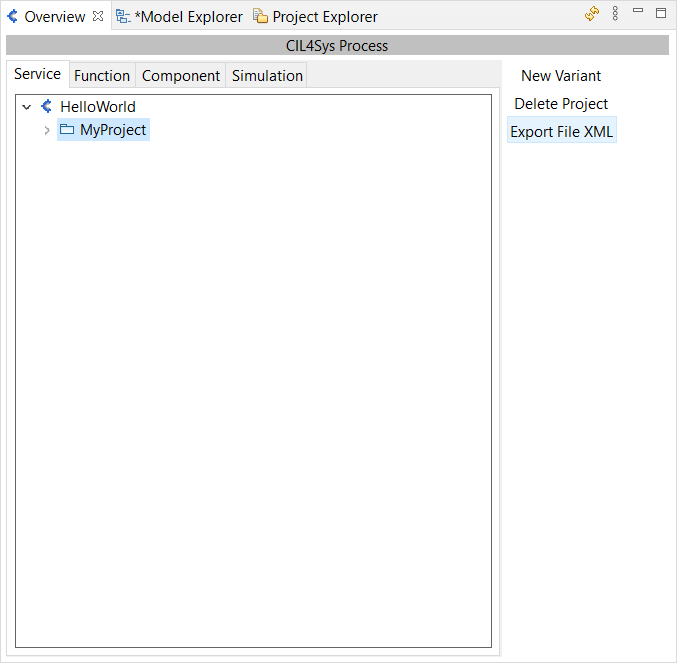
To do so, in Overview, Service Tab, select your project and click on Export File XML.
Explanation: There is no need to export the XML file, It was done automaticly when generating the code.
As soon as you run the simulation in CATIA Magic with Magic Model Analyst, an XML file is generated in the project folder. For Virtual Bench, select the MySpec XML file.
Visualization with Virtual Bench
The final step is to export your model to XML and run it in a visualization. This shows how models can be used outside their native environment and how they move from modeling to visualization.
This section explains how to set up communication between your model and the visualization.
Log in to Virtual Bench
Sign in to the Sim4Sys Virtual Bench platform to prepare your model for visualization.
- Open Sim4Sys Virtual Bench in your browser.
- Sign in with your username and password.
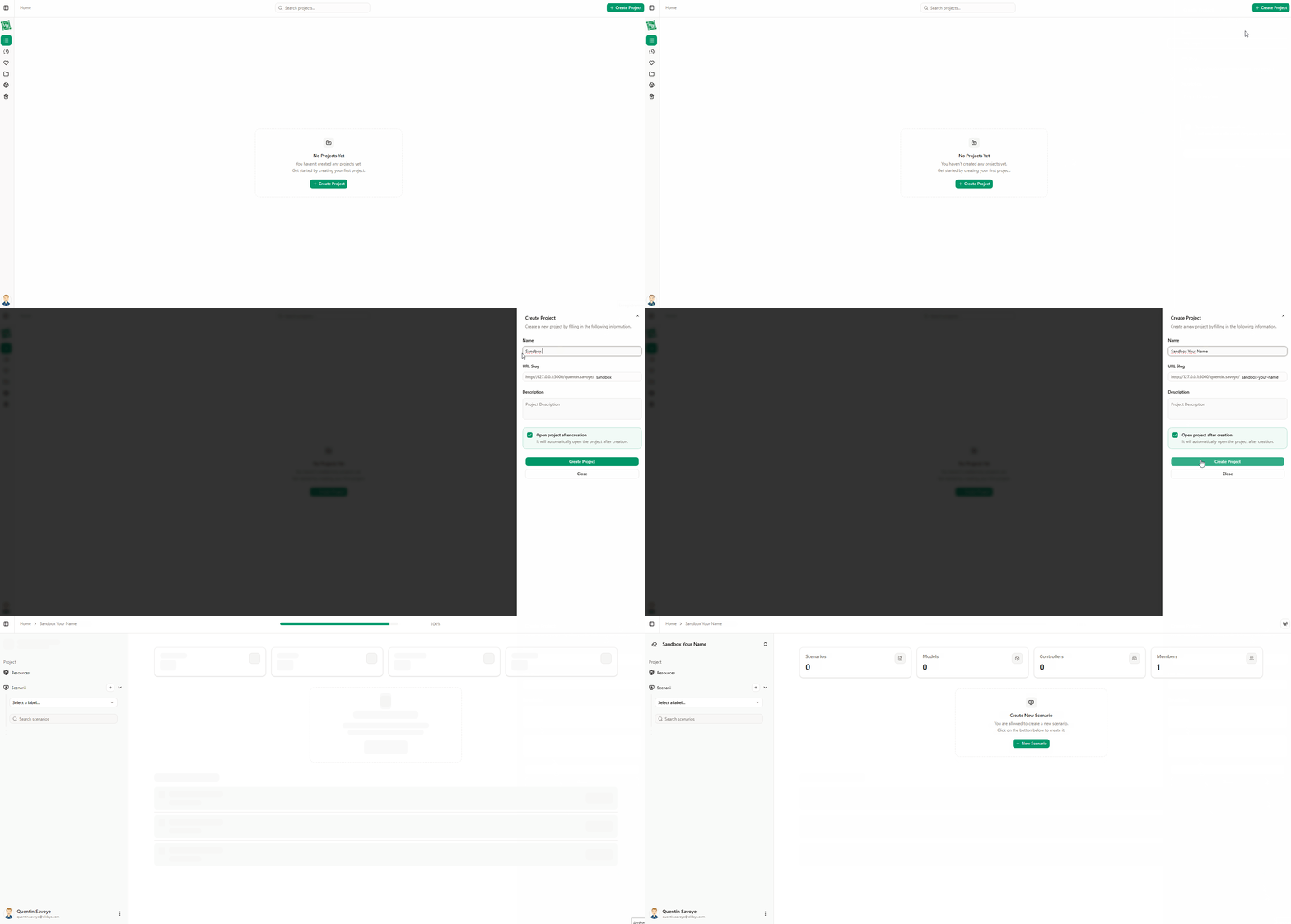
- On the Home page, find your sandbox project and open it:
- Double-click the project card, or
- Click the menu and select Run.

Create one by clicking New Project. In the Project name field, enter e.g. "Sandbox your name" — the URL is generated automatically. Add a short description for the project, and check the option to open the project automatically after creation.
Add Model & Import Types and Flows
Action: Add the model to Virtual Bench and import the types and flows from your model.
Explanation: Adding the model and importing its data into Virtual Bench prepares the visualization environment so you can test and validate the system’s behavior under visualized conditions.
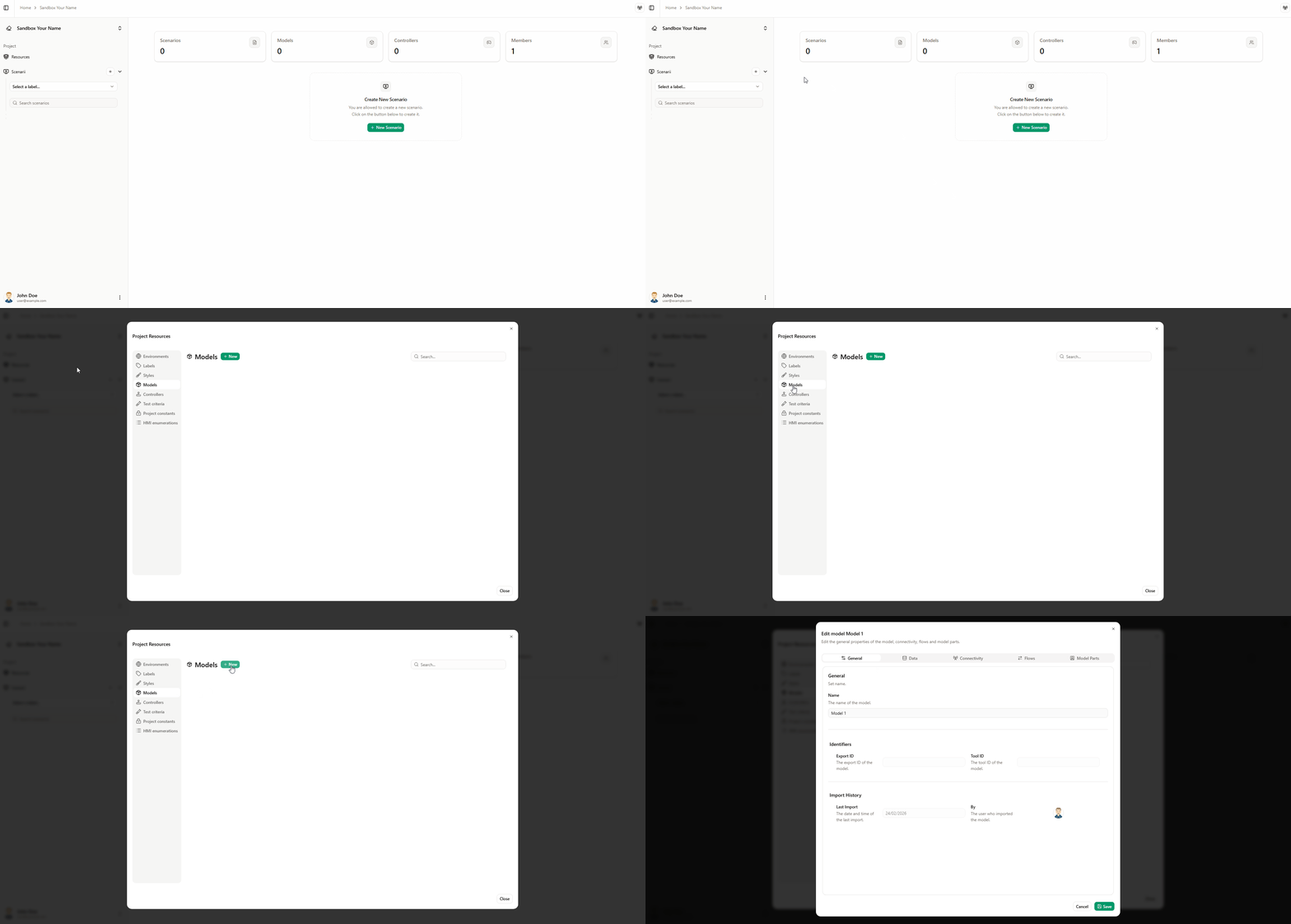
1. Open the Models tab and add a new model
- On the project opening page, open the sidebar and click Resources. A new window opens with a list of resources.
- Select the Models tab, then click the New button.
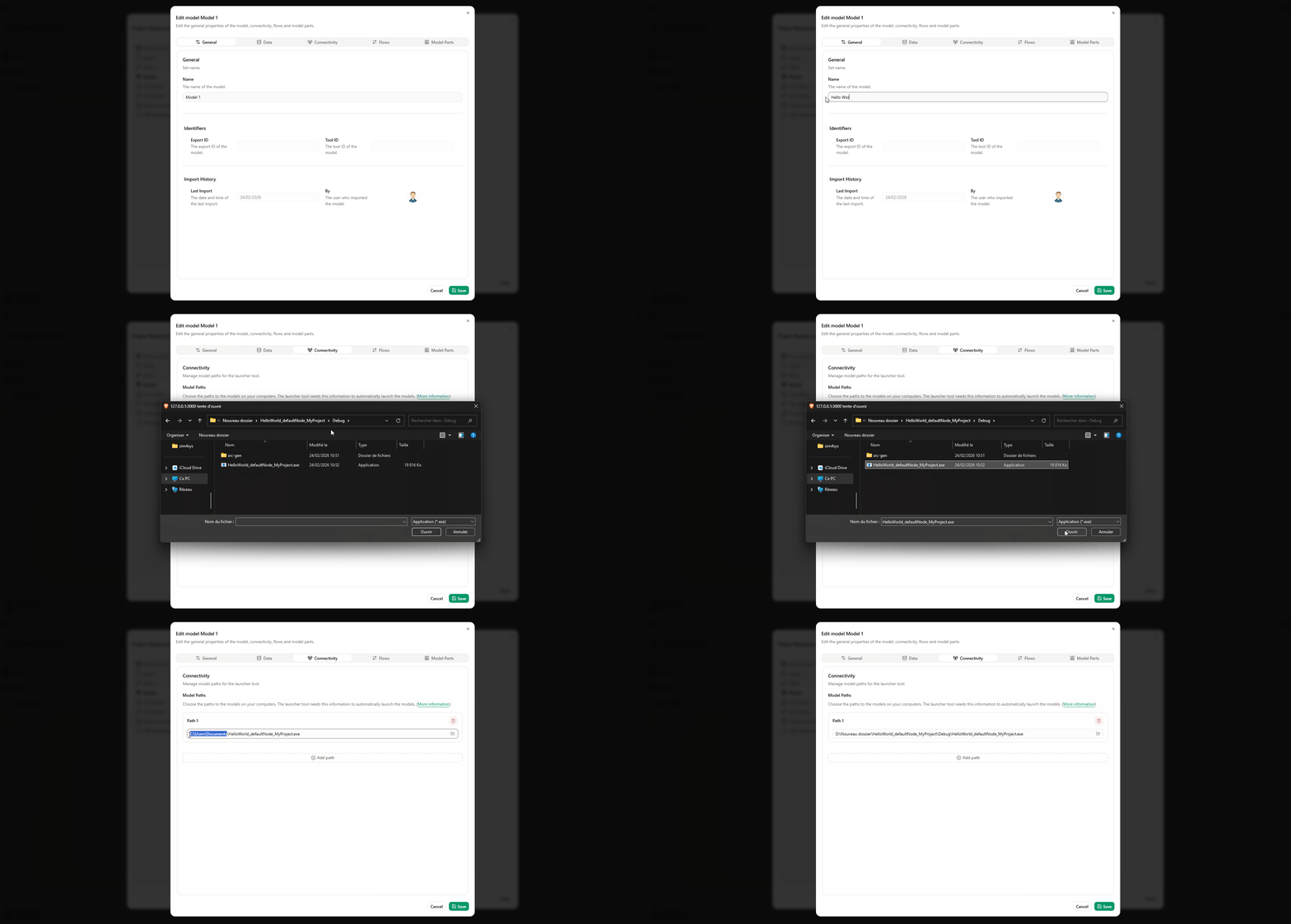
2. Configure the model (General and Connectivity)
- General tab (): Give the model a name (e.g. HelloWorld).
- Connectivity tab (): Set the path to the model executable file.
To set the path: click the button, navigate to the folder that contains the model executable, then copy the path and select the file. Because of browser security, Virtual Bench cannot obtain the path from the file picker, so paste the path into the text field before the file name.
No path needs to be specified.
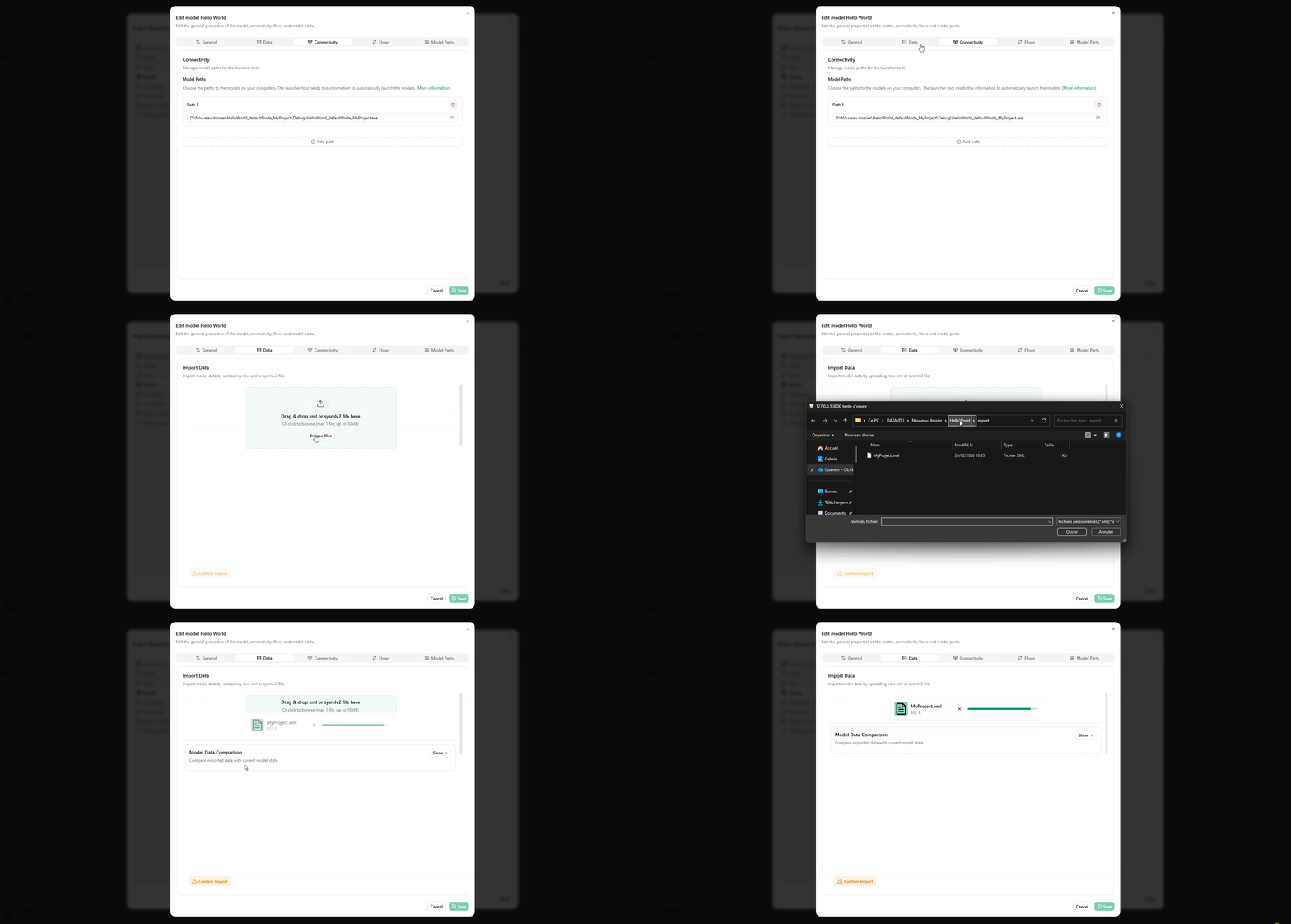
3. Import types and flows (Database tab)
- Open the Database tab ().
- Import types and flows from your design model into Virtual Bench by either:
- Dragging and dropping your previously generated XML file, or
- Clicking Browse File and selecting the XML file you generated earlier (it is in the
HelloWorld\exportfolder).
The summary lists imported types and flows, plus any updated or deleted flows. Expand the Data comparison section to see the details of the changes.
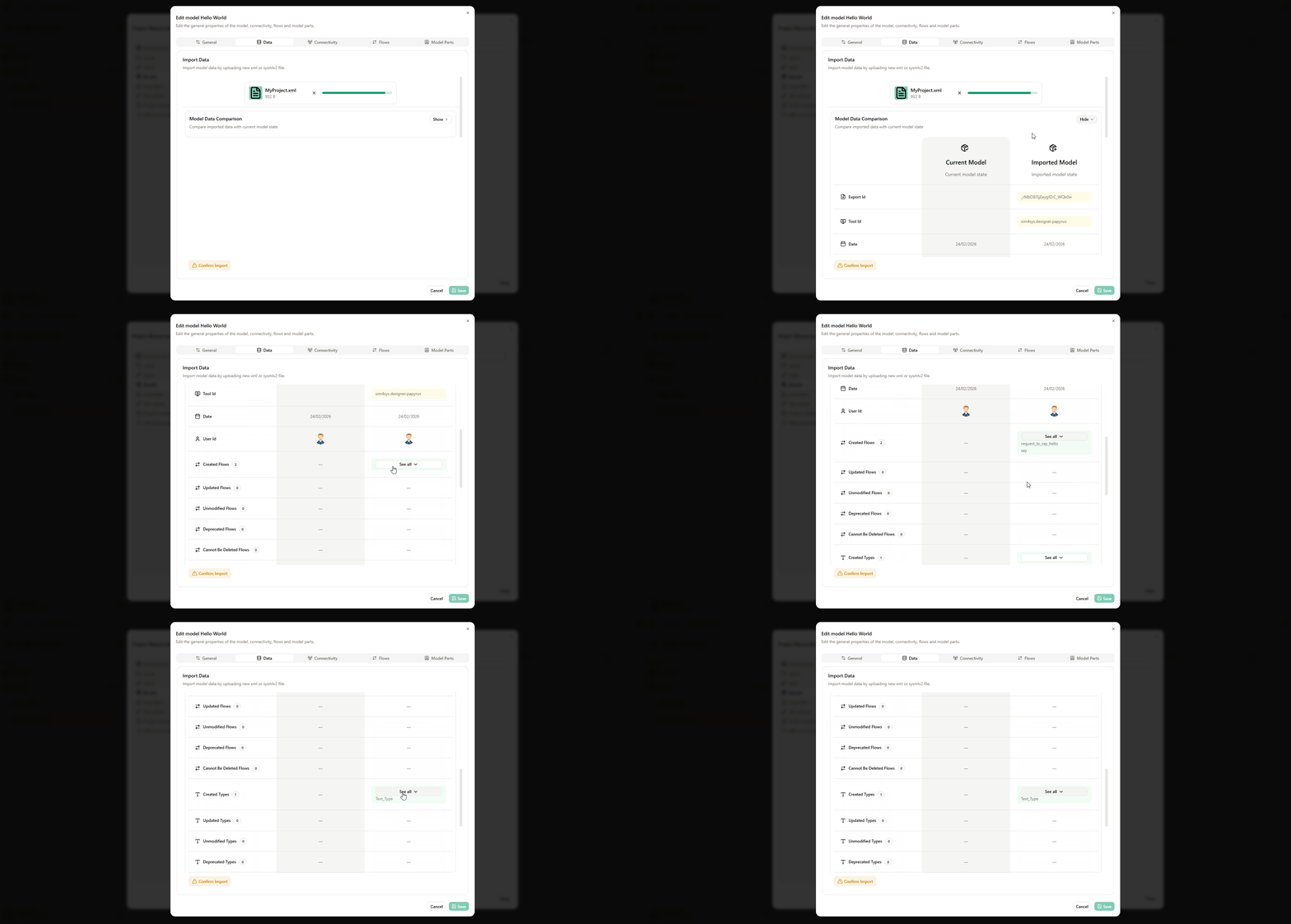
4. Confirm and verify
- Click Confirm import to save the changes.
- Open the Flows tab () and confirm that the imported flows are listed.
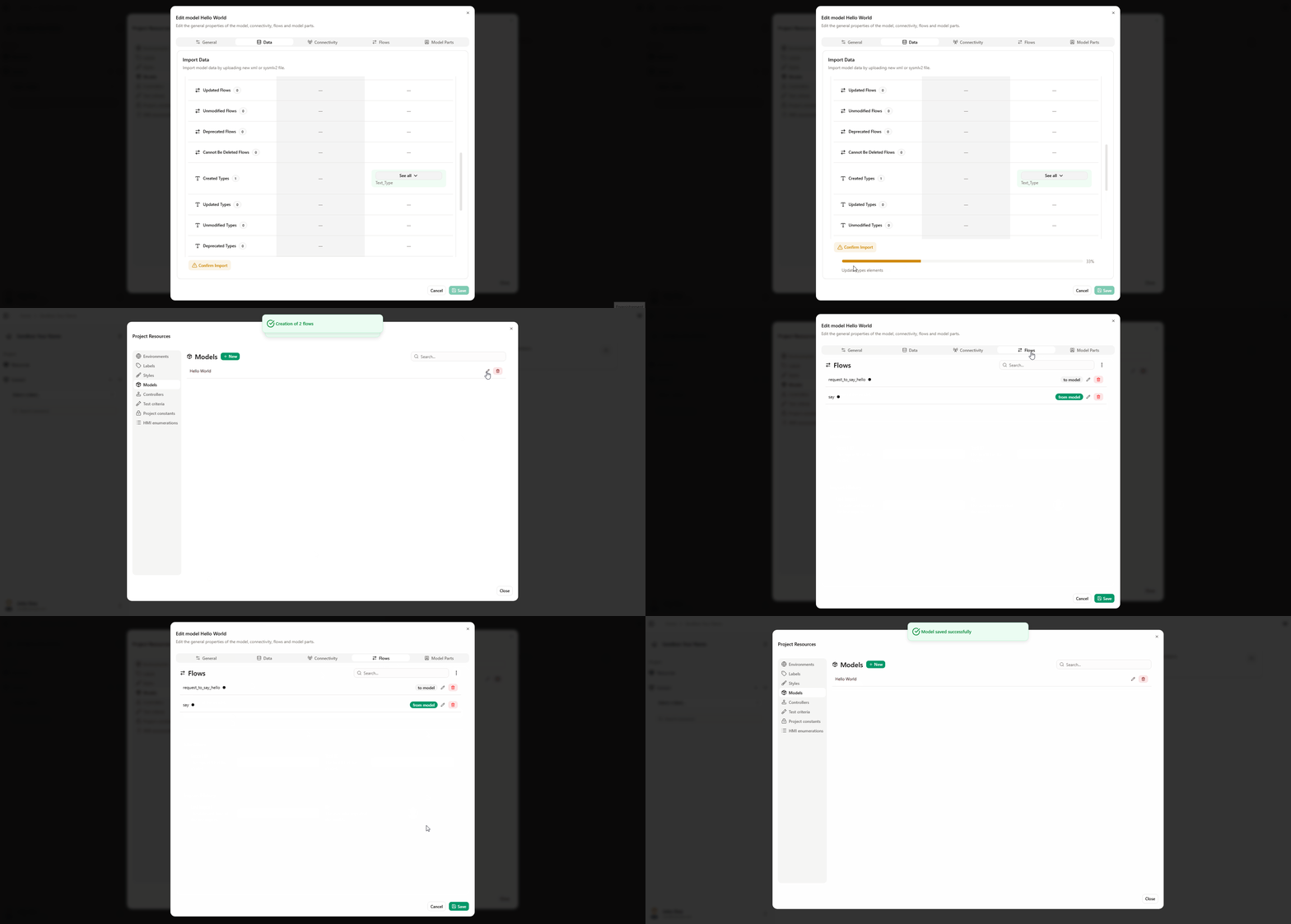
Environment
Action: Add HMI, Scene2D, and Timeline environments in Virtual Bench for visualization.
Explanation: HMI, Scene2D, and Timeline provide visual and temporal frameworks to observe system behavior. Each type offers a different view—user interface (HMI), spatial representation (Scene2D), and event timeline (Timeline)—so you can inspect and understand the system from multiple angles.
Steps
-
Open the Resources panel
On the project opening page, open the sidebar and click Resources. In the new window, select the Environments tab, then click the New button.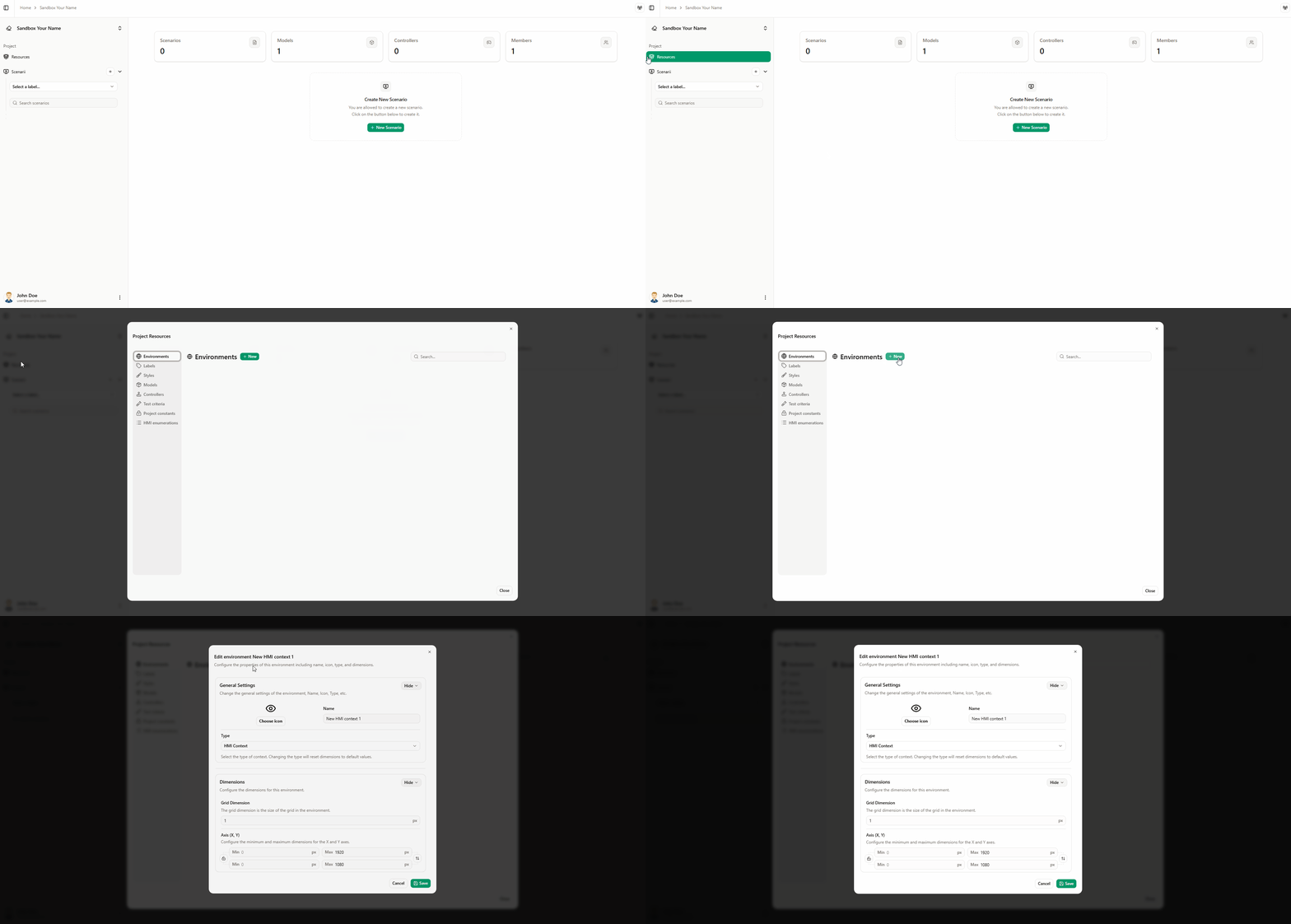
-
Add the three required environments
For this tutorial you need three environments: HMI, Scene2D, and Timeline. For each one: choose the environment type, set the name and dimensions if needed, then click Save.
See Adding a new context for more detail.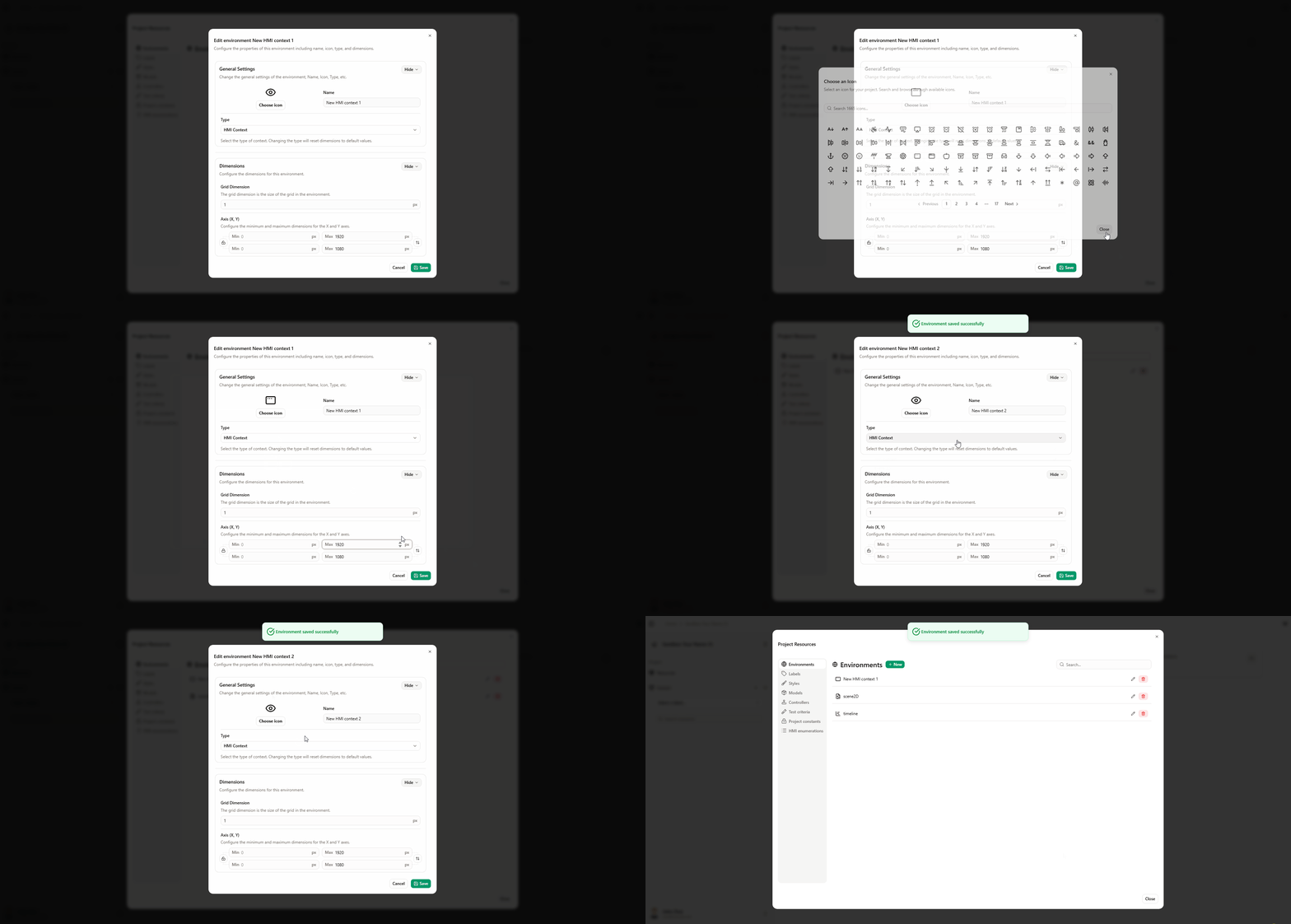
You can have only one Scene2D and one Timeline environment per project.
Add a New Scenario
Action: Set up and add a new scenario in Virtual Bench, defining the sequence of events that your model will undergo in the visualization.
Why: Creating distinct scenarios lets you simulate different interactions and behaviors under varied conditions. This helps test the system’s robustness and surface potential issues before implementation, so the system fits its future usage environment.
Steps:
- After you have created your contexts, add a new scenario.
- Name it as you wish, optionally check Open the new scenario automatically, add labels if desired, then click Create Scenario. The new scenario opens.
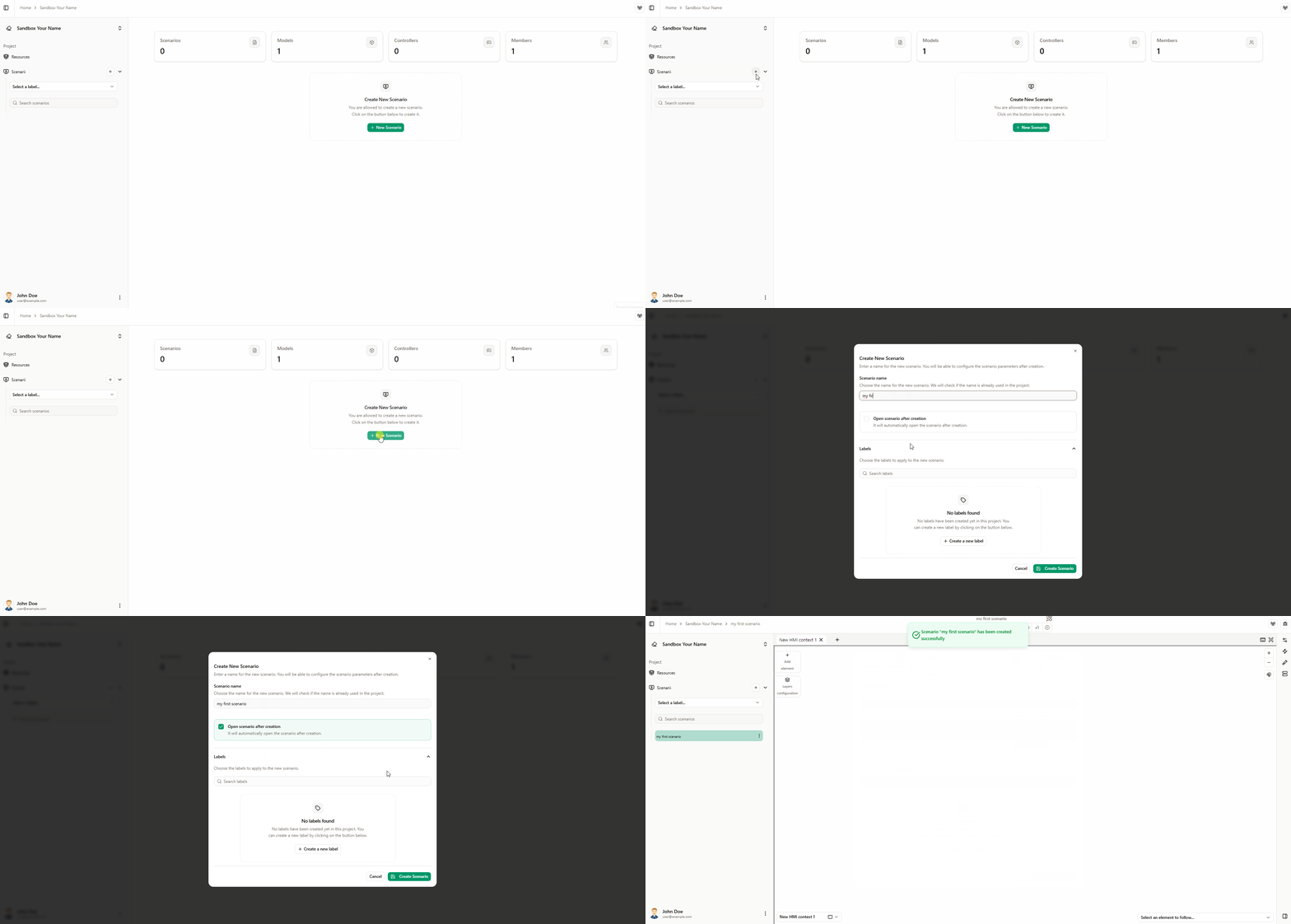
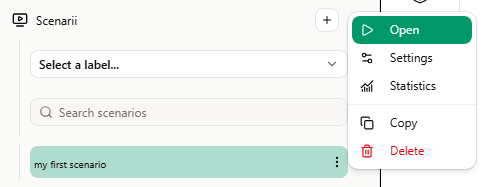
Opening a scenario: Double-click the scenario name, or open the menu and select Open.
Add Model Instance to Scenario
Before defining scenario behaviours with controller elements, add one or more model instances to the scenario.
Steps:
-
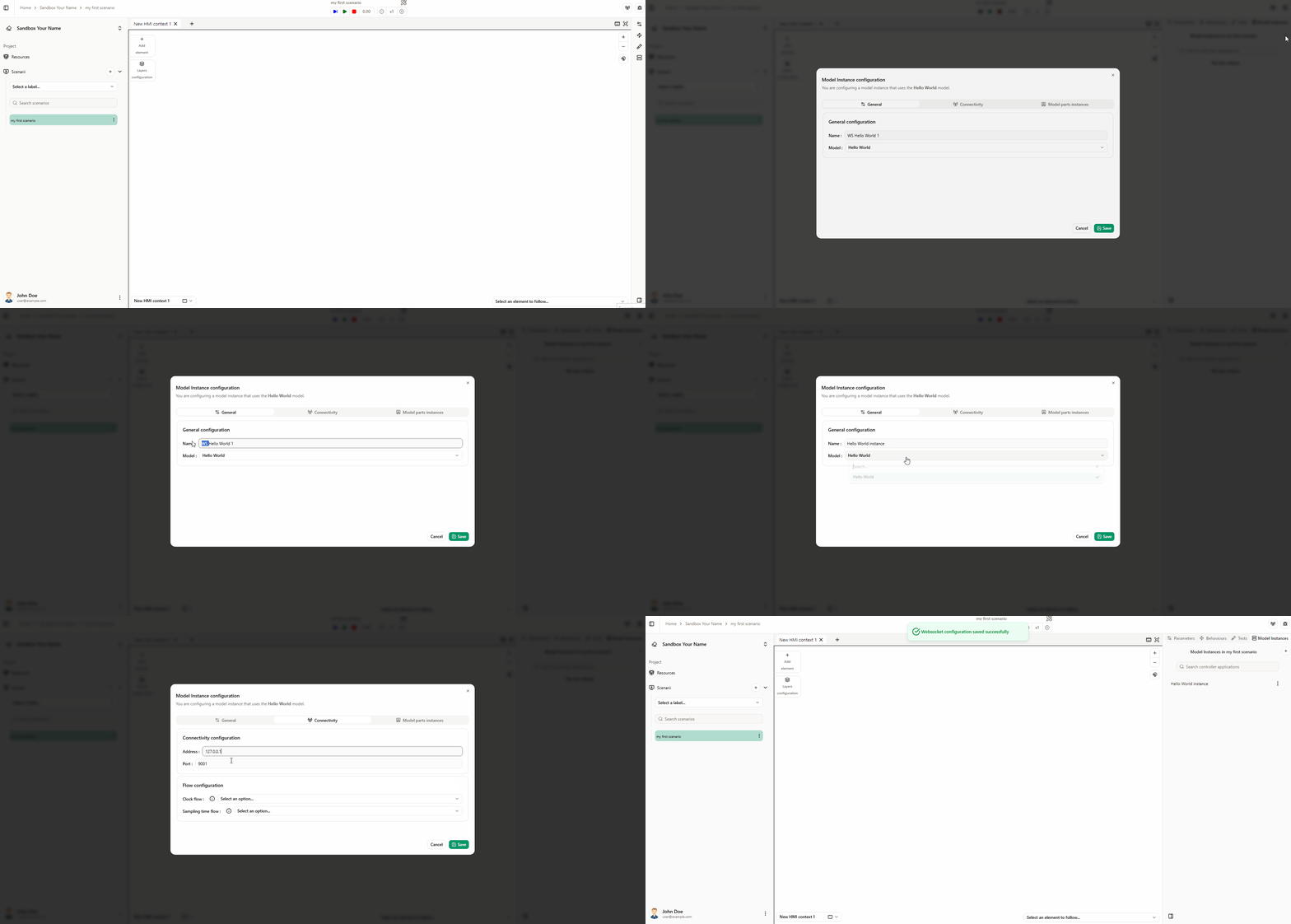
In the right sidebar, open the Model instances tab and click the New button.
-
General (): Name the model instance as you wish and select the associated model. For this tutorial, use the model "Hello World".
-
Connectivity (): Set the IP address and port for the model instance. Use IP address 127.0.0.1 and port 9001 (Note for Catia Magic: port 9002).
-
Click Save to apply the changes.
Controllers
Action: Establish controllers between the types and flows defined in the model and their representation in Virtual Bench.
Explanation: The controller process aligns the elements of your model with the simulation components. This ensures that data flows correctly between the model and the simulation, allowing accurate analysis of system–user interactions and the detection of anomalies or opportunities for improvement.
Behaviour of request_to_say_hello
Add a behaviour so that the flow request_to_say_hello is triggered when the user clicks a button. Follow these steps:
Steps:
-
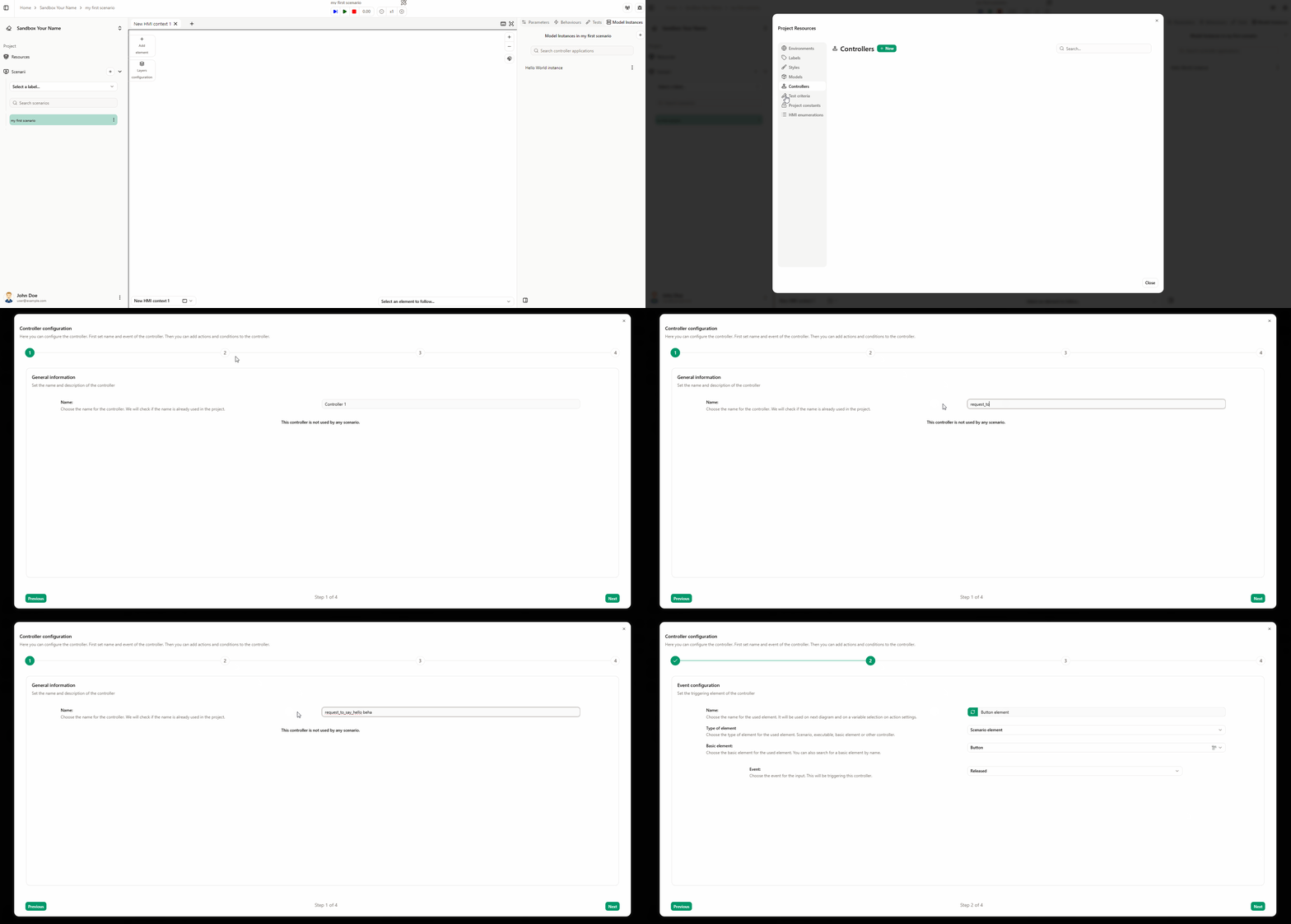
Open the Project Resources panel by clicking the Resources button in the left sidebar. Select the Controllers tab and click the New button.
-
In the window that appears, enter a name (for example, "request_to_say_hello behaviour") and click Next.
- On the Event configuration page, choose the event that will trigger the controller. To trigger on button click: set Scenario element type, select Button element, and Release event. Click Next.
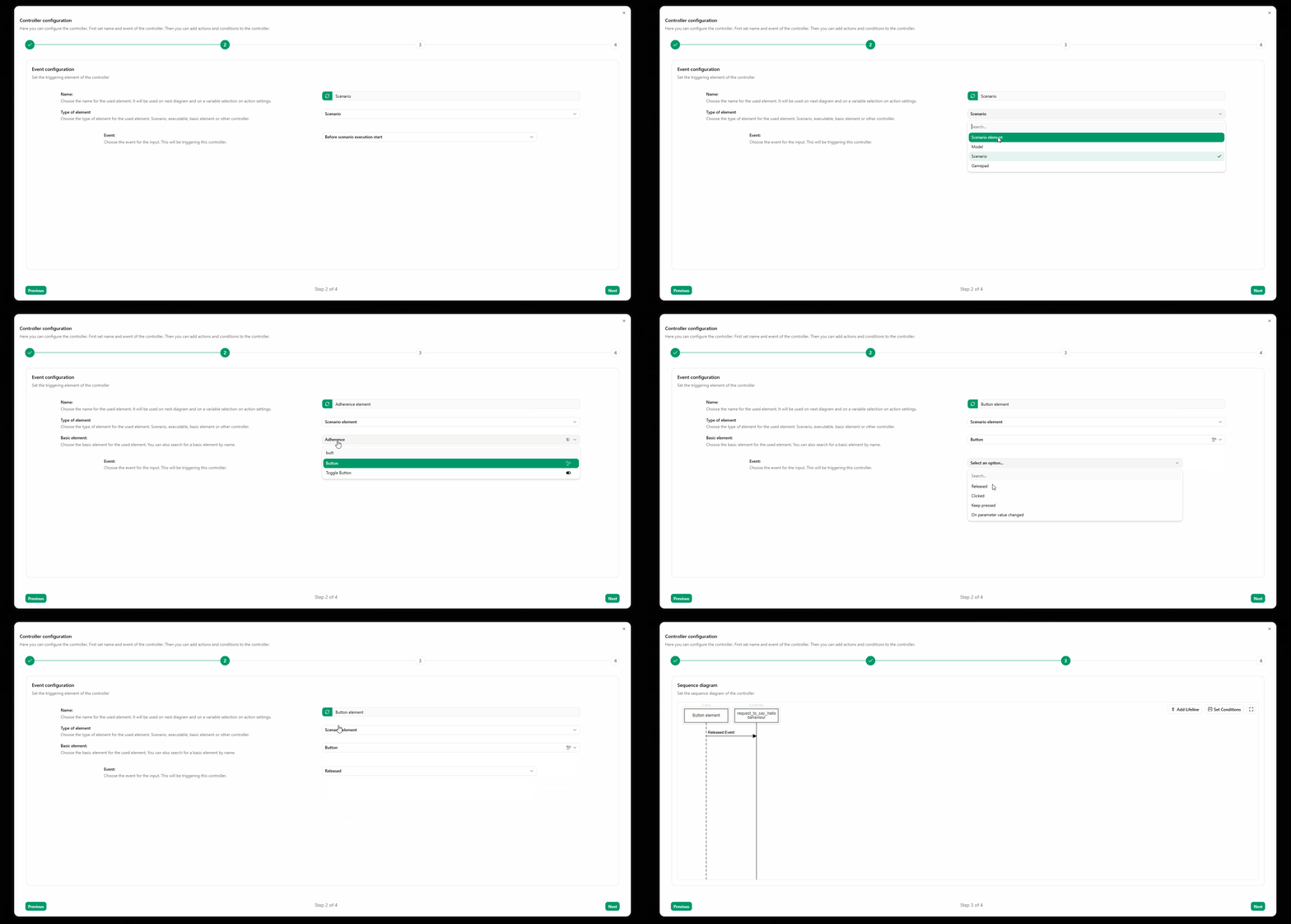
Click the icon to automatically rename the controller event.
- On the Sequence diagram page you can add the actions that run when the controller is triggered. To trigger the flow request_to_say_hello: click the Add lifeline button, place the lifeline on the diagram, and click to confirm. In the window that appears, select type Model and the model "Hello World". Click Create.
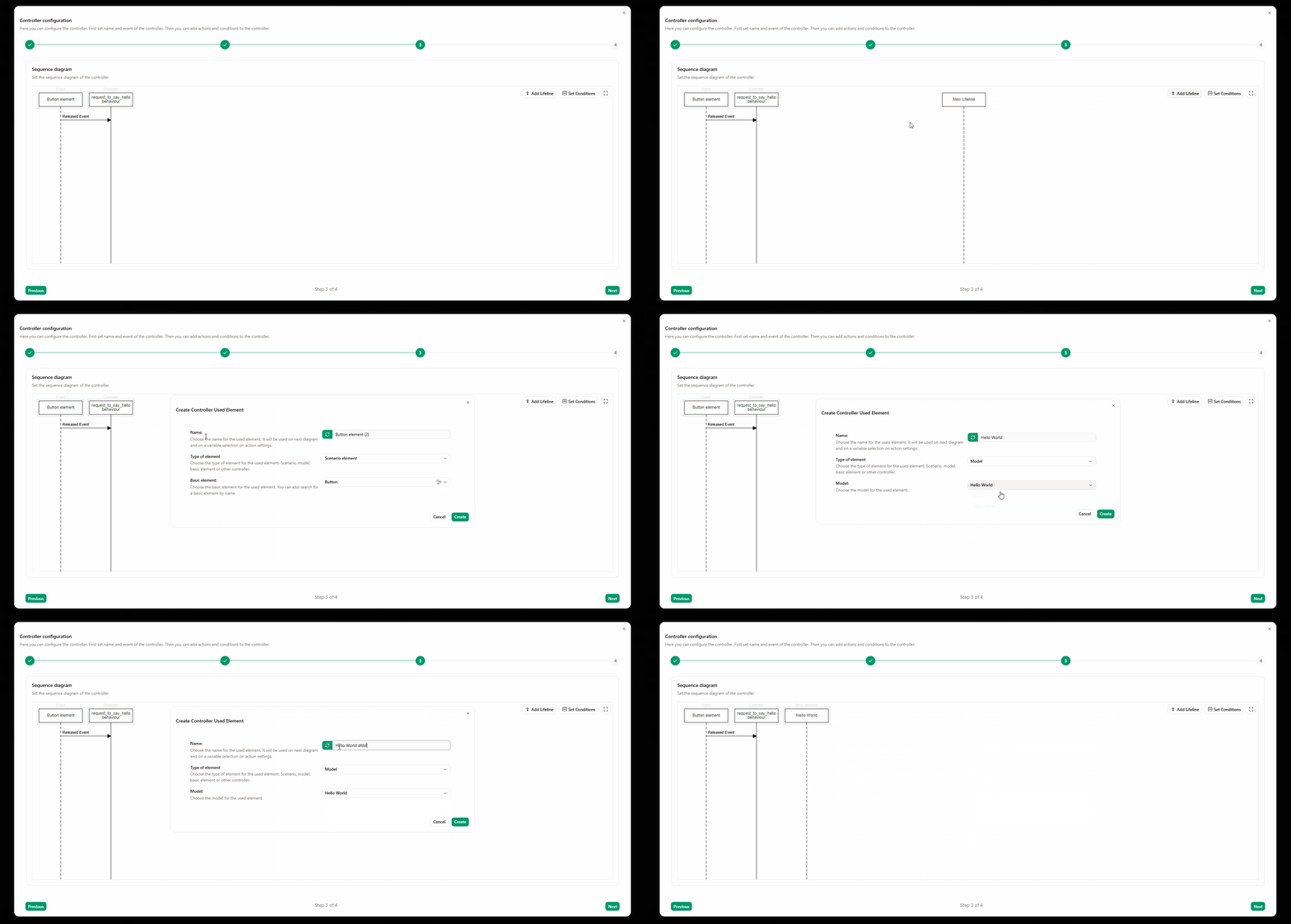
Click the icon to automatically rename the controller lifeline.
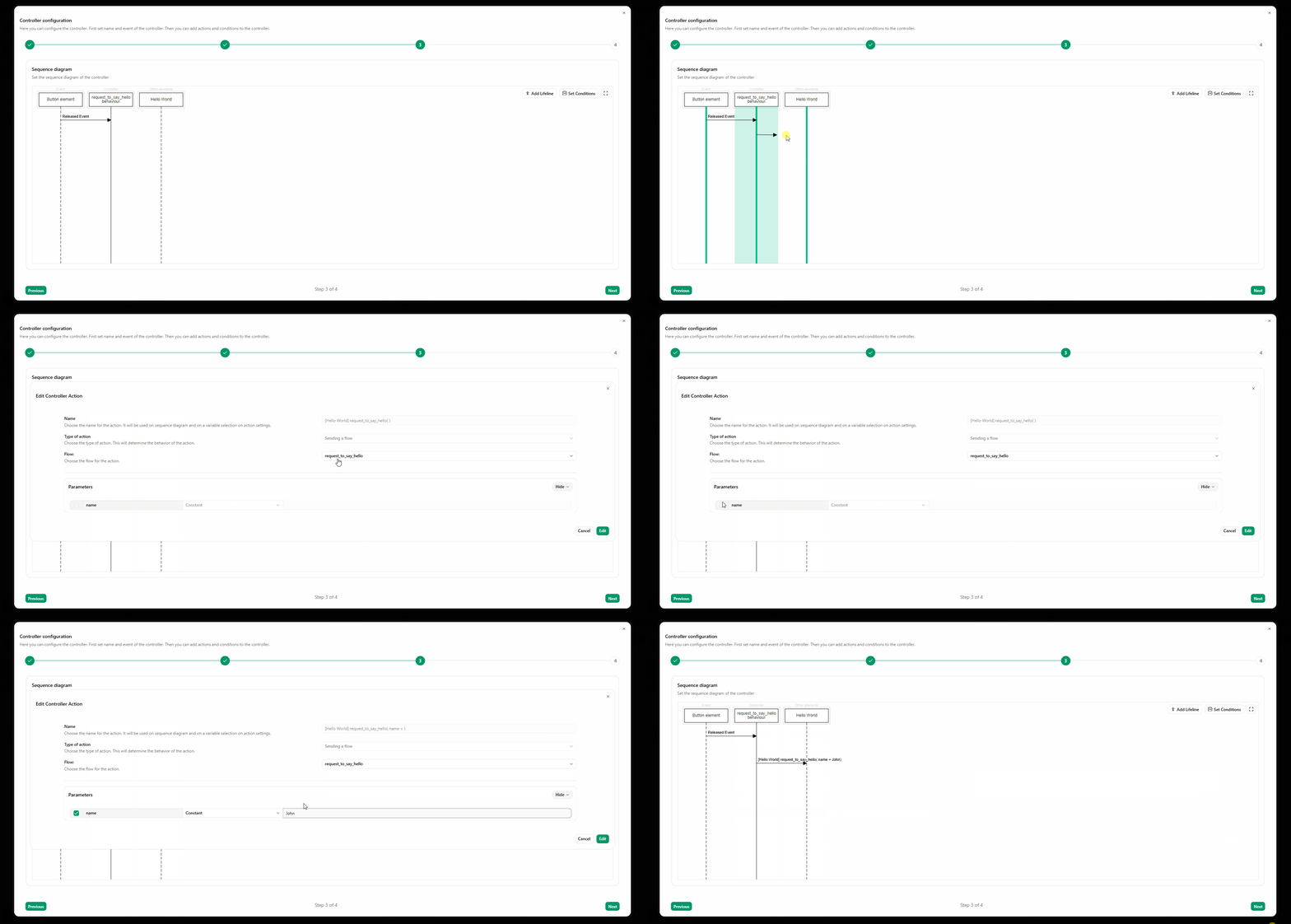
- Add an action from the controller lifeline to the model lifeline: click the controller lifeline and create a message to the model lifeline. In the window that appears, select the flow "request_to_say_hello", optionally set the name parameter (e.g. "John"), and click Create.
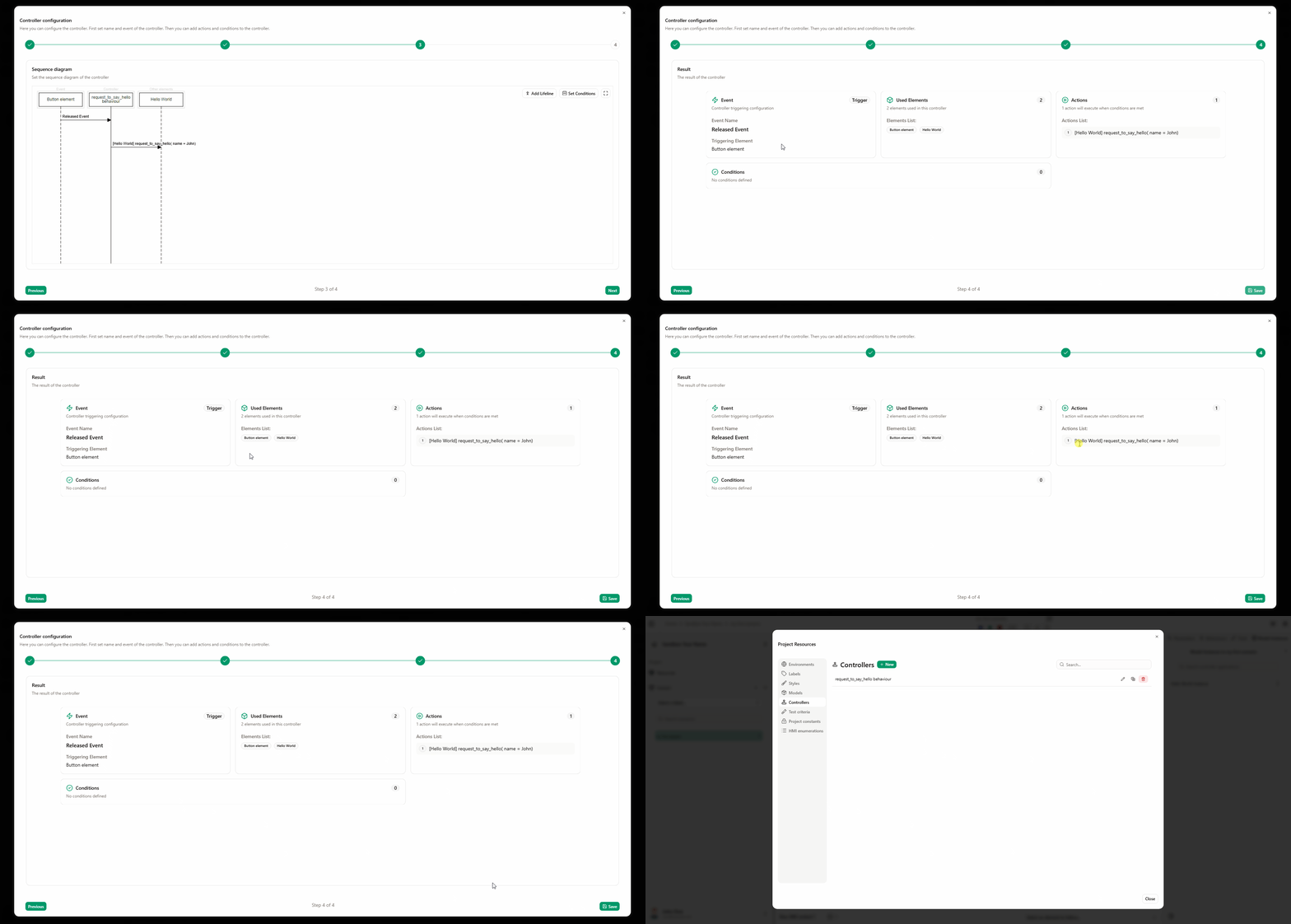
- Click Next to open the confirmation page. Review the configuration and click Save to save the controller.
Add the trigger button to the HMI
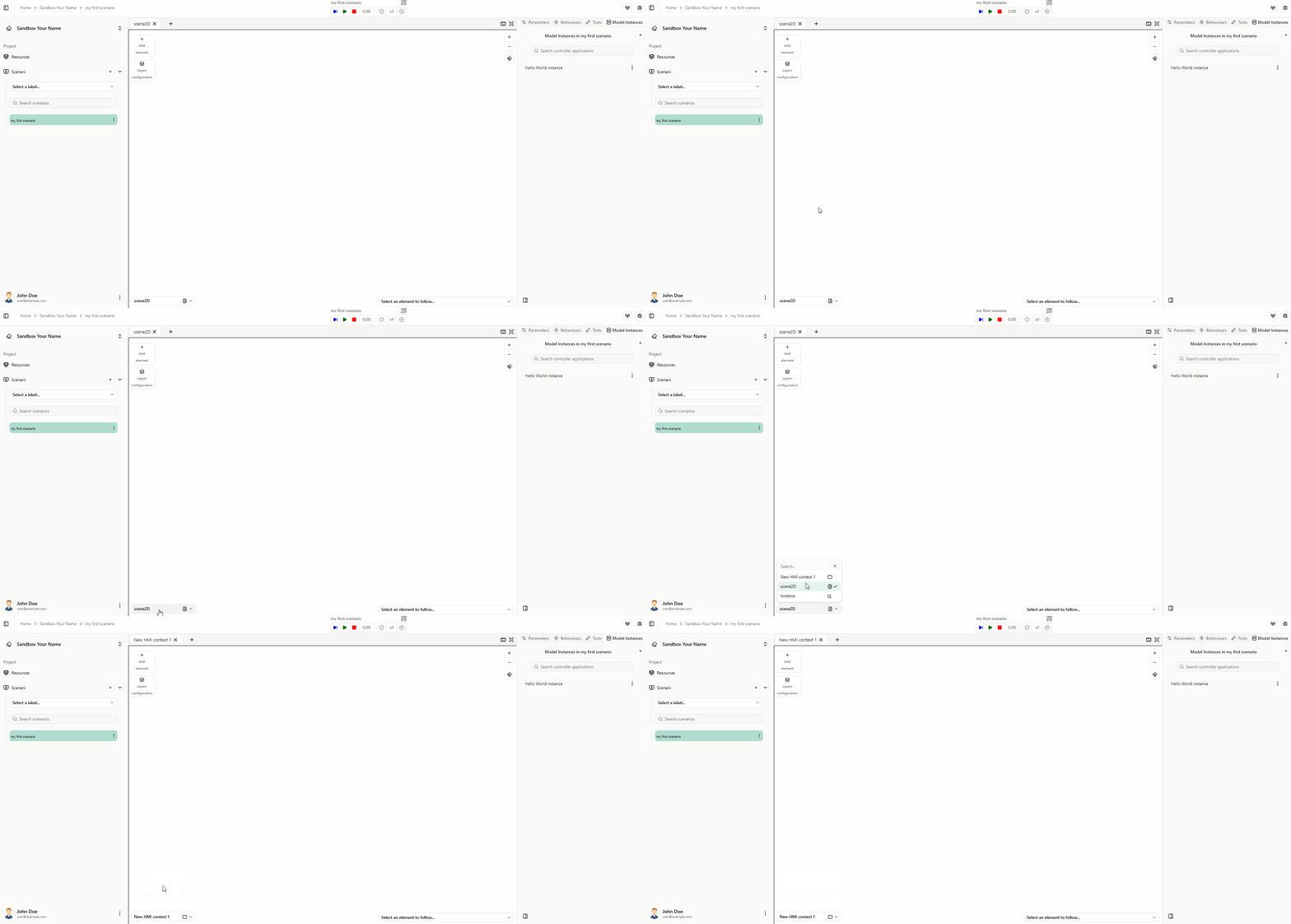
- Add a button that will trigger the flow request_to_say_hello. If the HMI environment is not already visible, select it from the combobox at the bottom-left of the page.
- Click Add element to open the element library, find the Button element, and drag and drop it onto the HMI environment.
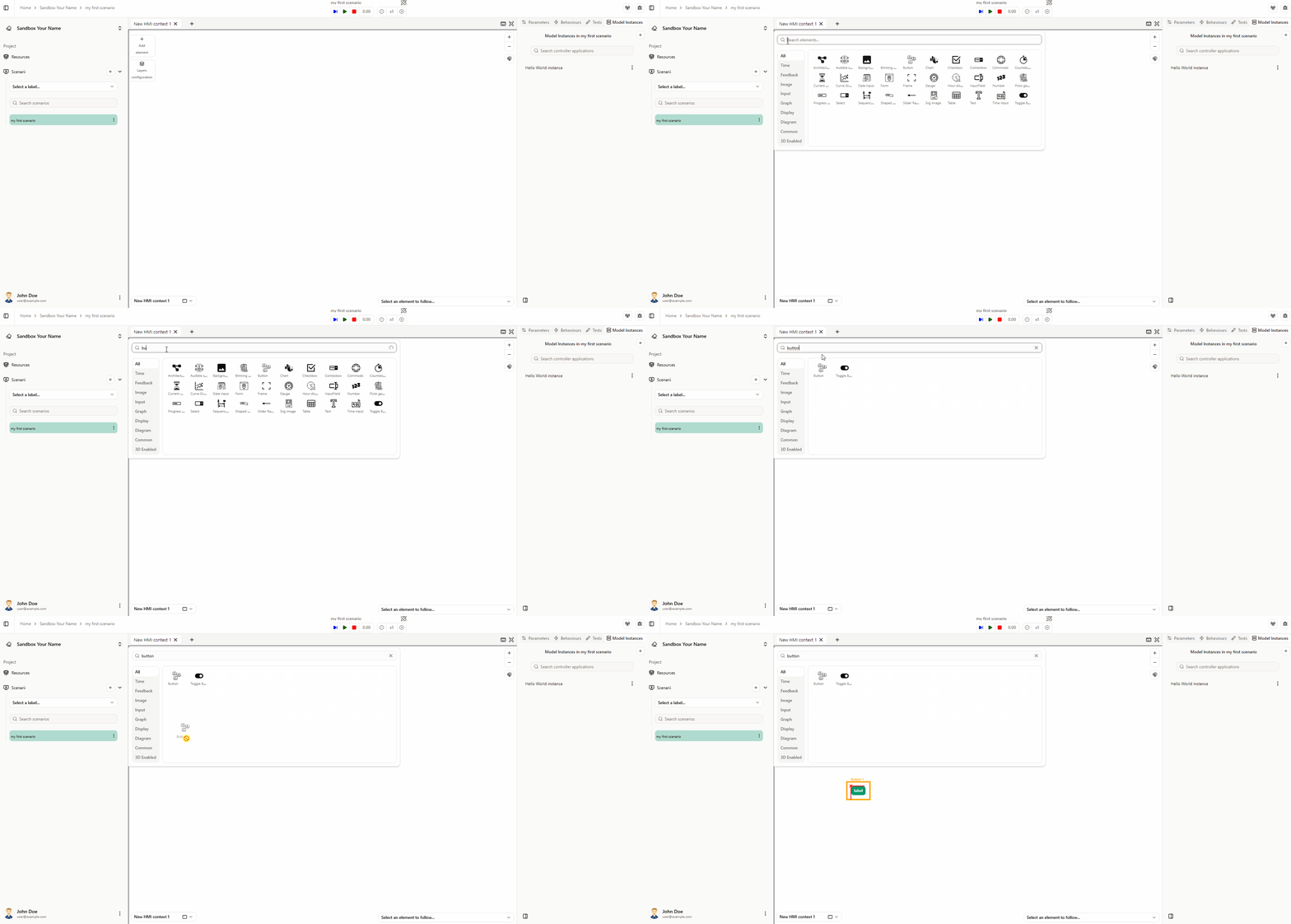
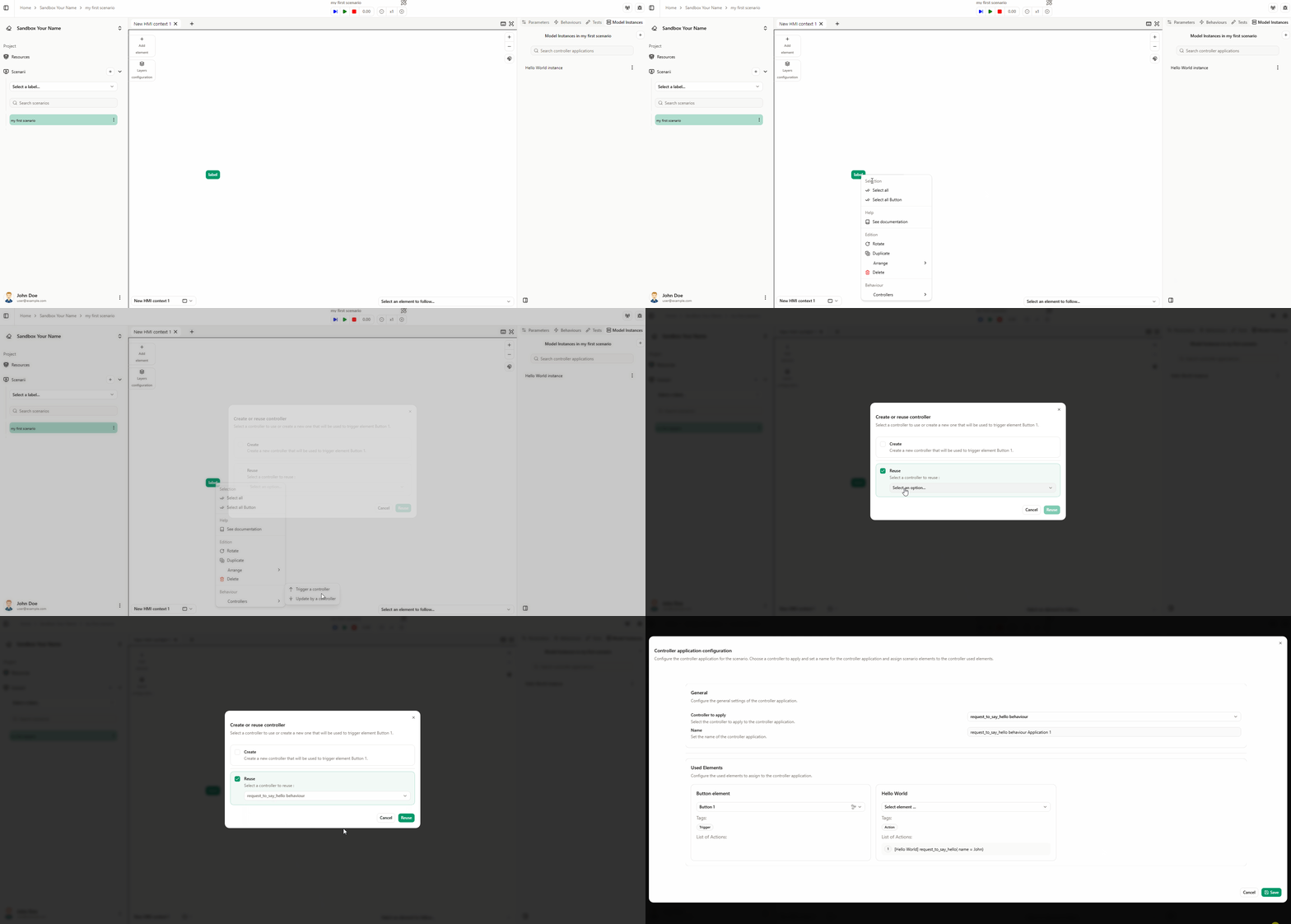
- To attach the controller to the button: right-click the button and choose Controllers → Trigger a controller. In the window that appears, select Reuse, choose the controller "request_to_say_hello behaviour", and click Reuse.
- In the next window, select which model instance will receive the flow (the button is already set as the event source). Select the model instance "Hello World" and click Save.
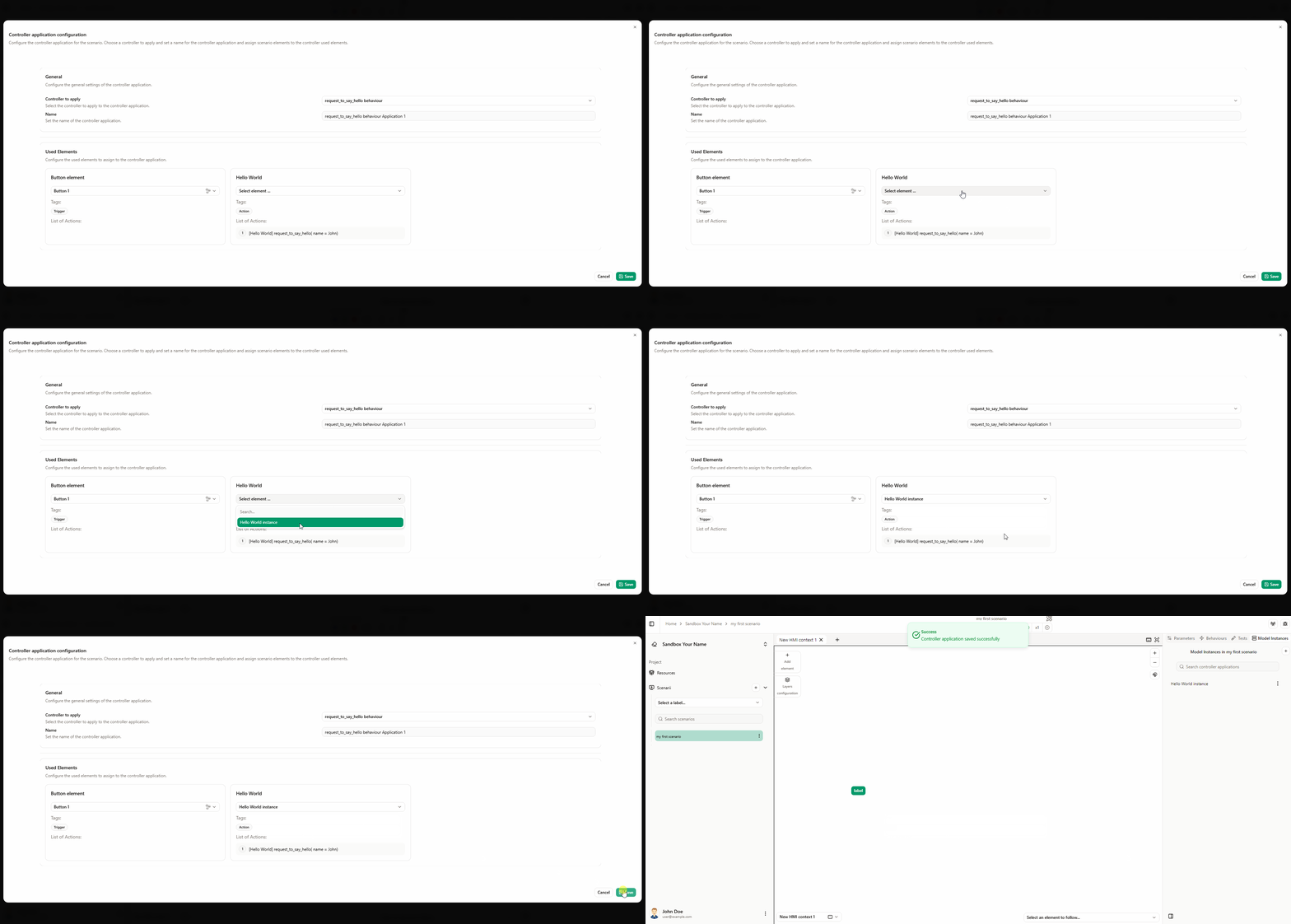
The behaviour is now applied to the button.
Behaviour of say
Create a controller behaviour so that the flow say (sent from the model) updates a text element. The steps below create and attach this behaviour controller in one flow.
Steps:
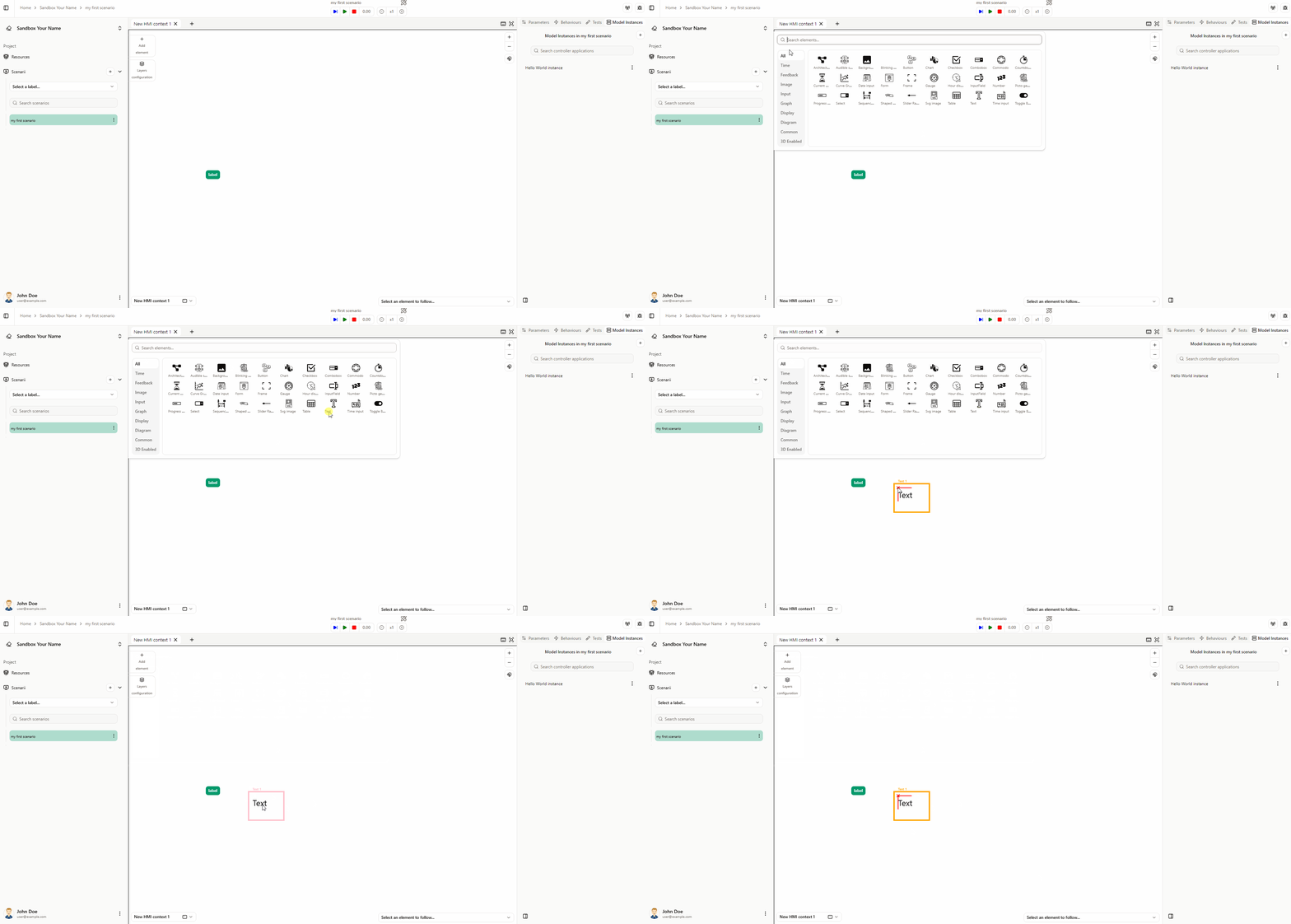
- Add a text element to the HMI environment next to the button and select it.
- In the right sidebar, open the Controllers tab. To show the flow say on this text element when it is received, create an Update controller: click the New button next to "Update controller" and choose Create.
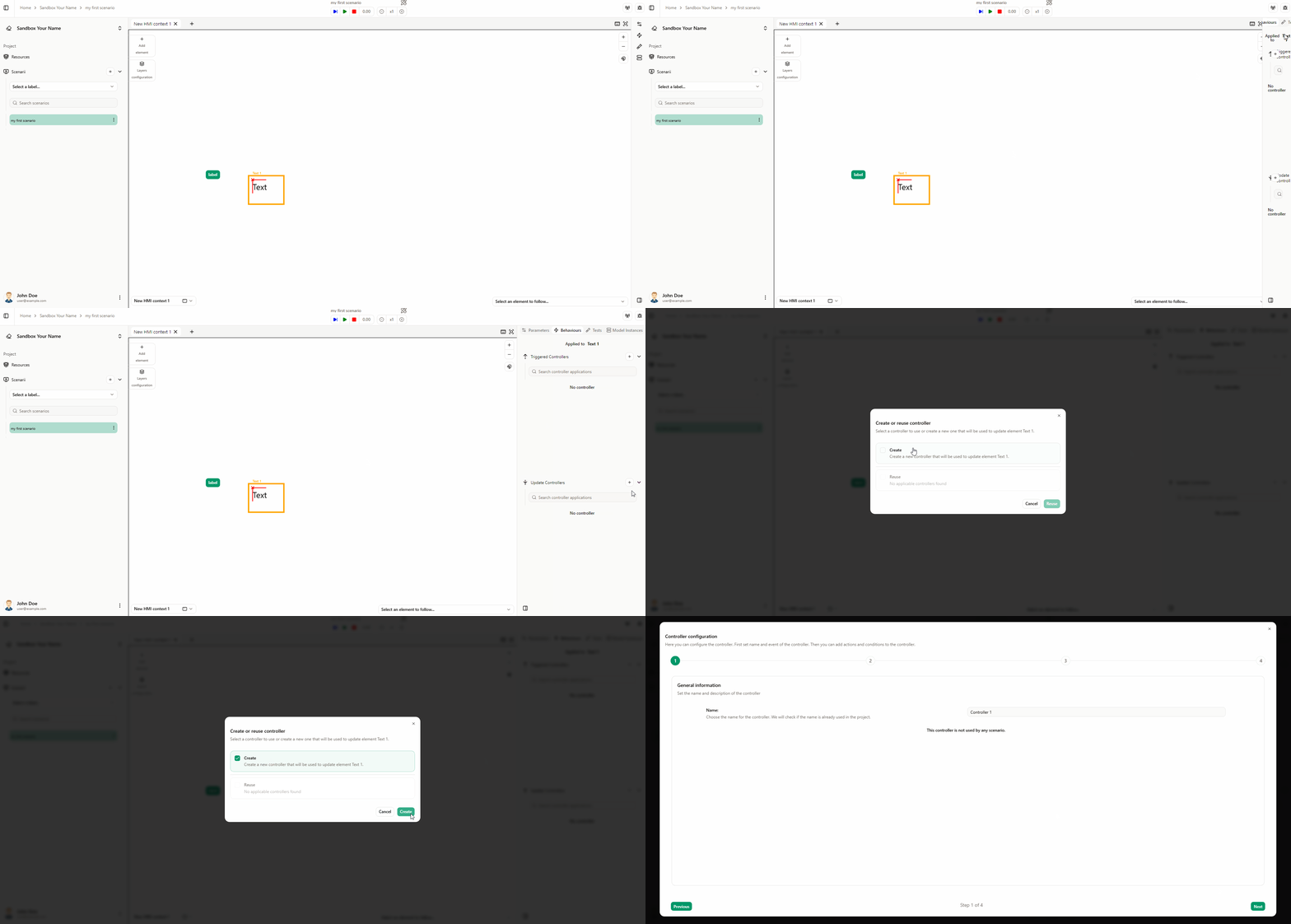
- Enter a controller name (e.g. "say behaviour"), then click Next. Set the event to Receive flow and select the flow "say". Click Next.
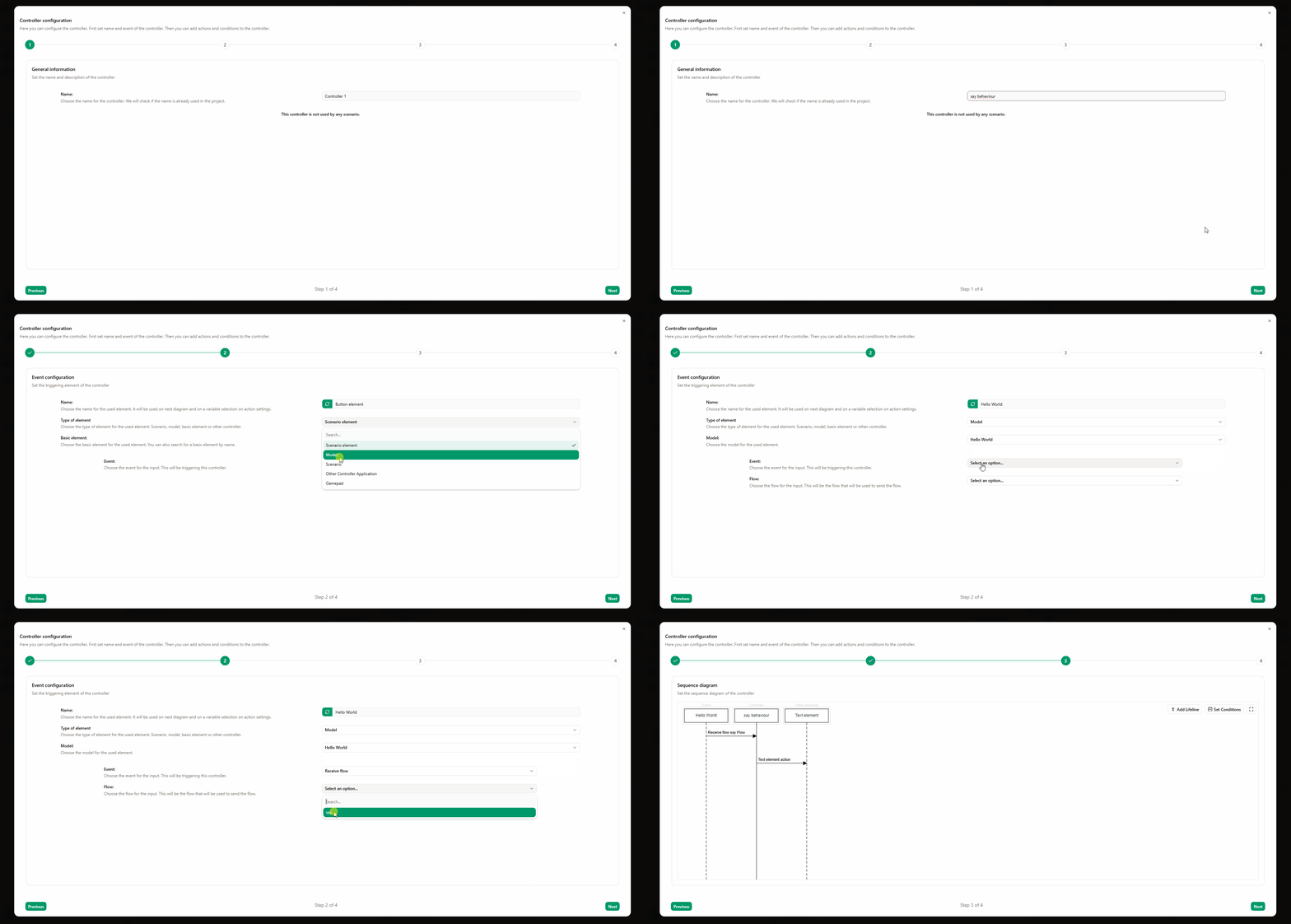
- On the sequence diagram, the text element lifeline and an action are already present. To show the received message: click the icon to edit the action.
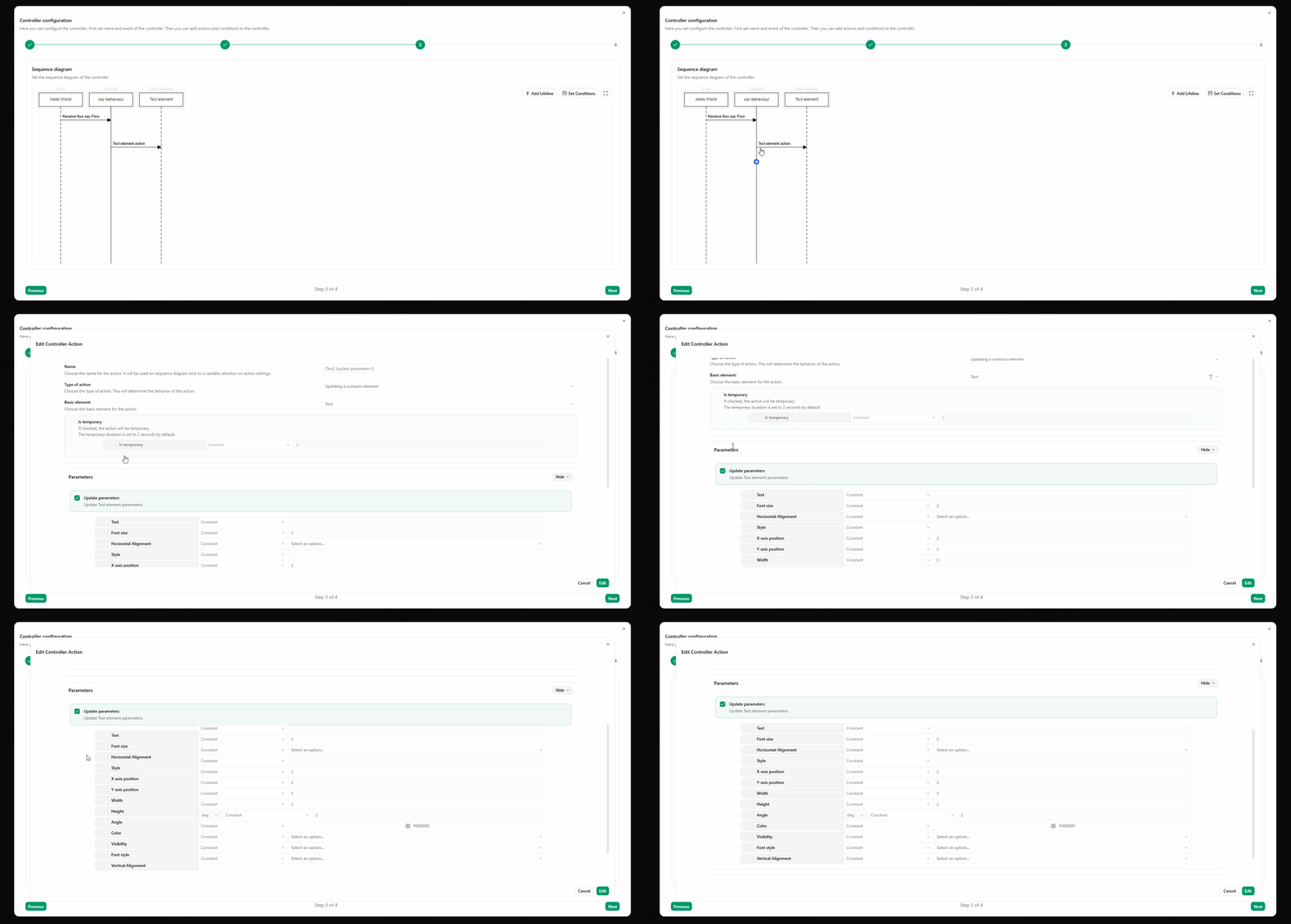
- In the window that appears, choose the parameter to update. To show the message from the flow "say": select the Text parameter, set variable type, then select "Hello World say" and the message parameter. Click Edit, then Next, then Save.
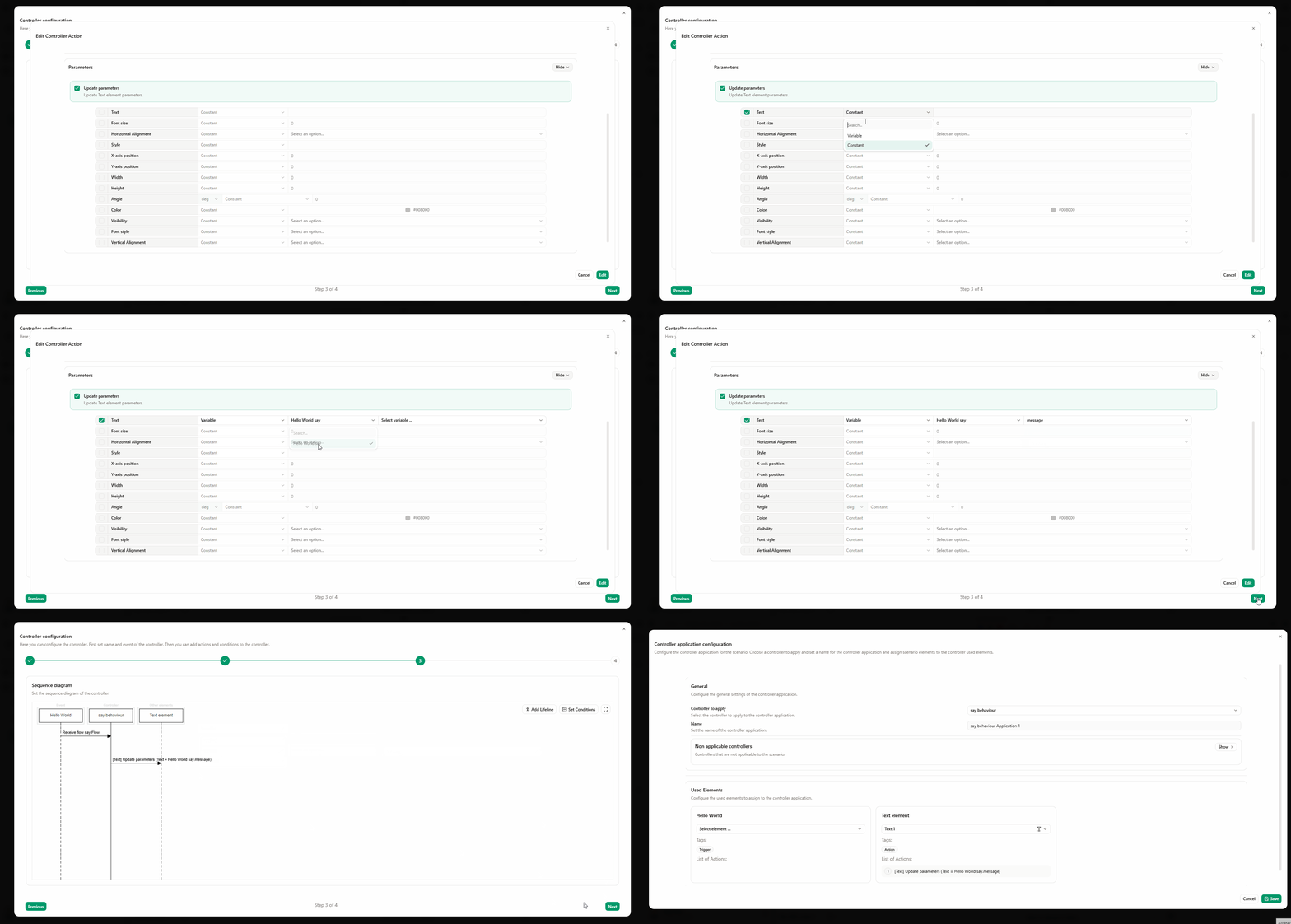
- Apply the controller by selecting the model instance that will send the flow. Select "Hello World" and click Save.
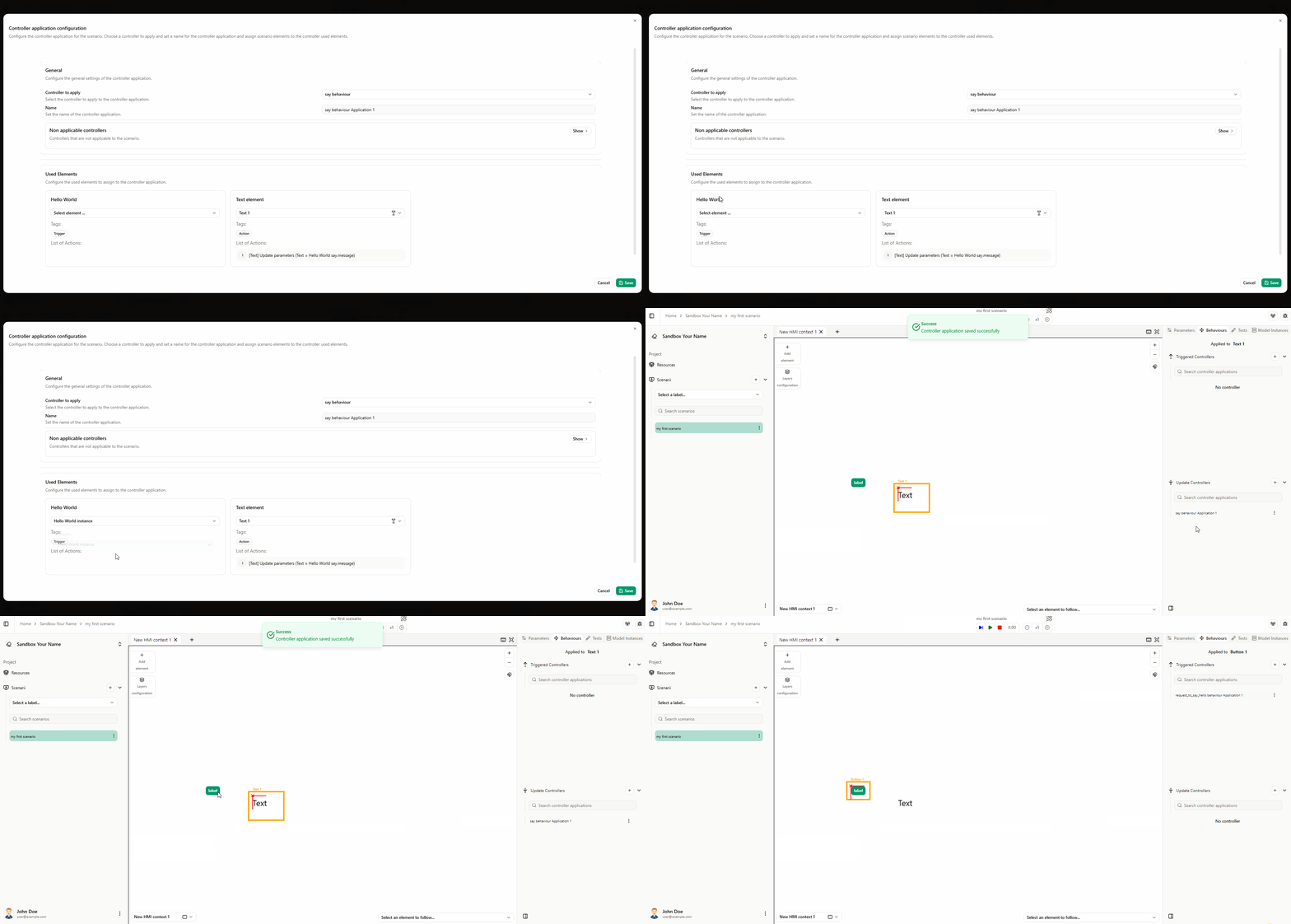
The behaviour is now applied to the text element.
Run scenario
- Papyrus & Rhapsody
- Catia Magic
Action: Run the configured simulation scenario and analyze the results to evaluate the system's performance.
Explanation: Executing the simulation gives you a direct view of how the system operates in a controlled environment. By analyzing the results, you can identify strengths and weaknesses, adjust parameters to optimize performance, and validate that the system meets the needs identified in the initial modeling stages.
You will now run your scenario and see your Hello message.
If you did not set the model executable path in the project resources, see the Add Model & Import Types and Flows section.
Steps
- Start the Launcher.
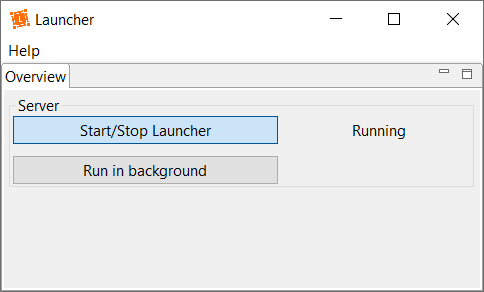
- Connect to the Launcher. In the top-right corner, open the menu and select Launcher. The badge next to the menu shows the connection status: a red badge means the connection is not established; a green badge means it is connected.
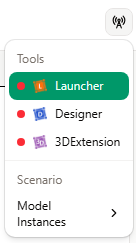
You can automatically connect to the Launcher on startup by enabling Automatic connection attempt with the launcher on startup in Preferences.
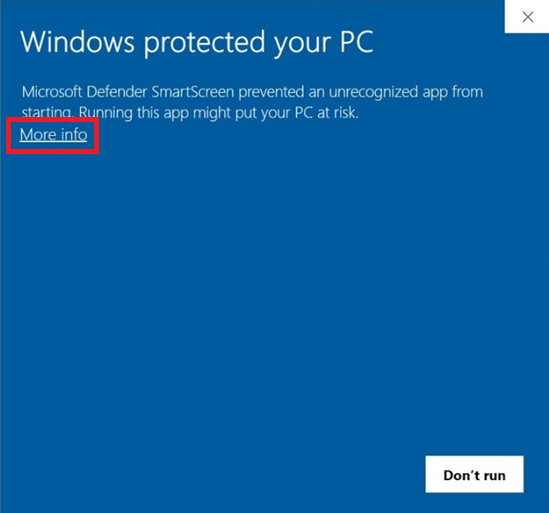
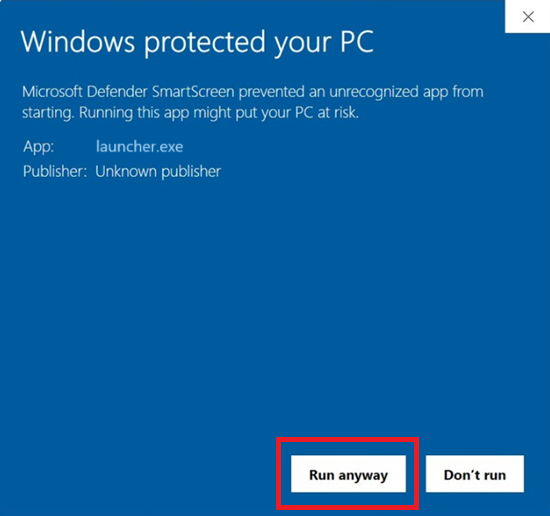
The first time you run your model executable, Windows may block it. To allow it to run now and in the future: when the SmartScreen popup appears, click More info, then click Run anyway.
-
Start the simulation. Click the Play button. All open environment windows will be brought to the foreground.
-
Verify the result. Click the button element in the environment and confirm that your Hello message appears.
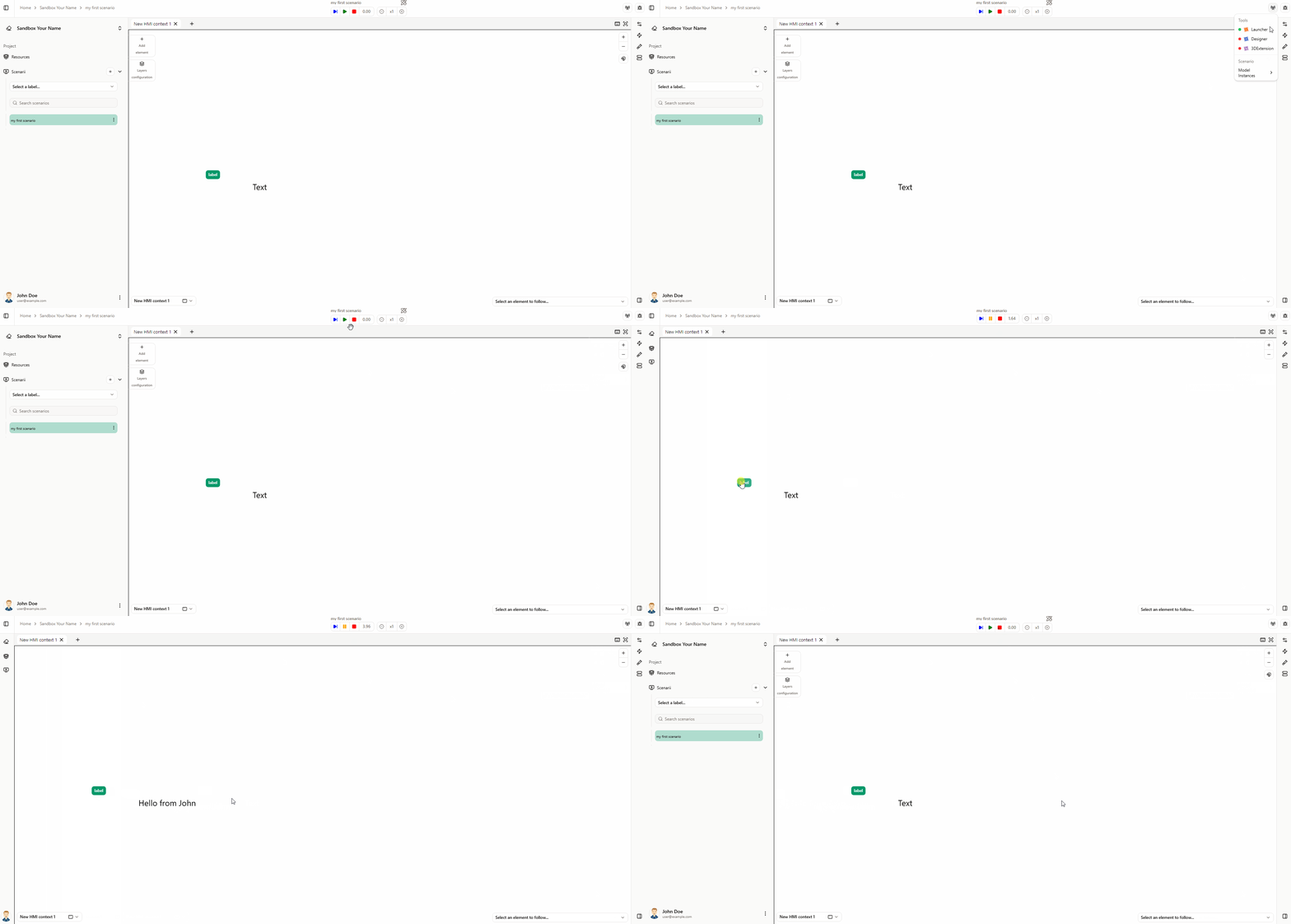
Action: Run the configured simulation scenario and analyze the results to evaluate the system's performance.
Explanation: Executing the simulation gives you a direct view of how the system operates in a controlled environment. By analyzing the results, you can identify strengths and weaknesses, adjust parameters to optimize performance, and validate that the system meets the needs identified in the initial modeling stages.
You will now run your scenario and see your Hello message.
Steps
- Initialize the simulation in CATIA Magic.
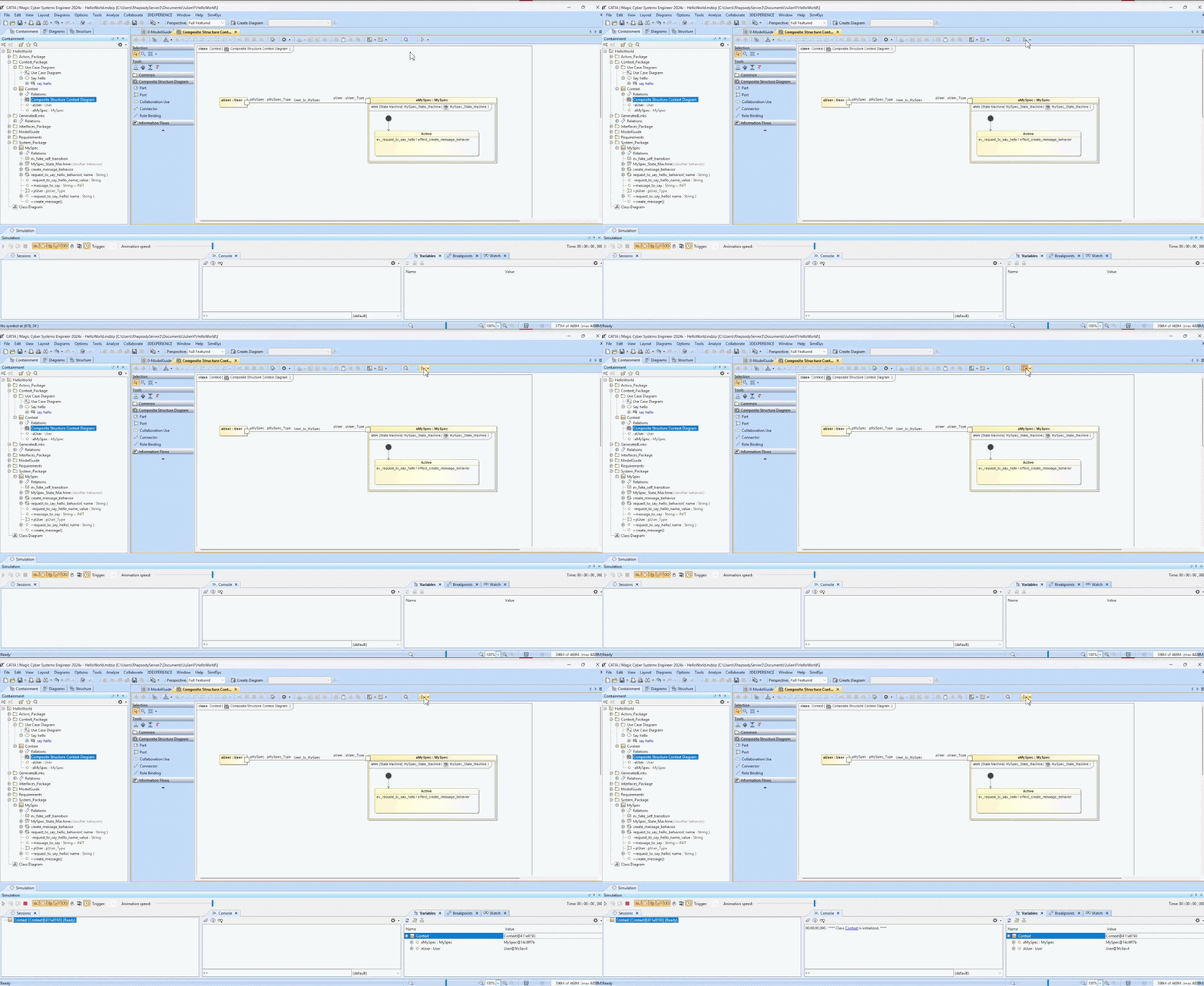
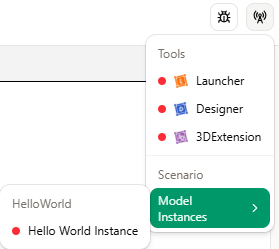
- Connect Catia Magic and Virtual Bench. In the top-right corner, open the menu and select Model Instances then click on Hello World instance. The badge next to the menu shows the connection status: a red badge means the connection is not established; a green badge means it is connected.
-
Start the simulation. First, run the simulation in Catia Magic, then click the Play button In Virtual Bench.
-
Verify the result. Click the button element in the environment and confirm that your Hello message appears.
Next Steps: Refinement Based on Visualization Feedback
Refine your model continuously using insights from the visualization. This keeps the system effective and adaptable. Using data and feedback to improve the model increases its long-term value and helps it meet evolving requirements.