Actions
You can trigger one or multiple actions to modify elements such as scenario elements, groups ...
An action effect can be permanent or temporary. You can choose how long the action will last before the value of the affected element returns to its previous value. :

Available actions
Scenario elements
When adding an action to a scenario element, you can update its parameters or trigger some behaviors. To see the detailed list of updatable parameters and triggers for a specific element, please see its corresponding documentation page.
Model
You can send flows to a model. If the flow has parameters, you will be able to specify the parameter to send. When an action is created towards a model lifeline, a popup will list all the available flows that can be sent to a model.
Usage example: A press of a button can be used to send an activation flow to the model.
Scenario
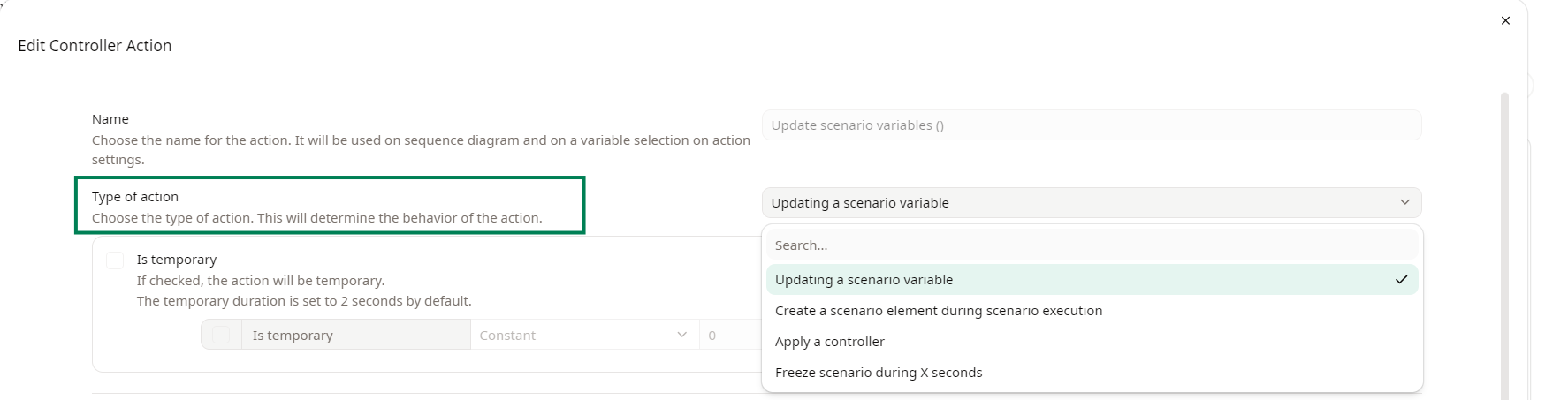
Scenario actions allow you to :
- Update a scenario variable
- Create a scenario element during scenario execution
- Apply a controller
- Freeze the scenario during X seconds
You can change the type of action for the scenario lifeline here :
Updating a scenario variable
The action Updating a scenario variable has the following parameters that you can use :
- Date
- Hour
- Weather
- Background
- Speed Factor
Create a scenario element during scenario execution

You can use this action to create a scenario element in the environment of your choice. Then, choose which scenario element will be created by this action.
Apply a controller
Use this type of action to apply a specific existing controller.
Freeze scenario during X seconds
You can set how many seconds the scenario will freeze for.
Usage example: If you have multiple texts that are updated with a high frequency, you can freeze the scenario in order to have the time to read the content of the texts.
Freezing is not the same as a wait action, in the case of freezing, the scenario execution will stop temporarily during the defined period.
Group
Group actions allows you to update the the following parameters of a group of scenario elements :
- Visibility
- Offset position X
- Offset position Y
Usage example: This is useful if you want to change the position of an entire group or hide/show the group during the scenario execution.
Wait for a given number of seconds
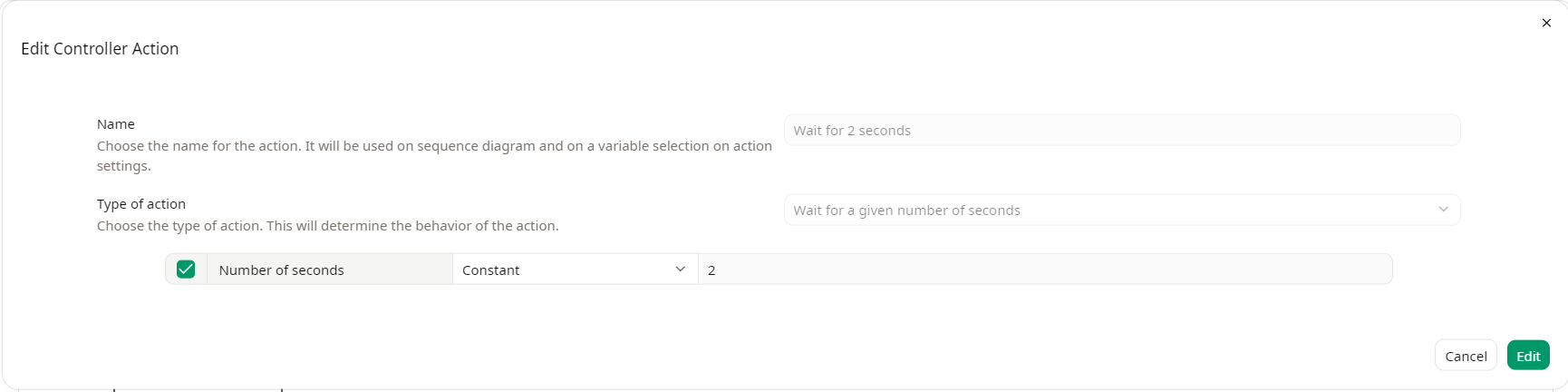
You can set a pause between action by using the Wait action. This will not freeze the scenario execution.

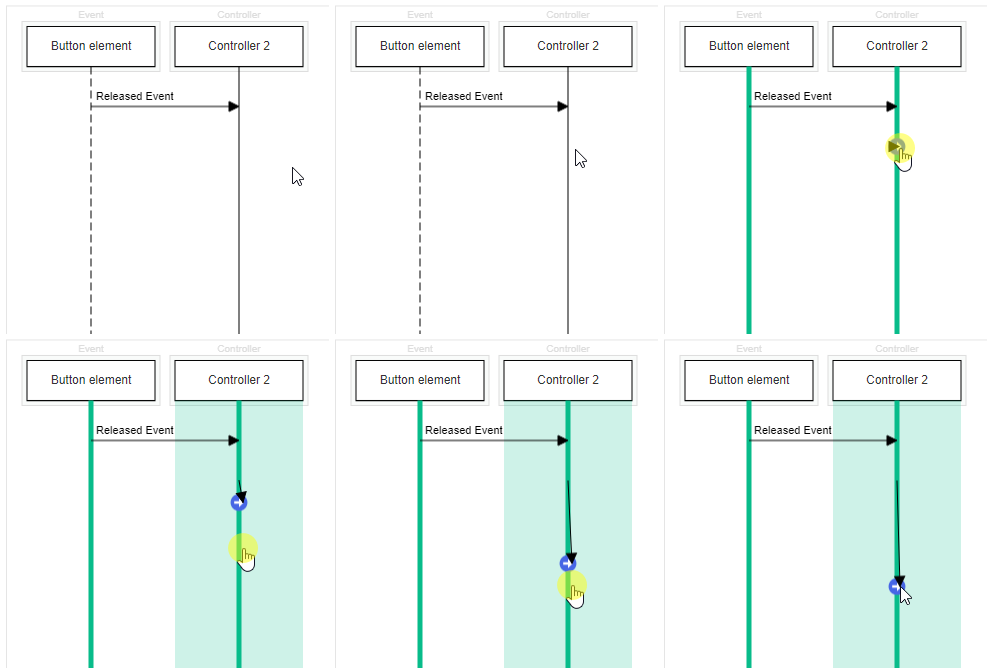
In order to add a Wait, drag & drop the Controller lifeline on itself :
A pop-up will open and let you choose a time for the wait :
Usage example: you can use a wait for example to update the value of a text then X seconds after clear or update the text value.