Model Instances
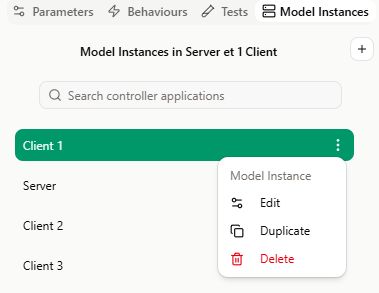
Model Instances define each instances of the models used in a scenario and enable the connection between Virtual Bench and those models. They are managed from the Model Instances tab, located next to the Parameters, Behaviours, and Tests tabs in the scenario side view.
The list shows all model instances in the current scenario. The search field lets you filter instances by name. Each row has a Menu giving access to Edit, Duplicate, and Delete.
Add a model instance
To create a new model instance, click the Button to the right of the section title.
The configuration dialog opens. An instance is created with a suggested name ("WS model name") and a suggested port number. You must then save the configuration to confirm creation.
Each model instance must use a distinct port. Virtual Bench suggests an available port by default.
Configure a model instance
From an instance’s Menu, choose Edit. The Model Instance configuration dialog opens.
Configuration is organized in three tabs.
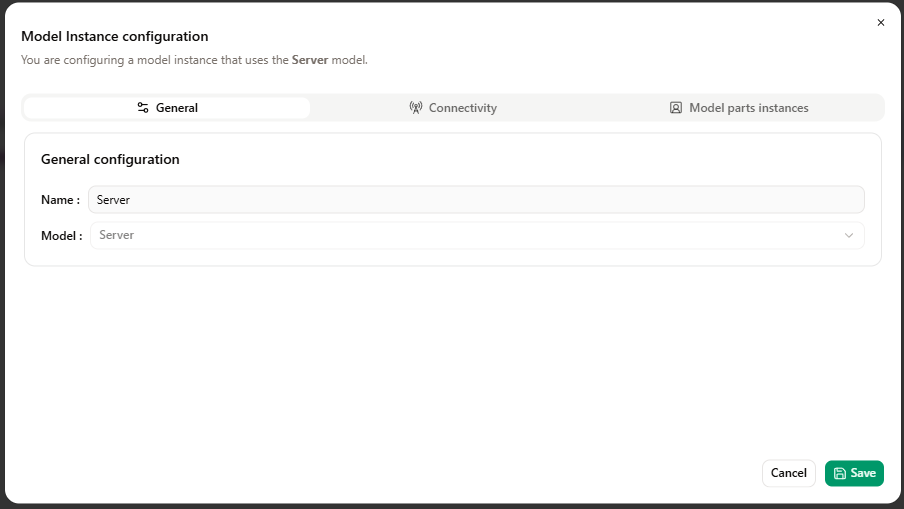
General tab
- Name: Name of the model instance.
- Model: Choose of the model to instantiate. This field is not editable if the instance is already saved in the scenario.
Connectivity tab
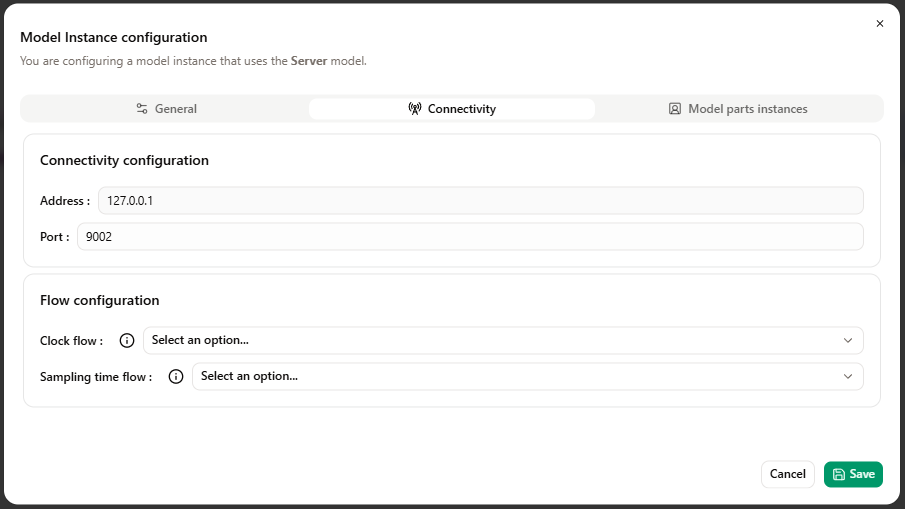
Connectivity configuration
- Address: IP address (e.g. 127.0.0.1 for localhost). This allows the model to run on a different machine from the one where Virtual Bench is displayed.
- Port: Port number of the websocket used for this model instance.
Flow configuration
- Clock flow: Flow sent at each Virtual Bench iteration. This flow must not contain any parameters.
- Sampling time flow: Flow sent at the start of scenario execution. It must have only one parameter, integer or decimal, conveying the sampling time value.
Available flows are those imported in the project for the model associated with the instance.
Model parts instances tab
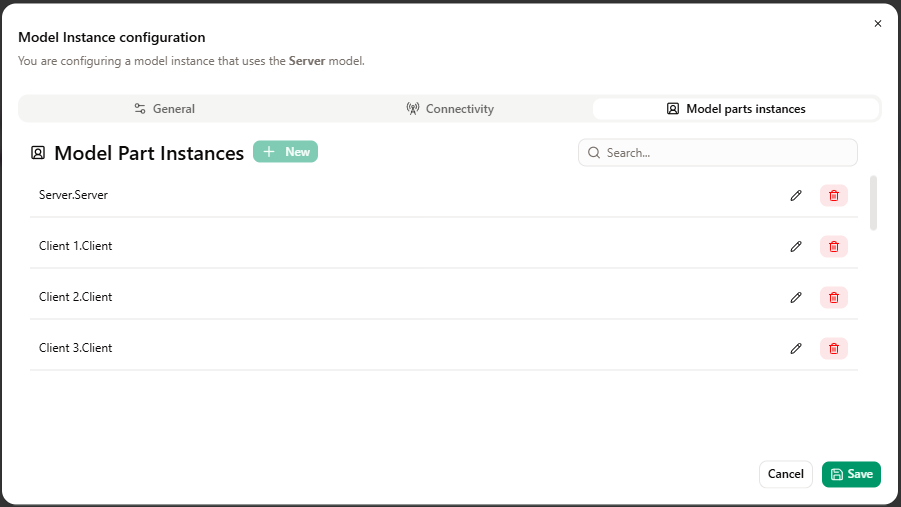
This tab shows the Model Part Instances in this model instance. Click on New button to add a model part instance.
Detailed management (creation, editing, parameters) is described in the Model part instances configuration section below.
Model part instances configuration
Before adding model part instances, ensure you have defined model parts in the model (see Model Part).
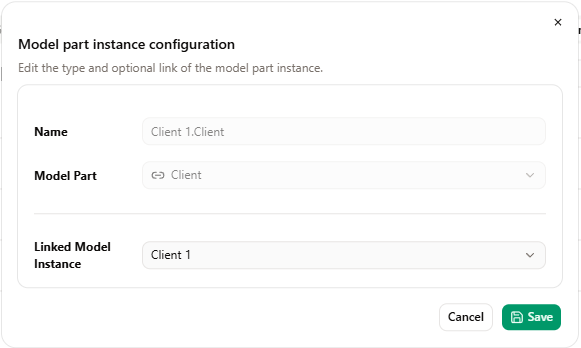
From the Model parts instances tab of a model instance’s configuration, click New to create a new model part instance. To edit an existing entry, use the edit action on the relevant row. The Model part instance configuration.
Available fields:
- Name: Unique identifier of the model part instance (auto-generated). This field is read-only.
- Model Part: Model part this instance is derived from (selection from the model parts list of the associated model).
Depending on the selected model part type:
- If the type is Other Model: The Linked Model Instance field appears. You can choose which model instance to link this part to.
- If the type is External: The Instance Name field appears. You can enter a custom name for the instance.
Duplicate a model instance
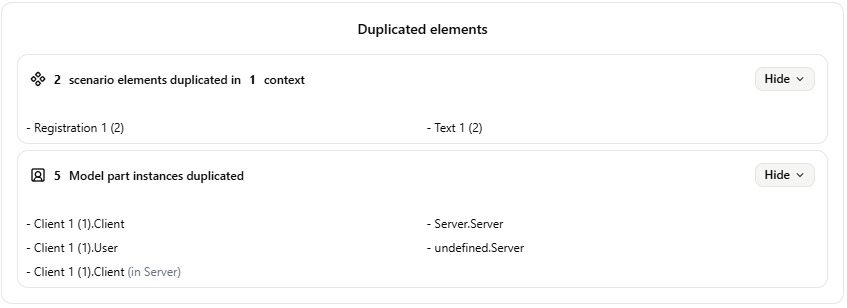
From an instance’s Menu, choose Duplicate. Virtual Bench computes the elements to be duplicated, then opens the Duplicate Model Instance dialog.
Duplicated elements summarize what is duplicated, for example:
- The number of scenario elements duplicated and the number of contexts involved, with the list of element names.
- The number of model part instances duplicated, with the list of their names.
Duplication settings:
- Model instance name: Name of the new model instance. You can change it.
- Change scenario element name: Toggle to enable renaming scenario elements during duplication.
- When enabled, the following fields appear:
- Replace element name part: The part of the name to replace (text or pattern).
- By: Replacement text.
- Elements to rename: List of the duplicated elements to choose which elements to rename.
- When enabled, the following fields appear:
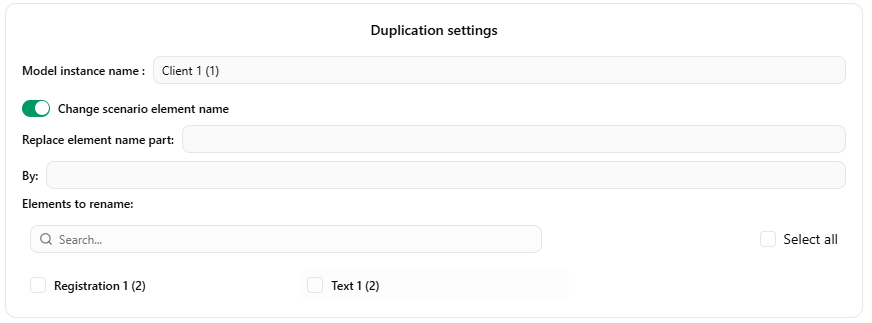
Clicking Save applies the duplication and scenario elements and model part instances are duplicated according to the chosen settings.
Delete a model instance
From an instance’s Menu, choose Delete.
- If the instance is not used by any controller application, a confirmation dialog appears to confirm deletion. After confirmation, the instance is removed.
- If the instance is used by one or more controller applications, a warning appears stating that it cannot be deleted and listing the controller applications. You must first stop using this instance in those applications before you can delete it.