Test Criteria Application
Test criteria applications let you check specific values and states during scenario visualization. You can manage them from two places: the right lateral view (tab Tests) or the Timeline (line Testcriteria applications).
Via the Tests tab
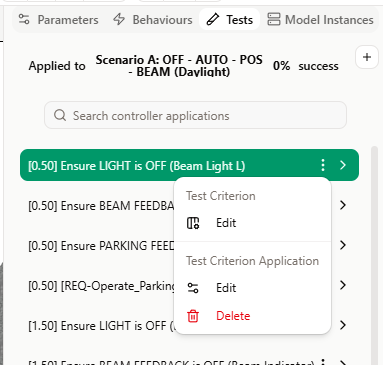
Open the right lateral panel and select the Tests tab. The panel shows all test criteria applications for the current scenario or the selected element.
- Applied to indicates the scenario name or scenario element name and the overall success rate.
- Use the + button to add a new test criterion application.
- Use Search controller applications to filter the list.
The list shows each application with its time, the criterion label, a menu and an arrow to expand. When you expand an item, you see:
- Tested: the element or state being checked
- Expected: the expected value or state
- Final: the result after execution (empty until the scenario has been run)
From the list you can:
- Open the menu on an application:
- Test Criterion > Edit — edit the criterion definition.
- Test Criterion Application > Edit — edit when and to which elements this application applies.
- Test Criterion Application > Delete — remove this application from the scenario.
Via the Timeline
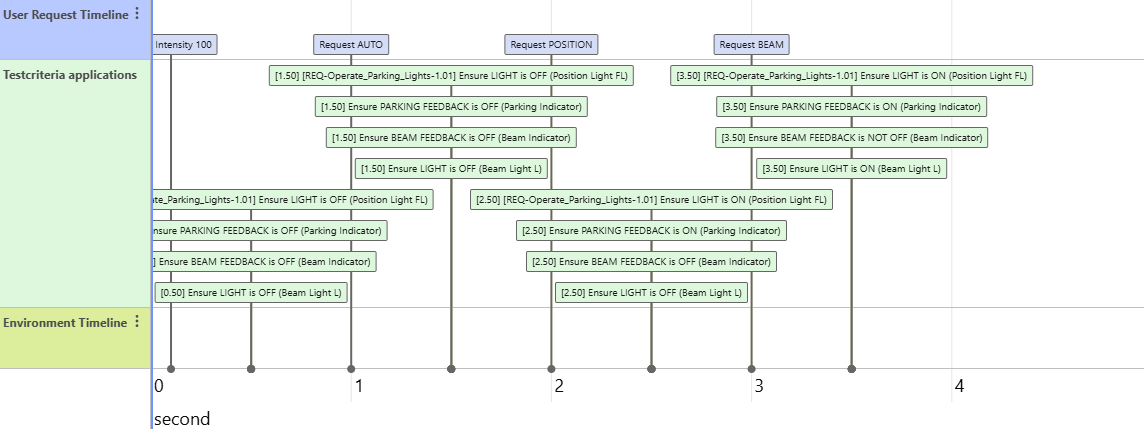
In the Timeline, find the Testcriteria applications track. Each application appears as a block at a given time.
- Add an application: double-click on the Testcriteria applications line. The Create or reuse test criterion dialog opens; after choosing or creating a criterion, you configure the application.
- Edit an application: double-click on an existing block on the Testcriteria applications track to open the application editing dialog.
Create or reuse a test criterion
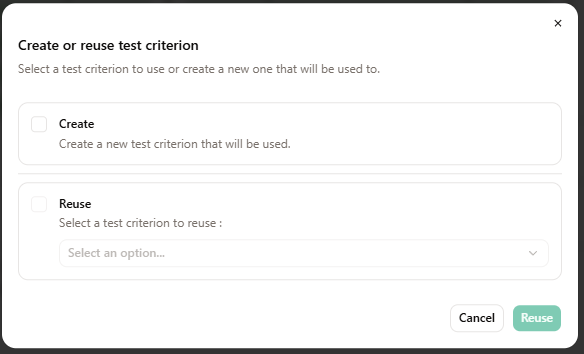
When adding a new test criterion application (from the Tests tab or the Timeline), the Create or reuse test criterion dialog appears.
- Create — define a new test criterion. After saving, you then configure the application.
- Reuse — select an existing criterion in the dropdown. You can use the Search... field to filter the list. Then confirm with Reuse.
After choosing Create or Reuse, the Apply a Test Criterion dialog opens to set the application type, time, and elements.
Edit a test criterion
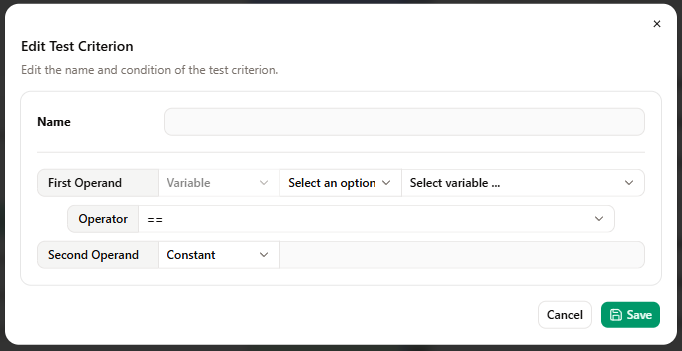
The Edit Test Criterion dialog lets you change the criterion itself (not the application in the scenario). You can open it from the context menu: Test Criterion > Edit.
- Name — label of the criterion.
- Condition — first operand, Operator, and second operand. Use the dropdowns to choose the variable or constant value.
** note if a test criterion is applied in a scenario, only the constants can be changed, not the variables. **
Save with Save or close without saving with Cancel.
Apply or configure an application
The Apply a Test Criterion dialog configures when the criterion is run and which elements it applies to.
General configuration
- Test Criterion — the criterion to apply.
- Application Type — Instant (at a given time), Interval (over a period), or Continuous (for the whole scenario).
- Triggered at — for Instant type, the time in seconds. For interval, you set Start time and Duration.
Elements configuration
- Select element — choose the scenario elements that the criterion tests. Some criteria compare two operands; you can then select the first and second element.
Use Save to apply and Cancel to close without saving.