Styles
This page explains how to create and configure reusable CSS styles at the project level, and apply it in a scenario.
Cascading Style Sheets
If you find yourself frequently using a particular style or wish to preserve a style for future use, you have the option to save your CSS (Cascading Style Sheets) within the system for later retrieval.
To save a new CSS style, click on the “+ New” button  , and the following pop-up will appear:
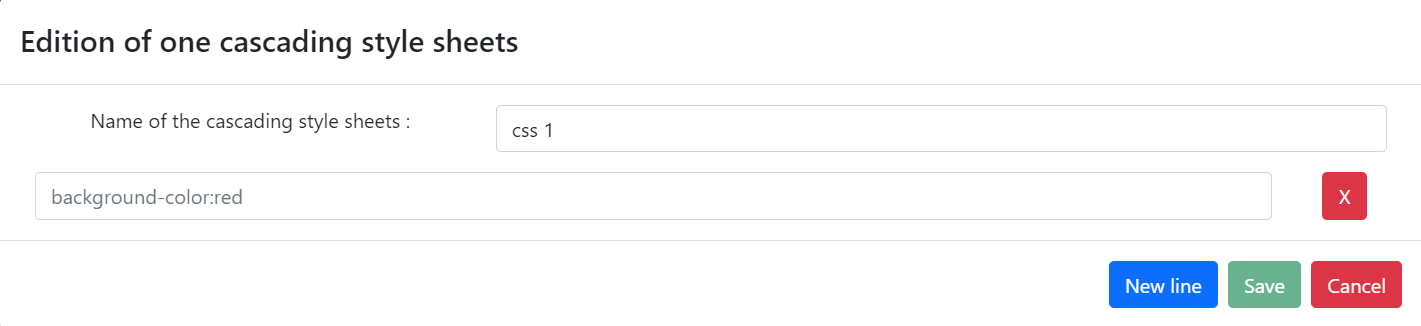
When naming your CSS, ensure it is distinctive to avoid duplicates.
You can choose which type of scenario elements this style applies to. Note that only a limited set of scenario elements can be styled with CSS.
Write your CSS code in the editor. You can preview the result below.
Learn more about CSS in the MDN documentation.
Example:
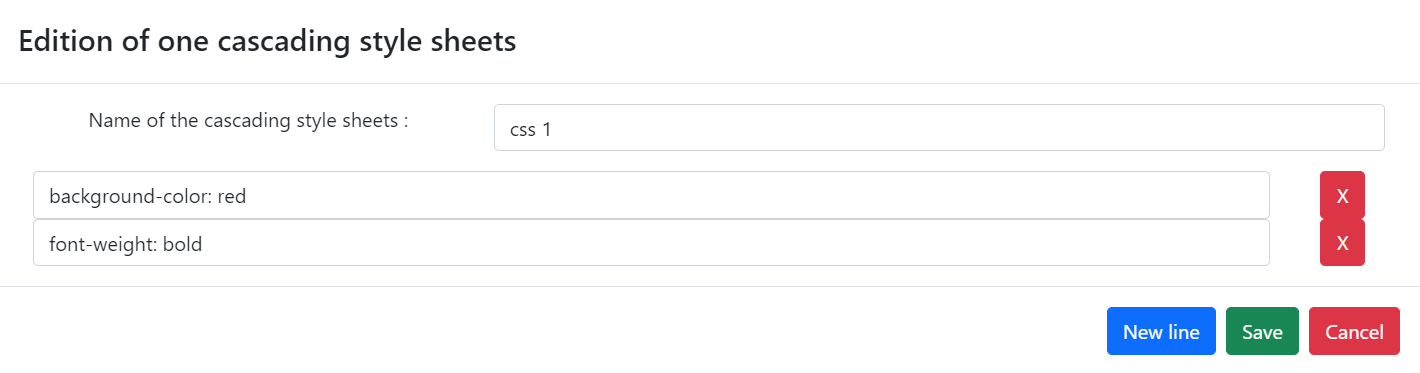
Some properties are already set by scenario element parameters (e.g., background-color for the Background element). Don't forget to add the "!important" flag if you need to override them. When applicable, you will see this message:

More information about this flag is available on the MDN documentation
After customizing your CSS, click "Save" to store it. Your saved styles will appear in the CSS list in the Styles tab:
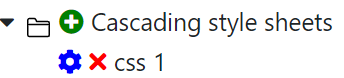
Styles are specific to a scenario element type, they can be accessed and used across the project. For example, a class defined for buttons can be used on each button of the project, but not on other types of scenario elements.
To modify an existing CSS style, click on (edit icon) on the right side of the modal.
To delete a CSS style, click on (delete icon).
Be mindful that changes to a CSS will apply retroactively to elements that were using its previous iteration.
Application to an element
In this illustration, we'll demonstrate how to apply a pre-saved style to a button within a scenario.
To use a previously saved CSS, click on in the Display Parameters section of the selected button.
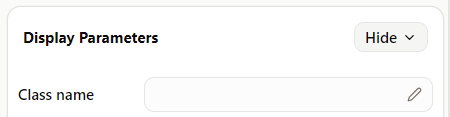
In the modal that opens, you will be prompted to choose a CSS style:
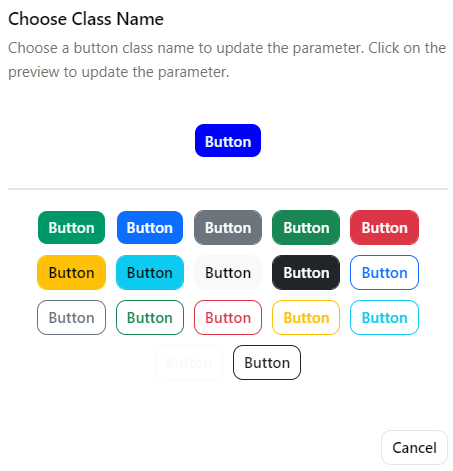
When you click the CSS class you want to apply to the selected button, the Class name field will be automatically populated.
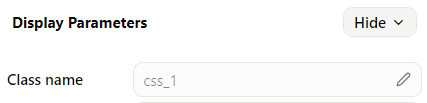
Here's an example with "css_1":
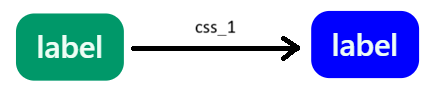
If you want to fine-tune the style of the selected scenario element, you can use the Style field.
This process provides a flexible and efficient way to apply consistent styling across different elements of your scenario without altering the base styles stored within your project's CSS library.